Connect 7 - Tablet Visual Land - Ingyenes használati útmutató
Találja meg az eszköz kézikönyvét ingyenesen Connect 7 Visual Land PDF formátumban.


Felhasználói kérdések a következőről Connect 7 Visual Land
0 kérdés erről a készülékről. Válaszolj azokra, amiket ismersz, vagy tedd fel a sajátod.
Tegyél fel egy új kérdést erről a készülékről
Töltse le az útmutatót a következőhöz Tablet PDF formátumban ingyenesen! Találja meg kézikönyvét Connect 7 - Visual Land és vegye vissza elektronikus eszközét a kezébe. Ezen az oldalon közzé van téve az eszköze használatához szükséges összes dokumentum. Connect 7 márka Visual Land.
HASZNÁLATI ÚTMUTATÓ Connect 7 Visual Land
CONNECT

VISUAL LAND
Bring the World Home
MOBILE INTERNET DEVICE
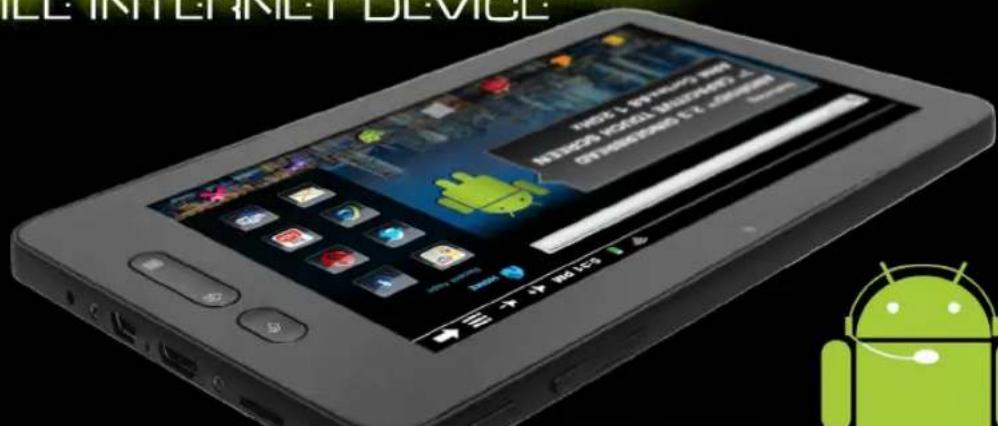
USER'S MANUAL
natural_image
Green Android robot logo on black background (no text or symbols)
VISUAL LAND
Bring the World Home
CONNECT Mobile Internet Device - User's Manual
TABLE OF CONTENTS
GETTING STARTED
Understanding This User Manual....2
Battery....3
Battery Indicator....3
Charging the Battery....3
Turning Your Device On and Off....4
Memory Card....5
Securing Your Device....5
UNDERSTANDING YOUR DEVICE
Package Contents....7
Key Features....7
The Device....8
Navigating Your Device....9
Status Bar....11
Home Screen....12
Entering Text....14
CONNECTIONS
Wi-Fi....15
USB Connection....16
HEALTH AND SAFETY INFORMATION
Battery Use & Safety....17
Display/Touch Screen....18
Responsible Listening....18
FCC Compliance 19
SECTION 1: Getting Started
1.1 :: Understanding This User Manual
The sections of this manual generally follow the features of your device. This manual gives navigation instructions according to the default display settings. If you select other settings, navigation steps may be different. Unless otherwise specified, all instructions in this manual assume that you are starting from a Home screen.
Note: Instructions in this manual are based on default settings, and may vary from your device, depending on the software version on your device, and any changes to the device's Settings. Unless stated otherwise, instructions in this User Manual start with the device unlocked, at the Home screen. All screen images in this manual are simulated. Actual displays may vary, depending on the software version of your device and any changes to the device's settings.
-> Arrows represent the sequence of selecting successive options in longer, or repetitive, procedures. For example: "From a Home screen, press the Menu Key -> Settings -> Wireless and Network -> Wi-Fi Settings."

VISUAL LAND Bring the World Home
CONNECT Mobile Internet Device - User's Manual
1.2 :: Battery
Your device is powered by a rechargeable, standard Li-ion battery. A charger has been included to charge your device. The device can also be charged by connecting the device to a PC with the included USB cable as well. However, charging via USB takes longer than using the included charger.
Note: The battery comes partially charged. You must fully charge the battery before using your device for the first time. After the first charge, you can use the device while charging.
1.3 :: Battery Indicator
In the status bar at the top of the screen, there is a battery icon which shows the battery power level. When battery power is 15% or less, your device will prompt you to charge the battery. If you continue to operate the device without charging, the device will power off.
1.4 :: Charging the Battery
Connect the included charger to your device and plug the charging head into a standard AC power outlet. Or connect your device to a PC (make sure the PC is powered on) with the included USB cable. Your device should show a battery indicator on the screen

VISUAL LAND Bring the World Home
CONNECT Mobile Internet Device - User's Manual
showing the unit is charging. Once charging is complete, unplug the charging head from the power outlet or unplug the USB cable from the PC and remove the cable from the device.
Important: Do not leave your battery charging for more than one week. Doing so runs the risk of overcharging the battery and shortening its total life span. If the device is not used for an extended period of time, the battery will slowly discharge and the device will need to be recharged before using again. Unplug the charger from the wall when it is not being used. Use only a Visual Land battery in the device and a Visual Land charger to charge your device.
1.5 :: Turning Your Device On and Off
To power on the device, press and hold the Power Key located at the top of the device for 2-3 seconds. The loading screen will appear and it will take about a minute to load up to the Home screen.
To power off your device, press and hold the Power Key located at the top of the device for 2-3 seconds. At the prompt, select the "Power Off" option, and then confirm that you wish to power off the device. The device will take a couple seconds to fully power off.

VISUAL LAND
Bring the World Home
CONNECT Mobile Internet Device - User's Manual
1.6 :: Memory Card
Your device supports removable MicroSD and MicroSDHC memory cards (up to 32GB) for storage of music, pictures, videos and other files.
To load a memory card into the device, with the gold contacts facing down, carefully slide the memory card into the slot, pushing gently until it clicks in place. The status bar should show an icon and display a message "Preparing SD Card".
To remove the memory card, from the Home screen, press the Menu Key -> Settings -> SD Card and Device Storage -> Unmount SD card. The status bar will indicate that the card is now ready to be removed. Gently press down on the memory card, so that it pops out from the slot, and carefully remove pull the card out.
1.7 :: Securing Your Device
By default, the device locks automatically when the screen times out, or you can lock it manually. To lock it manually, press the Power key located at the top of the device. To unlock the device, press the Power key, then touch and drag the Unlock icon from the bottom of the screen to the top.

VISUAL LAND Bring the World Home
CONNECT Mobile Internet Device - User's Manual
Note: For added security you can set up a pattern, PIN or password lock. To do this, from the Home screen, press the Menu Key -> Settings -> Location & Security Settings -> Set up screen lock.
IMPORTANT: You must remember your pattern, PIN or password you set. If you forget it, there is no way of retrieving or resetting it.

VISUAL LAND
Bring the World Home
CONNECT Mobile Internet Device - User's Manual
SECTION 2: Understanding Your Device
2.1 :: Package Contents
• Visual Land Connect 7" Internet Tablet
- Power Supply
- USB cable
- Headphones
• This User Manual
2.2 :: Key Features
- Android 2.3 Operating System
- 7" 5 Point Multi-touch Capacitive Screen (800x480)
• ARM Cortex A8 1.2GHz Processor - 8GB Internal Memory with MicroSDHC expandable card slot (up to 32GB)
• 802.11b/g/n Wi-Fi - Front Facing Camera (Still / Video / Webcam)
- Internal Rechargeable Li-ion Battery
• HD Video Player supporting H.263, H.264, MPEG4, 3GP and WMV (v9) formats
• Music Player supporting WAV, MP3, AAC, AAC+ and WMA (v9/10) formats
• Picture Gallery supporting JPEG, PNG, GIF and BMP formats

VISUAL LAND
Bring the World Home
CONNECT Mobile Internet Device - User's Manual
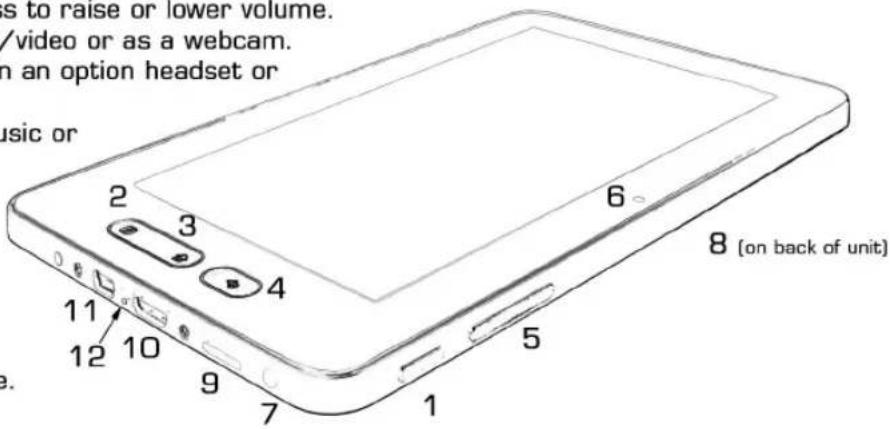
2.3 :: The Device
-
Power Key: Press and hold to power device on/off. Press to lock device or to wake screen for unlocking.
-
Menu Key: Press to display options for the current screen.
-
Home Key: Press to go to the Home screen.
-
Back Key: Press to return to previous screen or option.
-
Volume Up/Down Keys: Press to raise or lower volume.
-
Camera: Used for taking still/video or as a webcam.
-
3.5mm Headset Jack: Plug in an option headset or TTY equipment.
-
External Speaker: Used in music or video playback.
-
Memory Card Slot: Install a memory card for storage of files.
-
DC-IN: 5V/2A
-
Mini USB Port: Connect your device to a PC.
-
Reset Key: Reset the device.

VISUAL LAND Bring the World Home
CONNECT Mobile Internet Device - User's Manual
2.4 ::Navigating Your Device
Use command keys and the touch screen to navigate.
Command Keys
-
Menu Key Press the Menu Key to display options for the current screen or feature.
-
Home Key Press the Home Key to display the Home screen.
-
Back Key Press the Back Key to return to the previous screen, option or step.
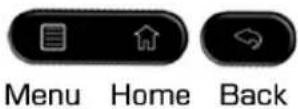
You can navigate using the physical buttons on the side of the unit or from the status bar at the top of the screen.
Physical Buttons
Status Bar


VISUAL LAND Bring the World Home
CONNECT Mobile Internet Device - User's Manual
Finger Gestures - Touch items to select or launch them. For example:
- Touch the on screen keyboard to enter characters or text.
- Touch a menu item to select it.
- Touch an application's icon to launch the application.
Touch and Hold - Activate onscreen items. For example:
- Touch and hold a widget on the home screen to move it.
- Touch and hold on a field to display a pop-up menu of options.
Swipe or Drag
- Swipe your finger across the screen to scroll up or down or left or right.
- Touch and hold on an object and drag it across the screen to move it.
Warning: The touch screen responds best to a light touch from the pad of your finger. Using excessive force or hard objects when pressing on the touch screen may damage the tempered glass surface and void the warranty.

VISUAL LAND
Bring the World Home
CONNECT Mobile Internet Device - User's Manual
2.5 :: Status Bar
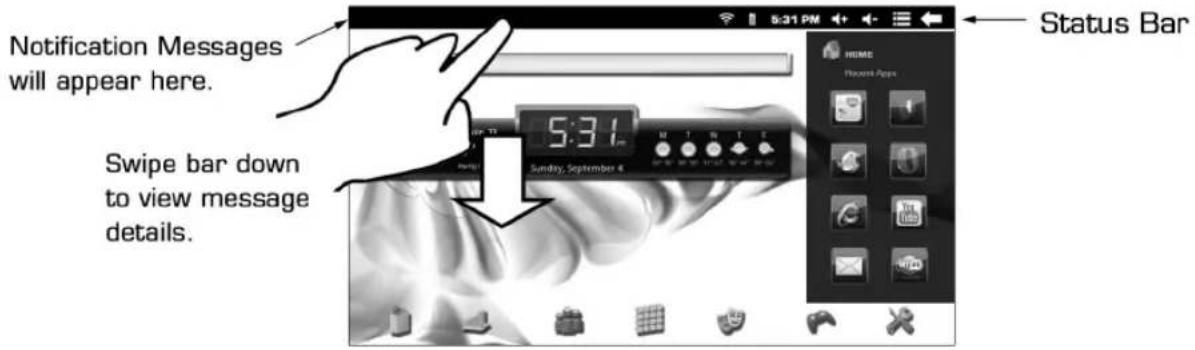
The Status Bar at the top of the screen contains several indicators concerning the status of your device. The right side of the status bar displays the clock, Wi-Fi status, battery status, Alarm set and USB connection status. Messages will appear on the left side of the status bar indicating changes to your device, such as a memory card being inserted, new mail in your inbox or updates available for your apps. To learn more about these alerts, touch and drag the status bar down and it will bring up the Notification panel showing more detailed status messages. To clear these notifications, either touch a notification to clear it or touch the "Clear" button to clear all notifications.

VISUAL LAND
Bring the World Home
CONNECT Mobile Internet Device - User's Manual
2.6 :: Home Screen
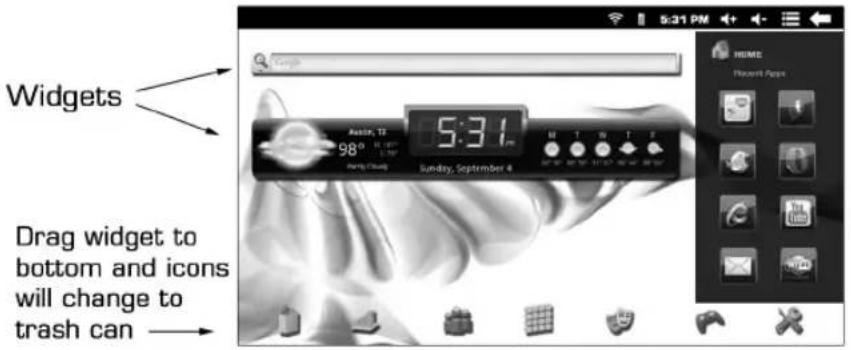
The Home screen is the starting point for using your device. Unless stated otherwise, instructions in this User Manual start at this screen. The Home screen has 7 panels which you can navigate between by swiping either left or right. Or you can tap on the icons at the bottom to switch between the screens. The "All Apps" icon will indicate which panel you are currently on. You can tap on this icon to bring up all apps installed on your unit. These panels can be customized by adding widgets or shortcuts (to apps or folders). Widgets are applications that run on the Home screen. Your screen panels have a set size and each widget varies in size, so the number of widgets and shortcuts you can place on each panel may vary depending on which widgets you choose to use.
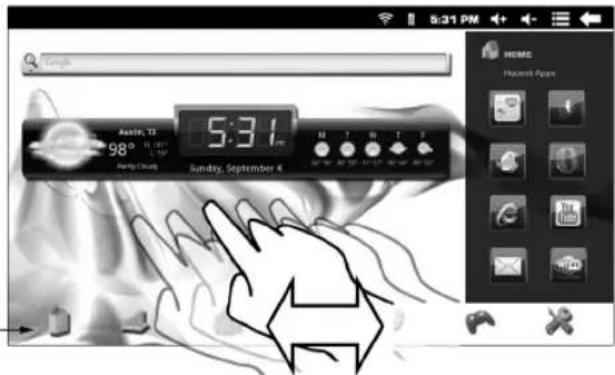

"All Apps" Icon
Swipe screens to navigate between them
Navigate panels with menu icons

VISUAL LAND Bring the World Home
CONNECT Mobile Internet Device - User's Manual
To add widgets or shortcuts to a Home screen panel, from the Home screen press the Menu key -> Add -> and then select one of the options. From this menu you can also change the wallpaper of your home screen.
To remove widgets or shortcuts, press and hold the shortcut or widget you wish to remove. A trash can icon will appear at the bottom of the screen. Drag the shortcut or widget to the trash can and it will be removed from the screen.

VISUAL LAND Bring the World Home
CONNECT Mobile Internet Device - User's Manual
2.7 :: Entering Text
This section describes how to enter words, letters, punctuation and numbers when you need to enter text.
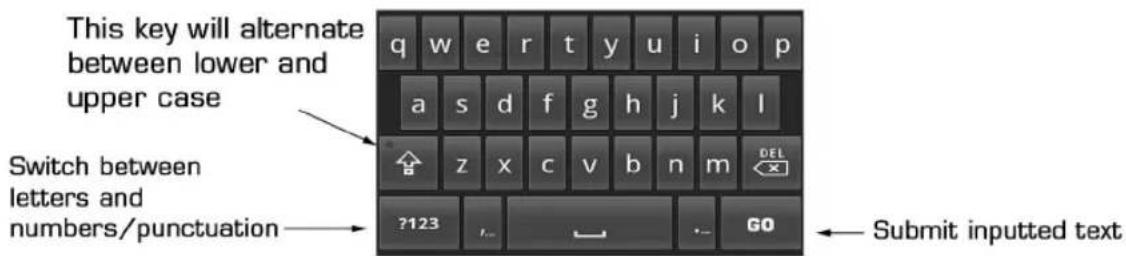
Your device uses a virtual QWERTY keyboard for text entry. Use the keyboard to enter letters, punctuation, numbers, and other characters into text entry fields or applications. Access the keyboard by touching any text entry field. The virtual QWERTY keyboard displays at the bottom of the screen.

VISUAL LAND Bring the World Home
CONNECT Mobile Internet Device - User's Manual
SECTION 3: Connections
3.1 :: Wi-Fi
Wi-Fi is a wireless networking technology that provides access to local area networks. Use your device's Wi-Fi feature to:
- Access the internet for browsing, or to send or receive e-mail.
- Access your corporate network.
- Use hotspots provided by hotels or airports while travelling. Wi-Fi communication requires access to an existing Wireless Access Point (WAP). WAPs can be Open (unsecured, as with most hotspots), or Secured (requiring you to provide login credentials). Your device supports the 802.11b/g/n Wi-Fi protocol.
Configuring Wi-Fi Settings- When you turn Wi-Fi service on, your device automatically searches for available, in range WAPs.
- From the Home screen, press the Menu button -> Settings -> Wireless & Networks
- Touch Wi-Fi to turn Wi-Fi On or Off.
- Your device will automatically try to connect to an available WAP, however if you wish to manually select a network or need to enter login credentials, select Add Wi-Fi Network:
a. Network SSID: Enter the name of the Wi-Fi Wireless Access Point

VISUAL LAND Bring the World Home
CONNECT Mobile Internet Device - User's Manual
b. Security: Select the type of security used by the WAP.
c. Password: If the WAP is secured, enter the password or hex key.
Note: Depending on the Security protocol used by the WAP, additional network information may be required.
d. Touch Save to save the settings.
3.2 :: USB Connection
A USB cable has been provided to connect the device to a computer to transfer files.
- From the Home screen, press the Menu key -> Settings -> Wireless and network -> USB settings, then select Mass Storage.
- Attach your device to the computer with the included USB cable. Your device recognizes the connection and displays USB connected in the Status Bar and Notification Panel.
- Display the Notifications Panel, then touch USB connected. At the USB Mass Storage prompt, touch Mount to enable copying of files between your computer and the memory card.
- At the prompt on the computer, select a transfer method:
Open the device to view files using Windows Explorer. Drag and drop files from the PC to the memory card installed in your device.
- Transfer files to the memory card or internal memory of the device. When finished touch Turn Off on the USB Mass Storage prompt, and disconnect the USB cable.
SECTION 4: Health & Safety Information
4.1 :: Battery Use & Safety
- The battery in the CONNECT is not intended to be replaced by the consumer. If you believe the battery is damaged or needs to be replaced, contact Visual Land customer support for inspection and replacement.
- Do not let the CONNECT or battery come in contact with liquids. Liquids can get into the CONNECT's circuits leading to corrosion. Even when the CONNECT appears to be dry and appears to operate normally, the circuitry could slowly corrode and pose a safety hazard. If the CONNECT and/or battery get wet, contact Visual Land customer support, even if it appears to be working properly.
- Do not place your battery in or near a heat source. Excessive heating can damage the CONNECT or the battery and could cause the CONNECT or battery to explode. Do not dry a wet or damp battery with an appliance or heat source such as a microwave oven, hair dryer, iron or radiator. Avoid leaving your CONNECT in your car in high temperatures.
- Do not dispose of the CONNECT or battery in a fire. The CONNECT or the battery may explode when overheated.
- Avoid dropping the CONNECT. Dropping the CONNECT, especially on a hard surface, can potentially cause damage to the CONNECT. If you suspect damage to the CONNECT or battery, contact Visual Land customer support.
- Never use any charger or battery that is damaged in any way. Important: Use only the provided charger which is specifically designed for your CONNECT.
- Warning: Use of a non-Visual Land batteries or chargers may presefent a risk of fire, explosion,

VISUAL LAND Bring the World Home
CONNECT Mobile Internet Device - User's Manual
leakage or other hazard. CONNECT's warranty does not cover damage to the CONNECT caused by non-Visual Land batteries or chargers.
4.2 :: Display/Touch Screen
- The display of your device is made of glass or acrylic and could break if your mobile device is dropped or if it receives significant impact. Do not use if screen is broken or cracked as this could cause injury to you.
- Please note that a touch screen responds best to a light touch from the pad of your finger or a non-metallic, non-sharp stylus. Using excessive force or hard or sharp objects when pressing on the touch screen may damage the tempered glass surface and void the warranty.
4.3 :: Responsible Listening
• Always turn the volume down before plugging the earphones into an audio source.
- Set the volume in a quiet environment and select the lowest volume at which you can hear adequately.
- Be aware that you can adapt to higher volume settings over time, not realizing that the higher volume may be harmful to your hearing.
- When using headphones, turn the volume down if you cannot hear the people speaking next to you or if the person sitting next to you can hear what you are listening to.
- Do not turn the volume up to block out noisy surroundings. If you choose to listen to your device in a noisy environment, use noise-cancelling headphones to block out background environment noise.
- Do not use headphones while driving or operating motor vehicles.

VISUAL LAND
Bring the World Home
CONNECT Mobile Internet Device - User's Manual
4.4 :: FCC Compliance
This device complies with Part 15 of the FCC Rules. Operation is subject to the following two conditions: (1) this device may not cause harmful interference, and (2) this device must accept any interference received, including interference that may cause undesired operation.
FCC Radiation Exposure Statement: This equipment complies with FCC RF radiation exposure limits set forth for an uncontrolled environment. This transmitter must not be co-located or operating in conjunction with any other antenna or transmitter.

VISUAL LAND
Bring the World Home
CONNECT Mobile Internet Device - User's Manual
natural_image
Green Android robot logo on black background (no text or symbols)FOR ADDITIONAL SUPPORT:
http://www.visual-land.com/809faqs.html

VISUAL LAND
Bring the World Home
www.visual-land.com