SKU014D - Tablet INGO - Ingyenes használati útmutató
Találja meg az eszköz kézikönyvét ingyenesen SKU014D INGO PDF formátumban.


Felhasználói kérdések a következőről SKU014D INGO
0 kérdés erről a készülékről. Válaszolj azokra, amiket ismersz, vagy tedd fel a sajátod.
Tegyél fel egy új kérdést erről a készülékről
Töltse le az útmutatót a következőhöz Tablet PDF formátumban ingyenesen! Találja meg kézikönyvét SKU014D - INGO és vegye vissza elektronikus eszközét a kezébe. Ezen az oldalon közzé van téve az eszköze használatához szükséges összes dokumentum. SKU014D márka INGO.
HASZNÁLATI ÚTMUTATÓ SKU014D INGO

Quick Start GUIDE
Before starting, please check this quick start guide or visit http://support.ingodevices.com to see a first steps video

EN
MAIN INTERFACE
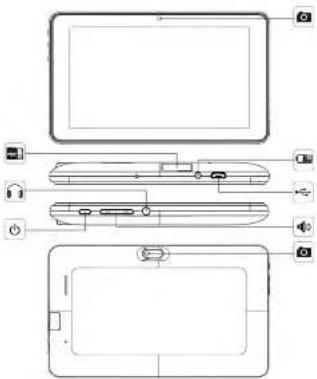
1
INITIAL SETUP
We recommend that you fully charge your tablet before starting it. Connect the charger to the AC power socket and the charger plug to the tablet. Tablet will charge completely in some hours. When you turn on your tablet for the first time you will be prompted to follow the initial setup. During this initial configuration you will set up the following items:
- Language
- Time & date
- Enable and configure W
- Set a parental account
- Set a kids account. For this account you will set up the following:
- Apps filter: Choose what applications can use your child
- Online content: Define how can your child access the internet
- Time limit: Setup the amount of time your child can use the tablet
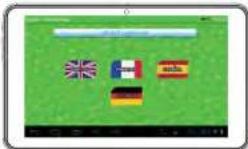
Language
Choose your preferred language for the IngoKics and Android interfaces
2
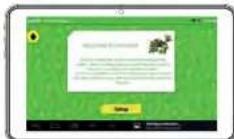
Welcome Screen
If you do not wish to use IngeKids Software you can go directly to Android native interface pressing on the top left icon. WARNING: In Android the parental controls will not work. To go back to IngeKids setup you just need to press the IngeKids icon available on the Android app menu.
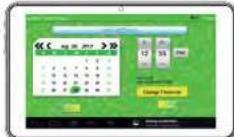
Set Time and Date
- You can modify the default time settings of your tablet. - Make sure you check that the timezone is the correct one for your region.
3
Set WIFI
- WiFi comes disabled by default. - To enable WiFi press the Connect button. - A list of available WiFi networks will appear. - Choose your network, if the network is password protected it will prompt you to insert the password (Remember to have it in hand) - if no WiFi networks are found check that your router is on and that the wifi is enabled. Then press Scan to search again for WiFi networks
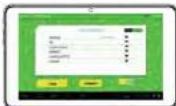
Set Parental Account
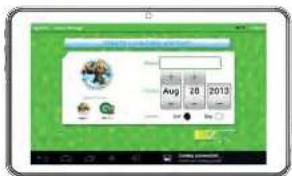
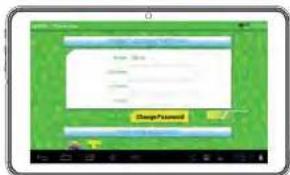
- Enter your email. - Enter password: This password helps protect the Parents Area, this way your child can not modify any important setting. - Enter your name. NOTE: This email address will be used to recover the parents password in case you forget it. Please make sure you have access to that email account.

Create a Children Account
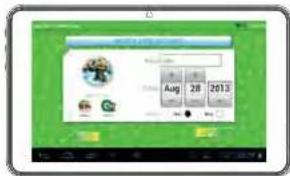
- Name: Insert your child's name - Birthday: Insert your child's birthday - Gender: Select your child's gender - Select: Choose your child's avatar from the preloaded images - Photo: Take a picture and use it as your child's avatar - Password: You can choose if you want to protect your children account with a password, it's good if the toilet will be shared between different children with different settings.
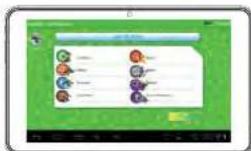
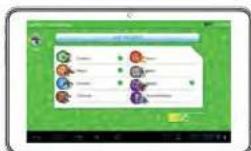
Apps Filter
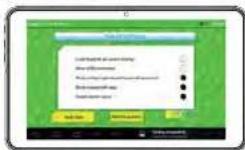
Apps filter allows you to define which applications can your children access. It's a very good way to ensure that the tablet is used the way you intended. - The installed apps are approved based on our criteria - Click over the app icon to select or deselect an application - To save the changes press the OK button
Online Content
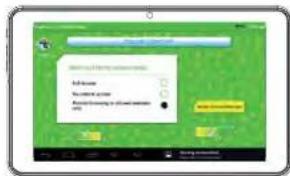
Online content lets you select how your child connects to the internet - Full access: No restrictions apply, child can visit any website - No internet access: Internet access is disabled, when child opens browser no website is available - Restrict browsing to allowed websites only: Child can only visit the websites that are on the Allowed websites list. - Press the Modify Allowed Websites button to access the list and enter new websites your child can visit. - To add a new website you need to press the + button.
4
5
6
7
Time Limit
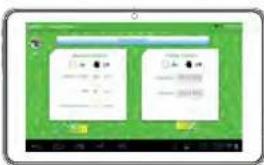
Time Limit is the way to limit how and when your child can use the IngoKids tablet. - Session control: When enabled it lets you define for how long and how many times your child can use the tablet per day.
- Session control: Set the maximum time the tablet can be used at once - Post: Define the time the child must rest after a session has finished - Sessions per day: Set the maximum number of sessions your child can do per day
For example: Child can use the tablet 3 times a day for 60 minutes sessions. After 60 minutes the Kid account will be scheduled and will rest for 30 minutes. You will set Sessions per day to 3.
- Global Control: When enabled lets you define the timeframe when your child will be able to use the tablet.
- Start time: input the hour of the day your child can start using the tablet. Before that time the tablet will turn on but he will not be able to access the account.
- End time: Input the hour of the day your child will stop using the tablet. After that time the tablet will turn on but he will not be able to access the account. For example, Child can use the tablet from 8:00pm (Star time) to 8:00pm (End time)
KIDS ZONE
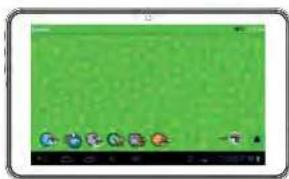
The kids zone is the children interface. After set up is complete tablet will start loading the opening screen (explained in the first image of this guide). When child logs in, pressing his avatar, his Kids Zone will load
natural_image
Green screen with icons on a white tray (no readable text or symbols)PARENTAL AREA
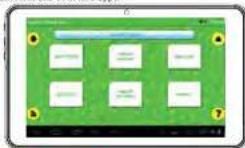
The parent Area is the place where parents can modify the kids settings, create new kid accounts and download apps.
Update Tablet
This tablet is configured to receive updates and improvements by wifi. Please check if you have the latest version available going to Tablet Settings and pressing the button Check for updates.
Modify Kid Settings
To modify kid settings parent needs to open each function separately (Apps Filter, Online Content and Time Limit). - The kid account that he is modifying is showed in the top right (parent will see the account avatar and the account name) - If the tablet has more than one kid account he can choose the kid account to modify in the top right corner.
8
9
10
11
Create another children account
To create a new kid account parent must go to Parent Account settings and press the + symbol. He will then go to the point 6 of the initial setup (Create a children account)
Download more apps
The IngoKids tablet comes with google Play and Ingo market presinstalled. To access both markets parent needs to go to the Market section of the Parent Area
- Google Play: The official android app
market. Parents need to setup a people account and they will have
Google account and they access to all those apps.
- Ingo market: Ingo official children application marketplace. Parents will find custom apps designed especially for IngsKcs tablets and accessories.
SUPPORT
The tablet contains a more extended product manual. It is available in the ebook reader (See Kids Zone section) IngoKids has a help section that will solve most of your issues. If you still need support you can visit our website http://www.ingodevices.com where you will find tutorials, video tutorials and answers to the frequent asked questions.
If you need further support there is a dedicated help line for this product.
For help and advice ring
UK 02035147021 FRANCE 0891 65 0101 SPAIN 902 023 951
Please have your receipt ready when you call. You can also contact us via our website http://www.ingodevices.com
WARNING
Packaging material is not part of the product. When unpacking the device make sure no packaging material is left to the reach of children.
- Device is not interdied to be dismantled. - Only clearance the ironfids label with the supplied power atrantor.
- Keep the device away from water and moisture.
- Clean the screen using a humid tissue. Do not use alcohol, sprays or cleaning.
products as they may damage the screen. The level is designed to moist out impacts. We see a winter? my wrist
- The tablet is designed to test soft impacts. We can not guarantee it can resist strong impacts, abuse or inappropriate use.
- Ensure your player at low volume levels or power off before you leaving.
- Fully understand user manual before use
- To prevent possible hearing damage, do not listen at high volume levels for long periods.
13

DISPOSAL
Electrical and electronic equipment (IEEE) contains materials, parts and substances which can be dangerous to the environment and harmful to human health. Waste of electrical and electronic equipment (WEEC) is not disposed of correctly. Equipment which is marked with the WEEC logo is shown on the left, should not be thrown away with your household waste. Contact your Local Authority Maste Disposal Department as they will be able to provide details of the recycling option available in your area.
Used batteries are hazardous motor and NOT to be shown of with the house old vehicle. As a consumer you are legally obligated to return all batteries for environmentally responsible recycling – no matter whether or not the batteries contain harmful substances).
Return batteries free of charge to public collection points in your community or to
Only seven fully distinguished natales.
7) marked Cd = cadmium, Hg = mercury, Pb=lead
- Only use mercury and cadmium-free batteries.
- Non-rechargeable batteries are not to be recharged. - Restaurant volumes should be proposed from our
• Rechargeable batteries should be charged under adult supervision.
- Different types of batteries or new and used batteries are not to be mixed.
- Batteries are to be recovered with the correct polarity. - Batteries should be replaced under the supervision of
• Exhanced behaviors are to be removed from the product.
- The supply terminals are not to be short circulated
- Cued batteries are hazardous water and not to be disposed of the household ventilation. Return the batteries to your dealer or to collection points in your community.
- Keep batteries away from clothes. Children might swallow batteries
Contact a physician immediately if a battery was vystones. Check your batteries regularly in solid battery lockers.
- Batteries shall not be exposed to excessive heat such as sunshine, fire or the fire
- CALIFION Danger of explosion of battery is incorrectly replaced
Replace only with the same or equivalent type.
- Note only power supplies listed in the other manual Logo Devices assumes no responsibility for any errors that may appear in this manual.
CE Due to our continuous improvement, Inga Devices reserves the right to change without notice, such as officers, purchases and responsibilities.
(1) 本报告书的摘要、修订稿和补充
- Manufacturer: Shenzhen Tenangping Rechtspace Co., Ltd.
- Manufacturer: Shenzhen Jia Da New Technology Co., Ltd.
Mato Tm 05/10/20 Ameri 02 05/10/8
10.2.1.2.
- Mary Frutton-Schenzhen Road 2. Mary Frutton-Shenzhen Road
Tennec Co, Ltd. Technec Co, Ltd.
Model 10-20000 by e-015-019-20000
Datgout, 104





①建设A2000的PUE的地址/号