
PN-U423 - Televizor SHARP - Besplatni korisnički priručnik
Pronađite besplatno priručnik za uređaj PN-U423 SHARP u PDF formatu.



Pitanja korisnika o PN-U423 SHARP
0 pitanje o ovom uređaju. Odgovorite na one koje znate ili postavite svoje.
Postavi novo pitanje o ovom uređaju
Preuzmite upute za vaš Televizor u PDF formatu besplatno! Pronađite svoj priručnik PN-U423 - SHARP i uzmite svoju elektroničku napravu natrag u ruke. Na ovoj stranici objavljeni su svi dokumenti potrebni za korištenje vaše naprave. PN-U423 marke SHARP.
KORISNIČKI PRIRUČNIK PN-U423 SHARP
PN-U553
PN-U473
PN-U423
LCD MONITOR
PRIRUČNIK ZA UPORABU
VAŽNO:
Kako biste olakšali prijavu u slučaju gubitka ili krađe, zabilježite model i serijski broj proizvoda na predviđeno mjesto. Brojevi se nalaze na stražnjoj strani proizvoda.
Model br.:
Serijski br.:
SAMO ZA SAD
UPOZORENJE: KAKO BISTE SMANJILI RIZIK OD POŽARA ILI ELEKTRIČNOG UDARA, NE IZLAŽITE OVAJ PROIZVOD KIŠI ILI VLAGI.

OPREZ
RIZIK OD ELEKTRIČNOG UDARA NE OTVARAJTE

OPREZ: KAKO BISTE SMANJILI RIZIK OD ELEKTRIČNOG UDARA, NE SKIDAJTE POKLOPAC. UNUTRA NEMA DIJELOVA KOJE KORISNIK MOŽE SERVISIRATI. SERVISIRANJE PREPUSTITE KVALIFICIRANOM OSOBLJU.

Simbol munje sa strelicom unutar trokuta upozorava korisnika na prisutnost neizoliranog "opasnog napona" unutar kućišta proizvoda koji može biti dovoljno jak da predstavlja rizik od električnog udara za osobe.

Uskličnik unutar trokuta namijenjen je upozoravanju korisnika na prisutnost važnih uputa za rad i održavanje (servisiranje) u literaturi koja je priložena proizvodu.
UPOZORENJE:
Propisi FCC-a navode da bilo kakve neovlaštene izmjene ili preinake ove opreme koje nije izričito odobrio proizvođač mogu poništiti korisnikovo ovlaštenje za upravljanje ovom opremom.
NAPOMENA:
Ova je oprema testirana i utvrđeno je da zadovoljava granice za digitalni uređaj klase A, u skladu s dijelom 15 FCC pravila. Ove su granice osmišljene kako bi pružile razumnu zaštitu od štetnih smetnji kada se oprema koristi u komercijalnom okruženju. Ova oprema stvara, koristi i može zračiti radiofrekvencijsku energiju te, ako se ne instalira i ne koristi u skladu s priručnikom s uputama, može uzrokovati štetne smetnje radio komunikacijama. Rad ove opreme u stambenom području vjerojatno će uzrokovati štetne smetnje, u kojem će slučaju korisnik biti dužan otkloniti smetnje o vlastitom trošku.
SAMO ZA SAD
Zahvaljujemo vam na kupnji SHARP LCD proizvoda. Kako biste osigurali sigurnost i dugogodišnji rad bez problema, pažljivo pročitajte sigurnosne mjere prije korištenja ovog proizvoda.
SIGURNOSNE MJERE
Električna energija koristi se za obavljanje mnogih korisnih funkcija, ali može uzrokovati i ozljede ljudi te materijalnu štetu ako se s njom nepravilno rukuje. Ovaj je proizvod dizajniran i proizveden s najvećim prioritetom na sigurnost. Međutim, nepravilna uporaba može rezultirati strujnim udarom i/ili požarom. Kako biste spriječili potencijalnu opasnost, pridržavajte se sljedećih uputa prilikom instalacije, rada i čišćenja proizvoda. Kako biste osigurali svoju sigurnost i produžili vijek trajanja LCD proizvoda, pažljivo pročitajte sljedeće mjere opreza prije korištenja proizvoda.
- Pročitajte upute — Sve upute za rad moraju se pročitati i razumjeti prije rukovanja proizvodom.
- Čuvajte ovaj priručnik na sigurnom mjestu — Ove sigurnosne i radne upute moraju se čuvati na sigurnom mjestu za buduću upotrebu.
- Pridržavajte se upozorenja — Sva upozorenja na proizvodu i u uputama moraju se pažljivo poštivati.
- Slijedite upute — Sve upute za rad moraju se slijediti.
- Čišćenje — Isključite kabel za napajanje iz utičnice prije čišćenja proizvoda. Za čišćenje proizvoda koristite suhu krpu. Nemojte koristiti tekuća sredstva za čišćenje ili aerosolna sredstva.
- Dodaci — Nemojte koristiti dodatke koje proizvođač ne preporučuje. Korištenje neodgovarajućih dodataka može rezultirati nesrećama.
- Voda i vlaga — Ne koristite proizvod u blizini vode. Ne instalirajte proizvod na mjesto gdje voda može prskati na njega. Pazite na opremu koja odvodi vodu, poput klima-uređaja.
- Ventilacija — Otvori za ventilaciju i drugi otvori na kućištu dizajnirani su za ventilaciju. Nemojte prekrivati ili blokirati te otvore jer nedovoljna ventilacija može uzrokovati pregrijavanje i/ili skratiti vijek trajanja proizvoda. Ne postavljajte proizvod na sofu, tepih ili sličnu površinu jer mogu blokirati ventilacijske otvore. Ne postavljajte proizvod u zatvoreni prostor poput police ili ormara, osim ako nije osigurana odgovarajuća ventilacija ili ako se slijede upute proizvođača.
- Zaštita kabela napajanja — Kabeli napajanja moraju biti pravilno položeni kako bi se spriječilo da ljudi gaze po njima ili da predmeti počivaju na njima.
- LCD ploča korištena u ovom proizvodu izrađena je od stakla. Stoga se može razbiti ako proizvod padne ili se udari. Pazite da se ne ozlijedite od krhotina stakla u slučaju pucanja LCD ploče.
- Preopterećenje — Ne preopterećujte AC utičnice ili produžne kabele. Preopterećenje može uzrokovati požar ili strujni udar.
- Ulazak predmeta i tekućina — Nikada ne umećite predmet u proizvod kroz otvore za ventilaciju ili druge otvore. U proizvodu teče visoki napon, a umetanje predmeta može uzrokovati strujni udar i/ili kratki spoj unutarnjih dijelova. Iz istog razloga ne prolijevajte vodu ili tekućinu po proizvodu.
- Servisiranje — Ne pokušavajte sami servisirati proizvod. Skidanje poklopaca može vas izložiti visokom naponu i drugim opasnim uvjetima. Zatražite kvalificiranu servisnu osobu da obavi servisiranje.
- Popravak — Ako se pojavi bilo koji od sljedećih uvjeta, isključite kabel napajanja iz AC utičnice i zatražite kvalificiranu servisnu osobu da izvrši popravke. a. Kada je kabel napajanja ili utikač oštećen. b. Kada je tekućina prolivena po proizvodu ili su predmeti pali u proizvod. c. Kada je proizvod bio izložen kiši ili vodi. d. Kada proizvod ne radi ispravno kako je opisano u uputama za uporabu. Ne dirajte kontrole osim onih opisanih u uputama za uporabu. Nepravilno podešavanje kontrola koje nije opisano u uputama može uzrokovati oštećenje, što često zahtijeva opsežan rad na podešavanju od strane kvalificiranog tehničara. e. Kada je proizvod pao ili je oštećen. f. Kada proizvod pokazuje abnormalno stanje. Bilo kakva primjetna abnormalnost na proizvodu ukazuje na to da proizvod treba servisiranje.
- Zamjenski dijelovi — U slučaju da proizvod treba zamjenske dijelove, provjerite da serviser koristi zamjenske dijelove koje je odredio proizvođač ili one s istim karakteristikama i performansama kao originalni dijelovi. Korištenje neovlaštenih dijelova može rezultirati požarom, strujnim udarom i/ili drugom opasnošću.
- Sigurnosne provjere — Po završetku servisa ili popravka, zatražite od servisnog tehničara da izvrši sigurnosne provjere kako bi se osiguralo da je proizvod u ispravnom radnom stanju.
- Montiranje na zid — Kada montirate proizvod na zid, svakako ga instalirajte prema metodi koju preporučuje proizvođač.
- Izvori topline — Držite proizvod podalje od izvora topline poput radijatora, grijača, peći i drugih uređaja koji generiraju toplinu (uključujući pojačala).
- Baterije — Nepravilna uporaba baterija može uzrokovati njihovo pucanje ili zapaljenje. Baterija koja curi može nagrizati opremu, zaprljati ruke ili odjeću. Kako biste izbjegli te probleme, svakako se pridržavajte sljedećih mjera opreza:
- Koristite samo navedene baterije.
• Ugradite baterije pazeći na plus (+) i minus (-) strane baterija prema uputama u odjeljku.
- Ne miješajte stare i nove baterije.
- Ne miješajte baterije različitih vrsta. Naponske specifikacije baterija istog oblika mogu se razlikovati.
- Istrošenu bateriju odmah zamijenite novom.
- Ako daljinski upravljač nećete koristiti dulje vrijeme, izvadite baterije.
- Ako iscurila tekućina iz baterije dospije na kožu ili odjeću, odmah je isperite temeljito. Ako dospije u oko, isperite oko dobro, nemojte ga trljati, i odmah potražite liječničku pomoć. Tekućina iz baterije koja dospije u oko ili na odjeću može uzrokovati iritaciju kože ili oštetiti oko.
- Korištenje monitora ne smije biti popraćeno fatalnim rizicima ili opasnostima koje bi mogle izravno dovesti do smrti, ozljeda, teških fizičkih oštećenja ili drugih gubitaka, uključujući kontrolu nuklearnih reakcija u nuklearnom postrojenju, sustave za održavanje života u medicini i kontrolu lansiranja projektila u oružanim sustavima.
- Ne ostajte u kontaktu s dijelovima proizvoda koji se zagrijavaju dulje vrijeme. To može uzrokovati opekline niske temperature.
UPOZORENJE:
Ovaj proizvod je klasa A. U kućnom okruženju ovaj proizvod može uzrokovati radio smetnje, u kojem slučaju korisnik može biti dužan poduzeti odgovarajuće mjere.
Za održavanje usklađenosti s EMC propisima, koristite oklopljene kabele za spajanje na sljedeće priključke: DVI-D ulaz/izlaz, HDMI ulaz, D-sub ulaz, RS-232C ulaz/izlaz i DisplayPort ulaz.
Ako monitor nije postavljen na dovoljno stabilno mjesto, može biti opasan zbog pada. Mnoge ozljede, posebno djece, mogu se izbjeći jednostavnim mjerama opreza kao što su:
- Korištenje uređaja za pričvršćivanje poput zidnih nosača koje preporučuje proizvođač.
- Korištenje samo namještaja koji može sigurno podnijeti monitor.
- Osiguravanje da monitor ne visi preko ruba potpornog namještaja.
- Ne postavljajte monitor na visoki namještaj (na primjer, ormare ili police za knjige) bez pričvršćivanja i namještaja i monitora na odgovarajuću potporu.
- Ne postavljajte monitore na tkaninu ili druge materijale postavljene između monitora i potpornog namještaja. • Educirati djecu o opasnostima penjanja na namještaj kako bi dohvatili monitor ili njegove kontrole.
Posebno za sigurnost djece
- Ne dopustite djeci da se penju na monitor ili se igraju s njim.
- Ne postavljajte monitor na namještaj koji se lako može koristiti kao stepenice, poput komode.
- Zapamtite da se djeca mogu uzbuđivati tijekom gledanja programa, posebno na monitoru "većem od života". Potrebno je paziti da se monitor postavi ili instalira tako da se ne može gurnuti, povući ili srušiti.
- Pazite da svi kabeli i žice spojeni na monitor budu usmjereni tako da ih znatiželjna djeca ne mogu povući ili zgrabiti.
- TFT LCD zaslon u boji koji se koristi u ovom monitoru izrađen je primjenom tehnologije visoke preciznosti. Međutim, na zaslonu se mogu pojaviti sitne točkice na kojima pikseli nikada ne svijetle ili su trajno osvijetljeni. Također, ako se zaslon gleda pod oštrim kutom, mogu se pojaviti nejednake boje ili svjetlina. Imajte na umu da to nisu kvarovi, već uobičajene pojave LCD zaslona i neće utjecati na rad monitora.
- Ne prikazujte nepokretnu sliku dulje vrijeme jer to može uzrokovati zadržavanje slike.
- Nikada ne trljajte i ne udarajte monitor tvrdim predmetima.
- Imajte na umu da SHARP CORPORATION ne snosi odgovornost za pogreške nastale tijekom uporabe od strane kupca ili treće strane, niti za bilo kakve druge kvarove ili oštećenja ovog proizvoda nastala tijekom uporabe, osim ako je odštetna odgovornost priznata zakonom.
- Ovaj monitor i njegov pribor mogu se nadograditi bez prethodne najave.
- Ne koristite monitor na mjestima s puno prašine, visokom vlagom ili gdje monitor može doći u dodir s uljem ili parom. Ne koristite u okruženju s korozivnim plinovima (sumporov dioksid, sumporovodik, dušikov dioksid, klor, amonijak, ozon itd.). To može dovesti do požara.
- Pazite da monitor ne dođe u dodir s vodom ili drugim tekućinama. Pazite da predmeti poput spajalica ili pribadača ne uđu u monitor jer to može dovesti do požara ili strujnog udara.
- Ne postavljajte monitor na nestabilne predmete ili na nesigurna mjesta. Ne dopustite da monitor bude izložen jakim udarcima ili jakim vibracijama. Pad ili prevrtanje monitora može ga oštetiti.
- Ne koristite monitor u blizini opreme za grijanje ili na mjestima gdje postoji mogućnost visoke temperature, jer to može dovesti do stvaranja prekomjerne topline i izbijanja požara.
- Ne koristite monitor na mjestima gdje može biti izložen izravnoj sunčevoj svjetlosti.
- Redovito uklanjajte prašinu i nečistoću koje se nakupe na ventilacijskom otvoru. Ako se prašina nakupi u ventilacijskom otvoru ili unutar monitora, može dovesti do prekomjerne topline, izbijanja požara ili kvara. Za čišćenje unutrašnjosti monitora zatražite pomoć ovlaštenog SHARP servisera ili servisnog centra.
- Slike se na ovom monitoru ne mogu rotirati. Kada koristite monitor u okomitom položaju, morate unaprijed pripremiti sadržaj odgovarajuće orijentacije.
- AC utičnica treba biti instalirana u blizini opreme i lako dostupna.
Kabel za napajanje
- Koristite samo kabel za napajanje koji je isporučen s monitorom.
- Nemojte oštetiti kabel za napajanje niti na njega stavljati teške predmete, rastezati ga ili ga previše savijati. Također, nemojte dodavati produžne kabele. Oštećenje kabela može rezultirati požarom ili strujnim udarom.
- Nemojte koristiti kabel za napajanje s razdjelnikom struje. Dodavanje produžnog kabela može dovesti do požara zbog pregrijavanja.
- Nemojte vaditi ili umetati utikač mokrim rukama. To bi moglo rezultirati strujnim udarom.
- Isključite kabel za napajanje ako se ne koristi dulje vrijeme.
- Ne pokušavajte popraviti kabel za napajanje ako je oštećen ili neispravan. Servisiranje prepustite servisnom predstavniku.
Opseg priručnika
- Microsoft, Windows i Internet Explorer registrirani su zaštitni znakovi tvrtke Microsoft Corporation.
- Izrazi HDMI i HDMI High-Definition Multimedia Interface te HDMI logotip zaštitni su znakovi ili registrirani zaštitni znakovi tvrtke HDMI Licensing LLC u Sjedinjenim Američkim Državama i drugim zemljama.
- DisplayPort je registrirani zaštitni znak udruge Video Electronics Standards Association.
- Adobe, Acrobat i Reader registrirani su zaštitni znakovi ili zaštitni znakovi tvrtke Adobe Systems Incorporated u Sjedinjenim Američkim Državama i/ili drugim zemljama.
- Ovaj proizvod dolazi s RICOH Bitmap Fonts fontovima koje proizvodi i prodaje tvrtka RICOH COMPANY, LTD.
- Svi ostali nazivi robnih marki i proizvoda zaštitni su znakovi ili registrirani zaštitni znakovi njihovih vlasnika.
- Jezik OSD izbornika korišten u ovom priručniku je engleski, kao primjer.
- Ilustracije u ovom priručniku možda ne prikazuju točno stvarni proizvod ili zaslon.
- Ovaj priručnik pretpostavlja korištenje u pejzažnoj orijentaciji, osim ako nije posebno navedeno.
LED pozadinsko osvjetljenje
- LED pozadinsko osvjetljenje u ovom proizvodu ima ograničen vijek trajanja. * Ako zaslon potamni ili se ne uključi, možda će biti potrebno zamijeniti LED pozadinsko osvjetljenje. * Ovo LED pozadinsko osvjetljenje je ekskluzivno za ovaj proizvod i mora ga zamijeniti ovlašteni SHARP serviser ili servisni centar. Za pomoć se obratite ovlaštenom SHARP serviseru ili servisnom centru.
• Ovaj proizvod je namijenjen za upotrebu u zatvorenom prostoru. - Potreban je nosač koji je u skladu s VESA specifikacijama. - Budući da je monitor težak, posavjetujte se s prodavačem prije instalacije, uklanjanja ili pomicanja monitora. - Ne držite monitor za zvučnike. - Montaža monitora na zid zahtijeva posebno stručno znanje i rad mora izvesti ovlašteni SHARP prodavač. Nikada ne pokušavajte sami izvesti bilo koji od ovih radova. Naša tvrtka neće snositi odgovornost za nesreće ili ozljede uzrokovane nepravilnom montažom ili pogrešnim rukovanjem. - Koristite monitor s površinom okomitom na ravnu površinu. Ako je potrebno, monitor se može nagnuti do 20 stupnjeva prema gore ili prema dolje. - Ovaj monitor treba koristiti na temperaturi okoline između 41°F (5°C) i 104°F (40°C). (32°F (0°C) i 104°F (40°C) za PN-U473/PN-U423) Osigurajte dovoljno prostora oko monitora kako biste spriječili nakupljanje topline unutar njega.
Za monitor u vodoravnoj orijentaciji![7-7/8 [200] 2 [50] 2 [50] 2 [50] Jedinica: inč [mm] 5/16 [7]](/content/2026/06/1149427/images/a7bda802cad3fb8f1826a60cc0584e1e368a0967e68983afe6b12368f217101e.jpg)
Za monitor u okomitoj orijentaciji![7-7/8 [200] 2 [50] 2 [50] 2 [50] LED za napajanje Jedinica: inč [mm] 5/16 [7]](/content/2026/06/1149427/images/c5b67d7bc1e485e7d32d6c9950bd62dd1ef25660a1e8b88791b9becdf36263c8.jpg)
- Ako je iz bilo kojeg razloga teško osigurati dovoljno prostora, kao što je ugradnja monitora u kućište, ili ako temperatura okoline može biti izvan raspona od 41°F (5°C) do 104°F (40°C), ugradite ventilator ili poduzmite druge mjere kako biste temperaturu okoline održali unutar potrebnog raspona. (32°F (0°C) i 104°F (40°C) za PN-U473/PN-U423)
- Uvjeti temperature mogu se promijeniti kada se monitor koristi zajedno s dodatnom opremom koju preporučuje SHARP. U takvim slučajevima provjerite temperaturne uvjete koje je specificirala dodatna oprema.
- Nemojte blokirati ventilacijske otvore. Ako temperatura unutar monitora poraste, to može dovesti do kvara.
- Ne postavljajte monitor na uređaj koji generira toplinu.
- Pridržavajte se sljedećih uputa prilikom instalacije monitora u okomitoj orijentaciji. Nepridržavanje sljedećih uputa može uzrokovati kvarove.
- Instalirajte monitor tako da LED indikator napajanja bude na donjoj strani.
- Postavite MONITOR na MONITOR izborniku na PORTRAIT. (Pogledajte stranicu 24.)
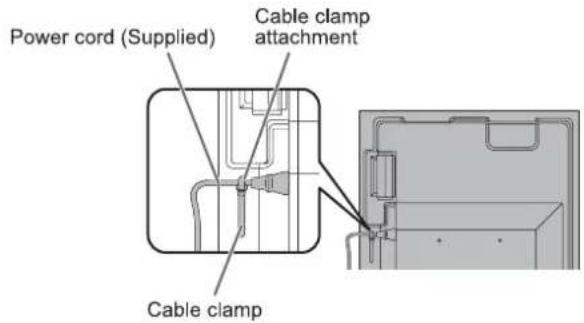
- Obavezno pričvrstite kabel za napajanje (isporučen) na stezaljku za kabel pomoću priložene stezaljke. Prilikom stezanja kabela za napajanje pazite da ne opteretite priključak kabela za napajanje. Nemojte pretjerano savijati kabel za napajanje.
- Koristite priloženu okomitu naljepnicu kada instalirate monitor u okomitom položaju.
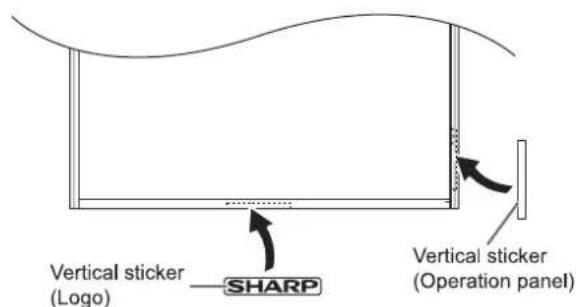
Ne uklanjajte tvornički zalijepljenu naljepnicu, već preko nje zalijepite novu. Pazite da ne prekrijete senzor daljinskog upravljača ili tipke.
Sadržaj
VAŽNE INFORMACIJE....3
DRAGI KORISNIČE SHARP-a....4
SIGURNOSNE MJERE......4
SAVJETI I SIGURNOSNE UPUTE....6
MJERE OPREZA PRI MONTAŽI....7
Isporučene komponente....8
Nazivi dijelova 9
Povezivanje periferne opreme....11
Povezivanje kabela za napajanje 13
Povezivanje kabela....14
Priprema jedinice daljinskog upravljača....15
Umetanje baterija....15
Domet upravljanja daljinskim upravljačem....15
Uključivanje/isključivanje napajanja....16
Uključivanje glavnog napajanja....16
Uključivanje/isključivanje napajanja 16
Osnovno rukovanje 18
Stavke izbornika....20
Prikaz zaslona izbornika....20
Pojedinosti stavki izbornika 21
Podešavanja za prikaz PC zaslona 28
Inicijalizacija (Reset)/Ograničenje funkcija
Postavka (FUNCTION)....29
Upravljanje monitorom s računala (RS-232C)....30
Spajanje na računalo....30
Uvjeti komunikacije....30
Komunikacijski postupak 30
RS-232C naredbeni stol 34
Upravljanje monitora s računalom (LAN)....39
Postavke za spajanje na LAN....39
Upravljanje s računalom....41
"Napredno upravljanje" Upravljanje na temelju naredbi.....44
Rješavanje problema....45
Specifikacije 47
Upute za montažu
(Za SHARP prodavače i servisne inženjere)....53
Isporučene komponente
Ako neka komponenta nedostaje, obratite se svom prodavaču.
☐ Monitor s tekućim kristalima: 1
□ Daljinski upravljač: 1
□ Stezaljka za kabel: 2
□ Kabel za napajanje: 1
☐ Baterija R-6 (veličina "AA"): 2
□ CD-ROM (Utility Disk za Windows): 1
□ Priručnik za postavljanje: 1
☐ Okomita naljepnica (Logo): 1
☐ Okomita naljepnica (Upravljačka ploča): 1
□ Naljepnica s nazivom modela / serijskim brojem: 1
Označava naziv modela i serijski broj.
□ Poklopac SHARP logotipa: 1
Postavite ovu naljepnicu preko SHARP logotipa kako biste ga prekrili.
* SHARP Corporation zadržava autorska prava na program Utility Disk. Nemojte ga reproducirati bez dopuštenja.
* Za zaštitu okoliša!
Ne odlažite baterije u kućni otpad. Slijedite upute za odlaganje u vašem području.
Nazivi dijelova
■ Pogled sprijeda
■ Pogled straga
- LCD ploča
- LED indikator napajanja (vidi stranicu 16.)
- Senzor daljinskog upravljača (vidi stranicu 15.)
- Prekidač za ulaz (vidi stranicu 18.)
- Prekidač za napajanje (vidi stranicu 16.)
* Prekidač za ulaz i prekidač za napajanje nalaze se na stražnjoj strani monitora. Koristite položaj utora na prednjoj strani kao smjernicu za rad s prekidačima.
(Prekidač s izbočinom je prekidač za napajanje.)
- Odjeljak za dodatnu opremu
Ovaj se odjeljak koristi za povezivanje dodatne opreme radi proširenja funkcija. Nudimo ovu lokaciju za priključak, ali ne jamčimo da će budući kompatibilni hardver biti objavljen.
- Ventilacijski otvori
- Zvučnici
- Ulazni terminal za izmjenično napajanje (vidi stranicu 13.)
- Glavni prekidač za napajanje (vidi stranicu 16.)
- RS-232C izlazni terminal (vidi stranicu 12.)
- RS-232C ulazni terminal (vidi stranicu 12.)
- LAN priključak (Vidi stranicu 12.)
- HDMI ulazni priključak (Vidi stranicu 11.)
- DisplayPort ulazni priključak (Vidi stranicu 11.)
- DVI-D ulazni priključak (Vidi stranicu 11.)
- DVI-D izlazni priključak (Vidi stranicu 12.)
- D-sub ulazni priključak (Vidi stranicu 11.)
- Audio1 ulazni priključak (Vidi stranicu 12.)
- Komponentni ulazni priključci (Vidi stranicu 11.)
- Video ulazni priključak (Vidi stranicu 11.)
- Audio izlazni priključci (Vidi stranicu 12.)
- Audio2 ulazni priključci (Vidi stranicu 12.)
- Rupa protiv krađe (R)
Može se spojiti komercijalno dostupna brava protiv krađe. Rupa protiv krađe kompatibilna je s Kensington MicroSaver sigurnosnim sustavom.
!Oprez
- Za pričvršćivanje/skidanje dodatnih dijelova obratite se svom SHARP prodavaču.
- Prilikom podizanja ili pomicanja monitora, nemojte ga držati za zvučnike.
■Jedinica daljinskog upravljača
- Odašiljač signala
- TIPKA POWER (Pogledajte stranicu 16.)
- TIPKA MUTE (Pogledajte stranicu 18.)
- TIPKE VOL +/- (Pogledajte stranicu 18.) TIPKE BRIGHT +/- (Pogledajte stranicu 18.) Tipke za upravljanje kursorom (▲/▼/◄/►)
- TIPKA DISPLAY (Pogledajte stranicu 18.)
- TIPKA MODE (Pogledajte stranicu 18.)
- TIPKA INPUT (Pogledajte stranicu 18.)
- TIPKA MENU (Pogledajte stranicu 18.)
- TIPKA ENTER (Pogledajte stranicu 18.)
- TIPKA RETURN (Pogledajte stranicu 18.)
- TIPKA SIZE (Pogledajte stranicu 18.)
Povezivanje periferne opreme

!Oprez
- Prije spajanja/odspajanja kabela obavezno isključite glavni prekidač napajanja i izvucite utikač iz utičnice. Također, pročitajte priručnik za opremu koju želite spojiti.
- Pazite da ne zamijenite ulazni i izlazni priključak prilikom spajanja kabela. Slučajno zamijenjeni kabeli na ulaznim i izlaznim priključcima mogu uzrokovati kvarove i druge probleme.
- Ne koristite kabele s oštećenim ili deformiranim priključkom. Korištenje takvih kabela može uzrokovati kvarove.
SAVJETI
- Slike se možda neće ispravno prikazivati ovisno o računalu (grafičkoj kartici) koje se spaja.
- Koristite automatsku prilagodbu zaslona kada se PC zaslon prikazuje prvi put putem D-SUB-a ili kada se promijene postavke računala. Zaslon se automatski prilagođava kada je SELF ADJUST u SCREEN izborniku postavljen na ON.
- Ako je audio izlaz uređaja za reprodukciju spojen izravno na zvučnike ili druge uređaje, video na monitoru može kasniti u odnosu na audio. Audio bi se trebao reproducirati kroz ovaj monitor spajanjem uređaja za reprodukciju na audio ulaz monitora, a audio izlaz monitora na zvučnike ili druge uređaje.
- Audio ulazni priključci koji se koriste u svakom ulaznom načinu tvornički su postavljeni kako slijedi.
| Input mode | Audio input terminal (Factory setting) |
| DVI-D, D-SUB | Audio1 input terminal |
| DisplayPort | DisplayPort input terminal |
| HDMI | HDMI input terminal |
| COMPONENT, VIDEO | Audio2 input terminals |
1. HDMI ulazni priključak
- Koristite komercijalno dostupan HDMI kabel (u skladu s HDMI standardom).
- Odaberite audio ulazni priključak koji ćete koristiti u AUDIO SELECT u SETUP izborniku. Kada je odabran HDMI, spajanje na audio ulazni priključak nije potrebno.
2. DisplayPort ulazni priključak
• Koristite komercijalno dostupan DisplayPort kabel. - Odaberite audio ulazni priključak koji ćete koristiti u AUDIO SELECT u SETUP izborniku. Kada je odabran DisplayPort, spajanje na audio ulazni priključak nije potrebno.
3. DVI-D ulazni priključak
• Koristite komercijalno dostupan signalni kabel (DVI-D 24 pin). - Odaberite audio ulazni priključak koji ćete koristiti u AUDIO SELECT u SETUP izborniku.
4. D-sub ulazni terminal
- Odaberite audio ulazni terminal koji će se koristiti u AUDIO SELECT u SETUP izborniku.
5. Component ulazni terminali
- Odaberite audio ulazni terminal koji će se koristiti u AUDIO SELECT u SETUP izborniku.
6. Video ulazni terminal
- Odaberite audio ulazni terminal koji će se koristiti u AUDIO SELECT u SETUP izborniku.
Povezivanje periferne opreme
7. Audio1 ulazni terminal
- Koristite audio kabel bez otpora.
- Postavite audio ulazni terminal koji će se koristiti u svakom ulaznom načinu u AUDIO SELECT na SETUP izborniku.
8. Audio2 ulazni terminali
- Postavite audio ulazni terminal koji će se koristiti u svakom ulaznom načinu u AUDIO SELECT na SETUP izborniku.
9. DVI-D izlazni terminal
- Kada je ulazni način postavljen na DVI-D, video DVI-D ulaza može se izvesti na vanjski uređaj.
- Izlaz HDCP-encrypted videa zahtijeva vanjski uređaj koji podržava HDCP.
- Ovaj terminal omogućuje lančano povezivanje do 5 monitora spajanjem monitora jedan na drugi putem DVI-D ulaznog terminala svakog monitora.
SAVJETI
- Duljina signalnih kabela ili okolni uvjeti mogu utjecati na kvalitetu slike.
- Kada je ulazni način rada postavljen na način rada koji nije DVI-D, video se ne može izlaziti.
10. Audio izlazni terminali
• Izlazni zvuk varira ovisno o ulaznom načinu rada. - Nije moguće kontrolirati izlaz zvuka s audio izlaznih terminala putem AUDIO izbornika.
11. RS-232C izlazni terminal
12. RS-232C ulazni terminal
- Monitor možete kontrolirati s računala spajanjem komercijalno dostupnog RS-232 ravnog kabela između ovih terminala i računala.
- PN-U553/PN-U473/PN-U423 monitori mogu se međusobno povezati u lančanu vezu.
13. LAN terminal
- Monitor možete kontrolirati s računala na mreži spajanjem komercijalno dostupnog LAN kabela između ovog terminala i mreže.
Spajanje kabela za napajanje
!Oprez
- Koristite samo kabel za napajanje isporučen s monitorom.
- Isključite glavni prekidač za napajanje.
- Priključite kabel za napajanje (isporučen) u AC ulazni terminal.
- Priključite kabel za napajanje (isporučen) u AC utičnicu.

Povezivanje kabela
[PN-U553]
[PN-U473]
[PN-U423]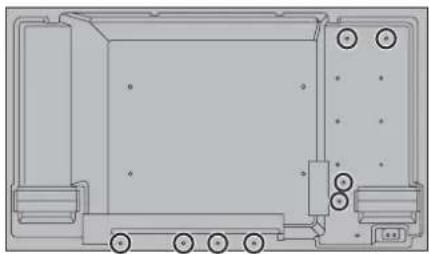
Kabeli spojeni na terminale na stražnjoj strani monitora mogu se pričvrstiti stezaljkom za kabele.
Pričvrstite stezaljku za kabele na nosač stezaljke na stražnjoj strani monitora i pričvrstite kabele.

Priprema jedinice daljinskog upravljača
Ugradnja baterija
- Lagano pritisnite poklopac i gurnite ga u smjeru strelice.

- Pogledajte upute u odjeljku i umetnite isporučene baterije (R-6 ("AA" veličina) x 2) s pravilno orijentiranim plus (+) i minus (-) stranama.
- Zatvorite poklopac.
SAVJETI
- Kada se baterije isprazne, zamijenite ih novima (komercijalno dostupnima).
- Isporučene baterije (R-6 ("AA" veličina) x 2) mogu se brzo isprazniti ovisno o načinu skladištenja.
- Ako daljinski upravljač nećete koristiti dulje vrijeme, izvadite baterije. • Koristite samo manganove ili alkalne baterije.
Domet rada daljinskog upravljača
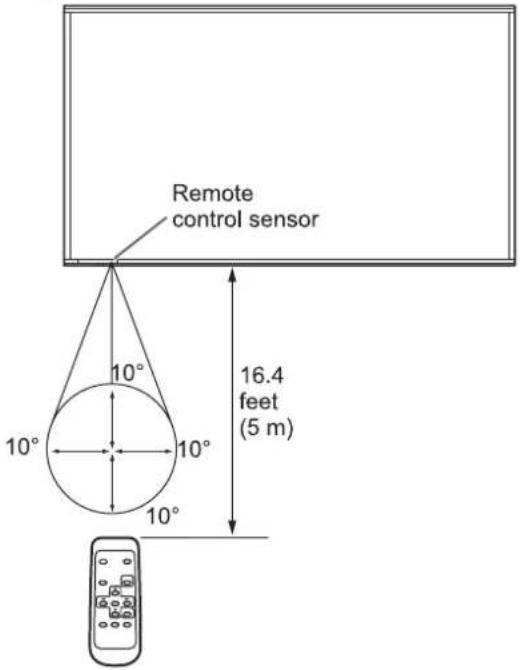
Domet rada daljinskog upravljača je približno 5 m (16,4 stope) pod kutom od približno 10° od središta prema gore/dolje/desno/lijevo od senzora daljinskog upravljača.
SAVJETI
- Ne izlažite daljinski upravljač udarcima, ne ispuštajte ga i ne gazite po njemu. To može dovesti do kvara.
- Ne izlažite daljinski upravljač tekućinama i ne postavljajte ga na mjesto s visokom vlagom.
- Daljinski upravljač možda neće ispravno raditi ako je senzor daljinskog upravljača izložen izravnoj sunčevoj svjetlosti ili jakom osvjetljenju.
- Predmeti između daljinskog upravljača i senzora daljinskog upravljača mogu spriječiti ispravan rad.
- Zamijenite baterije kada su pri kraju jer to može skratiti domet rada daljinskog upravljača.
- Ako fluorescentno svjetlo svijetli u blizini daljinskog upravljača, može ometati ispravan rad.
- Ne koristite ga s daljinskim upravljačima drugih uređaja kao što su klima uređaj, stereo komponente itd.
Uključivanje/isključivanje napajanja
!Oprez
Prvo uključite monitor, a zatim računalo ili uređaj za reprodukciju.
Uključivanje glavnog napajanja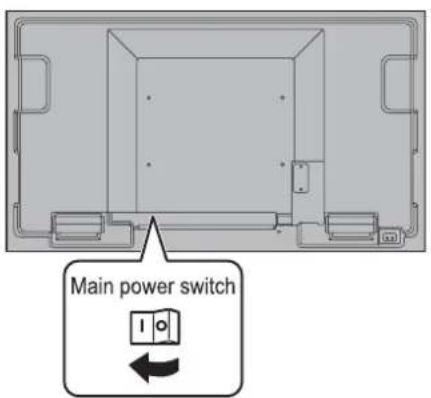
!Oprez
- Glavno napajanje mora se uključiti/isključiti glavnim prekidačem. Nemojte spajati/odspajati kabel za napajanje ili uključivati/isključivati prekidač dok je glavni prekidač uključen.
- Kada isključujete glavni prekidač ili tipku POWER, uvijek pričekajte najmanje 5 sekundi prije ponovnog uključivanja.
- Za potpuno električno odspajanje, izvucite glavni utikač.
Uključivanje/isključivanje napajanja
Pritisnite tipku POWER ili prekidač POWER za uključivanje/isključivanje napajanja.
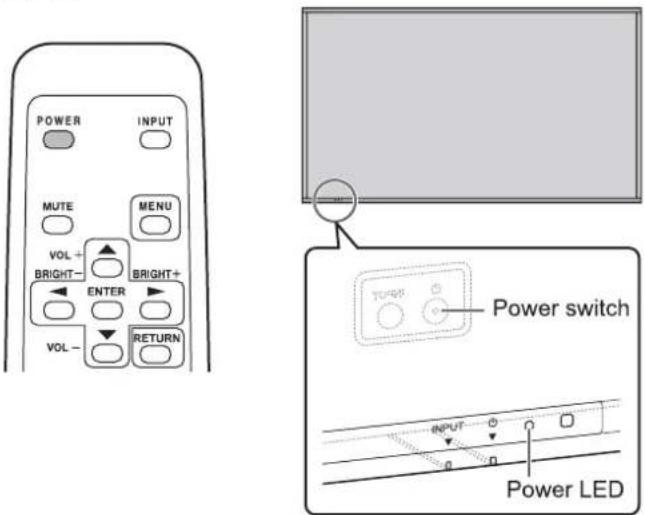
| Status | Status of the monitor |
| Green lit | Power on |
| Orange lit | Power off (Standby mode) |
| Green flashing | Input signal waiting mode |
!Oprez
- Kada isključujete glavni prekidač ili tipku POWER, uvijek pričekajte najmanje 5 sekundi prije ponovnog uključivanja. Kratki interval može uzrokovati kvar.
SAVJETI
- Kada je glavni prekidač isključen, monitor se ne može uključiti.
- Ako je monitor u stanju pripravnosti za ulazni signal i pritisnete tipku POWER na daljinskom upravljaču, monitor prelazi u stanje pripravnosti.
- Postavljanje SCHEDULE-a uzrokuje treptanje LED indikatora napajanja naizmjenično crveno i narančasto u stanju pripravnosti.
- Da biste onemogućili prikaz logotipa pri uključivanju napajanja, postavite LOGO SCREEN na OFF u izborniku OTHERS. (Vidi stranicu 25.)
■Postavljanje datuma/vremena
- Ako vrijeme nije postavljeno, kao što je slučaj pri prvom uključivanju monitora, postavite datum i vrijeme u opciji DATE/TIME SETTING u izborniku SETUP. Obavezno postavite datum i vrijeme.
SAVJETI
- Postavite datum u redoslijedu "Godina/Mjesec/Dan".
- Postavite vrijeme u 24-satnom formatu.
- Sat se zaustavlja ako glavno napajanje ostane isključeno oko 1 tjedan.* (*Približno vrijeme. Stvarno vrijeme varira ovisno o stanju monitora.)
Osnovno upravljanje
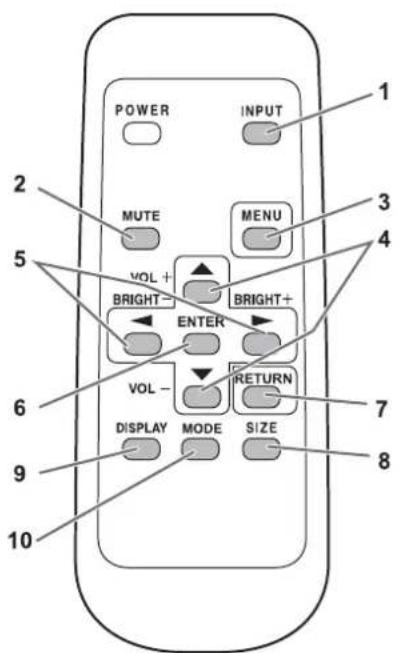
1. INPUT (Odabir načina ulaza)
Izbornik se prikazuje. Pritisnite ▲ ili ▼ za odabir načina ulaza i pritisnite ENTER za potvrdu.
* Ulazni terminal možete odabrati pritiskom na prekidač za ulaz na monitoru.
| Input mode | Video | Audio |
| DVI-D | DVI-D input terminal | * |
| DisplayPort | DisplayPort input terminal | |
| HDMI | HDMI input terminal | |
| D-SUB | D-sub input terminal | |
| COMPONENT | Component input terminals | |
| VIDEO | Video input terminal |
* Odaberite terminal za AUDIO SELECT koji se koristi za audio ulaz. (Vidi stranicu 23.)
2. MUTE
Privremeno isključuje zvuk.
Pritisnite ponovno tipku MUTE da vratite zvuk na prethodnu razinu.
3. IZBORNIK
Prikazuje i isključuje zaslon izbornika. (vidi stranicu 20.)
4. VOL +/- (Podešavanje glasnoće)
Pritisak na ▲ ili ▼ prikazuje izbornik VOLUME kada zaslon izbornika nije prikazan.

Pritisnite ▲ ili ▼ za podešavanje glasnoće zvuka.
* Ako ne pritisnete nijednu tipku oko 5 sekundi, izbornik VOLUME automatski nestaje.
5. BRIGHT +/- (Podešavanje svjetline)
Pritisak na □ ili □ prikazuje izbornik BRIGHT kada zaslon izbornika nije prikazan.

Pritisnite □ ili ▶ za podešavanje svjetline.
* Ako ne pritisnete nijednu tipku oko 5 sekundi, izbornik BRIGHT automatski nestaje.
6. ENTER
Potvrđuje postavku.
7. RETURN
Vraća na prethodni zaslon.
8. VELIČINA ZASLONA (Odabir veličine zaslona)
Svaki put kada pritisnete ovu tipku, veličina zaslona mijenja se sljedećim redoslijedom: (Pogledajte stranicu 19.)
WIDE → NORMAL → CUSTOM → Dot by Dot → WIDE...
9. PRIKAZ
Prikazuje informacije o monitoru (ulazni način, audio).
Prikaz se automatski uklanja nakon otprilike 5 sekundi.
10. NAČIN (Odabir načina boja)
Svaki put kada pritisnete ovu tipku, način boja mijenja se sljedećim redoslijedom:
STD (Standardno) → sRGB → VISOKA OSVJETLJENOST → STD...
- VISOKA OSVJETLJENOST je prikaz s bojama prilagođenim svijetlim mjestima.
- sRGB je samo za DVI-D, DisplayPort i D-SUB ulaze. sRGB je međunarodni standard prikaza boja koji je definirao IEC (Međunarodna elektrotehnička komisija). Konverzija boja vrši se uzimajući u obzir karakteristike tekućih kristala i predstavlja ton boje blizak izvornoj slici.
■Prebacivanje veličine zaslona
Čak i kada se veličina zaslona promijeni, prikaz može ostati isti ovisno o ulaznom signalu.
| WIDE |  | Displays image so it fills the entire screen. |
| NORMAL |  | Displays image so it fills the screen without changing the aspect ratio of the input signals. |
| Dot by Dot |  | Displays the dots of the input signals as the corresponding dots on the screen. |
| CUSTOM | Displays the image at the size set with CUSTOM ZOOM in the SCREEN menu. | |
SAVJETI
- Korištenje funkcija prebacivanja veličine zaslona ili prikaza na dvostrukom zaslonu ovog monitora za kompresiju ili proširenje zaslona u komercijalne svrhe ili javno gledanje u objektima poput kafića ili hotela može narušiti prava autora, zaštićena Zakonom o autorskim pravima, stoga budite oprezni.
- Kada je postavka "Enlarge" (Povećaj) uključena, veličina zaslona je fiksirana na WIDE način rada.
- Kada je odabran prikaz na dvostrukom zaslonu, veličina zaslona ne može se postaviti na Dot by Dot ili CUSTOM.
- Izgled originalnog videa može se promijeniti ako odaberete veličinu zaslona s omjerom slike različitim od originalnog (npr. TV emitiranje ili video ulaz s vanjske opreme).
- Kada se obična neširoka slika (4:3) gleda na cijelom zaslonu pomoću funkcije promjene veličine zaslona ovog monitora, rubovi slike mogu biti izgubljeni ili izgledati iskrivljeno. Ako želite poštivati namjeru autora, postavite veličinu zaslona na NORMAL.
- Prilikom reprodukcije komercijalnog softvera, dijelovi slike (poput titlova) mogu biti odrezani. U tom slučaju odaberite optimalnu veličinu zaslona pomoću funkcije promjene veličine zaslona ovog monitora. S nekim softverom može doći do šuma ili izobličenja na rubovima zaslona. To je zbog karakteristika softvera i nije kvar.
- Ovisno o veličini originalne slike, crne trake mogu ostati na rubovima zaslona.
Stavke izbornika
Prikazivanje zaslona izbornika
Podešavanje videa i zvuka te postavke različitih funkcija su omogućene. Ovaj odjeljak opisuje kako koristiti stavke izbornika. Pogledajte stranice 21 do 27 za detalje o svakoj stavci izbornika.
Upozorenje
- Ne isključujte glavni prekidač za napajanje dok su stavke izbornika prikazane. To može dovesti do inicijalizacije postavki.
■Primjer rada
(Podešavanje CONTRAST u PICTURE izborniku)
- Pritisnite ☐ za prikaz zaslona izbornika.
![ZASLON SLIKA AUDIO POSTAVKE MONITOR MULTI/PIP OSTALO ZASLON AUTO SAMOPODEŠAVANJE SAT 55 ISKLJUČENO FAZA 0 H-POZICIJA 50 V-POZICIJA 50 VELIČINA Točka po točka CUSTOM ZOOM ULAZNA REZOLUCIJA RESET OK...[ENTER] KRAJ...[RETURN] 1920x1080 V: 60 Hz H: 67.5 kHz](/content/2026/06/1149427/images/1eed4b2a61bd67299d85d0325a279ecb128526bceb940d0d4252bb76e51f8a37.jpg)
- Pritisnite ▲ ili ▼ za odabir PICTURE, a zatim pritisnite ENTER.
- Pritisnite ▲ ili ▼ za odabir CONTRAST.
![ZASLON SLIKA SVJETLINA 31 KONTRAST 50 RAZINA CRNE 50 NIJANSA BOJE OŠTRINA 50 PODEŠAVANJE BOJA → NAPREDNO → RESET → NATRAG—[RETURN] 1920x1080 V: 60 Hz H: 67.5 kHz](/content/2026/06/1149427/images/49810730c0534c43f3d30a123eda3765c37efa6cfac4262ae85b23ed18fea66e.jpg)
- Pritisnite □ ili ▶ za podešavanje postavke.
![ZASLON SLIKA (SVJETLINA) 31 KONTRAST 60 RAZINA CRNE 50 NIJANSA BOJE OŠTRINA 50 PODEŠAVANJE BOJA → NAPREDNO → RESET → NATRAG…[RETURN] 1920x1080 V: 60 Hz H: 67.5 kHz AUDIO POSTAVKE MONITOR MULTI/PIP OSTALO](/content/2026/06/1149427/images/007a9481a3fb9bbebf0026b3751e3c3d40e79e2bac1efec3e1196322ffecc7bf.jpg)
Za stavke koje imaju ➕, pritisnite ENTER, napravite postavke, a zatim pritisnite RETURN.
- Pritisnite ☐ za zatvaranje izbornika.
SAVJETI
• Izbornik će se razlikovati ovisno o ulaznom načinu. - Izbornik će se automatski zatvoriti ako se ne izvrši nikakva radnja oko 45 sekundi.
■Prikaz izbornika![ZASLON SLIKA SVJETLINA 31 KONTRAST 50 RAZINA CRNE 50 NIJANSA BOJE 50 OŠTRINA PODEŠAVANJE BOJA → NAPREDNO → RESET → MONITOR MULTI/PIP OSTALO 1920x1080 V: 60 Hz H: 67.5 kHz NATRAG...[RETURN] (D-SUB)](/content/2026/06/1149427/images/90490e1ef2b3dac337f20b437e6548a9e1196d49215231819f1dc56b32022fe9.jpg)
1 Naziv izbornika 2 Ulazni način 3 Stavka koja je odabrana (označena) 4 Razlučivost ulaznog signala i drugi podaci.
SAVJETI
- Stavke koje se ne mogu odabrati prikazane su sivom bojom. (npr. Funkcija koju trenutni ulazni signal ne podržava)
Pojedinosti stavki izbornika
Izbornik će se razlikovati ovisno o ulaznom načinu.
■ZASLON
AUTO (D-SUB)
CLOCK, PHASE, H-POS i V-POS automatski se podešavaju.
Pritisak na ☐ izvodi podešavanje. Koristite ovo automatsko podešavanje kada prvi put koristite D-SUB za prikaz PC zaslona ili kada promijenite postavke računala. (Vidi stranicu 28.)
SELF ADJUST (D-SUB)
Na D-SUB zaslonu odredite hoće li se automatski izvršiti podešavanje zaslona ili ne.
Kada je odabrano ON, zaslon se automatski podešava kada se promijeni vremenski raspored ulaznih signala.
Za slike s crnim rubovima itd., ovisno o signalu, podešavanje možda neće biti moguće. U tom slučaju odaberite OFF. (Izvršite ručno podešavanje zaslona.)
CLOCK (D-SUB)
Podešava frekvenciju za uzorkovanje sata za odgovarajući video.
Podesite kada postoji treperenje u obliku okomitih pruga.
Kada koristite uzorak za podešavanje (vidi stranicu 28), napravite podešavanja tako da se u njemu ne pojavljuje šum okomitih pruga.
PHASE (D-SUB)
Podešava fazu sata uzorkovanja za odgovarajući video. Korisno kada se mali znakovi pojavljuju s niskim kontrastom i/ili postoji treperenje na uglovima. Kada koristite uzorak za podešavanje (vidi stranicu 28), napravite podešavanja tako da se u njemu ne pojavljuje šum vodoravnih pruga.
* Podešavanja PHASE treba izvršiti tek nakon što je CLOCK ispravno postavljen.
H-POS (D-SUB)
Podesite vodoravni položaj slike.
V-POS (D-SUB)
Podesite okomiti položaj slike.
VELIČINA
Mijenja veličinu zaslona. Veličina zaslona može se također mijenjati pomoću daljinskog upravljača. (Vidi stranicu 19.)
CUSTOM ZOOM
Postavlja veličinu slike i područje prikaza kada je VELIČINA postavljena na CUSTOM.
ZOOM
Povećajte i prikažite dio slike.
H-ZOOM
Podesite vodoravnu veličinu slike.
V-ZOOM
Podesite okomitu veličinu slike.
H-POS / V-POS (D-SUB)
Podesite položaj prikaza povećane slike.
ULAZNA REZOLUCIJA (D-SUB)
Ako računalo spojeno na D-SUB izlaz koristi neku od sljedećih rezolucija, odaberite jednu od sljedećih opcija.
768.....AUTO, 1024x768, 1280x768 ili 1360x768
1050 AUTO, 1400x1050 ili 1680x1050
1200 AUTO, 1600x1200 ili 1920x1200
RESET
Vraća vrijednosti stavki izbornika SCREEN na tvornički zadane vrijednosti.
Odaberite "ON" i zatim pritisnite ENTER.
Stavke izbornika
■SLIKA
| BRIGHT |
| Adjusts the backlight brightness. |
| CONTRAST |
| Adjusts the difference between the bright and dark portions of the image. |
| BLACK LEVEL |
| Adjusts the entire brightness of the video signals. |
| TINT (HDMI/COMPONENT/VIDEO) |
| Adjusts the hue. Selecting - changes the color towards green, and selecting + changes it towards magenta. |
| COLORS (HDMI/COMPONENT/VIDEO) |
| Adjusts the color intensity. |
| SHARPNESS |
| Adjusts the sharpness of the image. |
| COLOR ADJUSTMENT |
| COLOR MODE |
| Changes the color mode on the screen. The color mode on the screen can also be changed using a remote control unit. (See page 18.)* sRGB is DVI-D, DisplayPort, D-SUB input only. See page 18 for details. |
| WHITE BALANCE |
| THRU......Displays the input signal level as is.PRESET......Selects the color temperature using PRESET.USER......Used for adjusting R-/G-/B-GAIN and R-/G-/B-OFFSET respectively. |
| PRESET |
| Selects the color temperature when the WHITE BALANCE is set to PRESET.The setting values are shown for reference. The color temperature of the screen varies over time. This function is not intended to keep the color temperature constant. |
| USER |
| Adjusts each item when the WHITE BALANCE is set to USER.R-GAIN......Adjusts bright-toned red component.G-GAIN......Adjusts bright-toned green component.B-GAIN......Adjusts bright-toned blue component.R-OFFSET......Adjusts dark-toned red component.G-OFFSET......Adjusts dark-toned green component.B-OFFSET......Adjusts dark-toned blue component. |
| GAMMA |
| Selects the gamma. |
| ADVANCED |
| NOISE REDUCTION (HDMI/COMPONENT/VIDEO) |
| Reduce the noise of playback images on video.Setting a higher level reduces more noise. However, it may cause blurring on an image. |
| HDMI RGB INPUT RANGE (HDMI) |
| Sets the RGB input signal range. Set according to the image.When the setting is different, images will be displayed with washed out blacks and compressed gradients. |
| RESET |
| Resets the values of the PICTURE menu items to the factory preset values.Select “ON” and then press ENTER. |
AUDIO
| TREBLE |
| Adjusts the volume of treble-level sound. |
| BASS |
| Adjusts the volume of bass-level sound. |
| BALANCE |
| Adjusts the balance of the audio sound between right and left. |
| RESET |
| Resets the values of the AUDIO menu items to the factory preset values.Select “ON” and then press ENTER. |
POSTAVKE
| DATE/TIME SETTING |
| Set the date and time. Press ▲ or ▶ to select the date and time, and press ▲ or ▼ to change the numerical values. Set the date in “Year/Month/Day” order. Set the time on a 24-hour basis. |
| SCHEDULE (See page 27.) |
| You can turn the power on/off at a specified time. |
| LANGUAGE |
| Sets the display language for the menu screen. |
| INPUT SELECT |
| HOT PLUG CONTROL Sets whether to use hot plug control for the DVI-D and HDMI input terminals. |
| AUDIO SELECT |
| Selects the terminal used to input audio signals in each input mode. |
| COMMUNICATION SETTING |
| RS-232C/LAN SELECT Selects the method with which to control the monitor from the computer. |
| LAN SETUP Configures the settings to control the monitor from the computer via LAN. (See page 39.) |
| ID No. SET |
| Assigns ID numbers to monitors connected in a daisy chain (see page 31), using the RS-232 cables. The numbers 1 to 26 are available for ID numbers. If “0” is set, the system regards this as the state where no ID number is set. |
| INFORMATION |
| Displays monitor information (model, serial number, MAC address). |
■MONITOR
| MONITOR |
| Select the installation direction of the monitor.LANDSCAPE......Landscape orientationPORTRAIT ......Portrait orientation |
| OSD H-POSITION |
| Adjusts the horizontal display position of menu screen. |
| OSD V-POSITION |
| Adjusts the vertical display position of menu screen. |
| STANDBY MODE |
| When STANDARD is selected, startup time from standby mode is reduced. Note, however that, more power will be consumed in standby mode.When LOW POWER is selected, current consumption is reduced while the monitor is in standby mode. Note, however, that the startup time from standby mode becomes longer.If set to LOW POWER, RS-232C commands cannot be used in standby mode and control via LAN is disabled. |
| OFF IF NO OPERATION |
| Determines whether or not to set the monitor to go into standby mode when there is no operation from the remote control unit, RS-232C commands, or LAN for over 4 hours. |
| POWER ON DELAY |
| You can delay the screen display after the monitor is turned on. The period can be set up to 60 seconds in units of 1 second.When this function is activated, the power LED flashes (at approx. 1 second interval) in orange. |
■MULTI/PIP
| MULTI |
| ENLARGE (See page 26.)Sets whether or not to use the enlarge function. |
| ADVANCED (ENLARGE)ENLARGE H / ENLARGE V......Sets the number of screen splits (number of monitors) in the horizontal/vertical direction used for the enlargement.ENLARGE-POS......Specify the split screen to be displayed when the enlargement function is used. |
| BEZEL ADJUSTWhen ENLARGE is set to ON, sets whether or not to use the frame correction function. |
PIP/PbyP
| PIP MODES (See page 26.)Sets the display method.OFF ...... Displays one screen.PIP ...... Displays a sub screen inside a main screen.PbyP...... Displays a main screen and a sub screen in a line.PbyP2...... Displays a main screen which measures 1440 pixels in the longest direction and a sub screen in a line. |
| PIP SIZESets the size of the sub screen in PIP mode. |
| PIP H-POSAdjusts the horizontal position of the sub screen in PIP mode. |
| PIP V-POSAdjusts the vertical position of the sub screen in PIP mode. |
| PIP SOURCESelects the input signal of the sub screen in PIP, PbyP, or PbyP2 mode. |
| SOUND CHANGESets the sound which is output in PIP, PbyP, or PbyP2 mode. |
OSTALO
POKRET ZASLONA
Zaostale slike mogu se smanjiti pomicanjem cijelog zaslona okomito i vodoravno. Postavite vrijeme (interval rada) do pomicanja zaslona.
UPRAVLJANJE POTROŠNJOM
UPRAVLJANJE POTROŠNJOM određuje hoće li se prebaciti načini rada iz stanja bez signala u stanje pripravnosti ulaznog signala. Kada je ulazni način DisplayPort, HDMI, DVI-D ili D-SUB, ili kada je ulazni način COMPONENT ili VIDEO, mogu se konfigurirati postavke svakog od njih.
ZASLON LOGOTIPA
Postavlja hoće li se prikazati zaslon logotipa.
NAČIN SKENIRANJA (HDMI)
Postavlja način skeniranja. PREKORAK ..... Prikaz prekoračenja PODKORAK ..... Prikaz podkoračenja
ISKLJUČIVANJE POZADINSKOG OSVJETLJENJA
Kada je postavljeno na UKLJUČENO, pozadinsko osvjetljenje se isključuje. Dok je pozadinsko osvjetljenje isključeno, zaostale slike se smanjuju unutarnjim prikazom uzorka za smanjenje zaostalih slika. ISKLJUČIVANJE POZADINSKOG OSVJETLJENJA se poništava kada se izvrši bilo koja radnja, kao što je korištenje daljinskog upravljača.
SUSTAV BOJA (VIDEO)
Odaberite sustav boja AV opreme koja je spojena na video ulazni terminal. (AUTO / PAL / PAL-60 / SECAM / NTSC3.58 / NTSC4.43) Kada je odabrano AUTO, sustav boja se automatski postavlja prema ulaznom signalu.
SAVJETI
- Ako je NAČIN BOJA postavljen na sRGB, sljedeće stavke se ne mogu postaviti. BALANS BIJELE, PREDODREĐENO, KORISNIČKI, GAMA, RAZINA CRNE i KONTRAST
- Kada je NAČIN BOJE postavljen na VISOKU OSVJETLJENOST, GAMA se ne može podešavati.
- Kada je funkcija POMAK ZASLONA postavljena na korištenje, VELIČINA je ŠIROKA.
- Kada je odabran prikaz na dvostrukom zaslonu ili se koristi Povećanje, funkcija POMAK ZASLONA je onemogućena.
- Kod nekih parametara može se nastaviti ista vrijednost podešavanja. To je zato što je unutarnje moguće podešavanje u 100 ili više koraka, i nije kvar.
■Prikaz na dvostrukom zaslonu
Možete prikazati dva zaslona istovremeno. Postavite ovu funkciju s PIP MODES od PIP/PbyP u izborniku MULTI/ PIP.
| PIP |  | A sub screen is displayed inside a main screen. |
| PbyP | 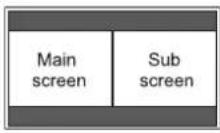 | A main screen and a sub screen are displayed in a line. |
| PbyP2 |  | Displays a main screen which measures 1440 pixels in the longest direction and a sub screen in a line. |
* Trenutno odabrani ulazni signal prikazuje se na glavnom zaslonu. * Dostupne su sljedeće kombinacije A i B za prikaz:
SAVJETI
- Možete prekršiti autorsko pravo autora koje je zaštićeno zakonom o autorskim pravima ako prikazujete slike računalnog zaslona i televizora/videorekordera istovremeno u svrhu zarade ili da biste pokazali sliku javnosti.
- Kada je veličina zaslona Točka po točka ili PRILAGOĐENO, prikaz na dvostrukom zaslonu nije moguć.
- Kada je odabran prikaz na dvostrukom zaslonu, veličina zaslona ne može se postaviti na Točka po točka ili PRILAGOĐENO.
- Kada je odabran PIP, podzaslon se prikazuje u omjeru slike 4:3, bez obzira na postavku veličine zaslona.
- Kada je odabran PbyP, glavni zaslon i podzaslon prikazuju se u omjeru slike ulaznog signala, bez obzira na postavku veličine zaslona.
- Kada je odabran PbyP2, glavni zaslon i podzaslon prikazuju se u omjeru slike 4:3, bez obzira na postavku veličine zaslona.
- Kada je odabran prikaz na dvostrukom zaslonu, funkcija POMAK ZASLONA je onemogućena.
- Kada je odabran prikaz na dvostrukom zaslonu, zaslon se ne može povećati.
- Kada se na podzaslon unosi isprekidani signal (1080i, 480i, video), vodoravne linije mogu treperiti. Ako se to dogodi, prikažite sliku na glavnom zaslonu.
- Kada je glavni zaslon DVI-D, HDMI ili DisplayPort, način unosa koji se može odabrati je DVI-D, HDMI ili DisplayPort.
- Kada je glavni zaslon D-SUB, COMPONENT ili VIDEO, način unosa koji se može odabrati je D-SUB, COMPONENT ili VIDEO.
- U sljedećim slučajevima, prikaz na dvostrukom zaslonu se isključuje:
- Napajanje je isključeno
- Ulazi se u način čekanja signala
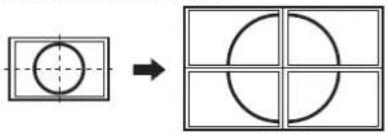
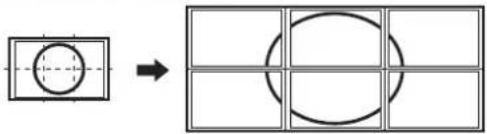
■Povećaj
- Možete poravnati nekoliko monitora i integrirati ih u jedan veliki zaslon za prikaz.
- Do 5 monitora može se poravnati i u vodoravnom i u okomitom smjeru.
• Svaki monitor prikazuje povećane prikaze odvojenih slika. (Primjer)
Vodoravni smjer: 2 monitora Okomiti smjer: 2 monitora
Vodoravni smjer: 3 monitora Okomiti smjer: 2 monitora
Postupak postavljanja
Postavite pomoću MULTI u izborniku MULTI/PIP.
- Postavite ENLARGE na ON.
- Odaberite ADVANCED (ENLARGE).
- Postavite broj monitora poravnatih u vodoravnom smjeru u ENLARGE H.
- Postavite broj monitora poravnatih u okomitom smjeru u ENLARGE V.
- Postavite dio razdvojene slike koji će se prikazivati na svakom monitoru u ENLARGE-POS.
1) Pritisnite ENTER. 2) Pritisnite ▲, ▼, ▲ ili ▲ za odabir položaja, zatim pritisnite MENU.
SAVJETI
- Kada se koristi Enlarge, funkcija SCREEN MOTION je onemogućena.
- Kada se koristi Enlarge, prikaz na dvostrukom zaslonu nije moguć.
- Kada se koristi Enlarge, funkcija SELF ADJUST je onemogućena.
■RASPORED
Možete postaviti vrijeme za uključivanje i isključivanje monitora. Postavite ovu funkciju pomoću SCHEDULE u izborniku SETUP. (Vidi stranicu 23.)
![RASPORED (1) XXXX / XX / XX XX XX : XX : XX (2) (3) (4) UKLJUČENO ISKLJUČENO ULAZ — : — — (5) SVAKI DAN PON UTO SRI ČET PET SUB NED SVAKI TJEDAN 1920 x 1080 V: 60 Hz H: 67.5 kHz NATRAG---[RETURN]](/content/2026/06/1149427/images/4935b8cd53e5cf8b0a69c6015fdaeb97fe20c4af64df7bcd4f504de6a83a3e0d.jpg)
- Pritisnite ▲ ili ▼ za odabir broja SCHEDULE, i pritisnite ▶.
- Postavite SCHEDULE. ((2) do (5) ispod)
Pritisnite □ ili □ za odabir stavki.
- Pritisnite RETURN
- Pritisnite ▲ ili ▼ za odabir broja SCHEDULE-a i pritisnite ENTER. ((1) ispod)
SCHEDULE postaje aktivan.
(1) Broj SCHEDULE-a
Omogućite/onemogućite SCHEDULE tipkom ENTER.
■: SCHEDULE aktivan
□: SCHEDULE nije aktivan
(2) ON
Odredite vrijeme uključivanja napajanja tipkama ▲ ili ▼. Vrijeme postavite u 24-satnom formatu.
(3) OFF
Odredite vrijeme isključivanja napajanja tipkama ▲ ili ▼. Odredite vrijeme kasnije od vremena uključivanja napajanja. Vrijeme postavite u 24-satnom formatu.
(4) INPUT
Odredite način ulaza pri uključivanju napajanja tipkama ▲ ili ▼. Ako to ne odredite, pojavit će se ulaz koji je bio aktivan pri zadnjem isključivanju.
(5) Dan u tjednu
Određuje dan u tjednu za izvršavanje SCHEDULE-a tipkom ENTER.
- SVAKI DAN Izvršava RASPORED svaki dan bez obzira na dan u tjednu. • PON - NED Izvršava RASPORED jednom na navedeni dan.
- SVAKI TJEDAN Izvršava RASPORED na navedeni dan svaki tjedan. Odaberite SVAKI TJEDAN i navedite dan u tjednu (PON - NED).
Oprez
- Ne isključujte glavno napajanje nakon postavljanja RASPOREDA.
- Navedite točan datum i vrijeme. (Vidi stranicu 23.) RASPORED ne funkcionira ako datum i vrijeme nisu navedeni.
- Redovito provjeravajte jesu li postavljeni datum i vrijeme točni.
SAVJETI
- Može se registrirati do 7 stavki RASPOREDA.
- Postavljanje RASPOREDA uzrokuje treptanje LED indikatora napajanja naizmjenično crveno i narančasto u stanju pripravnosti.
- RASPORED s većim brojem ima prednost nad onim s manjim brojem kada se rasporedi preklapaju.
- U sljedećim slučajevima postavite odvojeni RASPORED uključivanja i RASPORED isključivanja:
- Napajanje se isključuje, a zatim uključuje, tim redoslijedom, u RASPOREDU
- Napajanje se uključuje, a zatim isključuje, tim redoslijedom, u RASPOREDU, ali je vrijeme isključivanja sljedeći dan ili kasnije
Prilagodbe za prikaz na PC zaslonu
■Automatska prilagodba
Kada prvi put koristite D-SUB za prikaz PC zaslona ili kada promijenite postavke računala, koristite automatsku prilagodbu zaslona.
- Prebacite ulaz na D-SUB i prikažite uzorak za prilagodbu. (Pogledajte opis u nastavku.)
- Pritisnite ☐ i koristite ▲ ili ▼ za prikaz SCREEN izbornika.
- Pritisnite ENTER i odaberite "AUTO".
- Pritisnite ENTER. Automatska prilagodba je gotova za nekoliko sekundi.
SAVJETI
- Ako se zaslon ne može ispravno prilagoditi jednom automatskom prilagodbom, ponovite automatsku prilagodbu dva ili tri puta. Po potrebi pokušajte ručnu prilagodbu.
■Prikaz zaslona za prilagodbu
Prije podešavanja u SCREEN ili PICTURE izborniku, prikažite sliku koja osvjetljava cijeli zaslon. Ako koristite Windows PC, koristite uzorak za prilagodbu na priloženom CD-ROM-u.
Otvaranje uzorka za prilagodbu
Sljedeći primjer se izvodi u sustavu Windows 7.
- Umetnite priloženi CD-ROM u CD-ROM pogon računala.
- Otvorite [CD pogon] u [Računalu]. U sustavu Windows XP otvorite [CD pogon] u [Moje računalo].
- Dvaput kliknite na [Adj_uty.exe]. Pojavit će se uzorak za podešavanje. Podesite zaslon automatski ili ručno.

- Kada završite s podešavanjem, pritisnite [Esc] na tipkovnici računala da biste izašli iz programa za podešavanje.
- Izbacite CD-ROM iz CD-ROM jedinice.
SAVJETI
- Ako je način prikaza na računalu koje koristite 65 000 boja, razine boja u uzorku boja mogu izgledati drugačije ili siva skala može izgledati obojeno. (To je zbog specifikacija ulaznog signala i nije kvar.)
Inicijalizacija (Reset)/Postavka ograničenja funkcija (FUNCTION)
Možete vratiti postavke na tvorničke vrijednosti i ograničiti radnje.
- Držite ☐ pritisnutim dok se "F" ne pojavi u gornjem lijevom kutu zaslona.
- Dok se "F" pojavljuje, pritisnite ▲, ▶, ▼, ▶ tim redoslijedom.
![FUNKCIJA SVE RESETIRAJ ZAKLJUČAVANJE PODEŠAVANJA ISKLJUČENO OSD PRIKAZ UKLJUČENO LED UKLJUČENO OK...[ENTER] NATRAG...[RETURN]](/content/2026/06/1149427/images/ab8b8d0a4e9f9b42c2012e9307ecfbc6ee14e8b11108b6601f488a9de2467618.jpg)
3. Odaberite i postavite stavke.
SVE RESETIRAJ
Vraća postavke na tvorničke zadane postavke. (Postavke u KOMUNIKACIJSKE POSTAVKE se zadržavaju.) Pritisnite ENTER, odaberite SVE RESETIRAJ, a zatim pritisnite ENTER. Nakon inicijalizacije, isključite glavni prekidač za napajanje i ponovno ga uključite.
ZAKLJUČAVANJE PODEŠAVANJA
Možete onemogućiti radnje na monitoru i daljinskom upravljaču koje koriste tipke. ISKLJUČENO ...Omogućuje radnje. UKLJUČENO .....Onemogućuje sve radnje osim uključivanja/isključivanja napajanja i FUNCTION.
OSD PRIKAZ
Prikazuje/skriva izbornike, načine rada i poruke. Zaslon FUNCTION ne može se sakriti. ON .... Prikazuje izbornike, načine rada i poruke. OFF .... Skriva izbornike, načine rada i poruke.
LED
Određuje hoće li se upaliti LED indikator napajanja.
4. Pritisnite RETURN za povratak na normalni zaslon.
SAVJETI
- Čak i ako je LED postavljen na OFF, LED indikator napajanja svijetli kada dođe do upozorenja o temperaturi.
Upravljanje monitorom pomoću računala (RS-232C)
Ovaj monitor možete kontrolirati s računala putem RS-232C (COM priključka) na računalu.
Također možete povezati više monitora u lanac (daisy chain) pomoću računala. Dodjeljivanjem ID brojeva svakom monitoru (vidi stranicu 31), možete odabrati način unosa/podešavanje ili provjeriti status određenog monitora.
SAVJETI
- Za upravljanje monitorom putem RS-232C, postavite RS-232C/LAN SELECT na RS-232C, a STANDBY MODE na STANDARD.
- Ne možete istovremeno koristiti RS-232C i LAN upravljanje.
Spajanje računala
■Izravno spajanje s računalom
Spojite RS-232 ravni kabel između COM priključka (RS-232C konektora) na računalu i RS-232C ulaznog terminala na monitoru.
![graph LR A["RS-232C input terminal"] --> B["RS-232 straight cable (commercially available)"] B --> C["To COM port"] C --> D["PC"]](/content/2026/06/1149427/images/23b76103001a7893f6fbb4ae4dd1786a332c058da9f6a8f900778803e8f6c8fa.jpg)
■Daisy chain connection... Advanced operation
PN-U553/PN-U473/PN-U423 monitori mogu se povezati zajedno u lančanu vezu (daisy chain).
Spojite RS-232 ravni kabel između COM priključka (RS-232C konektor) na računalu i RS-232C ulaznog priključka na prvom monitoru.
Zatim spojite RS-232 ravni kabel na RS-232C izlazni priključak prvog monitora i na RS-232C ulazni priključak drugog monitora. Na isti način spojite i treći te sljedeće monitore.
Može se povezati do 25 monitora. (Ovisno o duljini kabela i okolnom okruženju.)
![graph TD A["Second monitor"] --> B["RS-232C output terminal"] C["First monitor"] --> D["RS-232C input terminal"] B --> E["PC"] D --> F["PC"] E --> G["To COM port"] F --> G style A fill:#f9f,stroke:#333 style C fill:#f9f,stroke:#333 style E fill:#ccf,stroke:#333 style F fill:#ccf,stroke:#333](/content/2026/06/1149427/images/1950fed56b81052957cf141e68ac6bd052b25e2040d653ef28857d5f8aded72d.jpg)
RS-232 ravni kabeli (komercijalno dostupni)
Komunikacijski uvjeti
Postavite RS-232C komunikacijske postavke na računalu tako da odgovaraju postavkama monitora kako slijedi:
| Baud rate | 9600bps |
| Data length | 8 bits |
| Parity bit | None |
| Stop bit | 1 bit |
| Flow control | None |
Komunikacijski postupak
■Format naredbe
Kada se naredba pošalje s računala na monitor, monitor radi prema primljenoj naredbi i šalje odgovor računalu.

Primjer: VOLM0030 VOLM ____ 30
* Obavezno unesite 4 znaka za parametar. Dodajte razmake ("____") ako je potrebno. ("☐" je povratni kod (0DH, 0AH ili 0DH)) Pogrešno: VOLM30 Ispravno: VOLM__ 30
Ne koristite razmake za MPOS, DATE i SH01 do SH07. Odredite parametre koristeći određeni broj znakova.
Primjer: MPOS010097
Ako naredba ima "R" navedeno pod "DIRECTION" u "Tablici RS-232C naredbi" na stranici 34, trenutna vrijednost može se dobiti korištenjem "?" kao parametra.
Primjer:
VOLM ? ? ? ? ← Od računala do monitora (Kolika je trenutna postavka glasnoće?). 30 ← Od monitora do računala (Trenutna postavka glasnoće: 30).
* Ako je dodijeljen ID broj (vidi stranicu 31) (Na primjer, ID broj = 1).
VOLM _? ← Od računala do monitora. 30_001 ← Od monitora do računala.
■Format koda odgovora
Kada je naredba ispravno izvršena
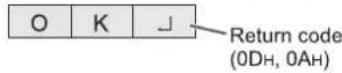
Odgovor se vraća nakon što se naredba izvrši.
* Ako je dodijeljen ID broj

Kada naredba nije izvršena

* Ako je dodijeljen ID broj

SAVJETI
- "ERR" se vraća kada ne postoji odgovarajuća naredba ili kada se naredba ne može koristiti u trenutnom stanju monitora.
- Ako komunikacija nije uspostavljena zbog razloga kao što je loša veza između računala i monitora, ništa se ne vraća (čak ni ERR).
- "ERR" se može vratiti kada se naredba ne može ispravno primiti zbog smetnji iz okoline.
Molimo osigurajte da sustav ili softver ponovi naredbu ako se to dogodi.
- Ako nijednom monitoru nije dodijeljen navedeni ID broj (npr. ako se koristi naredba IDSL0002, ali nije pronađen monitor s ID brojem: 2), ne vraća se odgovor.
Ako izvršenje naredbe potraje

Kada se koriste sljedeće naredbe, vraća se "WAIT". U tom slučaju, vrijednost će se vratiti ako pričekate neko vrijeme. Ne šaljite nikakvu naredbu tijekom tog razdoblja. Uz WAIT odgovor nije priložen ID broj.
- Naredbe koje vraćaju WAIT:
- Kada se koristi upravljanje repetitorom
- Kada se koristi IDSL ili IDLK naredba
- Kada se koristi jedna od sljedećih naredbi: RSET, INPS, ASNC, WIDE, PXSL, POWR, MWIN, MWIP, EMHV, EPHV, ESHV, ENLG, BOMD
■Komunikacijski interval
• Nakon što se vrati OK ili ERR, morate poslati sljedeće naredbe. Za postavljanje vremenskog ograničenja za odgovor na naredbu, odredite 10 sekundi ili više. Kada povezujete više monitora u lančanu vezu, postavite vremensko ograničenje na najmanje umnožak pozicije monitora od računala pomnožen s 10 sekundi. Primjer) 3. monitor od računala: 30 sekundi ili više. - Osigurajte interval od 100 ms ili više između odgovora na naredbu i slanja sljedeće naredbe.
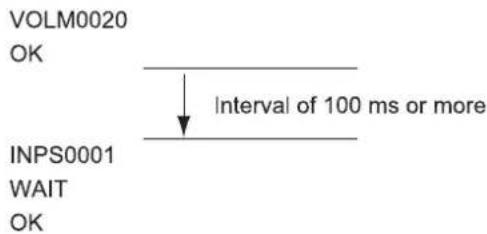
SAVJETI
- Prilikom izvršavanja ALL RESET, postavite vremensko ograničenje na 30 sekundi ili više.
- Prilikom uključivanja napajanja dok je funkcija POWER ON DELAY u upotrebi, postavite vremensko ograničenje na razdoblje POWER ON DELAY + 10 sekundi ili više.
Napredno upravljanje
Ovaj odjeljak objašnjava naredbe za lančanu vezu. Osnovni komunikacijski postupak isti je kao u odjeljku "Veza jedan-na-jedan s računalom".
ID brojevi
Svakom monitoru možete dodijeliti jedinstveni ID broj (pogledajte stranicu 23). To vam omogućuje upravljanje određenim monitorom u lancu monitora.
ID brojeve možete dodijeliti putem izbornika na zaslonu ili s računala pomoću RS-232 kabela.
[Primjer]![graph LR A["Computer"] --> B[" "] --> C[" "] --> D[" "] --> E[" "]](/content/2026/06/1149427/images/8dbe326d02f1bba157ce1d40b8ceddc3696bf427169ad83cade38b71454e8f2e.jpg)
Ako su monitori povezani kao što je prikazano gore, možete izvršavati naredbe poput "Postavi glasnoću monitora s ID-om 4 na 20".
Prilikom dodjele ID brojeva za skup monitora povezanih u lanac, u osnovi biste trebali izbjegavati dupliciranje ID brojeva.
ID brojevi ne moraju biti dodijeljeni uzlaznim redoslijedom počevši od računala. Mogu biti povezani i kao što je prikazano u nastavku.
[Primjer]![graph LR A["Computer"] --> B["ID number: 3"] B --> C["ID number: 2"] C --> D["ID number: 4"] D --> E["ID number: 1"]](/content/2026/06/1149427/images/dee1c099c9b14198399f4aec31556aac7d40e3fc1dea6f2532ffd9d6737aa5d9.jpg)
■Naredbe za upravljanje ID-om
Primjeri naredbi prikazani na ovoj stranici pretpostavljaju sljedeću vezu i postavku ID brojeva.
![graph LR A["Computer"] --> B["ID number: 1"] B --> C["ID number: 2"] C --> D["ID number: 3"] D --> E["ID number: 4"]](/content/2026/06/1149427/images/386f6b172a5a2e3ef47dcd8528a30b886715a35ff515cb0b8e5b54fb1da22a97.jpg)
IDST ......Monitor koji primi ovu naredbu postavlja vlastiti ID broj u polje parametara.
Primjer:
IDST0001
OK 001 ← ID broj ovog monitora postavljen je na 1.
SAVJETI
Možete automatski dodijeliti ID brojeve pomoću IDST naredbe s kontrolom ponavljanja (pogledajte "Kontrola ponavljanja" na stranici 33).
Na primjer, korištenjem naredbe "IDST001+" automatski se postavljaju ID brojevi, kao što je prikazano u nastavku.
[Primjer]
![graph LR A["Computer"] --> B[" "] --> C[" "] --> D[" "] --> E[" "]](/content/2026/06/1149427/images/e15eb001f1ba6cef7fbec4f4b2d12ca83c2f86602422ee04bbfc296179774f59.jpg)
IDST001 + ← Naredba za postavljanje ID-a s kontrolom ponavljanja ČEKANJE
OK 001 ← "OK" odgovor od ID broja: 1
OK _ 002 ← "OK" odgovor od ID broja: 2
OK _ 003 ← "OK" odgovor od ID broja: 3
OK _ 004 ← "OK" odgovor od ID broja: 4 (Kraj)
IDSL ......Parametar ove naredbe postavlja ID broj monitora. Monitor je podložan sljedećoj naredbi.
Primjer:
| IDSL0002 | ← | The next command is for the monitor with ID number: 2. |
| WAIT | ← | Searching for monitor with ID number: 2 |
| OK _ 002 | ← | Found monitor with ID number: 2 |
| VOLM0030 | ← | Sets volume of monitor with ID number: 2 to 30. |
| WAIT | ← | Processing |
| OK _ 002 | ← | OK response from monitor with ID number: 2 |
| VOLM0020 | ← | Sets volume to 20. |
| OK _ 001 | ← | The volume of the monitor with ID number: 1 (the one directly connected to the PC) is set to 20.* |
* IDSL naredba je učinkovita samo jednom, za neposredno sljedeću naredbu.
IDLK ....Parametar ove naredbe postavlja ID broj monitora. Monitor je podložan svim sljedećim naredbama.
Primjer:
IDLK0002 ← Sljedeće naredbe su za monitor s ID brojem: 2. ČEKANJE ← Traženje monitora s ID brojem: 2
OK 002 ← Pronađen monitor s ID brojem: 2
VOLM0030 ← Postavlja glasnoću monitora s ID brojem: 2 na 30.*
WAIT ← Obrada
OK_002
VOLM0020 ← Postavlja glasnoću monitora s ID brojem: 2 na 20.*
WAIT
OK 002
IDLK0000 ← Otkazivanje postavke fiksnog ID broja
WAIT ← Otkazivanje IDLK
OK 002 ← Otkazivanje dovršeno
VOLM0010
Glasnoća monitora s ID brojem: OK _ 001 ← 1 (onog izravno spojenog na PC) postavljena je na 10. (IDLK je otkazan.)
* IDLK naredba ostaje na snazi dok se ne otkaže ili dok se napajanje ne isključi.
■Upravljanje repetitorom
Ovaj sustav ima funkciju koja omogućuje postavljanje više monitora povezanih u lanac pomoću jedne naredbe. Ova funkcija se naziva upravljanje repetitorom. Funkciju upravljanja repetitorom možete koristiti bez dodjeljivanja ID brojeva.
[Primjer]![graph LR A["Computer"] --> B["Set 1"] B --> C["Set 2"] C --> D["Set 3"] D --> E["Set 4"]](/content/2026/06/1149427/images/e8a856ca457e625d2ebc7992f5f74980fe496176ce6bcd327693964525468644.jpg)
Ako su monitori spojeni kao što je prikazano gore, možete izvršiti naredbu poput "Postavi ulazne postavke svih monitora na D-SUB".
■Naredba za upravljanje repetitorom
Upravljanje repetitorom postiže se postavljanjem ČETVRTOG ZNAKA parametra na "+".
Primjer:
VOLM030 + ← Postavlja glasnoću svih monitora na 30.
Kod upravljanja repetitorom, odgovore vraćaju svi povezani monitori.
Ako želite utvrditi da je vrijednost vraćena od strane određenog skupa, unaprijed dodijelite ID brojeve svakom monitoru. Kada neki monitori ne vrate svoje odgovore, vjerojatni uzrok je da monitori nisu mogli primiti naredbu ili obrada naredbe nije dovršena. Ne šaljite novu naredbu.
Primjer: (Kada su spojena 4 monitora i dodijeljeni ID brojevi: 1 do 4)
VOLM030 +
ČEKAJ
OK 001
OK 002
OK 003
OK 004
← Ako su 4 monitora spojena u lanac, pouzdan rad može se osigurati slanjem nove naredbe tek nakon što je odgovor vraćen od strane 4. (posljednjeg) monitora.
Repeater kontrola se također može koristiti za čitanje postavki.
Primjer:
VOLM ? ? ? +
WAIT
10 001
20 002
30 003
30 004
Vraćaju se postavke glasnoće za sve monitore.
SAVJETI
- Ako se repeater kontrola koristi tijekom dodjele ID-a (IDSL, IDLK), dodjela ID-a se poništava.
Tablica RS-232C naredbi
Kako čitati tablicu naredbi
Naredba: Polje naredbe (vidi stranicu 30.)
Smjer: W Kada je "Parametar" postavljen u polju parametra (vidi stranicu 30), naredba funkcionira kako je opisano pod "Sadržaj kontrole/odgovora".
Vrijednost prikazana pod "Reply" može se dobiti postavljanjem "????", "☐☐☐?" ili "???+" (upravljanje repetitorom) u polje parametara (vidi stranicu 30).
Parametar: Polje parametara (Vidi stranicu 30.)
Odgovor: Odgovor (vraćena vrijednost)
* : "o" označava naredbu koja se može koristiti u stanju pripravnosti.
"-" označava naredbu koja se ne može koristiti u stanju pripravnosti.
(Kada je STANDBY MODE postavljen na STANDARD. Kada je postavljen na LOW POWER, RS-232C naredbe se ne mogu koristiti.)
Upravljanje napajanjem/Odabir ulaznog načina
| Function | Command | Direction | Parameter | Reply | Control/Response contents | * |
| POWER CONTROL | POWR | W | 0 | Switches to standby mode. | ○ | |
| 1 | Returns from standby mode. | |||||
| R | 0 | Standby mode | ||||
| 1 | Normal mode | |||||
| 2 | Input signal waiting mode | |||||
| INPUT MODE SELECTION | INPS | W | 0 | Toggle change for input mode. | ||
| 1 | DVI-D | |||||
| 2 | D-SUB | |||||
| 3 | COMPONENT | |||||
| 4 | VIDEO | |||||
| 9 | HDMI | |||||
| 14 | DisplayPort | |||||
| R | 1 | DVI-D | ||||
| 2 | D-SUB | |||||
| 3 | COMPONENT | |||||
| 4 | VIDEO | |||||
| 9 | HDMI | |||||
| 14 | DisplayPort |
SCREEN izbornik
| Function | Command | Direction | Parameter | Reply | Control/Response contents | * | |
| AUTO | ASNC | W | 1 | When the input mode is D-SUB. | - | ||
| SELF ADJUST | AADJ | WR | 0-1 | 0-1 | 0: OFF, 1: ON | ○ | |
| CLOCK | CLCK | WR | 0-100 | 0-100 | When the input mode is D-SUB. | - | |
| PHASE | PHSE | WR | 0-100 | 0-100 | When the input mode is D-SUB. | ||
| POSITIONING | POSITION OF THE LONGEST DIRECTION | HPOS | WR | 0-100 | 0-100 | When the input mode is D-SUB. | |
| POSITION OF THE SHORTEST DIRECTION | VPOS | WR | 0-100 | 0-100 | When the input mode is D-SUB. | ||
| SIZE (DVI-D, DisplayPort, D-SUB) | WIDE | WR | 1-3,6 | 1-3,6 | 1: WIDE, 2: NORMAL, 3: Dot by Dot, 6: CUSTOM | ||
| SIZE (HDMI, COMPONENT, VIDEO) | WIDE | WR | 1,4-6 | 1,4-6 | 1: WIDE, 4: NORMAL, 5: Dot by Dot, 6: CUSTOM | ||
| CUSTOM ZOOM | ZOOM | CZSZ | WR | 0-100 | 0-100 | ||
| SIZE OF THE LONGEST DIRECTION | CZHS | WR | 0-100 | 0-100 | |||
| SIZE OF THE SHORTEST DIRECTION | CZVS | WR | 0-100 | 0-100 | |||
| POSITION OF THE LONGEST DIRECTION | CZHP | WR | 0-100 | 0-100 | When the input mode is D-SUB. | ||
| POSITION OF THE SHORTEST DIRECTION | CZVP | WR | 0-100 | 0-100 | When the input mode is D-SUB. | ||
| INPUT RESOLUTION (DVI-D, DisplayPort, D-SUB) | RESOLUTION CHECK | PXCK | R | - | Returns current resolution in the form of hhh, vvv. | ||
| PIXEL SETTING (D-SUB) | PXSL | WR | 1 | 1 | 768) 1360 x 768 | ||
| 2 | 2 | 768) 1280 x 768 | |||||
| 3 | 3 | 768) 1024 x 768 | |||||
| 7 | 7 | 1050) 1680 x 1050 | |||||
| 8 | 8 | 1050) 1400 x 1050 | |||||
| 9 | 9 | 768) AUTO | |||||
| 11 | 11 | 1200) 1920 x 1200 | |||||
| 12 | 12 | 1200) 1600 x 1200 | |||||
| 13 | 13 | 1050) AUTO | |||||
| 14 | 14 | 1200) AUTO | |||||
| INPUT RESOLUTION (HDMI, COMPONENT, VIDEO) | RESOLUTION CHECK | RESO | R | - | 480i, 480p, 1080i, 720p, 1080p, etc. | ||
| RESET | ARST | W | 1 | ||||
PICTURE izbornik
| Function | Command | Direction | Parameter | Reply | Control/Response contents | * | ||
| BRIGHT | VLMP | WR | 0-31 | 0-31 | ○ | |||
| CONTRAST | CONT | WR | 0-100 | 0-100 | ||||
| BLACK LEVEL | BLVL | WR | 0-100 | 0-100 | ||||
| TINT (HDMI, COMPONENT, VIDEO) | TINT | WR | 0-100 | 0-100 | ||||
| COLORS (HDMI, COMPONENT, VIDEO) | COLR | WR | 0-100 | 0-100 | ||||
| SHARPNESS | SHRP | WR | 0-100 | 0-100 | ||||
| COLOR ADJUSTMENT | COLOR MODE | BMOD | WR | 0 | 0 | STD | ||
| 3 | 3 | sRGB (When the input mode is DVI-D, DisplayPort, D-SUB) | ||||||
| 4 | 4 | HIGH ILLUMINANCE | ||||||
| WHITE BALANCE | THRU | CTMP | WR | 0 | 0 | |||
| PRESET | 1-18 | 1-18 | From 1: approximately 3,000K to 15: approximately 10,000K (500K steps)16: approximately 5,600K, 17: approximately 9,300K, 18: approximately 3,200K | |||||
| USER | 99 | 99 | ||||||
| R-GAIN | CRTR | WR | 0-256 | 0-256 | "ERR" when CTMP is not set to 99. | |||
| G-GAIN | CRTG | WR | 0-256 | 0-256 | ||||
| B-GAIN | CRTB | WR | 0-256 | 0-256 | ||||
| R-OFFSET | OFSR | WR | 0-255 | 0-255 | ||||
| G-OFFSET | OFSG | WR | 0-255 | 0-255 | ||||
| B-OFFSET | OFSB | WR | 0-255 | 0-255 | ||||
| GAMMA | GAMM | WR | 0-2, 5 | 0-2, 5 | 0: 1.8, 1: 2.2, 2: 2.4, 5: 2.0 | |||
| ADVANCED | NOISE REDUCTION (HDMI, COMPONENT, VIDEO) | TDNR | WR | 0-2 | 0-2 | 0: OFF, 1: LOW, 2: HIGH | ||
| HDMI RGB INPUT RANGE (HDMI) | AHDR | WR | 1-2 | 1-2 | 1: FULL, 2: LIMITED | |||
| RESET | ARST | W | 2 | - | ||||
AUDIO izbornik
| Function | Command | Direction | Parameter | Reply | Control/Response contents | * |
| TREBLE | AUTR | WR | 0-100 | 0-100 | ○ | |
| BASS | AUBS | WR | 0-100 | 0-100 | ||
| BALANCE | AUBL | WR | 0-100 | 0-100 | ||
| RESET | ARST | W | 3 | - |
SETUP izbornik
| Function | Command | Direction | Parameter | Reply | Control/Response contents | * | |
| DATE/TIME SETTING | DATE | WR | AABBCCDDEE | AABBCCDDEE | AA: Year, BB: Month, CC: Day, DD: Hour, EE: Minute | O | |
| SCHEDULE | SH01-SH07 | WR | ABBCCDDEEFGHIJKLMNO | ABBCCDDEEFGHIJKLMNO | Schedule of a specified numberA : Schedule 0= Not effective, 1 = EffectiveB : Power-on hour 00-23, 99 = Not effectiveC : Power-on minute 00-59, 99 = Not effectiveD : Power-off hour 00-23, 99 = Not effectiveE : Power-off minute 00-59, 99 = Not effectiveF : Input 0 = Not specified, 1 = DVI-D, 2 = DisplayPort, 3 = HDMI, 4 = D-SUB, 5 = COMPONENT, 6 = VIDEOG : EVERY DAY 0 = OFF, 1 = ONH : EVERY WEEK 0 = OFF, 1 = ONI-O : MON-SUN 0 = OFF, 1 = ON | ||
| LANGUAGE | LANG | WR | 14 | 14 | ENGLISH | ||
| 1 | 1 | DEUTSCH | |||||
| 2 | 2 | FRANÇAIS | |||||
| 3 | 3 | ITALIANO | |||||
| 4 | 4 | ESPAÑOL | |||||
| 5 | 5 | РУССКИЙ | |||||
| 6 | 6 | 日本語 | |||||
| INPUT SELECT | HOT PLUGCONTROL (DVI-D) | HPCT | WR | 0-1 | 0-1 | 0: OFF, 1: ON | |
| HOT PLUGCONTROL (HDMI) | HPCH | WR | 0-1 | 0-1 | 0: OFF, 1: ON | ||
| AUDIO SELECT | DVI-D | ASDP | WR | 1-2 | 1-2 | 1: AUDIO1, 2: AUDIO2 | |
| D-SUB | ASAP | WR | 1-2 | 1-2 | 1: AUDIO1, 2: AUDIO2 | ||
| HDMI | ASHA | WR | 0-2 | 0-2 | 0: HDMI, 1: AUDIO1, 2: AUDIO2 | ||
| COMPONENT | ASCA | WR | 1-2 | 1-2 | 1: AUDIO1, 2: AUDIO2 | ||
| VIDEO | ASVA | WR | 1-2 | 1-2 | 1: AUDIO1, 2: AUDIO2 | ||
| DisplayPort | ASDI | WR | 1-3 | 1-3 | 1: AUDIO1, 2: AUDIO2, 3: DisplayPort | ||
| ID SETTING | ID NO.SETTING | IDST | W | 0-26 | Sets the monitor's ID number. ("0" means "no ID number".) | ||
| R | 0-26 | Returns the monitor's ID number. | |||||
| ID NO. SETTING(ONCE) | IDSL | W | 1-26 | Sets a monitor ID number.This ID number is only effective for the command immediately after this command. | |||
| 0 | Clears the ID number if one has been designated. | ||||||
| ID NO. SETTING(SUBSEQUENT) | IDLK | W | 1-26 | Sets a monitor ID number.This ID number is effective for the next and all subsequent commands after this command. | |||
| 0 | Clears the ID number if one has been designated. | ||||||
| INFORMATION | MODEL | INF1 | R | Value | |||
| SERIAL NO | SRNO | R | Value | ||||
MONITOR izbornik
| Function | Command | Direction | Parameter | Reply | Control/Response contents | * |
| MONITOR | STDR | WR | 0-1 | 0-1 | 0: LANDSCAPE, 1: PORTRAIT | ○ |
| OSD H-POSITION | OSDH | WR | 0-100 | 0-100 | ||
| OSD V-POSITION | OSDV | WR | 0-100 | 0-100 | ||
| STANDBY MODE | STBM | WR | 0-1 | 0-1 | 0: STANDARD, 1: LOW POWER | |
| OFF IF NO OPERATION | ATOF | WR | 0-1 | 0-1 | 0: OFF, 1: ON | |
| POWER ON DELAY | PWOD | WR | 0-60 | 0-60 | 0: OFF, 1-60 seconds |
MULTI/PIP izbornik
| Function | Command | Direction | Parameter | Reply | Control/Response contents | * | |
| ENLARGE | ENLG | WR | 0-1 | 0-1 | 0: OFF, 1: ON | - | |
| ENLARGE MODE | EMHV | WR | 11-55 | 11-55 | 1 x 1 (OFF) to 5 x 5 ("m x n" is expressed as "mn", where m and n are the numbers of monitors specified for the longest direction and the shortest direction respectively.) | ||
| IMAGE POSITION (M x N) | EPHV | WR | 11-55 | 11-55 | Specifies values in the order of IMAGE POSITION IN LONGEST/ SHORTEST DIRECTION. | ||
| BEZEL ADJUST | BZCO | WR | 0-1 | 0-1 | 0: OFF, 1: ON | ||
| ENLARGE/IMAGE POSITION SETTING | ESHV | WR | XXYY | XXYY | XX: ENLARGE MODE (Same as EMHV), YY: IMAGE POSITION (Same as EPHV) | ||
| PIP MODES | MWIN | WR | 0-3 | 0-3 | 0: OFF, 1: PIP, 2: PbyP, 3: PbyP2 | ||
| PIP SIZE | MWSZ | WR | 0-2 | 0-2 | 0: SMALL, 1: MIDDLE, 2: LARGE | ○ | |
| PIP POS | THE LONGEST DIRECTION | MHPS | W | 0-100 | |||
| R | 0-100 | ||||||
| THE SHORTEST DIRECTION | MVPS | W | 0-100 | ||||
| R | 0-100 | ||||||
| PIP POS LD+SD BATCH | MPOS | W | 0-100,0-100 | Specify the position in MPOSxxxxyy format. (xxx: Longer side, yyy: Shorter side position) | |||
| R | 0-100,0-100 | Returns a response in (xxx,yyy) format. (xxx: Longer side, yyy: Shorter side position) | |||||
| PIP SOURCE | MWIP | WR | 1 | 1 | DVI-D | ||
| 2 | 2 | D-SUB | |||||
| 3 | 3 | COMPONENT | |||||
| 4 | 4 | VIDEO | |||||
| 9 | 9 | HDMI | |||||
| 14 | 14 | DisplayPort | |||||
| SOUND CHANGE | MWAD | WR | 1-2 | 1-2 | 1: MAIN, 2: SUB | ||
OTHERS izbornik
| Function | Command | Direction | Parameter | Reply | Control/Response contents | * |
| SCREEN MOTION | MTIM | WR | 0-900 | 0-900 | 0: OFF, 10-900: Operating interval (Per 10 seconds) | ○ |
| POWER MANAGEMENT(DisplayPort, HDMI, DVI-D, D-SUB) | PMNG | WR | 0-1 | 0-1 | 0: OFF, 1: ON | |
| POWER MANAGEMENTCOMPONENT, VIDEO) | PMAV | WR | 0-1 | 0-1 | 0: OFF, 1: ON | |
| LOGO SCREEN | BTSC | WR | 0-1 | 0-1 | 0: OFF, 1: ON | |
| SCAN MODE | SCAN | WR | 0-1 | 0-1 | 0: OVERSCAN, 1: UNDERSCAN(When the input mode is HDMI) | - |
| BACKLIGHT OFF | BOMD | W | 0-1 | 0: Enters BACKLIGHT OFF mode, 1: Exits BACKLIGHT OFF mode | ||
| R | 0-1 | 0: BACKLIGHT OFF mode, 1: Normal operation state | ||||
| COLOR SYSTEM (VIDEO) | CSYS | WR | 0-5 | 0-5 | 0: AUTO, 1: PAL, 2: PAL-60, 3: SECAM, 4: NTSC3.58, 5: NTSC4.43 | ○ |
Inicijalizacija/Postavke ograničenja funkcija (FUNCTION) izbornik
| Function | Command | Direction | Parameter | Reply | Control/Response contents | * |
| ALL RESET | RSET | W | 1 | 1: ALL RESET | - | |
| ADJUSTMENT LOCK | ALCK | WR | 0-1 | 0-1 | 0: OFF, 1:ON | ○ |
| OSD DISPLAY | LOSD | WR | 0-1 | 0-1 | 0: ON, 1: OFF | |
| LED | OFLD | WR | 0-1 | 0-1 | 0: ON, 1: OFF |
Ostalo
| Function | Command | Direction | Parameter | Reply | Control/Response contents | * |
| VOLUME | VOLM | WR | 0-31 | 0-31 | ○ | |
| MUTE | MUTE | WR | 0-1 | 0-1 | 0: OFF, 1: ON | - |
| TEMPERATURE SENSOR | DSTA | R | 0 | Internal temperature normal | ○ | |
| 1 | Internal temperature abnormal has occurred and the monitor is in standby mode | |||||
| 2 | Internal temperature abnormal occurred (To delete the information of temperature abnormal, turn off the main power.) | |||||
| 3 | Internal temperature abnormal has occurred and backlight brightness is dimmed | |||||
| 4 | Temperature sensor abnormal | |||||
| TEMPERATURE ACQUISITION | ERRT | R | Value | Returns the temperature at the temperature sensors in the following format. [Sensor 1] [Sensor 2] Indicates a temperature sensor abnormality when "126" is returned. | ||
| CAUSE OF LAST STANDBY MODE | STCA | W | 0 | Initialization | ||
| R | 0 | No detectable error has occurred | ||||
| 1 | Standby mode by POWER button | |||||
| 2 | Main power off by the main power switch | |||||
| 3 | Standby mode by RS-232C or LAN | |||||
| 4 | Input signal waiting mode by No Signal | |||||
| 6 | Standby mode by abnormal temperature | |||||
| 8 | Standby mode by SCHEDULE setting | |||||
| 20 | Standby mode by OFF IF NO OPERATION setting |
SAVJETI
- Kod nekih naredbi postavke stavke nisu kontinuirane. U tom slučaju, uneseni parametar bit će postavljen na najbližu postavku.
(Primjer) Kada su postavke "...45, 50, 55...":
Ako je uneseni parametar "50", "51" ili "52", postavlja se "50".
Ako je uneseni parametar "53", "54" ili "55", postavlja se "55".
- Kod nekih naredbi, broj postavljen na izborniku može se razlikovati od broja parametra.
Upravljanje monitorom pomoću računala (LAN)
Vaš monitor može se spojiti na LAN što vam omogućuje upravljanje s računala na LAN-u.
Za spajanje je potreban komercijalno dostupan LAN kabel (UTP kabel, kategorija 5, ravni).
![graph TD A["LAN terminal"] --> B["Network (LAN)"] B --> C["Hub"] C --> D["LAN cable (commercially available, straight)"]](/content/2026/06/1149427/images/efdb135197ba047ea2555f7c4003f687a2b9091990d580331d39c155d28b9322.jpg)
SAVJETI
- Morate dodijeliti IP adresu monitoru slijedeći postupke u "Postavke za spajanje na LAN". (Pogledajte opis desno.)
- Na vašem računalu mora biti instaliran Internet Explorer (verzija 7.0 ili novija).
- Preporučuje se Internet Explorer verzija 7, 8 ili 9.
- Koristite Internet Explorer verziju 10 u načinu kompatibilnosti.
- Za upravljanje monitora putem LAN-a, postavite RS-232C/LAN SELECT na LAN, a STANDBY MODE na STANDARD.
- Ne možete istovremeno koristiti RS-232C i LAN upravljanje.
Postavke za spajanje na LAN
Postavite IP adresu i podmrežnu masku monitora tako da odgovaraju postavkama vašeg LAN-a.
Ove postavke možete napraviti na monitoru ili na računalu spojenom na monitor.
Postavke ovise o konfiguraciji vašeg LAN-a. Za detalje se obratite administratoru LAN-a.
■ Za postavljanje na monitoru
Postavite RS-232C/LAN SELECT od COMMUNICATION SETTING u SETUP izborniku na LAN, a zatim postavite LAN SETUP opcije. (Vidi stranicu 23.)
Nakon postavljanja svake stavke, pritisnite RETURN
DHCP CLIENT
Ako vaš LAN ima DHCP poslužitelj i želite automatski dobiti adresu, promijenite ovu postavku na ON.
Za ručno postavljanje adrese, postavite ovo na OFF.
IP ADRESA
Ako je DHCP CLIENT postavljen na OFF, navedite IP adresu. Pritisnite ▶ ili ▶ za odabir stavki, a ▶ ili ▶ za promjenu vrijednosti.
PODMREŽNA MASKA
Ako je DHCP KLIJENT postavljen na OFF, navedite masku podmreže. Pritisnite ▶ ili ▶ za odabir stavki, a ▶ ili ▶ za promjenu vrijednosti.
ZADANI PROLAZ (DEFAULT GATEWAY)
Ako je DHCP KLIJENT postavljen na OFF, navedite zadani prolaz.
Ako ne koristite prolaz, navedite "000.000.000.000". Pritisnite ▶ ili ▶ za odabir stavki, a ▶ ili ▶ za promjenu vrijednosti.
■ Postavljanje s računala
Kada je monitor spojen na računalo, LAN postavke mogu se konfigurirati putem računala.
Proces postavljanja
(1) Spojite monitor na računalo (2) Odredite IP adresu računala (3) Konfigurirajte LAN postavke monitora
(1) Spajanje monitora na računalo
Spojite komercijalno dostupan crossover LAN kabel (UPT kabel, kategorija 5) na LAN priključak na računalu i na ovom monitoru.
![graph TD A["LAN terminal"] --> B["LAN cable (commercially available, crossover)"] B --> C["PC"] style A fill:#f9f,stroke:#333 style C fill:#ccf,stroke:#333](/content/2026/06/1149427/images/ae2ae58d5337423175a7517bf0da4024f2686edb889db2914e2317e8abda024e.jpg)
(2) Određivanje IP adrese računala
Da biste konfigurirali LAN postavke monitora, morate privremeno promijeniti postavke na računalu.
Ovo objašnjenje temelji se na sustavu Windows 7.
- Prijavite se na računalo s administratorskim računom.
- Kliknite [Start], a zatim kliknite "Upravljačka ploča".
- Kliknite "View network status and tasks" u odjeljku "Network and Internet". U "Classic View" kliknite "Network and Sharing Center".
- Kliknite "Local Area Connection", a zatim "Properties".
- Kliknite "Internet Protocol Version 4 (TCP/IPv4)", a zatim "Properties".
- Zabilježite trenutne postavke IP adrese, podmrežne maske i zadani pristupnik.
Obavezno zapišite ove informacije sada jer ćete naknadno vratiti IP adresu, podmrežnu masku i zadani pristupnik na ove postavke.
- Privremeno promijenite IP adresu i podmrežnu masku. Za pristup monitoru kako je isporučen iz tvornice, postavite sljedeće.
• IP adresa: 192.168.150.1 - Podmrežna maska: 255.255.255.0 - Zadani pristupnik: (ostavite prazno)

- Kliknite [OK], a zatim ponovno pokrenite računalo.
SAVJETI
- Ovaj monitor je tvornički unaprijed postavljen kako je prikazano u nastavku. (Kada je DHCP CLIENT postavljen na OFF)
IP adresa: 192.168.150.2
Podmrežna maska: 255.255.255.0
Zadani pristupnik: 0.0.0.0
(3) Konfiguriranje LAN postavki monitora
Pristupite monitoru pomoću Internet Explorera.
Upravljanje monitora
- Uključite monitor.
- Postavite RS-232C/LAN SELECT u COMMUNICATION SETTING na SETUP izborniku na LAN.
- Postavite DHCP CLIENT u LAN SETUP od COMMUNICATION SETTING na SETUP izborniku na OFF.
Rad s računalom
- Pokrenite Internet Explorer, u okvir "Address" upišite "http://192.168.150.2/" i pritisnite tipku Enter.

- Ostavite okvire "Username" i "Password" praznima i kliknite [Login].

6. Kliknite SETUP.
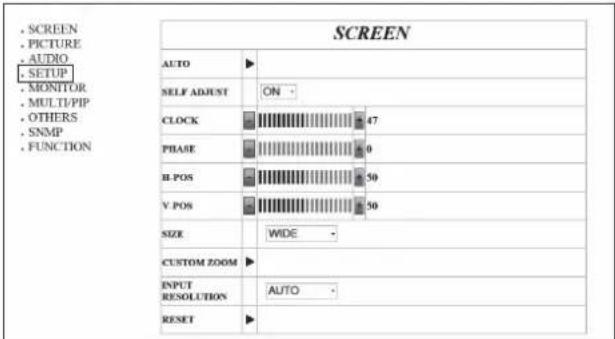
7. Kliknite [▶] pored LAN SETUP.
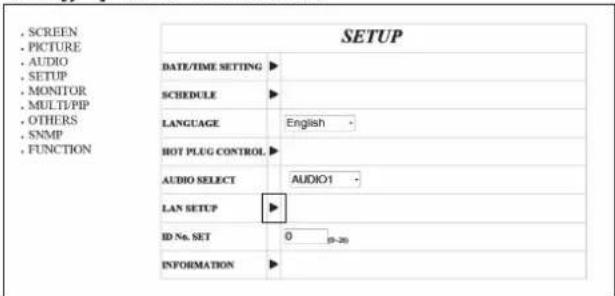
8. Odredite DHCP CLIENT, IP ADDRESS, itd.
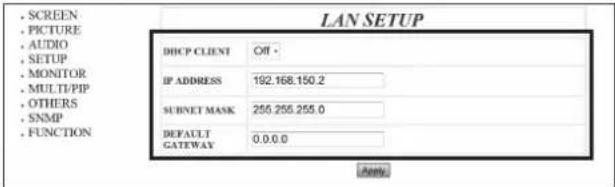
DHCP CLIENT
Ako vaša LAN mreža ima DHCP poslužitelj i želite automatski dobiti adresu, promijenite ovu postavku na ON. Za ručno postavljanje adrese, postavite ovo na OFF.
IP ADDRESS
Ako je DHCP CLIENT postavljen na OFF, odredite IP adresu.
SUBNET MASK
Ako je DHCP KLIJENT postavljen na OFF, navedite masku podmreže.
ZADANI PRISTUPNIK (DEFAULT GATEWAY)
Ako je DHCP KLIJENT postavljen na OFF, navedite zadani pristupnik. Ako ne koristite zadani pristupnik, navedite "0.0.0.0".
- Kada promijenite postavku, kliknite [Primijeni].
- Izađite iz Internet Explorera.
- Vratite IP adresu računala koju ste zapisali u koraku 6, "(2) Određivanje IP adrese računala".
- Spojite monitor i računalo na LAN.
Upravljanje računalom
■ Osnovne operacije
Za upravljanje monitorom koristite Internet Explorer na računalu u LAN-u.
- Pokrenite Internet Explorer na računalu.
- U polje "Adresa" upišite "http://" nakon čega slijedi IP adresa vašeg monitora i "/", zatim pritisnite tipku Enter.

3. Unesite "Korisničko ime" i "Lozinku", te kliknite [Prijava].
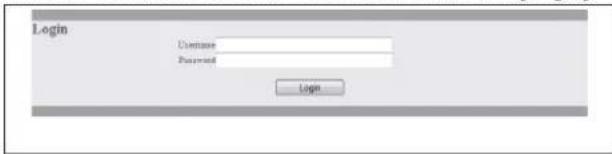
Unesite korisničko ime i lozinku postavljene u SIGURNOSTI. Ako niste napravili nikakve SIGURNOSNE postavke, ostavite polja prazna i kliknite [Prijava].
4. Možete konfigurirati postavke na svakom zaslonu s postavkama.
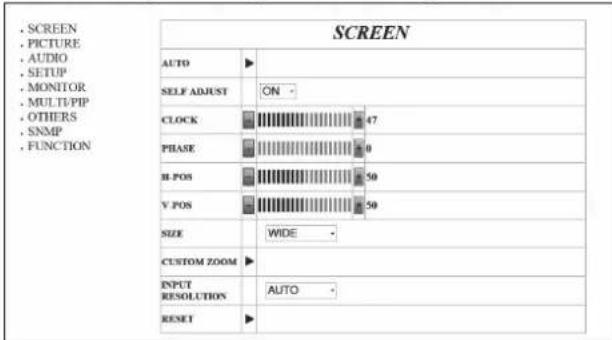
SAVJETI
- Monitor ne možete koristiti dok se zagrijava.
■ Rad s računalom

Za pojedinosti o svakoj stavci pogledajte u nastavku.
| SCREEN | Page 21 | |
| PICTURE | Page 22 | |
| INPUT SOURCE | Page 18 | |
| AUDIO | Page 23 | |
| VOLUME | Page 18 | |
| SETUP | Page 23 | |
| SCHEDULE | Page 27 | |
| LAN SETUP | Page 43 | |
| MONITOR | Page 24 | |
| MULTI/PIP | Page 24 | |
| OTHERS | Page 25 | |
| SNMP | Page 43 | |
| FUNCTION | Page 29 | |
- Prikaz zaslona s postavkama.
- Kliknite [+][-] za podešavanje. Ako postoji okvir za tekst, možete izravno unijeti i broj.
- Kliknite [▶] i podesite na zaslonu koji se pojavi.
- Kliknite i odaberite stavku iz izbornika koji se pojavi.
- Kliknite za uključivanje/isključivanje napajanja.
* Provjerite je li postavka primijenjena prije izvođenja sljedećeg koraka. Ako se klikne više puta, postavka se možda neće ispravno primijeniti.
■ LAN POSTAVKE / SIGURNOST / OPĆENITO
Ovaj zaslon omogućuje postavljanje postavki potrebnih kada je monitor spojen na LAN.
![SCREEN • PICTURE • AUDIO • SETUP • MONITOR • MULTI/PIP • OTHERS • SNMP • FUNCTION LAN SETUP MBCP CLIENT OF * IP ADDRESS: 192 108.150.2 SUBNET MASK 255.255.255.9 DEFAULT GATEWAY 0.0.0 LANT SECURITY USERNAME [ ] [ ] [ ] [ ] [ ] [ ] [ ] [ ] [ ] [ ] [ ] [ ] [ ] [ ] [ ] [ ] [ ] [ ] [ ] [ ] [ ] [ ] [ ] […](/content/2026/06/1149427/images/37ee860eae759e94daccb9c2316b23576ca18da41e87fde54eb254904815f7dd.jpg)
DHCP KLIJENT
Ako vaš LAN ima DHCP poslužitelj i želite automatski dobiti adresu, promijenite ovu postavku na ON. Za ručno postavljanje adrese, postavite ovo na OFF.
IP ADRESA
Ako je DHCP KLIJENT postavljen na OFF, navedite IP adresu.
MREŽNA MASKA
Ako je DHCP KLIJENT postavljen na OFF, navedite mrežnu masku.
ZADANI PRISTUPNIK
Ako je DHCP KLIJENT postavljen na OFF, navedite zadani pristupnik. Ako ne koristite zadani pristupnik, navedite "0.0.0.0"
KORISNIČKO IME / LOZINKA / POTVRDA LOZINKE
Postavlja korisničko ime i lozinku za ograničavanje pristupa ovom monitoru. Za potvrdu, ponovno unesite lozinku koju ste unijeli u LOZINKA u POTVRDA LOZINKE.
VRIJEME AUTOMATSKE ODJAVE
Navedite vrijeme (u minutama) koje treba proći prije automatskog prekidanja veze ovog monitora s mrežom. Navedite u minutama od 1 do 65535. Vrijednost '0' onemogućit će ovu funkciju.
PODATKOVNI PORT
Navedite broj TCP priključka koji će se koristiti za razmjenu podataka s monitorom. Navedite vrijednost od 1025 do 65535.
PORTA ZA PRETRAGU
Navedite broj priključka koji će se koristiti za pretragu ovog monitora. Navedite vrijednost od 1025 do 65535.
SAVJETI
• Nakon što promijenite postavke, kliknite [Primijeni]. • Nakon što promijenite postavke u ODJELJAKU PODACI i PORTA ZA PRETRAGU, kliknite [Ponovno pokreni].
SNMP
Ovdje možete konfigurirati postavke vezane uz SNMP.
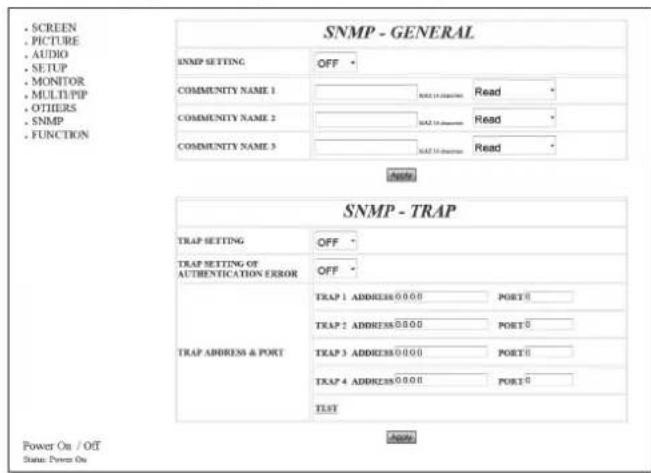
SNMP POSTAVKE
Postavite želite li omogućiti ili onemogućiti SNMP.
NAZIV ZAJEDNICE 1 do 3
Postavite naziv zajednice potreban za pristup.
POSTAVKE TRAP-a
Postavite želite li omogućiti ili onemogućiti funkciju trap-a. Kada je ova funkcija omogućena, trap će se poslati kada se monitor uključi.
POSTAVKE TRAP-a ZA POGREŠKU AUTENTIFIKACIJE
Postavite želi li funkcija trap-a poslati obavijest kada autentifikacija ne uspije.
TRAP ADRESA I PORT
Postavite odredišnu adresu i broj porta obavijesti koju šalje funkcija trap.
SAVJETI
• Nakon što promijenite postavke, kliknite [Primijeni].
"Napredne operacije"
Upravljanje putem naredbi
Monitor možete kontrolirati pomoću RS-232C naredbi (vidi stranicu 34) putem terminalnog softvera i drugih odgovarajućih aplikacija.
Da biste koristili ovu funkciju, omogućite vezu s monitorom putem Internet Explorera.
Pročitajte priručnik za terminalni softver za detaljne upute.
(1) Spojite računalo na monitor.
- Navedite IP adresu i broj podatkovnog porta te spojite računalo na monitor. Kada je veza uspješno uspostavljena, kao odgovor se vraća [☐ Login:].
- Pošaljite korisničko ime postavljeno u postavkama SIGURNOSTI (vidi stranicu 43).
- Pošaljite [korisničko ime] + [☐].
- Ako korisničko ime nije postavljeno, pošaljite [☐].
- Kada je prijenos uspješan, [☐Lozinka:] se vraća kao odgovor.
- Pošaljite lozinku postavljenu u postavkama SIGURNOSTI (pogledajte stranicu 43).
- Pošaljite [Lozinka] + [☐].
- Ako lozinka nije postavljena, pošaljite [☐].
- Kada je prijenos uspješan, [OK □] se vraća kao odgovor.
(2) Pošaljite naredbe za upravljanje monitorom.
- Korištene naredbe su iste kao one za RS-232C. Za rad pogledajte komunikacijski postupak (pogledajte stranicu 30).
- Dostupne naredbe navedene su u tablici RS-232C naredbi (pogledajte stranicu 34).
(3) Prekinite vezu s monitorom i izađite iz funkcije.
- Pošaljite [BYE□]. Kada je prijenos uspješan, vraća se [goodbye] i veza se prekida.
SAVJETI
- Veza se automatski prekida kada istekne vrijeme navedeno u opciji AUTO LOGOUT TIME tijekom razdoblja bez komunikacije.
Rješavanje problema
Ako imate bilo kakvih problema s monitorom, prije poziva servisu pregledajte sljedeće savjete za rješavanje problema.
Nema slike ili zvuka.
• Je li kabel za napajanje isključen? (Vidi stranicu 13.) • Je li glavni prekidač za napajanje isključen? (Vidi stranicu 16.) - Je li monitor u stanju pripravnosti (LED lampica za napajanje svijetli narančasto)? (Vidi stranicu 16.) • Provjerite je li odabran ispravan ulazni način rada. (Vidi stranicu 18.) - Ako je spojena vanjska oprema, provjerite radi li (reproducira li).
Daljinski upravljač ne radi.
- Jesu li baterije umetnute s ispravno poravnatim polaritetom (+,-)? (Vidi stranicu 15.) • Jesu li baterije prazne?
- Usmjerite daljinski upravljač prema senzoru daljinskog upravljača na monitoru. (Vidi stranicu 15.)
- Je li izbornik skriven ili je onemogućeno upravljanje? (Vidi stranicu 29.)
Zvuk iz lijevog i desnog zvučnika je obrnut.
Zvuk se čuje samo s jedne strane.
• Jesu li audio kabeli ispravno spojeni? - Provjerite postavku BALANCE u AUDIO izborniku. (Vidi stranicu 23.)
Postoji slika, ali nema zvuka.
• Je li zvuk isključen (mute)? • Provjerite nije li glasnoća postavljena na minimum. - Jesu li audio kabeli ispravno spojeni? - Je li postavka AUDIO SELECT u SETUP izborniku ispravna? (Vidi stranicu 23.)
Nestabilan video.
• Signal može biti nekompatibilan. - Pokušajte automatsko podešavanje zaslona kada se koristi D-SUB.
Video s HDMI ulaznog terminala ne prikazuje se ispravno.
- Je li HDMI kabel u skladu s HDMI standardom? Monitor neće raditi s kabelima koji nisu u skladu sa standardom.
- Je li ulazni signal kompatibilan s ovim monitorom? (Vidi stranicu 51.)
Video s DVI-D ulaznog terminala ne prikazuje se ispravno.
- Je li ulazni signal kompatibilan s ovim monitorom? (Vidi stranicu 51.)
- Isključite napajanje povezane opreme, a zatim ga ponovno uključite.
- Ako su monitori povezani u lanac, isključite napajanje svih monitora povezanih u lanac, a zatim ga ponovno uključite.
Video s D-Sub ulaznog terminala ne prikazuje se ispravno.
- Je li ulazni signal kompatibilan s ovim monitorom? (Vidi stranicu 51.)
Video s DisplayPorta ne prikazuje se ispravno.
- Je li ulazni signal kompatibilan s ovim monitorom? (Vidi stranicu 51.)
Video s komponentnih ulaznih terminala ne prikazuje se ispravno.
• Je li video kabel (Y/Cb/Cr) ispravno spojen? • Je li ulazni način rada postavljen na COMPONENT? Video se neće ispravno prikazati ako je ulazni način rada postavljen na VIDEO.
Video sa video ulaznog terminala ne prikazuje se ispravno.
- Je li ulazni način postavljen na VIDEO? Video se neće ispravno prikazati ako je ulazni način postavljen na COMPONENT.
Tipke za upravljanje ne rade.
Nema slike.
- Vanjski šumovi mogu ometati normalan rad. Isključite napajanje i ponovno ga uključite nakon najmanje 5 sekundi, zatim provjerite rad.
Monitor proizvodi pucketav zvuk.
- Povremeno možete čuti pucketav zvuk s monitora. To se događa kada se kućište lagano širi i skuplja zbog promjene temperature. To ne utječe na rad monitora.
Rješavanje problema
LED lampica napajanja treperi naizmjenično crveno i zeleno.
- Kada unutarnja temperatura monitora prekomjerno poraste, svjetlina pozadinskog osvjetljenja automatski se smanjuje kako bi se spriječili problemi povezani s visokom temperaturom. Kada se to dogodi, LED lampica napajanja treperi naizmjenično crveno i zeleno.
- Ako unutarnja temperatura dodatno poraste, monitor automatski prelazi u stanje pripravnosti. (LED lampica napajanja nastavlja treperiti naizmjenično crveno i zeleno.)
- Uklonite uzrok prekomjernog porasta temperature.
- Ako monitor prijeđe u stanje pripravnosti zbog porasta temperature, za povratak na normalan prikaz isključite prekidač napajanja i ponovno ga uključite. Monitor će, međutim, ponovno prijeći u stanje pripravnosti ako se uzrok porasta temperature ne ukloni. (Vidi stranicu 7.)
- Provjerite je li monitor postavljen na mjesto gdje je vjerojatan brzi porast temperature. Unutarnja temperatura brzo raste ako su otvori za ventilaciju na monitoru začepljeni.
- Unutarnja temperatura brzo raste ako se prašina nakuplja unutar monitora ili oko otvora za ventilaciju. Uklonite prašinu ako je moguće. Za uklanjanje unutarnje prašine obratite se SHARP prodavaču.
Specifikacije
■Specifikacije proizvoda
| Model | PN-U553 | PN-U473 | PN-U423 | |
| LCD component | 55" Class [54-5/8 inch (138.8cm) diagonal] TFT LCD | 47" Class [46-15/16 inch (119.3cm) diagonal] TFT LCD | 42" Class [42 inch (106.7cm) diagonal] TFT LCD | |
| Max. resolution (pixels) | 1920 x 1080 | |||
| Max. colors | Approx. 1.06 billion colors | |||
| Pixel pitch | 0.630 mm (H) × 0.630 mm (V) | 0.542 mm (H) × 0.542 mm (V) | 0.485 mm (H) × 0.485 mm (V) | |
| Viewing angle | 178° right/left/up/down (contrast ratio ≥ 10) | |||
| Screen active area inch (mm) | 47-5/8 (W) x 26-13/16 (H) (1209.6 x 680.4) | 40-15/16 (W) x 23 (H) (1039.7 x 584.8) | 36-5/8 (W) x 20-5/8 (H) (930.2 x 523.3) | |
| Computer input signal | Digital (DVI 1.0 standard-compliant), Analog RGB (0.7 Vp-p) [75 Ω], DisplayPort 1.1 | |||
| Sync signal | Horizontal/vertical separate (TTL: positive/negative) | |||
| Video color system | NTSC (3.58MHz)/NTSC (4.43MHz)/PAL/PAL-60/SECAM | |||
| Plug and play | VESA DDC2B | |||
| Power management | VESA DPMS, DVI DMPM | |||
| Input terminals | PC/AV | HDMI x 1 | ||
| PC | Mini D-sub 15 pin, 3 rows x 1DisplayPort x 1DVI-D 24 pin (HDCP compatible) x 1 | |||
| AV | Component: BNC (Y, Cb/Pb, Cr/Pr) x 1*1Composite video: BNC x 1*1 | |||
| Audio | 3.5 mm mini stereo jack x 1RCA pin (L/R) x 1 | |||
| Serial (RS-232C) | D-sub 9 pin x 1 | |||
| Output terminals | PC | DVI-D 24 pin (HDCP compatible) x 1 | ||
| Audio | RCA pin (L/R) x 1 | |||
| Serial (RS-232C) | D-sub 9 pin x 1 | |||
| LAN terminal | 10 BASE-T/100 BASE-TX | |||
| Speaker output | 10 W + 10 W | |||
| Power requirement | AC 100 - 240 V, 1.5 A, 50/60 Hz | AC 100 - 240 V, 1.5 A, 50/60 Hz | AC 100 - 240 V, 1.3 A, 50/60 Hz | |
| Operating temperature *2 | 41°F to 104°F (5°C to 40°C) *3 | 32°F to 104°F (0°C to 40°C) | ||
| Operating humidity | 20% to 80% (no condensation) | |||
| Power consumption (Input signal waiting mode / standby mode *)4 | 130 W (4.5 W / 4.5 W) | 130 W (4.5 W / 4.5 W) | 115 W (4.5 W / 4.5 W) | |
| Dimensions (excluding protrusions) inch (mm) | Approx. 49-3/16 (W) x 2-1/4 (D) x 28-3/8 (H) (1250 x 57 x 721) | Approx. 42-5/8 (W) x 2-3/16 (D) x 24-11/16 (H) (1083 x 55 x 627) | Approx. 38-5/16 (W) x 2-1/4 (D) x 22-1/4 (H) (973 x 57 x 565) | |
| Weight lbs. (kg) | Approx. 55.2 (25) | Approx. 41.9 (19) | Approx. 35.3 (16) | |
*1 Ne može se koristiti istovremeno.
*2 Temperaturni uvjeti mogu se promijeniti kada se monitor koristi zajedno s opcionalnom opremom koju preporučuje SHARP. U takvim slučajevima provjerite temperaturne uvjete navedene za opcionalnu opremu.
*3 Korištenje monitora na temperaturama ispod 50°F (10°C) može rezultirati neujednačenom kvalitetom slike koja, ovisno o kutu gledanja, može biti primjetna uz rubove zaslona. Imajte na umu da to nije kvar i ne utječe na rad monitora.
*4 Kada je STANDBY MODE postavljen na STANDARD. Kada je STANDBY MODE postavljen na LOW POWER: 0,5 W
Kao dio naše politike stalnog poboljšanja, SHARP zadržava pravo na promjene dizajna i specifikacija radi poboljšanja proizvoda bez prethodne najave. Navedene vrijednosti performansi su nominalne vrijednosti proizvodnih jedinica. Moguća su odstupanja od ovih vrijednosti kod pojedinih jedinica.
■Dimenzionalni crteži
Imajte na umu da su prikazane vrijednosti približne.
[PN-U553]![1 [26] 49-3/16 [1250] Širina otvora (47-11/16 [1212]) Visina otvora (26-7/8 [683]) 2-1/4 [57] 28-3/8 [721]](/content/2026/06/1149427/images/6735999427a07bdf35bfb8a53e83ee102bdf64e5ce36ddb947744ceb033fbf70.jpg)
![VESA rupe * 7-7/8 [200] 7-7/8 [200] Jedinica: inč [mm] 7-7/8 [200]](/content/2026/06/1149427/images/4062130077bd236004c04296a0aae96241b553fabbea4e1e4dfa72dee78c9a56.jpg)
[PN-U473]![1-1/16 [27] 2-3/16 [55] 42-5/8 [1083] Širina otvora (41-1/8 [1044]) Visina otvora (23-1/8 [588]) 24-11/16 [627]](/content/2026/06/1149427/images/983618cf9061ba2b8ddbc1847e21272c0f9f72471831d4ba8358dcbc4d11cbad.jpg)
![VESA rupe * 7-7/8 [200] 7-7/8 [200] Jedinica: inč [mm] 7-7/8 [200]](/content/2026/06/1149427/images/68c778a8bd7d7fb8bae0bc0f607287957ff016e25e8cfb982abdb56896670ef2.jpg)
[PN-U423]![1-1/16 [27] 2-1/4 [57] 38-5/16 [973] Širina otvora (36-3/4 [934]) Visina otvora (20-3/4 [527]) 22-1/4 [565]](/content/2026/06/1149427/images/b90fcfca0554f0256e89a30134f9f11012d902f37269ecf49873e72ad17c18ed.jpg)
![VESA rupe * 7-7/8 [200] 7-7/8 [200] 7-7/8 [200] Jedinica: inč [ ]](/content/2026/06/1149427/images/d09920fa39224b016ab30c8f56bf55909634d05e9c4d4aa6a54bd5c005b162ca.jpg)
Prilikom montaže monitora, obavezno koristite nosač za zidnu montažu koji je u skladu s VESA kompatibilnom metodom montaže. SHARP preporučuje korištenje M6 vijaka i zatezanje vijaka.
Imajte na umu da je dubina rupe za vijak na monitoru 3/8 inča (10 mm). Labava montaža može uzrokovati pad proizvoda, što može rezultirati ozbiljnim ozljedama kao i oštećenjem proizvoda. Vijak i rupa trebaju imati najmanje 5/16 inča (8 mm) duljine navoja. Koristite nosač koji je odobren prema UL1678 standardu i koji može izdržati najmanje 4 puta ili više težine monitora.
■Upravljanje napajanjem
Ovaj monitor je usklađen s VESA DPMS i DVI DMPM standardima. I vaša grafička kartica i računalo moraju podržavati isti standard kako bi funkcija upravljanja napajanjem monitora radila.
DPMS: Display Power Management Signaling
| DPMS | Screen | Power consumption* | Hsync | Vsync |
| ON STATE | Display | 130 W130 W115 W | Yes | Yes |
| STANDBY | No display | 4.5 W | No | Yes |
| SUSPEND | 4.5 W | Yes | No | |
| OFF STATE | 4.5 W | No | No |
DMPM: Digital Monitor Power Management
| DMPM | Screen | Power consumption* |
| Monitor ON | Display | 130 W130 W115 W |
| Active OFF | No display | 4.5 W4.5 W4.5 W |
* Vrijednosti za PN-U553, PN-U473 i PN-U423 redom od vrha.
■DDC (plug and play)
Monitor podržava VESA DDC (Display Data Channel) standard.
DDC je signalni standard za plug and play između monitora i računala. Informacije o rezoluciji i drugim parametrima razmjenjuju se između njih. Ova se funkcija može koristiti ako računalo podržava DDC i ako je konfigurirano za otkrivanje plug-and-play monitora.
Postoji nekoliko vrsta DDC-a, ovisno o načinu komunikacije. Ovaj monitor podržava DDC2B.
■Kompatibilni signalni vremenski raspored (PC)
| Screen resolution | Hsync | Vsync | Dot frequency | Digital | Analog (D-SUB) | |||
| DVI-D | HDMI | DisplayPort | ||||||
| VESA | 640 × 480 | 31.5kHz | 60Hz | 25.175MHz | Yes | Yes | Yes | Yes |
| 37.9kHz | 72Hz | 31.5MHz | Yes | Yes | Yes | Yes | ||
| 37.5kHz | 75Hz | 31.5MHz | Yes | Yes | Yes | Yes | ||
| 800 × 600 | 35.1kHz | 56Hz | 36.0MHz | - | - | - | Yes | |
| 37.9kHz | 60Hz | 40.0MHz | Yes | Yes | Yes | Yes | ||
| 48.1kHz | 72Hz | 50.0MHz | Yes | Yes | Yes | Yes | ||
| 46.9kHz | 75Hz | 49.5MHz | Yes | Yes | Yes | Yes | ||
| 848 × 480 | 31.0kHz | 60Hz | 33.75MHz | Yes | - | - | Yes | |
| 1024 × 768 | 48.4kHz | 60Hz | 65.0MHz | Yes | Yes | Yes | Yes | |
| 56.5kHz | 70Hz | 75.0MHz | Yes | Yes | Yes | Yes | ||
| 60.0kHz | 75Hz | 78.75MHz | Yes | Yes | Yes | Yes | ||
| 1152 × 864 | 67.5kHz | 75Hz | 108.0MHz | Yes | Yes | Yes | Yes | |
| 1280 × 768 | 47.8kHz | 60Hz | 79.5MHz | Yes | - | Yes | Yes | |
| 60.3kHz | 75Hz | 102.25MHz | Yes | - | Yes | Yes | ||
| 1280 × 800 | 49.7kHz | 60Hz | 83.5MHz | Yes | Yes | Yes | Yes | |
| 1280 × 960 | 60.0kHz | 60Hz | 108.0MHz | Yes | Yes | Yes | Yes | |
| 1280 × 1024 | 64.0kHz | 60Hz | 108.0MHz | Yes | Yes | Yes | Yes | |
| 80.0kHz | 75Hz | 135.0MHz | Yes | Yes | Yes | Yes | ||
| 1360 × 768 | 47.7kHz | 60Hz | 85.5MHz | Yes | Yes | Yes | Yes | |
| 1400 × 1050 | 65.3kHz | 60Hz | 121.75MHz | Yes | Yes | Yes | Yes | |
| 1440 × 900 | 55.9kHz | 60Hz | 106.5MHz | Yes | Yes | Yes | Yes | |
| 1600 × 1200* | 75.0kHz | 60Hz | 162.0MHz | Yes | Yes | Yes | Yes | |
| 1680 × 1050 | 65.3kHz | 60Hz | 146.25MHz | Yes | Yes | Yes | Yes | |
| 1920 × 1200* | 74.0kHz | 60Hz | 154.0MHz | Yes | Yes | Yes | Yes | |
| Wide | 1280 × 720 | 44.7kHz | 60Hz | 74.4MHz | Yes | Yes | Yes | Yes |
| 1920 × 1080 | 66.3kHz | 60Hz | 148.5MHz | Yes | Yes | Yes | Yes | |
| 67.5kHz | 60Hz | 148.5MHz | Yes | Yes | Yes | Yes | ||
| US TEXT | 720 × 400 | 31.5kHz | 70Hz | 28.3MHz | Yes | Yes | Yes | Yes |
| Sun | 1024 × 768 | 48.3kHz | 60Hz | 64.13MHz | - | - | - | Yes |
| 53.6kHz | 66Hz | 70.4MHz | - | - | - | Yes | ||
| 56.6kHz | 70Hz | 74.25MHz | - | - | - | Yes | ||
| 1152 × 900 | 61.8kHz | 66Hz | 94.88MHz | - | - | - | Yes | |
| 71.8kHz | 76.2Hz | 108.23MHz | - | - | - | Yes | ||
| 1280 × 1024 | 71.7kHz | 67.2Hz | 117.01MHz | - | - | - | Yes | |
| 81.1kHz | 76Hz | 134.99MHz | - | - | - | Yes | ||
| 1600 × 1000 | 68.6kHz | 66Hz | 135.76MHz | - | - | - | Yes | |
* Prikazuje smanjenu sliku, osim u načinu Dot by Dot. U načinu Dot by Dot, slika će biti izrezana na veličinu panela i zatim prikazana.
• Svi su usklađeni samo s neisprepletenim signalom.
- Ovisno o povezanom računalu, slike se možda neće ispravno prikazati čak i ako se unese gore opisani kompatibilni signal.
• Frekvencijske vrijednosti za Sun su referentne vrijednosti.
■Kompatibilni signalni vremenski raspored (AV)
| Screen resolution | Frequency | HDMI | Component |
| 1920 × 1080p | 24Hz | Yes | - |
| 50Hz | Yes | Yes | |
| 59.94Hz | Yes | Yes | |
| 60Hz | Yes | Yes | |
| 1920 × 1080i | 50Hz | Yes | Yes |
| 59.94Hz | Yes | Yes | |
| 60Hz | Yes | Yes | |
| 1280 × 720p | 50Hz | Yes | Yes |
| 59.94Hz | Yes | Yes | |
| 60Hz | Yes | Yes | |
| 720 × 576p | 50Hz | Yes | Yes |
| 720 × 480p | 59.94Hz | Yes | Yes |
| 60Hz | Yes | Yes | |
| 640 × 480p(VGA) | 59.94Hz | Yes | - |
| 60Hz | Yes | - | |
| 720(1440) × 576i | 50Hz | Yes | Yes |
| 720(1440) × 480i | 59.94Hz | Yes | Yes |
| 60Hz | Yes | Yes |
■Pinovi DVI-D ulaznog priključka
(DVI-D 24 pin)

| No. | Function | No. | Function |
| 1 | TMDS data 2- | 13 | N.C. |
| 2 | TMDS data 2+ | 14 | +5V |
| 3 | TMDS data 2/4 shield | 15 | GND |
| 4 | N.C. | 16 | Hot-plug detection |
| 5 | N.C. | 17 | TMDS data 0- |
| 6 | DDC clock | 18 | TMDS data 0+ |
| 7 | DDC data | 19 | TMDS data 0/5 shield |
| 8 | N.C. | 20 | N.C. |
| 9 | TMDS data 1- | 21 | N.C. |
| 10 | TMDS data 1+ | 22 | TMDS clock shield |
| 11 | TMDS data 1/3 shield | 23 | TMDS clock+ |
| 12 | N.C. | 24 | TMDS clock- |
■Pinovi ulaznog terminala HDMI
(HDMI™ konektor)

| No. | Function | No. | Function |
| 1 | TMDS data 2+ | 11 | TMDS clock shield |
| 2 | TMDS data 2 shield | 12 | TMDS clock- |
| 3 | TMDS data 2- | 13 | CEC |
| 4 | TMDS data 1+ | 14 | N.C. |
| 5 | TMDS data 1 shield | 15 | SCL |
| 6 | TMDS data 1- | 16 | SDA |
| 7 | TMDS data 0+ | 17 | GND |
| 8 | TMDS data 0 shield | 18 | +5V |
| 9 | TMDS data 0- | 19 | Hot-plug detection |
| 10 | TMDS clock+ | ||
■Pinovi ulaznog terminala D-sub
(Mini D-sub 15 pin)

| No. | Function | No. | Function |
| 1 | Red video signal input | 9 | +5V |
| 2 | Green video signal input | 10 | GND |
| 3 | Blue video signal input | 11 | N.C. |
| 4 | N.C. | 12 | DDC data |
| 5 | N.C. | 13 | Hsync signal input |
| 6 | GND for red video signal | 14 | Vsync signal input |
| 7 | GND for green video signal | 15 | DDC clock |
| 8 | GND for blue video signal | ||
■Pinovi ulaznog terminala RS-232C
(D-sub 9 pin)

| No. | Function | No. | Function |
| 1 | N.C. | 6 | N.C. |
| 2 | Transmitted data | 7 | N.C. |
| 3 | Received data | 8 | N.C. |
| 4 | N.C. | 9 | N.C. |
| 5 | GND | ||
■Pinovi ulaznog terminala DisplayPort
(DisplayPort 20 pin)

| No. | Function | No. | Function |
| 1 | MainLane 3- | 11 | Gnd |
| 2 | Gnd | 12 | MainLane 0+ |
| 3 | MainLane 3+ | 13 | Gnd |
| 4 | MainLane 2- | 14 | Gnd |
| 5 | Gnd | 15 | Aux + |
| 6 | MainLane 2+ | 16 | Gnd |
| 7 | MainLane 1- | 17 | Aux - |
| 8 | Gnd | 18 | Hot-plug detection |
| 9 | MainLane 1+ | 19 | Gnd |
| 10 | MainLane 0- | 20 | 3.3V |
■Pinovi izlaznog terminala DVI-D
(DVI-D 24 pin)
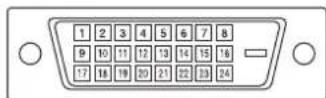
| No. | Function | No. | Function |
| 1 | TMDS data 2- | 13 | N.C. |
| 2 | TMDS data 2+ | 14 | +5V |
| 3 | TMDS data 2/4 shield | 15 | GND |
| 4 | N.C. | 16 | Hot-plug detection |
| 5 | N.C. | 17 | TMDS data 0- |
| 6 | DDC clock | 18 | TMDS data 0+ |
| 7 | DDC data | 19 | TMDS data 0/5 shield |
| 8 | N.C. | 20 | N.C. |
| 9 | TMDS data 1- | 21 | N.C. |
| 10 | TMDS data 1+ | 22 | TMDS clock shield |
| 11 | TMDS data 1/3 shield | 23 | TMDS clock+ |
| 12 | N.C. | 24 | TMDS clock- |
■Pinovi izlaznog terminala RS-232C
(D-sub 9 pin)

| No. | Function | No. | Function |
| 1 | N.C. | 6 | N.C. |
| 2 | Received data | 7 | N.C. |
| 3 | Transmitted data | 8 | N.C. |
| 4 | N.C. | 9 | N.C. |
| 5 | GND | ||
Upute za montažu (Za SHARP prodavače i servisne inženjere)
- Prilikom instalacije, uklanjanja ili pomicanja monitora, osigurajte da to obavljaju najmanje 2 osobe.
- Obavezno koristite nosač za zidnu montažu koji je dizajniran ili namijenjen za montažu monitora.
- Ovaj monitor je dizajniran za ugradnju na betonski zid ili stup. Za neke materijale, poput žbuke / tanke plastične ploče / drva, prije početka instalacije može biti potreban ojačani rad.
- Ovaj monitor i nosač moraju biti postavljeni na zid koji može izdržati najmanje 4 puta ili više od težine monitora. Instalirajte na najprikladniji način za materijal i strukturu.
- Za pričvršćivanje VESA-kompatibilnog nosača koristite vijke M6 koji su 5/16 inča (8 mm) do 3/8 inča (10 mm) duži od debljine nosača.
- Ne koristite udarni odvijač.
- Prilikom pomicanja monitora držite dijelove označene s ____ ispod. Ne držite LCD ploču. To može uzrokovati oštećenje proizvoda, kvar ili ozljedu.
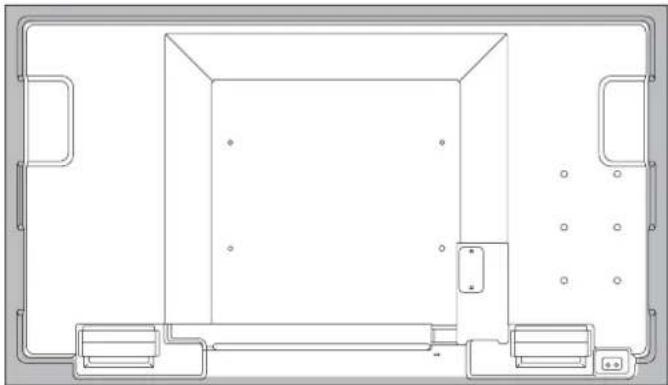
• Nakon montaže, pažljivo provjerite je li monitor siguran i ne može se olabaviti sa zida ili nosača. - Ne koristite rupe za vijke osim VESA rupa za instalaciju.


- PN-U
- VAŽNO
- OPREZ
- UPOZORENJE
- NAPOMENA
- SIGURNOSNE MJERE
- POSEBNO ZA SIGURNOST DJECE
- KABEL ZA NAPAJANJE
- OPSEG PRIRUČNIKA
- LED POZADINSKO OSVJETLJENJE
- SADRŽAJ
- ISPORUČENE KOMPONENTE
- NAZIVI DIJELOVA
- POVEZIVANJE PERIFERNE OPREME
- SAVJETI
- HDMI ULAZNI PRIKLJUČAK
- DISPLAYPORT ULAZNI PRIKLJUČAK
- DVI-D ULAZNI PRIKLJUČAK
- D-SUB ULAZNI TERMINAL
- COMPONENT ULAZNI TERMINALI
- VIDEO ULAZNI TERMINAL
- AUDIO1 ULAZNI TERMINAL
- AUDIO2 ULAZNI TERMINALI
- DVI-D IZLAZNI TERMINAL
- AUDIO IZLAZNI TERMINALI
- RS-232C IZLAZNI TERMINAL
- RS-232C ULAZNI TERMINAL
- LAN TERMINAL
- SPAJANJE KABELA ZA NAPAJANJE
- POVEZIVANJE KABELA
- PRIPREMA JEDINICE DALJINSKOG UPRAVLJAČA
- UGRADNJA BATERIJA
- DOMET RADA DALJINSKOG UPRAVLJAČA
- UKLJUČIVANJE/ISKLJUČIVANJE NAPAJANJA
- POSTAVLJANJE DATUMA/VREMENA
- OSNOVNO UPRAVLJANJE
- INPUT (ODABIR NAČINA ULAZA)
- MUTE
- IZBORNIK
- VOL +/- (PODEŠAVANJE GLASNOĆE)
- BRIGHT +/- (PODEŠAVANJE SVJETLINE)
- ENTER
- RETURN
- VELIČINA ZASLONA (ODABIR VELIČINE ZASLONA)
- PRIKAZ
- NAČIN (ODABIR NAČINA BOJA)
- PREBACIVANJE VELIČINE ZASLONA
- STAVKE IZBORNIKA
- PRIKAZIVANJE ZASLONA IZBORNIKA
- PRIMJER RADA
- POJEDINOSTI STAVKI IZBORNIKA
- ZASLON
- AUTO (D-SUB)
- SELF ADJUST (D-SUB)
- CLOCK (D-SUB)
- PHASE (D-SUB)
- H-POS (D-SUB)
- V-POS (D-SUB)
- VELIČINA
- CUSTOM ZOOM
- ZOOM
- H-ZOOM
- V-ZOOM
- H-POS / V-POS (D-SUB)
- ULAZNA REZOLUCIJA (D-SUB)
- RESET
- OSTALO
- POKRET ZASLONA
- UPRAVLJANJE POTROŠNJOM
- ZASLON LOGOTIPA
- NAČIN SKENIRANJA (HDMI)
- ISKLJUČIVANJE POZADINSKOG OSVJETLJENJA
- SUSTAV BOJA (VIDEO)
- PRIKAZ NA DVOSTRUKOM ZASLONU
- POVEĆAJ
- POSTUPAK POSTAVLJANJA
- RASPORED
- BROJ SCHEDULE-A
- ON
- OFF
- INPUT
- DAN U TJEDNU
- PRILAGODBE ZA PRIKAZ NA PC ZASLONU
- AUTOMATSKA PRILAGODBA
- PRIKAZ ZASLONA ZA PRILAGODBU
- OTVARANJE UZORKA ZA PRILAGODBU
- INICIJALIZACIJA (RESET)/POSTAVKA OGRANIČENJA FUNKCIJA (FUNCTION)
- ODABERITE I POSTAVITE STAVKE
- SVE RESETIRAJ
- ZAKLJUČAVANJE PODEŠAVANJA
- OSD PRIKAZ
- LED
- PRITISNITE RETURN ZA POVRATAK NA NORMALNI ZASLON
- UPRAVLJANJE MONITOROM POMOĆU RAČUNALA (RS-232C)
- SPAJANJE RAČUNALA
- IZRAVNO SPAJANJE S RAČUNALOM
- DAISY CHAIN CONNECTION... ADVANCED OPERATION
- KOMUNIKACIJSKI UVJETI
- KOMUNIKACIJSKI POSTUPAK
- FORMAT NAREDBE
- FORMAT KODA ODGOVORA
- KADA JE NAREDBA ISPRAVNO IZVRŠENA
- KADA NAREDBA NIJE IZVRŠENA
- AKO IZVRŠENJE NAREDBE POTRAJE
- KOMUNIKACIJSKI INTERVAL
- NAPREDNO UPRAVLJANJE
- ID BROJEVI
- NAREDBE ZA UPRAVLJANJE ID-OM
- UPRAVLJANJE REPETITOROM
- NAREDBA ZA UPRAVLJANJE REPETITOROM
- TABLICA RS-232C NAREDBI
- KAKO ČITATI TABLICU NAREDBI
- UPRAVLJANJE MONITOROM POMOĆU RAČUNALA (LAN)
- POSTAVKE ZA SPAJANJE NA LAN
- ZA POSTAVLJANJE NA MONITORU
- DHCP CLIENT
- IP ADRESA
- PODMREŽNA MASKA
- ZADANI PROLAZ (DEFAULT GATEWAY)
- POSTAVLJANJE S RAČUNALA
- PROCES POSTAVLJANJA
- SPAJANJE MONITORA NA RAČUNALO
- ODREĐIVANJE IP ADRESE RAČUNALA
- KONFIGURIRANJE LAN POSTAVKI MONITORA
- UPRAVLJANJE MONITORA
- RAD S RAČUNALOM
- KLIKNITE SETUP
- KLIKNITE [▶] PORED LAN SETUP
- ODREDITE DHCP CLIENT, IP ADDRESS, ITD
- IP ADDRESS
- SUBNET MASK
- ZADANI PRISTUPNIK (DEFAULT GATEWAY)
- UPRAVLJANJE RAČUNALOM
- OSNOVNE OPERACIJE
- UNESITE "KORISNIČKO IME" I "LOZINKU", TE KLIKNITE [PRIJAVA]
- MOŽETE KONFIGURIRATI POSTAVKE NA SVAKOM ZASLONU S POSTAVKAMA
- LAN POSTAVKE / SIGURNOST / OPĆENITO
- DHCP KLIJENT
- MREŽNA MASKA
- ZADANI PRISTUPNIK
- KORISNIČKO IME / LOZINKA / POTVRDA LOZINKE
- VRIJEME AUTOMATSKE ODJAVE
- PODATKOVNI PORT
- PORTA ZA PRETRAGU
- SNMP
- SNMP POSTAVKE
- NAZIV ZAJEDNICE 1 DO
- POSTAVKE TRAP-A
- POSTAVKE TRAP-A ZA POGREŠKU AUTENTIFIKACIJE
- TRAP ADRESA I PORT
- NAPREDNE OPERACIJE
- UPRAVLJANJE PUTEM NAREDBI
- SPOJITE RAČUNALO NA MONITOR
- POŠALJITE NAREDBE ZA UPRAVLJANJE MONITOROM
- PREKINITE VEZU S MONITOROM I IZAĐITE IZ FUNKCIJE
- RJEŠAVANJE PROBLEMA
- NEMA SLIKE ILI ZVUKA
- DALJINSKI UPRAVLJAČ NE RADI
- ZVUK IZ LIJEVOG I DESNOG ZVUČNIKA JE OBRNUT
- ZVUK SE ČUJE SAMO S JEDNE STRANE
- POSTOJI SLIKA, ALI NEMA ZVUKA
- NESTABILAN VIDEO
- VIDEO S HDMI ULAZNOG TERMINALA NE PRIKAZUJE SE ISPRAVNO
- VIDEO S DVI-D ULAZNOG TERMINALA NE PRIKAZUJE SE ISPRAVNO
- VIDEO S D-SUB ULAZNOG TERMINALA NE PRIKAZUJE SE ISPRAVNO
- VIDEO S DISPLAYPORTA NE PRIKAZUJE SE ISPRAVNO
- VIDEO S KOMPONENTNIH ULAZNIH TERMINALA NE PRIKAZUJE SE ISPRAVNO
- VIDEO SA VIDEO ULAZNOG TERMINALA NE PRIKAZUJE SE ISPRAVNO
- TIPKE ZA UPRAVLJANJE NE RADE
- NEMA SLIKE
- MONITOR PROIZVODI PUCKETAV ZVUK
- LED LAMPICA NAPAJANJA TREPERI NAIZMJENIČNO CRVENO I ZELENO
- SPECIFIKACIJE
- DIMENZIONALNI CRTEŽI
- UPRAVLJANJE NAPAJANJEM
- DDC (PLUG AND PLAY)
- PINOVI DVI-D ULAZNOG PRIKLJUČKA
- PINOVI ULAZNOG TERMINALA HDMI
- PINOVI ULAZNOG TERMINALA D-SUB
- PINOVI ULAZNOG TERMINALA RS-232C
- PINOVI ULAZNOG TERMINALA DISPLAYPORT
- PINOVI IZLAZNOG TERMINALA DVI-D
- PINOVI IZLAZNOG TERMINALA RS-232C
- UPUTE ZA MONTAŽU (ZA SHARP PRODAVAČE I SERVISNE INŽENJERE)
Marka : SHARP
Model : PN-U423
Kategorija : Televizor