UPICKIT21RD - Kaamera SereneLife - Tasuta kasutusjuhend
Leidke seadme juhend tasuta UPICKIT21RD SereneLife PDF-formaadis.


Kasutajate küsimused teemal UPICKIT21RD SereneLife
0 küsimus selle seadme kohta. Vastake nendele, mida teate, või esitage oma.
Esita uus küsimus selle seadme kohta
Laadige alla juhend oma Kaamera PDF-formaadis tasuta! Leidke oma juhend UPICKIT21RD - SereneLife ja võtke oma elektrooniline seade uuesti kätte. Sellel lehel on avaldatud kõik teie seadme kasutamiseks vajalikud dokumendid. UPICKIT21RD kaubamärgi SereneLife.
KASUTUSJUHEND UPICKIT21RD SereneLife
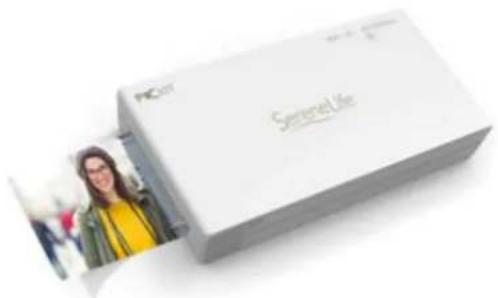
THE PiCKiT SMART PRINTER
QUICK START GUIDE
Models: PiCKiT20, PiCKiT21RD - www.pyleUSA.com
INITIAL SETUP:
- Download the "PicKit Printer" App via the Google Play or Apple Store.
-
Ensure the printer is powered on and/or charging (connected to computer via USB charger cable).
-
Press and hold the power button for about 10 seconds to power ON/OFF
-
When the printer is powered ON, the indicator power light shines WHITE
-
Navigate to your Smartphone's Wi-Fi settings > Enable Wi-Fi and connect to the printer.
-
Printer Wi-Fi Network Name: 'Direct-Cube-XXXX'
- Printer Wi-Fi Network Password: '12345678'
*While you're connected to the printer's Wi-Fi network, your Smartphone will not have data connection to the internet. You will lose all web browsing or internet data-transfer ability until you disconnect the printer from your Smartphone.
PRINTING & APP ACCESS:
-
Open the "PicKit Printer" App and navigate to "Gallery".
-
You may be prompted to update the firmware of your printer to ensure compatibility with your Smartphone. If so, select update and wait for the countdown to complete. After firmware update completion, the printer will automatically restart and ready to print.
- Do not disturb the update and reboot process, allow 2-3 minutes for the system to automatically restart.
*While you're connected to the printer's Wi-Fi network, your Smartphone will not have data connection to the internet. You will lose all web browsing or internet data-transfer ability until you disconnect the printer from your Smartphone.
- Once you return to the App's "Gallery", select the desired image from the Camera Roll and tap the "Print" button located at the top right of the screen.
TROUBLESHOOTING:
- If the printer sits idle for a period of time, it may switch to "Power Save" mode and automatically disconnect from any paired Smartphones and/or networks. Always confirm the printer is powered ON and connected to your Smartphone via Wi-Fi when attempting to print.