
MP-C7052 - Mp3 player COBY - Free user manual and instructions
Find the device manual for free MP-C7052 COBY in PDF.


| Product Type | MP3 Player |
| Brand | Coby |
| Model | MP-C7052 |
| Dimensions | Approx. 4.2 x 2.4 x 0.6 inches |
| Weight | Approx. 2.0 oz (with battery) |
| Power Source | Built-in rechargeable lithium-ion battery (charging via USB) |
| Battery Life | Up to 12 hours of music playback |
| Storage Capacity | 2GB internal memory |
| Display | 1.8-inch color LCD |
| Supported Audio Formats | MP3, WMA, WAV |
| Playback Modes | Repeat, shuffle, folder play |
| FM Radio | Yes, with preset stations |
| Voice Recording | Yes, built-in microphone |
| Headphone Jack | 3.5mm |
| USB Port | Mini USB (data and charging) |
| Equalizer | Multiple presets (Rock, Pop, Classic, etc.) |
| ID3 Tag Support | Yes |
| Language Support | Multiple languages |
| Care Instructions | Keep dry, avoid extreme temperatures, clean with soft cloth |
| Safety Warnings | Do not disassemble, avoid liquids, use only approved chargers |
| Spare Parts / Repairability | Not user-serviceable; contact support for issues |
| General Information | Read manual before use, keep away from children, comply with local laws |
Frequently Asked Questions - MP-C7052 COBY
User questions about MP-C7052 COBY
0 question about this device. Answer the ones you know or ask your own.
Ask a new question about this device
Download the instructions for your Mp3 player in PDF format for free! Find your manual MP-C7052 - COBY and take your electronic device back in hand. On this page are published all the documents necessary for the use of your device. MP-C7052 by COBY.
USER MANUAL MP-C7052 COBY
Thank you for choosing a COBY MP3 player!
natural_image
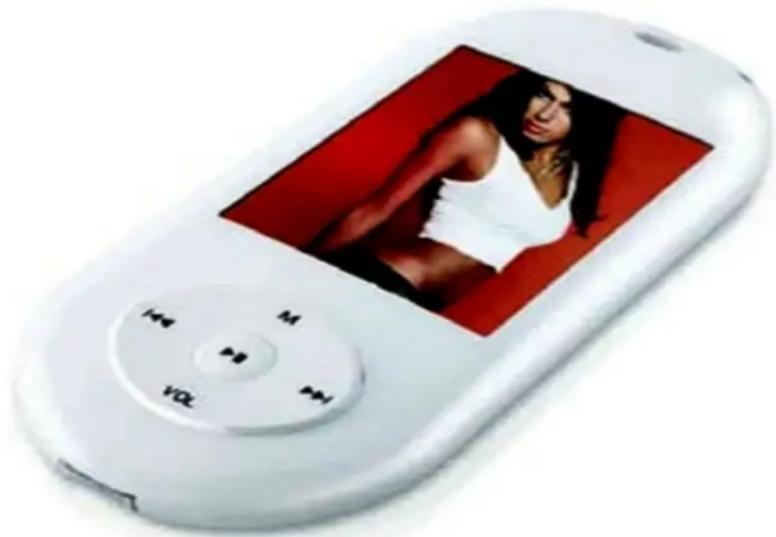
White mobile phone with a red screen displaying a woman's photo, no visible text or symbols on the device body.\~This guide will cover how to transfer your music CD's into your COBY MP3 player using Windows Media Player 11.
\~This guide will also provide common troubleshooting solutions for your COBY MP3 player.
Requirements
Windows Media Player 11 (WMP11)
The directions in this guide are given for Windows Media Player 11 (WMP11)
If your computer does not have Windows Media Player installed, please download the latest version of Windows Media Player (WMP) from Microsoft's website www.microsoft.com/windows/windowsmedia/player/download/download.aspx
AUDIO TRANSFER - Getting Started
Transfer your Music CD's into your COBY MP3 player
1) Launch the WMP11 program.
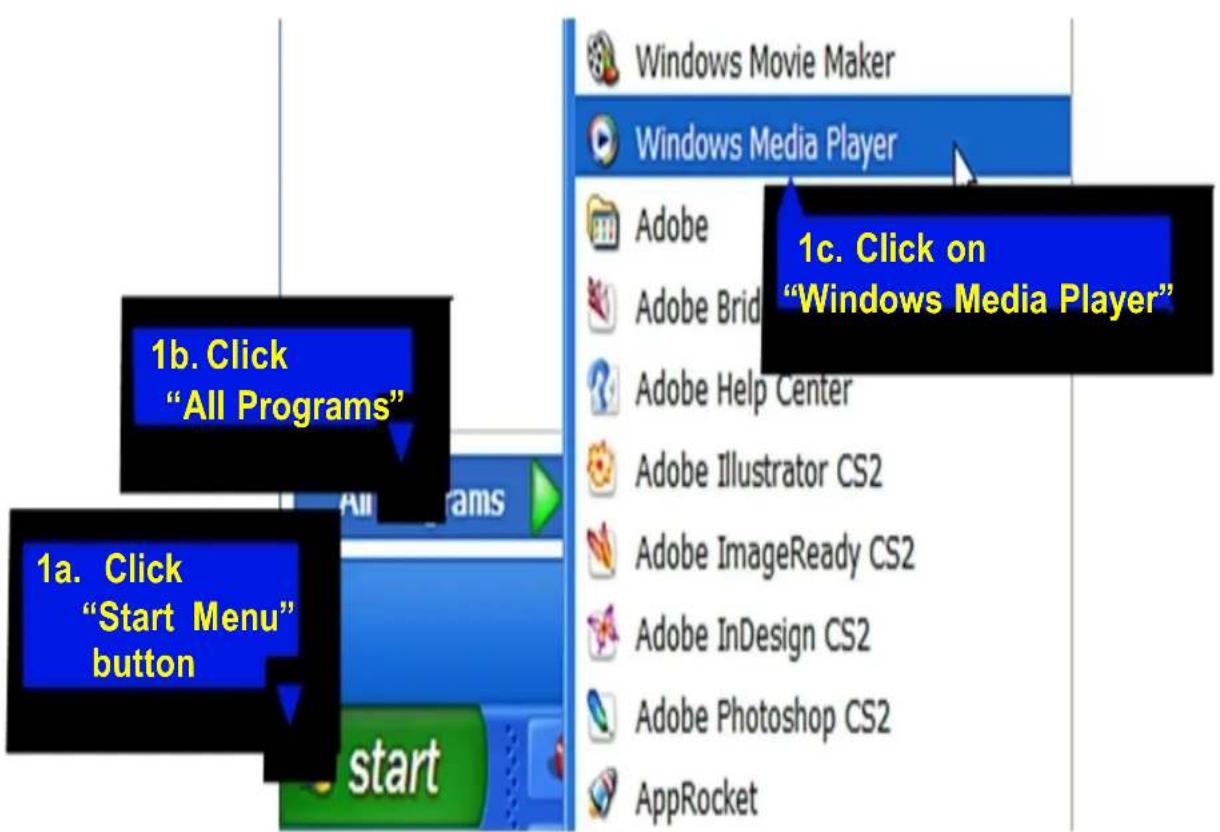
2) Put an audio CD into the CD-ROM drive of your computer.
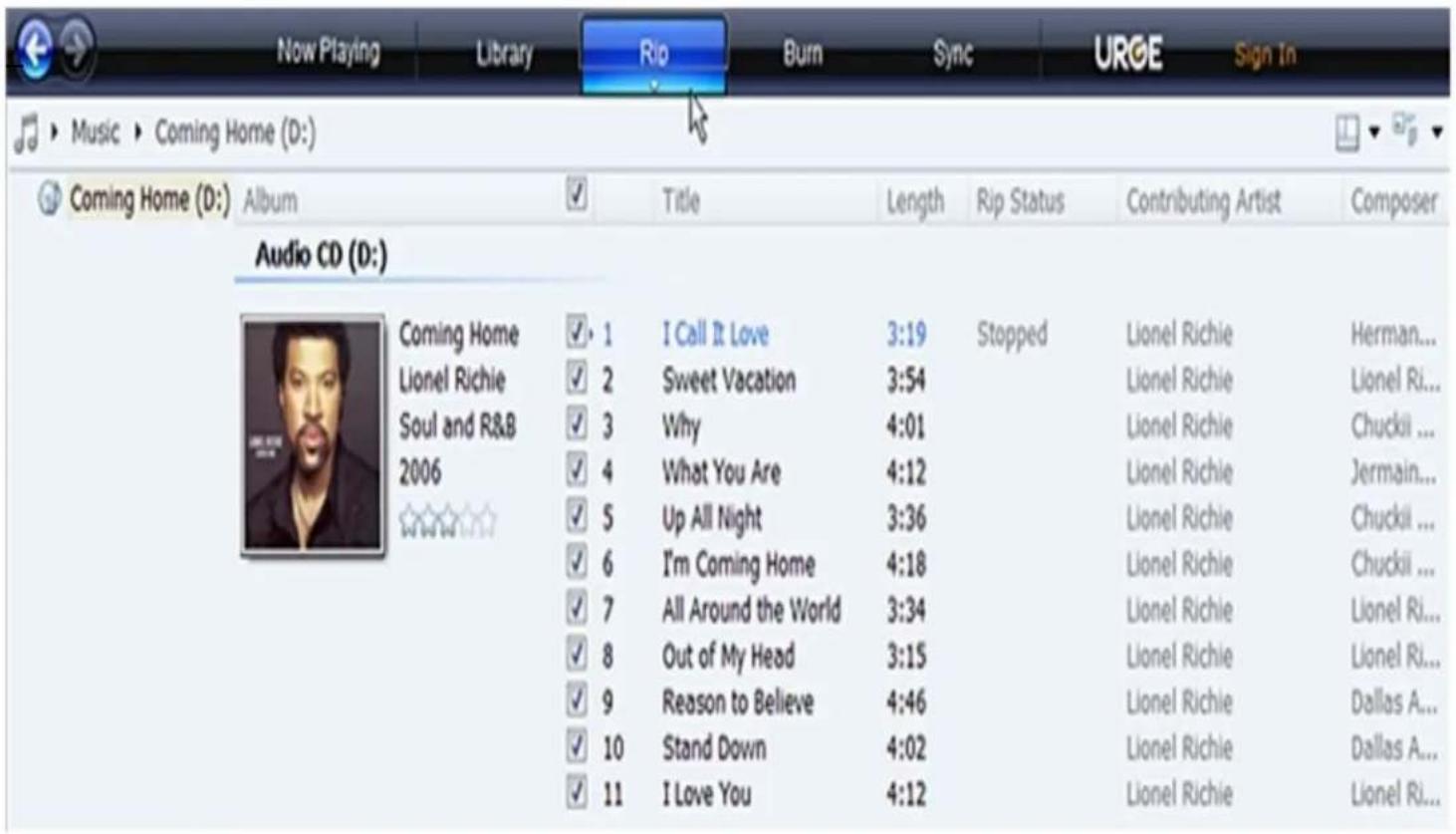
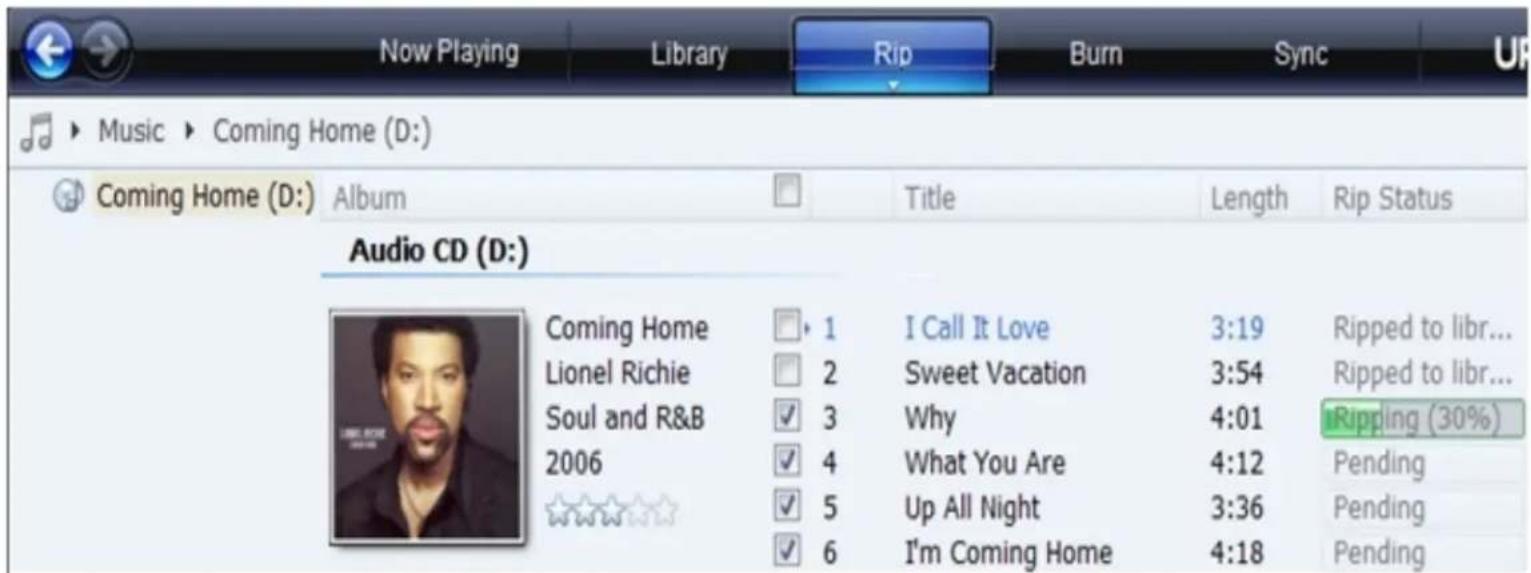
If your computer has an internet connection, WMP will automatically retrieve and display the album information.
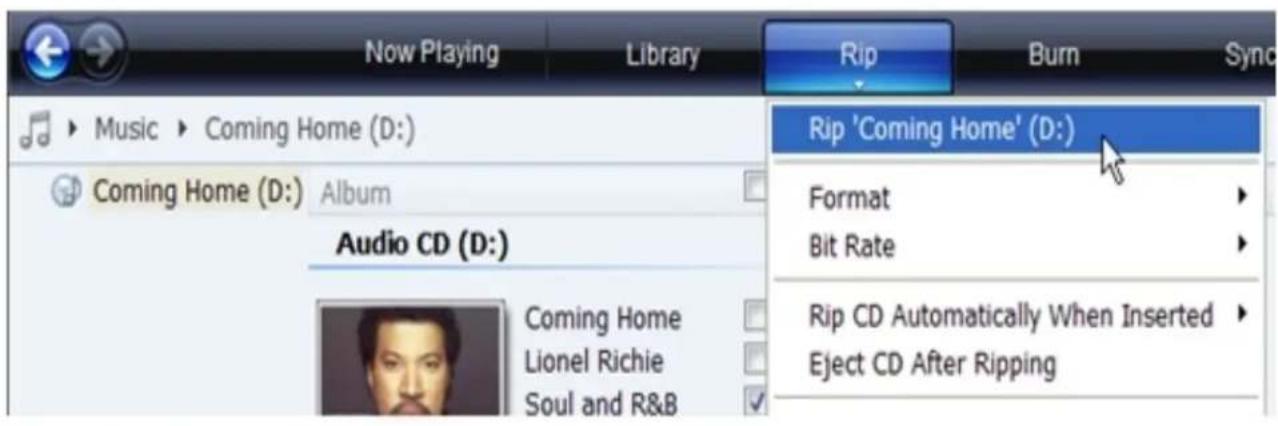
Click the "Rip" tab and select which "Title" to rip. To rip the entire album, check all of the check
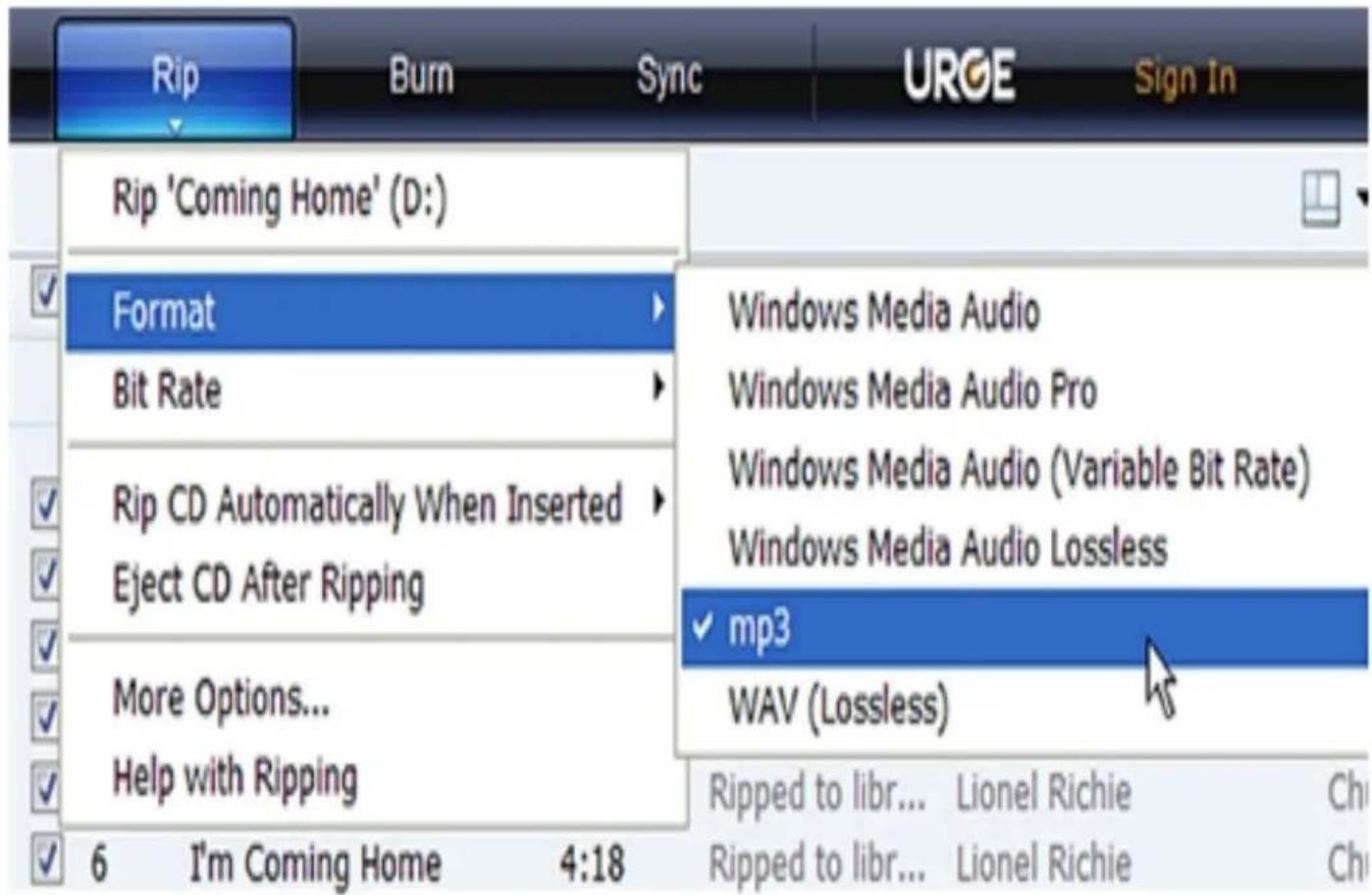
3) Set the Rip Options (optional).
Click the "Rip" button to set the Rip options. The recommended Rip settings are:
Select "Format > mp3"
✧ Select “Bit Rate > 128 Kbps”
Select "More Options" to change the directory to which WMP saves your ripped ✦ music les. WMP will save your music to your "My Documents > My Music" folder by default.
4) Start ripping the CD.
Click the "Rip" button and select "Rip" to start converting the audio CD to MP3/WMA

The ripping process will take a few minutes to complete. WMP will save the converted music files in your "My Documents > My Music" folder by default.
Transfer MP3/WMA Files to Your COBY Player
Once you have MP3 or WMA digital music files on your computer, transfer them to your COBY player in order to listen to music anywhere.
Use WMP11 to transfer (sync) music from your computer to your COBY MP3 player.
1) Launch the WMP11 program.
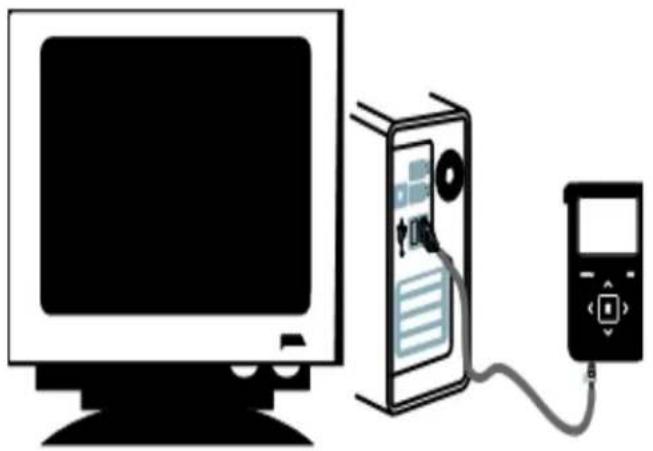
2) Connect your COBY player to a USB port on the computer.
WMP11 will detect your COBY player automatically.
natural_image
Illustration of a desktop computer connected to a mobile phone via cable (no text or symbols present)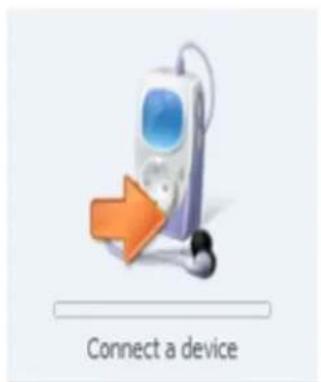
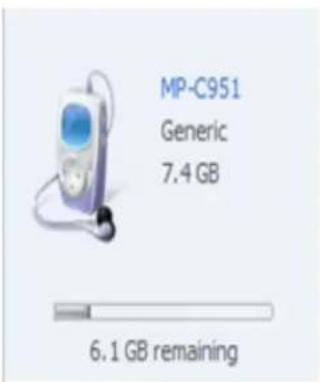
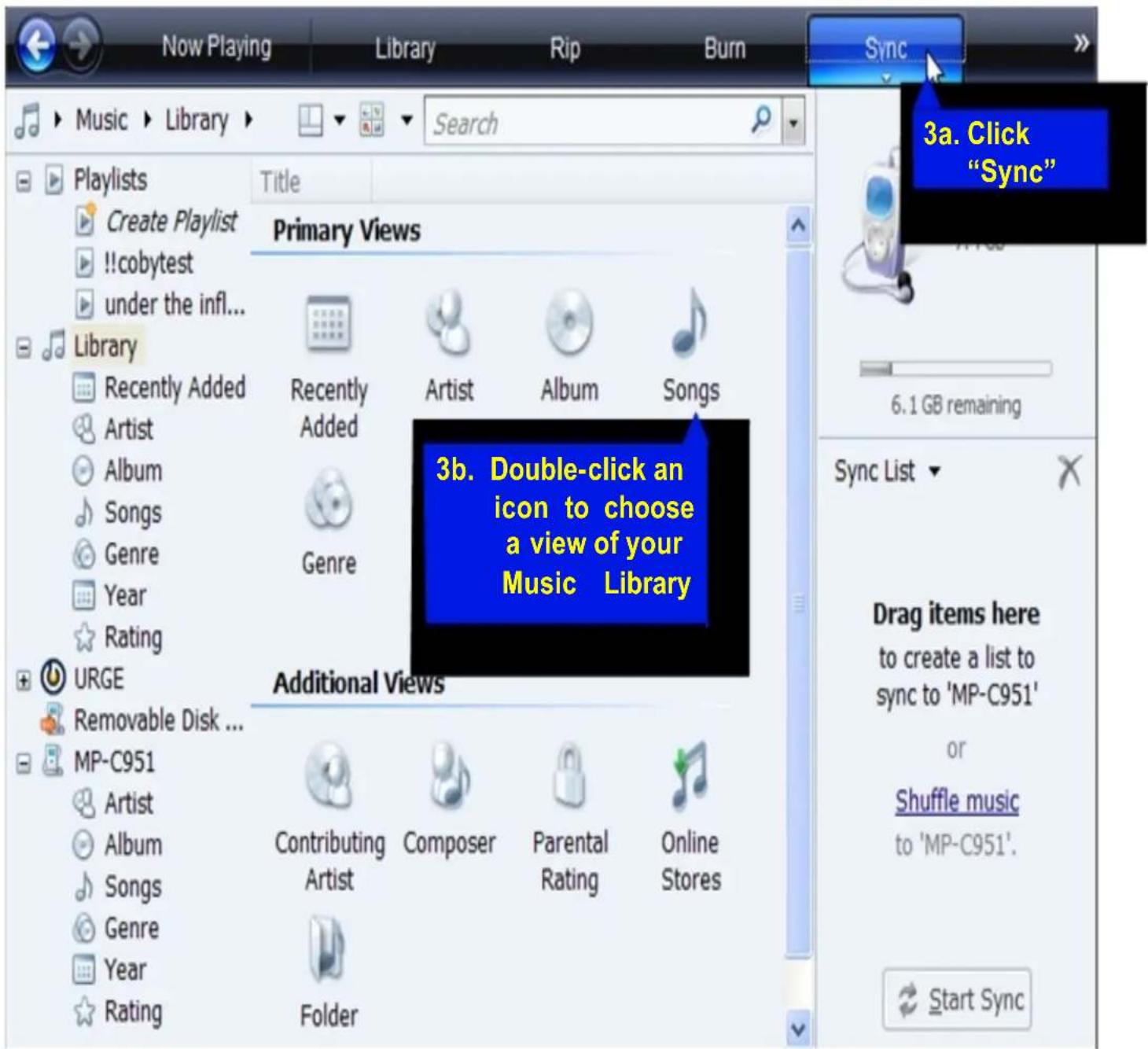
3) Browse your music library to choose songs to sync.
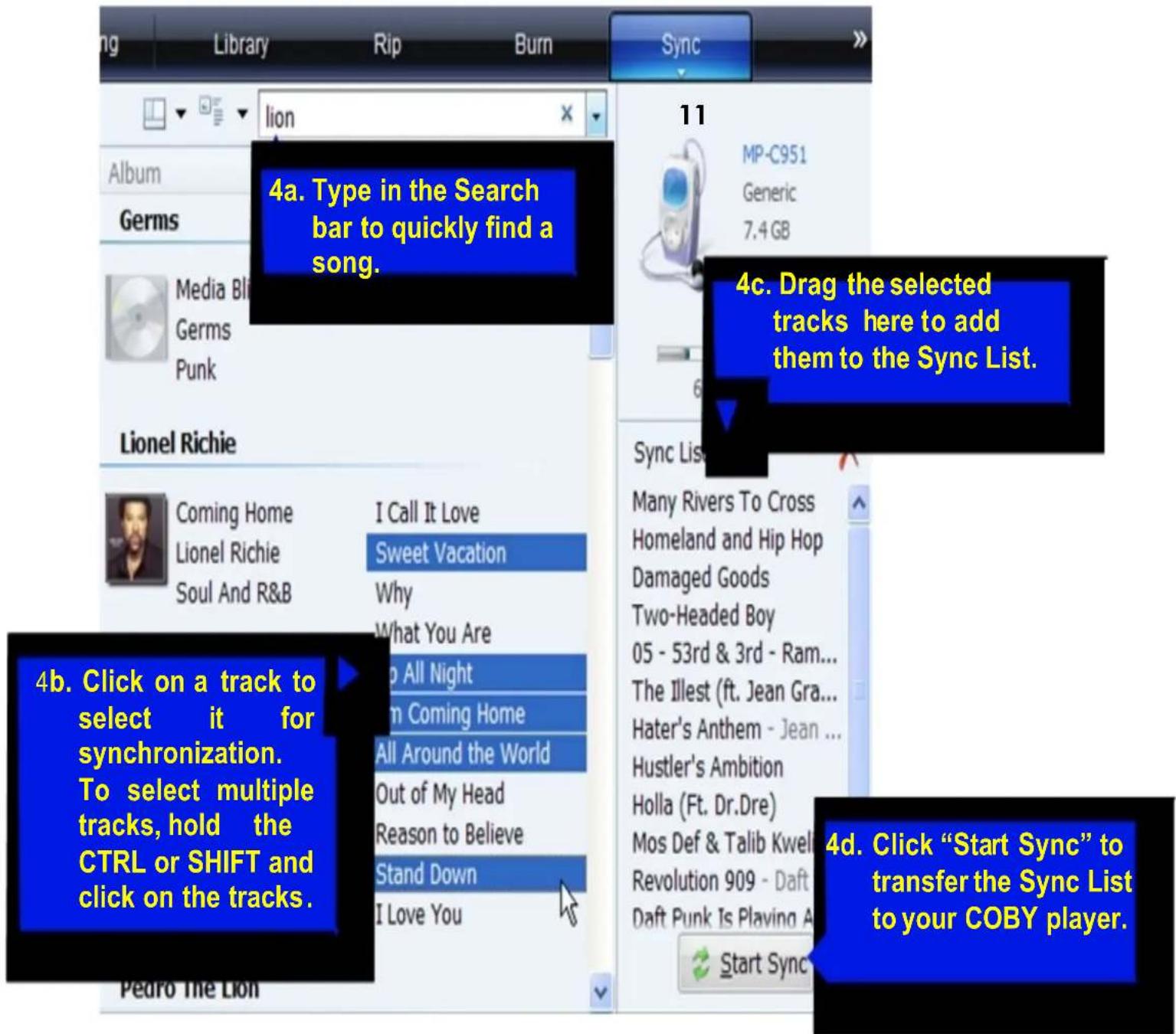
4) Select songs to sync to your COBY player.
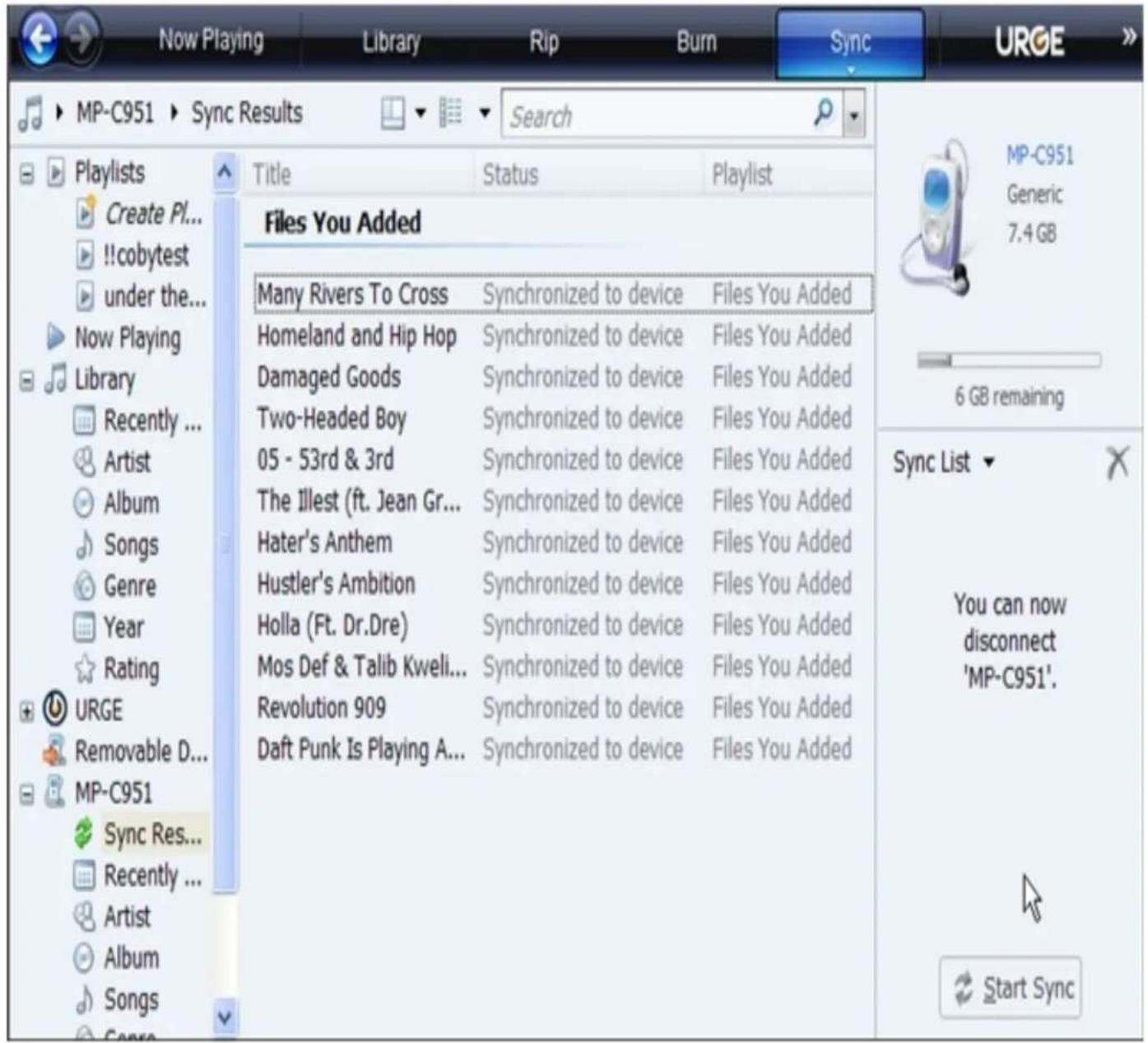
5) Disconnect your COBY player from the computer.
Once the sync process is complete, unplug your player from the USB port of the computer. Now you're ready to listen to music on your COBY player.
VIDEO TRANSFER - Getting Started
Converting your VIDEO files and transferring it into your player.
Install the Conversion Utility
- Insert the driver CD
- Double click on the "MP3set_V4.11" folder
- Double click on the "setup" file.
- Accept the agreement to install the Video Conversion utility.
Run the Conversion Utility
- Go to your "Start Menu"
- Select "All Programs"
- Select "MP3 Player Utilities 4.11"
- Select "AMV Converter"
Converting Video (See Below)
1.a Find and Select the video files to convert in the INPUT Field
1.b Select the directory where you want to save the converted file
1.c Start the conversion process
When the conversion is completed, copy and paste or drag and drop the converted files to your MP3 player.
Done!!
Slide the "green block" to set the start and end point.
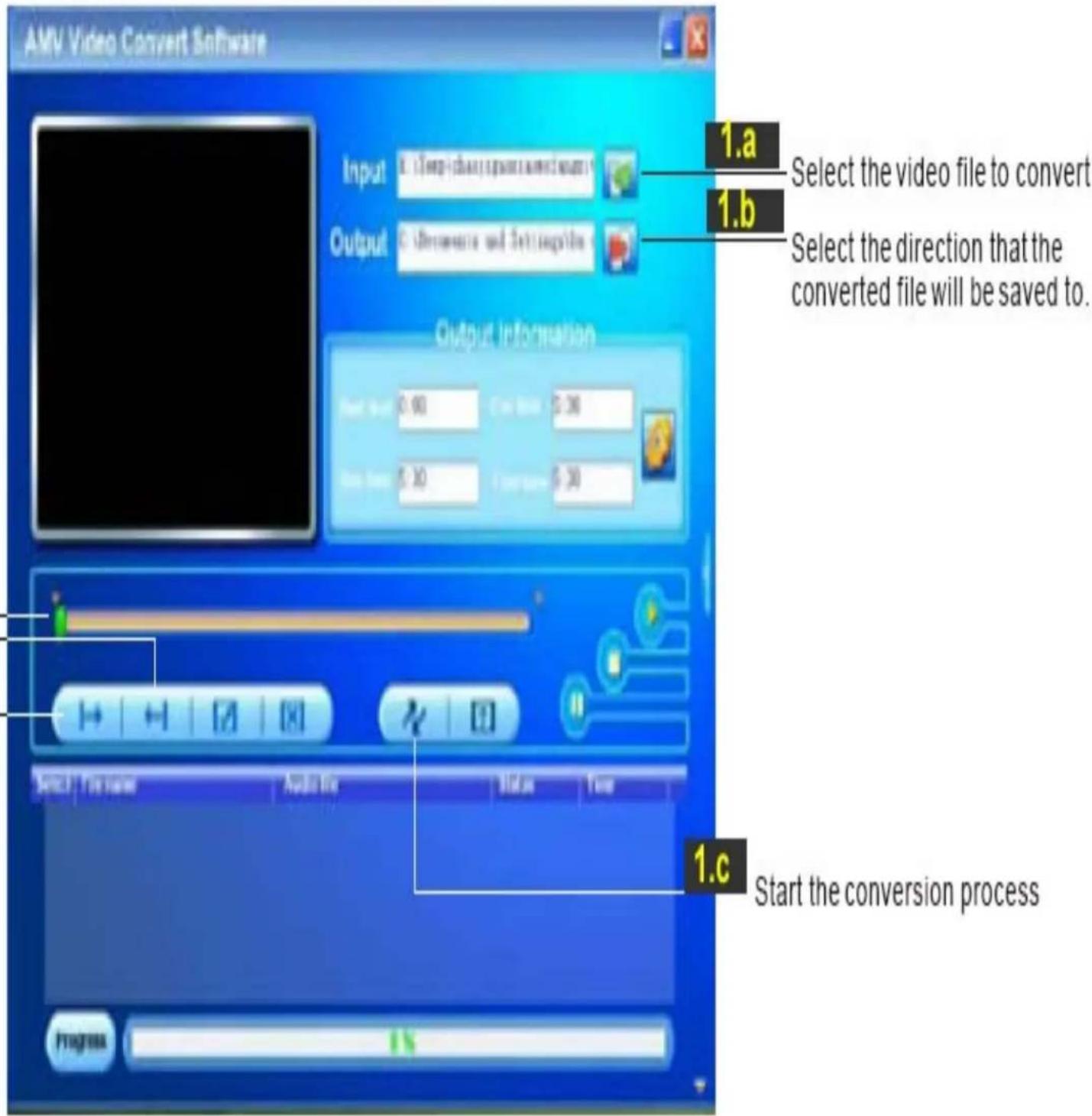
Select the start point of the file that will be converted.
Select the end point of the file that will be converted.
Common Troubleshooting
| Problems | Possible Solutions |
| No Power | *The power switch is located on the back of the unit, ensure that the switch is set to the "ON" position. |
| *The Battery level may be too low. Charge the unit. | |
| Music does NOT play or Freezes | *Make sure your WMA file(s) are not DRM protected. |
| *The file(s) are corrupted or damaged. | |
| *Unsupported file format (ACC, WAV, M4A...Etc.) | |
| *Unknown File (WMA file with DRM). | |
| *Request DRM Time (WMA file with DRM). | |
| No sound after file transfer | *Ensure that the headphones are attached securely to the player. |
| *Make sure your WMA file(s) are not DRM protected. | |
| *Unsupported file format (ACC, WAV, M4A...Etc.) | |
| MP3 Player not recognized by the Computer | *Check the connections. |
| *Switch USB ports | |
| *Go into the player MP3 player "SETTINGS" and change the "Online Device" from Media Device to USB Disk. | |
| Video Conversion Error | *Ensure that the original file(s) plays on your computer. If not, then you will need to obtain the codec for that file(s). |
| *Unsupported format | |
If you are still having difficulty with your MP3 player, please contact Customer Care, Hours of operation, Monday-Friday 8:00 AM – 8:30:00 PM EST, Saturday and Sunday 9:00 AM – 5:30 PM EST. You can also reach us online at customerservice@cobyusa.com or techsupport@cobyusa.com
1-800-727-3592
- Thank you for choosing a COBY MP3 player!
- Requirements
- AUDIO TRANSFER - Getting Started
- Transfer your Music CD's into your COBY MP3 player
- 2) Put an audio CD into the CD-ROM drive of your computer.
- 3) Set the Rip Options (optional).
- 4) Start ripping the CD.
- Transfer MP3/WMA Files to Your COBY Player
- 5) Disconnect your COBY player from the computer.
- VIDEO TRANSFER - Getting Started
- Converting your VIDEO files and transferring it into your player.
- Install the Conversion Utility
- Run the Conversion Utility
- Converting Video (See Below)
- When the conversion is completed, copy and paste or drag and drop the converted files to your MP3 player.
- Done!!
Brand : COBY
Model : MP-C7052
Category : Mp3 player