pure:comp - Audio software Sonible - Free user manual and instructions
Find the device manual for free pure:comp Sonible in PDF.


| Product Type | Audio Compression Plugin (VST, VST3, AU, AAX) |
| Brand | Sonible |
| Model | pure:comp |
| Platform | Windows 10+ (64-bit), macOS 10.12+ |
| CPU | Intel Core i5 or Apple M1 (or higher) |
| RAM | 4 GB minimum |
| OpenGL Version | 3.2 or higher |
| License Types | Machine-based (2 computers) or iLok (USB dongle) |
| Demo Period | Limited time (see website for current period) |
| Compression Styles | Clean, Mixed, Dirty |
| Main Controls | Compression Strength, Style, Clarity |
| AI Learning | Automatic parameterization based on input signal |
| Soft Clipping | Enable/disable (prevents output exceeding 0 dB) |
| Auto Gain | Automatic output gain after learning (optional) |
| Tooltips | Enable/disable on hover |
| OpenGL | Can be disabled for compatibility |
| Internet Requirement | During trial and initial license activation only |
| Manufacturer | sonible GmbH, Haydngasse 10/1, 8010 Graz, Austria |
| Contact | contact@sonible.com, +43 316 912288 |
Frequently Asked Questions - pure:comp Sonible
User questions about pure:comp Sonible
0 question about this device. Answer the ones you know or ask your own.
Ask a new question about this device
Download the instructions for your Audio software in PDF format for free! Find your manual pure:comp - Sonible and take your electronic device back in hand. On this page are published all the documents necessary for the use of your device. pure:comp by Sonible.
USER MANUAL pure:comp Sonible
gauge
| Metric | Value | | ------------ | ----- | | mixed | 83 | | style | 0 | | Compression | 0 | | Clarity | 0 | | sonible | 0.0 | | bypass | 0.0 |
pure:comp
Compression, spot on
Contents
Welcome to pure:comp 3
Install 4
Authorization 5
User interface 6
Getting started 7
Fine-tuning 8
Settings page 9
3We
pure:comp is a straightforward compression plug-in to instantly control a track's dynamics – at the touch of one button.
The plug-in simplifies the process of applying compression to an instrument or voice track. With the help of sonible's award-winning intelligent algorithms, the complexity of interdependent compression parameters is concentrated into just three controls: Compression Strength, Style and Clarity. Together with sonible's signature AI learning feature and automatic parameterization, users can rely on pure:comp to deliver professional signal shaping without artifacts or overcooking.
System requirements
CPU
Intel Core i5
AppleM1
RAM
4GB
Operating systems
Windows 10+ (64 bit)
Mac OS 10.12+
OpenGL Version 3.2+

You will need admin privileges to successfully install the pure:comp plug-in.
Mac OSX
To start the installation process, please open the disk image sonible_purecomp_osx_x.x.x.dmg. This will mount the image and open a finder window showing the content of the installation package.
To install pure:comp on your system, run the installation file purecomp.pkg.
The installer will now guide you through the necessary steps to install pure:comp on your computer. pure:comp will automatically be installed in the default locations for audio plug-ins.
Default folders:
Audio Unit
/Library/Audio/Plug-Ins/Components/
VST
/Library/Audio/Plug-Ins/VST/
VST3
/Library/Audio/Plug-Ins/VST3/
AAX
/Library/Application Support/Avid/Audio/Plug-Ins/
Windows
To start the installation process, extract the downloaded zip-file sonible_purecomp_win_x.x.x.zip onto your hard disk and run the installer.
The installer will now guide you through the necessary steps to install pure:comp on your computer. pure:comp will automatically be installed in the default locations for audio plug-ins.
Default folders:
VST3
C:\Program Files\Common Files\VST3\
VST
C:\Program Files\Common Files\VST\
AAX
C:\Program Files\Common Files\Avid\Audio\Plug-Ins
Licensing system
You can select between two licensing systems: machine-based or iLok (USB dongle).
By creating a user account on www.sonible.com and registering your products – if they are not already visible in your Dashboard, you can manage your plug-in activations.
Machine-based
Each license key allows you to install pure:comp on two computers with unique system IDs. These system IDs are computed during license activation.
The same license can be used by multiple users, but each user has to individually unlock the full version of pure:comp under their account.
In case a system-ID is changed (e.g. replacement of the hard drive), you can revoke/activate the plug-in next to the respective system-ID in the Dashboard of your sonible user account.
iLok
If you want to transfer one activation to your iLok, just make sure the plug-in is registered in your sonible user account. Click on the button „transfer to iLok“ next to the plug-in in your Dashboard and follow the instructions.
Note: 1st gen iLok dongles and the iLok Cloud are currently not supported.
Unlocking
If you purchased a license for pure:comp online, you receive your license key via email.
Machine-based unlocking
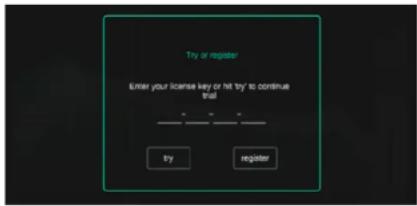
When opening pure:comp for the first time, a notification window will be displayed asking you to unlock pure:comp with a valid license key.
Please make sure that your computer is connected to the internet before starting the registration process. Enter your license key and click „register." The plug-in will now communicate with our server to check if the license is valid. If it is – enjoy! :)
iLok
If you transferred your license to an iLok, simply attach the iLok to your computer. The plug-in will then be automatically registered – enjoy!
If you don't receive the email within minutes please check your junk folder first before contacting our support (support@sonible.com).
Trial version
To run pure:comp in demo-mode, simply click "try" and you will then be able to use pure:comp for a couple of days without any limitations. (Please refer to our website to find out more about the current demo period of pure:comp) When the demo period expires, you will need to purchase a full license in order to continue using the plug-in.
Internet connection requirements
sonible plug-ins only need an internet connection during the trial period and for initial license activation. During the trial period, the plug-in needs to go online every time it is used. Once the license of your plug-in has successfully been activated, an internet connection is no longer needed.

6Use
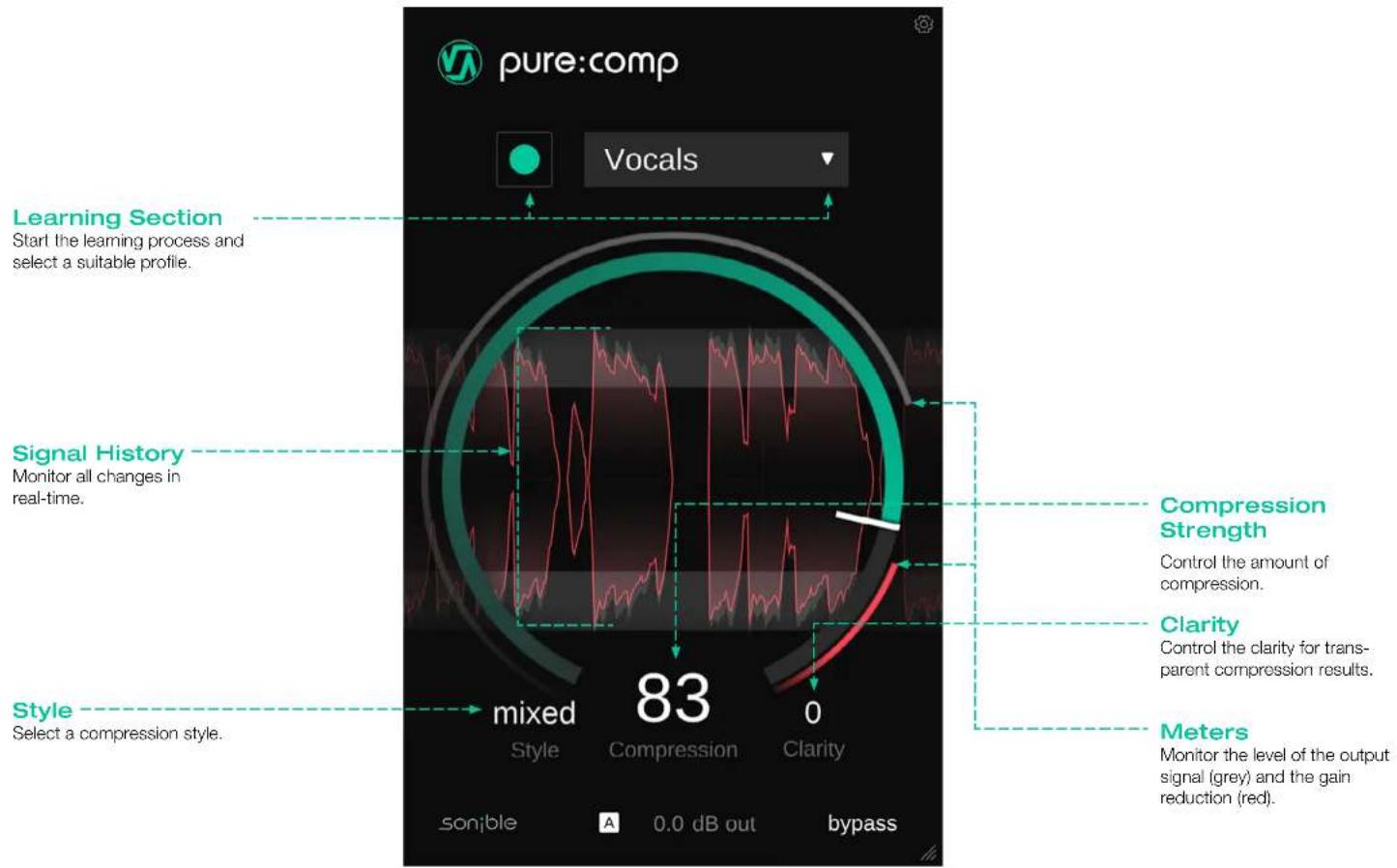
pure:comp is equipped with a unique learning feature that finds the right parameters for well-balanced compression results. To get started, let pure:comp learn from your signal:
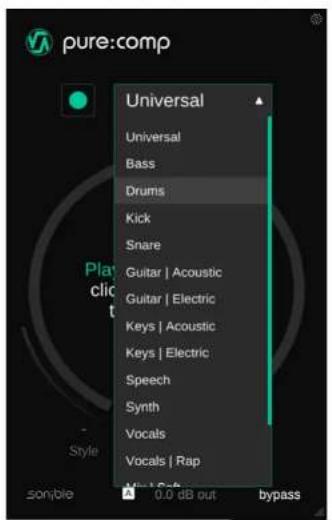
1. Profile
A profile calibrates the processing of pure:comp to a specific sound source. You can always start the learning process with the "Universal" profile and switch to a more specific profile later.

2. Playback & learning
pure:comp needs an incoming audio signal for the learning process. Once the playback has started, click the green record button and let pure:comp listen to your signal.
Hint: It is recommended to let pure:comp learn from relatively loud sections of your track (e.g. the refrain). This gives the plug-in a good idea of the most critical dynamic section of the track.

3. Done!
When the learning process is finished, pure:comp automatically sets and unlocks all plug-in parameters.
Hint: If you want the plug-in to learn from a different section of your input signal, you can simply start the audio playback from there and click the learn button again.
While the intelligent processing of pure:comp allows to instantly control the dynamics of a track, the plug-in also allows you to fine-tune the results to match your sonic vision.

Style
The Style parameter determines the character of the compressor:
Clean
A clean compression style aims for a very transparent sound. It is suggested for content that should sound natural, but this style generally delivers clean compression results for a wide range of material.
Mixed
A mixed compression style leads to a good balance between a clean and dirty sound. It works well for most audio material and balances out the dynamics of a track without adding too much color.
Dirty
A dirty compression style helps to make your track sound punchy and adds a warm compression character. This style is perfect for giving drums or signals with a lot of transients the right dynamics without taking away their punch.
Compression Strength
The compression parameter allows you to control the amount of compression. The higher the value, the more compression is going to be applied. You will instantly see the impact on the waveform of the compressed signal in the signal history.
While a certain amount of gain reduction (compression) is intended when using a compressor, you should always try to go for a good balance between taming the dynamics and letting the signal breath. If you reach the red section of the slider while increasing the compression, you may be over-compressing your signal.
Clarity
The clarity parameter allows to increase the transparency of the compression process. Increasing the clarity helps to smoothen out tonal imbalances to ensure a consistent tonal as well as dynamic balance.
To visit the settings page, click the little cogwheel in the upper right corner.
Enable soft clipping
Soft clipping makes sure that the output level of your signal does not exceed 0dB. You can disable this setting if you are using a limiter (e.g. pure:limit) after the plug-in or if you want to avoid potential saturation effects caused by the soft clipper.
Enable auto gain after learning
Automatically activates the auto gain (automatic output gain) after learning. Auto gain automatically sets an output gain to compensate for the level reduction caused by compression. In most cases it's recommended to keep this setting activated.
Plug-in & Licensing information
Here you can find the name and version of your plug-in as well as the license key (when not licensed via iLok).
Update notice
When a new version of the plug-in is available, you'll receive a notification here and it's also indicated by a little dot on the cogwheel in the main view of pure:comp. Click on the green text to download the latest version.

flowchart
graph TD
    A["pure:comp"] --> B["Enable soft limiter"]
    B --> C["Enable auto gain after learning"]
    C --> D["Show tooltips"]
    D --> E["Use OpenGL"]
    E --> F["Share anonymous user data with sonible"]
    F --> G["License information"]
    G --> H["License found on host machine XXXX-XXXX-XXXX-XXXX"]
    H --> I["Plugin information"]
    I --> J["pure:comp by sonible version 1.0.0 (VST)"]
Show tooltips
Enable/Disable tooltips on hover.
Use OpenGL
OpenGL might cause rendering issues on certain computer hardware. Use this option to disable OpenGL.
Share anonymous user data with sonible
Enable to share fully anonymous user data with sonible and help us improve pure:comp.

pure:comp

www.sonible.com/purecomp
sonible GmbH
Haydngasse 10/1
8010 Graz
Austria
phone: +43 316 912288
contact@sonible.comAll spe
©2023, sonible GmbH. All rights reserved.
Engineered & designed by sonible in Austria.
www.sonible.com
- pure:comp
- Contents
- System requirements
- CPU
- RAM
- Operating systems
- Mac OSX
- Audio Unit
- VST
- VST3
- AAX
- Windows
- Licensing system
- Machine-based
- iLok
- Unlocking
- Machine-based unlocking
- Trial version
- Internet connection requirements
- Profile
- Playback & learning
- Done!
- Style
- Clean
- Mixed
- Dirty
- Compression Strength
- Clarity
- Enable soft clipping
- Enable auto gain after learning
- Plug-in & Licensing information
- Update notice
- Show tooltips
- Use OpenGL
- Share anonymous user data with sonible
Brand : Sonible
Model : pure:comp
Category : Audio software