
COMP2VGA - Audio/video converter StarTech.com - Free user manual and instructions
Find the device manual for free COMP2VGA StarTech.com in PDF.


| Type | Audio/video converter |
| Brand | StarTech.com |
| Model | COMP2VGA |
| Input Interface | Composite video (RCA), stereo audio (3.5mm) |
| Output Interface | VGA (DB-15 female) |
| Max Resolution | 1920 x 1080 @ 60Hz |
| Video Standards | NTSC, PAL |
| Power Supply | 5V DC via micro-USB or included power adapter |
| Power Consumption | < 2W |
| Dimensions (L x W x H) | 80 x 60 x 25 mm |
| Weight | 100 g |
| Operating Temperature | 0°C to 60°C |
| Storage Temperature | -20°C to 85°C |
| Key Features | Plug-and-play, no drivers required, supports up to 1080p output |
| Cleaning | Wipe with a dry, soft cloth. Do not use liquids or solvents. |
| Safety | Avoid exposure to moisture and extreme temperatures. Use only provided power adapter. |
| Spare Parts | None available; device is not user-serviceable. |
| Repairability | Repair by qualified technician only. No spare parts sold separately. |
| General Information | Converts analog composite video signals to digital VGA output for use with modern monitors. |
Frequently Asked Questions - COMP2VGA StarTech.com
User questions about COMP2VGA StarTech.com
0 question about this device. Answer the ones you know or ask your own.
Ask a new question about this device
Download the instructions for your Audio/video converter in PDF format for free! Find your manual COMP2VGA - StarTech.com and take your electronic device back in hand. On this page are published all the documents necessary for the use of your device. COMP2VGA by StarTech.com.
USER MANUAL COMP2VGA StarTech.com
Composite and S-Video to VGA Video Converter
COMP2VGA
- PC monitor with 15-pin high-density (HD) port with a horizontal signal (HS) of 31.5KHz or higher and a vertical signal (VS) of 60KHz or higher for NTSC systems or 50KHz or higher for PAL systems
• Video and audio source (i.e., DVD, VCR, game machine, camcorder) - Pair of speakers
Installation
This section will guide you through the installation of your device. Please read through this section carefully and complete each step in the order listed. Also consult the documentation that came with your PC and video source (i.e., game console, DVD player, etc.) for specific details.
- Make sure that your adapter, PC, monitor, and video device are turned off.
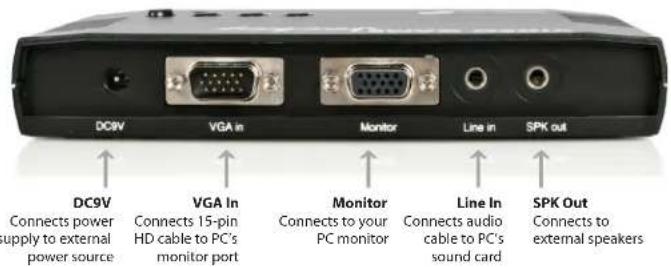
- Connect the 15-pin HD cable from your computer's monitor port to the VGA In port on the back of the adapter.
- Plug your monitor into the Monitor port on the back of the adapter.
- Connect the provided audio cable from your computer's sound card to the Line In port on the back of the adapter.
- Connect your speakers to the SPK Out port on the back of the adapter.
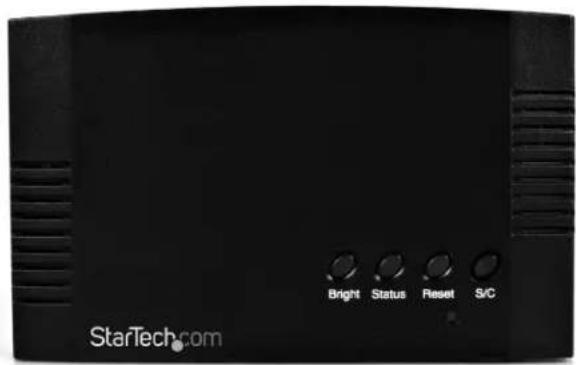
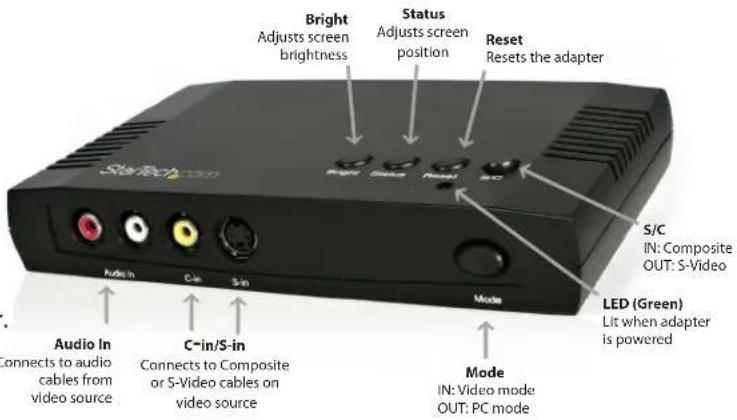
*actual product may vary from photos
FCC Compliance Statement
This equipment has been tested and found to comply with the limits for a Class B digital device, pursuant to part 15 of the FCC Rules. These limits are designed to provide reasonable protection against harmful interference in a residential installation. This equipment generates, uses and can radiate radio frequency energy and, if not installed and used in accordance with the instructions, may cause harmful interference to radio communications. However, there is no guarantee that interference will not occur in a particular installation. If this equipment does cause harmful interference to radio or television reception, which can be determined by turning the equipment off and on, the user is encouraged to try to correct the interference by one or more of the following measures: - Reorient or relocate the receiving antenna.
- Increase the separation between the equipment and receiver.
- Connect the equipment into an outlet on a circuit different from that to which the receiver is connected.
- Consult the dealer or an experienced radio/TV technician for help.
Use of Trademarks, Registered Trademarks, and other Protected Names and Symbols
This manual may make reference to trademarks, registered trademarks, and other protected names and/or symbols of third-party companies not related in any way to StarTech.com. Where they occur these references are for illustrative purposes only and do not represent an endorsement of a product or service by StarTech.com, or an endorsement of the product(s) to which this manual applies by the third-party company in question. Regardless of any direct acknowledgement elsewhere in the body of this document, StarTech.com hereby acknowledges that all trademarks, registered trademarks, service marks, and other protected names and/or symbols contained in this manual and related documents are the property of their respective holders.
Technical Support
StarTech.com's lifetime technical support is an integral part of our commitment to provide industry-leading solutions. If you ever need help with your product, visit www.startech.com/support and access our comprehensive selection of online tools, documentation, and downloads.
For the latest drivers/software, please visit www.startech.com/downloads
Warranty Information
This product is backed by a one year warranty.
In addition, StarTech.com warrants its products against defects in materials and workmanship for the periods noted, following the initial date of purchase. During this period, the products may be returned for repair, or replacement with equivalent products at our discretion. The warranty covers parts and labor costs only. StarTech.com does not warrant its products from defects or damages arising from misuse, abuse, alteration, or normal wear and tear.
Limitation of Liability
In no event shall the liability of StarTech.com Ltd. and StarTech.com USA LLP (or their officers, directors, employees or agents) for any damages (whether direct or indirect, special, punitive, incidental, consequential, or otherwise), loss of profits, loss of business, or any pecuniary loss, arising out of or related to the use of the product exceed the actual price paid for the product. Some states do not allow the exclusion or limitation of incidental or consequential damages. If such laws apply, the limitations or exclusions contained in this statement may not apply to you.
Brand : StarTech.com
Model : COMP2VGA
Category : Audio/video converter