AOPEN DE6340P - Computer

DE6340P - Computer AOPEN - Free user manual and instructions

Find the device manual for free DE6340P AOPEN in PDF.

📄 23 pages English EN Download 💬 AI Question 10 questions ⚙️ Specs
Notice AOPEN DE6340P - page 1
Pick your language and provide your email: we'll send you a specifically translated version.
Product Type Desktop Computer
Brand AOpen
Model DE6340P
Form Factor Mini Tower
Dimensions (W x D x H) 7.0 x 16.5 x 16.5 inches (17.8 x 41.9 x 41.9 cm)
Weight Approximately 15 lbs (6.8 kg)
Power Supply 250W ATX, 115-230V AC
Processor Intel Pentium 4 or Celeron, up to 3.0 GHz
Memory Up to 4GB DDR SDRAM, 2 slots
Storage 80GB to 160GB SATA hard drive
Optical Drive DVD-ROM or CD-RW combo
Integrated Graphics Intel Extreme Graphics or VIA/S3
Audio Integrated 5.1 channel audio
Ports 4x USB 2.0, 2x PS/2, 1x VGA, 1x Parallel, 1x Serial, Audio jacks (line-in, line-out, mic), 1x RJ-45 Ethernet
Expansion Slots 3x PCI, 1x AGP
Operating System Windows XP Professional (pre-installed)
Key Functions Office productivity, web browsing, media playback, light multitasking
Maintenance Regular dust removal from vents; clean exterior with dry cloth; avoid moisture
Safety Ensure proper ventilation; do not block air vents; use surge protector
Spare Parts & Repairability User-replaceable: memory, hard drive, optical drive, expansion cards; CMOS battery replaceable; power supply standard ATX

Frequently Asked Questions - DE6340P AOPEN

How to upgrade memory (RAM) in AOpen DE6340P?
To upgrade RAM, power off and unplug the computer. Open the side panel. Locate the two DDR DIMM slots. Press the clips to release existing modules. Insert new modules at a 45-degree angle and press down until clips click. Use PC3200 DDR SDRAM up to 2GB per slot (total 4GB). Reassemble and power on.
How to replace the hard drive?
Back up data first. Power off and unplug. Open the case. Disconnect SATA and power cables from the hard drive. Remove mounting screws (usually 4). Slide the drive out. Install new drive in reverse. Reinstall OS from recovery media. The system supports up to 160GB SATA drives.
How to connect to a monitor?
The DE6340P has a blue VGA port on the rear. Use a standard VGA cable to connect to the monitor's VGA input. For better quality, if an AGP graphics card is installed, it may have DVI or VGA output. Ensure monitor is powered on and select correct input source.
How to clean dust from the computer?
Power off and unplug. Open side panel. Use compressed air to blow dust from fans, heatsinks, and components. Hold fans stationary while blowing to prevent over-spin. Clean exterior with a slightly damp microfiber cloth. Do not use liquids inside. Reassemble after drying.
What type of power supply does it use?
The AOpen DE6340P uses a standard ATX power supply rated at 250W. It accepts 115-230V AC input (auto-switching). When replacing, ensure the new PSU has the required connectors (20-pin main, 4-pin CPU, SATA power, etc.) and fits the case.
How to reset BIOS/CMOS?
Power off and unplug. Open case. Locate the coin-cell battery (CR2032) on the motherboard. Carefully remove it for 30 seconds. Alternatively, use the CMOS clear jumper (labeled CLR_CMOS). Replace battery or jumper. Power on and enter BIOS to reconfigure settings.
Can I install a dedicated graphics card?
Yes, the motherboard has an AGP 8x slot. Install a compatible AGP graphics card (e.g., NVIDIA GeForce or ATI Radeon). Remove the corresponding slot cover on the rear. Seat the card firmly and secure with screw. Connect monitor to card's output. You may need to disable onboard graphics in BIOS.
How to reinstall the operating system?
Insert the Windows XP (or later) installation disc. Restart and boot from the disc (press F2/F12 for boot menu). Follow on-screen instructions. Delete existing partitions if needed. Format drive and install. Note that drivers for chipset, audio, LAN, etc. are on the AOpen driver CD.
What are the maximum supported RAM and CPU?
Maximum RAM is 4GB (2x2GB DDR PC3200). CPU upgrade: supports Intel Pentium 4 (Socket 478) up to 3.0 GHz and Celeron up to 2.8 GHz. Check CPU compatibility list. Ensure proper cooling when upgrading.
Why does my computer shut down unexpectedly?
Common causes: overheating (clean dust, check CPU fan), failing power supply (test with known good PSU), or memory issues (run Memtest86). Ensure vents are not blocked. If issue persists, check event logs or consult a technician.

User questions about DE6340P AOPEN

0 question about this device. Answer the ones you know or ask your own.

Ask a new question about this device

The email remains private: it is only used to notify you if someone responds to your question.

No questions yet. Be the first to ask one.

Download the instructions for your Computer in PDF format for free! Find your manual DE6340P - AOPEN and take your electronic device back in hand. On this page are published all the documents necessary for the use of your device. DE6340P by AOPEN.

USER MANUAL DE6340P AOPEN

Bright Mass Connected

DE6340

AMD Eyefinity step up Guide

2019.1.23

CAE

COMMERCIAL IN CONFIDENCE | © AOPEN Inc. ALL RIGHTS RESERVED AOPEN

Number of Displays configuration

Display configuration
Number of DisplaysLandscapePortrait
22x1, 1x22x1, 1x2
33x1, 1x33x1, 1x3
42x2, 4x1 * _1 2x2, 1x4 * _2

AOPEN DE6340P - Number of Displays configuration - 1

AOPEN

Max Supported Resolution

AOPEN DE6340P - Max Supported Resolution - 1

AOPEN

landscape mode Resolution portrait mode Resolution
2x2 3840*2 x 2160*2 2x2 2160*2 x 3840*2
4x1 3840*4 x 2160*1 4x1 2160*4 x 3840*1
1x4 3840*1 x 2160*4 1x4 2160*1 x 3840*4

Landscape mode 4x1, 2x2

AOPEN DE6340P - Landscape mode 4x1, 2x2 - 1

AOPEN

4 Monitors
AOPEN DE6340P - Landscape mode 4x1, 2x2 - 2

natural_image Four identical black circular icons arranged horizontally on white background, no text or symbols present

4x1 Landscape Display Group,
AOPEN DE6340P - Landscape mode 4x1, 2x2 - 3

natural_image Four identical black-and-white monitor screens arranged in a 2x2 grid (no text or symbols visible)

2x2 Landscape Display Group.

Portrait mode 1x4, 2x2

AOPEN DE6340P - Portrait mode 1x4, 2x2 - 1

AOPEN

AOPEN DE6340P - Portrait mode 1x4, 2x2 - 2

natural_image Four identical black monitors arranged in a 2x2 grid, each with a blank top (no text or symbols visible)

2x2 Portrait Display Group

AOPEN DE6340P - Portrait mode 1x4, 2x2 - 3
1x4 Portrait Display Group

© AOPEN Inc. ALL RIGHTS RESERVED

COMMERCIAL IN CONFIDENCE

HDMI IO port location

AOPEN DE6340P - HDMI IO port location - 1

AOPEN

LPSION SW+ HDMI-1 HDMI-2 HDMI-3 HDMI-4

HMDI1,HDMI2,HDMI3,HDMI4

© AOPEN Inc. ALL RIGHTS RESERVED

COMMERCIAL IN CONFIDENCE

Supported of Operating System

  • Microsoft Windows10
    • Microsoft Windows10 2016 LTSB

AOPEN DE6340P - Supported of Operating System - 1

AOPEN

Run AMD Radeon Settings

AOPEN DE6340P - Run AMD Radeon Settings - 1

AOPEN

AMD Radeon Settings View Sort by Refresh Paste Paste shortcut New Display settings Personalize Fix apps that are blurry? It looks like some apps might be blurry on your main display. We can try to fix these apps after you close and reopen them. Yes, open Settings Apply Cancel Type here to search

© AOPEN Inc. ALL RIGHTS RESERVED

COMMERCIAL IN CONFIDENCE

AOPEN DE6340P - Run AMD Radeon Settings - 3

AOPEN

AMD Radeon GRAPHICS Radeon Additional Settings 1. Presents Advanced AMD Radeon™ Settings DirectDMA. 2. Advanced AMD Eyefinity™ Multi-Digital 3. Create Eyefinity Display Group Create Eyefinity Display Group Create an AMD Eyefinity display group. Combine multiple displays to work together as a single desktop. Supported configurations for your display group: standard mixed dimension mixed alignment Show more ① ② ③ ④ Identify All Select a display arrangement for your display group: Use the current arrangement: ✓ Use a new arrangement 4. Next

© AOPEN Inc. ALL RIGHTS RESERVED

COMMERCIAL IN CONFIDENCE

Create Eyefinity Display Group

AOPEN DE6340P - Create Eyefinity Display Group - 1

AOPEN

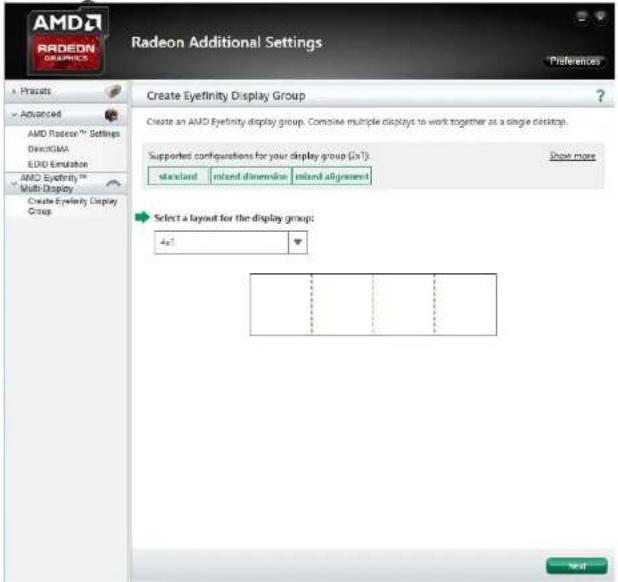
Create Eyefinity Display Group 1x4 and 4x1

Radeon Additional Settings Preferences Create Eyefinity Display Group Create an AMD Eyefinity display group. Combine multiple displays to work together as a single desktop. Supported configurations for your display group (X/Y): Standard mixed dimension mixed alignment Show more Select a layout for the display group: 1x4 Next

© AOPEN Inc. ALL RIGHTS RESERVED

Radeon Additional Settings Preferences Create Eyefinity Display Group Create an AMD Eyefinity display group. Combine multiple downloads to work together as a single desktop. Supported configurations for your display group (5x1): Standard blend dimension blend alignment Show more Select a layout for the display groups: 4x1 Next

COMMERCIAL IN CONFIDENCE
AOPEN DE6340P - Create Eyefinity Display Group 1x4 and 4x1 - 3

AOPEN DE6340P - Create Eyefinity Display Group 1x4 and 4x1 - 4

AOPEN

Start arrangement

AOPEN DE6340P - Start arrangement - 1

AOPEN

AMD Radeon Additional Settings Create Eyefinity Display Group Create an AMD Eyefinity display group. Combine multiple displays to work together as a single desktop. Supported configurations for your display group (Rx): standard reduced dimension reduced alignment Rearrange your displays as needed Start arrangement Back Next

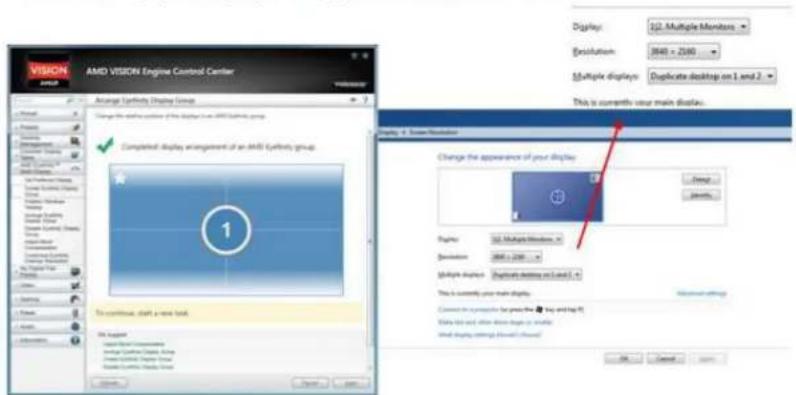
VISION AVOID AMD VISION Engine Control Center Create Eyfrinity Display Group Create an AMD Viscuity display group. Create multiple displays to work together as a single desktop. Select the desktop for which you want to start creating an AMD Eyfrinity display group. ① ② ③ ④ Options Open Help

AMID VISION Engine Control Center Create Eyelistry Display Group Create an AMD Eyelistry display group. Combine multiple displays to work together as a single desktop. Select the desktop for which you want to start creating an AMD Eyelistry display group. The only displays that can be added to the display group belong to extended desktops. Click Continue to disable the extended desktops.

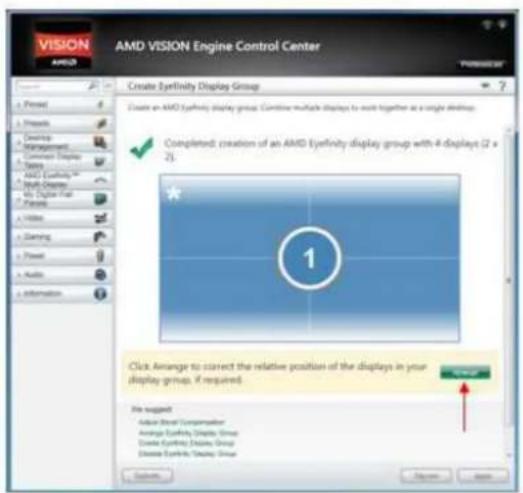
VISION AMID AMD VISION Engine Control Center Create Eyefinity Display Group Create an AMD VSYH1 display group. Combine multiple displays to work together at a single desktop. Completed: creation of an AMD VSYH1 display group with 4 displays (2 x 2) 1 Click Arrange to correct the relative position of the displays in your display group, if required. File suggest Admin Short Compensation Average Eysinity Display Group Close Eysinity Display Group Close Eysinity Display Group Browse... Save... Add... Cancel

AOPEN DE6340P - Start arrangement - 6

natural_image Four-panel image showing a desktop interface with a screen and abstract graphics on blue background (no text or symbols)

Fig 1

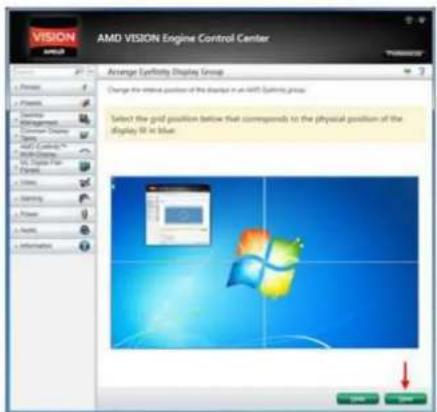
When start arrange, controller center will black out all the displays in the group, and controller center will highlight each display in turn by switching it from black to blue (Fig 2), click on the corresponding cell in the controller center UI to the one that is highlighted. For example, if the blue screen as Fig 2, then you need to click display 1 in controller center UI, and follow the same procedure until finish this process.

AMD VISION Engine Control Center VISION AVOC Arrange Cytnority Display Group Change the relative position of the display row (AMD VISION group) Select the grid position below that corresponds to the physical position of the display it in Blue 1 2 3 4

AOPEN DE6340P - Start arrangement - 8

natural_image Simple 2x2 grid with blue and dark gray cells (no text or symbols)

Fig 2

if the blue screen as Fig 3, then you need to click display 1 in controller center UI
AMD VISION Engine Control Center Advance Syrlicity Display Group Change the relative position of the display in an AMD Syrlicity group Select the grid position below that corresponds to the physical position of the display in Blue: 1 2 3 4

AOPEN DE6340P - Start arrangement - 10

natural_image Four-panel grid with dark gray and blue blocks (no text or symbols)

Fig 3

When finish arrange, controller center show the massage below, if the relative position of the display group is correct as Fig 4, then click Done to next step.

AMD VISION Engine Control Center VISION AML Advance Egyptfinity Display Group Change the internal position of the display in an MRT (Egyptfinity group) Select the grid position (below that corresponds to the physical position of the display 50 in blue)

AOPEN DE6340P - Start arrangement - 12

natural_image Windows XP desktop wallpaper showing four quadrants with a logo and application window (no readable text or symbols)

Fig 4

.When complete arrangement of Eyefinity display group, you can close AMD VISION Engine Control Center, and the 4 displays will become a big display, and the resolution will become 3840 x 2160, if your display can support resolution to 1920x1080..

VISION AMD VISION Engine Control Center Display: 122 Multiple Monitors Resolution: 3640 x 2580 Multiple displays: Duplicate desktop on 1 and 2 This is currently your main display. Display 4. Screen Number Change the appearance of your display Display: 122 Multiple Monitors Resolution: 3640 x 2580 Multiple displays: Duplicate desktop on 1 and 2 This is currently your main display. Connect to a perspective for your main (top and top rows) Data list and after three steps (or multiple) Wind display settings (above should) OK Cancel OK

AOPEN DE6340P - Start arrangement - 14

AOPEN

TV Wall TEST

© AOPEN Inc. ALL RIGHTS RESERVED

COMMERCIAL IN CONFIDENCE

19

TV Wall Test (4K monitor x4)(2x2)

AOPEN DE6340P - Start arrangement - 15

natural_image Three computer monitors displaying a beach scene with two people watching the wave; no visible text or symbols on screens or surroundings.

TV Wall Test (4K monitor x4)(2x2)

Advanced display settings

Display information

LG Ultra HD

Display 1: Connected to AMD-Radman(TM) Mega H Graphics

Desktop resolution 3840 = 2160

Active signal resolution 3840 = 2160

Refresh rate (Hz) 59 Hz

Bit depth 10-bit

Color format YChCr444

Color space Standard dynamic range (SDR)

Display adapter properties for Display 1

VX2475 SERIES

Display 2: Connected to AMD Radios(TM) Vega 71 Graphers

Desktop resolution 3840 × 2160

Active signal resolution 3840 = 2160

Refresh rate (Hz) 20 Hz

Bit depth 8-bit

Color format YChCrAdd

Color space Standard dynamic range (SDR)

Display adapter properties for Display 2

LG Ultra HD

Display 3: Connected to AMD Radeon(TM) Vega II Graphics

Desktop resolution 3840 = 2160

Active signal resolution 3840 = 2160

Refresh rate (Hz) 59 Hz

Bit depth 10-bit

Color format YCbCr444

Color space Standard dynamic range (SDR)

Display adapter properties for Display 5

LG Ultra HD

Display 4: Connected to AMD Radeon(TM) Vege 11 Graphics

Desktop resolution 3840 = 2160

Active signal resolution 3840 = 2160

Refresh rate (Hz) 59 Hz

Bit depth 10-bit

Color format YCDCr444

Color space Standard dynamic range (SDR)

Display adapter properties for Display 4

TV wall solution

(i) we also need to clarify if DE6340 support the following video wall configurations:

2x2 landscape mode 3840*2 x 2160*2 (W x H) =>working (3840*2 x 2160*2)

4x1 landscape mode 3840*4 x 2160*1=>working (3840*4 x 2160*1)

1x4 landscape mode 3840*1 x 2160*4=> working (3840*1x 2160*4)

2x2 portrait mode 2160*2 x 3840*2 (W x H) =>working (2160*2 x 3840*2)

4x1 portrait mode 2160*4 x 3840*1 =>working (2160*4 x 3840*1)

1x4 portrait mode 2160*1 x 3840*4 =>working (2160*1 x 3840*4)

(ii) Does DE6340 has built-in EDID simulator?

(if not, i will need to buy Benevo 4K EDID and the total project cost will be higher)

=> The AMD driver not support EDID simulator right now on DE6340,

when next month AMD driver update again, we will test it.

1×4

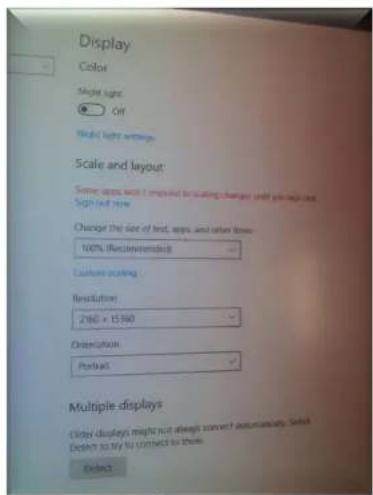
Color Night light Off Night light settings Scale and layout Some apies won't respond to scaling changes until you sign out. Sign out now Change the size of text, apies, and inflation engine 100% (Recommended) Custom scaling Resolution 3540 x 8640 Orientation Properties Multiple displays Other displays might not always connect automatically. Select Detect to try to connect to them. Detect

- 4x1 landscape mode 4096^4 × 2160^1 = > working (3840^4 × 2160^1)

- 1x4 portrait mode 2160^1 × 3840^4 =>working (2160*1 x 3840*4)
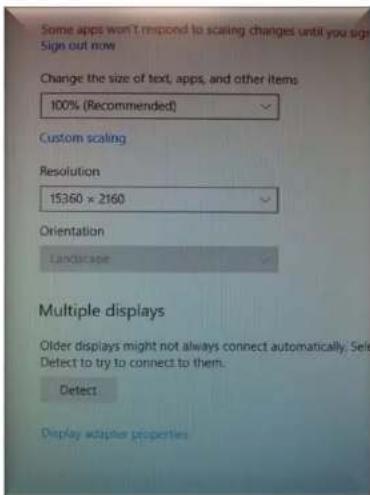
Some apps won't respond to scaling changes until you sign Sign out now Change the size of text, apps, and other items 100% (Recommended) Custom scaling Resolution 15360 × 2160 Orientation Landscape Multiple displays Older displays might not always connect automatically; Select Detect to try to connect to them. Detect: Display adapter properties

Display Color Model light: Off Model light settings Scale and layout Some words next I recommend to setting changes until you adjust Sign out new Change the size of text, words, and other words 100% (Recommended) Custom scaling Resolution 2500 x 15.960 Orientation Portrait Multiple displays Close displays might not always convert simultaneously. Select Desire to try to collect to them. Close

Manual assistant
Powered by Anthropic
Waiting for your message
Product information

Brand : AOPEN

Model : DE6340P

Category : Computer