
AL10DB - Lock ZKTeco - Free user manual and instructions
Find the device manual for free AL10DB ZKTeco in PDF.


| Product Type | Digital Door Lock |
| Brand | ZKTeco |
| Model | AL10DB |
| Dimensions (Exterior) | 3.5 x 3.0 x 1.5 inches (88 x 76 x 38 mm) |
| Weight | 1.2 kg (2.6 lbs) |
| Power Supply | 4 x AA alkaline batteries (6V DC) |
| Identification Methods | Fingerprint, RFID card, PIN code, Mechanical key |
| User Capacity | Up to 300 users |
| Fingerprint Sensor Type | Optical sensor |
| Door Thickness Compatibility | 35-55 mm (1.4-2.2 inches) |
| Material | Zinc alloy housing, stainless steel latch |
| Low Battery Alert | Audible and visual indicator |
| Emergency Power | USB-C emergency charging port (9V battery also supported) |
| Security Features | Privacy mode, anti-peep password, auto-lock |
| Water Resistance | IP54 (splash-proof) |
| Operating Temperature | -20°C to 55°C (-4°F to 131°F) |
| Installation | DIY or professional recommended |
| Certifications | CE, FCC, RoHS |
| Spare Parts Included | Mounting screws, strike plate, RFID cards (2), mechanical keys (2) |
| Maintenance | Clean exterior with soft dry cloth; lubricate mechanical parts with graphite powder |
Frequently Asked Questions - AL10DB ZKTeco
User questions about AL10DB ZKTeco
0 question about this device. Answer the ones you know or ask your own.
Ask a new question about this device
Download the instructions for your Lock in PDF format for free! Find your manual AL10DB - ZKTeco and take your electronic device back in hand. On this page are published all the documents necessary for the use of your device. AL10DB by ZKTeco.
USER MANUAL AL10DB ZKTeco
AL10B digital lock with voice guide
Version: 1.0
Date: December, 2017
Table of Contents
Read Before Use....1
Safety Precautions ....1
Structure 2
Basic Function ....3
User Introduction....3
Initialization....4
Random Password....4
Voice Guide ....5
Volume setting....5
Language setting....5
Lockout mode....5
Normal Open 6
Low Battery Warning 6
9V External Battery ....7
How to change handle direction....8
Emergency Mechanical Key 9
How to Use 10
Register First Administrator....10
Register Other Administrator....12
Register Normal User....13
Delete Admin....14
Delete Normal User 15
Back up enroll 16
Volume setting....17
Language setting....18
Lockout mode....19
Normal open mode....20
Read Before Use
Safety Precautions
- The factory setting of all new locks will allow ANY verification to open them.
- Please register at least one administrator for the newly installed lock. The lock cannot register any normal users without an administrator.
- The lock is equipped with mechanical keys for manual unlocking. Please keep the mechanical keys at a safe place.
- To power ON the lock, four alkaline AA batteries (not included) are required. Non-alkaline and rechargeable batteries ARE NOT RECOMMENDED.
- Do not remove batteries when the lock is in working state.
- Please replace the battery soon when the lock prompts of low battery.
- If the lock does not have any activity for seven seconds it will go into sleep mode and prompts of time expired.
Structure
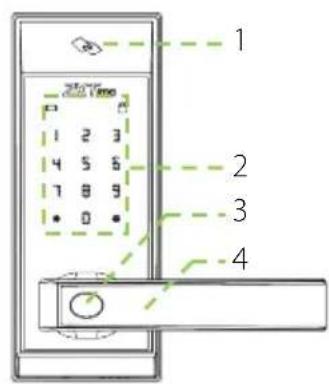
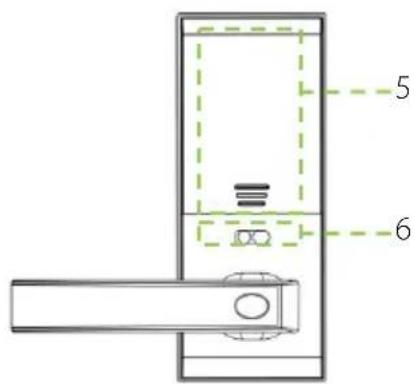
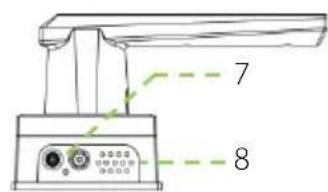
- Card Area
- Keypad & Card Detection Area
- Mechanical Key Hole
-
Handle
-
Battery Area
- Louckout Switch
- 9V Battery Interface
- Speaker
Basic Function
User Introduction
| Group | Verification Mode | Function | Capacity |
| Administrator | Card | Register / Delete User,Open The Door,Access in menu | Max.100 |
| Password Max.100 | |||
| Normal User | Card | Open the door | Max.100 |
| Password Max.100 |
Note:
- The maximum card/password capacity is 100 for all groups.
- The length of password is six digits.
Initialization
Initializing the lock means all data will be delete and restore to factory default setting.
Operation steps: Press the reset button on the back body of the lock, then touch the keypad to power on the lock holding the reset button for 5 seconds until the lock prompts the voice of "Restore to default settings, wait a moment". After around 30 seconds, the lock prompts the voice of "completed", and then the initialization is finished completely.
Random Password
Random password = Users may enter any number of random digits before or after the correct six digit password as long as the maximum number of digits entered is 32 or less.
For example: If the correct password is 123456, the random password can be 89123456807, 1234562363, 389123456, etc.
Voice Guide
After accessing the menu, the lock provides voice prompts before and after each operation for easy configuration.
Volume Setting
The lock volume can be set, which has three modes, high volume mode, low volume mode and silent mode.
Language Setting
Supports English / Spanish.or English / Portuguese.
Lockout Mode
When the lock set as lockout mode, only administrator can open the door, and also can use the Lockout Switch to enable or disable the mode.
Normal Open
Normal open mode is to keep door always unlocked, which is fit for meeting room and some places free to in or out.
Low Battery Warning
When the lock has a low battery a short beep and voice prompt of "Battery is low, please replace" will be prompted".
Note: Access to menu steps is not allowed in low battery status.
9V External Battery
9V external battery is used to open doors in emergency.
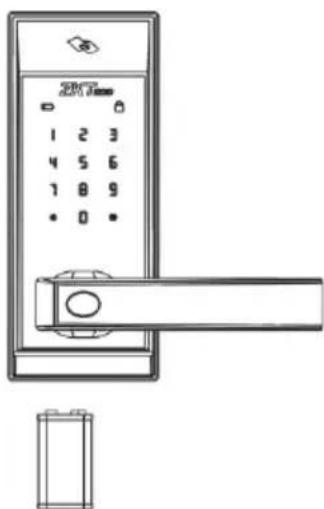
Note: The above battery must be 9V alkaline battery (6LR61).
How To Change Handle Direction
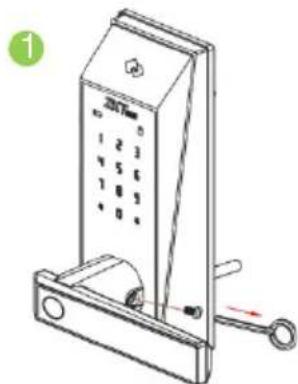
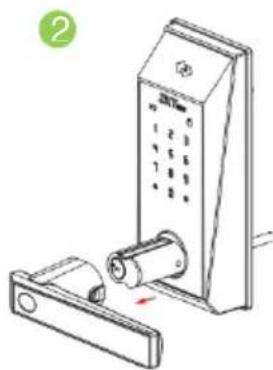
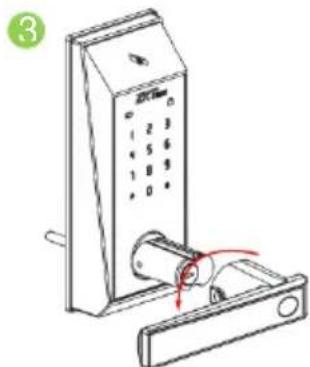
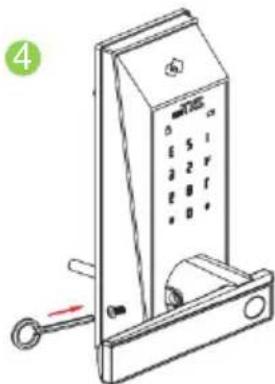
Step:
- Remove the screws with a screwdriver.
- Take out the lock handle.
- Turn the handle in the opposite direction.
- Replace the screws.
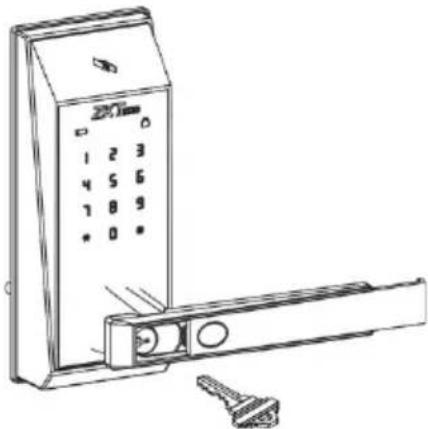
Emergency Mechanical Key
The mechanical key is used to open door when the lock has electronic malfunction. Note: Keep the mechanical key at a safe place.
How to Use
Register First Administrator
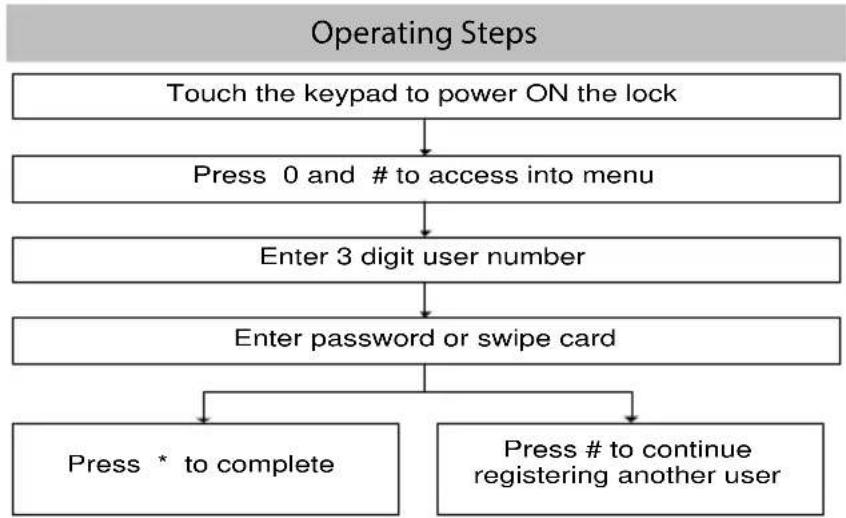
flowchart
graph TD
    A["Touch the keypad to power ON the lock"] --> B["Press 0 and # to access into menu"]
    B --> C["Enter 3 digit user number"]
    C --> D["Enter password or swipe card"]
    D --> E["Press * to complete"]
    D --> F["Press # to continue registering another user"]
Note:
- Put the card on the card area.
- The length of password should be of six digits.
- Default user number length is three digits, but one or two digit user numbers are accepted by pressing the # key.
- Press * to cancel registration before the registration is complete.
Register Other Administrator
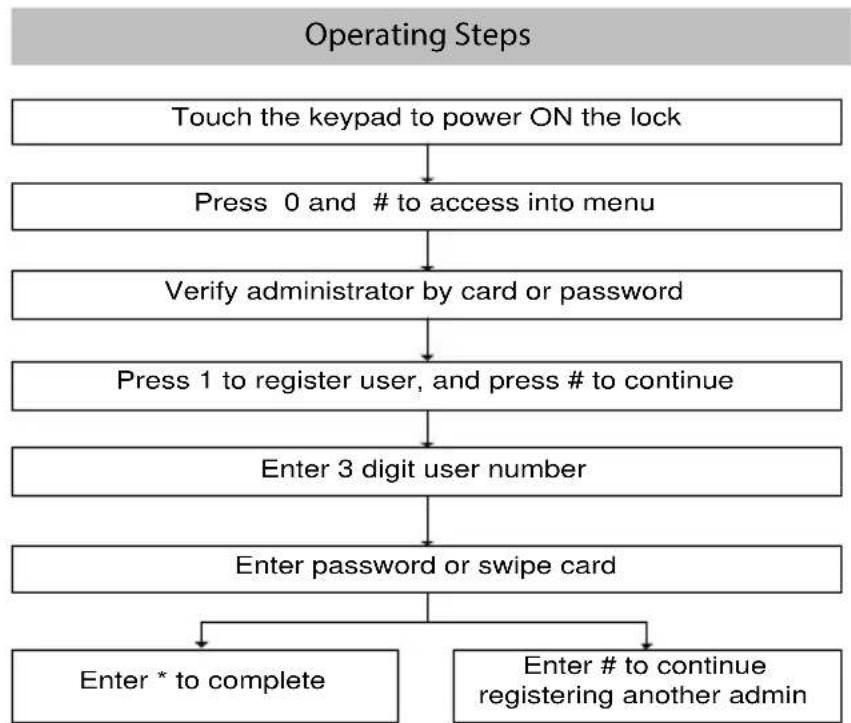
flowchart
graph TD
    A["Touch the keypad to power ON the lock"] --> B["Press 0 and # to access into menu"]
    B --> C["Verify administrator by card or password"]
    C --> D["Press 1 to register user, and press # to continue"]
    D --> E["Enter 3 digit user number"]
    E --> F["Enter password or swipe card"]
    F --> G["Enter * to complete"]
    F --> H["Enter # to continue registering another admin"]
Note: If you verify administrator by password, please end with button #.
Register Normal User
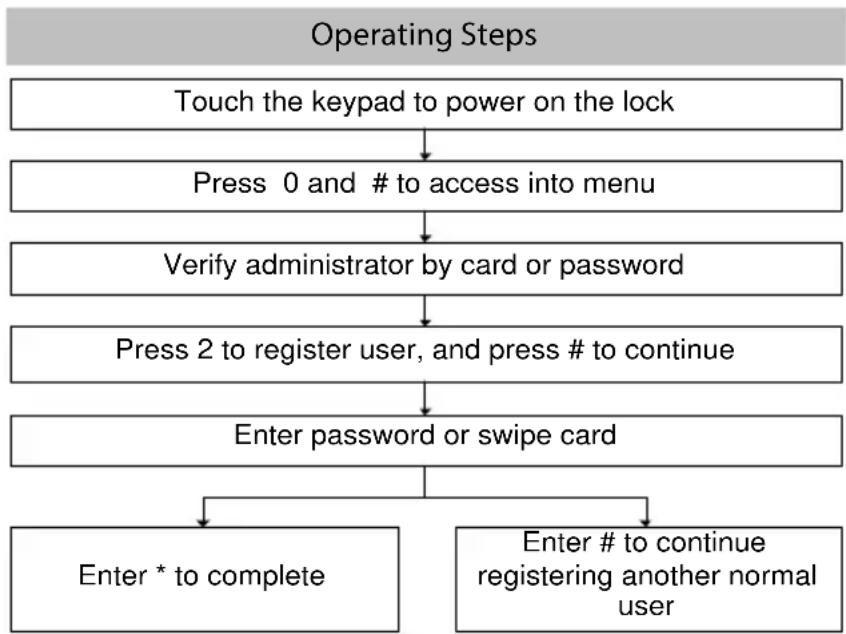
flowchart
graph TD
    A["Touch the keypad to power on the lock"] --> B["Press 0 and # to access into menu"]
    B --> C["Verify administrator by card or password"]
    C --> D["Press 2 to register user, and press # to continue"]
    D --> E["Enter password or swipe card"]
    E --> F["Enter * to complete"]
    E --> G["Enter # to continue registering another normal user"]
Delete Admin
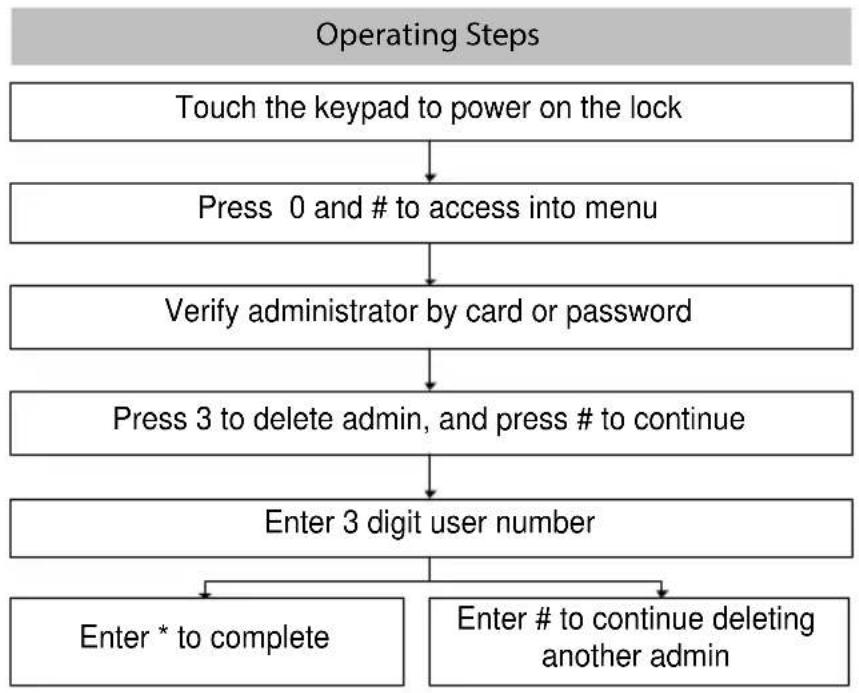
flowchart
graph TD
    A["Touch the keypad to power on the lock"] --> B["Press 0 and # to access into menu"]
    B --> C["Verify administrator by card or password"]
    C --> D["Press 3 to delete admin, and press # to continue"]
    D --> E["Enter 3 digit user number"]
    E --> F["Enter * to complete"]
    E --> G["Enter # to continue deleting another admin"]
Delete Normal User
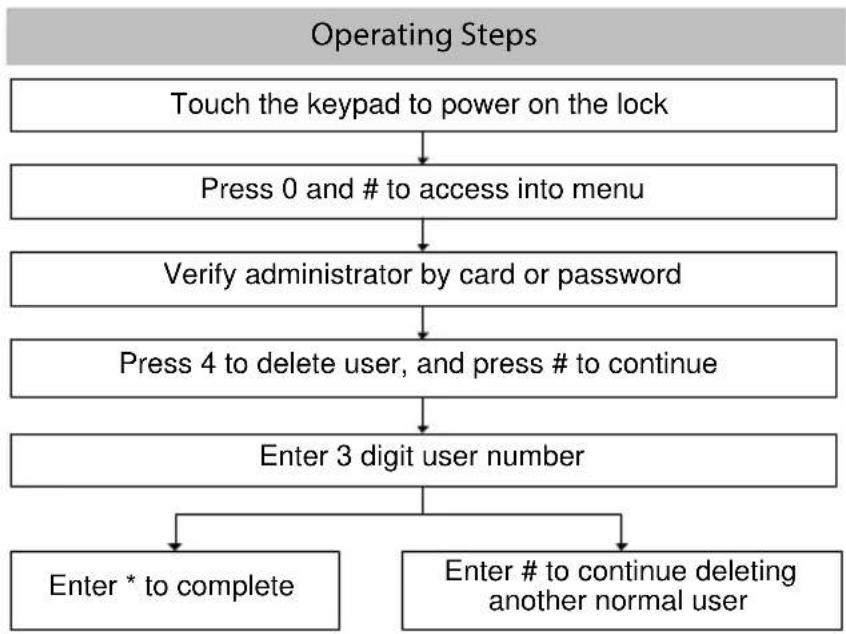
flowchart
graph TD
    A["Touch the keypad to power on the lock"] --> B["Press 0 and # to access into menu"]
    B --> C["Verify administrator by card or password"]
    C --> D["Press 4 to delete user, and press # to continue"]
    D --> E["Enter 3 digit user number"]
    E --> F["Enter * to complete"]
    E --> G["Enter # to continue deleting another normal user"]
Back Up Enroll
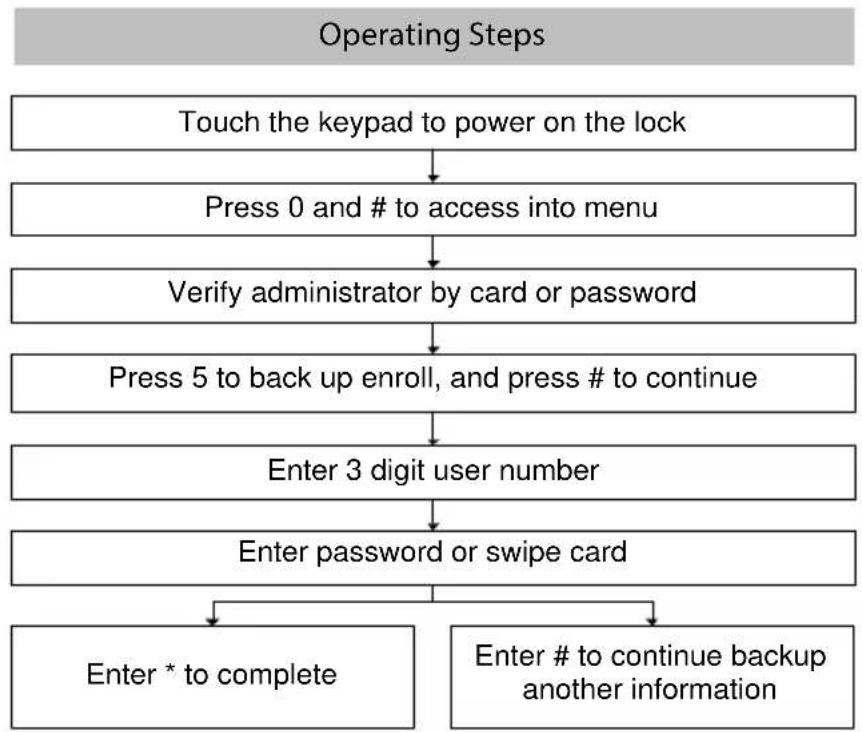
flowchart
graph TD
    A["Touch the keypad to power on the lock"] --> B["Press 0 and # to access into menu"]
    B --> C["Verify administrator by card or password"]
    C --> D["Press 5 to back up enroll, and press # to continue"]
    D --> E["Enter 3 digit user number"]
    E --> F["Enter password or swipe card"]
    F --> G["Enter * to complete"]
    F --> H["Enter # to continue backup another information"]
Volume Setting
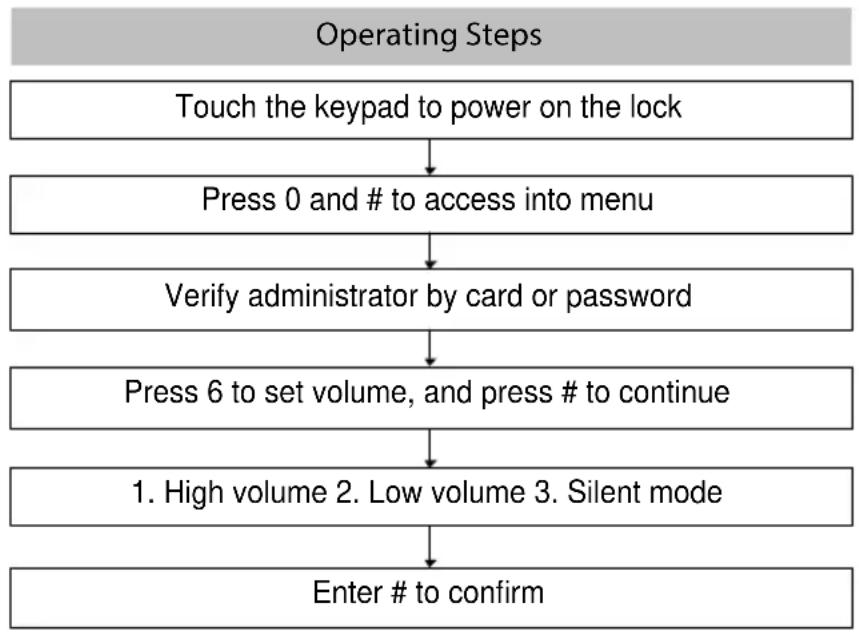
flowchart
graph TD
    A["Touch the keypad to power on the lock"] --> B["Press 0 and # to access into menu"]
    B --> C["Verify administrator by card or password"]
    C --> D["Press 6 to set volume, and press # to continue"]
    D --> E["1. High volume 2. Low volume 3. Silent mode"]
    E --> F["Enter # to confirm"]
Language Setting
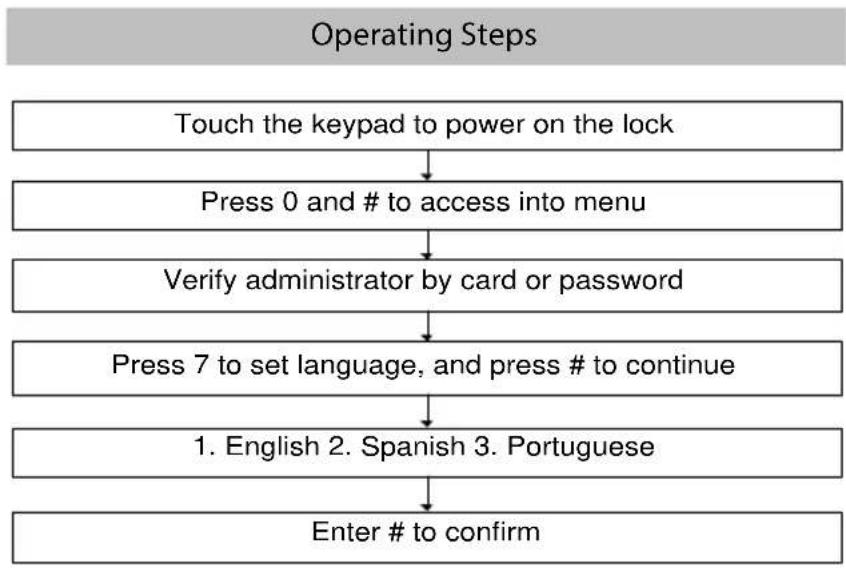
flowchart
graph TD
    A["Touch the keypad to power on the lock"] --> B["Press 0 and # to access into menu"]
    B --> C["Verify administrator by card or password"]
    C --> D["Press 7 to set language, and press # to continue"]
    D --> E["1. English 2. Spanish 3. Portuguese"]
    E --> F["Enter # to confirm"]
Note: There are only two language mode, English/Spanish, or English/Portuguese. For example, if the lock is equipped with English/Spanish, selecting "3" (Portuguese), will still show Spanish mode.
Lockout mode
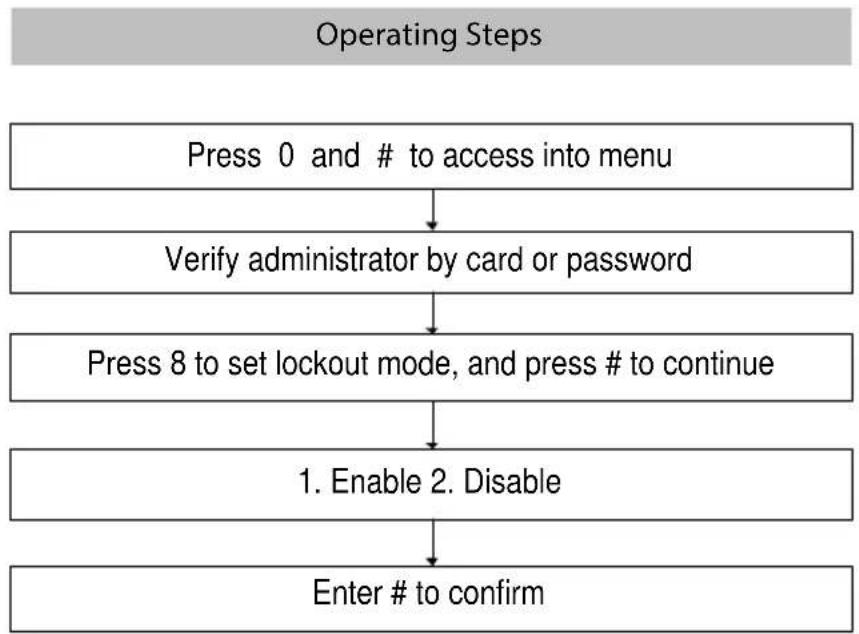
flowchart
graph TD
    A["Operating Steps"] --> B["Press 0 and # to access into menu"]
    B --> C["Verify administrator by card or password"]
    C --> D["Press 8 to set lockout mode, and press # to continue"]
    D --> E["1. Enable 2. Disable"]
    E --> F["Enter # to confirm"]
Normal open mode
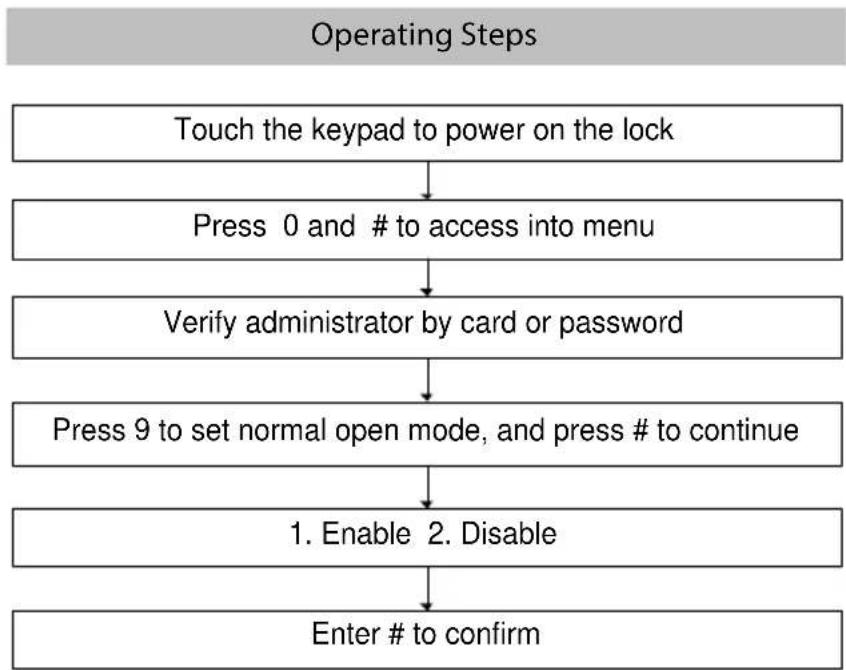
flowchart
graph TD
    A["Touch the keypad to power on the lock"] --> B["Press 0 and # to access into menu"]
    B --> C["Verify administrator by card or password"]
    C --> D["Press 9 to set normal open mode, and press # to continue"]
    D --> E["1. Enable 2. Disable"]
    E --> F["Enter # to confirm"]
www.zkteco.eu
© Copyright 2014. ZKteco Inc. ZKteco Logo is a registered trademark of ZKteco or a related company. All other product and company names mentioned are used for

- Table of Contents
- Read Before Use....1
- Basic Function ....3
- How to Use 10
- Read Before Use
- Safety Precautions
- Structure
- Basic Function
- Note:
- Initialization
- Random Password
- Voice Guide
- Volume Setting
- Language Setting
- Lockout Mode
- Normal Open
- Low Battery Warning
- 9V External Battery
- How To Change Handle Direction
- Step:
- Emergency Mechanical Key
- How to Use
- Register First Administrator
- Register Other Administrator
- Register Normal User
- Delete Admin
- Delete Normal User
- Back Up Enroll
- Normal open mode
Brand : ZKTeco
Model : AL10DB
Category : Lock