
SH1101 - Smart plug ACME - Free user manual and instructions
Find the device manual for free SH1101 ACME in PDF.


| Product Type | Smart Plug |
| Brand | Acme |
| Model | SH1101 |
| Dimensions | 4.5 x 4.5 x 8.5 cm |
| Weight | 55 g |
| Power Supply | AC 230V, 50Hz, 10A max |
| Wi-Fi Standard | IEEE 802.11 b/g/n, 2.4 GHz |
| App Compatibility | Acme Home (iOS & Android) |
| Voice Control | Amazon Alexa, Google Assistant |
| Main Functions | Remote on/off, scheduling, timer, energy monitoring |
| Maximum Load | 2300 W |
| Standby Power | < 0.5 W |
| Operating Temperature | 0°C to 40°C |
| Material | Flame-retardant PC |
| Care and Cleaning | Wipe with a dry cloth; do not use water or solvents |
| Safety | Overload protection, child lock in app, CE certified |
| Spare Parts and Repairability | No user-serviceable parts; contact support for defects |
| General Information | Indoor use only; rated for permanent installation not recommended |
Frequently Asked Questions - SH1101 ACME
User questions about SH1101 ACME
0 question about this device. Answer the ones you know or ask your own.
Ask a new question about this device
Download the instructions for your Smart plug in PDF format for free! Find your manual SH1101 - ACME and take your electronic device back in hand. On this page are published all the documents necessary for the use of your device. SH1101 by ACME.
USER MANUAL SH1101 ACME
natural_image
White electrical plug with power button and switch, next to a white power switch with 'Power Switch' icon (no text or symbols on main subject)
SH1101
SMART WI-FI
Plug
4 GB User's manual
8 LT Vartotojo gidas
12 LV Lietošanas instrukcija
16 EE Kasutusjuhend
Technical specifications
Connection: Wi-Fi, IEEE 802.11 b/g/n
Frequency range: 2.412–2.484 GHz
Maximal output radio frequency power: 17 dBm / 50,12 mW
Input: AC 100-240 V, 50/60 Hz
Output: AC 100-240 V
Maximum load: 10 A
Maximum power: 2300 W
Idle power consumption: ≤1 W
Plug type: EU (E, F)
Socket type: EU (C, F)
Compatibility: Android 4.1 and above, iOS 9.0 and above
Application: Smart Life for iOS and Android
Operating temperature: from -10°C to 40°C
Dimensions: 55 (H) x 55 (W) x 72 (D) mm
Material: plastic
Colour: white
Weight: 85 g
Smart plug overview
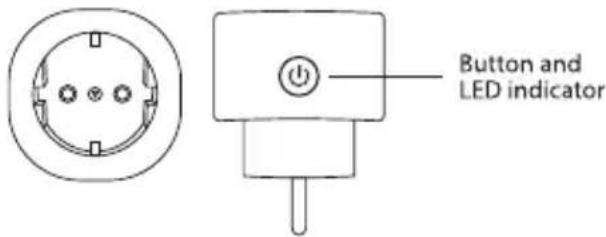
Setting up the device and pairing
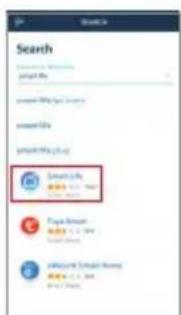
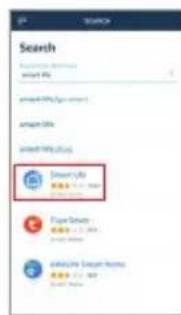
1) Download the application from the Apple Store or Google Play Store by searching for Smart Life, or you can quickly scan the QR codes below:

For Android devices

For iOS devices

After installing the application click Allow on all permission requests.

Upon registration in a mobile app your personal data shall be transferred to the mobile app manufacturer, who is responsible for your personal data processing. We recommend that you familiarise yourself with the mobile app manufacturer's privacy policy prior to registration.
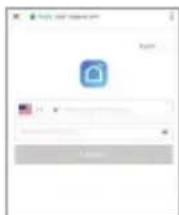
2) Start the App and register an account with your email address / mobile number and then log in with the use of the registered account.
3) Insert the plug into a power outlet, then press and hold the button for 5 seconds to enter into the Wi-Fi configuration mode. The LED indicator will blink rapidly (EZ mode) or slowly (AP mode). The EZ mode connection is set as default in Wi-Fi configuration. Press and hold the button for 5 seconds to enable the device to switch between EZ mode and AP mode.
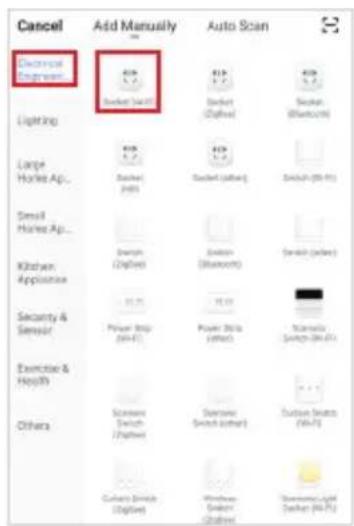
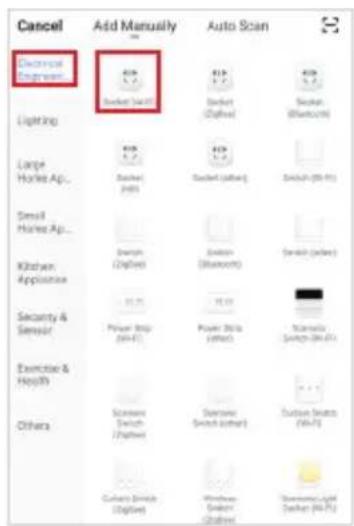
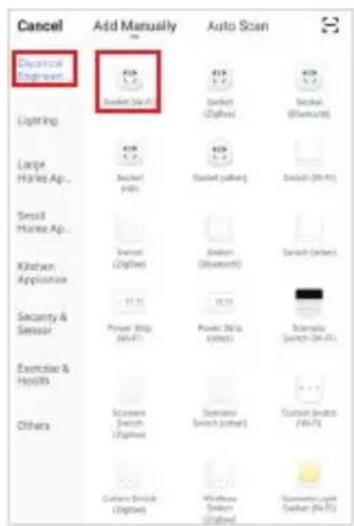
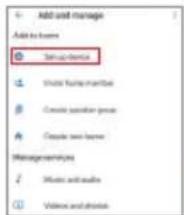
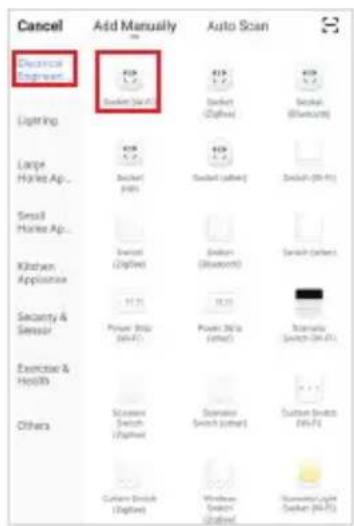
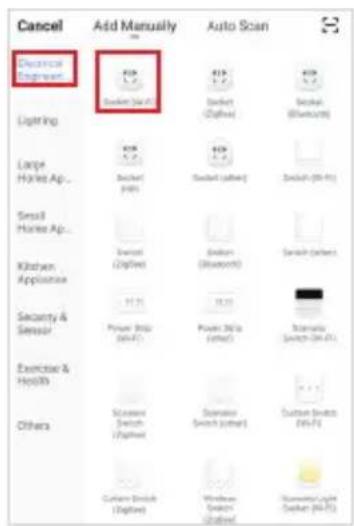
4) Open the application and choose Add device, then select Socket (Wi-Fi). After that choose the connection mode and follow the instructions on your smartphone:

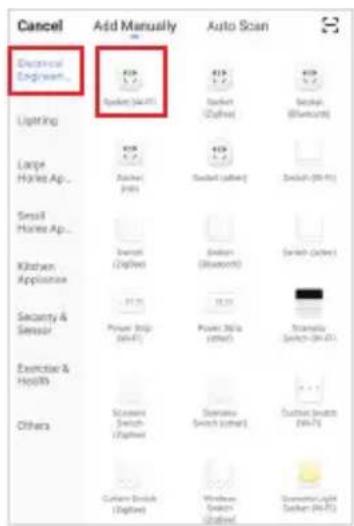

App design and functionality might be different after updates.
5) Short press the button to manually control the device. The blue LED indicator will light on or off depending on the plug power state.
Connection modes
EZ (easy mode) mode: the smart plug connects to your home router directly.
AP (access point) mode: the smart plug creates an access point which connects to the smartphone and to your home router.
Unpairing:
Press and hold the button on the device for 5 s to unpair it from your smartphone or use the application Remove Device button in the device Settings menu.
Reset:
Open the application device menu and go to Settings, then click Restore Manufacturer Defaults.

Different modes are necessary for particular router types. Try one or another if it does not work with the first try.
Features

Schedule – schedule the time to turn on/off the smart plug at different hours or time intervals.
Energy monitoring (statistics) – use the application to track your devices energy consumption.
Timer – use a timer to turn off/on the smart plug after the set time.
Remote access – control the smart plug from different locations using your mobile data or another Wi-Fi connection.
Real-Time data – track the smart plug's data at the real-time.
Easy scenes – easy to program the smart plug to use different functions, e.g. to turn on the light while doors are opening (using with door/window sensor).

Other features:
ACME ecosystem – compatible with multiple smart devices

ACME Smart Home ECOSYSTEM
Voice control – use Amazon Alexa or Google Assistant to voice control your device.

WORKS WITH alexa

works with the Google Assistant
Requirements for Google Home
• A Google Home device or an Android phone with Google Assistant.
• Latest Google Home app.
• A Google account.
• The device display language must be set to English US.
• Smart Life app and a related account.
• A smart device.
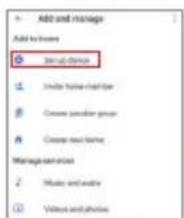
Link Smart Life account in Home Control


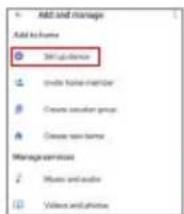
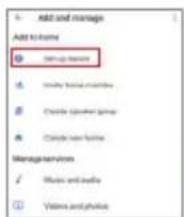
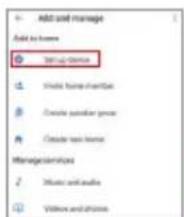
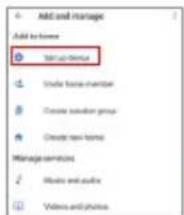
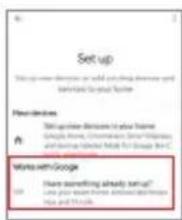
1) Tap Home Control in the menu on the Google Home app's home page, then tap +.


2) Find Smart Life on the list. In the new window, select your Smart Life account's region, type your Smart Life account and password, then tap Link Now. After you assign rooms for devices, your devices will be listed on the Home Control page.

App design and functionality might be different after updates.
Requirements for Amazon Alexa
• A stable Wi-Fi network which could access to the Amazon server.
• An Echo device, such as Echo, Echo Tap, or Echo Dot.
• A valid Amazon Alexa account.
• Smart Life app and a registered account.
• At least one device under your Smart Life account.
Link Smart Life account to Echo
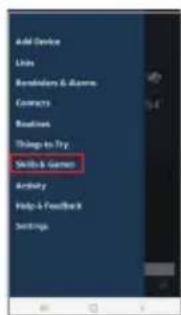


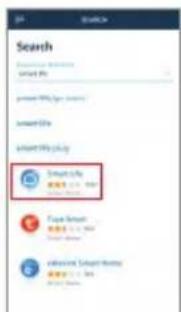
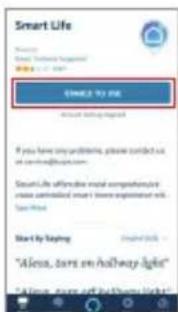
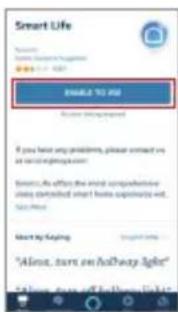
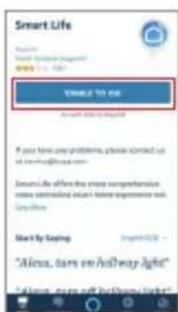
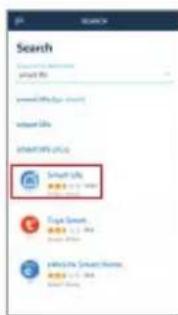
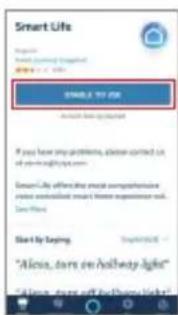
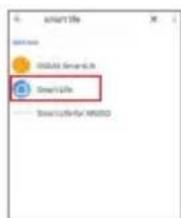
1) Tap Skills in the slide menu, then search and select Smart Life and tap ENABLE to enable the Skill.
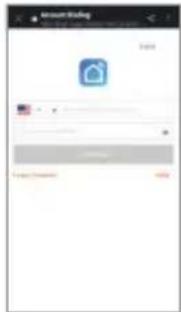

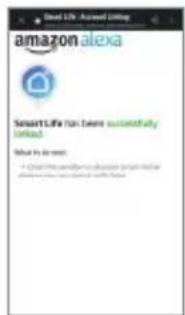
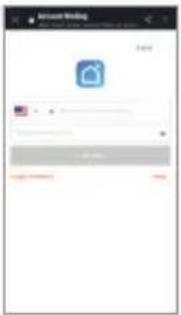
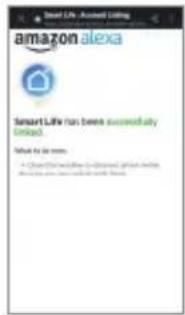
2) You will be re-directed to the account link page. Type in your Smart Life account and password; don't forget to select the country/region where your account belongs to. Then tap Link Now to link your Smart Life account. The country/region, the account, and the password must match exactly/be the same with the Smart Life account. Close the window when Alexa has been successfully linked with Smart Life notice is prompted out.

App design and functionality might be different after updates.
Now you can control your smart devices with your voice
For Google Assistant:
Ok Google, turn on the bedroom plug Ok Google, turn off the bedroom plug
For Amazon Alexa:
Alexa, turn on the bedroom plug Alexa, turn off the bedroom plug
Safety instructions
- Do not disassemble the product or remove any parts.
- Do not put the product into water or any liquid.
- Do not put the product close to heat source or expose it to high temperature.
• This product is intended for indoor use only. - Please ensure the security of electricity: the max. current load cannot be higher than 10 A. The max. power load cannot be higher than 2300 W.
Troubleshooting
| Problem Solution | |
| Cannot connect to the device · | Make sure that your device is connected to a 2.4 GHz Wi-Fi network. 5 GHz Wi-Fi network is not supported.Make sure that the device is within the range of the Wi-Fi network and has a strong signal.Make sure that your wireless router/access point or the network provider is not blocking the P2P (peer to peer) networking. |
| The device turned off unexpectedly | ·Your Wi-Fi network may have turned off.Please check and restart your router.After the power is cut off, your device will go into the off mode; make sure that you turned it on through the application or manually by pressing the button on the device. |
| Cannot connect to the device from outside of my home network | ·Because of different routers, make sure that your router/access point has a port forwarding enabled to access the device. For detailed information, contact your network provider. |
Waste Electrical and Electronic Equipment (WEEE) Symbol

The use of the WEEE symbol indicates that this product may not be treated as household waste. By ensuring this product is disposed of correctly, you will help protect the environment. For more detailed information about the recycling of this product, please contact your local authority, your household waste disposal service provider or the shop where you purchased the product.
„Android“ jrenginiams

„iOS“jrenginiams

works with the Google Assistant




Materials: plastmasa
Krāsa: balta
Svars: 85 g
natural_image
Simple line drawing of a button with an input and output lines (no text or symbols)Poga un LED indikators
"Android" iericem

"iOS" iericem

works with the Google Assistant

![Set up Design functions or web printing devices and materials for user form View devices Set up new devices in your home Google, Netflix, Disney, Amazon, and other related apps for Google Web... Values with Google [1] Have something already set up? [2] Have your own website installed and provide http and email.](/content/2026/05/996701/images/8cd24bc026e318d4f417359c7fc909dc64dba7e9400d8032bd8934b7938f493d.jpg)


Android seadmetele

iOS seadmetele

works with the Google Assistant


Dla systemów iOS



Ok Google, turn on the bedroom plug
Ok Google, turn off the bedroom plug
Dla Amazon Alexa:
Alexa, turn on the bedroom plug
Alexa, turn off the bedroom plug
natural_image
Simple line drawing of a button with an input and output lines (no text or symbols)Для iOS-устройств

works with the Google Assistant


natural_image
Simple line drawing of a button with an input and output lines (no text or symbols)Für Android-Geräte

Für iOS-Geräte

works with the Google Assistant


natural_image
Simple line drawing of a button with an input and output terminals (no text or symbols)

works with the Google Assistant
![Set up Wing with Google [1] Have something already set up? Let your small home, connected to Google Free and FREE.](/content/2026/05/996701/images/a30fecbd6d37b425908f632297786d3a402ac19875abbffe3368641d45c2347d.jpg)


За iOS устройства


works with the Google Assistant



Pentru dispositive Android

works with the Google Assistant


iOS eszközök esetén


works with the Google Assistant


natural_image
Simple line drawing of a button with an input and output terminals (no text or symbols)Za Android uređaje

Za iOS uređaje

Nakon što instalirate aplikaciju, potvrdite sve upite o dozvolama.

works with the Google Assistant

1) Dodirnite Home Control u izborniku na početnoj stranici Google Home aplikacije, a zatim dodirnite +.

2) Pronadite Smart Life na popisu. U novom prozoru odaberite regiju vašeg Smart Life računa, upišite vaš Smart Life račun i lozinku, a zatim dodirnite Link Now. Nakon što dodijelite uredaje određenim sobama, vaš uredaj će biti na popisu stranice Home Control.


1) Dodirnite Skills u kliznom izborniku, zatim pronadite i odaberite Smart Life i dodirnite ENABLE kako biste omogućili Skill.
Za naprave Android
Za naprave iOS


works with the Google Assistant

1) Tapnite na Home Control v meniju na domači strani aplikacije Google Home, nato tapnite +.


1) Tapnite na Skills v drsnem meniju, nato poiščite in izberite Smart Life in tapnite na ENABLE (OMOGOČI), da omogočite Skill.

Para dispositivos Android

Para dispositivos iOS

Requisitos para Google Home



Για συσκευές iOS


works with the Google Assistant




ACC Distribution hereby declares that this equipment is in compliance with the essential requirements and other relevant provisions of:
RED 2014/53/EU Directive
LVD 2014/35/EU Directive
RoHS 2015/863/EU Directive
The declaration of conformity can be accessed at:
http://www.acme.eu/en-us/declarations-conformity
LT ES atitikties deklaracija
| Product Product model | |
| Product purchase date Seller name, address | |
| Failures (date, description, position of the person who accepts the product, first name, last name and signature) | |
1. Warranty period
Warranty enters into force starting with the day when the buyer acquires the product from the seller. Warranty period is indicated on the package of the product.
2. Warranty conditions
The warranty is valid only by providing an original document of the product acquisition and this warranty sheet, which includes name of the product model, product purchase date, name and address of the seller.
If it is noticed during the warranty period that the product has faults and these faults where not caused by any of the reasons when the warranty is not applied as indicated in the paragraphs below, manufacturer undertakes to replace the product.
The warranty is not applied to regular testing, maintenance and repair or replacement of the parts which are worn out naturally.
The warranty is not applied if damage or failures occurred due to the following reasons:
- Inappropriate installation of the product, inappropriate usage and/or operating the product without following the manual, technical requirements and safety standards as provided by the manufacturer, and additionally, inappropriate warehousing, falling from heights as well as hard strikes.
• Corrosion, mud, water and sand.
• Repair works, modifications or cleaning, which were performed by a service not authorised by the manufacturer.
• Usage of the spare parts, software or consumptive materials which do not apply to the product.
- Accidents or events or any other reasons which do not depend on the manufacturer, which includes lightning, water, fire, magnetic field and inappropriate ventilation.
- If the product does not meet standards and specifications of a particular country, in which it was not bought. Any attempt to adjust the product in order to meet technical and safety requirements such as those in the other countries withdraws all the rights to the warranty service.
If no failures are detected in the product, all the expenses in relation to the service are covered by the buyer.
www.acme.eu
- Technical specifications
- Smart plug overview
- Setting up the device and pairing
- After installing the application click Allow on all permission requests.
- Connection modes
- Unpairing:
- Reset:
- Features
- Other features:
- Requirements for Google Home
- Link Smart Life account in Home Control
- Requirements for Amazon Alexa
- Link Smart Life account to Echo
- Now you can control your smart devices with your voice
- For Google Assistant:
- For Amazon Alexa:
- Safety instructions
- Waste Electrical and Electronic Equipment (WEEE) Symbol
- Dla Amazon Alexa:
- Nakon što instalirate aplikaciju, potvrdite sve upite o dozvolama.
- Requisitos para Google Home
- LT ES atitikties deklaracija
- Warranty period
- Warranty conditions
Brand : ACME
Model : SH1101
Category : Smart plug