BB-3000W - Uncategorized Posiflex - Free user manual and instructions
Find the device manual for free BB-3000W Posiflex in PDF.


| Product Type | Point-of-Sale Terminal |
| Brand | Posiflex |
| Model | BB-3000W |
| Display Type | LCD |
| Screen Size | 15 inches |
| Touchscreen | Yes (Resistive) |
| Processor | Intel Celeron |
| RAM | 4 GB |
| Storage | 64 GB SSD |
| Operating System | Windows 10 IoT |
| Dimensions (W x D x H) | 380 x 300 x 280 mm |
| Weight | 8 kg |
| Power Supply | 100-240V AC, 50/60Hz, 90W |
| Interfaces | USB x4, Ethernet, RS-232, VGA |
| Mounting | VESA compliant |
| Warranty | 1 year limited |
| Certifications | CE, FCC |
| Cleaning | Use a soft, dry cloth; avoid liquids |
| Safety | Disconnect power before cleaning |
| Spare Parts | Contact Posiflex authorized service center |
Frequently Asked Questions - BB-3000W Posiflex
User questions about BB-3000W Posiflex
0 question about this device. Answer the ones you know or ask your own.
Ask a new question about this device
Download the instructions for your Uncategorized in PDF format for free! Find your manual BB-3000W - Posiflex and take your electronic device back in hand. On this page are published all the documents necessary for the use of your device. BB-3000W by Posiflex.
USER MANUAL BB-3000W Posiflex
BB-3000W Wireless Bump Bar User Manual

Federal Communication Commission Interference Statement
This equipment has been tested and found to comply with the limits for a Class B digital device, pursuant to Part 15 of the FCC Rules. These limits are designed to provide reasonable protection against harmful interference in a residential installation. This equipment generates, uses and can radiate radio frequency energy and, if not installed and used in accordance with the instructions, may cause harmful interference to radio communications. However, there is no guarantee that interference will not occur in a particular installation. If this equipment does cause harmful interference to radio or television reception, which can be determined by turning the equipment off and on, the user is encouraged to try to correct the interference by one or more of the following measures:
● Reorient or relocate the receiving antenna.
- Increase the separation between the equipment and receiver.
- Connect the equipment into an outlet on a circuit different from that to which the receiver is connected.
- Consult the dealer or an experienced radio/TV technician for help.
FCC Caution: Any changes or modifications not expressly approved by the party responsible for compliance could void the user's authority to operate this equipment.
This device complies with Part 15 of the FCC Rules. Operation is subject to the following two conditions: (1) This device may not cause harmful interference, and (2) this device must accept any interference received, including interference that may cause undesired operation.
This device and its antenna(s) must not be co-located or operating in conjunction with any other antenna or transmitter.
19100901020 Ver. A0 http://www.posiflex.com
BB-3000W Wireless Bump Bar User Manual
POSIFLEX
Package Contents
√ BB-3000W Bump Bar.....x1
√ USB Dongle....x1
√ AA Alkaline Battery....x2
√ User Manual....x1
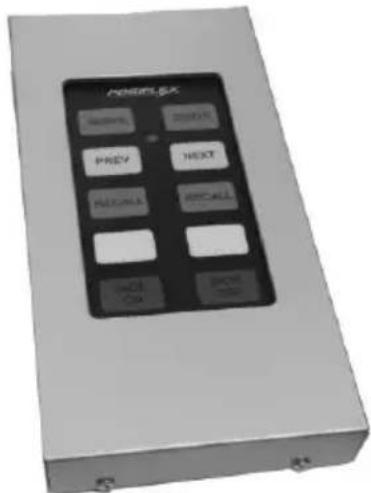
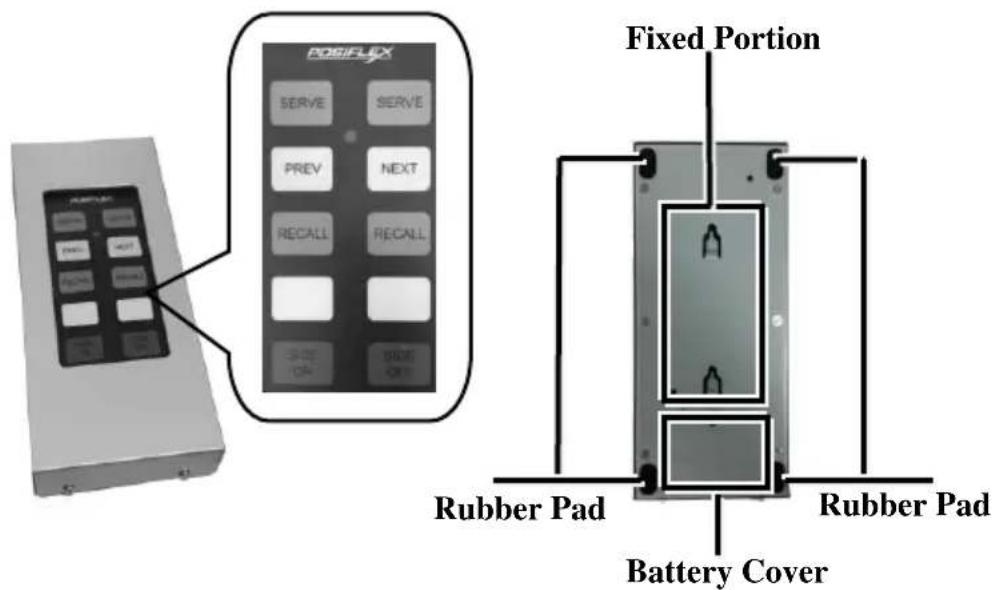
Views of the Wireless Bump Bar
Top View
Bottom View

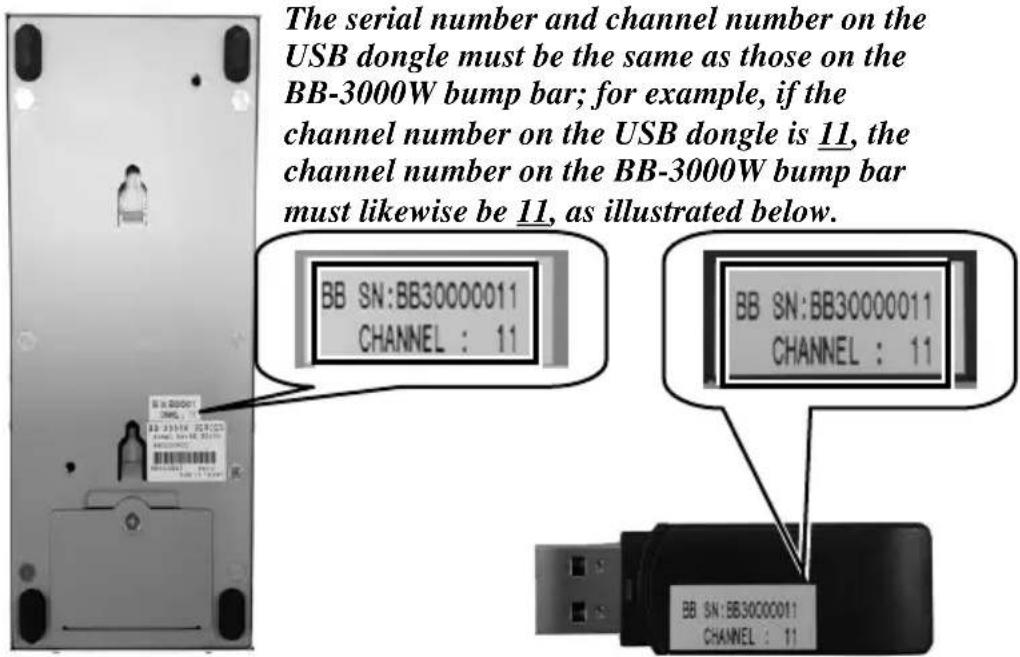
Each BB-3000W bump bar is configured with one of the 100 predetermined channels and should be paired with the USB dongle that has the matching channel number. To avoid channel conflict, do not use BB-3000W bump bars with duplicate channel number in the same setup.
The BB-3000W bump bar works at the radio frequency of 915MHz, which will not be interrupted by microwave devices in your kitchen.
Enabling the BB-3000W Bump Bar
Before enabling the BB-3000W bump bar, install two AA Alkaline batteries in the bump bar and attach the USB dongle to your host terminal by referring to the following instructive steps.
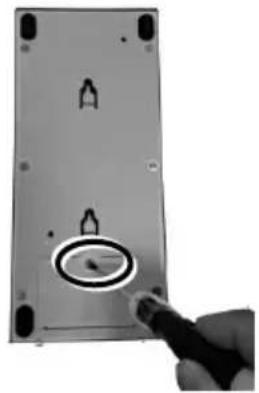
- Loosen and remove the screw from the battery cover of the BB-3000W bump bar.
natural_image
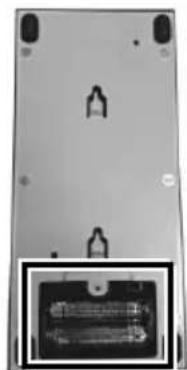
Close-up of a remote control panel with a hand pointing to the button (no text or symbols visible)- Load two AA Alkaline batteries into the battery compartment of the bump bar. When the batteries are loaded, the LED status indicator stays bright in solid green for about 5 seconds; when the battery is low, the LED status indicator flashes in red.
natural_image
Back view of a computer monitor with indicator lights and a close-up of the screen (no visible text or symbols)
When replacing the batteries, always use "Alkaline" AA type batteries.
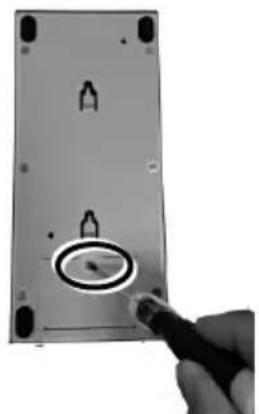
- Close the battery compartment of the bump bar with the battery cover, and securely fix the cover with the screw.
natural_image
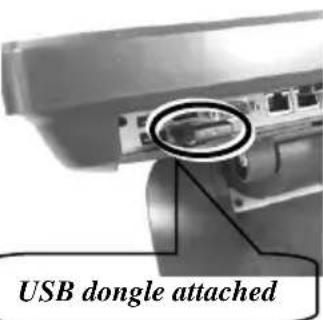
Close-up of a remote control panel with a hand pointing to the interior (no visible text or symbols)- Attach the USB dongle to your host terminal. Then, the BB-3000W bump bar is automatically paired with the USB dongle attached to the working terminal as long as the channel number on the USB dongle is the same as that on the BB-3000W bump bar; if the channel number on the USB dongle is different from that on the BB-3000W bump bar, the pairing will fails.
To determine that the signal is transmitted from the bump bar successfully to your host terminal, even if the LED status indicator flashes in green, you had better check input data on your monitor.
For the better quality of RF signal transmission, make the front side of the BB-3000W bump bar to be located toward the USB dongle connected to your host terminal as possible as you can.
Installation Considerations
To make the BB-3000W bump bar operate properly and ensure the best possible functionality of the bump bar in an active RF environment, consider well the 3 essential aspects – Range, Classification of RF Obstructions, and Channel Conflict.
Range
Distances of up to 10 meters (33ft) are possible when the USB dongle and bump bar are within ‘line-of-sight’ of each other, with no obstructions in the path of the RF signals. As the number and type of obstructions between the USB dongle and bump bar increase, the range decreases. For best results, the bump bar should be positioned and the key pad side of the BB-3000W bump bar had better be located toward the USB dongle connected to your host terminal as possible as you can.
Classification of RF Obstructions
RF signals will encounter two types of obstructions that either weaken or reflect the signal, depending on its material composition. The first type of obstruction is one that allows the signal to pass through, but attenuates, or weakens it. Some examples include walls constructed of wood, drywall, human body, and concrete block. The amount of attenuation is proportional to the total thickness of materials that must be penetrated by the RF signal traveling the line-of-sight path. The second type of obstruction is one that reflects the RF signals, allowing little or none to pass through. Any type of metallic substance falls into this category. This includes objects such as stainless steel food preparation areas, walk-in freezers, steel doors, and steel support beams.
The greater the distance between the USB dongle and the bump bar, plus the greater the number of obstructions between the two devices may allow extraneous RF devices to impact the operation of the bump bar.
LED Status Indicator
The BB-3000W bump bar is provided with a LED status indicator for you to read the system operation status. The LED status is described below.
| LED Status | Description |
| Solid green about for 5 seconds | Batteries are loaded into the bump bar. |
| Flash red | The batteries are running low. |
| Flash green once | The bump bar receives an acknowledge signal from the USB dongle.(When a key of the bump bar is pressed, a data signal is transmitted from the bump bar to the USB dongle; then the USB dongle transmits an acknowledge signal to the bump bar.) |
Installing the VCOM Driver and Utility
If your BB-3000W works in the HID mode, you do not need to install any driver but install the utility for BB-3000W; if your BB-3000W works in the VCOM mode, please install the VCOM driver first.
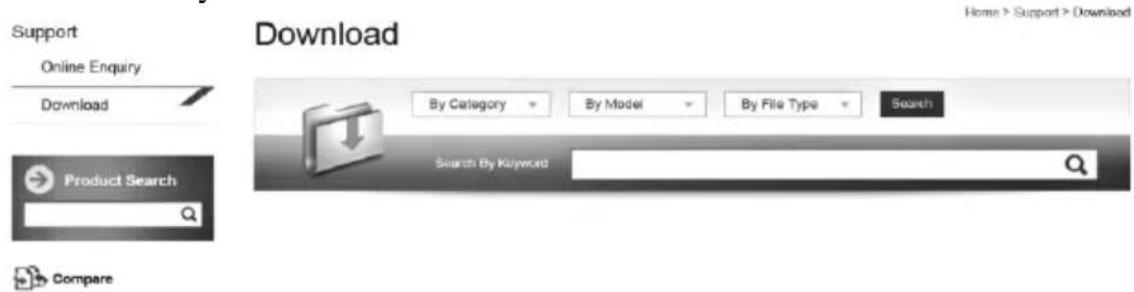
After pairing the BB-3000W bump bar with its USB dongle connected to your host terminal, go to the Posiflex' global website: http://www.posiflex.com/en-global/Download/download to download the up-to-date VCOM driver and software utility.
After downloading the VCOM driver and utility, firstly start to install the VCOM driver for the USB dongle.
Then, double click the “InstallShield (R) Setup Launcher” icon in the BB-3000W bump bar setup tool folder to install this utility.
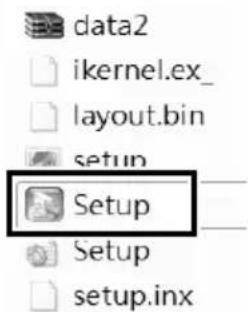
Programming the BB-3000W and Setting up USB Dongle
Programming the BB-3000W
- After completing in installing this utility, double click the "Posiflex BB3000W Setup Tool" icon.
- Select BB3000W Editor Setup Tool (1) and then click Open (2).

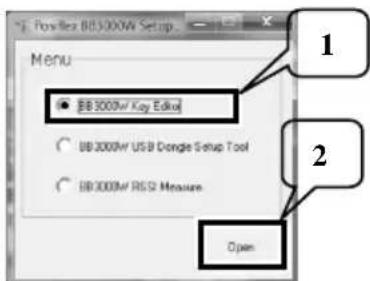
- Now, you enter the programing area. Start to program your BB-3000W.
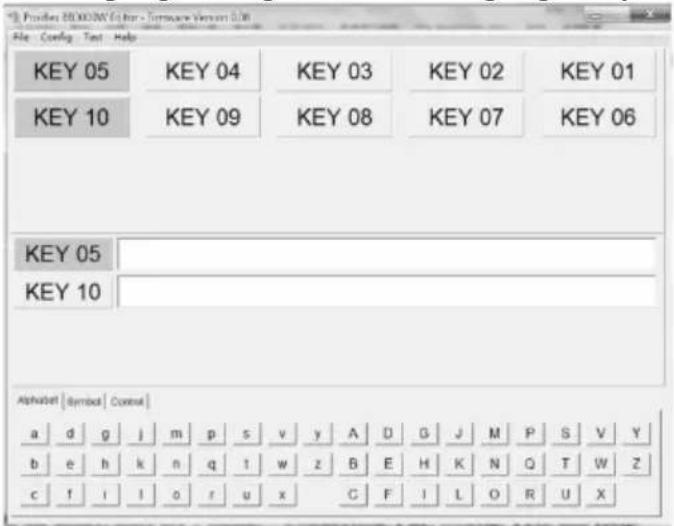
On the utility, there are 4 menus – File, Config, Test, and Help.
File: By clicking the File menu, you can open a configured and saved file (.tpl) and save a file (.tpl) you have configured for the bump bar.
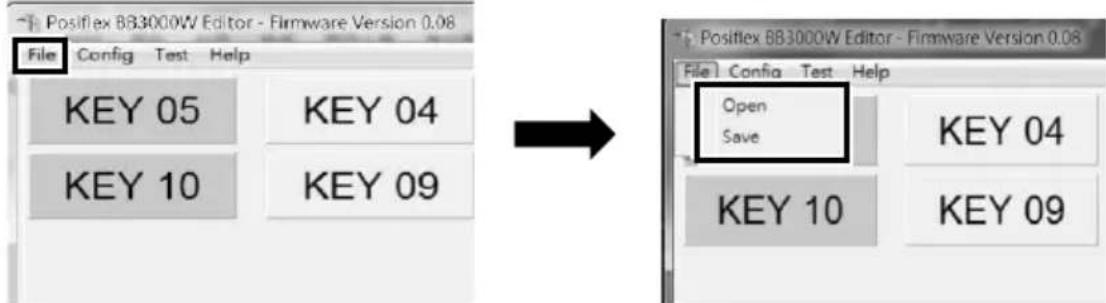

The key definition of the bump bar is covered with new data written to the flash.
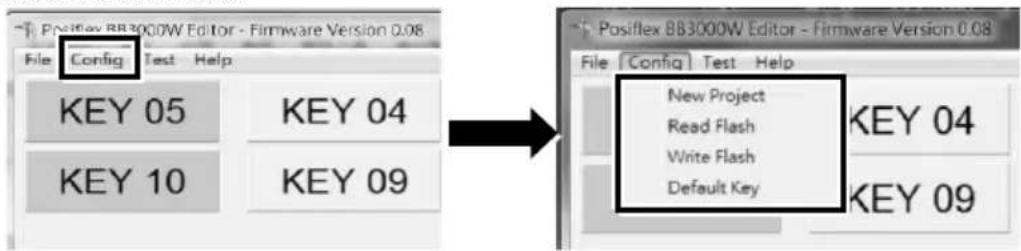
Config: By clicking the Config menu, you can start a new project, read data from the existing file, write new data to the file, and make the default data to be shown on the tool.
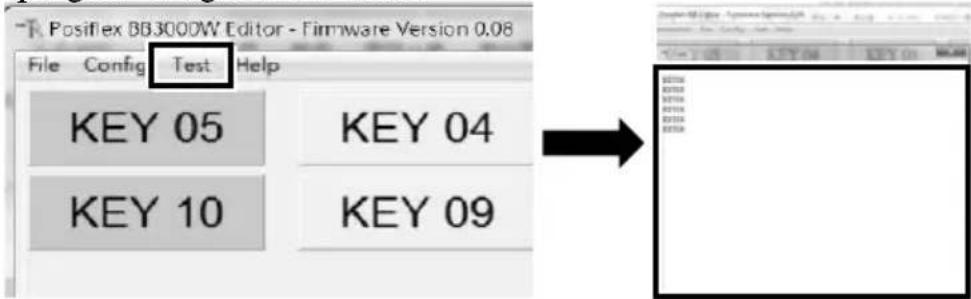
Test: By clicking the Test menu, you can try to press a key to check whether the key programming is successful.
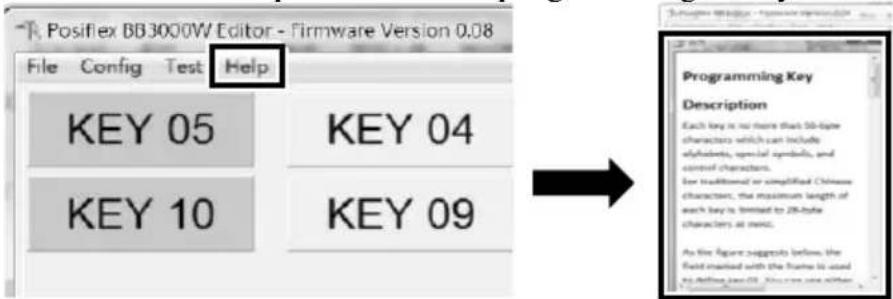
Help: By clicking the Help menu, you can read the utility version number and the detailed instruction on operation of the programming utility.
To get more detailed information on key programming, contact directly the Posiflex' technical service team.
Setting up USB Dongle
The USB dongle for BB-3000W bump bar can be set up through the utility that is installed.
- Double click the "Posiflex BB3000W Setup Tool" icon.
- Select BB3000W USB Dongle Setup Tool (1) and then click Open (2).

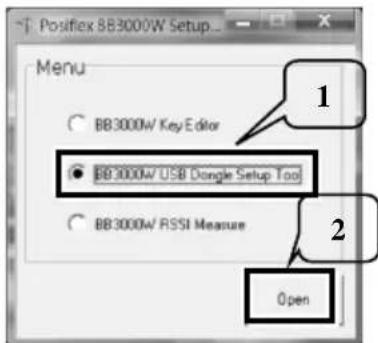
- Now, you enter the setting area. Start to set up USB dongle for BB-3000W.
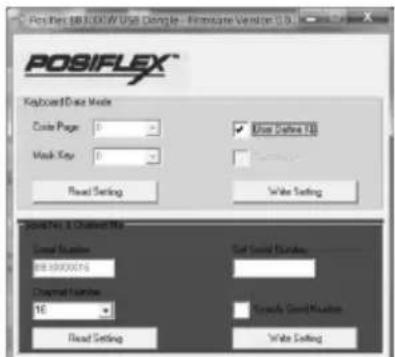
➢ Set up Keyboard Data Mode
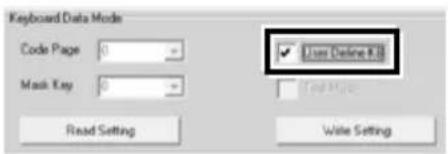
User Define KB:
By default, this mode is ticked off. The code page of the keyboard can be defined by users.
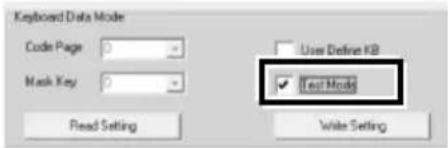
Test Mode:
This Test Mode option is provided for technical users to test the BB-3000W with a default test code.
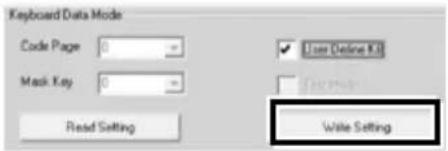
After finishing in doing the setting, tap the Writing Setting button.
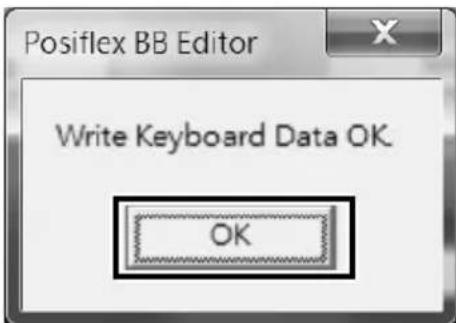
Then, you will see a message indicating Write Keyboard Data OK. Tap OK to complete the setup.
To check whether the setting is done successfully or not, tap the Read Setting button.
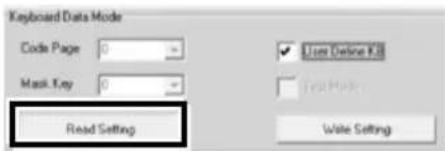
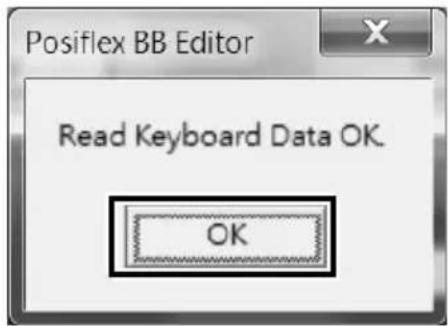
When the setting is done successfully, a message indicating Read Keyboard Data OK pops up. Then, Tap OK to complete the check.
※ By default, Code Page and Mask Key are disabled.
Serial No. & Channel No.
Before changing the channel number and serial number of your dongle, note that the numbers of the dongle must be the same as those of your BB-3000W keyboard.
To change the channel number and serial number of your dongle, input a serial number of 10 characters, and a channel number respectively in the fields of Set Serial Number and Channel Number.
After finishing in doing the setting, tap the Writing Setting button.
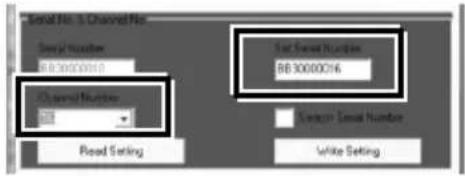
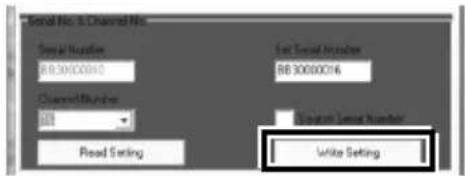
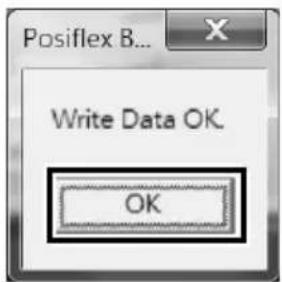
Then, you will see a message indicating Write Data OK. Tap OK to complete the setup.
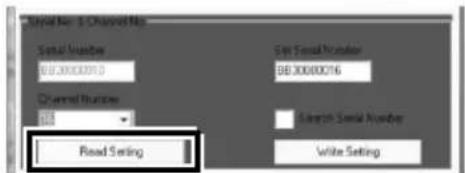
To check whether the setting is done successfully or not, tap the Read Setting button.
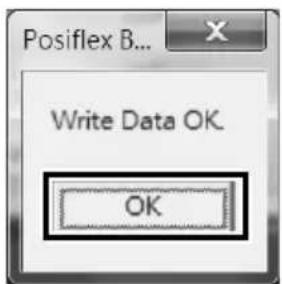
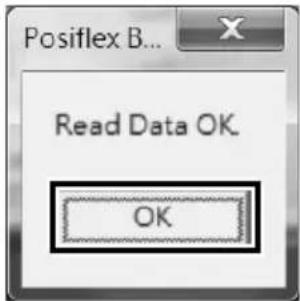
When the setting is done successfully, a message indicating Read Data OK pops up. Then, Tap OK to complete the check.
Keep the BB-3000W bump bar away from another one working in the same channel at a site.
To check whether a serial number in the same channel which the dongle works is given during operation of the BB-3000W, tick off the Show Serial Number item.
After ticking off this function, tap the Writing Setting button.
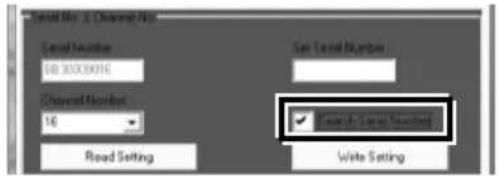
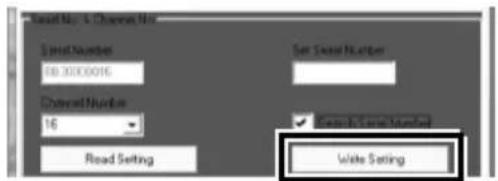
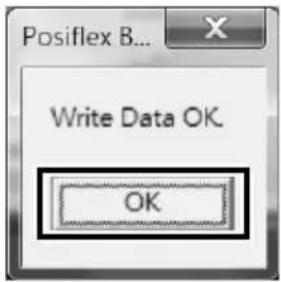
Then, you will see a message indicating Write Data OK. Tap OK to complete the setup.
To check whether the function is enabled successfully or not, tap the Read Setting button.
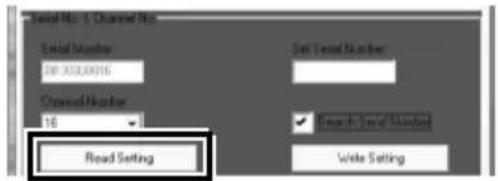
When the function is enabled successfully, a message indicating Read Data OK pops up. Then, Tap OK to complete the check.
However, to avoid end users setting up this USB dongle by mistake, it is suggested that professional technicians implement the USB dongle setup. To get more detailed information on USB dongle setup, contact directly the Posiflex' technical service team.
Measuring the Received Signal Strength of the BB-3000W
The tool is well designed and provided for you to easily measure the received signal strength of the BB-3000W.
-
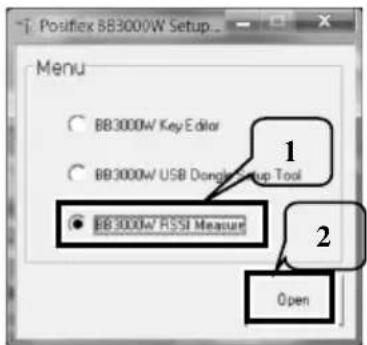
Double click the "Posiflex BB3000W Setup Tool" icon.
-
Select BB3000W RSSI Measure (1) and then click Open (2).
-
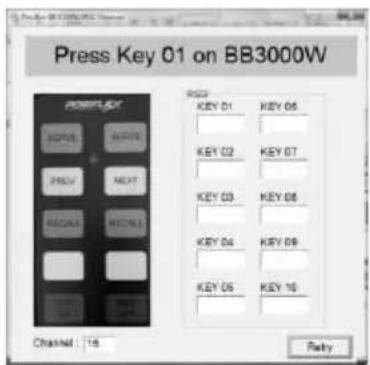
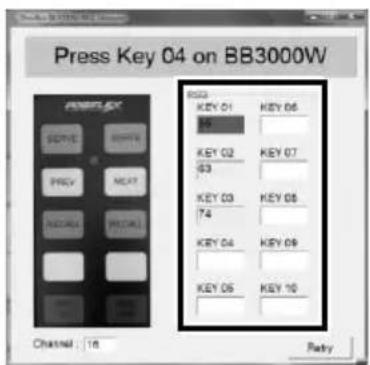
You enter the signal strength measurement area. Press key 01 on the keyboard first.
-
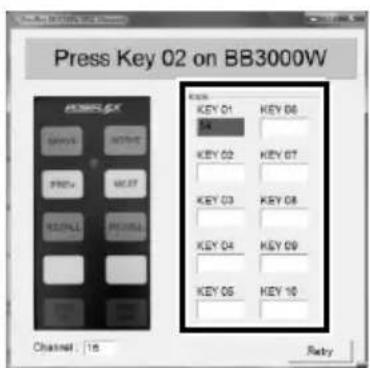
The received signal strength indicator (RSSI) of key 01 is then shown in the blank field of KEY 01.
-
Press the rest of keys 02, 03...sequentially. The values of signal strength measurement of the keys are given sequentially.
Posiflex BB3000W Setup Tool
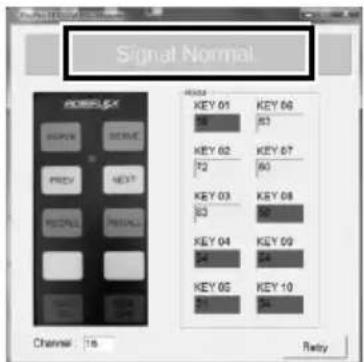
- When completing in signal strength measurement, you will read a level of the signal strength quality. The quality levels are classified into Signal Good, Signal Normal, and Signal Bad.
Always keep the BB-3000W bump bar working in the quality level of Signal Normal.
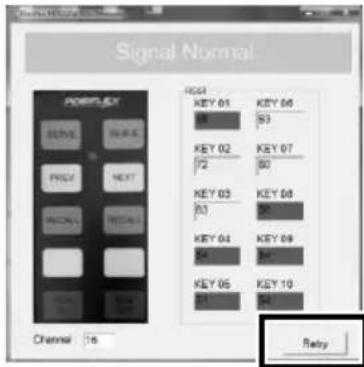
- To measure the received signal strength of the BB-3000W again, tap Retry.
Changing the Pairing
Before changing the pairing, determine to not make the bump bars work at the same channel in a room.
It is suggested to call your service center for help before changing the pairing.
Regular Cleaning
For regular cleaning of the wireless bump bar, please use only adequate amount of mild kitchen cleaning detergent for obstinate stains and wipe it off with dry clean soft clothes. Do NOT allow any liquid to seep in through any seam in the metal enclosure. It could also be a brilliant idea to seal the whole wireless bump bar with thin transparent wrap foil and replace the foil regularly.
Specifications
| General | |
| Construction | 100% true spill-proof structure, state of the art top notch solid design, 10 programmable keys with 2 x 5 matrix |
| Key Switch Type | Tact switch for 2 x 5 keys. |
| Key Stroke Travel | 0.35 mm +/- 0.1 mm |
| Key Size | 20 x 14 mm (2 x 5 keys) |
| Preprinted Keys | 2 x 5 keys as: SERVE / RREV / RECALL / SIDE ON / SERVE / NEXT / RECALL / SIDE OFF + 2 x Reserved) |
| Programmability | |
| Coverage | 10 keys |
| Code Type | ASCII |
| Language | English or European, configured by software |
| Contents Length | 56 byte(S) / key or 28 2-byte(S) / key |
| Wireless Tech (Sub-1GHz) | |
| Communication Range | up to 10m / 33 ft range |
| Profiles | HID (Human Interface Device) profile or USB Virtual COM port |
| Radio Frequency | CE: 915MHz-915.2MHzFCC: 902MHz-928MHz |
| Power Source | |
| Keyboard inot & USB dongle | Keyboard unit: 3VDC +/- 10% (AA alkaline battery cell x2)USB dongle: 5VDC +/- 10% (USB port power) |
| Current | 30mA max. |
| Indicators | |
| Power On indicator | LED: Green color (keep 5 second, then off) |
| Keypress Confirmation indicator | LED: Green color |
| Low Battery Indicator | LED: Red color |
| Mechanical | |
| Dimensions | 209.0 mm (W) x 95.0 mm (D) x 30.5 mm (H) |
| Weight | 540g (not including battery cells) |
| Environmental | |
| Operating temperature | 0°C to +40°C |
| Storage temperature | -35°C to +80°C |
| Relative humidity | 10 to 90%; 5 to 90%, non-condensing |
| Vibration | 4G |
| Shock | 40G |
| Reliability Information | |
| Push key switch | 2,000,000 strokes (min.) |
| Applicable Conformity | |
| FCC / CE | |
| Accessory | |
| USB Dongle | |
※ The product information and specifications are subject to change without prior notice. To get the detailed information on the BB-3000W, please check this model from Posiflex Global Website (http://www.posiflex.com/en-global/Download/download).
- BB-3000W Wireless Bump Bar User Manual
- Federal Communication Commission Interference Statement
- POSIFLEX
- Package Contents
- Views of the Wireless Bump Bar
- Top View
- Bottom View
- Enabling the BB-3000W Bump Bar
- When replacing the batteries, always use "Alkaline" AA type batteries.
- Installation Considerations
- Range
- Classification of RF Obstructions
- LED Status Indicator
- Installing the VCOM Driver and Utility
- Programming the BB-3000W and Setting up USB Dongle
- Programming the BB-3000W
- Setting up USB Dongle
- Changing the Pairing
- Regular Cleaning
Brand : Posiflex
Model : BB-3000W
Category : Uncategorized