Eco Capture HDMI 4K M.2 - Capture card Magewell - Free user manual and instructions
Find the device manual for free Eco Capture HDMI 4K M.2 Magewell in PDF.


| Product Type | Video Capture Card |
| Brand | Magewell |
| Model | Eco Capture HDMI 4K M.2 |
| Interface | M.2 PCIe 2.0 x4 |
| Input | 1x HDMI 2.0 |
| Output | PCIe (Internal) |
| Max Resolution | 4096x2160p60 |
| Frame Rate | Up to 60 fps |
| Video Format | YUY2, NV12, RGB, etc. |
| Audio Format | 16/24-bit, 48 kHz PCM |
| Color Depth | 8/10/12-bit |
| Chroma Subsampling | 4:4:4, 4:2:2, 4:2:0 |
| Latency | < 1 frame (typical) |
| Power Consumption | ~3.5W |
| Dimensions (W x L) | 22 x 80 mm (M.2 2280) |
| Weight | ~10 g |
| Operating Temperature | 0°C to 40°C |
| Storage Temperature | -20°C to 70°C |
| Software Compatibility | Windows, Linux, Mac (via SDK) |
| Form Factor | M.2 2280 |
| Included Accessories | Low-profile bracket, Quick Start Guide |
| Maintenance | Keep free of dust; avoid electrostatic discharge |
| Safety | Class 1 Laser Product; use with shielded cables |
| Spare Parts & Repairability | Not user-serviceable; contact Magewell support |
Frequently Asked Questions - Eco Capture HDMI 4K M.2 Magewell
User questions about Eco Capture HDMI 4K M.2 Magewell
0 question about this device. Answer the ones you know or ask your own.
Ask a new question about this device
Download the instructions for your Capture card in PDF format for free! Find your manual Eco Capture HDMI 4K M.2 - Magewell and take your electronic device back in hand. On this page are published all the documents necessary for the use of your device. Eco Capture HDMI 4K M.2 by Magewell.
USER MANUAL Eco Capture HDMI 4K M.2 Magewell
Eco Capture Family Driver User Manual
10/01/2019
TABLE OF CONTENTS
| Safety Information | 03 |
| Hardware Installation | 04 |
| Driver Installation | 05 |
| Settings | 07 |
| 07 | |
| 09 | |
| 10 | |
| 12 | |
| 18 | |
| Support | 19 |
| Warranty | 20 |
Safety Information
Electrical Safety
- When devices are installed, make sure that the computer is turned off before the signal cables are connected. If possible, disconnect all power cables from the computer before adding a device.
- Make sure that your power supply is set to the correct voltage for the supply in your area.
- If you are not sure about the voltage of the electrical outlet you are using, contact your local power company.
- If the power supply is broken, do not try to fix it by yourself. Contact a qualified service technician or your retailer.
Operation Safety
- Before installing devices on your motherboard, carefully read all the manuals that come with the package.
- Before using the product, make sure all cables are correctly connected and the power cables are not damaged. If you detect any damage, contact your dealer immediately.
• To avoid short circuits, keep paper clips, screws, and staples away from connectors, slots, sockets and circuitry. - Avoid dust, humidity, and extreme temperature. Do not place or use the product in any area where it may be exposed.
- Place the product on a stable surface.
- If you encounter technical problems with the product, contact a qualified service technician or your retailer.
Hardware Installation
natural_image
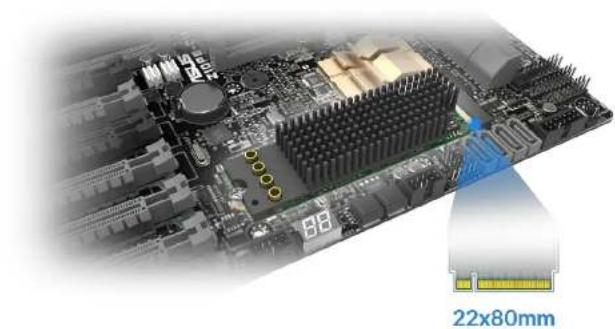
Close-up of a computer motherboard with visible CPU socket and circuit board (no text or symbols)Figure1 Motherboam inside the chassis with capture cards installed
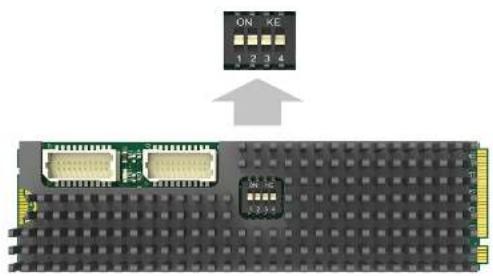
Figure2. DP switch
Procedure
- Turn off the computer power and unplug the power cables.
- Remove the chassis cover and locate the M.2 2280 Type M slot(s), as shown in Figure1.
- Plug the video capture card into the slot and make sure it is firmly seated.
- Screw the card onto the rear panel of the chassis.
- If multiple cards are to be installed, we suggest that you set card number of each card before installation. There is a DIP switch on each card marked in binary from 0 to 1111 which enables you to set specific number for each card according to their needs, as shown in Figure2. After the ID numbers are set, users can install the cards according to steps 3-4.
- Restore the chassis cover.
- For others with analogue inputs, use the included breakout cable to connect the video source and the video capture card.
- Reconnect all the power cables.
Driver Installation
System requirement
- Minimum requirements: CPU - Intel Core 2 Duo E7200; RAM - 1GB; integrated graphics card; integrated sound card.
-
Recommended: CPU - Intel Core i7-6800K @ 3.40GHz; RAM - 8GB; Graphics Card - NVIDIA Quadro M1000.
• Supported Operating Systems: -
Windows 7 x64/x86
- Windows 8 x64/x86
- Windows 8.1 x64/x86
- Windows 10 x64/x86
- Windows Server 2008 x64/x86
- Windows Server 2008 R2
- Windows Server 2012
- Windows Server 2012 R2
- Windows Server 2016
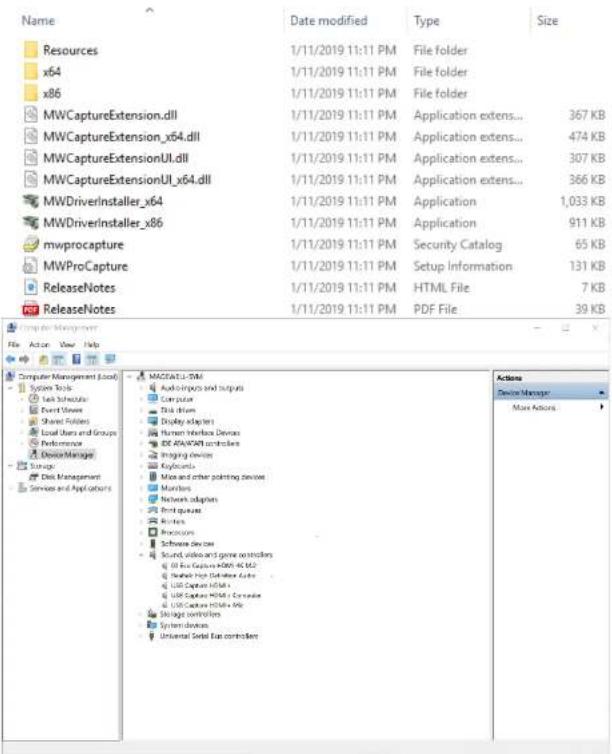
Driver Installation and Uninstallation
Driver Installation Procedure
- Choose MWDriverInstaller according to your OS to install the driver.
- To confirm whether the installation is successful.
i. Open Device Manager > Sound, video and game controllers, and then check if your capture card model(s) are shown in the list of installed devices.
In the device list, you can see all the capture cards that are installed in this computer. The number before the Eco Capture card name is the ID (E.g. 00 or 04 in the example), which is set via the rotary switch on the card. For multi-channel cards, the channel number will be added after the ID number. (E.g. 04-0, 04-1, 04-2, 04-3 for a Quad card)
1. Choose a capture device and right click Properties > Driver. Check the version of the current driver. If it is the same as the installed driver version, the installation has been successful.
Driver Uninstallation Procedure
- Open Device Manager > Sound, video and game controllers.
- Search magewell, and then uninstall Eco Capture driver.
- To confirm whether the uninstallation was successful.
i. Open Device Manager > Sound, video and game controllers
ii. Check that your capture card model(s) are removed from the list of installed devices.
Settings
The attributes of the Eco Capture Card can be modified in the card driver control panel. You can access the driver control panel via a third-party video capture software, e.g. AMCap or OBS. The parameters are as follows.
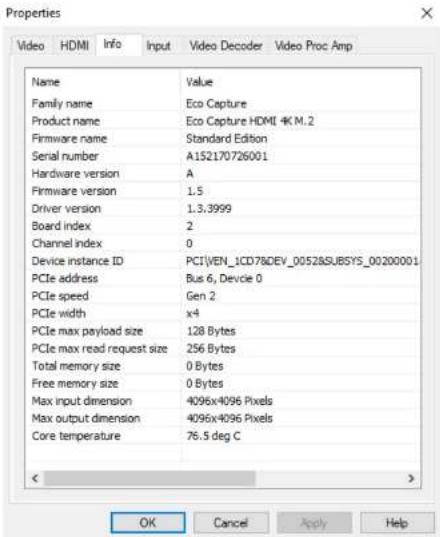
Info
| Item Item Description | |
| Family name | Shows the name of the product family (Eco Capture). |
| Product name Shows the name of this specific product. | |
| Firmware name Shows the name of the firmware. | |
| Serial number Shows the serial number. | |
| Hardware version Shows the hardware version of this product. | |
| Firmware version Shows the firmware version currently installed. | |
| Driver version Shows the driver version currently in use. | |
| Board index | Shows the board ID number, a hexadecimal value from 0 to F. Set via a rotary switch on the card. It will be 0 for a mini card. |
| Channel index | Shows the zero-based channel number. It will be 0 for a single channel card; 0/1 for a dual channel card; 0/1/2/3 for a quad channel card. |
| Item Item Description | |
| Device instance ID | The key value can be found in the registry at:Registry\Computer\HKEY_LOCAL_MACHINE\SYSTEM\CurrentControlSet\Services\EcoCapture. |
| PCIe address Shows the PCIe bus number and device number. | |
| PCIe speed Shows the PCIe bus speed (e.g. Gen1, Gen 2). | |
| PCIe width | Shows the PCIe bus bandwidth (options are x1, x2, x4). |
| PCIe max payload size | Shows the max length of valid PCIe bus data. |
| PCIe max read request size | Shows the max size of PCIe bus read request. |
| Total memory size | Shows the current onboard memory size. Note that Eco Capture card is not equipped with a memory. |
| Free memory size | Shows the currently unused memory size. Note that Eco Capture card is not equipped with a memory. |
| Max input dimension | Shows the max video input resolution. |
| Max output dimension | Shows the max video output resolution. |
| Core temperature Shows the current temperature of FPGA chip core. | |
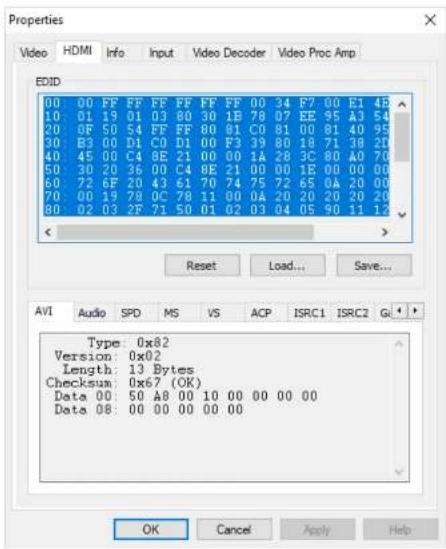
HDMI
When the capture card has one or more HDMI interface(s), the HDMI tab will be available in the control panel.
| Item Name Item Description | |
| EDID | Standard data in VESA format. It shows the supplier's information, max resolution, color settings, manufacturer's preset, frequency range, name of monitor and string of serial number. |
| Reset Resets the current EDID to the default one. | |
| Load Loads a local EDID file. | |
| Save Saves the current EDID. | |
| AVI | Shows type, version and verify bit of the video stream and the verification result. |
| Audio | Shows the type, version and verify bit of the audio stream and the verification result. |
| SPD, MS, VS, ACP, ISRC1, ISRC2, Gamut, VBI, HDR | Show information of the HDMI InfoFrame. |
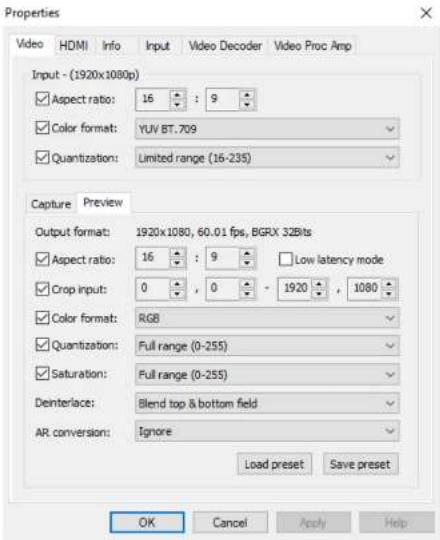
Video
By default, Input shows the input information extracted from the signal. If a non-standard signal is incorrectly recognized by the capture device, users can manually adjust the parameters.
| Item Name Item Description | |
| Input | Shows the resolution of the current input. When the resolution of the input video stream is changed, this display will also change |
| Aspect ratio | Shows the aspect ratio of the current input. If the box is ticked (The shortcut key is the Space key), users can adjust the aspect ratio by clicking on the arrows (Shortcuts are up and down arrow keys). Eco Capture does not support this function. |
| Color format | Shows the color space of the current input. If the box is ticked, other color spaces can be chosen from the drop-down list (The shortcut key is the Enter key). |
| Quantization | If the box is ticked, the quantization values of Full range and Limited range can be chosen. |
Preview/Capture
| Item Name Item Description | |
| Output format | Shows the current resolution, frame rate and color space of the previewed video. When the settings of this stream are changed, the data here will be changed accordingly. |
| Aspect ratio | Shows the aspect ratio of the current output.Eco Capture does not support this function. |
| Low latency mode | The latency will be reduced when low latency mode is chosen. It can be very useful and the benefit is obvious in video conferencing.Low latency function is enabled on the Eco Capture cards and can not be disabled. |
| Crop input | Adjusts the captured pixel area from the input video by cropping the edges, using X/Y pixel values for top/left and bottom/right.Eco Capture does not support this function. |
| Color format. Shows the color space for capturing. If the box is locked, other color spaces can be chosen. | |
| Quantization Users can choose Full range or Limited range | |
| Saturation | Shows the grades of saturation of the input signal. Options are Full range, Limited range and Extended GAMUT range |
| Deinterlace | The range of values:Weave: Combines the top field and bottom field into a frame without any other process. Usually used to capture the original data.Blend box & bottom field. Merges two fields together and deinterlaces via FPGA to ensure a CPU free video processingTop field only: Copy the top field data in vertical direction as a full frameBottom field only: Copy the bottom field data in vertical direction as a full frame.Deinterlacing is a process of converting interlaced video into a non-interlaced form, and half size the frames after processing. For example, the input, signal is a 60 field/s interface signal, the device delivers a 30 EPS progressive signal after processing. |
| AR conversion | Aspect Ratio conversion mode options include:Ignore: Ignore the original aspect ratio and stretch to full-screen.Cropping: Expand to full screen and remove parts of the image when necessary to keep the original aspect ratioPadding: Fit to screen and add black borders to keep the original aspect ratio.Eco Capture does not support this function. |
| Load preset Loads the saved presets. | |
| Save preset Saves the current settings as presets. | |
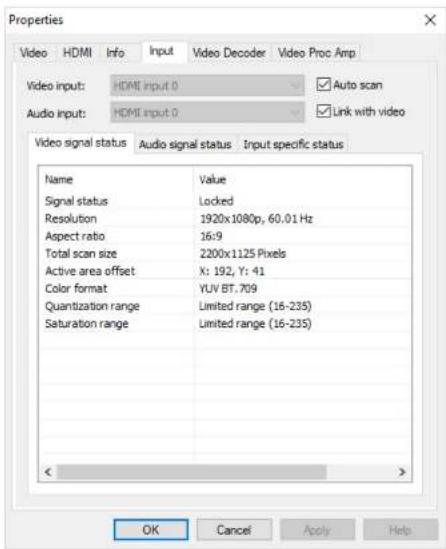
Input
| Item Name Item Description | |
| Auto scan | Automatically scans the input signals by default. If the box is unticked, users can manually select the input signal. |
| Link with video | Automatically scans for an audio signal embedded in the video signal by default. If the video signal is changed, the audio signal will automatically be changed to try to match the video signal. If the box is unticked, users can manually select the audio signal. |
Video signal status
| Item Name Item Description | |
| Signal status | Shows the video input signal information parsed by the device, shown as Locked, Unsupported, Not Present. |
| Resolution | Shows resolution and frame rate of the input video. If the input signal changes, this display will be changed accordingly. |
| Aspect ratio Shows the aspect ratio of input video source. | |
| Total scan size Shows the total scanned pixel area. | |
| Active area offset Shows the current horizontal and vertical offset of the active signal within the total area scanned. | |
| Color format Shows the chosen color space of the video signal. | |
| Quantization range | Shows the luminance quantization range Options: Full range (e.g. 0-255) or Limited range (e.g. 16-235 - for 8-bit inputs). |
| Saturation range | Shows the saturation of the input signal. Options are Full range, Limited range or Extended GAMUT range. |
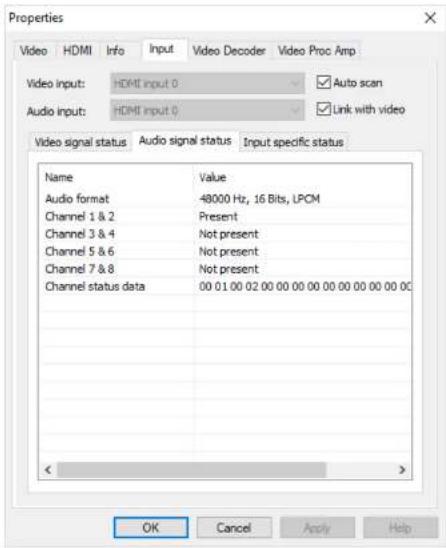
Audio signal status
| Item Name Item Description | |
| Audio format | Shows the sampling frequency, bit depth and format of the current audio. |
| Channels 1&2Channels 3&4Channels 5&6Channels 7&8 | Shows the current audio stream status for each channel pair. Options arePresentor Not present.NOTE: These values only indicate the presence of audio signal channels, and are in no way indicative of audio signal levels. An audio channel can be shown asPresenteven if no actual audio data is being received. The analogue line input will always be shown asPresenteven when no audio cable is connected. |
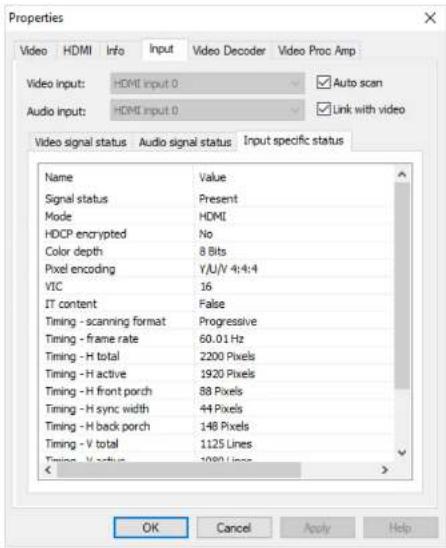
- When HDMI signal is connected, the Input specific status tab is as follows:
| Item Name Item Description | |
| Signal status Options are Present or Not present. | |
| Mode Shows input signal mode. | |
| HDCP encrypted | Shows whether the signal is HDCP encrypted. Options are Yes or No. |
| Color depth | Shows the color depth of the current video. Common values are 8 bit, 10 bit and 12 bit. |
| Pixel encoding Shows pixel encoding, e.g. R/G/B, Y/U/V, Y/Cb/Cr. | |
| VIC Standard video identification code. | |
| IT content | If True, pictures are compressed according to common IT practice, or particular requirements derived from IT practice. |
| Timing-scanning format | Shows the scan format, e.g. Progressive, Interlaced. |
| Timing frame rate Shows the current frame rate. | |
| Timing-H total Shows total horizontal pixels captured. | |
| Timing-H active Shows active horizontal picture width. | |
| Timing-H front porch | Shows pixel width between the end of the active horizontal picture and the start of the horizontal sync pulse. |
| Timing-H sync width | Shows width of the horizontal sync pulse. |
| Timing-H back porch | Shows pixel width between the end of the horizontal sync pulse and the start of the next active horizontal picture line. |
| Timing-V total | Shows total vertical pixels (i.e. Picture lines) captured. |
| Timing-V active Shows | active vertical picture height. |
| Timing-V front porch | Shows number of lines between the last line of the active vertical picture area and the start of the vertical sync pulse. |
| Timing-V sync width | Shows width of the vertical sync pulse, in lines. |
| Timing-V back porch | Shows number of lines between the end of the vertical sync pulse and the start of the next active horizontal picture line. |
NOTE: When the input video signal is in interlaced format, the table will include information for each field separately (Field-0 and Field-1) in the vertical direction.
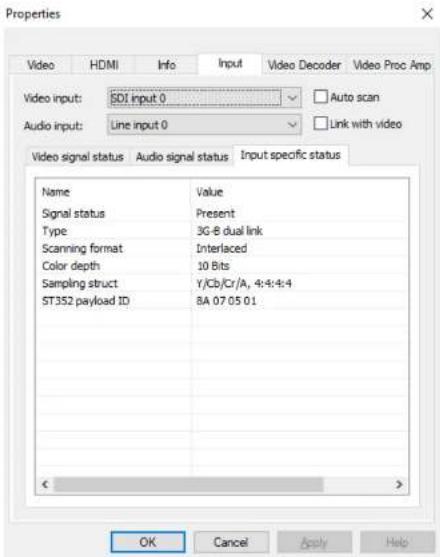
- When SDI signal is connected, the Input specific status tab is as follows:
| Item Name Item Description | |
| Signal status Options are Present or Not present. | |
| Type Shows the current video signal type. | |
| Scanning format | Options are Progressive, Interlaced, Segmented Frame. |
| Color depth | Shows the color depth of the current video, e.g. 10/12 bit. |
| Sampling structure Shows signal type and sampling ratios. | |
| ST352 payload ID | Shows the current video format of SDI, e.g. color format, aspect ratio. |
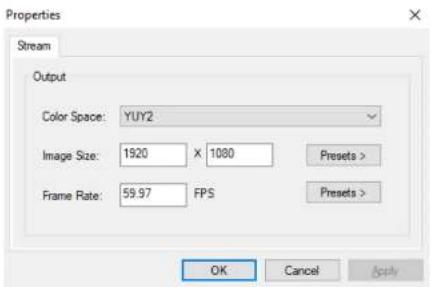
Output
| Item Name Item Description | |
| Color Space | Select from drop-down list manually to modify color space. |
| Image Size | Enter manually or click Presets > and select from those listed. The value shown in bold is the system-preferred value. |
| Frame Rate | Enter manually or click Presets > to select from those listed. The value shown in bold is the system-preferred value. |
Support
Get the Latest Information
If you have any problems using Magewell products or need more technical information, please visit the following.
- Tutorial video: https://www.magewell.com/tv
• YouTube channel: Magewell Video Capture Device
• Knowledge base: https://www.magewell.com/kb/eco-capture
• Official website: https://www.magewell.com/capture/eco-capture
Technical Support
Contact the Magewell Technical Support Team at support@magewell.net.
Warranty
Limited Warranty
Except otherwise set between you and Magewell in advance in a written form, the free limited warranty service starts from the date on your proof of purchase. The proof can be: sales contract, formal sales receipt, invoice or delivery note. The earliest date of these proofs is the starting date of the free limited warranty. The period of free limited warranty goes as below:
- Eco Capture: two (2) years;
• The breakout cables provided as accessories: one (1) year;
How to get the limited warranty
- Please contact the Magewell support team by email (support@magewell.net) first, to determine whether your problem can only be solved by returning it to Magewell for repair. Magewell might ask you to take photos of the front and back of the defective products.
- Magewell will issue an RMA letter to you if it is confirmed that you need to return the faulty product for further examination or repair. Please fill in the RMA with necessary information as required. If it is regular repair, you will be responsible for the shipping cost, duties and insurance cost (if applicable); if the product is DOA, Magewell will be responsible for the shipping cost.
- If some components need to be replaced, Magewell will decide to repair, renovate or replace the components by itself. Magewell may use new or repaired component to repair the product. The repaired product can be expected to work normally and the performance to remain the same. Repaired products can work in a good working condition and at least function the same as the original unit. The original replaced component will become the property of Magewell and components which are replaced for the client will become his/her property.
- If the product is within warranty, Magewell will repair or replace the faulty units at its own discretion. In circumstances where the faulty unit is replaced by another one, Magewell may use new, repaired or renovated units. The faulty unit will then become the property of Magewell while the replacement unit will become the property of the purchaser.
- If the warranty expires, Magewell will inform the purchaser whether the products can be repaired and the maintenance costs they need to pay. If purchasers decide to repair, Magewell will repair, renovate, or replace the components after receiving the maintenance costs. If purchasers give up repairing, Magewell will
dispose of the faulty unit if the purchaser chooses that option.
- The repaired or replaced product assumes 1) the remaining term of the Warranty of the replaced unit or faulty unit; 2) ninety (90) days from the date of replacement or repair, whichever provides longer coverage for you. The extended warranty is only valid for repaired/replaced components.
- The period of service depends on the client's location (country and area) and the product.
To view the complete warranty policy, please visit www.magewell.com/quality-assurance.
- Eco Capture Family Driver User Manual
- Safety Information
- Electrical Safety
- Operation Safety
- Hardware Installation
- Procedure
- Driver Installation
- System requirement
- Driver Installation and Uninstallation
- Driver Installation Procedure
- Driver Uninstallation Procedure
- Settings
- HDMI
- Video
- Support
- Get the Latest Information
- Technical Support
- Warranty
- Limited Warranty
- How to get the limited warranty
Brand : Magewell
Model : Eco Capture HDMI 4K M.2
Category : Capture card