
MS-WRCH - Uncategorized Sabrent - Free user manual and instructions
Find the device manual for free MS-WRCH Sabrent in PDF.


| Product Type | Wireless Charger |
| Brand | Sabrent |
| Model | MS-WRCH |
| Dimensions | Approximately 10 x 10 x 0.5 cm (3.94 x 3.94 x 0.2 in) |
| Weight | Approximately 60 g (2.1 oz) |
| Input Power | DC 5V/2A or 9V/1.67A |
| Output Power | Up to 10W (5W/7.5W/10W adjustable) |
| Charging Standard | Qi |
| Charging Distance | Up to 8 mm |
| LED Indicator | Multi-color status light (blue/green/red) |
| Foreign Object Detection | Yes |
| Overcharge Protection | Yes |
| Overcurrent Protection | Yes |
| Overheating Protection | Yes |
| Compatible Devices | Qi-enabled smartphones and accessories |
| Case Compatibility | Up to 5 mm thick cases |
| Material | Plastic with non-slip surface |
| Color | Black |
| Cable Length | 1 m (USB-A to USB-C) |
| Maintenance | Wipe with a soft, dry cloth |
| Safety Warnings | Do not expose to liquids; use certified power adapter |
| Spare Parts Availability | Not available separately |
| Repairability Index | Not rated |
| General Information | Includes charging pad and USB-C cable only; adapter not included |
Frequently Asked Questions - MS-WRCH Sabrent
User questions about MS-WRCH Sabrent
0 question about this device. Answer the ones you know or ask your own.
Ask a new question about this device
Download the instructions for your Uncategorized in PDF format for free! Find your manual MS-WRCH - Sabrent and take your electronic device back in hand. On this page are published all the documents necessary for the use of your device. MS-WRCH by Sabrent.
USER MANUAL MS-WRCH Sabrent
MS-WRCH
FEATURES
• Advanced high precision optical sensor
• Ergonomic design for a high-level of comfort
• Multifunction wheel for scroll and zoom
• Optical mechanical design for precise tracking on almost any flat surface
- Multimedia mode enabled by holding down the DP1 key for 6 seconds
- Quick access to Windows B start screen
- Tilt-button, convenient to browse
• High precision optical engine
• 300mAh LI-battery
• Resolution: 800/1600 DPI adjustable
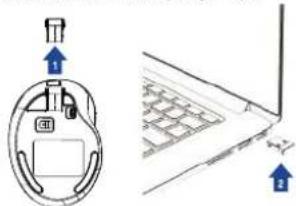
QUICK INSTALLATION
1 Get the receiver
2 Connect the receiver to an available USB port on your computer
natural_image
Diagram showing a device with a blue arrow pointing to the top panel and a separate schematic view of a grid-patterned structure (no text or symbols)RECHARGE
1 Connect the micro USB cable to the mouse
2 Connect the other end of the USB cable to
your computer
3 When charging, blue light will be on
4 Charge the mouse for about 2 hours
Note: Mouse is fully charged when
the blue light turns off
MS-WRCH
MS-WRCH
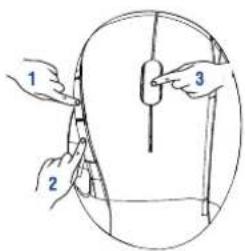
SWITCH BETWEEN STANDARD AND MULTI-MEDIA MODE
Hold down button 2 for 6 seconds to switch
Please review below the button setup corresponding to each mode
BUTTON/MODE
STANDARD MODE
MULTI MEDIA MODE
BUTTON 1
Windows button
Next Song
BUTTON 2
DF1 button
Pause/Play Music
BUTTON 3
Switch to left/right in Excel
Volume Up/Down
MS-WRCH
FCC STATEMENT:
This device complies with Part 15 of the FCC Rules. Operation is subject to the following two conditions:
(1) This device may not cause harmful interference, and
(2) This device must accept any interference received, including interference that may cause undesired operation.
Warning: Changes or modifications not expressly approved by the party responsible for compliance could void the user's authority to operate the equipment.
NOTE: This equipment has been tested and found to comply with the limits for a Class B digital device, pursuant to Part 15 of the FCC Rules. These limits are designed to provide reasonable protection against harmful interference in a residential installation. This equipment generates uses and can radiate radio frequency energy and, if not installed and used in accordance with the instructions, may cause harmful interference to radio communications. However, there is no guarantee that interference will not occur in a particular installation. If this equipment does cause harmful interference to radio or television reception, which can be determined by turning the equipment off and on, the user is encouraged to try to correct the interference by one or more of the following measures:
- Resistant or relocate the receiving antenna.
- Increase the separation between the equipment and receiver.
- Connect the equipment into an outlet on a circuit different from that to which the receiver is connected.
- Consult the dealer or an experienced radio/TV technician for help.
www.sabrent.com
Brand : Sabrent
Model : MS-WRCH
Category : Uncategorized