
ZXCLOUD CT220 - Desktop computer ZTE - Free user manual and instructions
Find the device manual for free ZXCLOUD CT220 ZTE in PDF.


| Product Type | Thin Client / Desktop Computer |
| Brand | ZTE |
| Model | ZXCLOUD CT220 |
| Dimensions (approx.) | 190 x 190 x 40 mm (7.5 x 7.5 x 1.6 in) |
| Weight (approx.) | 1.2 kg (2.6 lb) |
| Power Supply | External adapter, 12V DC, 36W |
| CPU | ARM Cortex-A72 quad-core 1.8 GHz |
| RAM | 2 GB DDR4 |
| Storage | 16 GB eMMC |
| Operating System | Linux-based (custom ZTE OS) |
| Connectivity | 1x Gigabit Ethernet, 2x USB 3.0, 2x USB 2.0, 1x HDMI, 1x VGA, 1x Audio jack |
| Wireless | Wi-Fi 802.11 a/b/g/n/ac, Bluetooth 4.2 |
| Mounting | VESA mount compatible (75x75 mm) |
| Main Functions | Cloud computing, virtualization, remote desktop, web browsing, office applications |
| Security | TPM 2.0, secure boot, lock slot |
| Cooling | Passive (fanless) |
| Operating Temperature | 0°C to 40°C |
| Humidity | 10% to 90% non-condensing |
| Maintenance | Clean with dry cloth; no user-serviceable parts inside |
| Spare Parts | Power adapter, mounting bracket; contact ZTE support |
| Repairability | Limited; professional repair recommended |
Frequently Asked Questions - ZXCLOUD CT220 ZTE
User questions about ZXCLOUD CT220 ZTE
0 question about this device. Answer the ones you know or ask your own.
Ask a new question about this device
Download the instructions for your Desktop computer in PDF format for free! Find your manual ZXCLOUD CT220 - ZTE and take your electronic device back in hand. On this page are published all the documents necessary for the use of your device. ZXCLOUD CT220 by ZTE.
USER MANUAL ZXCLOUD CT220 ZTE
NO.55, Hi-tech Road South, Shen Zhen, P.R. China
Postcode:518057
Tel:(86)75526771900
Fax:(86)75526770801
URL:http://ensupport.zte.com.cn
Allcompany, brandandproductnamesaretradeorservicemarks, or registeredtradeorservic marks, of ZTECORPORATION nor of their respective owners.
Thisdocumentisprovided"asis", andallexpress,implied,orstatutorywarranties,representations orconditionsaredisclaimed,includingwithoutlimitationanyimpliedwarrantyofmerchantability,fitnessforaparticularpurpose,titleornon-infringement.ZTECORPORATIONanditslicensorsshall notbelieablefordamagesresultingfromtheuseoforrelianceontheinformationcontainedherein.
ZTECORPORATIONNoritslicensorsmayhavecurrentorpendingintellectualpropertyrightsorapplicationscoveringthesubjectmatterofthisdocument.Exceptasexpresslyprovidedinanywritten licensebetweenZTECORPORATIONanditslicensee,theuserofthisdocumentshallnotacquireany licensetothesubjectmatterherein.
ZTECORPORATIONreservestherighttoupgradeormaketechnicalchangetothisproductwithout furthernotice.
UsersmayvisitZTEtechnicalsupportwebsitehttp://ensupport.zte.com.cntoinquirerelatedinformation.
The ultimaterighttointerpretthisproductresidesinZTECORPORATION.
RevisionHistory
| RevisionNo.RevisionDateRevisionReason | ||
| R1.02013-03-05 | Firstedition | |
SerialNo.SJ-20120912161215-008
PublishingDate:2013-03-05(R1.0)
Installation
- UsethepoweradapterdeliveredwiththeZXCLOUDiBoxCT220Cloud Terminal.Useofanyotherpoweradaptercandamagethepoweradapter oraffectitsnormaloperation.
- Ensure that the electric load of powersockets or powercables meets the requirements. Overloaded powersockets or broken powercables can result in an electric shock or fire. Check the powercables regularly. If any powercable is broken, replace it immediately.
- Donotdisassemblethecloudterminalyourself.
- Keepthecloudterminalawayfromheatsourcesorhighttemperatureenvironments.Donotdirectlyexposethecloudterminaltosunlight.
- Donotexposethecloudterminaltomoistconditionsorwater.Donotallowanyliquidtoleakintothecloudterminal.
Usage
- Keeptheventilationholesclear.Donotplaceanyobjectstoblockthe ventilationholesofthecloudterminal.
- Allowsufficientspacearoundthecloudterminalforventilation.Keepthe poweroutletscleananddry.Ifanyabnormalityoccurs(suchassmoke/abnormalsounds/smell),unplugthecloudterminalfromthepoweroutlet.
- Avoidconnectingthecloudterminaltoanypoweroutletthatcanbeaccidentallyswitchedoff.Accidentallossofpowercandamagethecloud terminal.
- Donothardresetthecloudterminalbyholdingdownthepowerbutton duringnormaloperation.
- Donotinterruptpowerwhilethecloudterminalisdownloadingasoftware update.
- Whenturningoffthecloudterminal, performacompleteshutdown(bythe userinterfaceoralightpressonthepowerbutton). Donotturnoffthe cloudterminalbydisconnectingtheAC/DCpowercord.
Servicing
If you disassemble or repair the cloud terminal yourself, your warranty will be void. Contact the service provider if any of the following occurs:
-
Apowercordorplugisdamaged.
●Liquidisspilledintothecloudterminal.
●Thecloudterminalisexposedtorainormoisture. -
The cloud terminal does not operate normally even if you follow the instructions in this guide.
- The external part of the cloud terminal is damaged because the device is accidentally dropped or hit.
●Theoperationindicatorofthecloudterminaldoesnotoperatenormally.
1 Introduction to the transition Terminal Ter
TheZXCLOUDiBoxCT220isathinclientordesktopcloudterminalwithnomechanicalcomponents.Ithasasmallsizeandlightweightandrequireslowpowerconsumption.Inaddition, itisreliable,easy-to-use,andenergy-saving.
Thecloudterminalhasabuilt-inLinuxoperatingsystemandcanbequicklylaunched.Inaddition,itsupportsZTERAPprotocolandcanbeconnectedtoZXCLOUDiRAIvirtualdesktops.
The cloud terminal has the following features: energy-saving, efficient, and lowering the costs for equipment investment, operation, maintenance, and management. The cloud terminal allows enterprise user storeduce consumption and provides centralized management.
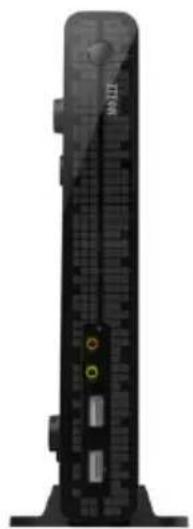
Figure1 shows an overview of the cloud terminal.
Figure1OverviewoftheCloudTerminal
natural_image
Back view of a black server tower with indicator lights (no visible text or symbols)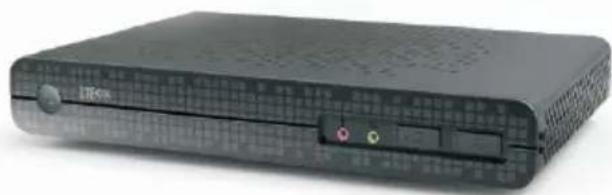
natural_image
Black rectangular electronic device with grid pattern and control buttons (no visible text or symbols)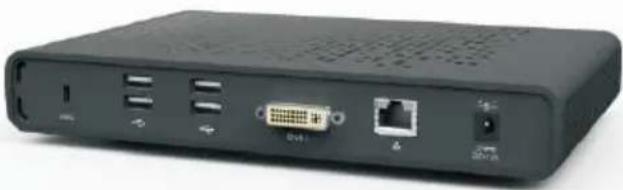
natural_image
Back view of a black electronic device with ports and connectors (no visible text or symbols)2 Components Componented Terminal Termi
Figure2showsthefrontpanelofthecloudterminal.
Figure2FrontPanel
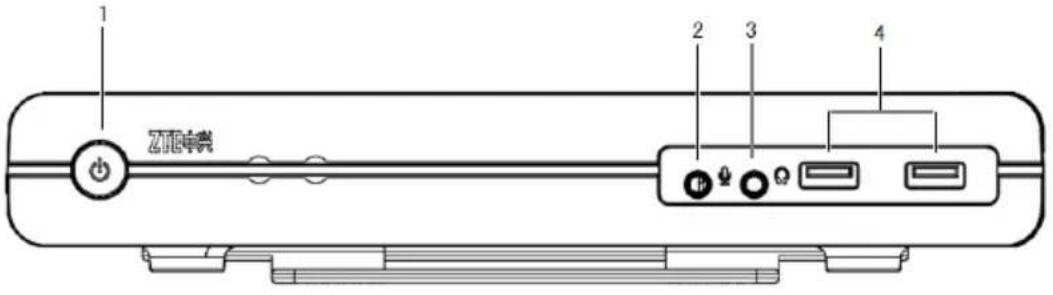
Figure3showsthebackpanelofthecloudterminal.
Figure3BackPanel
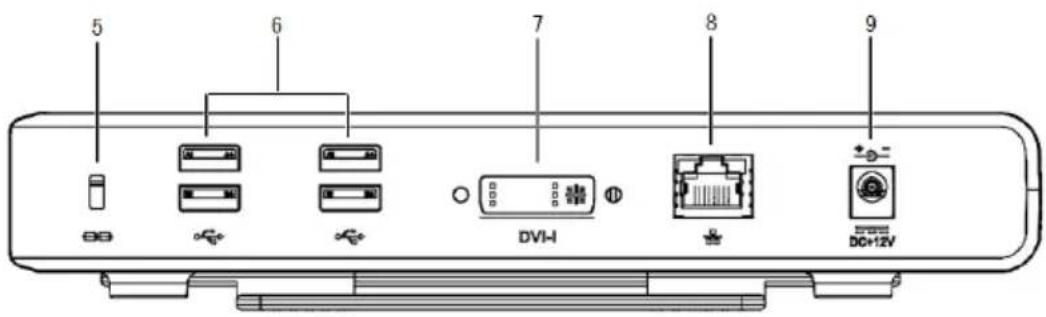
Figure4showsthebackpanelofthecloudterminalifitisconfiguredwithaPoweroverEthernet (POE)module.
Figure4BackPaneloftheCloudTerminalwithaBuilt-InPOEModule
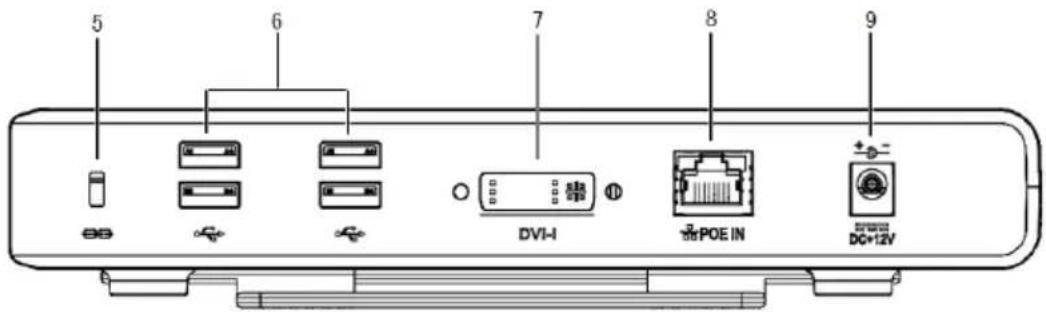
Table1 provides a description of the components in the cloud terminal.
Table1 Description of the Cloud Terminal Components
| Serial No. | ComponentDescription | |
| 1Poweron/off | button/power indicator | Pressthisbuttontoturnonoroffthecloudterminal.Thepowerindicatorisredduringthebootprocessofthecloudterminal.Thepowerindicatorisgreenifthecloudterminaloperatesnormally. |
| 2Microphone | An8-bitmicrophoneinput | interfacewitha3.5mmaperture.Connectstoamicrophone. |
| 3SpeakerA16 | 6-bitstereoaudiooutput | interfacewitha3.5mmaperture.Connectstoaheadphoneoranexternalaudiodevice. |
| 4USB2.0interfaces | (2) | TheUSBinterfacesonthefrontpanel.ConnecttoUSBperipherals,forexample,removablestorages. |
| 5Safetylock | receptacle | Connectstoananti-theftsecuritylock(thelockneedstobepurchased separately). |
| 6USB2.0interfaces | (4) | TheUSBinterfacesonthefrontpanel.ConnecttoUSBperipherals,forexample,keyboardsandmouses withUSBinterfaces. |
| 7DVI-Iinterface | Connectstoanydisplay | withaDVI-Iinterface.ConnectstoanydisplaywithaVGAinterfacebyusingtheDVI-Ito VGAconverterdeliveredwiththecloudterminal. |
| 8Ethernetport | Connectstoany10/100B | base-TnetworkthroughanRJ-45network cable.IftheterminalisconfiguredwithaWiFiwirelessmodule,youcan directlyusethebuilt-inwirelessmoduletoconnecttothenetwork.IftheterminalisconfiguredwithaPOEmodule,youcanuseanetwork cabletoconnecttheterminaltoaPOEswitch,whichcanthensupply powerfortheterminal. |
| 9DC+12Vpower adapterinput | Connectstothepoweradapterdeliveredwiththecloudterminal.Iftheterminaluses thePOEpowersupplymode,youdonotneedto connecttheterminaltothepoweradapter. | |

Caution!
The terminal can be ordered with a POE or WiFi wireless module as required.
TocheckwhethertheterminalisconfiguredwithaPOEorWiFiwirelessmodule, viewthemodel labelontheterminal.
Ifthelabelisprintedwith"POE"or"Wi-Fi", theterminalisconfiguredwithaPOEorWiFiwireless module. Otherwise, theterminalisnotconfiguredwiththecorrespondingmodule.
3 Conneeciting Connection Terminal Peripherals Peripherals
Beforeaccessingthedesktopcloudsystem, perform the following step to correctly connect the cloud terminal to its peripherals.
- Placethecloudterminalhorizontallyorverticallyonahorizontalworkbench(ifyouwantto placethecloudterminalverticallyonahorizontalworkbench, usethebasedeliveredwith thecloudterminal)orfixthecloudterminaltothebackofadisplaythroughaVESAbracket (purchasedseparately).

Note:
Tomountthecloudterminaltothebackofadisplay,ensurethat:
• Thereare VESAmountingholesonthebackofthedisplay.
- Thesemountingholesmatchthemountingholesofthebracketwiththecloudterminal.
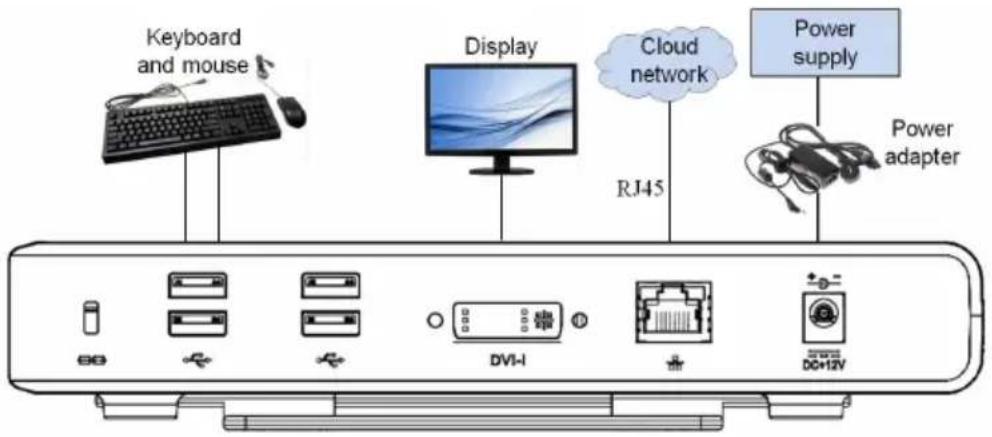
- Connectthecloudterminaltoinputandoutputdevices, including avideodisplay, akeyboard, and amouse. For the connection of the cloud terminal to related peripherals, see Figure5.
Figure5ZXCLOUDiBoxCT220Connections

Note:
Whenconnectingadisplaytothecloudterminal,doasfollowsdependingontheinterface ofthedisplay:
- IfthedisplayisequippedwithaDVI-linterface,connectitdirectlytothecloudterminal.
-
IfthedisplayisequippedwithaVGAinterface,connectittothecloudterminalbyusing theDVI-ItoVGAconverterdeliveredwiththecloudterminal.
-
Connect the power adapter to the power input of the cloud terminal, and then connect the power adapter to a 110–240 VAC, 50–60 Hz power outlet.

Caution!
Usethepoweradapterdeliveredwiththecloudterminal.Useofanyotherpoweradapter maydamagethecloudterminal. Thedamagecausedbyanimproperpoweradapterisnot coveredbythewarranty.
ConnectthecloudterminaltoanACpowersupplyafteralltheconnections(includingthe poweradapter)arecompleted.
4 TuTurming Tur/Offing the/Offed Teroidal Term
TurningOntheCloudTerminal
Youcanturnonthecloudterminalbypressingthepoweron/offbuttononthefrontpanelofthe cloudterminal.

Note:
During the operation of the cloud terminal, the power indicator is blue and steady.
TurningOfftheCloudTerminal
You can forcibly turn off the cloud terminal by pressing and holding down the power on/off button on the front panel of the cloud terminal. In addition, perform the following step to shutdown the cloud terminal:
- From themainmenuontheclouddesktop, select Shutdown.Ashutdowndialogboxis displayed.
2click the ShutdownbuttonA confirmation dialog box is displayed for the cloud desktop.
3.ClickOK.

Caution!
Whenturningoffthecloudterminal,performacompleteshutdown(bytheuserinterfaceora lightpressonthepoweron/offbutton)Donotturnoffthecloudterminalbydisconnectingthe AC/DCpowercordorturningoffthepowerswitch.
5 Configuing CtheigUbeichTerminal Terminal
Afterturningon, the cloud terminale executestheterminalself-testprogrambeforeautomatically loading the built-in operating system.
Youcanlogintotheoperatingsystemasacommonuser.Asacommonuser,youcanset thenetwork,accesstheclouddesktop,andperformotherdailyoperations.Toconfigureand managethecloudterminalsystem,youhavetoswitchtotheadadministratorwithhigher-level permissions.
Table2 provide the username and password for the administrator of the cloud terminal operating system.
Table2DefaultUserNameandPasswordfortheAdministrator
| UserUserNamePassword | |
| Administrator |

Caution!
The username and password of the administrator are cases sensitive and cannot be modified randomly.
Toswitchtothecommonuser, restartthecloudterminal.
SystemSpecifications
- CPU:ARM1GHz
●Memory:1GBRAM
●Storage:1GBFlash - NIC:10/100MBEthernetport(theportcanberequestedtobeconfiguredwiththePOE function)
●Keyboard/mouse:standardUSBkeyboardandopticalmouse - Display:maximumresolution1920x1080,@60Hz,32-bitcolor
●Built-inoperatingsystem:Linuxoperatingsystem - Interfacesforconnectingperipherals:
→1DVI-linterface
→6USB2.0interfaces
→1RJ-45interface
→116-bitstereoaudiooutputinterface
→18-bitmicrophoneaudioinputinterface
Physical Specifications
●Dimensions:230mm×153.5mm×34mm(L×W×H)
●Weight:1200g(thepoweradapternotincluded)
Electrical Specifications
●Powersupply:external12VDC
●Maximumpowerconsumption:10W
Environmental Requirements
- Operatingtemperature: 10^ - 40^
- Operatinghumidity:5%–95%(non-condensing)
Warranty
ZTECORPORATIONprovidesa3-yearwarrantyforthecloudterminaland1-yearwarrantyfor theaccessories(keyboard,mouse,andpowercables).
ZTECORPORATIONreservestherighttomodifytechnicalspecificationsinthismanualwithout anynotificationinadvance.
7 Packaging Plasting List
Ingeneral,theZXCLOUDiBoxCT220packageboxincludesthefollowingitems:
| ZXCLOUDiBoxCT220CloudTerminal1 | |
| Poweradapter1 | |
| Base1 | |
| DVI-ItoVGAconverter1 | |
| Keyboardandmouse1set | |
| QuickStartGuide1 | |
| Certificate1copy |

Caution!
The terminal maybe configured with a POE or WiFi wireless module. Read them modellabel on the package box or terminal carefully. If the label is printed with "POE" or "WIFI", the terminal is configured with a POE or WiFi wireless module. Otherwise, the terminal is not configured with the corresponding module.
The item list in the abovetable is for reference only items actually delivered depend on the vendors, any ten missing damaged contact the vendo immediately. Change the product, keep the package box and package contents.
Toxic of Hazardous Shazados i Substan Product Product
Tominimizetheenvironmentalimpactandtakemoreresponsibilitytotheearth welive, thisdocumentshallserveasformaldeclarationthattheZXCLOUDiBox CT220manufacturedbyZTECORPORATIONisincompliancewiththeDirectiveSJ/T11364-2006ofthePeople'sRepublicofChina-"MarkingforControl ofPollutionCausedbyElectronicInformationProducts"withrespecttothefollowingsubstances:
The declaration is issued base on our current level of knowledge. Since conditions of use are outside our control, ZTECORPORATION makes now warranties, expressed or implied, and assumes noliability in connection with the use of this information.
ForadescriptionoftoxicorhazardoussubstancesintheZXCLOUDiBox CT220, refertoT able3.
Table3ToxicorHazardousSubstancesorElementsinProduct
| Parts | ToxicorHazardousSubstancesorElements | |||||
| Lead (Pb) | Mercury (Hg) | Cadmium (Cd) | HexavalentChromium (Cr(VI)) | PolyBrominated Biphenyl (PBB) | PolyBrominated Diphenyl Ether (PBDE) | |
| ○PCBA×○○○ | ||||||
| ○Metalparts | ||||||
| Plasticandpolymer parts | ○○○○○ | |||||
| Cablesandcable assemblies | ○×○○○ | |||||
o:Indicatesthatthetoxicorhazardoussubstancecontainedinallofthehomogeneous materialsforthispartisbelowthelimitrequirementinSJ/T11363-2006.
×:Indicatesthatthetoxicorhazardoussubstancecontainedinatleastoneofthe homogeneousmaterialsforthispartisabovethelimitrequirementinSJ/T11363-2006.
Note:
- Information about the substances contained in the ZXCLOUDiBoxCT220 manufactured by ZTECORPORATION should be continuously updated with the technology development.
- ×markedonthisproductindicatesthattherearecurrentlynoalternative technologiesorcomponents.
- The ZXCLOUDiBoxCT220 manufactured by ZTECORPORATION is in compliance with the "Administration on the Control of Pollution Caused by Electronic Information Products" published by People's Republic of China.
4.ZTECORPORATIONreservesthefinalrightsofexplanationofthepartsincluded inlistable.
ThesymbolontherightsideshowstheEnvironmentFriendlyUsePeriod (EFUP)ofthisproduct.Somereplaceablepartsmayhaveadifferent EFUPlabelattachedtoit,suchasthebatteryunit.ThisEFUPisvalid onlyundertheoperatingconditionslistedintheoperationmanualofthe product.

- Installation
- Usage
- Servicing
- Introduction to the transition Terminal Ter
- Components Componented Terminal Termi
- Conneeciting Connection Terminal Peripherals Peripherals
- TuTurming Tur/Offing the/Offed Teroidal Term
- Configuing CtheigUbeichTerminal Terminal
- SystemSpecifications
- Physical Specifications
- Electrical Specifications
- Environmental Requirements
- Warranty
- Packaging Plasting List
- Caution!
- Toxic of Hazardous Shazados i Substan Product Product
- Note:
Brand : ZTE
Model : ZXCLOUD CT220
Category : Desktop computer