
AMW55US - Mouse TARGUS - Free user manual and instructions
Find the device manual for free AMW55US TARGUS in PDF.


| Product Type | Wireless Optical Mouse |
| Brand | Targus |
| Model | AMW55US |
| Dimensions (approx.) | 10.5 x 6.5 x 3.5 cm (4.1 x 2.6 x 1.4 in) |
| Weight (without batteries) | ~85 g (3 oz) |
| Power Source | 2 x AA batteries (not included) |
| Connectivity | 2.4 GHz wireless via USB nano receiver |
| Wireless Range | Up to 10 m (33 ft) |
| Sensor Type | Optical |
| Buttons | 5 (left, right, middle click/scroll, forward, backward) |
| Scroll Wheel | Yes, with tilt function |
| DPI Resolution | 1000 / 1600 / 2000 DPI (switchable) |
| Compatible Operating Systems | Windows, macOS, Linux, Chrome OS |
| Included Accessories | USB nano receiver, user manual |
| Cleaning Instructions | Wipe with a soft, dry cloth; do not use liquids or abrasives |
| Safety Precautions | Avoid exposure to water, extreme temperatures, and direct sunlight |
| Battery Life (estimated) | Up to 6 months with normal use |
| Spare Parts Available | Batteries and USB receiver (if lost) |
| Repairability | Battery replacement only; no user-serviceable internal parts |
Frequently Asked Questions - AMW55US TARGUS
User questions about AMW55US TARGUS
0 question about this device. Answer the ones you know or ask your own.
Ask a new question about this device
Download the instructions for your Mouse in PDF format for free! Find your manual AMW55US - TARGUS and take your electronic device back in hand. On this page are published all the documents necessary for the use of your device. AMW55US by TARGUS.
USER MANUAL AMW55US TARGUS
1 YEAR LIMITED WARRANTY: We pride ourselves on the quality of our products. For complete warranty details and a list of our worldwide offices, please visit www.targus.com. Features and specifications are subject to change without notice. Microsoft, Windows and Windows Vista are registered trademarks or trademarks of Microsoft Corporation in the United States and/or other countries. Mac is a trademark of Apple Inc., registered in the U.S. and other countries. Logitech is a registered trademark of Logitech International in the United States and other countries. All trademarks and registered trademarks are the property of their respective owners. ©2010 Targus Group International, Inc.
Targus®
WIRELESS COMPACT
LASER MOUSE

N2953


User Guide
Targus Wireless Compact Laser Mouse
Introduction
Thank you for your purchase of the Targus Wireless Compact Laser Mouse. The accompanying micro USB receiver is small enough to leave plugged into your computer or simply store it inside the mouse when travelling. This is a plug and play device so no additional software is required.
Contents
• Targus Wireless Compact Laser Mouse
- 2x AAA Energizer ^ MAX ^ Batteries
• Micro USB Receiver
-UserGuide
System Requirements
Hardware
• USB port
Operating System
• Microsoft Windows® 2000
• Microsoft Windows* XP
• Microsoft Windows Vista®
• Microsoft Windows ^® 7
•MacOS® X 10.4 or later
Targus Wireless Compact Laser Mouse
Installing the Batteries
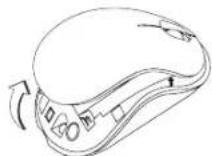
- Remove the battery cover from the top of the mouse by using the notch on the back. Carefully lift the cover up as shown in the diagram.
- Remove the battery safety clip by squeezing the center of the clip and sliding it back, towards the rear of the mouse. Lift up and rotate the clip out of the way.
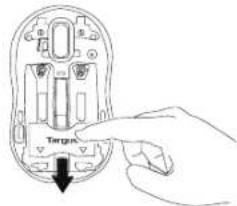

NOTE: THE BATTERY SAFETY CLIP WILL NEED TO BE IN THE SECURE, LOCKED POSITION BEFORE THE BATTERY COVER CAN BE PUT BACK IN PLACE.
Targus Wireless Compact Laser Mouse
- Remove the micro USB receiver stored inside the center compartment.
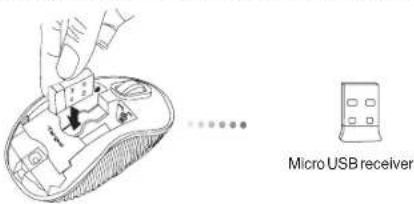
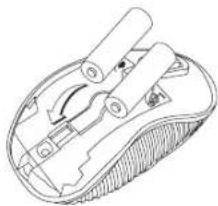
- Insert the two AAA batteries, making sure that the positive (+) and negative (-) ends of each battery match the polarity indicators inside the battery compartment.
natural_image
Line drawing of a computer mouse with internal components and scroll wheel (no text or symbols)Targus Wireless Compact Laser Mouse
- Replace the battery safety clip by sliding it forward until it clicks into place and then replace the battery cover.
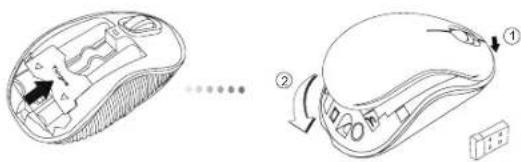

NOTE: THE FRONT OF THE LID SHOULD BE INSERTED FIRST BEFORE SNAPPING THE BACK OF THE LID DOWN.
Targus Wireless Compact Laser Mouse
Establishing the Connection
(A) Plug the USB receiver into an available USB port on your computer.
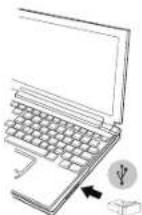
(B) Turn on the mouse by sliding the power switch to the ON position, located on the bottom of the mouse.
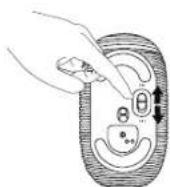
This mouse is a plug and play device. It will automatically operate when the USB receiver is connected to the computer.
Targus Wireless Compact Laser Mouse
Power On:
Slide the power switch to the ON position.
Power Off:
Slide the power switch to the OFF position.
Power Saving mode:
After an extended period of time, if the mouse is not used, it will automatically enter power saving mode to conserve power and increase battery life. Click on any mouse button or simply move the mouse to resume the normal operation. The mouse may take a few seconds to reconnect with your computer.
Battery Life Indicator
- When the mouse is turned on, the LED illuminates for 3 seconds and then fades out
- The low power light will start flashing every 3 seconds when less than 5% of the battery power remains. Replace the batteries as soon as possible"
Battery Life Indicator
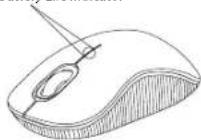
Power Management
• To extend the life of your battery, turn off the mouse while travelling or when you're not using it.
Targus Wireless Compact Laser Mouse
Technical Support
For technical questions, please visit:
US Internet: www.targus.com/support.asp
Australia Internet: www.targus.com/au
Email: infoaust@targus.com
Telephone: 1800-641-645
New Zealand Telephone:0800-633-222
Product Registration
Targus recommends that you register your Targus accessory shortly after purchasing it. Go to:
http://www.targus.com/registration.asp
You will need to provide your full name, email address, country of residence and product information.
Warranty
Targus warrants this product to be free from defects in materials and workmanship for one year. If your Targus accessory is found to be defective within that time, we will promptly repair or replace it. This warranty does not cover accidental damage, wear and tear, or consequential or incidental loss. Under no conditions is Targus liable for loss of, or damage to devices; nor loss of, or damage to, programs, records, or data; nor any consequential or incidental damages, even if Targus has been informed of their possibility. This warranty does not affect your statutory rights.
Regulatory Compliance
This device complies with Part 15 of the FCC Rules. Operation is subject to the following two conditions: (1) This device may not cause harmful interference, and (2) This device must accept any interference received, including interference that may cause undesired operation.
Targus Wireless Compact Laser Mouse
FCC Statement
Tested to Comply
This equipment has been tested and found to comply with the limits of a Class B digital device, pursuant to Part 15 of the FCC Rules. These limits are designed to provide reasonable protection against harmful interference in a residential installation. This equipment generates, uses, and can radiate radio frequency energy and if not installed and used in accordance with the instructions, may cause harmful interference to radio communications. However, there is no guarantee that interference will not occur in a particular installation. If this equipment does cause harmful interference to radio or television reception, which can be determined by turning the equipment off and on, the user is encouraged to try to correct the interference by one or more of the following measures:
• Reorient or relocate the receiving antenna;
- Increase the separation between the equipment and receiver;
- Connect the equipment into an outlet on a circuit different from that to which the receiver is connected:
- Consult the dealer or an experienced radio/TV technician for help.
Changes or modifications not authorized by the party responsible for compliance could void the user's authority to operate this product.
Compliance with 21 CFR 1040.10 and 1040.11 except for deviations pursuant to Laser Notice No. 50, dated June 24, 2007
Declaration of Conformity
Hereby, Targus, declares that this device is in compliance with the essential requirements and other relevant provisions of Directive 1999/5/EC.
Targus Wireless Compact Laser Mouse
Targus Wireless Compact Laser Mouse
CAUTION
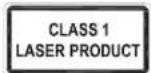
LASER RADIATION. DO NOT STARE INTO THE BEAM OR VIEW DIRECTLY WITH OPTICAL INSTRUMENTS. CLASSILASER PRODUCT. NEVER POINT A LASER BEAM INTO A PERSON'S EYES OR VIEW A LASER BEAM DIRECTLY, AS PROLONGED EXPOSURE CAN BE HAZARDOUS TO THE EYES. MOMENTARY EXPOSURE FROM A LASER POINTER, SUCH AS AN INADVERTENT SWEEP OF THE LIGHT ACROSS A PERSON'S EYES, MAY CAUSE TEMPORARY FLASH BLINDNESS SIMILAR TO THE EFFECT OF A CAMERA FLASH BULB. ALTHOUGH THIS CONDITION IS TEMPORARY, IT CAN BECOME MORE DANGEROUS IF THE EXPOSED PERSON IS ENGAGED IN A VISION-CRITICAL ACTIVITY SUCH AS DRIVING.
Microsoft, Windows, and Windows Vista are either registered trademarks or trademarks of Microsoft Corporation in the United States and/or other countries. All trademarks and registered trademarks are the property of their respective owners. All rights reserved. Features and specifications are subject to change without notice. © 2009. Targus Group International, Inc. and Targus, Inc., Anaheim, CA 92806 USA
- Targus®
- WIRELESS COMPACT
- LASER MOUSE
- User Guide
- Introduction
- Contents
- System Requirements
- Installing the Batteries
- Targus Wireless Compact Laser Mouse
- Establishing the Connection
- Power On:
- Power Off:
- Power Saving mode:
- Battery Life Indicator
- Power Management
- Technical Support
- Product Registration
- Warranty
- Regulatory Compliance
- FCC Statement
- Tested to Comply
- Declaration of Conformity
- CAUTION
Brand : TARGUS
Model : AMW55US
Category : Mouse