
Omega II - Tablet Vulcan - Free user manual and instructions
Find the device manual for free Omega II Vulcan in PDF.


| Product Type | Tablet |
| Brand | Vulcan |
| Model | Omega II |
| Screen Size | 10.1 inches |
| Screen Resolution | 1920 x 1200 pixels |
| Processor | Quad-core 1.8 GHz |
| RAM | 2 GB |
| Internal Storage | 32 GB |
| Expandable Storage | microSD up to 256 GB |
| Operating System | Android 10 (Go edition) |
| Battery Capacity | 5000 mAh |
| Battery Life | Up to 8 hours of mixed usage |
| Charging | Micro USB, 5V/2A |
| Connectivity | Wi-Fi 802.11 b/g/n, Bluetooth 4.2 |
| Rear Camera | 5 MP |
| Front Camera | 2 MP |
| Audio | Built-in speaker and microphone |
| Sensors | Accelerometer |
| Dimensions | 245 x 165 x 9 mm |
| Weight | 480 g |
| Ports | Micro USB, 3.5 mm headphone jack |
| Cleaning Instructions | Wipe with a soft, dry cloth. Do not use liquids or abrasive cleaners. |
| Safety Warnings | Do not expose to extreme temperatures or moisture. Use only approved charger. |
| Spare Parts Availability | Contact Vulcan customer service for replacement parts. |
Frequently Asked Questions - Omega II Vulcan
User questions about Omega II Vulcan
0 question about this device. Answer the ones you know or ask your own.
Ask a new question about this device
Download the instructions for your Tablet in PDF format for free! Find your manual Omega II - Vulcan and take your electronic device back in hand. On this page are published all the documents necessary for the use of your device. Omega II by Vulcan.
USER MANUAL Omega II Vulcan
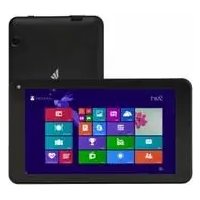
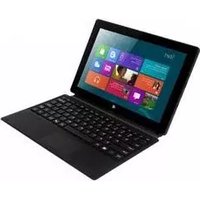
Thank you for choosing the Vulcan® Omega™. This portable device is designed to take advantage of micro-mobility and direct interaction through touch input and wireless connectivity (Wi-Fi/Bluetooth) to provide distinct and different experiences for both study and entertainment. This is a tablet when you want it and a laptop when you need it.
This manual will introduce the main function, operation method and other information. Please read this manual carefully before using the device. This user guide describes features that are common to most models.
Package Contents
Please check carefully for the following items inside the package. If anything is missing or appears to be damaged, please visit the manufacturer's website at www.vulcanelectronics.com.
-Tablet PC
-Charger Cable
-OTG Cable
-User Manual
-Warranty Card
Product Specifications
Model VTA08900
CPU Intel Baytrail T-CR Z3735G Quad core 1.8GHz
Operation System Windows 8.1
RAM 1GB
Storage Memory 16GB
External Memory 1x Micro SD Card Slot (up to 32 GB)
Display 8.95" 1024 x 600
Camera Front 0.3 Megapixel, Rear 2
Speakers Stereo Speaker
Connectivity WiFi 802.11b/g/n
Bluetooth 4.0
- Do not store the device in extreme hot, cold, dusty, dry, or humid environment.
- Handle the device with care. The device can be damaged if dropped, burned, punctured, or crushed, or if it comes in contact with liquid. Do not put heavy objects on laptop which can damage it. Consider using a case or cover to protect the device.
- Do NOT attempt to open the device by yourself. Disassembling the device may damage it or cause injury to you. We do NOT assume the responsibility of data loss by unauthorized repairs or wrong operation. Please contact Vulcan Electronics or an authorized service provider.
- The storage capacity on the operating system will be smaller than the storage specified. This is normal and standard as the software requires certain space.
- Please note that the new battery is only able to achieve best performance after two or three full charge and discharge cycles. During the first three full charge cycles, please make sure to charging for at least 8-10 hours. After this, the battery can be fully charged in about 4 cycles of 8-10 hours. This ensures that the lithium battery will achieve its best performance in the future.
- Please charge the battery under below situations:
-The battery icon show low battery level and requests charging
-Device power off automatically
-Operating but is unresponsive

Do NOT throw the device in municipal waste. The symbol of the crossed out wheeled bin indicates that device should not be placed in municipal waste. Check local regulations for disposal of electronic products.

The device contains a lithium-polymer battery that is flammable. Do NOT throw the Tablet PC in fire. Do NOT short circuit the contacts.
Appearance (Front)

Appearance (Back)

Turn the Tablet On
To turn the Tablet On.
Press and hold the Power button on the top left side of the tablet.
To turn the Tablet Off.
- Swipe in from the right edge of your screen or the keyboard shortcut
+ C to open the charms.
- Go to Settings > Power > Shut Down to turn off the tablet.
Installing the Storage Card
TF/Micro SD ^™ cards are available in a wide range of capacities, varying from 128MB to 64GB.
Install TF/Micro SD™ Card
-
Find the slot for the TF/Micro SD ^TM card.
-
Insert the TF/Micro SD ^TM card gently.
Remove TF/Micro SD™ Card
-
Unmount the SD Card (Menu>Settings>Storage>Unmount SD Card).
-
Turn off the tablet.
3.Push the TF/Micro SD ^TM card to eject from the slot.
- Remove the TF/Micro SD ^TM card.
Note:
When Micro USB port is connected to other devices, please remove USB cable before turning off tablet.
Add a Bluetooth Device
Here's how to add (also call pair) bluetooth device with your device:
- Turn on the bluetooth device and make it discoverable. To learn how to check the info that came with your bluetooth device or the manufacturer's website.
- Open the setting charm, and tap or click Change PC setting > PC and Devices > Bluetooth
- Make sure Bluetooth turned on, then wait while windows searches for bluetooth devices.
- Follow the onscreen instruction to finish pairing your device for your accessory requires a pairing code, you'll be prompted for it. If you don't know the code, check the info that came with your device on the manufacturer's website.
New account setup and sign in
A Microsoft account is the email address and password that you use to sign in to services like Outlook.com, SkyDrive, Windows Phone, and Xbox. If you use an email address and password to sign in to these Microsoft services, then you already have a Microsoft account. To switch from a local account to a Microsoft account:
- Open the settings charm, tap or click Change PC settings > Accounts > Connect to a Microsoft account.
- Sign in to your Microsoft Account. If you do not have an account or more than one person uses your device, you can create a new account to sign in and personalize everything. Select Create a new account and follow the onscreen instruction.
To create a user account
To create another user, Open the settings charm, tap or click Change PC settings > Accounts > Other Accounts > Add an Account. Follow the onscreen instruction. You can setup the new account as an Administrator, Standard User, or Child.
Family Safety
Family Safety is an integrated part of Windows, so it's easier than ever to keep track of when and how your kids use the Vulcan Omega. You can set limits on exactly which websites, apps, and games they're allowed to use.
To setup and manage Family Safety
Open the settings charm, tap or click Control Panel > User Accounts and Family Safety > Set up Family Safety for any user > Select the account to change.
Account Setup (cont)
Unlock and sign in
Here's how to unlock and sign in to your device:
- Press a key, or press and release the Power button.
- Dismiss the lock screen by swiping up from the bottom edge of the screen or pressing a key.
- If prompted, type the password for your account. If you want to sign in with a different account, tap or click the Back button.
To create or change a password
- Open the settings charm, tap or click Change PC settings > Accounts > Sign-in options.
- You have the choice of Password, Picture password, and PIN
- Click Add and follow the onscreen instructions.
- If you already have a password, click Change and follow the onscreen instructions.
Choose when a password is required
You can choose when a password is required to sign in Vulcan Omega.
-
Open the settings charm, tap or click Change PC settings > Accounts > Sign-in options.
-
Select your choice under Password Policy.
Vulcan Omega has built-in Wi-Fi that you can use to connect to a wireless network. If you don't know your wireless network password, use the info below to find it.
Find your password on your hardware
Some wireless router manufacturers set a default security key or password which may be on the bottom of your router or in the router's documentation. Look for the following terms:
Security Key Wireless Key WPA Key WPA2 Key WEP Key
Find your password on a Windows PC
If you have a computer running Windows that is connected to your wireless network, you can find the password by doing the following:
Windows 8.1: Find your password
Step 1: Swipe in from the right edge of the screen, and tap Settings. (If you're using a mouse, point to the lower-right corner of the screen, move the mouse pointer up, and then click Settings.)
Step 2: Tap or click the network icon (Wireless network icon or) for the network you want to connect to, and then tap or click Connect.
Step 3: Swipe in from the right edge of the screen, and tap or click Search.
Step 4: In the search box, enter view network connections, and in the search results tap or click View network connections.
Step 5: In the Network Connections window, press and hold or right-click the network name, and then tap or click Status.
Step 6: Tap or click the Wireless Properties button.
Step 7: Tap or click the Security tab, and tap or click the Show characters check box.
Step 8: The password for the wireless network is displayed in the Network security key field.
Apps and Programs
Use apps and programs
Find and open apps Like the Start button in previous versions of Windows, the Start screen is where you go to start apps. Vulcan Omega can run two types of apps:
• Windows Store apps—such as Music, Mail, and Weather.
- Desktop apps—such as Notepad and Office. To find an app or program on your device:
Apps view. Swipe up from the center of the Start screen (or click on the lower-left of Start). A list of apps appears. Type an app name or scroll to see all your apps.
- Use Search. Open the Search charm, and type an app name like Skype or Outlook.
If you don't see the app or program you want, look in the Windows Store.
You can also start desktop apps from the desktop. You can create shortcuts for desktop apps or pin the desktop apps that you frequently use to the taskbar. For info about this, see How to use the taskbar on Windows.com.

To go to Start:
- Touch. Press the Windows button on the touchscreen, or swipe in from the right edge of the screen and tap Start.
- Keyboard. Press the Windows logo key on your keyboard.
- Mouse. Click the Start button in the lower-left corner of the screen.
Open apps
- Touch or mouse. Tap or click an app tile on the Start screen. Or, tap or click the Search button next to your account picture and enter an app name.
- Keyboard. Go to Start and enter an app name (such as Word or OneDrive).
You can see all your apps by swiping up from the center of the Start screen. Or, if you're using a mouse, click the arrow in the lower left corner of the screen.
Switch between open apps You can switch between open apps by swiping in from the left edge of the screen. You can keep swiping, and each time you'll switch to another app.

Touch: Swipe, tap, and beyond
Tap? Swipe? Here's a glossary of touch gestures that you can use.
| Gesture | How to do it | What it does |
Tap | Tap once on something. | Opens, selects, or activates whatever you tap. Similar to clicking with a mouse. |
Tap and hold | Press your finger down and hold for about a second. | Shows options related to what you’re doing (like right-clicking with a mouse). |
Tap- tap slide (tap and a half) | Tap, then tap and hold. Now your finger in any direction. | Drag an item you’ve tapped, or selects text. |
Pinch or stretch | Touch the screen or an item with two or more fingers, and then move the fingers toward each other (pinch) or away from each other (stretch). | Zooms in or out of a website, map, or picture. |
Rotate | Put two or more fingers on an item and then turn your hand. | Rotates things that can be rotated. |
Slide to scroll | Drag your finger scroll through screen. | h what's on the screen (like scrolling with a mouse) |
Slide to rearrange | Press and briefly drag an item in the direction opposite the way the page scrolls, then move it wherever you want. When you've moved the item to the new location, let it go. | Moves an item (like dragging with a mouse). |
Swipe to select | Swipe an item with a short, quick movement in the direction opposite to the way the page scrolls. | Selects an item, like an app tile or photo. This often brings up app commands |
| Gesture | How to do it | What it does |
Swipe from edge | Starting on the edge, Right swipe in. | edge: Opens the charmsLeft edge: Brings in open apps, snaps apps, shows.your recently opened apps, or closes apps.Top or bottom edge: Shows commandsor closes an app. |
Here's what you can do with the charms:

Search You can use the Search charm ( ■ + S ) to find things on Surface, OneDrive, in apps, and on the web. If you're on the Start screen, click the Search 🔔 button next to your account picture.

Share When you're in an app, you can use the Share charm (■+H) to share files, photos, or webpages.

Start The Start charm ( ) takes you to the Start screen. Or if you're already on Start, it takes you to the last app you were using.

DevicesUse the Devices charm (■+K) to play, project, and print to devices.

Settings. Use the Setting charm (■+I) to change settings for the app you are in. From the Start screen, use the Settings charm to change Windows settings.
Troubleshooting
The following sections describe several common issues and solutions.
The Device is unable to start up
If the device does not turn on when you press the power button, the following suggestions may help you determine why the computer does not start up:
- If the computer is plugged into an AC outlet, plug another electrical device into the outlet to be sure that the outlet is providing adequate power.

NOTE: Use only the AC adapter provided with the computer or one approved by Vulcan Electronics for this computer.
- If the computer is plugged into an external power source other than an AC outlet, plug the device into an AC outlet using the AC adapter. Be sure that the power cord and AC adapter connections are secure.
Troubleshooting
If the device is turned on but is not responding to software or keyboard commands, try the following emergency shutdown procedures, in the sequence provided, until shutdown occurs:

CAUTION:
Emergency shutdown procedures result in the loss of unsaved information.
- Hold the power button for at least 5 seconds.
The device is unusually warm
- It is normal for the device to feel warm to the touch while it is in use.
- If you suspect that the computer is overheating, allow the computer to cool to room temperature.

WARNING! To reduce the possibility of heat-related injuries or of overheating the computer, do not place the device directly on your lap. Use the device only on a hard, flat surface. Also, do not allow the AC adapter to contact the skin or a soft surface, such as pillows or rugs or clothing, during operation.
If the screen is blank but you have not turned off the computer, one or more of these settings may be the cause:
- The device may be in the Sleep state. To exit Sleep, briefly press the power button. Sleep is an energy-saving feature that turns off the display. Sleep can be initiated by the system while the computer is on but is not in use, or when the computer has reached a low battery level. To change these and other power settings, right-click the Battery icon on the Windows desktop in the notification area, at the far right of the taskbar, and then click Preferences.
Software is functioning abnormally
If the software is unresponsive or responds abnormally, restart the computer by point/touch to the right side of the screen. When the charms display, click Settings. Click the Power icon, and then click Shut down. If you cannot restart the computer using this procedure, see the previous section, The computer is on but not responding.
Follow these suggestions if an external device does not function as expected:
- Turn on the device according to the manufacturer's instructions.
- Be sure that all device connections are secure.
- Be sure that the device is receiving electrical power.
- Be sure that the device, especially if it is older, is compatible with the operating system.
- Be sure that the correct drivers are installed and updated.
The wireless network connection is not working
If a wireless network connection is not working as expected, follow these suggestions:
- To enable or disable a wireless or wired network device, right-click the Network Connection icon on the Windows desktop in the notification area, at the far right of the taskbar. To enable devices, select the check box from the menu option. To disable the device, clear the check box.
- Be sure that the wireless device is turned on.
- Be sure that the computer wireless antennas are free from obstructions.
- Be sure that the cable or DSL modem and its power cord are properly connected and that the lights are on.
- Be sure that the wireless router or access point is properly connected to its power adapter and to the cable or DSL modem, and that the lights are on.
- Disconnect and then reconnect all cables, and turn the power off and then back on.
Cleaning products
Use the following products to safely clean and disinfect your device:
- Dimethyl benzyl ammonium chloride 0.3 percent maximum concentration (For example: germicidal disposable wipes. These wipes come in a variety of brand names.)
- Alcohol-free glass cleaning fluid
● Water with mild soap solution - Dry microfiber cleaning cloth or a chamois (static-free cloth without oil)
- Static-free cloth wipes

CAUTION:
Avoid the following cleaning products:
Strong solvents, such as alcohol, acetone, ammonium chloride, methylene chloride, and hydrocarbons, which can permanently damage the surface of the computer.
Fibrous materials, such as paper towels, which can scratch the device. Over time, dirt particles and cleaning agents can get trapped in the scratches.
Cleaning procedures
Follow the procedures in this section to safely clean your device.
WARNING! To prevent electric shock or damage to components do not attempt to clean your computer while it is turned on:
Turn off the device.
Disconnect external power.
Disconnect all powered external devices.
CAUTION: Do not spray cleaning agents or liquids directly on any device surface. Liquids dripped on the surface can permanently damage internal components.
Cleaning the display
Gently wipe the display using a soft, lint-free cloth moistened with an alcohol-free glass cleaner. Be sure that the display is dry before closing the display.
Cleaning the sides and cover
To clean and disinfect the sides and cover, use a soft microfiber cloth or chamois moistened with one of the cleaning solutions listed previously or use an acceptable germicidal disposable wipe.

NOTE: When cleaning the cover of the device, use a circular motion to aid in removing dirt and debris.
Vulcan Electronics © 2013
All Rights Reserved
Bluetooth is a trademark owned by its proprietor and used by Vulcan Electronics under license. Intel and Atom are trademarks of Intel Corporation in the U.S. and other countries. Microsoft and Windows are U.S. registered trademarks of Microsoft Corporation.
The information contained herein is subject to change without notice. The only warranties for Vulcan Electronics and services are set forth in the express warranty statements accompanying such products and services.
Nothing herein should be construed as constituting an additional warranty. Vulcan Electronics shall not be liable for technical or editorial errors or omissions contained herein.
First Edition: September 2014
For sales inquiry (US & Worldwide)
Email: sales@vulcanelectronics.com
For technical support, please contact Vulcan Electronics.
U.S. and Worldwide
Toll Free Number: 1-855-280-3895
Monday - Friday 8:00 am - 5:00 pm PST
Email: support@vulcanelectronics.com
Mexico (Spanish)
Toll Free Number: 1-800-635-5535
Monday - Friday 8:00 am - 5:00 pm PST
Email: soporte@vulcanelectronics.com


- Package Contents
- Product Specifications
- Appearance (Front)
- Appearance (Back)
- Turn the Tablet On
- To turn the Tablet Off.
- Installing the Storage Card
- Install TF/Micro SD™ Card
- Remove TF/Micro SD™ Card
- Note:
- Add a Bluetooth Device
- New account setup and sign in
- To create a user account
- Family Safety
- To setup and manage Family Safety
- Account Setup (cont)
- Unlock and sign in
- To create or change a password
- Choose when a password is required
- Find your password on your hardware
- Find your password on a Windows PC
- Windows 8.1: Find your password
- Apps and Programs
- Use apps and programs
- To go to Start:
- Open apps
- Touch: Swipe, tap, and beyond
- Here's what you can do with the charms:
- Troubleshooting
- The Device is unable to start up
- CAUTION:
- The device is unusually warm
- If the screen is blank but you have not turned off the computer, one or more of these settings may be the cause:
- Software is functioning abnormally
- Follow these suggestions if an external device does not function as expected:
- The wireless network connection is not working
- Cleaning products
- Avoid the following cleaning products:
- Cleaning procedures
- Cleaning the display
- Cleaning the sides and cover
- For sales inquiry (US & Worldwide)
- U.S. and Worldwide
- Mexico (Spanish)
Brand : Vulcan
Model : Omega II
Category : Tablet