FreeTAB 7.4 IPS X4 - Tablet ModeCom - Free user manual and instructions
Find the device manual for free FreeTAB 7.4 IPS X4 ModeCom in PDF.


| Product Type | Tablet |
| Brand | ModeCom |
| Model | FreeTAB 7.4 IPS X4 |
| Operating System | Android 4.2 |
| Processor | Quad-core 1.2 GHz |
| Display | 7.4 inch IPS capacitive touchscreen |
| Front Camera | 0.3 MP |
| Rear Camera | 2 MP |
| Connectivity | Wi-Fi 802.11 b/g/n, Bluetooth, 3G via external modem, mini HDMI, micro USB (OTG) |
| Battery Charging Time | Approximately 5 hours |
| Power Adapter | Input 100-240V, Output 5V 2A (Model KA3E0502000) |
| Weight | 280 g |
| Memory Card Slot | microSD (TF card) |
| Audio | 3.5 mm earphone jack, built-in speaker |
| Environmental Compliance | WEEE, CE |
| Care Instructions | Clean with soft dry cloth; avoid alcohol, thinner, benzene; keep away from moisture |
| Safety Warnings | Do not disassemble; do not use while driving; avoid high volume with earphones |
| Spare Parts and Repairability | Contact ModeCom customer support |
Frequently Asked Questions - FreeTAB 7.4 IPS X4 ModeCom
User questions about FreeTAB 7.4 IPS X4 ModeCom
0 question about this device. Answer the ones you know or ask your own.
Ask a new question about this device
Download the instructions for your Tablet in PDF format for free! Find your manual FreeTAB 7.4 IPS X4 - ModeCom and take your electronic device back in hand. On this page are published all the documents necessary for the use of your device. FreeTAB 7.4 IPS X4 by ModeCom.
USER MANUAL FreeTAB 7.4 IPS X4 ModeCom
freetcb ^7.4 IPSX4
user's manual
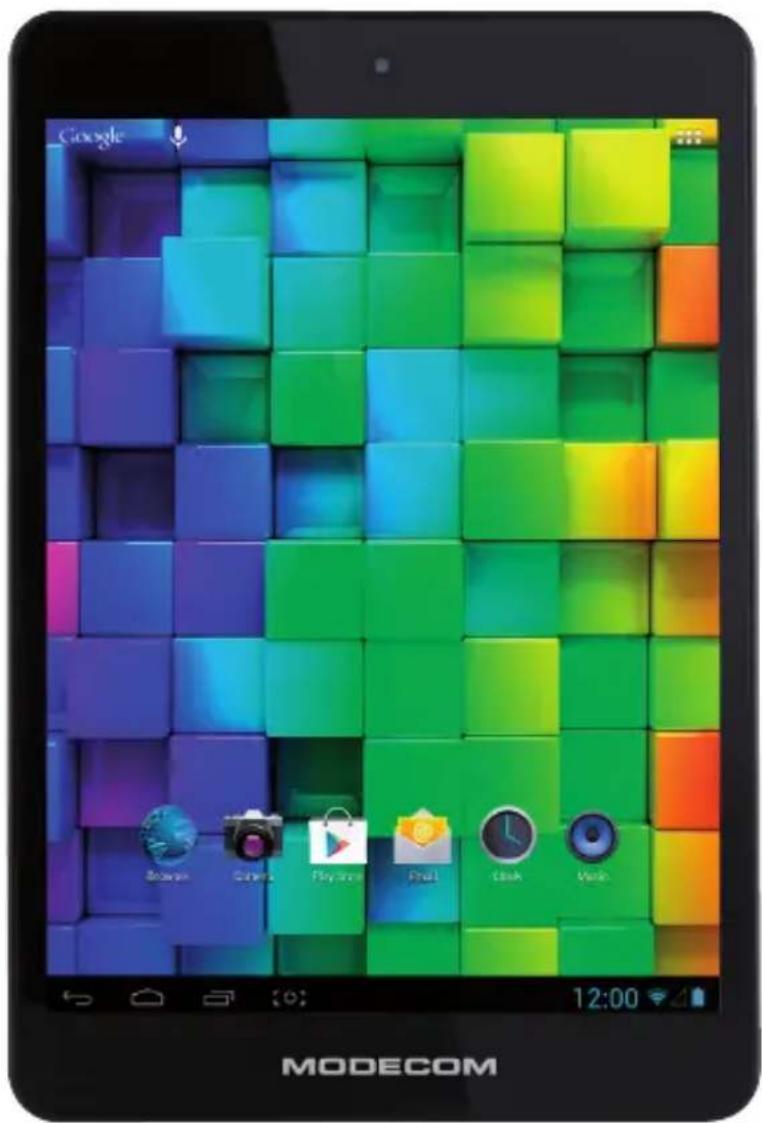
MODECOM
Contents:
Welcome 4
Important Notices 4
Keys and Functions 5
I. Getting Started 6
1.1 Turn on/off 6
1.2 Lock/unlock the screen (sleep mode) 7
1.3 Connect to computer 7
II. Your Home Screen 7
2.1 Change wallpaper for home screen: 8
2.2 Add/delete applications on home screen: 8
2.3 Add widgets to home screen: 9
III. Network Connection 9
3.1 Wi-Fi 9
3.2 Bluetooth 10
3.3 3G Network 11
IV. Internet Browsing 12
4.1 Internet Browsing 12
V. Multimedia Functions 13
5.1 Music 13
5.2 Video 14
5.3 Gallery 15
5.4 Camera 15
5.5 HDMI output 16
VI. Settings 17
VII. Battery 18
Troubleshooting 19
Spis treści:
Powitanie 20
Ważne informacje 20
Thank you for purchasing this tablet.
It brings you much convenience for your business (supports Word, Excel, send & receive e-mails...) and entertainment (supports 3D game, chatting, movie playback, eBooks.....).
Running on Android 4.2, with a quad core 4x 1,2 GHz processor and highly responsive capacitive touch screen, it brings you wonderful user experience.
Before beginning, please refer to this user manual carefully.
Important Notices
• The new battery will be in its best condition after 2-3 times full charge and discharge.
• While using the earphone, if the volume is excessively high it may cause hearing damage. So please adjust the volume of the player to a moderate level and balance the time of using.
• Do not disconnect the tablet suddenly when formatting or uploading and downloading, which can lead to program errors.
- Do not dismantle the tablet by yourself, and do not use alcohol, thinner or benzene to clean its surface.
• Do not use the tablet while driving or walking.
• The tablet is not moisture and water resistant. Please do not use it in a damp environment.
- Do not drop or hit it to hard surface, or the screen may get damaged.
- Do not upgrade the firmware by yourself. This would cause damage to your tablet.
Keys and Functions
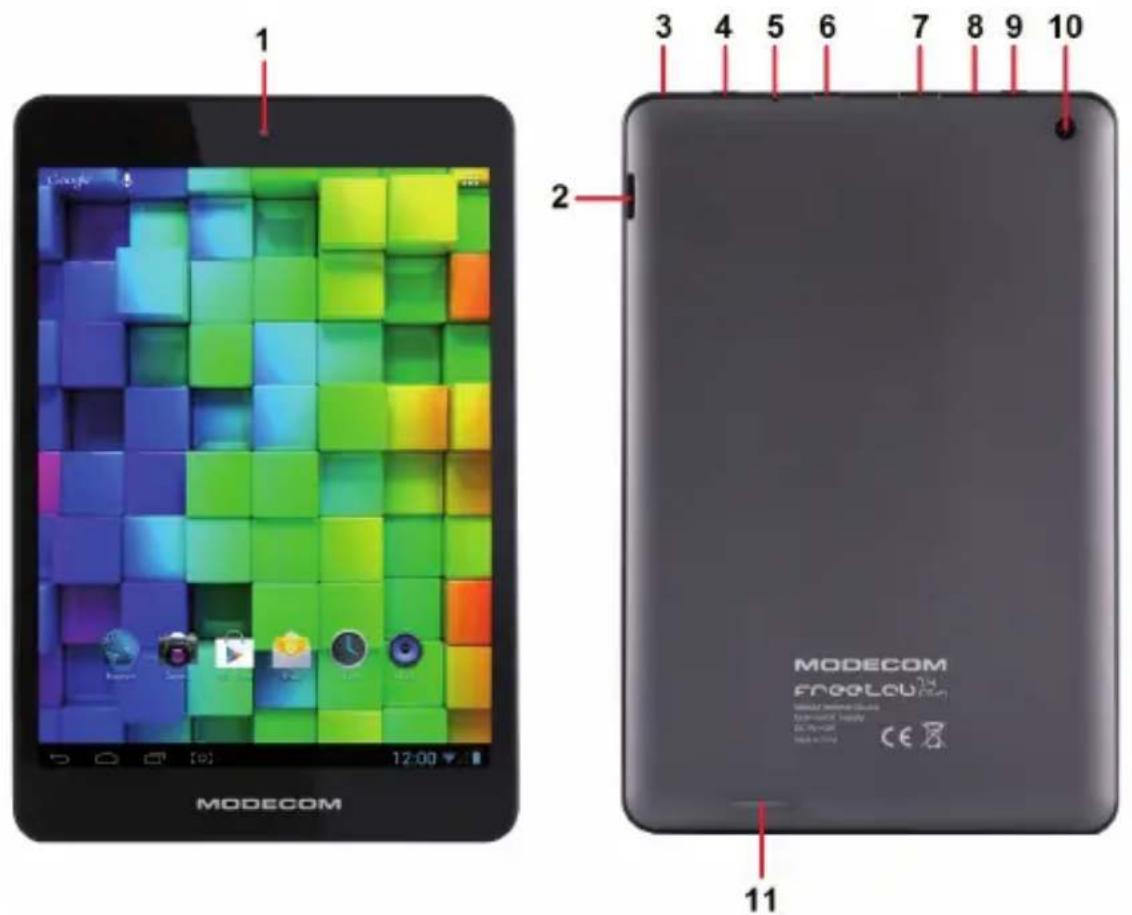
| 1. Front camera | 0,3M pixel front camera |
| 2. TF card slot | To insert your TF card |
| 3. Microphone | Microphone |
| 4. Power and lock key | Hold and press to turn on or turn off the unit.Briefly press to turn on or turn off the screen |
| 5. Earphone Jack | To connect your earphone |
| 6. micro USB | Connect to a 5V output adaptor as included in the accessories or computer via a USB cable to transfer data (music, videos, photos, etc.) USB OTG, supports mouse, keyboard, USB flash disk, etc, with a converting cable |
| 7. mini HDMI | Connect to TV output via a HDMI cable |
| 8. Reset | Press to reset the tablet if it freezes or behaves abnormal |
| 9. ESC key | Press the “ESC” to go back |
| 10. Rear camera | 2M pixel rear camera |
| 11. Speaker | Speaker |
I. Getting Started
1.1 Turn on/off
1.1.1 Turn on
To start your tablet, press and hold the power key at the right side of your tablet for a while. Tab and drag the lock out of the circle to unlock.
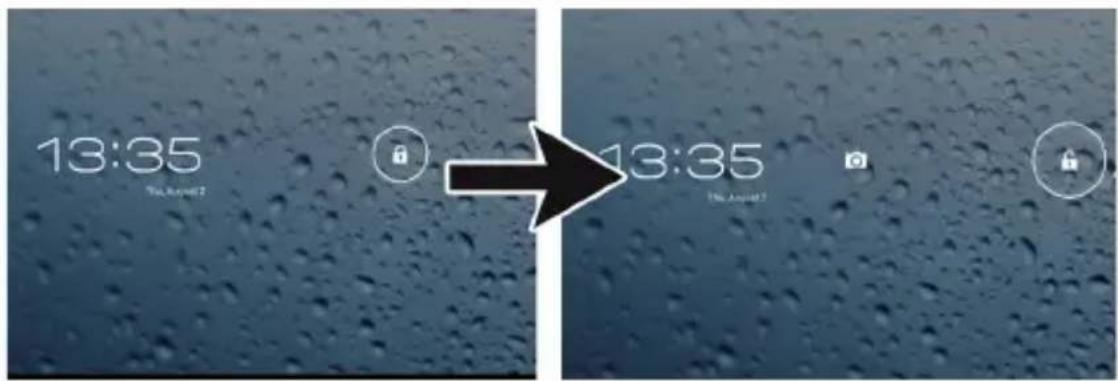
Tab and drag the lock 🔒 out of the circle to unlock.
Drag the lock to right: you will go to the home screen.
Drag the lock to left: you will go to camera directly.
1.1.2 Turn off
To power off your tablet, press and hold the power button until the "Would you like to shut down?" dialog appears and tap "OK" to power it off.
1.2 Lock/unlock the screen (sleep mode)
To save battery, you should put your tablet in sleep mode by turning off the LCD display. To do this, shortly press the power key. Press it again to wake up the screen.
1.3 Connect to computer
You can connect your tablet to your computer with the supplied USB cable so you can transfer media files.
II. Your Home Screen
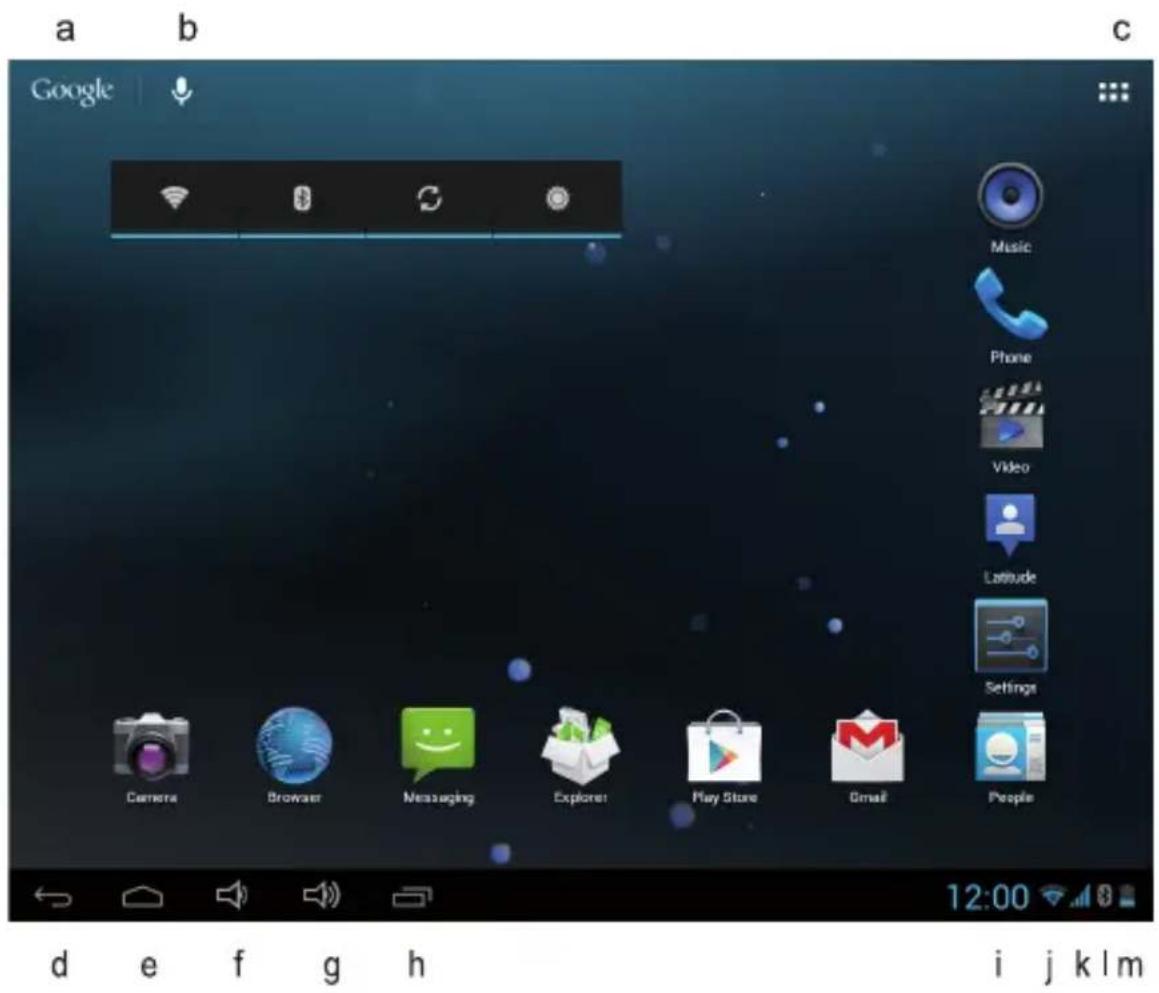
| a. Google search | Tap to enter Google search page |
| b. Voice search | Tap to open voice search |
| c. Applications | Tap to open applications |
| d. ESC key | Tap to return to the previous screen/ page. |
| e. Home | Tap to return to your home page |
| f. Volume - | Tap to lower the volume |
| g. Volume + | Tap to upper the volume |
| h. Recent operations | Tap to show your recent operations |
| i. Time | Time |
| j. WIFI Signal | There will be WIFI signal when WIFI connected |
| k. 3G Signal | There will be 3G signal when modem turn on |
| l. Bluetooth | There will be Bluetooth when it turn on |
| m. Battery status | Show battery status |
2.1 Change wallpaper for home screen:
Tab and hold your finger in any blank space of the home screen, you will see a pop-up options; you can choose wallpaper from Gallery, live Wallpapers or Wallpapers.
2.2 Add/delete applications on home screen:
There are several apps in the home screen, you can also add more frequently-used app icons in this home page and delete some less frequently-used ones.
Tab the app launcher in the top right corner to go to all apps panel, tap and move the app you want to the home screen.
To delete an app from home screen, tap and hold it, and them movie it to the remove icon ✗ Remove
2.3 Add widgets to home screen:
Tab all Apps launcher → Tab WIDGETS. There are Analog clock, bookmarks, calendar, Email, and lots of other widgets. Drag the widget you want to the home screen.
Tips: Besides your home screen, you can access to other four panels by sliding left or right in your home screen. You can also customize these panels.
III. Network Connection
3.1 Wi-Fi
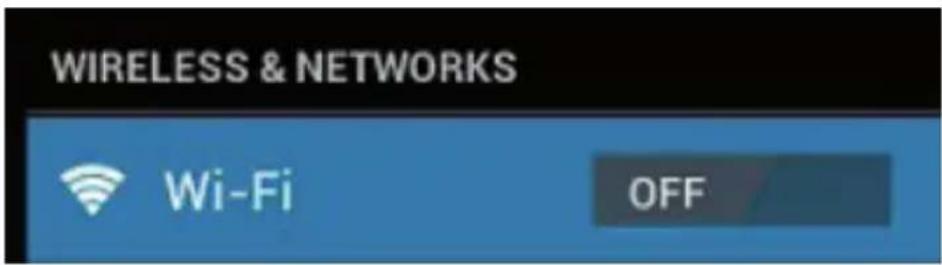
Wi-Fi can only be used when it connects with home Wi-Fi Access Point (AP) or a free unsecured Wi-Fi hotpot. Under "Wireless & networks", tap "Wi-Fi" to turn it on. After a moment, your Wi-Fi networks list should populate. If you need to rescan for available networks, tap "scan"
3.1.1 Turn on Wi-Fi
Within the App Panel, tap "Settings" → "Wi-Fi" to turn on wifi.

Your tablet lists the networks it finds within range. Tap a network to connect. If necessary, enter Network SSID, Security, and Wireless password, and tap "Connect". When your tablet is connected to the network, the wireless indicator 📋 appears in the status bar. Waves indicate connection strength.
3.1.2 Turn off Wi-Fi
Please turn off Wi-Fi if you're not using it to save the battery. To turn off Wi-Fi, Tab it again.
3.1.3 Add a Wi-Fi network
Users may also add a Wi-Fi network under "Wi-Fi settings". In "Wi-Fi settings", tap "Add network". Enter the SSID (name) of the network. If necessary, enter security or other network configuration details. Touch Save.
Note: Network status icons turn blue 📋 if you have a Google Account added to your tablet and the tablet is connected to Google services, for syncing your Gmail, Calendar events, contacts, for backing up your settings, and so on.
3.2 Bluetooth
3.2.1 Make device discoverable
You must pair your tablet with a device before you can connect to it. Once you pair your tablet with a device, they stay paired unless you unpair them.
Under "Settings", choose "Bluetooth settings". Tap Bluetooth to turn on it and tap "Search for devices". The Bluetooth indicator then appears in the status bar.
3.2.2 Scan for devices
After scanning, there will be a list of the IDs of all available Bluetooth devices in range. If the device you want to pair with isn't in the list, ensure that the other device is turned on and set to be discoverable.
3.2.3 Pair with the Bluetooth device
Tap the name of an available Bluetooth device to pair with. In the popup "Bluetooth pairing request" dialog, type a PIN.
If the pairing is successful, your tablet connects to the device.
Example: to transmit a photo
Go to "Gallery", choose a photo to share. Tap 📄 icon or any spot on the photo to view a submenu. Tap 📋 Menu → 🎯 Share → 📌 Bluetooth, and then choose the device name in the Paired devices list. The photo will then be sent.
You can touch the right icon to unpair the device.
Note: After pairing, it shows under the Bluetooth device "Paired but not connected", but file transmission is still possible.
You can see the received files by touch the top right corner icon.
At present, the Bluetooth function only supports files transmission.
To extend battery life, turn Bluetooth power off when not in use.
3.3 3G Network
A 3G network is a mobile network that allows high-speed data access and advanced network capacity. Your tablet supports 3G network by a 3G external modem, internet access is possible via a 3G SIM card. After inserting a 3G SIM card to enter the tablet 3G signal automatically appear.
IV. Internet Browsing
4.1 Internet Browsing
Before using your browser, make sure Wi-Fi or internet is connected.
In your app panel, Tab the browser 📄 icon to open your browser.
Tap the address bar, the Android keyboard will appear for your entry of keywords or URL.
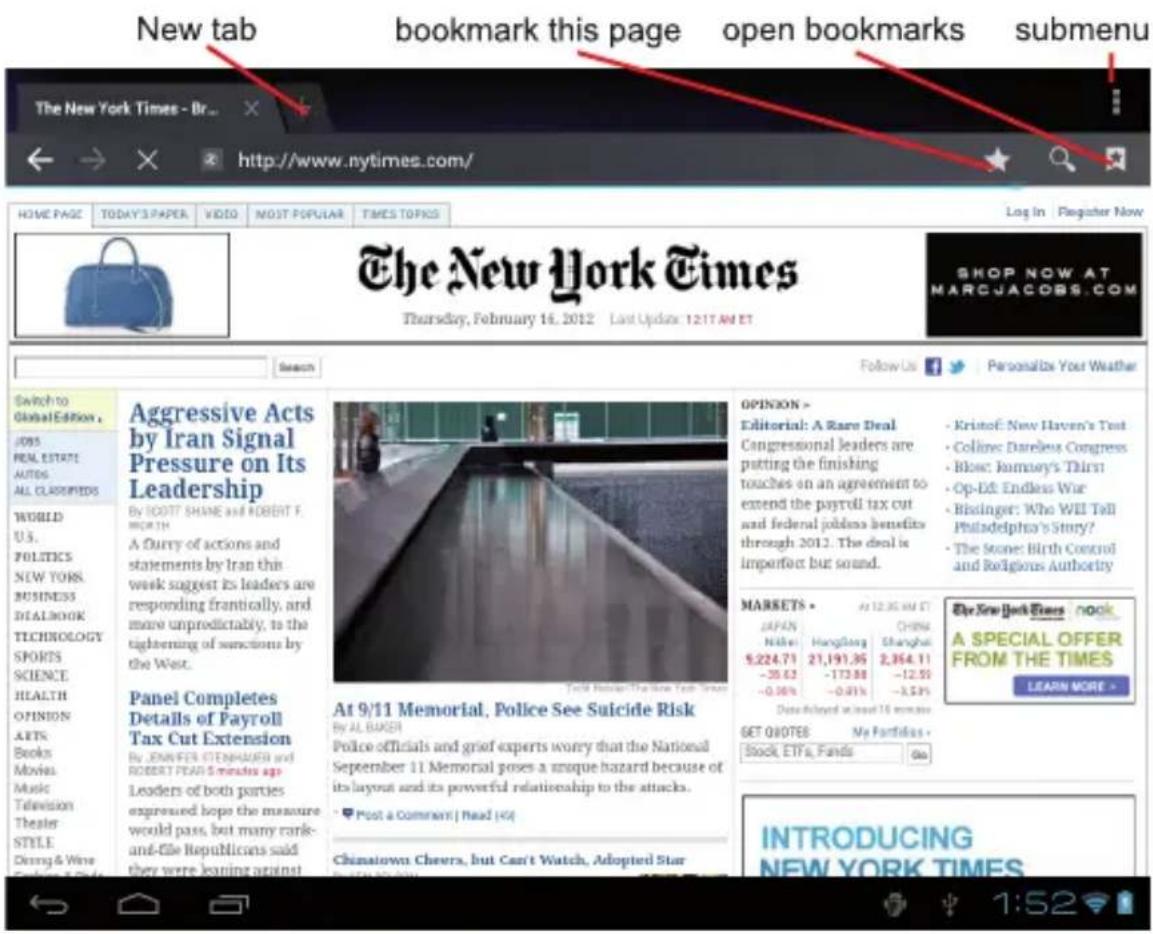
Tab the : icon in the top corner of the browser page to open the submenu.
V. Multimedia Functions
5.1 Music
After loading your music into your tablet, tap the music icon 📷 to open the music player. You can select songs by Artist, Albums, songs or Play lists. Tap to select. The media player allows you to shuffle, skip, or pause your current selection and even displays the album artwork when available.
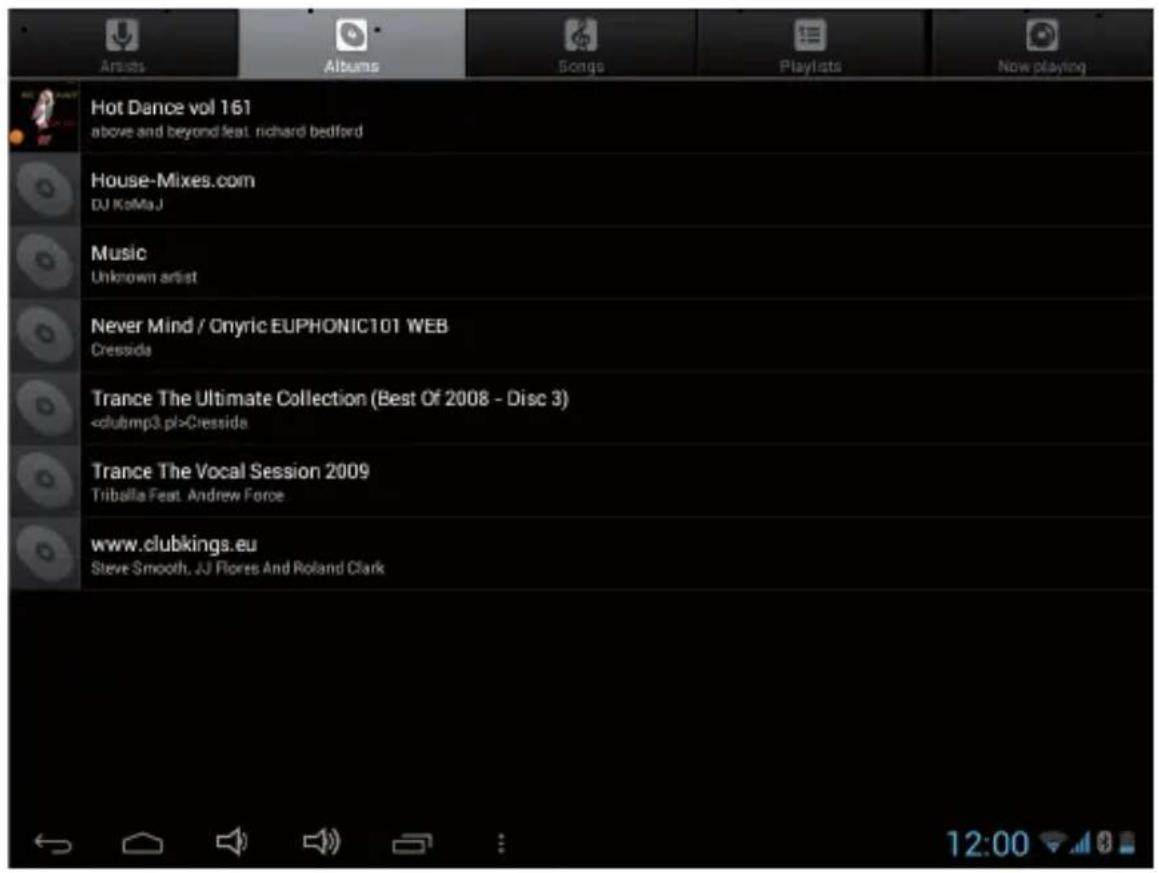
Tab ■ in the bottom line to open a submenu in music playing page.
5.2 Video
You can play videos saved in your tablet or TF card. To play, tap Video 📋icon to launch the video player:
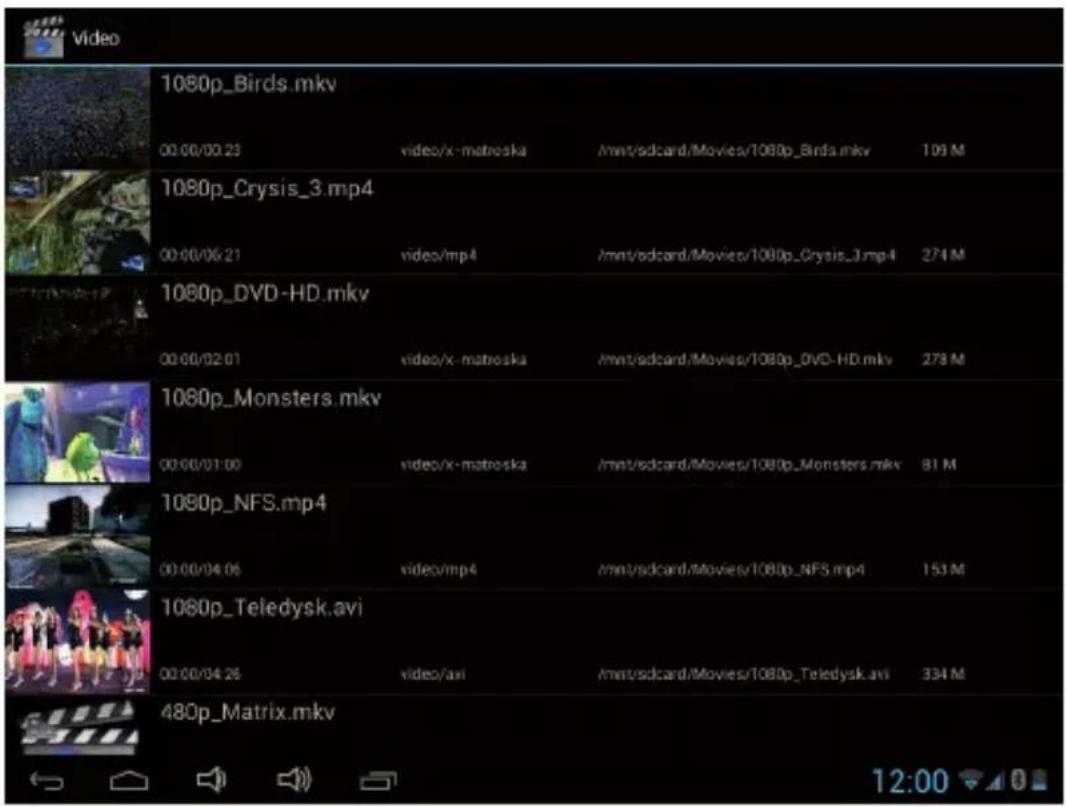
Tab the video you would like to play. Tab the screen to show the video tool bar. You can play back, fast forward, pause your video here. You can also add bookmark for your video, adjust brightness, or set screen ratio here. Here is the toolbar:

With the Wi-Fi on, you are also able to view an on-line video.
5.3 Gallery
You can view, show off, and even edit your digital pictures on the tablet's full color, high-resolution display. After loading your media, tap Gallery 📋 to display your pictures:
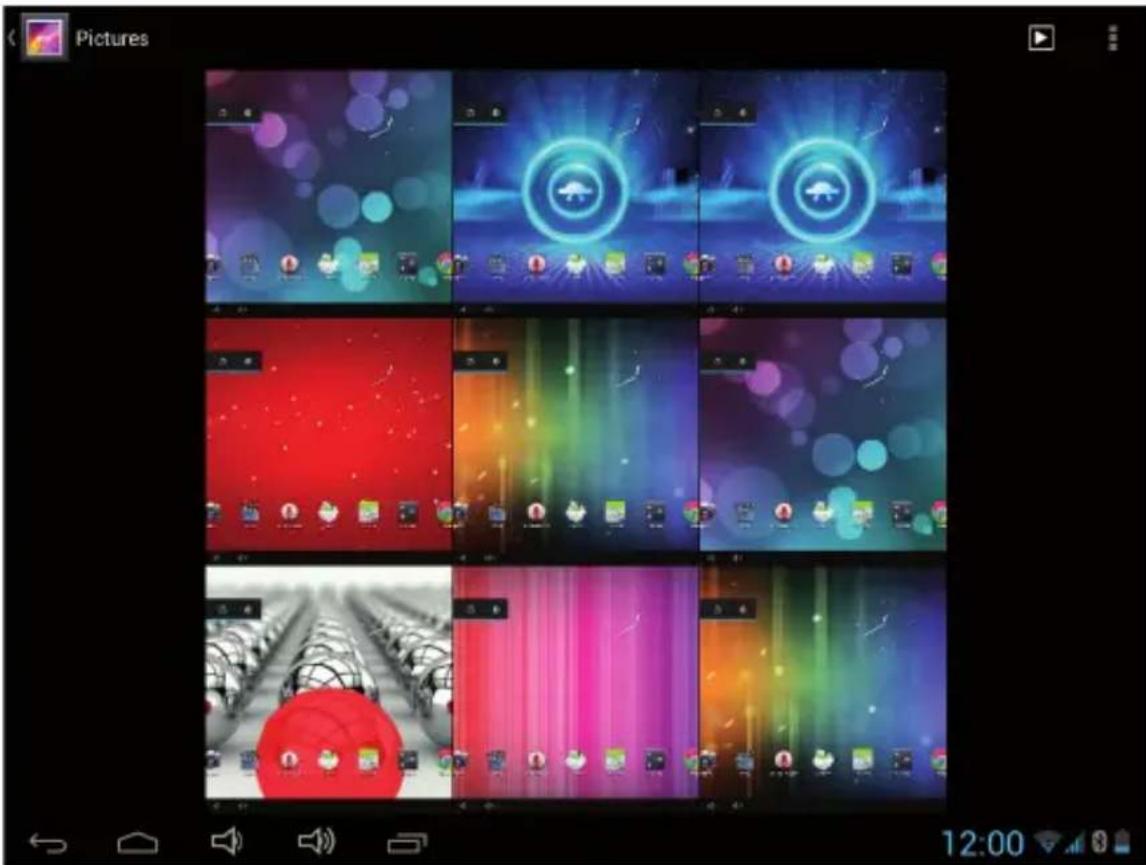
Tab the picture you want to display it, and slide right or left to show other pictures.
Tap the menu icon, you can edit, rotate, crop, or set it as wallpaper.
5.4 Camera
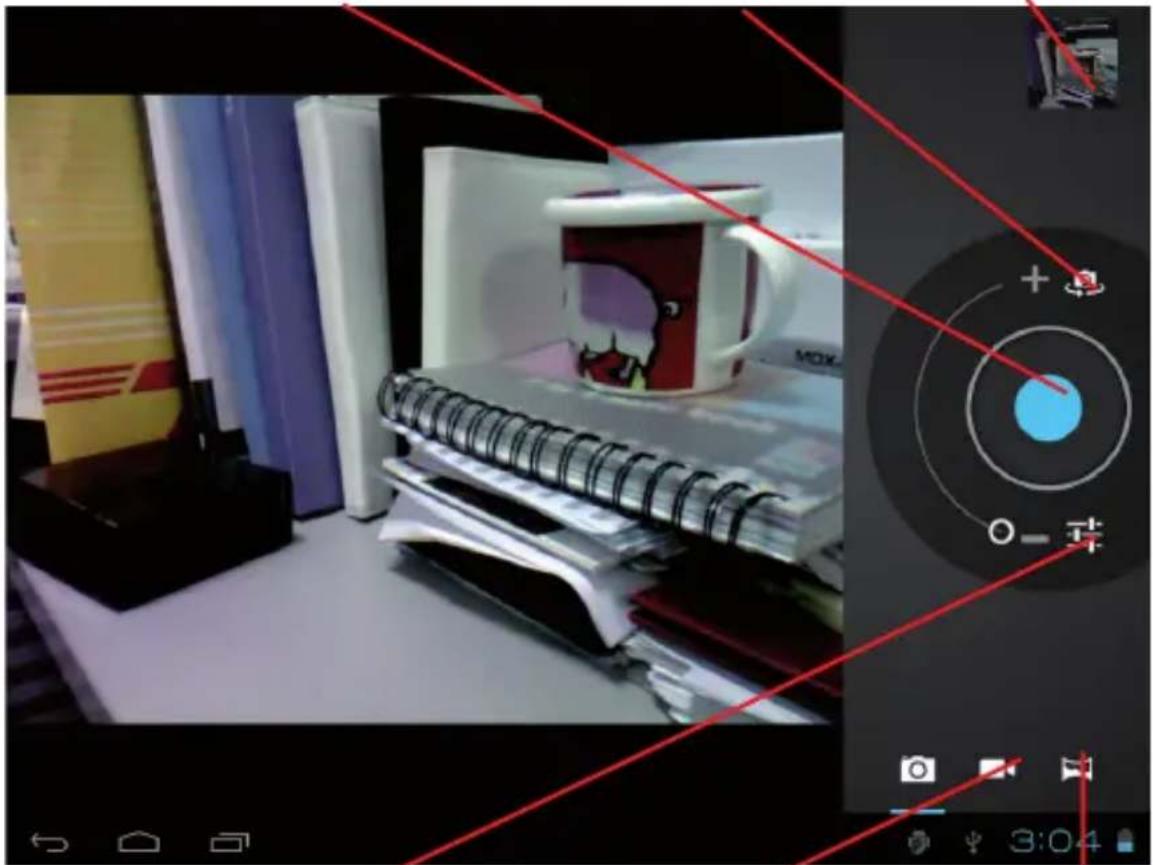
Tap the 📄 icon to open camera. You can take a photo, or a video both by front camera and rear camera.
Note: After you power on your tablet, you can go to camera directly by drag the lock to left.
Tab to take a photo
To select Front/ back camera
To view photos
natural_image
Interior scene with a coffee mug, notebook, and filing cabinet (no visible text or symbols)Set white balance, Scene mode, etc.
Change to video-taking Interface
Pan-shot
5.5 HDMI output
a. Tap 'Video player' or other video players and play a required movie.
b. Adjust your TV set and select "HDMI" output
c. Connect the tablet to your TV via HDMI cable, and wait for a few seconds for your TV set to receive signal.
You can also operate on your tablet while HDMI connected.
VI. Settings
Tap the "Settings" icon 📋 to go to settings.
You can check and set wireless&networks, sound, display, storage, Battery, Accounts &sync, security, language, date&time, about tablet, etc.
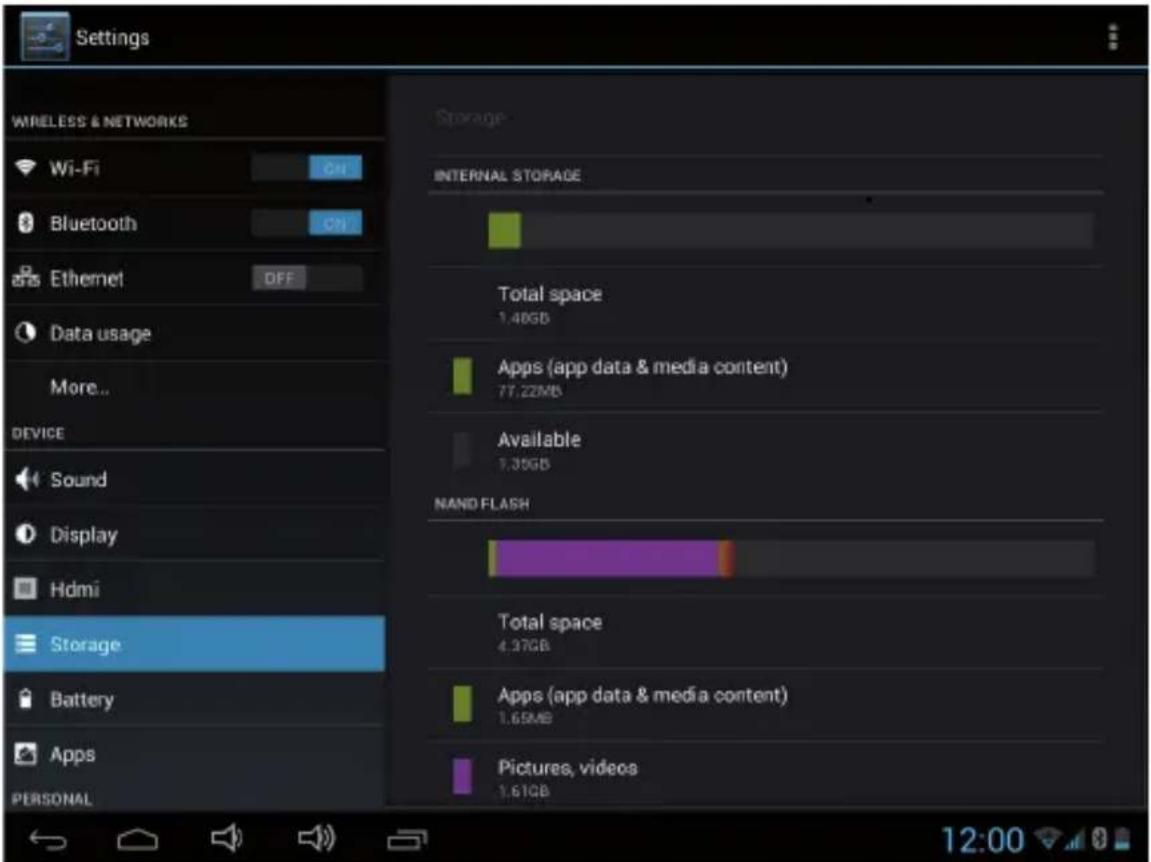
Wi-Fi: tap "Settings" → "Wireless & networks" to turn on wifi and scan. It will show a list of Wi-Fi networks scanned in range. Choose a strong Wi-Fi network to connect. (You may need to input the password).
Display: To set Brightness, Wallpaper, Sleep time-out, Font size here.
Storage: Check internal storage here. If you insert a Micro SD card, or USB disk, you can check the total and available space for your Micro SD card or USB disk. Please unmount it to safely remove it.
Battery: Check the Battery status here.
Display: Tab "Settings" → "Display" to set brightness, screen time-out, etc.
Language & input: to set language and keyboard input.
Backup & reset: to go to submenu "back up my data" and "Factory data reset". If you choose factory data reset, all data from your tablet's internal storage will be erased. Choose this option carefully.
About Tablet: To check information about your tablet, such as Model number, android version, etc.
VII. Battery
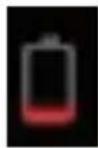
Very Low Battery
Full Battery
Charging Battery
indicates that the power of Battery is full. When the battery level becomes too low, a prompt comes up to note you to charge your tablet.
While charging, you can check the charging status in the lock screen:
4:21
Tue, January 18
Charging, 36%
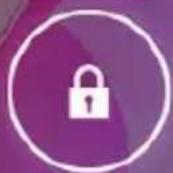
It takes around 5 hours to charge your tablet to full battery. Please only use a power adapter included in the gift box to charge it.
Troubleshooting
Can not turn on the tablet
Check the tablet's power level; please charge it before starting it. In case your tablet still cannot be turned on, you may try to reset it
No sound from earphone
Check if volume is set to "0". Or earphone may be broken, please change for another one.
Big noise
Check if there is dust in the earphone or speaker. Check if the file is broken.
Screen drift or unresponsive screen
To pin the reset button to reset your tablet and power it on again.
Application not workable
Possible reasons may be that this app is not compatible with your OS or the downloaded .apk file is broken so you may need to download a full version.
How delete a Google account?
If an account is added, the account is shown in "Accounts & sync" of "Settings", where you may also add another account. To delete an undesired account, go to "Settings" → "Privacy settings" → "Factory data reset". Your tablet's internal storage, downloaded apps, etc. will also be deleted, except the info in your flash memory. Be careful before you carry out this operation.
freetcb ^7.4 IPS x y

Powitanie
Environment protection:
This symbol on our product nameplates proves its compatibility with the EU Directive 2002/96 concerning proper disposal of waste electric and electronic equipment (WEEE). By using the appropriate disposal systems you prevent the potential negative consequences of wrong product take-back that can pose risks to the environment and human health. The symbol indicates that this product must not be disposed of with your other waste. You must hand it over to a designated collection point for the recycling of electrical and electronic equipment waste. The disposal of the product should obey all the specific Community waste management legislations. Contact your local city office, your waste disposal service or the place of purchase for more information on the collection. Weight of the device: 280 g
Referring to directives: 1999/5/EC, 2006/95/EC, 2004/108/EC, 2009/125/EC
MODECOM S.A. declares under its own responsibility, that product (tablet with power adapter): MODECOM, tablet model: FreeTAB 7.4 IPS X4, power adapter model:
KA3E0502000 to which this declaration relates is in conformity with the provisions of the following directives:
- 1999/5/EC - Radio equipment and Telecommunications Terminal Equipment (R&TTE) Directive
- 2006/95/EC - Lov Voltage Directive
- 2004/108/EC - Electromagnetic Compatibility Directive
- 2009/125/EC - Energy-related Products Directive (ErP)
and comply with the harmonized standards listed below:
ETSI EN 301 489-1 V1.9.2:2011 (PN-ETSI EN 301 489-1 V1.9.2:2012)
ETSI EN 301 489-17 V2.1.1:2009 (PN-ETSI EN 301 489-17 V2.1.1:2011)
ETSI EN 300 328 V1.7.1:2006 (PN-ETSI EN 300 328 V1.7.1:2007)
EN 60950-1:2006+A11:2009+A1:2010+A12:2011
(PN-EN 60950-1:2007+A11:2009+A1:2011+A12:2011)
EN 62479:2010 (PN-EN 62479:2013)
EN 55022:2010 (PN-EN 55022:2011)
EN 61000-3-2:2006+A1:2009+A2:2009 (PN-EN 61000-3-2:2007+A1:2010+A2:2010)
EN 61000-3-3:2008 (PN-EN 61000-3-3:2011)
EN 55024:2010 (PN-EN 55024:2011)
and the standards and technical specifications:
Commission Regulation (EC) No 278/2009
The last two digits of the year in which the C E marking: 13
Jakub Skibinski
Oitarzew 4.11.2013

Product Manager
Nr. mach. PUN: 30 1240 8074 1111 0010 3399 1477 Bank PEKAO S.A. Nr. nach. USO: 98 1240 8074 1787 0010 3399 5166 Bank PEKAO S.A. Nr. mach. EUR: 30 1240 8074 1978 0010 3399 5299 Bank PEKAO S.A. NP: 113-21-15-953, R6GOW: 014833904, Kapital Zekledowy: 11 802 840,00 st. KRS: 6000323967 – Spt Rejorowy dla m st. Warszawy w Warszowie, XIV Wydiel Ganpodarczy Krajwego Rejestru Sptolnego.
MODECOM S.A.
- freetcb 7.4 IPSX4
- user's manual
- MODECOM
- Contents:
- Getting Started 6
- Your Home Screen 7
- Network Connection 9
- Internet Browsing 12
- Multimedia Functions 13
- Settings 17
- Troubleshooting 19
- Spis treści:
- Important Notices
- Getting Started
- Turn on/off
- Turn on
- Turn off
- Lock/unlock the screen (sleep mode)
- Connect to computer
- Your Home Screen
- Change wallpaper for home screen:
- Add/delete applications on home screen:
- Add widgets to home screen:
- Network Connection
- Wi-Fi
- Turn on Wi-Fi
- Turn off Wi-Fi
- Add a Wi-Fi network
- Bluetooth
- Make device discoverable
- Scan for devices
- Pair with the Bluetooth device
- 3G Network
- Internet Browsing
- Internet Browsing
- Multimedia Functions
- Music
- Video
- Gallery
- Camera
- HDMI output
- Settings
- Battery
- Troubleshooting
- Can not turn on the tablet
- No sound from earphone
- Big noise
- Screen drift or unresponsive screen
- Application not workable
- How delete a Google account?
- freetcb 7.4 IPS x y
- Powitanie
- Environment protection:
Brand : ModeCom
Model : FreeTAB 7.4 IPS X4
Category : Tablet