
G450x4 MMS - Video card MATROX - Free user manual and instructions
Find the device manual for free G450x4 MMS MATROX in PDF.


| Product Type | Video Card |
| Brand | Matrox |
| Model | G450x4 MMS |
| Form Factor | PCI / AGP 4x |
| Interface | AGP 4x (compatible with 2x) |
| Memory | 32 MB SGRAM |
| Video Outputs | 4x DVI-I (analog & digital) |
| Maximum Resolution per Display | 2048 x 1536 at 60 Hz |
| Supported Operating Systems | Windows 98, 2000, XP |
| Dimensions (L x H) | 6.6 x 3.5 inches (168 x 89 mm) |
| Weight | 100 g (3.5 oz) |
| Power Consumption | 10 W (typical) |
| Cooling | Passive heatsink |
| Key Features | Quad monitor support, hardware acceleration, DVD playback |
| Maintenance & Cleaning | Use a soft dry cloth. Do not use liquids or abrasive cleaners. |
| Safety Precautions | Disconnect power before installation. Handle by edges to avoid static discharge. |
| Spare Parts & Repairability | No user-serviceable parts. Contact authorized service center for repairs. |
| General Information | Designed for multi-monitor setups in professional environments. |
Frequently Asked Questions - G450x4 MMS MATROX
User questions about G450x4 MMS MATROX
0 question about this device. Answer the ones you know or ask your own.
Ask a new question about this device
Download the instructions for your Video card in PDF format for free! Find your manual G450x4 MMS - MATROX and take your electronic device back in hand. On this page are published all the documents necessary for the use of your device. G450x4 MMS by MATROX.
USER MANUAL G450x4 MMS MATROX
natural_image
Illustration of a computer motherboard with a GPU and CPU socket, no text or symbols presentGraphics Solutions for Professionals
Matrox G450 MMS
User Guide
10807-301-0220
2007.02.02
Overview
Thank you for purchasing a G450 MMS (Multi-Monitor Series) graphics card. Your Matrox MMS card is a high-performance graphics card that plugs into an expansion slot inside your personal computer. With this card, you can use 2 or 4 computer monitors or TVs at a time.
Hardware supplied
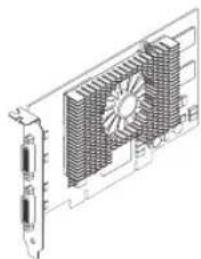
natural_image
Technical line drawing of a computer heat sink with cooling fan and ventilation slots (no text or symbols)G450 MMS card
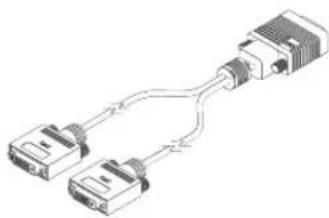
natural_image
Diagram of two connected D-subscribers via a cable (no text or labels)Dual-monitor cable
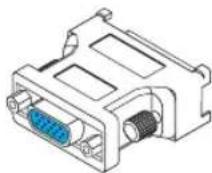
DVI-to-HD15 adapters‡
* Pictured is a G450×4 MMS card.
† 2 dual-monitor cables are included with Matrox MMS×4 products.
‡ 2 DVI-to-HD15 adapters are included for each dual-monitor cable.
Software supplied (for Windows 2000/XP and NT 4.0)
■ Matrox PowerDesk – to use your Matrox graphics hardware
■ Other software – see the CD-ROM Readme file
Installation overview

Note: If your Matrox product is already partially or fully installed on your computer, some or all the installation information in this guide may not apply to you. However, this information may be useful if you need to reinstall your Matrox product.
To install your Matrox product:
1 Install the Matrox card – see "Hardware installation", page 3.
2 Install the software – see "Software installation", page 8.
Hardware installation
This section describes how to install your Matrox card. For information specific to your computer, like how to remove its cover, see your system manual.

WARNING: To avoid personal injury, turn off your computer, unplug it, and then wait for it to cool before you touch any of its internal parts.
While your computer is turned off but still plugged in, some electrical current is supplied to the motherboard. This current may prevent newly installed hardware from working properly.
Also, static electricity can severely damage electronic parts. Before touching any electronic parts, drain static electricity from your body (for example, by touching the metal frame of your computer). When handling a card, carefully hold it by its edges and avoid touching its circuitry.
1 Switch to the standard VGA display driver
If you're running Windows 2000/XP on your computer, this step isn't necessary.
If you're using another operating system (for example, Windows NT 4.0), see its documentation for how to switch to VGA mode.
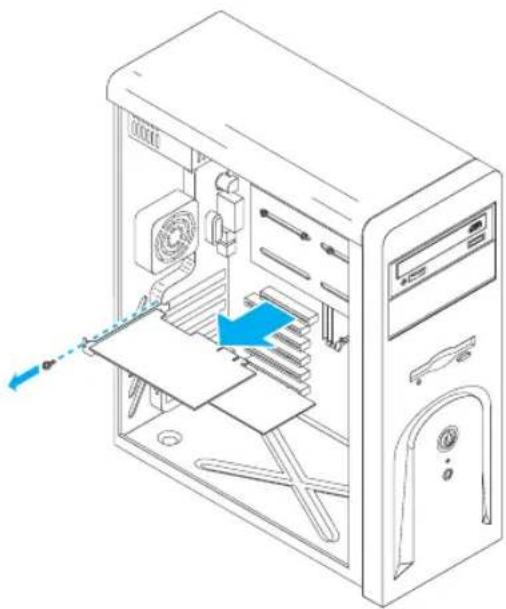
2 Open your computer and remove your existing graphics card\*
If a graphics card isn't already installed in your computer, skip to step 3.
a Using Add/Remove Programs in the Windows Control Panel, remove any currently installed display drivers. Restart your computer for the changes to take effect.
After your computer restarts, you're prompted to install drivers for the new graphics hardware detected. Click Cancel.
natural_image
Isometric line drawing of a computer tower internal structure with ventilation ducts and fan (no text or symbols)b Turn off your computer and all peripherals such as your monitor or printer.
c Open the computer and remove your existing graphics card. (If graphics hardware is built into the motherboard of your computer, you may need to disable it manually. For more information, see your system manual.)
3 Choose a PCI slot
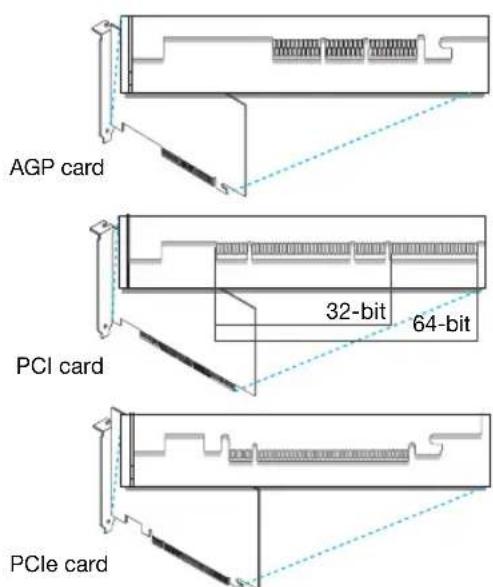
Most computers have different types of expansion slots. Choose a PCI (not PCI Express) slot for your graphics card. Your card supports both 64-bit and 32-bit PCI slots. Your system manual should identify the location of each type of expansion slot in your computer.)
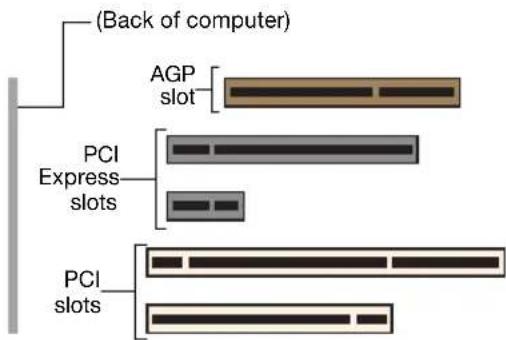

Note: If you're using a PCI graphics card in a PCI 64-bit compatible slot, your choice of PCI slot may affect your card or system performance. For more information, see your computer manual.

WARNING Inserting your Matrox card into the wrong type of slot could damage your card, your computer, or both.
If you're using a 64-bit PCI slot, your card's edge connector should be inserted into only part of the PCI slot (the part closest to the back of the computer).
4 Insert your Matrox card
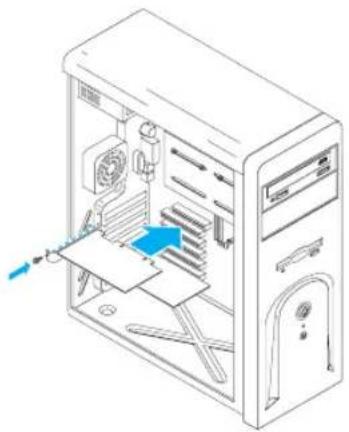
a Position your Matrox card over the expansion slot you've chosen.
b Push the card in firmly and evenly until it's fully seated in the slot.
c Secure the bracket of your Matrox card to the computer frame.
natural_image
Isometric line drawing of a desktop computer tower with visible internal components and a blue arrow indicating a component (no text or symbols)Connection setup
This section describes how to connect computer monitors to your Matrox product.

Note: Windows 2000/XP – If you want to use TV output with your Matrox product, you first need to connect at least one (1) computer monitor to be able to install the display driver. After the display driver is installed with TV output support, you can connect your dual-TV-output cables. For more information, see “TV output” in the online version of this guide.
1 Connect your dual-monitor cables
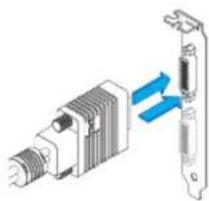
Attach your Matrox dual-monitor cables to the connectors on the bracket of your Matrox MMS card. Make sure the connectors are firmly in place.
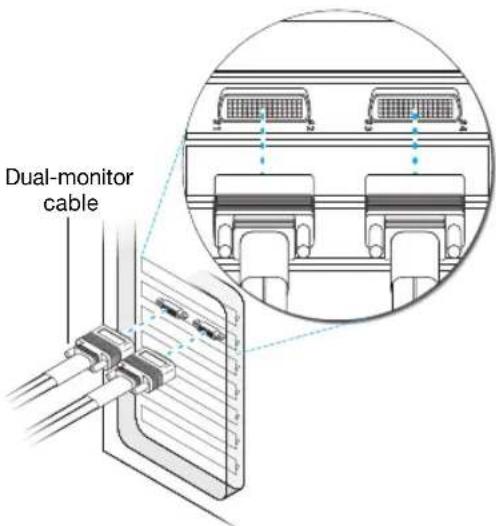

WARNING: To avoid damaging the LFH-60 connector on your dual-monitor cable or on your graphics card, carefully insert the connector on your dual-monitor cable as straight as possible into the connector on your graphics card. Specifically, inserting the connectors into each other at an angle is likely to bend and damage the pins on the connector of the dual-monitor cable.
natural_image
Diagram of a mechanical device with blue arrows indicating flow or connection (no text or symbols)2 Connect your monitors
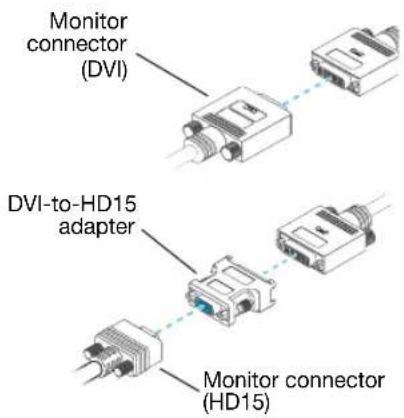
Connect your preferred monitor to the main DVI connector of your multi-monitor cable.
If your monitor has a DVI connector, connect it directly to the main DVI connector of your multi-monitor cable.
If your monitor has an HD-15 connector, use the DVI-to-HD15 adapter included with your product to connect your monitor to the main connector. Make sure the connectors are properly fastened.
Your Matrox card is now installed. Restart your computer and install your Matrox software (see "Software installation", page 8).
i
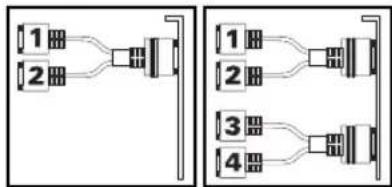
Note: Monitors are numbered consecutively based on which connector each is attached to. Numbering starts with the primary display – the one that first displays information when you restart your computer. If another graphics card is installed in your computer, display numbering may be different.
flowchart
graph TD
    A["1"] --> B["2"]
    B --> C["3"]
    C --> D["4"]
i
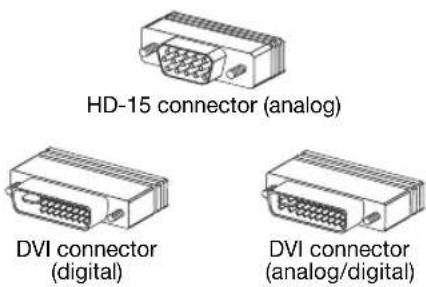
Note: To connect a digital monitor (a monitor that uses digital input, usually a flat panel monitor) to your Matrox product, your monitor must have a DVI connector.
Some monitors with DVI connectors support both digital and analog input. If you're using one of these monitors with your Matrox product, make sure it's configured to use the correct type of input. For more information, see your monitor documentation.
Software installation

Note: This guide has references that are specific to the Matrox installation CD-ROM. If your Matrox product wasn't packaged by Matrox (for example, if it was included with your computer), your product may not include this CD-ROM.
If you don't have this CD-ROM, certain references in this guide may not reflect the software you have. For more information, see other software documentation provided by your system vendor.

This section describes how to install Matrox software for Windows 2000/XP or NT 4.0.
You may need administrator rights to install certain software. For more information, see Windows documentation.
natural_image
Illustration of a CD inside a folder with an arrow indicating rotation (no text or symbols)1 Install display driver
Windows detects new hardware when you restart. If Matrox display drivers haven't been previously installed, Windows prompts you to install a display driver. Follow the on-screen instructions. (The Matrox Windows 2000/XP display driver is in the Win2kXP folder of your Matrox installation CD-ROM.)
If you want to use TV output, you need to enable the feature when you install the display driver. For more information on TV output, see "TV output", page 14.
After the required display software is installed, you're prompted to restart your computer for changes to take effect.
2 Install optional software
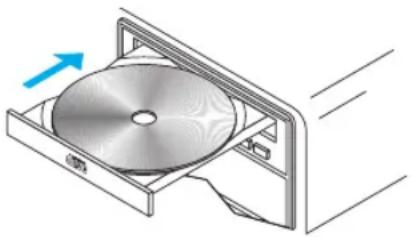
After your computer has restarted, insert (or reinsert) the Matrox installation CD-ROM in your CD-ROM drive – the setup program automatically starts.* The setup program shows you a list of additional items you can install. For each item you want to install, select a list item, click Install, then follow the on-screen instructions.
3 Set up your display software
See "Display setup", page 9.
Display setup

Windows 2000/XP or NT 4.0 – Your Matrox display driver includes Matrox PowerDesk software. This software helps you get the most out of your Matrox graphics card. This section has important information on how to configure your display settings using Matrox PowerDesk software.
Accessing PowerDesk property sheets
Many display controls are on Matrox PowerDesk property sheets. You can identify Matrox PowerDesk property sheets by the icon appearing on the tab. To access these property sheets:

Information
- Windows 2000/XP– Right-click your Windows desktop background, then click Properties → Settings → Advanced. If you're using a multi-display desktop, select a display before clickingAdvanced.
- Windows NT 4.0 - Click Start → Settings → Control Panel → Matrox Display Properties (double-click).
Also, to quickly access PowerDesk features, click the Matrox QuickDesk icon (on your Windows taskbar. To see the QuickDesk icon in Windows XP, you may need to click the Show hidden icons button (on your Windows taskbar.

Note: Multi-display mode is supported under Windows 2000/XP and NT 4.0. For more information on multi-display mode, see Windows 2000/XP online help under “Multiple Display support”.
Monitor setup
Before changing your display resolution, color palette, or other Matrox PowerDesk settings, make sure correct software monitor settings are selected. If you have a Plug-and-Play (DDC) monitor, correct settings are usually automatically selected. The following explains how to make sure your monitor settings are okay.

WARNING: If incorrect software monitor settings are applied, some monitors can be permanently damaged. For more information, see your monitor manual.
Windows 2000/XP- If you have a Plug-and-Play (DDC) monitor, Windows should automatically use correct settings for your monitor. To make sure the correct monitor is selected in Windows:
1 Right-click your Windows desktop background, then click Properties → Settings → Advanced → Monitor. If you're using a multi-display desktop (see "Multi-display setup", page 11), select a display before clicking Advanced.
2 If the monitor name listed doesn't match your monitor, clickProperties → Driver → Update driver. Follow the on-screen instructions.
3 If you're using a multi-display desktop (see "Multi-display setup", page 11), repeat steps 1–2 for each display in your Windows desktop.
For more information on Windows monitor settings, see Windows documentation.
If you want to customize your Windows monitor settings:
1 Access the PowerDesk Monitor Settings property sheet (see "Accessing PowerDesk property sheets", page 9).
2 Depending on what you want to do, click one of the buttons in theMonitor settings selection method box, then follow the on-screen instructions.
Windows NT 4.0 -
1 Access the PowerDesk Monitor property sheet (see "Accessing PowerDesk property sheets", page 9).
2 If you have a Plug-and-Play monitor:
Plug-and-Play (DDC) monitor
Make sure the Plug-and-Play (DDC) monitor button is selected. If so, the Matrox display driver automatically uses correct settings for your monitor. If not, click this button, then click Apply.
If you don't have a Plug-and-Play monitor:
Default monitor (60 Hz)
See if the Default monitor (60 Hz) button is selected. If so, use the Matrox monitor selection method. For more information on Matrox monitor selection, see Matrox PowerDesk online documentation.
3 If you're using a multi-display desktop (see "Multi-display setup", page 11), repeat steps 1–2 for each display in your Windows desktop.
Multi-display setup
To set up multi-display mode:
Windows 2000/XP- If multi-display mode isn't automatically enabled when you restart Windows:
1 Right-click your Windows desktop background, then click Properties → Settings.
2 Select the disabled display, enable the Extend my Windows desktop onto this monitor check box, then click Apply.
3 To change resolution and color settings for each display, select a display, then change the Screen area and Colors settings. When you're done, click OK
Windows NT 4.0 -
1 Access the PowerDesk Settings property sheet (see "Accessing PowerDesk property sheets", page 9).
2 Click Multi-Display Desktop( )
3 Move the Desktop area slider to adjust your multi-display desktop, then click OK to accept your changes.

Note: In multi-display mode under Windows NT 4.0, the same display settings (resolution and color palette) are used for each display.
Advanced multi-display setup
Windows 2000/XP- Use Matrox Hybrid Display to configure advanced display settings. With this software, you can:
■ Combine 2 or more individual displays into a single Windows display. (AWindows display is a display that Windows recognizes and that can be adjusted with Windows controls.)
■ View a clone(copy) of a Windows display on one or more other displays.
■ Use up to 16 displays at a time by combining or copying displays. To do this, you need more than one supported Matrox graphics card installed in your computer. (Without this software, the maximum number of independent displays you can use at a time with Windows 2000/XP is 10.)
■ Rotate one or more displays to support portrait orientation. (A portrait orientation is taller than wide.)
■ Change the display layout to reflect the physical layout of your monitors.
To set up an advanced multi-display desktop:
1 Click the Matrox QuickDesk icon (on your Windows taskbar, then click Matrox Hybrid Display. To see the QuickDesk icon in Windows XP, you may need to click the Show hidden icons button (on your Windows taskbar.
2 Select Enable an advanced multi-display setup, then click Next.
3 Select the maximum number of Windows displays you want to use. (Using only 1 Windows display for all your individual displays is also referred to as an NT-style multi-display setup.)
4 Select the first Undefined display, then click Display Setup.
5 Make sure each of the following controls are using the setting you want. Adjust them in this order:
a Number of clones
b Display layout
c Display rotation
d Display resolution
e Color palette
f Refresh rate
g Enlarge mouse pointer
6 Click OK.
7 Repeat steps 4 to 6 until there are no more Undefined or available displays. An Undefined display won't be used when Windows restarts.
8 Click Next.
9 Click Finish. For changes to take effect, your computer must be restarted.
For more information on specific controls, see context-sensitive help.

Note: You can position each Windows display through the Windows controls. To access these controls, right-click your Windows desktop background, then clickProperties → Settings.
More PowerDesk information
For more information on Matrox PowerDesk:
Windows 2000/XP or NT 4.0- For context-sensitive help where available, click the “?” icon in the title bar, then click the item you want help on. Right-click a help topic for a pop-up menu that lets you print or copy it. (Some help topics are only available through context-sensitive help.)
Windows 2000/XP- Access the PowerDesk Information property sheet (see "Accessing PowerDesk property sheets", page 9), then click Help or View Readme File.
Windows NT 4.0 -
■ Access the Matrox PowerDesk Information property sheet (see “Accessing PowerDesk property sheets”, page 9).
- Click the Matrox QuickDesk icon (on your Windows taskbar, then click Help → PowerDesk Guide or Help → View Readme File.
TV output
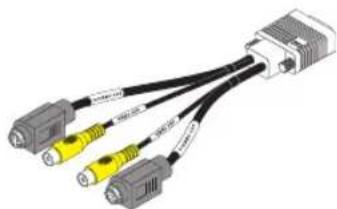
With your Matrox card, you can use dual-TV-output cables instead of dual-monitor cables. With dual-TV-output cables, you can view or record your displays with TVs or video recorders. While using TV output, all your displays use TV output settings. If you want to use this feature and dual-TV-output cables weren't included with your Matrox product, you can purchase them separately (see http://shopmatrox.com).
natural_image
Illustration of a USB cable connector with three connected ports (no text or symbols visible)Dual-TV-output cable
This section describes how to use the TV output feature.
i
Note: To use TV output, you need to enable the feature when you install the display driver for your Matrox product. If TV output isn't enabled, you need to reinstall the display driver and enable TV output. For more information, see "Connection setup", page 6 and "Software installation", page 8.
i
Note: TV output isn't supported with full-screen DOS display modes (for example, the information you see before Windows starts) or with standard VGA mode (for example, when you restart Windows in "safe mode"). Older programs may use these display modes. While one of these display modes is in use, your TV displays nothing (black).
i
Note: Certain software (especially software that depends on hardware-based graphics acceleration) may not work properly while TV output is used.
Connection setup
1 Turn off computer
W
Windows 2000/XP -To shut down your computer, click Start → Shut Down → Shut down → OK, then turn off your computer.
!
WARNING: Don't change monitor connections while your computer is turned on. While your computer is turned on, it may be using monitor settings that are specific to the current monitor connections.
If a display device (monitor, TV or video recorder) is connected while your computer is using settings intended for another display device, the display of the new device may be garbled or unusable. Some devices may be permanently damaged if incorrect settings are used.
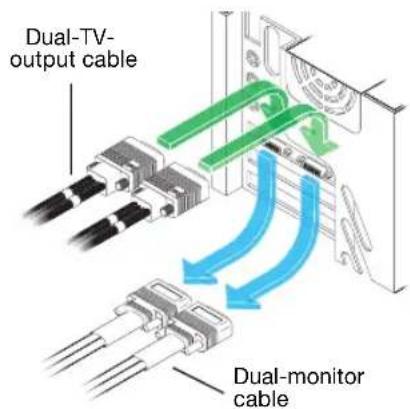
2 Replace your dual monitor cables
a Disconnect any computer monitor connected to your dual-monitor cables.
b Detach any dual-monitor cable from your Matrox card.
c Attach your dual-TV-output cables to your Matrox graphics card.*
3 Connect video output
To connect to a TV or a video recorder, you'll need a composite video (RCA) or S-video cable.
If your video device (a TV or a video recorder) didn't come with one of these cables, these types of cable are available at most electronics stores. The type of cable you use depends on what your video device supports. Many video devices support composite video connections, and some higher-quality video devices support S-video connections.
For each TV or video recorder, you want to connect to your Matrox product:
a Attach one end of your composite video or S-video cable to the appropriate connector on your dual-TV-output cable.
b Attach the other end to the VIDEO IN ^ connector on your TV ^ or video recorder.
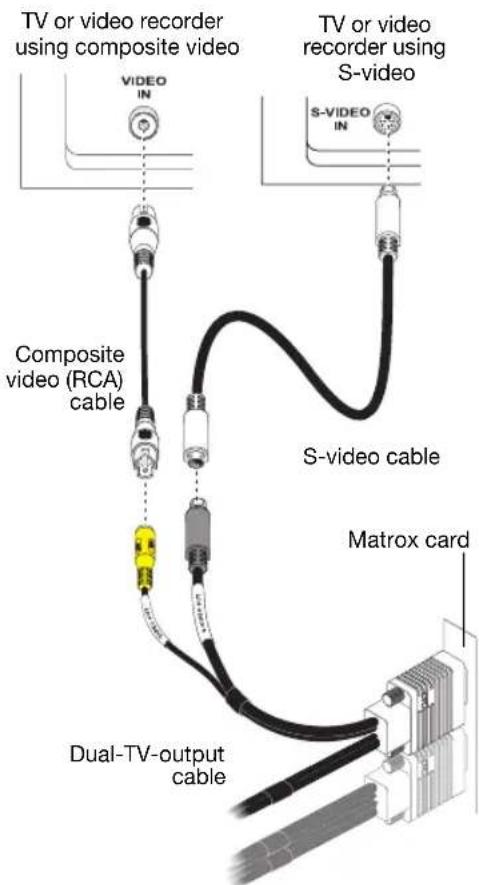
(Note: Using the Matrox composite video and S-video connectors at the same time is optional.)
Before viewing or recording video output directly from your computer, make sure your TV or video recorder is set up to use line input. For example, if your TV has a TV/VIDEO switch, set it to VIDEO; or if your video recorder has a TUNER/LINE switch, set it to LINE.
Optionally, if you use the composite video and S-video connectors on your Matrox TV adapter, you can directly connect two different video devices at the same time.
To view and record output from the same Matrox video connector, you can connect it to a video recorder and connect the video recorder to a TV. For more information, see your video recorder and TV manuals.
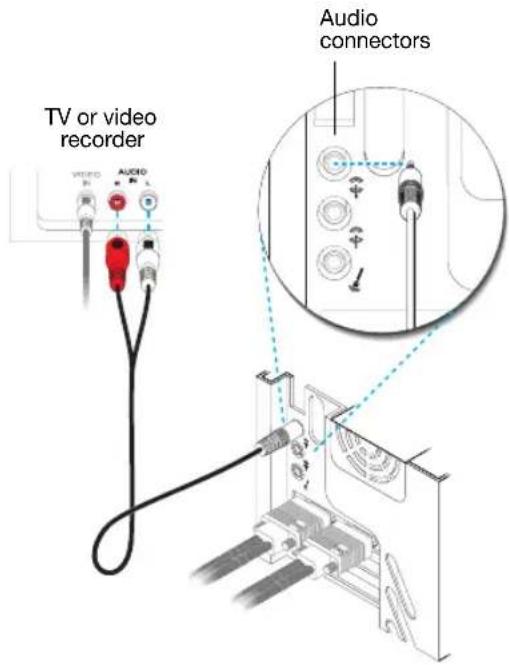
4 Connect audio output
Typically, the sound output from a computer comes from speakers connected to your sound card. If you prefer, you can hear or record the sound output from your computer using the same TV or video recorder you connect to your graphics card. To do this, you need an audio cable with a stereo jack on one end and two RCA connectors on the other end. If you don't have this type of cable, you can buy one at most consumer electronics stores.
a Plug the stereo-jack end of the audio cable into the LINE OUT ^* ( ) connector on your sound card.
b Plug the other end of the cable into the left (L) and right (R) AUDIO IN connectors of your video device. For more information, see your sound card manual.
Software setup
W
If a TV or video recorder is connected to your Matrox product, you can use TV output mode to view or record your display on your TV or video recorder. (To connect video devices to your computer, see page 14.)
TV settings have lower resolutions and refresh rates than typical computer monitor settings. Lower refresh rates may result in more noticeable flicker.
i
Note: Two TV standards are supported for TV output. The NTSC standard is used in North America and Japan, among other places. The PAL standard is used in most of Western Europe and in China, among other places.
If an incorrect TV standard is selected in Matrox software, the output from your computer may not appear or record properly on your TV or your video recorder. To find out what standard your TV or video recorder supports, see its documentation.
Windows 2000/XP – To adjust TV settings, access the Matrox PowerDesDualHead property sheet (see “Accessing PowerDesk property sheets”, page 9).
Troubleshooting
Basic procedures
This section explains basic procedures that are referred to by some troubleshooting items in this guide.

Restarting in VGA mode
What follows is information on how to restart your computer in VGA mode.
Windows 2000/XP or NT 4.0 –
1 Restart your computer:
- Windows 2000/XP – Click Start → Shut Down → Restart → OK* to restart your computer. (* Depending on your version and configuration of Windows, this part of the step may not be necessary.)
- Windows NT 4.0 - Click Start → Shut Down → Restart the computer → Yes.
If your primary monitor is unusable, see your system manual for information on how to restart your computer using a hardware control.
2 Windows 2000/XP- Before Windows starts, press [F8] for the Windows startup menu to appear. (If [F8] doesn't work, instead try pressing and holding [Ctrl] before Windows starts.)
3 Select "VGA mode", then press [Enter].
Main troubleshooting
This section addresses possible problems that could prevent you from using your computer.
Problem Computer doesn't display information or boot after Matrox card is installed
Cause Your Matrox card may not be properly installed.
Solution Make sure your Matrox card is properly installed. Specifically, make sure the card is firmly inserted in its expansion slot and that all connections to it are firmly in place. For more information, see “Hardware installation”, page 3.
| Cause | There may be an unsupported graphics adapter in your computer. (For Matroxmulti-display mode in Windows NT, all graphics cards in your computer must be Matrox cards supported by the display driver.) |
| Solution | If an unsupported graphics card is plugged into an expansion slot, remove it. |
| Solution | If a graphics adapter is built-in to your computer motherboard, your system may not have automatically disabled it when you inserted your Matrox card. Check your system manual for instructions on how to disable your computer’s built-in graphics adapter. |
| Cause | Your computer BIOS (Basic Input/Output System) may not be up to date. For more information on your computer BIOS, see your system manual. |
| Solution | Reinstall your previous graphics card and, if possible, update your computer BIOS. This can usually be done with software from the manufacturer of your computer. Contact your system vendor or manufacturer to get a BIOS update for your computer.To get the correct BIOS update, you may need to know the serial number your computer displays when it restarts. (This number is usually in the lower-left corner of the display.) |
Problem Wrong color balance, screen image off-center, or no picture at all
| Cause | Your monitor video controls may be improperly set. |
| Solution | Adjust your monitor controls (brightness, contrast, and so on). For more information, see your monitor manual. |
| Cause | Your monitor may not be properly connected. |
| Solution | Make sure your monitor is properly connected to the correct connector on your Matrox graphics card (see “Connect your dual-monitor cables”, page 6). |
| Solution | Make sure the monitor power cable is firmly in place. |
| Cause | If display problems occur after the startup screen of your operating system, your software monitor settings may be incorrect. |
| Solution | Make sure correct software monitor settings are selected. |
| W | If your primary display is still usable, see “Monitor setup”, page 9. Otherwise, see the next troubleshooting item. |
Problem After the startup screen, or after display settings are changed, the screen image is garbled or unusable
(blank screen, rolling or overlapping screen images)
Cause
Analog monitors only – The Matrox display driver may be trying to use settings your monitor doesn't support. This can happen if a monitor was never selected in the software and the display resolution was changed to one your monitor doesn't support, or if the monitor connected to your computer was changed without changing it in the software.

WARNING: If incorrect software monitor settings are applied, some monitors can be permanently damaged. For more information, see your monitor manual.
Solution
Make sure the correct monitor is selected in Windows.

Windows 2000/XP –
1 If your primary display is unusable, restart your computer in VGA mode (see “Restarting in VGA mode”, page 18).
2 Right-click your Windows desktop background, then click Properties → Settings.
3 Move the Screen area (Windows 2000) or Screen resolution (Windows XP) slider down to its lowest setting, then click OK.
4 Restart your computer normally.
5 Make sure the correct monitor is selected in Windows (see "Monitor setup", page 9).
6 Make sure you're not using inappropriate monitor setting customizations: Access the PowerDesk Monitor Settings property sheet (see "Accessing PowerDesk property sheets", page 9), then click Delete all customizations.
7 If necessary, restore your original display settings (see steps 2 and 3).

Note: In multi-display mode, each display has its own monitor settings (refresh rates). Make sure correct software monitor settings are selected for each monitor.
Windows NT 4.0 -
1 If your primary display is unusable, restart your computer in VGA mode (see “Restarting in VGA mode”, page 18).
2 Right-click your Windows desktop background, then click Properties → Settings. Windows may prompt you that the display settings are incorrect for the current mode; click OK to continue.
3 Move the Desktop area slider down to its lowest setting, then click OK.
4 Restart your computer normally.
5 With the Matrox PowerDeskMonitor property sheet, select monitor settings for each display, then adjust your display settings. For more information, see the Matrox PowerDesk online documentation.
6 If necessary, restore your original display settings (see steps 2 and 3).
Cause Files on your system may have been deleted or corrupted.
Solution Remove, then restore Matrox software:

Note: Before removing software, make sure you have all the necessary files to reinstall software that may still be needed. Also, make sure the display driver you reinstall supports all Matrox products in your computer.
Windows 2000/XP or NT 4.0 -
1 If your primary display is currently unusable, restart your computer in safe mode or VGA mode (see “Restarting in VGA mode”, page 18).
2 There are two display driver versions available for your Matrox G450 MMS series board. To remove Matrox software:
Windows 2000/XP(PowerDesk 5.x) –
Click Start → Settings* → Control Panel → Add/Remove Programs (double-click*) → Matrox Graphics Software (remove only) → Change/Remove → Yes.
(* Depending on your version and configuration of Windows, this part of the step may not be necessary.)
Windows 2000/XP(PowerDesk-SE 2.x)
a Click Start → Settings* → Control Panel → Add/Remove Programs (double-click*) → Matrox Graphics Software (remove only) → Change/Remove → Yes. (* Depending on your version and configuration of Windows, this part of the step may not be necessary.)
b Click No if you're asked to restart your computer.
c Click Matrox PowerDesk-SE → Change/Remove → Yes.
Windows NT 4.0 (PowerDesk 5.x) – Click Settings → Control Panel → Add/Remove Programs (double-click) → Install/Uninstall → Matrox Graphics Software (remove only) → Add/Remove → Yes.
3 Restart your computer.
4 After removing Matrox software, install the latest display driver for your Matrox graphics card. You may also need to reinstall other Matrox software.

Note: Windows 2000/XP– You may need administrator rights to remove certain software. For more information, see Windows documentation.
More information
We provide additional information in help files.

Note: Be sure to check for any last-minute release notes at the end of this manual and in the Matrox CD-ROMReadme file. Also, check the Matrox Web site (www.matrox.com/graphics) for the latest Matrox software, technical support, and product information.
Extra troubleshooting
Graphics
The following troubleshooting items address problems related to graphics cards.
Problem Can't use Windows, Windows reports a configuration error, and/or can't install or uninstall display driver

Note: Windows 2000/XP or NT 4.0 – You may need administrator rights to install certain software. For more information, see Windows documentation.
Cause
The problem may be specific to the motherboard in your computer.
Solution
There may be a software update available for your motherboard. To find out what motherboard model your computer is using, see your system manual. For more information, contact the maker of your motherboard or computer. Many motherboard or computer manufacturers have software updates available on their Web site.
Cause
Files on your system may have been deleted or corrupted.
Solution
Remove, then restore Matrox software. For more information, see page 21.
Problem Monitor settings aren't automatically detected

WARNING: If incorrect software monitor settings are used, your display may become unusable and some monitors can be permanently damaged. For more information, see your monitor manual.
i
Note: To check if your monitor settings are properly selected:
1 Windows 2000/XP- Right-click your Windows desktop background, then click Properties → Settings → Advanced → Monitor. If you're using multi-display mode, select a display before clicking Advanced.
Windows NT 4.0 – Access the Matrox PowerDesk Monitor property sheet (see "Accessing PowerDesk property sheets", page 9). If you're using multi-display mode, select a display number.
2 If you see the name of your monitor or "Plug-and-Play", your monitor settings are properly selected.
If you see the wrong monitor name or Default monitor, your monitor settings aren't properly selected.
Cause
Your monitor may not be Plug-and-Play. Most new monitors are Plug-and-Play but many older ones aren't. Software can't automatically detect settings for monitors that aren't Plug-and-Play.
Solution
Manually select your monitor settings in the software. For Windows 2000/XP or NT 4.0, see "Monitor setup", page 9.
Cause
If a monitor was changed or added while Windows was running, the new monitor may not be detected by the software.
Solution
Restart your computer. If your monitor is a Plug-and-Play (DDC) monitor, it should be automatically detected by the software.
Problem Built-in network card doesn't work after multi-monitor graphics card is installed
Cause
The installation of a multi-monitor graphics card may have caused your computer to reallocate system resources.
Solution
Try reinstalling your network drivers.
Solution
Try moving your Matrox multi-monitor graphics card to another PCI slot in your computer.
Cause
You may have Service Pack 2 for Windows XP installed on a PCIe system.
Solution
You may need Hotfix KB890463 for Windows XP. For more information or to obtain this Hotfix, contact the Microsoft support center.
Problem 3D and video programs don't work
Cause
Your computer or program may not work well with bus mastering.
Solution
Disable bus mastering:
(If you want to continue using bus mastering, see the other solutions.)
Windows 2000/XP –
1 Access the Matrox PowerDesk Options property sheet (see "Accessing PowerDesk property sheets", page 9).
2 Clear the Use bus mastering check box.
3 Click OK → OK → Yes to accept the changes.
Windows NT 4.0 –
1 Click Start → Settings → Control Panel → Matrox Display Properties → Performance.
2 Clear the Use bus mastering check box.
3 Click OK → Yes to accept the changes and restart your computer.
Cause
Your Matrox card may be in a “slave” expansion slot on a computer that makes a distinction between bus mastering and slave slots.
Solution
Change slots – Shut down your computer, disconnect it from the power supply, remove your Matrox card and then insert it into a different PCI expansion slot. For instructions on how to safely install your Matrox card, see “Hardware installation”, page 3.
Cause
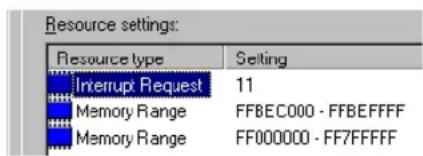
Your computer may not have given an IRQ (interrupt request) to your Matrox graphics card or may have given one used by another device in your computer. This may be because your computer's “Plug-and-Play” feature is turned off.
W
Windows 2000/XP- To check the display adapter's IRQ:
1 Click Start → Settings* → Control Panel → Performance and Maintenance* → System (double-click*) → Hardware → Device Manager. (* Depending on your version and configuration of Windows, this part of the step may not be necessary.)
2 Click the plus sign to the left of the Display adapters. An "X" through an icon means the hardware has been disabled. A circled exclamation point through the icon means the hardware has a problem.
3 Double-click the name of your Matrox display adapter to open a properties dialog box. The type of problem is displayed in the General tab → Device status area. Check also the Resources tab → Resource settings list for an Interrupt Request.
Solution Change settings in your computer BIOS setup utility.
If your computer has the options of enabling Plug-and-Play detection, or assigning an IRQ to a VGA adapter, make sure they're enabled. If your computer doesn't have these options, you may be able to manually assign an IRQ to your graphics card using the BIOS setup utility.
For more information on the BIOS setup utility of your computer, see your system manual or contact your system manufacturer.
Cause Your computer's other BIOS settings may be incorrect.
Solution Reset your computer BIOS settings to the factory defaults using your computer's built-in BIOS setup utility. The factory defaults are usually the “safest” settings. Check your system manual for more information.
Problem After game for Windows 2000/XP starts, monitor doesn't display properly
(blank screen, rolling or overlapping screen images)
Cause If your game uses a low-resolution (640 × 480 and below), full-screen display mode, your monitor may not support the refresh rate the Matrox driver is using.
Solution If the game is still running in full-screen mode and your monitor is unusable, exit the game. To do this, press [Alt]+[Tab] once, right-click the name of the game on the Windows taskbar, then click Close.
Make sure the correct monitor is selected in Windows (see "Monitor setup", page 9).
Solution PowerDesk 5.x – Make sure your Matrox monitor settings are correct:
1 If the game is still running in full-screen mode and your monitor is unusable, exit the game. To do this, press [Alt]+[Tab] once, right-click the name of the game on the Windows taskbar, then click Close.
2 Access the Matrox PowerDesk Monitor Settings property sheet (see “Accessing PowerDesk property sheets”, page 9).
3 Click Select customizations from the Matrox list.
4 From the Matrox monitor list, select the monitor model you're using. If your monitor model doesn't appear in the list, select a monitor that runs at 60 Hz at 640 × 480 (for example, Standard Monitor Types → Vesa 1024X768 @60Hz → Next). Follow the on-screen instructions to complete the selection.
Problem Using multiple displays under Windows 2000/XP or NT 4.0, program doesn't work with main graphics card
Cause
Your main graphics card may not be controlling your primary display. The graphics card that controls your primary display is the one that first displays information when you restart your computer.
A program that doesn't recognize multiple displays may not work with a graphics card unless it's controlling your primary display.
Your computer BIOS (Basic Input/Output System) and the slot type (AGP, PCI, or PCIe – see “Choose a PCI slot”, page 4) of each graphics card help determine which graphics card controls your primary display.
Solution
If you're having problems with a program that can be moved on your Windows desktop, run this program on your primary display. Make sure the program window doesn't overlap any other display. If the program doesn't work with the graphics card controlling your primary display, or you want your main graphics card to control your primary display, see the other solutions.
Solution
Change the configuration of your computer BIOS so that the slot type of your main graphics card has priority for becoming the primary display. For information on how to change your computer BIOS settings, see your system manual.
If your computer BIOS doesn't let you select which slot type has priority for becoming the primary display, a BIOS update may be available to let you do this. (The BIOS of most computers can be updated with software.) For a possible BIOS update for your computer, contact your system vendor.
Solution
If there's a graphics controller built into the motherboard of your computer, by changing your computer BIOS settings, you may be able to change which device controls your primary display. For more information, see your system manual.
Solution
If you don't need to use the graphics card that's controlling your primary display, remove it from your computer. If your primary display is controlled by the motherboard of your computer, see your system manual for information on how to disable this graphics controller.
Cause
The program you're using may not work properly with systems using more than one display at a time.
Solution
An update may be available for the program you're using. This update may fix problems this program has with multi-display systems. For more information, contact the software distributor for the program you're using.
Solution

Windows 2000/XP- For advanced users - To use a program that doesn't support multi-display systems, you can disable all displays other than your primary display:
1 Restart your computer in "VGA" mode (see "Restarting in VGA mode", page 18).
2 Click Start → Settings* → Control Panel → Performance and Maintenance* → System (double-click*) → Hardware → Device Manager. (* Depending on your version and configuration of Windows, this part of the step may not be necessary.)
3 Click the plus sign to the left of the Display adapters.
4 For each display adapter, except for the one controlling your primary display, right-click the name of a display adapter, then click Disable → Yes.

Note: Your primary display can't be disabled.
5 Restart your computer for changes to take effect.

Note: To restore display adapters, repeat steps 2–5, but click Enable in step 4.
Problem Not all graphics cards in the computer are fully supported

(Software doesn't work with a certain graphics card, or another graphics card doesn't work at all)
Cause
If you have different models of graphics cards in your computer, your Matrox display driver may not support all the graphics cards in your computer.
Under Windows 2000/XP, a display driver may support one or more graphics cards. If a display driver doesn't support a certain card, a different display driver must be used for that card. Software that depends on a certain display driver may not work with a graphics card that's not using the same display driver.
Under Windows NT 4.0, only one display driver at a time may be used. To use more than one graphics card, the display driver must support all the graphics cards installed. If an unsupported graphics card is installed in your computer, that card either isn't used or your computer restarts in VGA mode (single-display, 640 × 480 resolution, 16 colors).
Solution
Install the latest unified display driver for your Matrox graphics cards. (Aunified display driver supports more than one model of graphics card.) This driver is available on the Matrox Technical Support Web site (www.matrox.com/graphics/support). Make sure that the display driver supports all Matrox products in your computer. Install the display driver by running the setup program included with it.

Note: If your Matrox product was provided by the manufacturer of your computer, check the Web site of that manufacturer for the latest display driver. A display driver provided by the manufacturer of your computer is more likely to be tested with your computer model.

Note: A unified Matrox display driver may not be available for all the models of Matrox graphics cards installed in your computer (especially for older models). Under Windows 2000/XP, you can use more than one display driver in this case.
Solution
If a graphics card isn't supported, you may need to remove it. If there's a graphics processor built into the motherboard of your computer that's not supported by your software, see your system manual for information on how to disable this graphics processor.
Cause
Windows 2000/XP – If the Windows method for display driver installation was used (instead of running the setup program included with your Matrox display driver), the driver may not be installed for all the graphics cards it supports.
Solution
Run the setup program included with the Matrox display driver. The setup program automatically installs the display driver for each Matrox graphics card it supports.
Problem In multi-display mode, displays aren't numbered consecutively W
Cause
If you have more than one graphics card in your computer, the display numbering may not be consecutive for the displays of a multiple-display card. Display numbering depends on the types

of expansion slots used in your computer (AGP and PCI) and the BIOS settings of your computer.
Solution
Windows 2000/XP- Move the displays in Windows.
1 Right-click your Windows desktop background, then click Properties → Settings.
2 Select a display and move it according to the physical position of the monitor it's associated with.

Note: In multi-display mode for Windows NT 4.0, you have limited control over the arrangement of your displays. For more information, see Matrox PowerDesk documentation.
Problem Screen image defects appear, program doesn't run properly, or Windows doesn't work properly
(example: mouse pointer not drawn properly)
Cause
Some programs may not work properly with some Matrox acceleration.
Solution
Disable specific types of software acceleration:
Windows 2000/XP (PowerDesk 5.x) –
1 Access the Matrox PowerDesk Options property sheet (see “Accessing PowerDesk property sheets”, page 9).
2 Clear one or more check boxes, starting with Use device bitmaps caching. For more information, see context-sensitive help.
3 Click OK → Close to accept the changes. (Depending on the feature you disabled, you may have to restart your computer for the changes to take effect.)
Windows NT 4.0 -
1 Access the Matrox PowerDesk Performance property sheet (see “Accessing PowerDesk property sheets”, page 9).
2 Clear one or more check boxes. For more information, see context-sensitive help.
3 Click OK → Yes to accept the changes. (Depending on the feature you disabled, you may have to restart your computer for the changes to take effect.)
Solution
Disable Windows effects:
Windows 2000 –
1 Right-click your Windows desktop background, then click Properties → Effects.
2 Disable one or more features under Visual effects.
Windows XP –
1 Right-click your Windows desktop background, then click Properties → Appearance → Effects.
2 Disable one or more features.
Solution
If possible, update your Matrox display driver. Matrox makes new display drivers available on the Matrox Technical Support Web site (www.matrox.com/graphics/support).
i
Note: If your Matrox product was provided by the manufacturer of your computer, check the Web site of that manufacturer for the latest display driver. A display driver provided by the manufacturer of your computer is more likely to be tested with your computer model.
Solution
Windows 2000/XP- Disable Matrox hardware acceleration:
1 Right-click your Windows desktop background, then click Properties → Settings → Advanced → Troubleshooting (or Troubleshoot).
2 Move the Hardware acceleration slider to None.
3 Click OK → OK to accept the changes.
i
Note: If you identify a program that doesn't work well with Matrox acceleration, please contact Matrox technical support (see page 43) and describe the problem. This information may help us come up with a fix or work-around in a future driver release.
Problem Program window or dialog box doesn't appear on screen
Cause
Another window or dialog box may be covering the window or dialog box you want to see.
Solution
Move, close, or minimize any window or dialog box that may be covering the window or dialog box you want to see.
Cause W
If you're using multi-display mode, the program window or dialog box may be in a display or on a monitor that's unusable. (For example, your monitor may not be properly connected or configured.)
Solution
Make sure all the displays and monitors you want to use are usable. For more information, see other troubleshooting items in this guide.
Cause
The software may be using a display you didn't intend to use or the software may be configured to use more displays than the actual number of monitors you have.
Solution W
Disable the display:
Windows 2000/XP -
1 Right-click your Windows desktop background, then click Properties → Settings.
2 Select the display you want to disable, then clear the Extend my Windows desktop onto this monitor check box.
Windows NT 4.0 -
1 Access the Matrox PowerDesk Settings property sheet (see “Accessing PowerDesk property sheets”, page 9).
2 Move the Desktop area slider until the number of displays used matches the number of monitors connected, then click OK to accept your changes. (The display you disable must be the last one, if it's not, to change your display configuration, see page 29.)
Cause W
The program window or dialog box may be somewhere off-screen.
Solution
If the program window you want to see is named on the Windows taskbar, right-click on it and select Maximize. (If you click Restore the program window goes back to its previous position. To fix this problem, see the other solutions.)
Solution
Manually move the program window or dialog box:
1 Press [Alt]+[Space].
2 If you see a pop-up menu, click Move. If you don't see a pop-up menu, press [M] (for Move).
3 Press on one of the arrow keys once and move your mouse pointer to where you want the window or dialog box to appear, then click. The program window or dialog box should appear where you clicked.
Solution
Windows 2000/XP (PowerDesk 5.x)– Use the Move All Windows to Primary Displayfeature to move the program window or dialog box. Simply press the keyboard shortcut assigned to this feature.
To assign a keyboard shortcut to this feature:
1 Click the Matrox QuickDesk icon (on your Windows taskbar, then click Hot Keys.
2 Create a keyboard shortcut for the Move All Windows to Primary Display feature.
Solution
Windows 2000/XP or NT 4.0 –
1 Windows 2000/XP (PowerDesk 5.x) – Click the Matrox QuickDesk icon (on your Windows taskbar, then clickMulti-Display Controls.
Windows 2000/XP (PowerDesk-SE 2.x)– Click the Matrox PowerDesk icon (on your Windows taskbar, then click Desktop Management
Windows NT 4.0 – Access the Matrox PowerDesk PowerDesk property sheet (see "Accessing PowerDesk property sheets", page 9).
2 Enable one or more of the following features:
Windows 2000/XP (PowerDesk 5.x)
- Open program windows in display
- Use CenterPOPUP
Windows 2000/XP (PowerDesk 2.x)
- Open program windows
- Center dialog boxes and message boxes
Windows NT 4.0 -
- Open program windows in display
- Center dialog boxes
3 Choose where you want the program window or dialog box to appear.
For more information, see Matrox PowerDesk context-sensitive help.
Problem Display on digital monitor appears blurry or uses only a portion of the screen
Cause You may be using a lower display resolution than what your digital monitor supports. If your monitor supports display scaling, the image on your screen may appear blurry. If display scaling isn't supported, the display may use only a portion of your screen.
Solution Select the highest display resolution available. This generally results in better image quality.
Problem Can't select one or more display resolutions supported by your monitor
Cause

Windows 2000/XP- Windows may be disabling display resolutions that it can't detect as supported by your monitor.
Solution Install the latest monitor software from your monitor manufacturer.
Solution Change Windows monitor settings:
1 Right-click your Windows desktop background, then click Properties → Settings.
2 If you're using a multi-display desktop, select a display.
3 Click Advanced → Monitor, disable Hide modes that this monitor cannot display, then click OK → OK.
Video
The following troubleshooting items address problems related to video files.
Problem Video file playback is jerky (skipping frames)

Note: Jerky video file playback may be the result of slow playback or recording. Slow recording causes frames to be dropped (frames aren't recorded). If jerky video is caused by frames that were dropped during recording, the problem can only be fixed by recapturing the video under better conditions.
Cause
Your hard disk may be too slow.
Solution
Try defragmenting your hard disk.

Windows 2000/XP– To defragment a hard disk, click Start → Programs (or All Programs) → Accessories → System Tools → Disk Defragmenter.
Solution
If possible, try using a faster disk.

Tip: If your computer has more than one hard disk, you may get better results if you play back or capture video files with a disk other than the one where the Windows swap file is stored. The Windows swap file is usually stored on drive "C".
Solution
Make sure the drive you're using (a hard disk or DVD drive) is using DMA (if your drive supports DMA transfers). To use DMA:


WARNING: Not all drives support DMA well. For more information, see the documentation that came with your hard disk.
Windows 2000/XP -
1 Click Start → Settings* → Control Panel → Performance and Maintenance* → System (double-click*) → Hardware → Device Manager. (* Depending on your version and configuration of Windows, this part of the step may not be necessary.)
2 Double-click the IDE ATA/ATAPI controllers list item to expand it, then double-click the name of the appropriate controller.
3 Change each Transfer Mode setting to "DMA if available".
4 Click OK to accept the changes.
Windows NT 4.0 – Install a DMA driver. For most computers, a DMA driver is available for Windows NT 4.0 (for example, the “PIIX Bus Master IDE” driver supports many computers). For more information on how to get this driver, contact your system vendor.
Cause Too many programs may be running (using up computer resources).
Solution Close other programs, including memory-resident programs like System Agent
Cause Your display settings may be too high. As a result, video file playback may not be fully supported by your Matrox hardware.
Solution Try lowering your display settings. We recommend a 1024 × 768 or lower display resolution with a 16-bit color palette.
W To access display settings:
- Windows 2000/XP– Right-click your Windows desktop background, then click Properties → Settings.
- Windows NT 4.0 – Access the Matrox PowerDeskSettingsproperty sheet (see “Accessing PowerDesk property sheets”, page 9).
Cause Your Matrox graphics card may be sharing an IRQ (interrupt request) with another PCI card in your computer (for example, a network card).
Solution Try moving the other PCI card to another PCI slot in your computer. For more information, see the documentation for this card or see your system manual.
Solution Try moving your Matrox graphics card to another PCI slot in your computer.
Problem Mouse pointer flickers or disappears when it's over a video window
Cause You may be using a customized mouse pointer. Windows draws customized mouse pointers in a way that may cause them to flicker or disappear while they're over a video window.
Solution Windows 2000/XP or NT 4.0- Use default Windows mouse pointers:

1 Click Start → Settings* → Control Panel → Printers and Other Hardware* → Mouse (double-click*). (* Depending on your version and configuration of Windows, this part of the step may not be necessary.)
2 Click the Pointers tab.
3 In the Scheme box, select (or reselect) “(None)”, then click OK.
Problem Can't view video
Cause Your display settings may be too high.
Solution Try lowering your display settings (resolution, color palette, and/or refresh rate). For information on changing display settings, see “Display setup”, page 9.
Sound
The following troubleshooting items address problems related to sound cards.
Problem Sound doesn't record, video files play back with no sound, or sound output is distorted or too loud
Cause If the sound problem is with a particular device (for example, TV or speaker), the volume control on the device itself may need adjusting.
Solution Adjust the volume control on the device itself.
Cause Audio cables may be loose or incorrectly wired.
Solution Make sure your sound card cables are properly connected.
Cause Your sound card's Windows software settings may be incorrect. Specifically, input or output may be disabled, or volume levels may be too low or too high.
Solution Windows 2000/XP or NT 4.0 – Make sure your sound card's Windows software settings are correct:
1 Double-click the speaker icon (br) on the Windows taskbar.
If you don't see the speaker icon:
Windows 2000 or NT 4.0 –
a Click Start → Settings → Control Panel.
b Double-click the Multimedia or Sounds and Multimedia icon.
c Enable the "Show volume control on the taskbar" check box.
d Click OK.
e Double-click the speaker icon on the taskbar.
Windows XP-
a Click Start Settings ^ Control Panel Sound, Speech, and Audio Devices ^ Sounds and Audio Devices. (* Depending on your configuration of Windows, this part of the step may not be necessary.)
b Enable the "Place volume icon in the taskbar" check box.
c Click OK.
d Double-click the speaker icon on the taskbar.
2 Click Options → Properties.
3 Click the Recording button, enable all check boxes in the list box, then click OK.
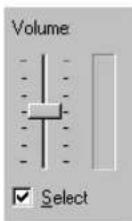
4 For the Line In and/or Microphone controls, make sure the Volume slider levels are okay (if you're not sure, try half level), and the appropriate Select check box is enabled.
5 Click Options → Properties.
6 Click the Playback button, enable all check boxes in the list box, then click OK.
7 For the Master, Line, and/or Wave controls, make sure the Volume sliders are at one-quarter to one-half levels (if you're not sure, try half level), and the Mute check boxes are cleared.
8 Close the dialog box.
i
Note: Depending on your sound driver, certain labels may be different. For example, Line In may be labeled Line.
Cause
The problem may be specific to the sound card you have.
Solution
For more information, see your sound card manual.
Display information
- Your Matrox graphics card is 100% VGA compatible and supports all VESA standards: VBE 2.0 (Super VGA modes), DPMS (energy saving), and DDC-2B (Plug-and-Play monitor).
- The display resolutions available depend on your Matrox graphics card, display driver, and software monitor settings. Different software monitor settings have different resolutions available to them. With your software monitor settings, some of the resolutions listed in this section may not be available, or resolutions not listed in this section may be available. For more information on software monitor settings with Windows 2000/XP or NT 4.0, see “Monitor setup”, page 9.
Many Plug-and-Play monitors don't automatically report if they're capable of 1152 × 864 , or 1600 × 1200 and higher display resolutions. To use these resolutions, or higher refresh rates than those reported by the monitor, you can use the Matrox monitor selection method. To use Matrox monitor settings with Windows 2000/XP or NT 4.0, see "Monitor setup", page 9. - Your Matrox graphics card supports display resolutions up to 2048 × 1536 (traditional) and up to 1920 × 1200 (widescreen).
- At the highest display resolution (2048 × 1536), your Matrox graphics card supports a vertical refresh rate of up to 85 Hz.
In multi-display mode, each monitor has its own monitor settings (refresh rates). Make sure correct software monitor settings are selected for each monitor. - You may experience problems viewing certain types of video (for example, DVD video). If you experience this problem, try lowering your display settings (resolution, color palette, and/or refresh rate). For information on changing display settings, see “Display setup”, page 9.
Supported VESA modes
In the table below, VESA modes supported by your Matrox graphics card are indicated by a VESA mode number. Many Super VGA DOS programs use VESA modes.
| Displayresolution | 16 colors 256 colors 32 K colors 64 K colors 16 M colors | ||||
| 640 × 400 — | 100 — — — | ||||
| 640 × 480 (VGA) | 101 | 110 | 111 | 112 | |
| 800 × 600 | 102 | 103 | 113 | 114 | 115 |
| 1024 × 768 — | 105 | 116 | 117 | 118 | |
| 1280 × 1024 | — | 107 | 119 | 11A | 11B |
Digital flat panel information
Matrox G450 MMS products that support digital monitors are fully DVI 1.0 compliant. The following maximum simultaneous display settings are supported with digital flat panels:
■ 112 MHz pixel clock
■ 1280 × 1024^* display resolution (SXGA)
■ 60 Hz vertical refresh rate (with standard VESA monitor timings)
■ millions of simultaneous display colors
* With digital (flat panel) monitors that don't support display scaling, if you use a display resolution lower than the maximum display resolution, the display may only use a portion of the screen (the rest of the screen will be black).
DOS display modes may not be supported with some 1280 × 1024 digital flat panel monitors that don't support display scaling. For a possible work-around or fix for this problem, contact Matrox.
Hardware information
Features
| G450×2 MMS G450×4 MMS | ||
| Graphics chip model | Matrox G450(256-bit DualBus) | |
| PCI bridge controller Hint HB4 or PLX HB4 | ||
| RAMDAC 360 MHz | (internal) | |
| Memory type DDR (Double Data Rate) SDRAM | ||
| Card type PCI (32-bit, 33 MHZ) | ||
| # of displays supported(# of graphics chips) | 2 | 4 |
| Memory 2 × MB 4 × MB | ||
| # of dual-monitor cables(Part #: DL-CAB-DVI-I) | 1 | 2 |
| # of DVI-to-HD15 adapters(Part #: DVI-I-VGA) | 2 | 4 |
| Digital monitor support DVI DVI | ||
Technical features
■ Supports PCI bus version 2.1 and 2.2 at clock speeds up to 33 MHz
Video specifications
■ Separate sync monitors only
■ The video follows the PS/2 standard, with no sync on RGB, and no blanking pedestal. Black or blank – 0.0 V; White – 0.700 V.
Environmental specifications
■ Minimum/maximum ambient operating temperatures: 0 to 55 °C
■ Minimum/maximum storage temperature: -40 to 75 °C
■ Maximum altitude for operation: 3,000 meters
■ Maximum altitude for transport: 12,000 meters
■ Operating humidity: 20 to 80% relative humidity (non-condensing)
■ Storage humidity: 5 to 95% relative humidity (non-condensing)
■ Estimated mean time before failure (MTBF): 37,931 hours (4.33 years) at 50 °C, 26,893 hours (3.07 years) at 70 °C
Digital flat panel information
■ TMDS (Transition Minimized Differential Signaling) encoding based on the Silicon Image PanelLink standard
■ DDWG (Digital Display Working Group) compliant DVI connector
■ EDID (Extended Display Identification Data) 1.2 and 2.0 support
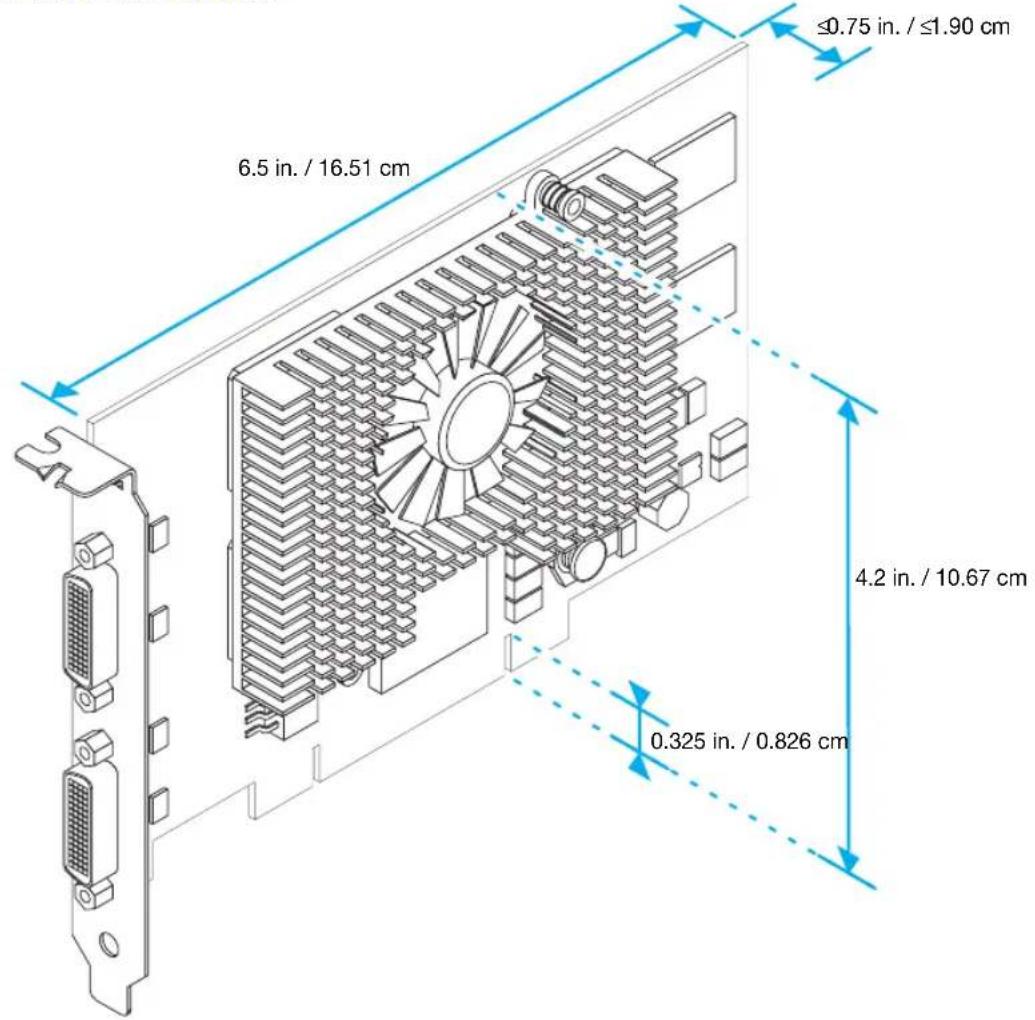
Maximum card dimensions*
Customer support
Matrox Web
Matrox is on the Internet with a World Wide Web (WWW) site. Our Web site has product literature, press releases, technical material, a sales office list, trade show information, and other relevant material.
■ Visit the Matrox Graphics Web site at www.matrox.com/graphics.
■ E-mail questions or comments regarding the site to webmaster@matrox.com.
If you have a problem
Matrox values your business and offers professional support for your Matrox product. For product support, contact your Matrox representative or visit our technical support Web site at www.matrox.com/graphics/support/.
Information we need
Please give a complete description of the problem, and include:
■ Matrox card serial number, model number, revision number, BIOS number, driver type and version, and memory address at which the Matrox card is installed.
■ Computer brand and model name.
■ Monitor brand and model name.
■ Operating system, version, and service pack.
■ Brand and model of any other cards and devices installed on your system.
Program specific problems
If a problem appears with a specific program, please give us the following information:
■ Display settings (color palette, display resolution, and so on) applied when the problem occurs.
■ If possible, take note of the file and segment address that caused the problem.
■ Detailed steps known to cause the bug, so we can reproduce it.
i w
Where to get information
For display information:
- Windows 2000/XP or NT 4.0 – Access the Information property sheet (see “Accessing PowerDesk property sheets”, page 9).
For system information:
■ Windows 2000 – Right-click the My Computer icon on your Windows desktop background, then click Properties.
■ Windows 2000/XP – Click Start → Programs (or All Programs) → Accessories → System Tools → System Information
- Windows XP – Click Start → Settings* → Control Panel → Performance and Maintenance* → System (double-click*). (* Depending on your configuration of Windows, this part of the step may not be necessary.)
■ Windows NT 4.0 – Click Start → Administrative Tools (Common) → Windows NT Diagnostics.
Warranty
A. Limited Warranty Statement
-
Matrox Graphics Inc. ("Matrox") warrants to the end-user customer, who provides adequate proof of purchase that Matrox hardware products purchased from Matrox authorized dealers will be free from defects in materials and workmanship for a period of 3 years from the date of purchase. This warranty applies only to the original end-user purchaser and is non-transferable. Conditions and limitations of Matrox's warranty are stated below.
-
Matrox's limited warranty covers only those defects which arise as a result of normal use of the hardware and does not apply to any:
a. improper or inadequate maintenance;
b. incompatibilities due to the user's hardware or software applications with or in which the Matrox product interfaces;
c. product of a special or custom-made nature;
d. unauthorized modification or misuse;
e. improper installation, misapplication or negligence;
f. operation outside the product's environmental specifications;
g. improper site preparation or maintenance;
h. software;
i. other causes that do not relate to a product defect;
j. defects or damage suffered as a result of force majeure (including theft);
k. defects or damage suffered as a result of normal wear and tear, and/or
I. stolen goods.
-
If Matrox receives, during the applicable warranty period, notice of a defect in a warranted hardware product and the defective Matrox product in question, Matrox shall at its sole option, either repair or replace the product, and shall return the repaired product or a replacement product within a reasonable delay. The replacement product may not be new, provided that it has functionality at least equal to that of the product being replaced.
-
This warranty is valid in any country where Matrox hardware products are distributed by Matrox or its authorized dealers.
-
This Limited Warranty Statement gives the customer specific legal rights. The customer may also have other rights which vary from state to state in the United States, from province to province in Canada, and from country to country elsewhere in the world.
B. Limitations of Warranty
-
NEITHER MATROX NOR ANY OF ITS THIRD PARTY SUPPLIERS MAKES ANY OTHER WARRANTY OF ANY KIND, WHETHER EXPRESSED OR IMPLIED, WITH RESPECT TO MATROX PRODUCTS. MATROX SPECIFICALLY DISCLAIMS (and the customer, by accepting the Matrox product, specifically accepts such disclaimer and waives) ALL OTHER WARRANTIES, EITHER EXPRESSED OR IMPLIED, INCLUDING BUT NOT LIMITED TO THE IMPLIED WARRANTIES OF MERCHANTABILITY AND FITNESS FOR A PARTICULAR OR INTENDED PURPOSE OR USE AND THE WARRANTY AGAINST LATENT DEFECTS, WITH RESPECT TO THE HARDWARE AND/OR SOFTWARE. MATROX FURTHER DISCLAIMS ANY WARRANTY THAT MATROX PRODUCTS, IN WHOLE OR IN PART, WILL BE FREE FROM INFRINGEMENT OF ANY THIRD PARTY INTELLECTUAL PROPERTY OR PROPRIETARY RIGHTS.
-
To the extent that this Limited Warranty Statement is inconsistent with the law of the locality where the customer purchases the Matrox product, this Limited Warranty Statement shall be deemed modified to be consistent with such local law. Under such local law, certain limitations of this Limited Warranty Statement may not apply to the consumer.
-
To the extent allowed by local law, the remedies provided in this Limited Warranty Statement are the customer's sole and exclusive remedies.
C. Limitations of Liability
- EXCEPT FOR THE OBLIGATIONS SPECIFICALLY SET FORTH IN THE LIMITED WARRANTY STATEMENT, IN NO EVENT SHALL MATROX BE LIABLE FOR:
a. any direct, indirect, special, incidental, consequential, foreseeable or unforeseeable, or punitive damages, whether based on contract, tort, delict or any other legal theory and whether advised of the possibility of such damages, and/or
b. damages arising from the loss of use, data, production revenue and/or profit of in connection with the Matrox product or any business interruption. - Without prejudice to the foregoing, any liability of Matrox for any breach of warranty shall be limited to the amount paid by the customer for the defective hardware in question.
- To the extent allowed by local law, Matrox's entire liability and the customer's exclusive remedy shall be the repair or replacement of any defective product during the warranty period. Matrox does not offer any other warranty with respect to Matrox hardware or software or any other hardware or software.
- Customer shall be responsible for all applicable taxes, duties and customs fees on any replacement unit, as well as all transport, insurance, storage and other charges incurred on all returned products.
D. Obtaining Service
- Verify that your Matrox product was installed and configured according to the information in its accompanying documentation.
- Read the "Troubleshooting" information included with the Matrox product to see if you can solve the problem yourself.
- If you are still experiencing difficulties, please contact your dealer where you purchased your Matrox product.
- If you must return a Matrox product, leave the configuration as it was when you were using it, and leave all identification stickers on the product. Pack the product in its original box and return to your Matrox dealer where the product was purchased, together with your proof of purchase. Your Matrox dealer will return the product for you. Alternatively, if this first option is unavailable to you, you may contact the Matrox Technical Support group who will issue an Return Merchandise Authorization (RMA) number, upon receipt of adequate proof of purchase, and inform you of shipping instructions. DO NOT RETURN THE PRODUCT TO MATROX WITHOUT MATROX'S RMA NUMBER AND EXPRESS AUTHORIZATION.
E. General
This limited warranty shall be governed by the laws of the Province of Quebec, Canada and the federal laws of Canada applicable therein and the courts of the Province of Quebec shall have exclusive jurisdiction to hear and decide any dispute instituted by the customer in connection with this limited warranty; the customer waives, by accepting the product, its rights to institute proceedings in connection with this warranty against Matrox in any jurisdiction other than Quebec.
Software license agreement
Single User Products This Matrox software (the "Software") is copyrighted by Matrox Graphics Inc. All rights are reserved. The purchaser is granted a license to use the software only, subject to the following restrictions and limitations:
- The license is for the original purchaser only, and is not transferable without written permission of Matrox.
- The original purchaser may use the Software on a single computer owned or leased by the original purchaser. You may not use the Software on more than a single computer, even if you own or lease more than one computer, without written consent of Matrox.
- The original purchaser may make back-up copies of the Software for his or her own use only, subject to the use limitations of this license.
-
The original purchaser may not engage in, nor permit third parties to engage in, any of the following:
-
Providing or disclosing the Software to third parties.
- Providing use of the Software in a computer service business, network, time-sharing, multiple CPU or multi-user arrangement to users who are not individually licensed by Matrox.
- Making alterations or copies of any kind in the Software (except as specifically permitted above).
- Attempting to unassemble, de-compile or reverse engineer the Software in any way.
- Granting sublicenses, leases, or other rights in the Software to others.
- Making copies, or verbal or media translations, of the user's guide.
- Making telecommunication data transmissions of the Software.
Matrox reserves the right to terminate this license if there is a violation of its term or default by the Original Purchaser. Upon termination, for any reason, all copies of the Software must be immediately returned to Matrox, and the Original Purchaser shall be liable to Matrox for any and all damages suffered as a result of the violation or default.
Limited warranty Matrox warrants to you, for a period of 90 days normal use from your date of purchase, that:
- The CD/disks on which the software is furnished and the documentation are not defective.
- The Software is properly recorded upon the CD/disks included.
- The documentation is substantially complete and contains all the information Matrox deems necessary to use the software.
- The Software functions substantially as described in the documentation.
Matrox's entire liability and your exclusive remedy shall be the replacement of any CD/Disks or documentation not meeting these warranties, which is returned to Matrox or an authorized dealer, together with a copy of your paid receipt. The above is the only warranty of any kind, either express or implied, including, but not limited to the implied warranties of merchantability and fitness for a particular use that is made by Matrox on this Licensed Software. In no event shall Matrox be liable to you or to any third party for consequential, special, indirect or incidental damages which you may incur as a result of using the licensed software, including, but not limited to, loss of data, or information of any kind which you may experience.
Index
B
BIOS 19,26,27
C
CD-ROM, Matrox 8
Connector
Digital 7
LHF-60 6
Customer support 43–44
D
DDC 9,10,24
Disk speed 34
Display
DOS modes 14
Information 38
Primary 27
E
Expansion slots 4, 18, 25
G
Graphics
Troubleshooting 23–33
H
Hardware
Acceleration 30
Information 2,40-42
Installation 3-4
|
Installation
Hardware 3-4
Overview 2
Software 8
IRQ 25
M
Monitor
Digital 39
Settings 9, 19–20
Setup 9-10
Multi-display
Mode 9, 11, 20, 29, 38
Setup 11
0
Online documentation 9
P
PCI 4,25,40
Plug-and-Play 9, 10, 24
PowerDesk 9,13
Property sheets 9
S
Software
Installation 8
Setup 9
Sound
Troubleshooting 36–37
Sound output 16
T
Troubleshooting 18–22, 23–37
Extra 23–37
Graphics 23–33
Sound 36–37
Video 34-35
TV output
Connection setup 14–16
Software setup 17
U
Unified display driver 29
V
VESA 27,38
Modes (table) 38
VGA 3,38
Video
Troubleshooting 34–35
W
Warning 3,4,6,9,14,20,23,34
Warranty 45-46
Web, Mat rox 43
USA
FCC Compliance Statement
Remark for the Matrox hardware products supported by this guide This equipment has been tested and found to comply with the limits for a Class A digital device, pursuant to Part 15 of the FCC Rules. These limits are designed to provide reasonable protection against harmful interference when the equipment is operated in a commercial environment. This equipment generates, uses, and can radiate radio frequency energy and, if not installed and used in accordance with the instructions manual, may cause harmful interference to radio communications. Operation of this equipment in a residential area is likely to cause harmful interference in which case the user will be required to correct the interference at his own expense.
WARNING Changes or modifications to this unit not expressly approved by the party responsible for the compliance could void the user's authority to operate this equipment. The use of shielded cables for connection of the monitor to the card is required to meet FCC requirements.
CANADA
(English) Industry Canada Compliance Statement
Remark for the Matrox hardware products supported by this guide These digital apparatus does not exceed the Class A limits for radio noise emission from digital devices set out in the Radio Interference Regulation of Industry Canada.
VCCI Compliance Statement
Remark for the Matrox hardware products supported by this guide This is a Class A product based on the standard of the Voluntary Control Council for Interference by Information Technology Equipment (VCCI). If this equipment is used in a domestic environment, radio disturbance may occur, in which case, the user may be required to take corrective actions.
(English) European user's information - Declaration of Conformity
Remark for the Matrox hardware products supported by this guide These devices comply with EC Directive 89/336/EEC for a Class A digital device. They have been tested and found to comply with

EN55022/CISPR22 and EN55024/CISPR24. In a domestic environment these products may cause radio interference in which case the user may be required to take adequate measures. To meet EC requirements, shielded cables must be used to connect the monitor and other peripherals to the card. These products have been tested in a typical class A compliant host system. It is assumed that these products will also achieve compliance in any class A compliant system.
(English) European user's information - Directive on Waste Electrical and Electronic Equipment (WEEE)
Please refer to the Matrox Web site (www.matrox.com/environment/weee) for recycling information.
Thank you for choosing Matrox
Please register online (http://www.matrox.com/graphics/registration) to be eligible for customer support, new product announcements, and information on special offers and upcoming events.
Copyright © 2007 Matrox Graphics Inc. • (English) All rights reserved. • (Français) Tous droits réservés. • (Deutsch) Alle Rechte vorbehalten. • (Italiano) Tutti i diritti riservati. • (Español) Reservados todos los derechos.
International Business Machines Corporation ....IBM ®, VGA®
Macrovision Corporation...... Macrovision™
Microsoft Corporation .... Direct3D ^ , DirectDraw ^ , DirectShow ^TM , DirectVideo ^TM , DirectX ^TM , Microsoft ^ , MS-DOS ^ , PowerPoint ^TM , Windows ^ , Windows NT ^TM , Windows 2000 ^TM , Windows Server ^ , Windows XP ^TM
Silicon Graphics, Inc. ......OpenGL®
Silicon Image, Inc....PanelLink™
U.S. Environmental Protection Agency ...... Energy Star™
- (English) Registered trademarks are registered in the United States, Canada, and/or other countries. All other nationally and internationally recognized trademarks and tradenames are hereby acknowledged. • (Français) Les marques déposées sont déposées aux États-Unis, au Canada et/ou dans d'autres pays. Toutes les autres marques et tous les autres noms déposés reconnus nationalement ou internationalement sont également reconnus par les présentes. • (Deutsch) Die eingetragenen Warenzeichen sind in den USA, Kanada und/oder anderen Ländern registriert. Alle sonstigen national und international bekannten Warenzeichen und Produktnamen werden hiermit anerkannt. • (Italiano) I marchi registrati sono registrati negli Stati Uniti, in Canada e/o in altri paesi. Tutti gli altri marchi registrati e nomi commerciali riconosciuti a livello nazionale e internazionale sono ugualmente riconosciuti qui. • (Español) Las marcas registradas están registradas en los EE.UU., Canadá u otros países. Por medio del presente se reconocen todas las demás marcas y nombres comerciales reconocidos a nivel nacional e internacional.
(English) Disclaimer
THE INFORMATION IN THIS GUIDE IS SUBJECT TO CHANGE AT ANY TIME AND WITHOUT NOTICE.
Matrox Graphics Inc. reserves the right to make changes in specifications at any time and without notice. The information provided by this document is believed to be accurate and reliable. However, no responsibility is assumed by Matrox Graphics Inc. for its use; nor for any infringements of patents or other rights of third parties resulting from its use. No license is granted under any patents or patent rights of Matrox Graphics Inc.
Dorval, Quebec, Canada H9P 2T4
Tel: (514) 822-6320
Sales: 1-800-361-1408
E-mail: graphics.sales@matrox.com
Technical support:
www.matrox.com/graphics/support
Web site: www.matrox.com/graphics
Asia Pacific
Matrox Asia Ltd.
2006, West Tower, Shun Tak Centre
168-200 Connaught Road C.
Sheung Wan, Hong Kong
Sales: 852-2281-5700
Fax: 852-2537-9530
E-mail – China, Hong Kong, and Taiwan:
Anthony.Lee@matrox.com
E-mail – All other Asia Pacific countries:
Info-AsiaPacific@matrox.com
Technical support: 852-2281-5757
E-mail: tech.asiapac@matrox.com
United Kingdom
Matrox UK
Chaplin House, Widewater Place
Moorhall Rd, Harefield
Middlesex, UB9 6NS, UK
Sales: +44 (0) 1895 827300
Fax: +44 (0) 1895 827301
E-mail – UK, ROI, Benelux, France, Spain, Portugal, and
MEA: insales@matrox.com
Deutschland
Matrox Electronic Systems GmbH
Inselkammerstraße 8
E-mail – Germany, Austria, Switzerland:
Info-CentralEurope@matrox.com
E-mail – Denmark, Finland, Norway, Sweden:
Info-NorthernEurope@matrox.com
E-mail – Eastern Europe:
Info-EasternEurope@matrox.com
Supporto tecnico: www.matrox.com/graphics/it/support
- Matrox G450 MMS
- Overview
- Hardware supplied
- Software supplied (for Windows 2000/XP and NT 4.0)
- Installation overview
- Hardware installation
- Switch to the standard VGA display driver
- Open your computer and remove your existing graphics card\*
- Choose a PCI slot
- Insert your Matrox card
- Connection setup
- Connect your dual-monitor cables
- Connect your monitors
- i
- Software installation
- Install display driver
- Install optional software
- Set up your display software
- Display setup
- Accessing PowerDesk property sheets
- Monitor setup
- Windows NT 4.0 -
- Multi-display setup
- Advanced multi-display setup
- More PowerDesk information
- TV output
- Turn off computer
- Replace your dual monitor cables
- Connect video output
- Connect audio output
- Software setup
- W
- Troubleshooting
- Basic procedures
- Restarting in VGA mode
- Main troubleshooting
- Problem Computer doesn't display information or boot after Matrox card is installed
- Problem Wrong color balance, screen image off-center, or no picture at all
- Problem After the startup screen, or after display settings are changed, the screen image is garbled or unusable
- Cause
- Solution
- More information
- Extra troubleshooting
- Graphics
- Problem Can't use Windows, Windows reports a configuration error, and/or can't install or uninstall display driver
- Problem Monitor settings aren't automatically detected
- Problem Built-in network card doesn't work after multi-monitor graphics card is installed
- Problem 3D and video programs don't work
- Problem After game for Windows 2000/XP starts, monitor doesn't display properly
- Problem Using multiple displays under Windows 2000/XP or NT 4.0, program doesn't work with main graphics card
- Problem Not all graphics cards in the computer are fully supported
- Problem In multi-display mode, displays aren't numbered consecutively W
- Problem Screen image defects appear, program doesn't run properly, or Windows doesn't work properly
- Problem Program window or dialog box doesn't appear on screen
- Cause W
- Solution W
- Problem Display on digital monitor appears blurry or uses only a portion of the screen
- Problem Can't select one or more display resolutions supported by your monitor
- Video
- Problem Video file playback is jerky (skipping frames)
- Windows 2000/XP -
- Problem Mouse pointer flickers or disappears when it's over a video window
- Problem Can't view video
- Sound
- Problem Sound doesn't record, video files play back with no sound, or sound output is distorted or too loud
- Display information
- Supported VESA modes
- Digital flat panel information
- Hardware information
- Technical features
- Video specifications
- Environmental specifications
- Customer support
- Matrox Web
- If you have a problem
- Information we need
- Program specific problems
- i w
- Where to get information
- Warranty
- Limited Warranty Statement
- Limitations of Warranty
- Limitations of Liability
- Obtaining Service
- General
- Software license agreement
- Index
- B
- C
- D
- E
- G
- H
- |
- M
- 0
- P
- S
- T
- U
- V
- USA
- FCC Compliance Statement
- CANADA
- (English) Industry Canada Compliance Statement
- VCCI Compliance Statement
- (English) European user's information - Declaration of Conformity
- (English) European user's information - Directive on Waste Electrical and Electronic Equipment (WEEE)
- Thank you for choosing Matrox
- (English) Disclaimer
- Asia Pacific
- United Kingdom
- Deutschland
Brand : MATROX
Model : G450x4 MMS
Category : Video card