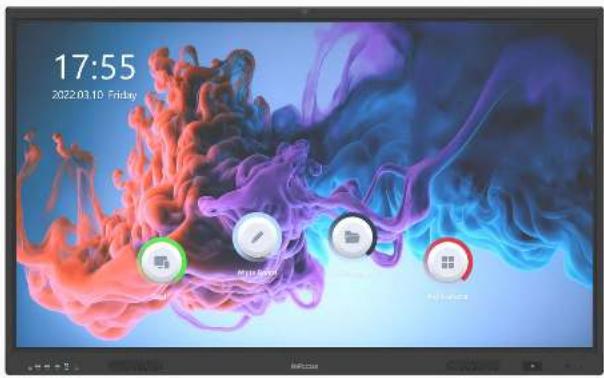
INFOCUS JTouch IN6513 - Screen

JTouch IN6513 - Screen INFOCUS - Free user manual and instructions

Find the device manual for free JTouch IN6513 INFOCUS in PDF.

📄 28 pages English EN Download 💬 AI Question 10 questions ⚙️ Specs
Notice INFOCUS JTouch IN6513 - page 6
Pick your language and provide your email: we'll send you a specifically translated version.
Product TypeInteractive Flat Panel Display
ModelJTouch IN6513
Display Size65 inches (diagonal)
Resolution4K UHD (3840 x 2160)
Touch TechnologyInfrared, 20-point touch
Brightness350 cd/m²
Contrast Ratio4000:1
Operating SystemAndroid (pre-installed)
Connectivity4x HDMI IN, 1x HDMI OUT, 1x DP IN, 2x USB 3.0, 1x USB 2.0, 2x USB-B Touch, 1x RS232, 2x LAN, SPDIF OUT, LINE OUT, MIC IN, TYPE-C IN/OUT, Micro-SD slot
Built-in SpeakersYes
Power SupplyAC 100-240V, 50/60Hz
Power ConsumptionTypical: 250W, Standby: <0.5W
Dimensions (W x H x D)Approx. 1490 x 900 x 80 mm (without stand)
WeightApprox. 35 kg (without stand)
Accessories IncludedRemote control, power cord, USB cable, touch pen (optional)
SafetyDo not expose to rain or moisture; refer servicing to qualified personnel
MaintenanceClean with a soft, dry cloth; do not use abrasive cleaners
ReparabilityNo user-serviceable parts inside; contact service center
Environmental SensorsTemperature, humidity, PM2.5, CO2 (optional)

Frequently Asked Questions - JTouch IN6513 INFOCUS

How do I connect an external device to the JTouch IN6513?
Use the HDMI IN ports on the left or right side. Select the corresponding signal source from the 'Signal Source' menu on the home screen.
How can I use the whiteboard feature?
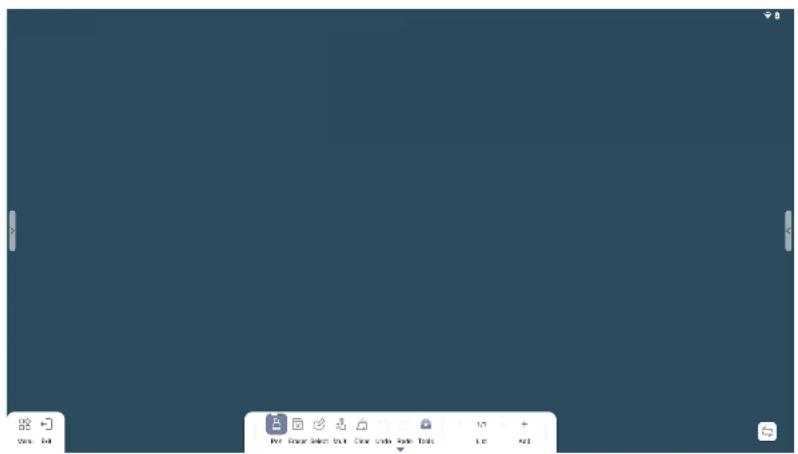
From the home screen, tap the 'White Board' icon. Use the drawing tools, eraser, and add pages. You can also insert shapes, text, and more from the tool menu.
How do I adjust the display settings?
Go to 'Settings' from the home screen, then select 'Display'. You can adjust brightness, contrast, and enable the side menu or floating ball.
Can I project my phone screen to the JTouch?
Yes, use the 'Cast' function. Ensure both devices are on the same network, then select the display from your phone's cast options.
How do I set up NFC card access?
Go to Settings > Connected devices > NFC. Place an NFC card near the sensing area to add it. You can associate the card with a user account for quick login.
What is the floating ball and how do I use it?
The floating ball provides customizable shortcuts. Enable it in Settings > Display > Floating ball, then tap it to access frequently used functions.
How do I connect to a wired network?
Connect an Ethernet cable to the LAN1 or LAN2 port. Go to Settings > Network > Wired network and configure IP settings if needed.
How do I clean the touch screen?
Use a soft, dry microfiber cloth. Do not use water, alcohol, or abrasive cleaners. Gently wipe the screen to remove dust.
Can I add extra pages to the whiteboard?
Yes, in the whiteboard interface, tap the '+' icon at the bottom to add a new page. You can navigate between pages using the left/right arrows.
How do I reset the JTouch to factory settings?
Go to Settings > System > Reset options and select 'Factory data reset'. Note that this will erase all personal data and settings.

User questions about JTouch IN6513 INFOCUS

0 question about this device. Answer the ones you know or ask your own.

Ask a new question about this device

The email remains private: it is only used to notify you if someone responds to your question.

No questions yet. Be the first to ask one.

Download the instructions for your Screen in PDF format for free! Find your manual JTouch IN6513 - INFOCUS and take your electronic device back in hand. On this page are published all the documents necessary for the use of your device. JTouch IN6513 by INFOCUS.

USER MANUAL JTouch IN6513 INFOCUS

JTouch Series 13 Users Guide

Models

IN6513, IN7513, IN8613

Regulator Models

D011, D012, D013

Please read carefully this manual before operation.

Safety

Read and understand all safety information, operating instructions, and product labels before operating the equipment. Keep this guide in a safe place for future reference.

The lightening flash with arrow-head symbol, within a triangle, is intended to alert the user to the presence of “dangerous voltage” within the products enclosure that may be sufficient to constitute a risk of electric shock to persons.

INFOCUS JTouch IN6513 - Safety - 1

The exclamation mark within a triangle is intended to alert the user to the presence of important operating and maintenance (servicing) instructions.

INFOCUS JTouch IN6513 - Safety - 2

To reduce the risk of fire or electric shock, do not expose this product to smoke, rain, dust or moisture!

To reduce the risk of electric shock, do not remove cover (or back). No user-serviceable parts inside. Refer servicing to qualified service personnel.

This product is designed and manufactured to operate within defined design limits, and misuse may result in electric shock or fire.

The installation of this product should be completed by a Trained Installer.

Note

The contents of this document may be updated from time to time due to product version upgrades or other reasons.

Unless otherwise agreed, this document is provided as a guide only, and all statements, information, and recommendations in this document are not warranties of any kind, express or implied.

Contents

Hardware DetailsHardware Details1
HomePageHomepage3
Applications4
White Board5
Side menu7
App List Signal9
source10
Annotation11
All shortcuts12
Floating ball13
Multi Display14
Recent Apps15
SettingsAdvanced Features16
Environmental sensors switch17
WiFi18
Wired network19
WiFi hotspot20
NFC21
OthersCamera24
Remote control25

Hardware Details

  1. Front View 2. Right side View
    INFOCUS JTouch IN6513 - Hardware Details - 1
  1. TYPE-C IN Port
  2. Public USB 3.0 Port
  3. Public USB 3.0 Port
    • 4. Public USB 3.0 Port
  4. Touch USB-B Port
  5. HDMI IN 1 Port
  6. Power button

INFOCUS JTouch IN6513 - Hardware Details - 2

INFOCUS JTouch IN6513 - Hardware Details - 3


  1. AC Power Switch
  2. Power Cable Input

INFOCUS JTouch IN6513 - Hardware Details - 4

INFOCUS JTouch IN6513 - Hardware Details - 5

1 / 25

INFOCUS JTouch IN6513 - Hardware Details - 6

Hardware Details

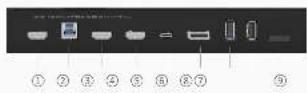
  1. Left Side View
    INFOCUS JTouch IN6513 - Hardware Details - 1

INFOCUS JTouch IN6513 - Hardware Details - 2

  1. HDMI IN 4 Port
    • 2. Touch USB-B Port
  2. HDMI IN 3 Port
  3. HDMI IN 2 Port
  4. TYPE-C IN Port
  5. DP IN Port
  6. Public USB 3.0 Port
  7. Public USB 2.0 Port
    ● 9. Micro-SD (TF) card slot

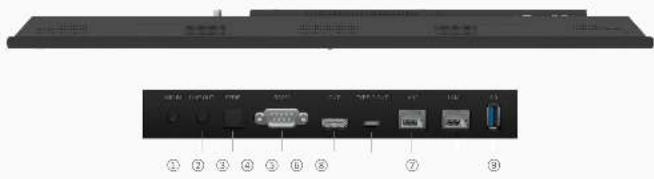
  8. Bottom View
    INFOCUS JTouch IN6513 - Hardware Details - 3

• 1. MIC IN Port
• 2. LINE OUT Port
3. SPDIF OUT Port
4.RS232 Port
5. HDMI OUT Port

  1. TYPE-C OUT Port
  2. LAN2 Port
  3. LAN1 Port
  4. Android USB3.0 Port

INFOCUS JTouch IN6513 - Hardware Details - 4

Homepage

Slide up from the bottom of the screen to bring up the Apps list.
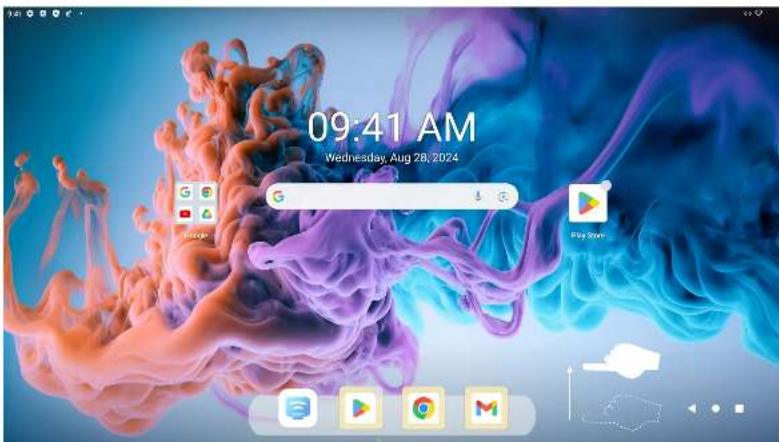
09:41 AM Wednesday, Aug 28, 2024

INFOCUS JTouch IN6513 - Homepage - 2

Cast

Tip: the device needs to be connected to the hotspot sent by the Intelligent conference board

Project the content on from mobile decives to touch screen, including mobile phones, tablet and laptops, support Android/IOS/Windows/Mac OS.

Here shows the recently opened applications.

INFOCUS JTouch IN6513 - Cast - 1

3/25

INFOCUS JTouch IN6513 - Cast - 2

INFOCUS JTouch IN6513 - Cast - 3

Applications

Here are all the APKs of the device.
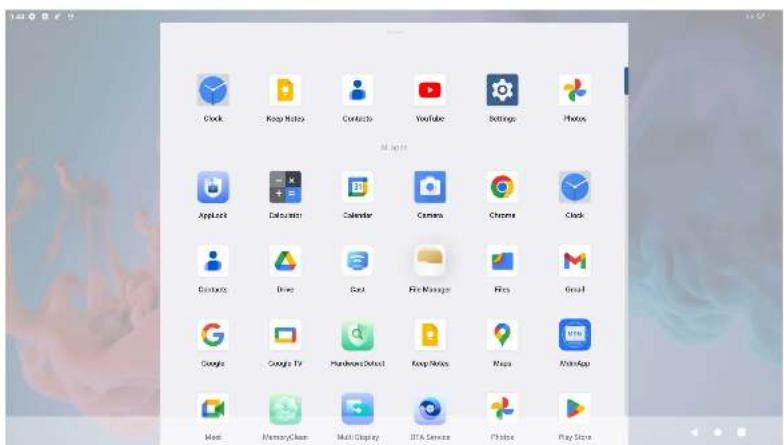
Clock Keep Notes Contacts YouTube Settings Photos All rights Applics Labupaten Calendar Camera Chrome Clock Contacts Drive Get Fire Manager Play Google Google TV Manual/Direct Keep Notes Maps Photoshop Mail Memory/Clean Multi Display ITLA Services Photos Play Store

File Manager Quick access to file manager to find saved files.

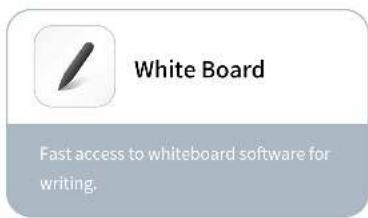
White Board Fast access to whiteboard software for writing.

INFOCUS JTouch IN6513 - Applications - 4

White Board

View Edit Rev: Scan Select Put Cover Units Safe Tools Help Add

① Open the whiteboard menu
②← Close the current application
③ Drawing tool
④ Selection of erasure mode and plate erasure
⑤ Zoom in, zoom out, and drag the selected area
⑤ Switch between Multi writing and Single writing
⑦ Click to clear screen
⑥ Return to the previous step
⑨ Return to the next step
Including Shape, Text, Form, Mind, Puzzle, split screen, Split+, Web browser, Web picture, Web video, Spotlight, Timer, Current and Global sticky tools
⑪ + Add page
Bottom left and right menu switching
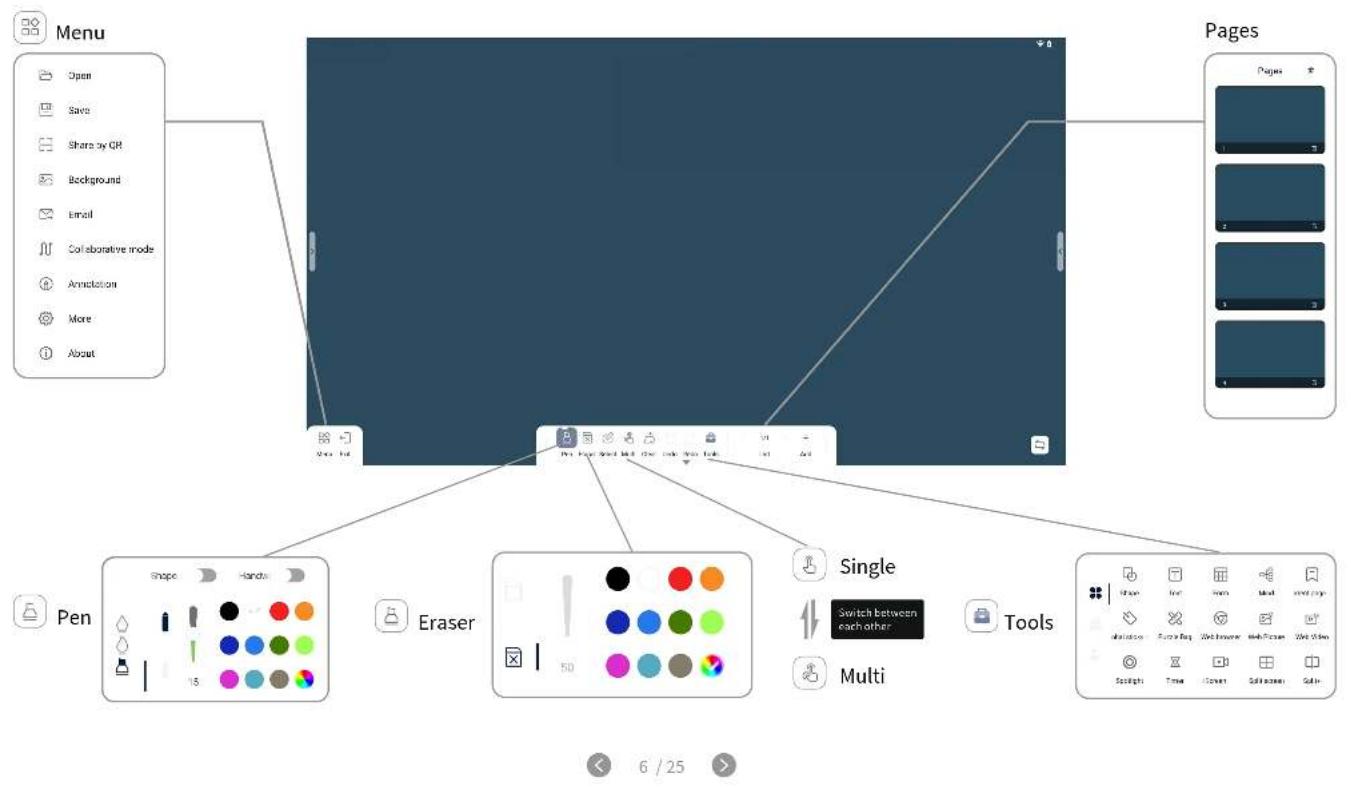
Menu Open Save Share by QR Background Email Collaborative mode Annotation More About Pages Pages Pen Shape Hands Eraser Single Switch between each other Multi Tools 6 / 25

Side menu

This side menu is hidden by default. Turn on the Side menu switch as below:

"Settings—Display—Turn on the Side menu switch." Side menu can be displayed on the homepage.
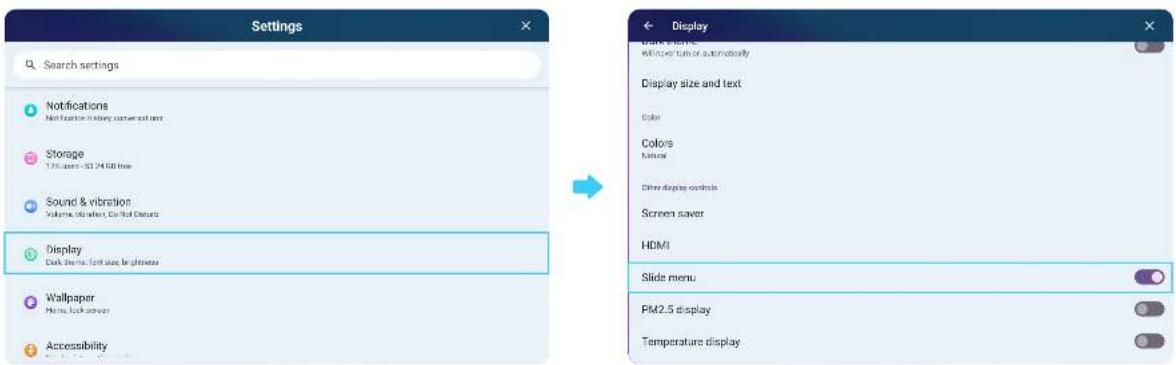
Settings Search settings Notifications Not factor history converted to Storage 1.7% size - 32.24 GB free Sound & vibration Volume, vibration, Co. Nat. Distortion Display Dark theme, font size, brightness Wallpaper Home, back screen Accessibility Display Smoke menu or automatically Display size and text Color Colors Noise Other display controls Screen saver HDMI Slide menu PM2.5 display Temperature display

INFOCUS JTouch IN6513 - Side menu - 2

Side menu

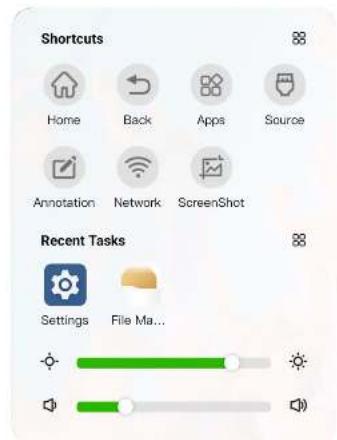
Touch the icon on the left or right side of the home page, open Side menu.
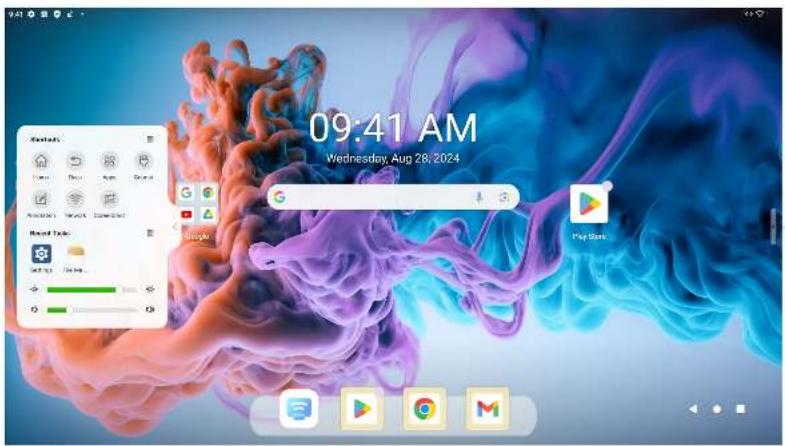
09:41 AM Wednesday, Aug 28, 2024

INFOCUS JTouch IN6513 - Side menu - 2

Shortcuts Home Back Apps Source Annotation Network ScreenShot Recent Tasks Settings File Ma...

INFOCUS JTouch IN6513 - Side menu - 4

8 / 25

INFOCUS JTouch IN6513 - Side menu - 5

INFOCUS JTouch IN6513 - Side menu - 6

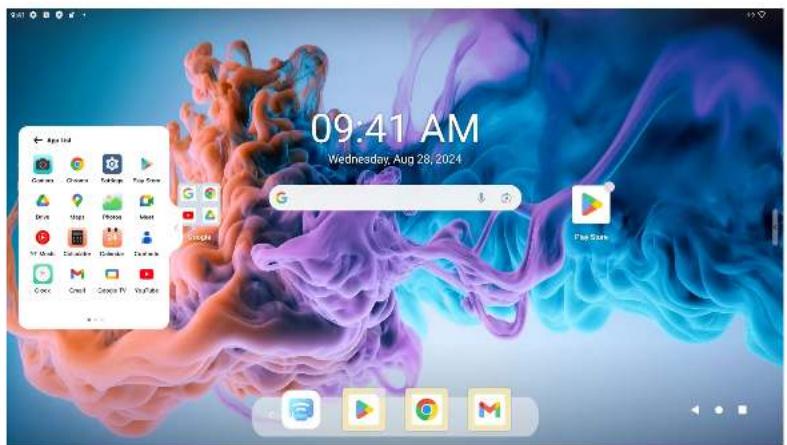
App List

Find more applications quickly.
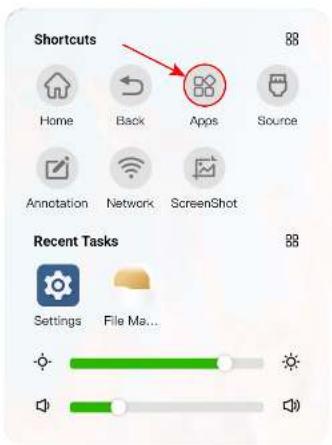
Shortcuts Home Back Apps Source Annotation Network ScreenShot Recent Tasks Settings File Ma...

09:41 AM Wednesday, Aug 28, 2024

INFOCUS JTouch IN6513 - App List - 3

9 / 25

INFOCUS JTouch IN6513 - App List - 4

INFOCUS JTouch IN6513 - App List - 5

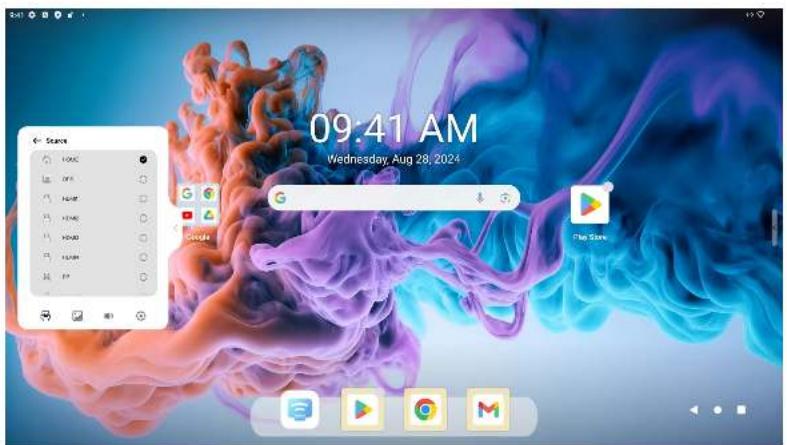
Signal source

Select the corresponding signal channel.
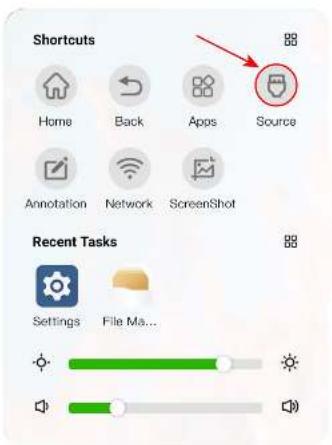
Shortcuts Home Back Apps Somme Annotation Network ScreenShot Source Recent Tasks Settings File Ma...

09:41 AM Wednesday, Aug 28, 2024

INFOCUS JTouch IN6513 - Signal source - 3

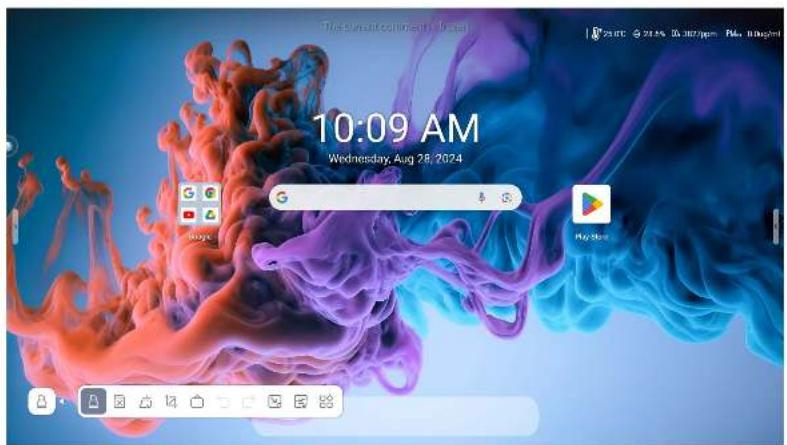
Annotation

You can write freely on the screen.
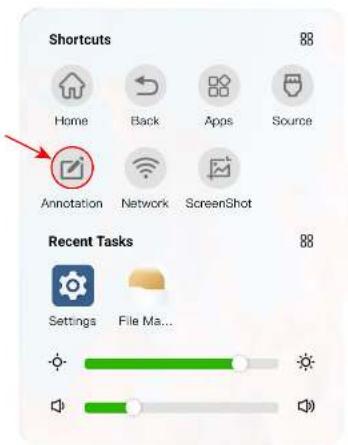
Shortcuts Home Back Apps Source Annotation Network ScreenShot Recent Tasks Settings File Ma...

10:09 AM Wednesday, Aug 28, 2024

INFOCUS JTouch IN6513 - Annotation - 3

11 / 25

INFOCUS JTouch IN6513 - Annotation - 4

INFOCUS JTouch IN6513 - Annotation - 5

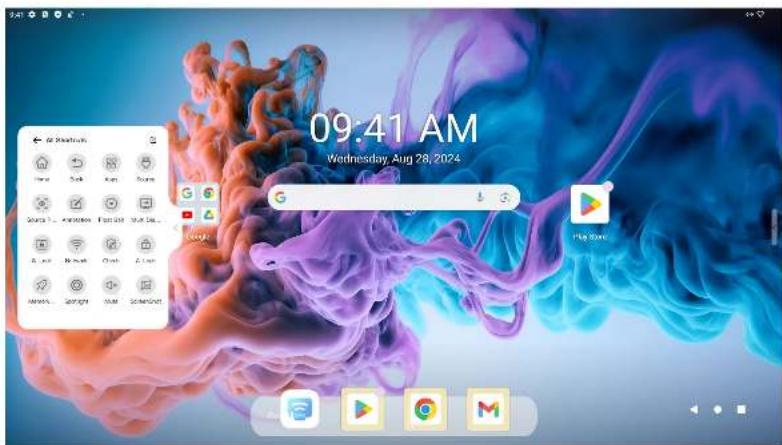
All shortcuts

The collection of tools shortcuts.
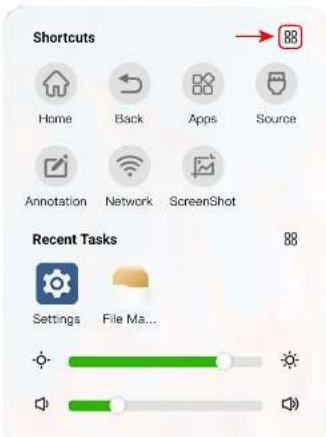
Shortcuts Home Back Apps Source Annotation Network ScreenShot Recent Tasks Settings File Ma... 88

09:41 AM Wednesday, Aug 28, 2024

INFOCUS JTouch IN6513 - All shortcuts - 3

12 / 25

INFOCUS JTouch IN6513 - All shortcuts - 4

INFOCUS JTouch IN6513 - All shortcuts - 5

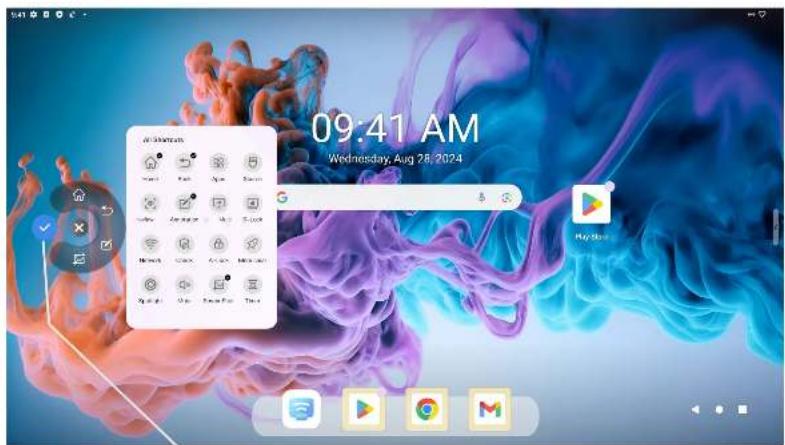
Floating ball

The floating ball can be customized to meet the quick operation needs of users.
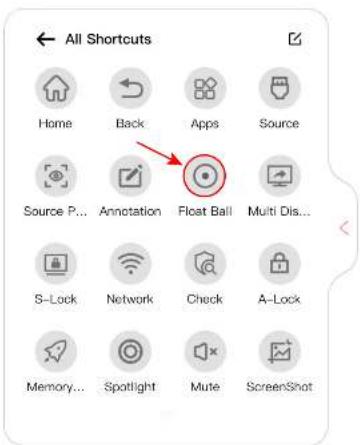
All Shortcuts Home Back Apps Source Source P... Annotation Float Ball Multi Dis... S-Lock Network Check A-Lock Memory... Spotlight Mute ScreenShot

09:41 AM Wednesday, Aug 28, 2024

Custom definition

INFOCUS JTouch IN6513 - Floating ball - 3

13/25

INFOCUS JTouch IN6513 - Floating ball - 4

INFOCUS JTouch IN6513 - Floating ball - 5

Multi Display

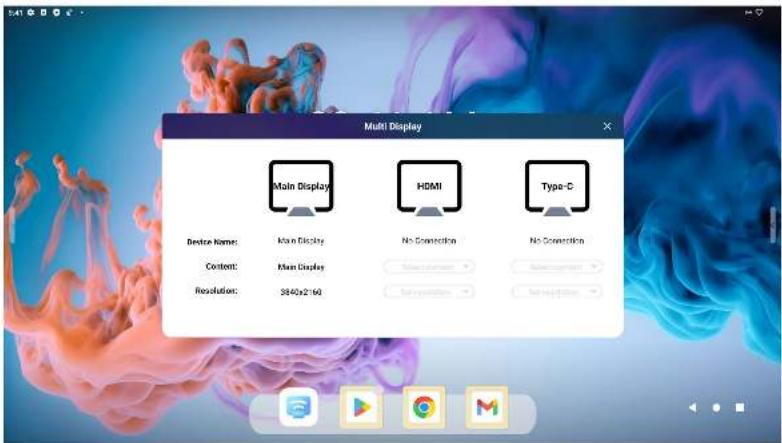
Multi-screen expansion function: You can output the large-screen application screen to other displays through wired projection, and support up to 3 screens to display 3 different applications at the same time.
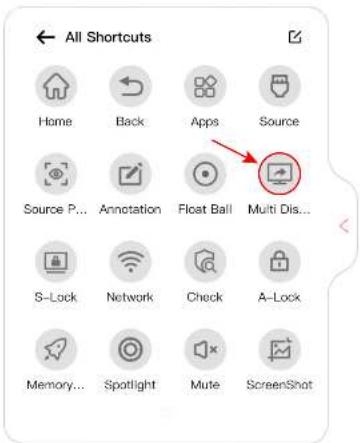
All Shortcuts Home Back Apps Somewhere Source P... Annotation Float Ball Multi Dis... S-Lock Network Check A-Lock Memory... Spotlight Mute ScreenShot

Multi Display Main Display HDMI Type-C Device Name: Main Display Content: Main Display Resolution: 3840x2.160 No Connection No Connection

INFOCUS JTouch IN6513 - Multi Display - 3

14 / 25

INFOCUS JTouch IN6513 - Multi Display - 4

INFOCUS JTouch IN6513 - Multi Display - 5

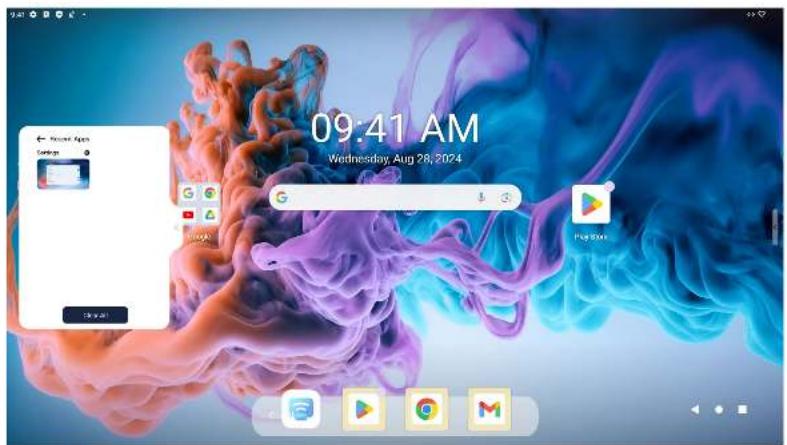
Recent Apps

Manage background applications.
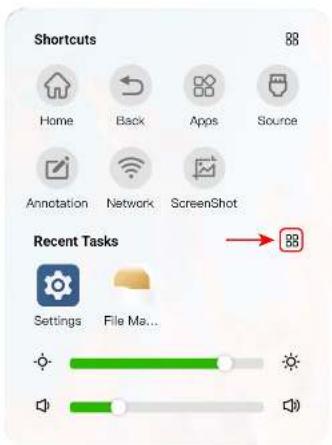
Shortcuts Home Back Apps Somewhere Annotation Network ScreenShot Recent Tasks Settings File Ma...

09:41 AM Wednesday, Aug 28, 2024

INFOCUS JTouch IN6513 - Recent Apps - 3

15 / 25

INFOCUS JTouch IN6513 - Recent Apps - 4

INFOCUS JTouch IN6513 - Recent Apps - 5

Advanced Features

There are two home page modes to select.

"Homepage—Settings—Advanced Features—Select home page mode" normal & google home page can be set.
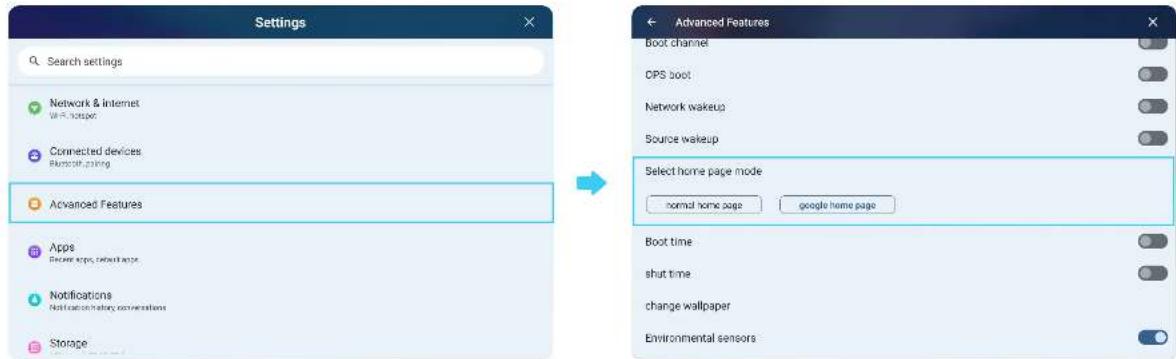
Settings Search settings Network & Internet WiFi router Connected devices Bluetooth wiring Advanced Features Apps Connect apps, refreshes Notifications Notification history conversations Storage Advanced Features Boot channel CPS boot Network wakeup Source wakeup Select home page mode normal home page google home page Boot time shut time change wallpaper Environmental sensors

INFOCUS JTouch IN6513 - Advanced Features - 2

Environmental sensors switch

Environmental sensor(including temperature and humidity sensor, PM2.5 sensor, carbon dioxide sensor): Turn on the environmental sensors switch, the relevant information will be displayed on the upper right corner of the screen.
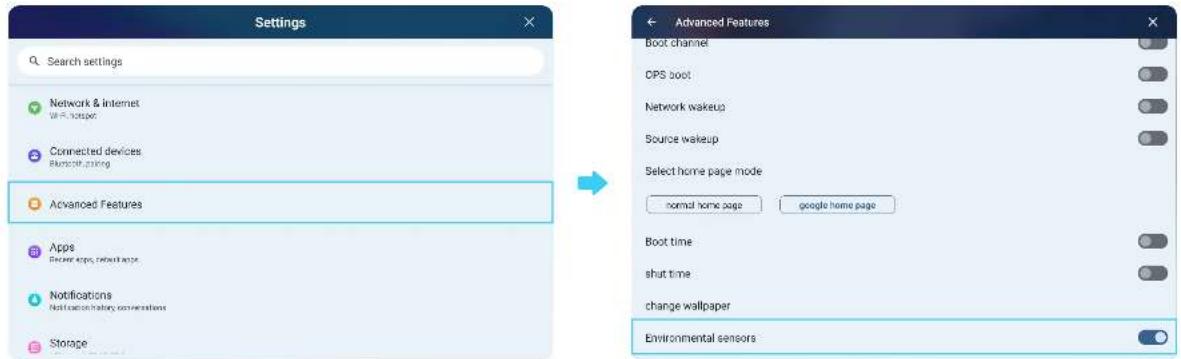
Settings Search settings Network & Internet WiFi router Connected devices Bluetooth zipping Advanced Features Apps detect apps, refresh apps Notifications Notification history conversations Storage Advanced Features Boot channel OPS boot Network wakeup Source wakeup Select home page mode normal home page google home page Boot time shut time change wallpaper Environmental sensors

INFOCUS JTouch IN6513 - Environmental sensors switch - 2

Network settings-WiFi

"Homepage—Settings—Network—Wireless network" WiFi can be set
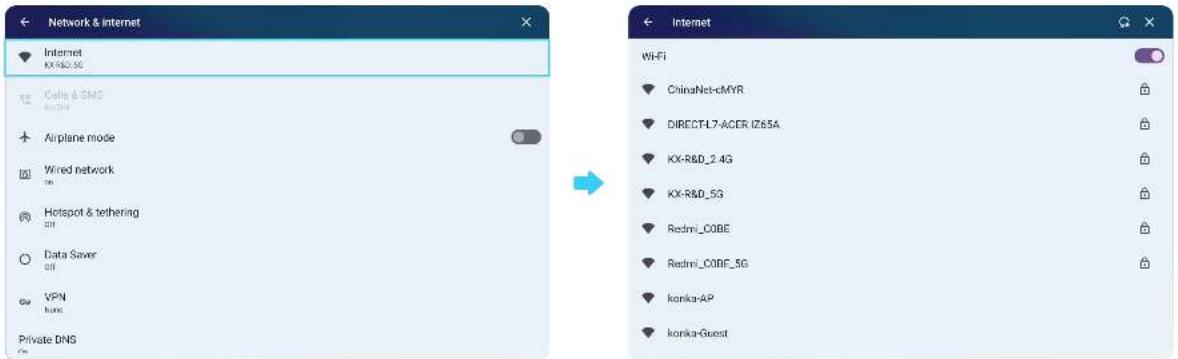
Network & internet Internet KX-R&D_SC Cells & GridS Airplane mode Wired network Hotspot & tethering Data Saver VPN Private DNS Internet Wi-Fi ChinaNet-cMYR DIRECTFL7-ACER IZ65A KX-R&D_2.4G KX-R&D_5G Redmi_C0BE Redmi_C0BF_5G konka-AP konka-Guest

INFOCUS JTouch IN6513 - Network settings-WiFi - 2

18 / 25

INFOCUS JTouch IN6513 - Network settings-WiFi - 3

INFOCUS JTouch IN6513 - Network settings-WiFi - 4

Network settings-Wired network

"Homepage—Settings—Network—Wired network" Wired network can be set
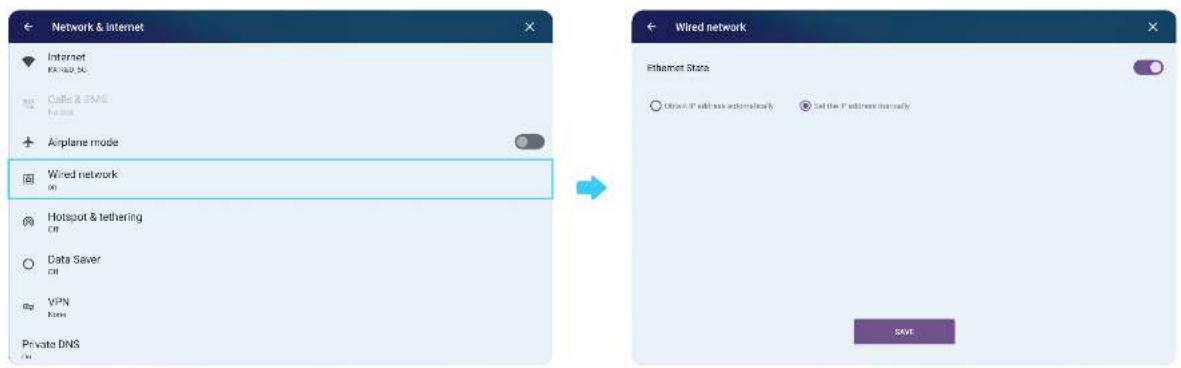
Network & internet Internet PK 102.3G Cable & EMS Airplane mode Wired network on Hotspot & tethering Off Data Saver Off VPN Home Private DNS Wired network Ethernet Store Open IP address automatically Set the IP address manually SAVE

INFOCUS JTouch IN6513 - Network settings-Wired network - 2

Network settings-WiFi hotspot

"Homepage—Settings—Network—Set hotspot" WiFi hotspot can be set
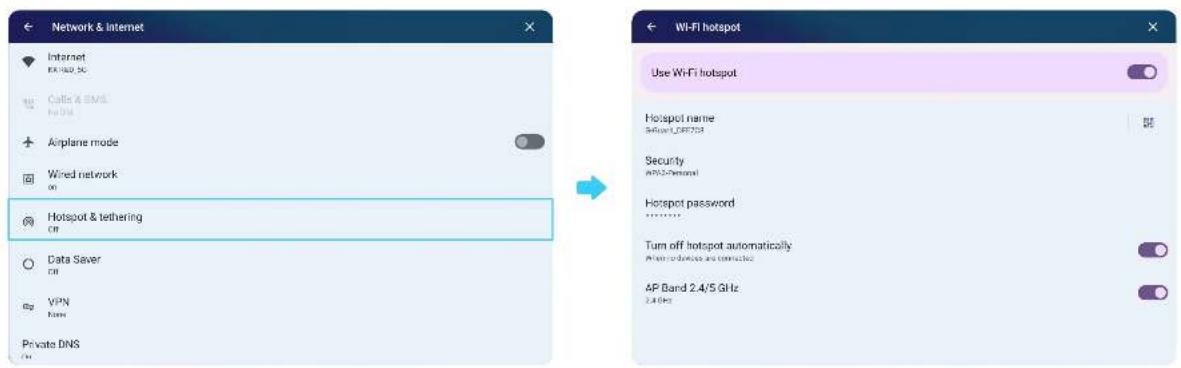
Network & Internet Internet EN 102.5G Cable & EMS No DNS Airplane mode Wired network Hotspot & tethering Off Data Saver Off VPN Name Private DNS Wi-Fi hotspot Use Wi-Fi hotspot Hotspot name Driver_LIFT303 Security APIC-Personal Hotspot password Turn off hotspot automatically After devices are connected AP Band 2.4/5 GHz 2.4 GHz

INFOCUS JTouch IN6513 - Network settings-WiFi hotspot - 2

NFC settings-Add user

Before using an NFC card, a new user account must be established first.

"Homepage—Settings—System—Multiple users-Add user" A new user account can be established.
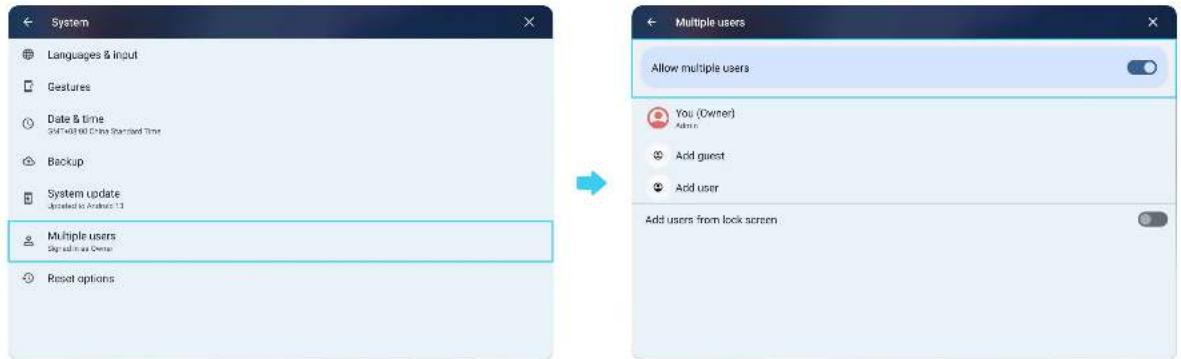
System Languages & input Gestures Date & time 3M+40.60 China Sparked Time Backup System update Updated to Android 1.1 Multiple users Sign all in as Owner Reset options Multiple users Allow multiple users You (Owner) Admin Add guest Add user Add users from lock screen

INFOCUS JTouch IN6513 - NFC settings-Add user - 2

Add NFC card

"Homepage—Settings—Connected devices—NFC" Put the NFC card close to the sensing area.
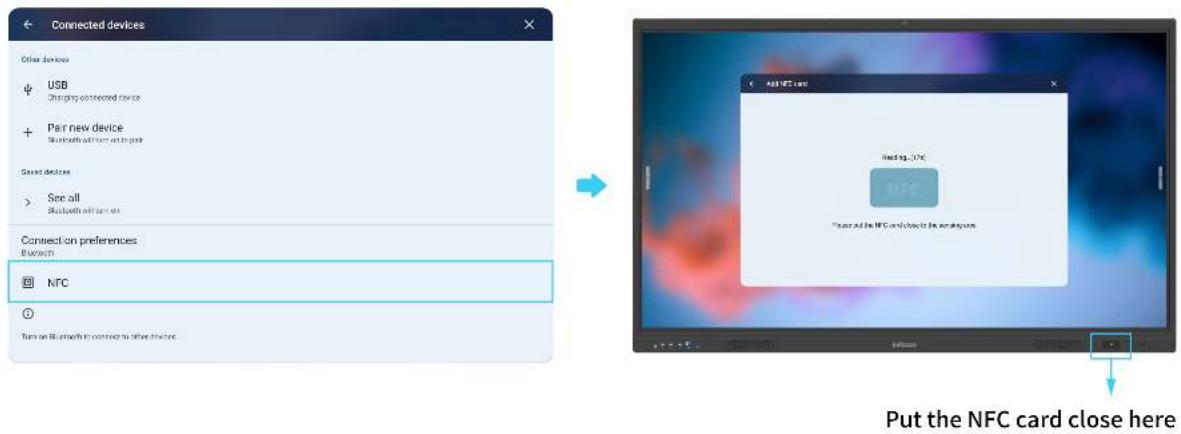
Connected devices Other devices USB Connecting connected devices Pair new device Bluetooth will turn out language Search devices Save all Bluetooth will turn out Connect on preferences Bluetooth NFC Turn on Bluetooth to connect to other devices Add NFC card Read log: 17C NFC Press all the NFC card close to the network Put the NFC card close here

INFOCUS JTouch IN6513 - Add NFC card - 2

Edit NFC card

After adding two NFC cards, you can see the following interface.

Select any one of the NFC cards, then you can set the identity of this NFC card.

The NFC card can unlock the user account associated with it.
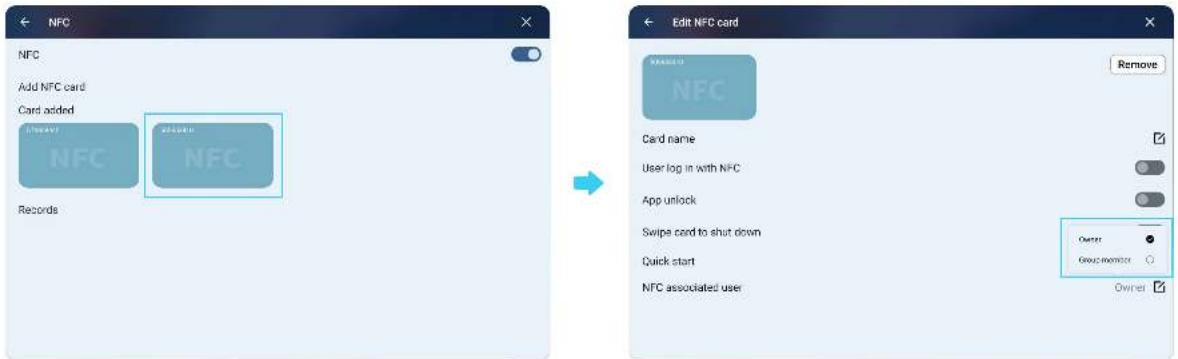
NFC Add NFC card Card added NFC NFC Records Edit NFC card Remove NFC Card name User log in with NFC App unlock Swipe cord to shut down Quick start NFC associated user Owner Group member Owner

INFOCUS JTouch IN6513 - Edit NFC card - 2

23 / 25

INFOCUS JTouch IN6513 - Edit NFC card - 3

INFOCUS JTouch IN6513 - Edit NFC card - 4

Camera

Different gesture switching modes.

INFOCUS JTouch IN6513 - Camera - 1

All view mode: without sound source tracing in this mode.

INFOCUS JTouch IN6513 - Camera - 2

Speaker mode: with sound source tracing in this mode.

INFOCUS JTouch IN6513 - Camera - 3

Meeting mode: with facial capture in this mode.

INFOCUS JTouch IN6513 - Camera - 4

24 / 25

INFOCUS JTouch IN6513 - Camera - 5

Accessories

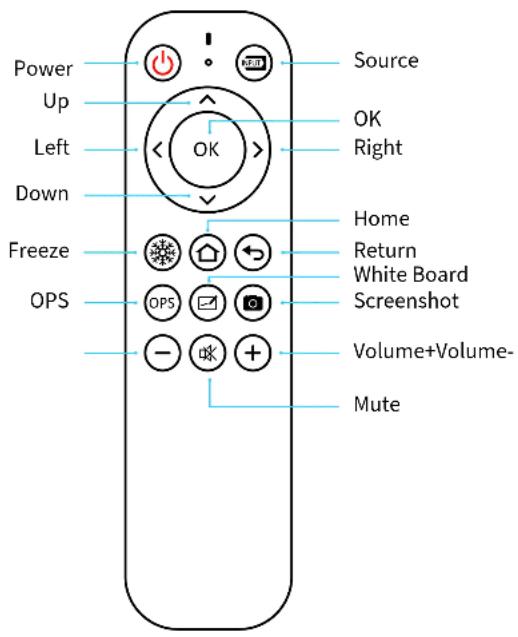
Remote control

Power Up Left Down Freeze OPS Source OK Right Home Return White Board Screenshot Volume+Volume- Mute

INFOCUS JTouch IN6513 - Remote control - 2

25 / 25

INFOCUS JTouch IN6513 - Remote control - 3

Manual assistant
Powered by Anthropic
Waiting for your message
Product information

Brand : INFOCUS

Model : JTouch IN6513

Category : Screen