
PT4900S-PTZ-TM-V2 - PTZ Camera Ikan - Free user manual and instructions
Find the device manual for free PT4900S-PTZ-TM-V2 Ikan in PDF.


| Product Type | PTZ Camera |
| Brand | Ikan |
| Model | PT4900S-PTZ-TM-V2 |
| Image Sensor | 1/2.8" Progressive CMOS |
| Resolution | 1920×1080 (Full HD) |
| Optical Zoom | 12x |
| Digital Zoom | 16x |
| Horizontal Pan Range | 360° continuous |
| Vertical Tilt Range | -10° to +90° |
| Pan Speed | 0.1° – 300°/s |
| Tilt Speed | 0.1° – 200°/s |
| Video Outputs | HDMI, 3G-SDI, Ethernet (IP) |
| Control Protocols | VISCA (RS-232/422), Pelco-D, ONVIF |
| Power Supply | DC 12V, 2A (included adapter) |
| Power Consumption | ≤ 15W |
| Dimensions (W×H×D) | 180 × 200 × 150 mm |
| Weight | 2.5 kg (5.5 lbs) |
| Mounting | 1/4"-20 thread (tripod or ceiling mount) |
| Operating Temperature | -10°C to 50°C (14°F to 122°F) |
| Maintenance | Clean lens with microfibre cloth; keep ventilation openings free of dust |
| Safety Warnings | Do not expose to rain or moisture; use only provided power adapter |
| Spare Parts / Repairability | Contact Ikan support for replacement parts; no user-serviceable parts inside |
Frequently Asked Questions - PT4900S-PTZ-TM-V2 Ikan
User questions about PT4900S-PTZ-TM-V2 Ikan
0 question about this device. Answer the ones you know or ask your own.
Ask a new question about this device
Download the instructions for your PTZ Camera in PDF format for free! Find your manual PT4900S-PTZ-TM-V2 - Ikan and take your electronic device back in hand. On this page are published all the documents necessary for the use of your device. PT4900S-PTZ-TM-V2 by Ikan.
USER MANUAL PT4900S-PTZ-TM-V2 Ikan
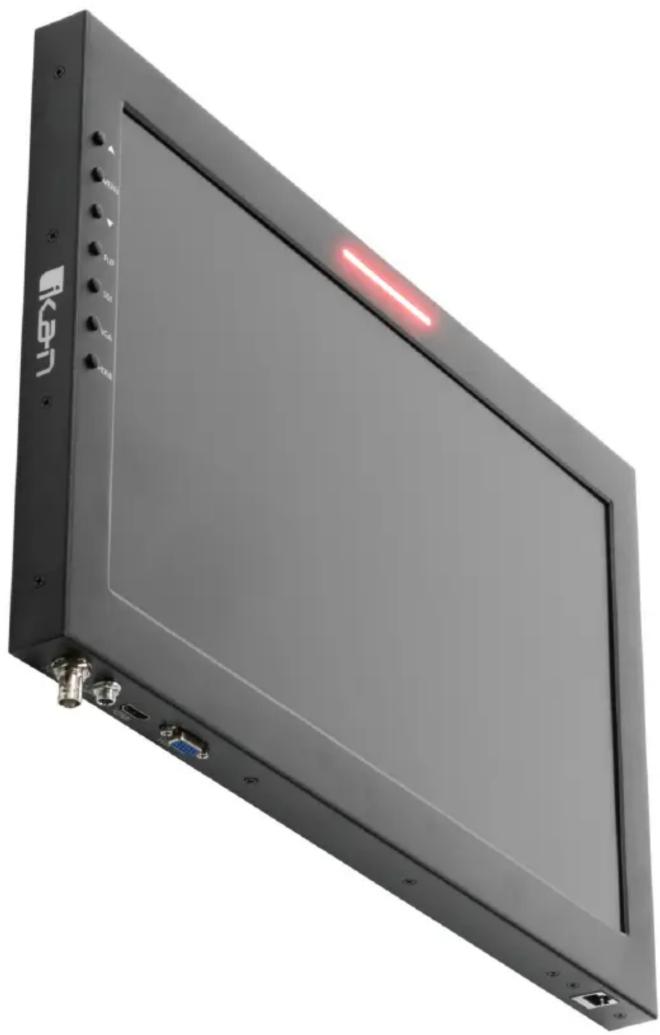
19" High-bright Teleprompter Lefikan Widescreen Monitor w/ Tally
19" SDI Monitor Compatible with Ikan Teleprompters
natural_image
Front view of a black rectangular electronic device with labeled ports and a red indicator light on the screen (no readable text or symbols beyond branding)What's Included
1 x SDI Widescreen Teleprompter Monitor w/ Built-in Tally Light
1 x Power Adapter with Cable
Monitor Ports

3G-SDI – Serial Digital Interface Connection
VGA – Video Graphics Array DE15 Connection
HDMI – High-Definition Multimedia Interface Input Connection
Power Port - 12-24v Input

natural_image
Line drawing of a rectangular TV or audio device with control buttons and ventilation grille (no text or symbols on the device itself)HDMI – Switch HDMI input
VGA – Switch to VGA input
SDI – Switch to 3G-SDI input
Flip - Toggle image flip
(Can be set to horizontal, vertical, or both via menu)
Up Arrow – Toggle up to adjust setting
Menu – Access to monitor settings
Down Arrow – Toggle down to adjust setting
Monitor Menu Settings
Video Config
Contrast (White Level)
Brightness (Black Level)
Tint (Chroma Hue)
Chroma (Chroma Saturation)
Sharpness (Detail)
RGB Setup – Manually configure RGB
Return
System Config
Menu Duration – Set duration of how long menu stays on screen
Video Ratio – Set screen aspect ratio 16:9 or 4:3 (4:3 is
native resolution, 16:9 will create black bars)
Flip-H - Assign toggle button to flip image horizontally
Flip-V – Assign toggle button to flip image vertically
Reset – Factory reset
Return
PC Setup (Only available for VGA)
H-Position – Adjust horizontal position
V-Position – Adjust vertical position
Auto – Monitor automatically adjust position
Return
Exit
How to set-up FLIP button feature:
- Press MENU button
- Navigate to SYSTEM CONFIG.
- Navigate to FLIP-V or FLIP-H
- Change FLIP-V and/or FLIP-H to "ON"
- Exit MENU
- The FLIP button should now be activated and can be pressed to mirror the image Horizontally or Vertically
- When FLIP-H is ON, the image will flip Horizontally
- When FLIP-V is ON, the image will flip Vertically
- If both are ON, the FLIP button will toggle both Horizontal and Vertical flip
Specifications
M19W
19" High-bright Teleprompter LED Widescreen Monitor w/ Tally
| Aspect Ratio | 16:9 |
| Brightness 1000 cd/m2 | |
| Diagonal 18.5 in. | |
| Input Signal 3G-SDI, VGA, HDMI | |
| Input Voltage DC 12v / 5A | |
| Power Consumption 36W | |
| Product Weight 5.73 lbs. | |
| Product Dimensions 18.3" x 12.3 x 1.2"" | |
| Native Resolution 1920 x 1080 | |
| Shipping Weight 8 lbs | |
| Shipping Dimensions 16.25" x 14.25" x 2" | |
| Viewing Angle 178° (H) / 178° (V) | |
| Build Material | Aluminum Chassis |
| Tally Interface | RJ45 |
| UPC | 847983034499 |
Supported Video Signals
SDI
720x480i @ 59.94, 60 Hz
720x576i @ 50 Hz
1280x720p @ 50, 60 Hz
1920x1080i @ 50, 59.94, 60 Hz
1920x1080psf @ 24, 25, 29.97, 30 Hz
1920x1080p @ 23.98, 24, 25, 29.97, 30, 50, 59.94, 60 Hz
HDMI
720x480i & 720x480p @ 59.94, 60 Hz
720x576i & 720x576p @ 50 Hz
1280x720p @ 50, 59.94, 60 Hz
1920x1080i @ 50, 59.94, 60 Hz
1920x1080psf @ 24, 25, 29.97, 30 Hz
1920x1080p @ 23.98, 24, 25, 29.97, 30, 50, 59.94, 60 Hz
Pinout Diagram for Tally Light
Tally Light Pinout:
GND: Connects to the ground of the device or system.
R: Connects the red tally light
G: Connects the green tally light
Y: Connects the yellow tally light
NC: Stands for "Not Connected" Disregard these pins.
Tally Pin Layout Diagram
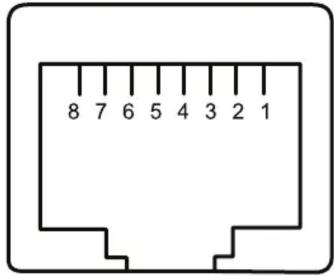
| Pin # | Signal |
| 2 | R |
| 3 | G |
| 2 3 | Y |
| 1 4 5 6 7 | NC |
| 8 | GND |
Learn More
More dynamic information at official website: www.ikancorp.com
Support
Contact email: support@ikancorp.com
CONDITIONS OF WARRANTY SERVICE
- Free service for one year from the day of purchase if the problem is caused by manufacturing errors.
- The components and maintenance service fee will be charged if the warranty period is expired.
Free Service will not be Provided in the Following Situations:(*Even if the product is still within the warranty period.)
- Damage caused by abuse or misuse, dismantling, or changes to the product not made by the company.
- Damage caused by natural disaster, abnormal voltage, and environmental factors, etc.
©2021 Ikan International. All rights reserved.

Brand : Ikan
Model : PT4900S-PTZ-TM-V2
Category : PTZ Camera