AC1205R - Router AIRLIVE - Free user manual and instructions
Find the device manual for free AC1205R AIRLIVE in PDF.


| Product Type | Wireless Router |
| Brand | AirLive |
| Model | AC1205R |
| Wireless Standard | IEEE 802.11ac/n/g/b |
| Frequency Bands | 2.4 GHz & 5 GHz |
| Maximum Data Rate | Up to 1200 Mbps (300+867) |
| Ports | 1x WAN (10/100/1000 Mbps), 4x LAN (10/100/1000 Mbps) |
| Antennas | 4x External Fixed Antennas |
| Security | WPA/WPA2, WPA-PSK, WPA2-PSK, WPS, SPI Firewall |
| Dimensions (W x D x H) | Approx. 200 x 140 x 30 mm |
| Weight | Approx. 400 g |
| Power Supply | DC 12V/1A |
| Operating Temperature | 0°C to 40°C |
| Storage Temperature | -20°C to 60°C |
| LED Indicators | Power, WAN, LAN, Wi-Fi, WPS |
| Management | Web GUI, Mobile App (optional) |
| VPN Support | PPTP, L2TP, IPSec pass-through |
| Guest Network | Yes (2.4 GHz & 5 GHz) |
| Parental Control | Yes |
| Mounting | Desktop stand, wall-mountable (holes provided) |
Frequently Asked Questions - AC1205R AIRLIVE
User questions about AC1205R AIRLIVE
0 question about this device. Answer the ones you know or ask your own.
Ask a new question about this device
Download the instructions for your Router in PDF format for free! Find your manual AC1205R - AIRLIVE and take your electronic device back in hand. On this page are published all the documents necessary for the use of your device. AC1205R by AIRLIVE.
USER MANUAL AC1205R AIRLIVE
WAN 1x 10/100/1000Mbps RJ45
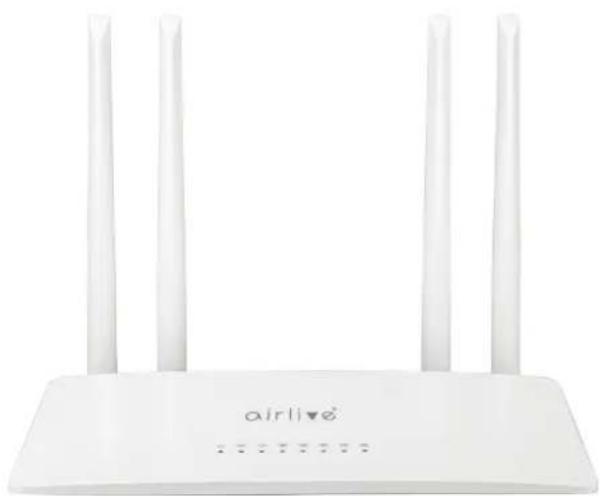
natural_image
White wireless router with four vertical antennas and 'airlive' branding on the base (no additional text or symbols visible)Installation Step:
- Wait for approximately 45 seconds for the Router to power on.
- Connect the LAN port of the Router to the network port of the computer with a network cable, or connect to the Wireless signal of the Router with a wireless network card. The default SSID is WIFI_XXXX (XXXX is the last 4 digits of the Router MAC address). Default Wireless Password: 12345678
- Open a browser and enter the Router IP address 192.168.188.1 Enter the setup Wizard to set the administrator password.
Set Administrator Password

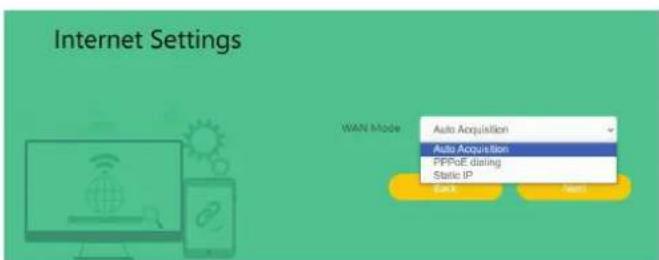
- Choose in internet connection method, Auto, PPPoE or Static IP.
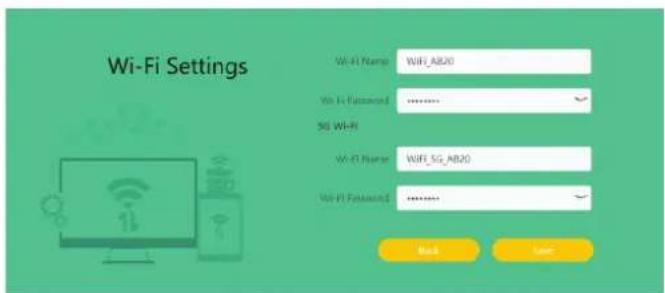
- Set Wireless name and Password, Click "Save" to complete the settings.
Declaration of Conformity
We, Manufacturer/Importer
AirLive Technology Corporation
4F, No.132, Lane 235, Baoqian Rd., Xindian Dist., New Taipei City 23145, Taiwan
Declare that the product
WiFi 5 AC1200 Dual Band Wireless Router AC1205R
is in conformity with
In accordance with RED 2014/53/EU Directive
Clause
(EMC)
■ EN 55032:2015+A11:2020+A1:2020
■ EN 55035:2017+A11:2020
■ EN 61000-3-3:2013+A1:2019
■ ETSI EN 301 489-1 V2.2.3 (2019-11)
■ ETSI EN 301 489-3 V2.1.2 (2021-03)
■ ETSI EN 301 489-17 V3.2.4 (2020-09)
(LVD)
■ EN IEC 62368-1:2020+A11:2020
(Health)
■ EN IEC 62311:2020
(Radio)
■ ETSI EN 300 328 V2.2.2 (2019-07)
■ ETSI EN 301 893 V2.1.1 (2017-05)
■ ETSI EN 300 440 V2.2.1 (2018-07)
Conformity with
In accordance with RoHS 2.0 Directive (EU) 2015/863 and (EU) 2017/2102
Amending Annex II to Directive 2011/65/EU.
■ IEC 62321-1:2013, IEC 62321-2:2013
■ IEC 62321-3-1:2013, IEC 62321-3-2:2013
■ IEC 62321-4:2013+A1:2017, IEC 62321-5:2013
■ IEC 62321-6:2015, IEC 62321-7-1:2015
■ IEC 62321-7-2:2017, IEC 62321-8:2017
■ CE marking

Manufacturer/Importer
Name : A van Rossem Position/ Title : Product Manager
Date : October 2023Place : Taiwan
www.airlive.com

AirLive Technology Corporation declares that this device is in compliance with the essential requirements of Radio Equipment Directive (RED) 2014/53/EU


Brand : AIRLIVE
Model : AC1205R
Category : Router