
HB-THUC - Uncategorized Sabrent - Free user manual and instructions
Find the device manual for free HB-THUC Sabrent in PDF.


| Product Type | USB-C Hub |
| Brand | Sabrent |
| Model | HB-THUC |
| Ports | 4x USB-A 3.0, 1x USB-C PD, 1x HDMI, 1x SD card reader |
| Dimensions | 120 x 60 x 20 mm |
| Weight | 98 g |
| Input Connector | USB-C Male, tethered cable 15 cm |
| Power Delivery | Pass-through up to 100W (charging hub) |
| USB-A Output | 5V, 1.5A per port |
| HDMI Resolution | Up to 4K @ 30 Hz |
| SD Card Slot | Supports SD/SDHC/SDXC, UHS-I |
| Material | Aluminum alloy |
| Color | Silver |
| Operating Temperature | 0°C to 45°C |
| Storage Temperature | -10°C to 70°C |
| LED Indicator | Power LED (blue) |
| Compatibility | Windows, macOS, Linux, Chrome OS |
| Safety Features | Overcurrent, overvoltage, short circuit protection |
| Maintenance | Wipe with a soft, dry cloth |
| Spare Parts | Not available (non-serviceable) |
| Repairability | Not user-serviceable; contact Sabrent support |
Frequently Asked Questions - HB-THUC Sabrent
User questions about HB-THUC Sabrent
0 question about this device. Answer the ones you know or ask your own.
Ask a new question about this device
Download the instructions for your Uncategorized in PDF format for free! Find your manual HB-THUC - Sabrent and take your electronic device back in hand. On this page are published all the documents necessary for the use of your device. HB-THUC by Sabrent.
USER MANUAL HB-THUC Sabrent
Connecting Differently™
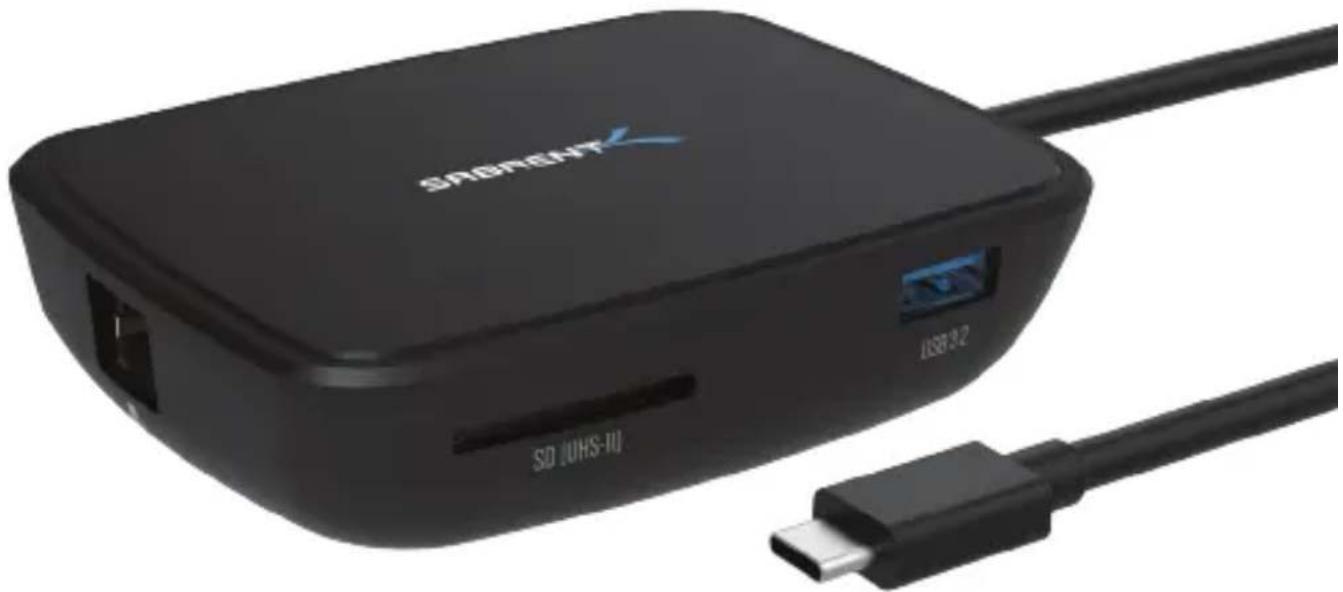
THUNDERBOLT 3™ TRAVEL DOCK
(WITH HDMI, DISPLAYPORT, SD CARD READER, ETHERNET AND USB 3.2 PORT)
natural_image
Black SAGRENT device with USB port and external cable, no visible text or symbols on main body
HB-THUC USER MANUAL
FEATURES
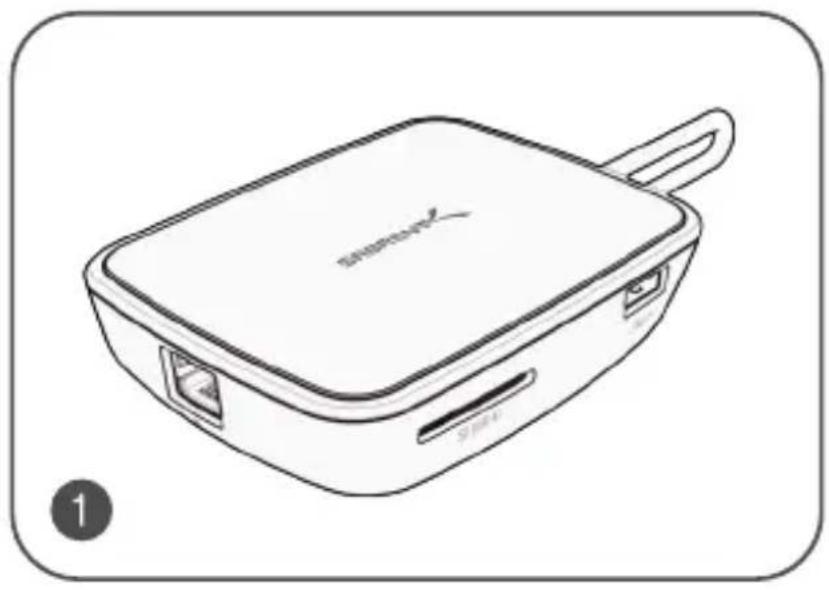
- Compact and light design. Ideal for backpacks and travel.
- Powered by an Intel Thunderbolt 3 ^TM controller with a bandwidth of up to 40 Gbps.
- DisplayPort 1.4 for 8K @ 60Hz (DSC), 5K @ 60Hz, and 4K @ 120Hz.
- DisplayPort supports HDR, HDCP 2.2, and VESA Adaptive Sync (FreeSync) where available.
• HDMI 2.0 video output for up to 4K @ 60Hz.
• 1 x Gigabit Ethernet RJ45 port. - SD UHS-II card reader. Read and write SD cards with a speed of up to 312 MB/s.
• 1 x USB 3 Type-A port - Up to 10 Gbps.
SYSTEM REQUIREMENT
- Windows OS.
• Mac OS (Apple M1 can only support one monitor output).
natural_image
Line drawing of a closed beige briefcase with lid and handle, no text or symbols present
natural_image
Simple line drawing of a document with two horizontal lines, no text or symbols presentPACKAGE CONTENT
- 1 x Sabrent Thunderbolt 3^TM docking station.
• This quick user guide.
Thunderbolt™ and the Thunderbolt™ logo are trademarks of Intel Corporation or its subsidiaries
CONNECTING FOR THE FIRST TIME VIA THUNDERBOLT 3 ^TM
Connect your Sabrent external drive to your computer as shown in the diagram. Make sure to confirm your computer's port has the Thunderbolt 3™ logo, otherwise it will likely be a standard USB 3 Type-C port.
When using any Thunderbolt 3™ device for the first time, your operating system might need you to approve the connection. If this is the case, select "Always Connect" and click "OK". You can alternatively select "Ask Every Time" if you need to do so for security reasons.

Approve Thunderbolt™ Devices
The following Thunderbolt™ device chain has been plugged into Port 2 and one or more devices require your permission to connect to this system.
Select the devices you wish to connect:
Sabrent External
Always Connect
Note: Selecting "Do Not Connect" will prevent that device and all devices further down the chain from being used on the system.
Install the driver included with the device before approving the device.
OK
TROUBLESHOOTING YOUR THUNDERBOLT 3 ^TM DEVICE
To troubleshoot the scenario where a Thunderbolt 3 ^™ device is not recognized properly, we suggest checking following items:
- Make sure that both the computer and the device are turned on and that the Thunderbolt 3 ^™ device is connected to the computer via the Thunderbolt interface.
- Disconnect and re-connect the Thunderbolt cable and/or restart the computer.
- Use the Thunderbolt 3 ^™ cable that was included. If you own a second cable, test both to rule out any problems with the cable.
- Confirm that your computer supports Thunderbolt. If it has a USB-C port but only supports USB, the Thunderbolt device won't work.
- For Windows PCs, update the BIOS of your computer.
- For Windows PCs, update the Thunderbolt firmware (NVM) on your computer.
- For Windows PCs, update the Thunderbolt software (driver) on your computer.
- For Windows PCs, when you connect a new device for the first time, you might have to approve the device. Select "Always Connect".
- For Windows PCs, if the device is recognized at first but disconnecting and re-connecting fails, install the device driver for Windows.
- For Windows PCs, if the device is no longer recognized after upgrading your operating system (e.g. from Windows 7 to Windows 10), uninstall the Thunderbolt software and re-install the latest version, even if it's the same version.
SABRENT
Please contact our Technical Support Team for additional troubleshooting
WWW.SABRENT.COM
Brand : Sabrent
Model : HB-THUC
Category : Uncategorized