Thunderbolt 3 Mini Dock - Docking Station OWC - Free user manual and instructions
Find the device manual for free Thunderbolt 3 Mini Dock OWC in PDF.


| Product Type | Docking Station |
| Brand | OWC |
| Model | Thunderbolt 3 Mini Dock |
| Dimensions | 3.9 x 2.9 x 0.9 inches (99 x 74 x 23 mm) |
| Weight | 4.2 oz (119 g) |
| Power Source | Bus-powered via host Thunderbolt 3 port |
| Host Connection | Thunderbolt 3 (USB-C) cable (included) |
| Pass-Through Thunderbolt Port | 1x Thunderbolt 3 (up to 40 Gbps, 60W charging) |
| Video Output | 1x HDMI 2.0 (up to 4K @ 60Hz) |
| USB Ports | 2x USB-A 3.1 Gen 1 (5 Gbps), 1x USB-C 3.1 Gen 1 (5 Gbps) |
| Ethernet | 1x Gigabit Ethernet (RJ45) |
| Audio | 1x 3.5mm headphone/microphone combo jack |
| SD Card Slot | 1x SD 4.0 UHS-II |
| Compatibility | Thunderbolt 3 or USB-C hosts (with appropriate driver support) |
| System Requirements | macOS 10.13+ or Windows 10 64-bit |
| Cable Included | 0.8m Thunderbolt 3 (USB-C) cable |
| LED Indicators | Power/Connection status LED |
| Operating Temperature | 32° to 95°F (0° to 35°C) |
| Storage Temperature | -4° to 140°F (-20° to 60°C) |
| Humidity | 10% to 90% non-condensing |
| Certifications | CE, FCC, Thunderbolt 3 certified |
| Warranty | 1 year from OWC |
Frequently Asked Questions - Thunderbolt 3 Mini Dock OWC
User questions about Thunderbolt 3 Mini Dock OWC
0 question about this device. Answer the ones you know or ask your own.
Ask a new question about this device
Download the instructions for your Docking Station in PDF format for free! Find your manual Thunderbolt 3 Mini Dock - OWC and take your electronic device back in hand. On this page are published all the documents necessary for the use of your device. Thunderbolt 3 Mini Dock by OWC.
USER MANUAL Thunderbolt 3 Mini Dock OWC
natural_image
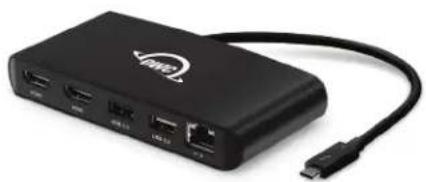
Black OVMC network device with HDMI ports and USB ports, connected to a USB cable (no text or symbols on the device body)
Dual HDMI 2.0 ports for 4K displays

Two USB for storage and accessories

Gigabit Ethernet for faster connectivity

Compact, no AC adapter needed

Ideal for Mac & Windows notebooks
CONTENTS
Introduction
1.1 Minimum System Requirements....1
-Mac Requirements
-PC Requirements
1.2 Package Contents....1
1.3 About This Guide.... 1
1.4 Front View.... 2
Support Resources
2.1 Usage Notes 3
2.2 Contacting Technical Support......4
1.1 Minimum System Requirements
Mac Requirements
-macOS 10.12 or later
PC Requirements
-Windows 10 or later
Hardware Requirements
-Mac or PC with a Thunderbolt 3 port
Driver
-None
1.2 Package Contents
natural_image
Black USB device with network ports and USB cable, no visible text or symbols
Printed quick start guideOWC Thunderbolt 3 mini Dock
1.3 About This Manual
The images and descriptions may vary slightly between this manual and the unit shipped. Functions and features may change depending on the firmware version. The latest product details and warranty information can be found on the product web page. OWC's Limited Warranty is not transferable and subject to limitations.
1.4 Front View
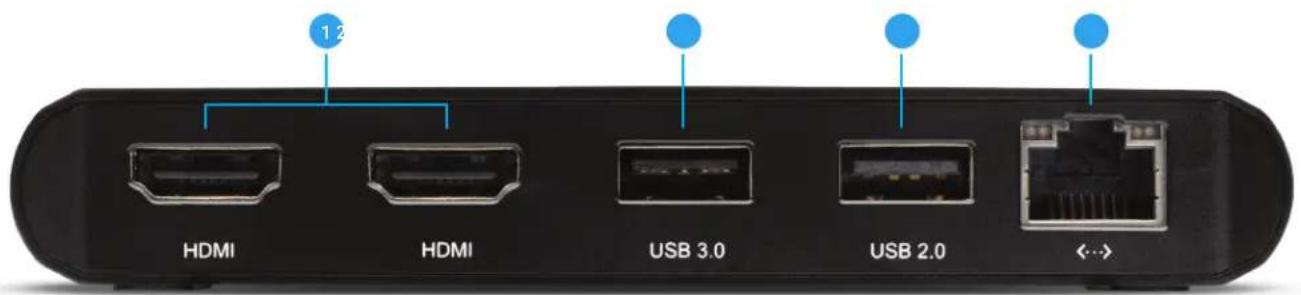
- HDMI 2.0 ports – connect HDMI compatible displays here. See Usage Notes for details.
- USB 3.0 port - connect compatible bus-powered USB 3.x devices here. See Usage Notes for details.
- USB 2.0 port – connect compatible bus-powered USB 2.0 devices here. See Usage Notes for details.
- Gigabit Ethernet – connect Gigabit-compatible Ethernet cable here. See Usage Notes for details.
2.1 Usage Notes
- This device will not work with USB-C host ports. Thunderbolt 3 is required.
- Certified HDMI 2 cables required for use with HDMI 2.0 ports and displays.
- Each HDMI port supports resolutions up to 4096 x 2160 (3840 x 2160) @ 60Hz and will pass an HDMI audio signal from the host, for displays that have speakers or support headphones.
- Dual displays are supported but the available resolution and refresh rates are dependent upon the specific hardware and drivers used by your system.
Supported Resolutions for Dual Monitors
| Resolution Video Display Frequency Dual Monitor | ||
| 4K 60Hz Yes | ||
| 2K (2560 x1600) 60Hz Yes | ||
| Full HD (1920 x 1080p) 60Hz Yes | ||
| 2K (2560 x 1600) 30Hz Yes | ||
| Full HD (1920 x 1080p) 30Hz Yes | ||
-USB ports do not support the Apple Super Drive.
- The USB ports do not receive power when the host computer is in sleep mode.
- USB 3.0 port supports speeds up to 5Gb/s and provides bus power up to 5V and 0.9A (4.5W). Devices which require more bus power will not function on this port. An optional, auxiliary power adapter may be available for some bus-powered enclosures. UASP is supported.
- Smart phones or iPods with a compatible USB charging cable can recharge via this port but may be slower than other charging methods.
- Tablet and iPad charging are not supported.
- USB 2.0 port supports speeds up to 480 Mb/s and provides up to 5V and 0.5A (2.5W) of bus power. Devices which require more bus power will not function on this port.
- Ethernet – the device should detect and connect to the network automatically once the Ethernet cable is connected. This device supports Wake-on-LAN (WoL) which allows the network to wake your computer from sleep or standby mode.
2.3 Contacting Technical Support

Phone: M-F, 8am-8pm CT 1.866.692.7100 (N. America) | +1.815.338.4751 (Int'l)

Chat: M-F, 8am-8pm, Sat 9am-5pm CT www.owc.com/support

Email: Answered within 48 hours www.owc.com/support
Changes:
The material in this document is for information purposes only and subject to change without notice. While reasonable efforts have been made in the preparation of this document to assure its accuracy, OWC, its parent, partners, affiliates, officers, employees, and agents assume no liability resulting from errors or omissions in this document, or from the use of the information contained herein. OWC reserves the right to make changes or revisions in the product design or the product manual without reservation and without obligation to notify any person of such revisions and changes.
FCC Statement:
Warning! Modifications not authorized by the manufacturer may void the user's authority to operate this device.
NOTE: This equipment has been tested and found to comply with the limits for a Class B digital device, pursuant to Part 15 of the FCC Rules. These limits are designed to provide reasonable protection against harmful interference in a residential installation. This equipment generates, uses and can radiate radio frequency energy and, if not installed and used in accordance with the instructions, may cause harmful interference to radio communications. However, there is no guarantee that interference will not occur in a particular installation. If this equipment does cause harmful interference with radio or television reception, which can be determined by turning the equipment off and on, the user is encouraged to try to correct the interference by one or more of the following measures:
-Reorient or relocate the receiving antenna.
-Increase the separation between the equipment and receiver.
- Connect the equipment to an outlet on a circuit different from that to which the receiver is connected.
Health And Safety Precautions:
- Read this user guide carefully and follow the correct procedures when setting up the device.
- Do not attempt to disassemble or modify the device. To avoid any risk of electrical shock, fire, short-circuiting or dangerous emissions, never insert any metallic object into the device. If it appears to be malfunctioning, contact OWC technical support.
- Never expose your device to rain, or use it near water or in damp or wet conditions. Never place objects containing liquids on the device, as they may spill into its openings. Doing so increases the risk of electrical shock, short-circuiting, fire or personal injury.
General Use Precautions:
- To avoid damage, do not expose the device to temperatures outside the range of 5^ C to 35^ C ( 41^ F to 95^ F) during use.
- Always unplug the device from the electrical outlet if there is a risk of lightning or if it will be unused for an extended period of time. Otherwise, there is an increased risk of electrical shock, short-circuiting or fire.
- Do not use the device near other electrical appliances such as televisions, radios or speakers. Doing so may cause interference which will adversely affect the operation of the other products.
-Do not place objects on top of the device. - Protect your device from excessive exposure to dust during use or storage. Dust can build up inside the device, increasing the risk of damage or malfunction.
Warranty:
The OWC Thunderbolt 3 mini Dock has a 2 Year OWC Limited Warranty. For up-to-date product and warranty information, please visit the product web page.
Copyrights and Trademarks:
No part of this publication may be reproduced, stored in a retrieval system, or transmitted in any form or by any means, electronic, mechanical, photocopying, recording or otherwise, without the prior written consent of OWC.
© 2020 Other World Computing, Inc. All rights reserved. OWC and the OWC logo are trademarks of New Concepts Development Corporation, registered in the U.S. and/or other countries. Apple, Mac, mac OS, and SuperDrive are trademarks of Apple Inc., registered in the United States and other countries. Thunderbolt and the Thunderbolt logo are trademarks of Intel Corporation in the U.S. and/or other countries. Microsoft and Windows are either registered trademarks or trademarks of Microsoft Corporation in the United States and/or other countries. Other marks may be the trademark or registered trademark property of their owners.
Brand : OWC
Model : Thunderbolt 3 Mini Dock
Category : Docking Station