
PEX1P2 - Printer StarTech.com - Free user manual and instructions
Find the device manual for free PEX1P2 StarTech.com in PDF.


| Product Type | Parallel Port Expansion Card (PCIe) |
| Model | PEX1P2 |
| Brand | StarTech.com |
| Interface | PCI Express x1 |
| Ports | 1 x DB25 IEEE 1284 Parallel Port |
| Dimensions | Approx. 120 x 60 x 20 mm |
| Weight | Approx. 50 g |
| Power Supply | Powered via PCIe slot |
| Supported Operating Systems | Windows, Linux, macOS |
| Data Transfer Rate | Up to 2 Mbps (IEEE 1284) |
| Plug and Play | Yes, auto-installation on most systems |
| Drivers Required | Some operating systems may require driver installation |
| Maintenance | Keep dry and clean; avoid dust buildup on contacts |
| Cleaning | Use a soft dry cloth to clean the card; do not use liquids |
| Safety | Power off computer before installation; handle by edges |
| Reparability | No user-serviceable parts; replace if defective |
Frequently Asked Questions - PEX1P2 StarTech.com
User questions about PEX1P2 StarTech.com
0 question about this device. Answer the ones you know or ask your own.
Ask a new question about this device
Download the instructions for your Printer in PDF format for free! Find your manual PEX1P2 - StarTech.com and take your electronic device back in hand. On this page are published all the documents necessary for the use of your device. PEX1P2 by StarTech.com.
USER MANUAL PEX1P2 StarTech.com
1 Port PCI Express® Dual Profile Parallel Adapter Card - SPP/EPP/ECP
Product Diagram (PEX1P2)
Front Angle View
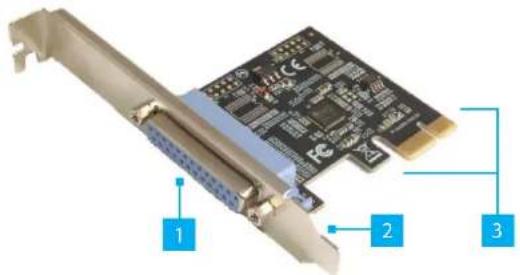
| Port Function | ||
| 1 | Parallel Port • Female DB-25 | Parallel Port |
| 2 | Bracket | • Configurable for Full Profile and Low Height installations |
| 3 | PCIe x1 Connector | • Connect the Parallel Adapter Card to the PCI Express Slot in the Computer |
Requirements
For the latest requirements, please visit: www.startech.com/PEX1P2.
• Computer with an available PCI Express slot (x1)
Tools
• Small Phillips Head Screwdriver
Hardware Installation
Warning: Parallel Adapter Cards can be damaged by static electricity. Make sure that the Installer is properly grounded before they open the Computer Case or touch the Parallel Adapter Card. The Installer should wear an Anti-Static Strap when installing any computer component. If an Anti-Static Strap is not available, discharge any built-up static electricity by touching a large Grounded Metal Surface for several seconds. Only handle the Parallel Adapter Card by its edges and do not touch the gold connectors.
Installing the Low Profile Bracket
By default the Full Profile Bracket is attached to the Parallel Adapter Card. Depending on the system configuration it may be necessary to remove the Full Profile Bracket and replace it with the Low Profile Bracket (included).
-
Using a Small Phillips Head Screwdriver, remove the two Bracket Screws securing the Full Profile Bracket to the Parallel Adapter Card.
-
Align the Screw Holes on the Parallel Adapter Card with the Screw Holes on the Low Profile Bracket. Making sure the Parallel Adapter Card is sitting on-top of the Screw Holes on the Low Profile Bracket.
-
Insert the Bracket Screws through the Parallel Adapter Card and into the Screw Holes on the Low Profile Bracket.
-
Using the Small Phillips Head Screwdriver, tighten the Bracket Screws, being careful not to over-tighten.
Installing the Parallel Adapter Card
- Turn off the Computer and any Peripheral Devices that are connected (e.g. printers, external hard drives, etc.).
- Unplug the Power Cable from the rear of the Computer and disconnect any Peripheral Devices that are connected.
- Remove the Cover from the Computer Case.
Note: Consult the documentation that came with the Computer for details about how to do this safely. - Locate an open PCI Express Slot (x1) and remove the corresponding Metal Cover Plate from the rear of the Computer Case. In most instances, the Metal Cover Plate is attached to the rear of the Computer Case with a single Screw. Save this Screw for the next step.
-
Gently insert the Parallel Adapter Card into the open PCI Express Slot and fasten the Bracket to the rear of the Computer Case using the Screw from step 4.
-
Place the Cover back onto the Computer Case.
-
Reconnect the Power Cable to the rear of the Computer.
-
Reconnect all of the Peripheral Devices that were disconnected in step 2.
-
Connect a SPP/EPP/ECP Peripheral Device to the Parallel Port on the Parallel Adapter Card.
Software Installation
Driver Installation
You can download the latest Drivers from the StarTech.com website:
www.startech.com/PEX1P2.
Navigate to the Drivers/Downloads tab to locate the Drivers. Follow the instructions included with the Driver Files.
FCC Compliance Statement
This equipment has been tested and found to comply with the limits for a Class B digital device, pursuant to part 15 of the FCC Rules. These limits are designed to provide reasonable protection against harmful interference in a residential installation.
This equipment generates, uses and can radiate radio frequency energy and, if not installed and used in accordance with the instructions, may cause harmful interference to radio communications. However, there is no guarantee that interference will not occur in a particular installation. If this equipment does cause harmful interference to radio or television reception, which can be determined by turning the equipment off and on, the user is encouraged to try to correct the interference by one or more of the following measures:
- Connect the equipment into an outlet on a circuit different from that to which the receiver is connected.
- Consult the dealer or an experienced radio/TV technician for help
his device complies with part 15 of the FCC Rules. Operation is subject to the following two conditions:
(1) This device may not cause harmful interference, and (2) this device must accept any interference received, including interference that may cause undesired operation. Changes or modifications not expressly approved by StarTech.com could void the user's authority to operate the equipment.
Industry Canada Statement
This Class B digital apparatus complies with Canadian ICES-003.
This device complies with Industry Canada licence-exempt RSS standard(s). Operation is subject to the following two conditions: (1) This device may not cause interference, and (2) This device must accept any interference, including interference that may cause undesired operation of the device.
Use of Trademarks, Registered Trademarks, and other Protected Names and Symbols
This manual may make reference to trademarks, registered trademarks, and other protected names and/or symbols of third-party companies not related in any way to StarTech.com. Where they occur these references are for illustrative purposes only and do not represent an endorsement of a product or service by StarTech.com, or an endorsement of the product(s) to which this manual applies by the third-party company in question. StarTech.com hereby acknowledges that all trademarks, registered trademarks, service marks, and other protected names and/or symbols contained in this manual and related documents are the property of their respective holders.
PHILLIPS® is a registered trademark of Phillips Screw Company in the United States or other countries.
Warranty Information
This product is backed by a two-year warranty.
For further information on product warranty terms and conditions, please refer to www.startech.com/warranty.
Limitation of Liability
In no event shall the liability of StarTech.com Ltd. and StarTech.com USA LLP (or their officers, directors, employees or agents) for any damages (whether direct or indirect, special, punitive, incidental, consequential, or otherwise), loss of profits, loss of business, or any pecuniary loss, arising out of or related to the use of the product exceed the actual price paid for the product. Some states do not allow the exclusion or limitation of incidental or consequential damages. If such laws apply, the limitations or exclusions contained in this statement may not apply to you.
Safety Measures
- If product has an exposed circuit board, do not touch the product under power.
Mesures de sécurité
- Port PCI Express® Dual Profile Parallel Adapter Card - SPP/EPP/ECP
- Product Diagram (PEX1P2)
- Requirements
- Hardware Installation
- Installing the Low Profile Bracket
- Installing the Parallel Adapter Card
- Software Installation
- Driver Installation
- FCC Compliance Statement
- Industry Canada Statement
- Use of Trademarks, Registered Trademarks, and other Protected Names and Symbols
- Warranty Information
- Limitation of Liability
- Safety Measures
- Mesures de sécurité
Brand : StarTech.com
Model : PEX1P2
Category : Printer