
F5 - Game controller Gamesir - Free user manual and instructions
Find the device manual for free F5 Gamesir in PDF.


| Product Type | Game Controller for Smartphones |
| Brand | GameSir |
| Model | F5 |
| Compatibility | Smartphones with thickness up to 10.5 mm; games supporting custom virtual buttons |
| Buttons | L button, R button, Burst Mode Keys (L & R) |
| Burst Modes | Random 9 shots (orange indicator), Record Fire (red indicator), Cancel (green indicator) |
| Burst Mode Switching | Long press Burst Mode Key + L or R to cycle through modes; single click to toggle current/cancel |
| Recording Mode | Press and hold burst mode key for 3 seconds to enter; press L or R to record up to 10 presses; click key again to save |
| Indicator Light | Orange: random 9 shots; Red: record mode; Green: cancel mode; Red fast flash: battery below 5% |
| Charging Indicator | Red flashing: charging; Green solid: fully charged; Red fast flash: low battery |
| Power | Rechargeable via USB (charging cable included) |
| Box Contents | 1x GameSir F5 Controller, 1x USB Charging Cable, 1x Certification Card, 1x User Manual |
| Material | Plastic |
| Cleaning | Use a soft, dry cloth; do not use chemicals |
| Safety | Contains small parts, keep away from children under 3; do not expose to fire, direct sunlight, or high temperatures; do not disassemble |
| Compliance | FCC Part 15 |
| Manufacturer | GameSir |
| Contact | c@gameir.hk |
Frequently Asked Questions - F5 Gamesir
User questions about F5 Gamesir
0 question about this device. Answer the ones you know or ask your own.
Ask a new question about this device
Download the instructions for your Game controller in PDF format for free! Find your manual F5 - Gamesir and take your electronic device back in hand. On this page are published all the documents necessary for the use of your device. F5 by Gamesir.
USER MANUAL F5 Gamesir
SCAN THE OR CODE AND REGISTER!

mygamesr
mygamesir

GameSir

gamesir.nk

mygamesir

c@gameir.hk
COMPATIBLE SIZES
Phone thickness: within 10.5 mm
COMPATIBLE GAMES
Games that support custom virtual buttons.
IN THE BOX
GameSir F5 Game Controller X 1
USB Charging Cable X 1
Certification X 1
User Manual X 1
DEVICE LAYOUT
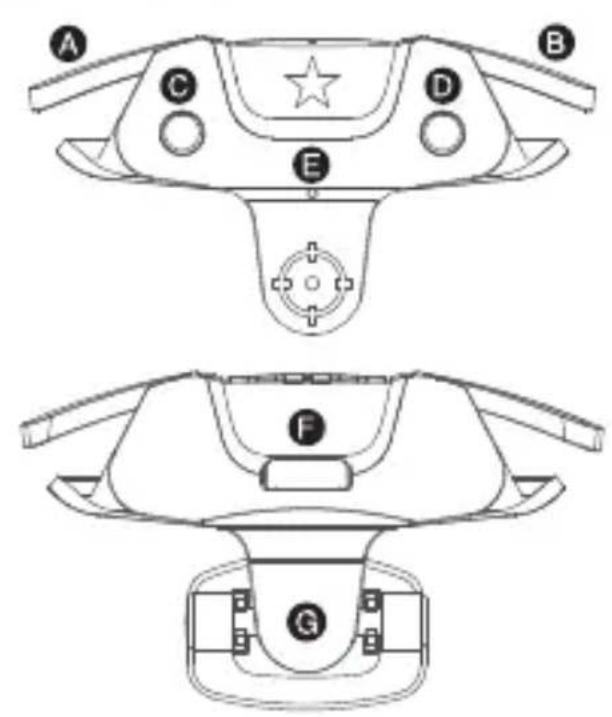
A L button
B button
L Burst Mode Key
D R Burst Mode Key
E Indicator light
USB charging port
Buckle
STEP 1
Put F5 vertically down to the side of the phone

STEP 2
Press down the F5 bucide to make it lit on the phone
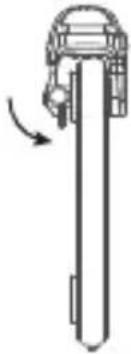
STEP 3
Enter the game's custom settings, move the virtual button of shooting, aiming or jumping to the location of the touch point, remove the overlapping virtual buttons, make sure that the location of the touch point corresponds to only one virtual button, and then save the settings.

SWITCH BURST MODE
The Burst Mode Key on the left and right of F5 respectively control the burst mode of the "L" and "R" buttons
It can be switched cyclically in 3 different burst modes. The color of the indicator light will change when switching to indicate the current burst mode.
| Indicator | Description |
| Orange | Fire 9 times randomly |
| Red | Record Fire Times |
| Green | Cancel |
| How to switch | Description |
| Long press Burst Mode Key+ "L" or "R" | Cycle through in 3 burst modes |
| Click Burst Mode Key | Cycle through 'current burst mode / cancel' |
RANDOM 9 BURST MODE
Press the burst mode key to switch to the "Random 9 shots / 1 second" burst fire mode, the indicator color will change to yellow after switching.
RECORD BURST MODE
It means that you can record the frequency of pressing the fire button. After entering the burst mode, long press the L or R to trigger the recorded Burst Mode cyclically.
Press and hold the burst mode button for 3 seconds to enter the recording mode, the indicator flashes in red
Press the "L" or "R" button to start recording, the next 10 presses will be recorded
After the recording is completed, click the burst mode key again, the red light will go out, which means the recording is successful. Long press the "L" or "R" button to trigger the recording action cyclically.
SCREEN-OFF CORRECTION
During use, if there is no response or it disconnects, try to turn off the phone screen and then turn it on again for troubleshooting
CHARGE THE F5
Use the charging cable to connect the USB port on the back of F5 to the USB charging port
BATTERY
| Charging Indicator | Description |
| Red Flashes | Charging |
| Red Flashes Quickly | Lower than 5% |
| Green Stays On | Fully Charged |
▲ NOTICE Please read this Precautions carefully.
- CONTAINS SMALL PARTS. Keep out of reach of children under the age of 3. Seek immediate medical attention if swallowed or inhaled.
• DO NOT use the product near fire.
• DO NOT expose to direct sunlight or high temperatures. - DO NOT leave the product in a humid or dusty environment.
- DO NOT impact the product or cause it to fall due to strong impact.
• DO NOT touch USB port directly or it might cause malfunctions.
• DO NOT strongly bend or pull cable parts. - Use a soft, dry cloth while cleaning.
• DO NOT use chemicals such as gasoline or thinner.
• DO NOT disassemble, repair or modify. - DO NOT use for purposes other than its original purpose. We are NOT responsible for accidents or damage when used for non-original purposes.
* DO NOT look directly at the optical light. It might damage your eyes. - If you have any quality concerns or suggestions, please contact GameSir or your local distributor.
This device complies with part 15 of the FCC Rules. Operation is subject to the following two conditions: (1) This device may not cause harmful interference, and (2) this device must accept any interference received, including interference that may cause undesired operation. Note: This equipment has been tested and found to comply with the limits for a Class B digital device, pursuant to part 15 of the FCC Rules. These limits are designed to provide reasonable protection against harmful interference in a residential installation. This equipment generates, uses and can radiate radio frequency energy and, if not installed and used in accordance with the instructions, may cause harmful interference to radio communications.
However, there is no guarantee that interference will not occur in a particular installation. If this equipment does cause harmful interference to radio or television reception, which can be determined by turning the equipment off and on, the user is encouraged to try to correct the interference by one or more of the following measures: -Reorient or relocate the receiving antenna.
-Increase the separation between the equipment and receiver.
-Connect the equipment into an outlet on a circuit different from that to which the receiver is connected.
-Consult the dealer or an experienced radio/TV technician for help.
コンバチブルサイズ
電話の厚さ:10.5mm以内
コンパチブルゲーム
A Lボタン
B Rボタン
C L連号モードボタン
D R連発モードボタン
E インジケーターライト
USB充電ポート
G バックル
ステップ1
F5を電話の側面に垂直に置きます

ステップ2
ステップ3
連発切り替え
제3단계
콤보 전환
A. 按键
R 按键
C1 连击按键
D R 连击按键
E 指示灯
USB充电口 背部卡扣
第一步
将F5垂直向下装入手机一侧

第二步
第三步
连击切换
Brand : Gamesir
Model : F5
Category : Game controller