
MAX-KJ610 - Karaoke SAMSUNG - Free user manual and instructions
Find the device manual for free MAX-KJ610 SAMSUNG in PDF.


| Product Type | Karaoke System |
| Brand | Samsung |
| Model | MAX-KJ610 |
| Dimensions (W x H x D) | 420 x 280 x 260 mm |
| Weight | 5.2 kg |
| Power Supply | AC 220-240V, 50/60Hz |
| Power Consumption | 60 W |
| Amplifier Output | 2 x 20 W RMS |
| Speaker Configuration | 2-way, 2 speakers |
| Microphone Inputs | 2 (6.3 mm jack) |
| Audio Inputs | AUX, USB, Bluetooth |
| Audio Outputs | Headphone jack, RCA |
| Media Playback | CD, DVD, USB, Bluetooth streaming |
| Karaoke Features | Key control, echo, vocal cancel |
| Display | LED screen |
| Remote Control | Yes, included |
| Cleaning | Wipe with dry cloth; avoid liquids |
| Safety | Do not expose to moisture or heat |
| Spare Parts Availability | Contact Samsung support |
| Repairability | Serviceable by authorized technician |
Frequently Asked Questions - MAX-KJ610 SAMSUNG
User questions about MAX-KJ610 SAMSUNG
0 question about this device. Answer the ones you know or ask your own.
Ask a new question about this device
Download the instructions for your Karaoke in PDF format for free! Find your manual MAX-KJ610 - SAMSUNG and take your electronic device back in hand. On this page are published all the documents necessary for the use of your device. MAX-KJ610 by SAMSUNG.
USER MANUAL MAX-KJ610 SAMSUNG
THIS APPLIANCE IS MANUFACTURED BY:
MAX-KJ650
SAMSUNG
ELECTRONICS
Instruction Manual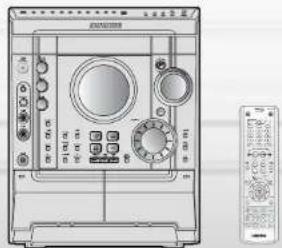
Divx
DVD
COMPACT DISC DIGITAL AUDIO
COMPACT DISC NISTAL VIDEO
ITP3 LIGITAL CHOC PLAYBACK
Safety Warnings Precautions
CLASS 1 LASER PRODUCT
KLASSE 1 LASER PRODUCT
LUOKAN 1 LASER DATE KLASR 1 LASER APPAR
REASS LASER APPARAT PRODUCTO LASER CLASE 1
CLASS 1 LASER PRODUCT
This Compact Disc player is classified as a CLASS 1 LASER product.
Use of controls, adjustments, or performance of procedures other than those specified herein may result in hazardous radiation exposure.
CAUTION: INVISIBLE LASER RADIATION WHEN OPEN AND INTERLOCKS DEFEATED. AVOID EXPOSURE TO BEAM.

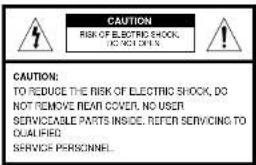
This symbol indicates that dangerous voltage that can cause electric shock is present inside this unit.

This symbol alerts you to important operating and maintenance instructions accompanying the unit.
WARNING: To reduce the risk of fire or electric shock, do not expose this appliance to rain or moisture.
CAUTION: TO PREVENT ELECTRIC SHOCK, MATCH WIDE BLADE OF PLUG TO WIDE SLOT, FULLY INSERT.
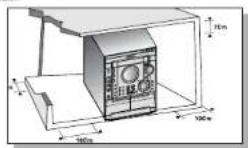
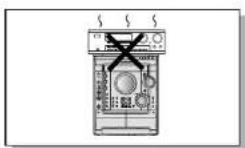
Ensure that the AC power supply in your house complies with the identification sticker located on the back of your player. Install your player horizontally, on a suitable base (furniture), with enough space around it for ventilation (3-4 inches). Make sure the ventilation slots are not covered. Do not place anything on top of the player. Do not place the player on amplifiers or other equipment which may become hot. Before moving the player, ensure the disc tray is empty. This player is designed for continuous use. Switching off the DVB player to stand-by mode does not disconnect the electrical supply. To disconnect the player completely from the power supply, remove the main plug from the wall outlet, especially when left unused for a long period of time.
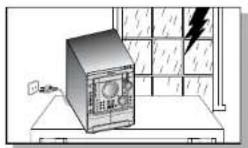
During thunderstorms, disconnect the AC main plug from the wall outlet.
Voltage peaks due to lightning could damage the unit.
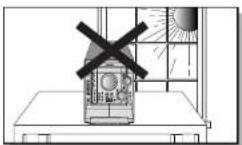
Do not expose the unit to direct sunlight or other heat sources.
This could lead to overheating and malfunction of the unit.
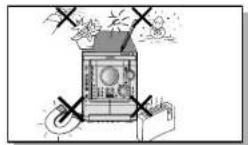
Protect the player from moisture (e.g., vases) and excess heating, or equipment creating strong magnetic or electric fields (e.g., speakers). Disconnect the power cable from the AC supply if the player malfunctions. Your player is not intended for industrial use. Use of this product is for personal use only.
Condensation may occur. If your player or disc have been stored in cold temperatures.
If transporting the player during the winter, wait approximately 2 hours until the unit has reached room temperature before using.
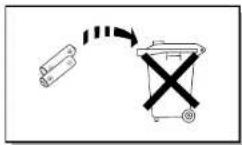
The battery used with this product contains chemicals that are harmful to the environment.
Do not dispose of batteries in the general household trash.
Features
Multi-Disc Playback & AM/FM Tuner, TAPE
The MAX-KJ60 combines the convenience of multi-disc playback capability, including DVD, CD, MP3-CD, CD-R, CD-RW, VCD, DivX, JPEG, WMA, and DVD-R/RW, with a sophisticated AM/FM tuner and tape deck, all in a single player.
TV Screen Saver Function
The MAX-KJ650 automatically brightens and darkens the brightness of the TV screen after 3 minutes in the stop mode.
Power Saving Function
The MAX-KJ650 automatically shuts itself off after 20 minutes in the stop mode.
Customized TV Screen Display
The MAX-KJ650 allows you to select your favorite image during JPEG or DVD playback and set it as your background wallpaper.

DVD (Digital Versatile Disc) offers fantastic audio and video, thanks to Dolby Digital surround sound and MPEG-2 video compression technology. Now you can enjoy these realistic effects in the home, as if you were in a movie theater or concert hall.

DVD players and the discs are coded by region. These regional codes must match in order for the disc to play. If the codes do not match, the disc will not play. The Region Number for this player is given on the rear panel of the player. (Your DVD player will only play DVDs that are labeled with identical region codes.)
Copy Protection
- Many DVD discs are encoded with copy protection. Because of this, you should only connect your DVD player directly to your TV, not to a VCR. Connecting to a VCR results in a distorted picture from copy-protected DVD discs.
- This product incorporates copyright protection technology that is protected by method claims of certain U.S. patents and other intellectual property rights owned by Macrovision Corporation and other rights owners. Use of this copyright protection technology must be authorized by Macrovision Corporation, and is intended for home and other limited viewing uses only unless otherwise authorized by Macrovision Corporation. Reverse engineering or disassembly is prohibited.
Contents
PREPARATION
Safety Warnings....1 Precautions....2 Features....3 Description....5
CONNECTIONS
Connecting the Speakers .... 8 Connecting to a TV.... 10 P.SCAN / Progressive Scan Function.... 12 Connecting External Components.... 13 Connecting the FM, AM Antennas.... 14 Setting the Clock.... 15
OPERATION
Disc Playback 16 DivX Playback 17 Displaying Disc Information 18 Fast/Slow Playback 20 Stepping Scenes/Songs 21 Angle Function 22 Repeat Playback 23 Zoom Function 24 Selecting Audio/Subtitle Language 25 Moving Directly to a Scene/Song 26 JPEG File Playback 27 Using Disc Menu 29 TWO Music
SETUP
Setting the Language 31 Setting TV Screen Type 33 Setting Parental Controls (Rating Level) 35 Setting the Password 36 Setting the Wallpaper 37 Setting the DRC (Dynamic Range Compression) 39 AV SYNC Setup 40 Playing DVD-OK Discs 41 Connecting Microphone 42 Reserving Accompanying Music 43 Polarity Playing Accompanying Music 44 Favorite Song Function 45 Search Song Function 47 Key Control Tempo Center 52 Multi-Function Key Control: Holiday Function 53 Setting the Character 54 Setting the Farlane 55 Setting the Average Scores 56
RADIO OPERATION
Listening to Radio....58 Presetting Stations....59
TAPE DECK
Listening to a Cassette....60 Selecting the Cassette Playback Mode....61 Tape Counter....61 Copying a Cassette (Dubbing)....62
MISCELLANEOUS
Recording a Compact Disk .... 63 Recording a Radio Program .... 65 Timer Function .... 66 Canceling the Timer .... 67 P.SOUND/SURROUND / SOUND MODE Function .... 68 Sleep Timer / Mouse Function .... 69 DEMO / DIMMER Function .... 70 Base/Table Level (USER EQ) Function .... 71 Connecting Headphones .... 72 Cautious on Handling and Staring Discs .... 73 Bolear Calling for Service .... 74 Notes on Discs .... 75 Notes on Terminology .... 76 BasicCalbers .... 77
Description
—Front Panel—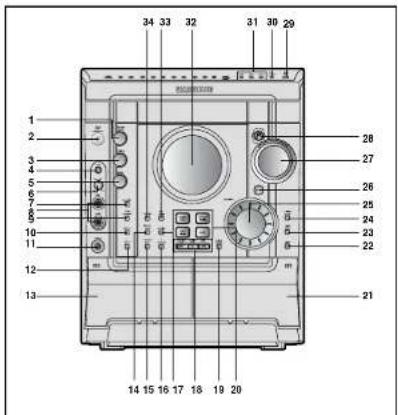
—Display Window—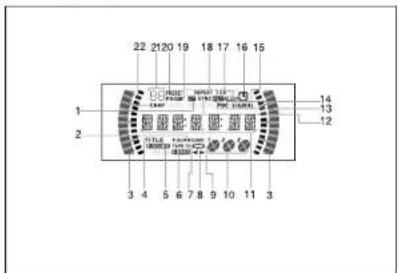
- SOUND MODE
- STANDBY/ON
- THERI
- ECHO
- BASS
- MIC LEVE
- FM MONO'ST B. MIC 1, MIC 2
- TUNER MEMORY
- DISPLAY
- PHONES
- CD REPEAT
- CASSETTE DECK 1
- REVERSE MOD 15. COUNTER RESET
- COUNTER RESET
- CD SYNCHRO
- DUBBING
- SEARCH FUNCTIONS BUTTONS TUNING MODE OR STOP BUTTONS
- DEMODIMMER
- FUNCTIONS SELECT BUTTONS
- CASSETTE DECK 2
- SLEE
- TIME ON/OFF
- TIMER/CLOCK
- MULTIJOG
- ENTER
- VOLUME
- POWER SOUND/SURROUND
- CD Open/Close
- DISC CHANGE
- DISC SELECTION BUTTONS
- WINDOW DISPLAY
- WINDOW DISPLAY
- REC:PAUSE
- TAPE 1/2
- FM MODE (STEREO)
- POWER SURROUND
- TITLE
- POWER SOUND
- SUPER BASS
- TAPE 1/2
- TAPE RUNNING DIRECTOR
- TAPE REVERSE MODE
- PLAYING DISC NUMBER
- MAIN DISPLAY (FUNCTION, FREQUENCY, TIME, etc.)
- CD SYNCHRO RECORDING
- RECORDING
- RECORDING
- REC
- FDC
- TUNI
- TUNENTRESELLSCHIN
- CLOCK
- SLEEP
- CD PLAYING DISC MODE OR CD REPEAT MODE
- CD PROGRAM OR TUNER MEMORY TO PROGRAM 20 TUNER PRESET
- TUNER PRESET
- CD PROGRAM
- CD PROGRAM AND TUNER PRESET NUMBER
- CHAPTER
—Rear Panel—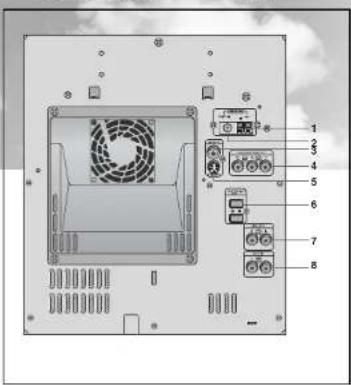
- AM Antenna Connectors
- FM Antenna Connector
- Video Output Connector
- Video output connector Connect the TV's video input jacks (VIDEO IN) to the VIDEO OUT connector.
- Component Video Output Connectors Connect a TV with component video input jacks to these jacks.
- S-Video Output Connector If the TV is equipped with an S-Video Input connector (S-VIDEO IN), connect it to the player's S-Video output jack
- Speaker Connector Te
- LINE OUT
- LINE OUT
- AUX-Input
Accessories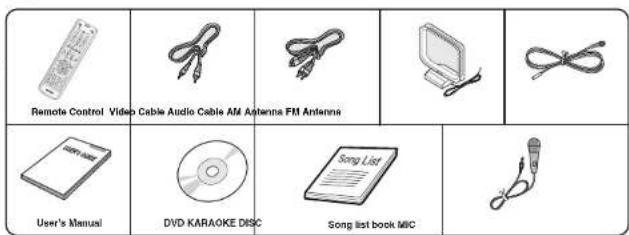
Description
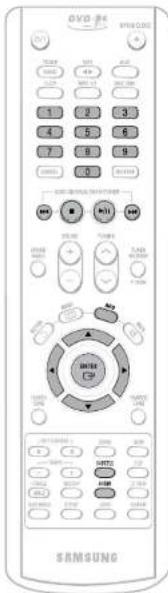
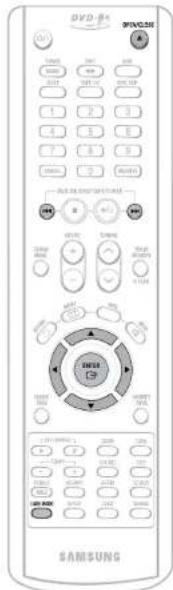
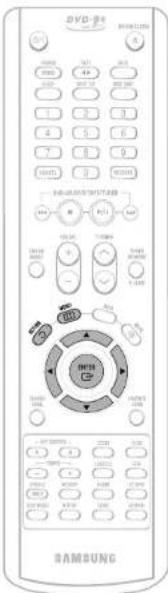
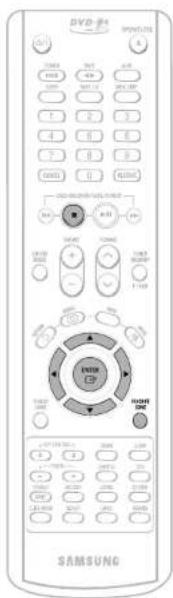
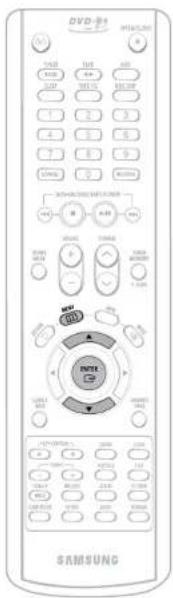
—Remote Control—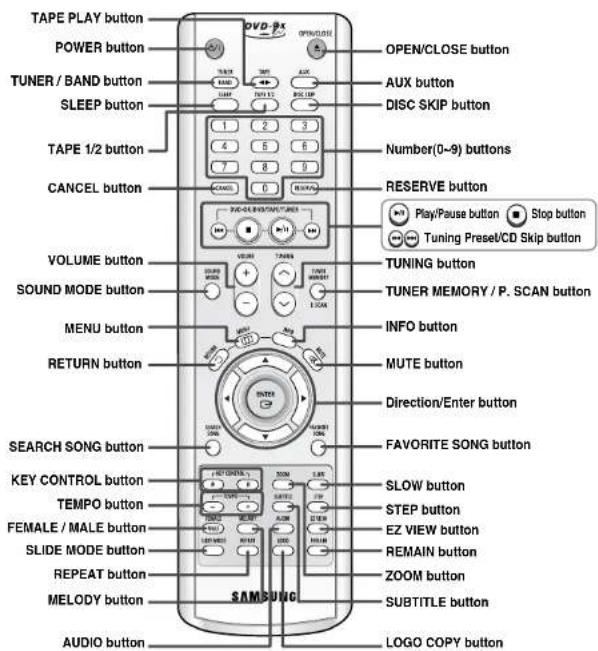
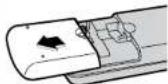
Insert Remote Batteries
1
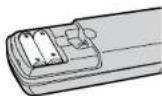
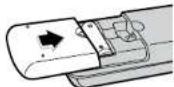
Remove the battery cover on the back of the remote by pressing down and sliding the cover in the direction of the arrow.
2
Insert two 1.5V AAA batteries, paying attention to the correct polarities (+ and -).
3
Replace the battery cover.
Caution
Follow these precautions to avoid leaking or cracking cells:
- Place batteries in the remote control so they match the polarity: (+) to (+) and (−) to (−).
- Use the correct type of batteries. Batteries that look similar may differ in voltage. Always replace both batteries at the same time. Do not expose batteries to heat or flame.
Range of Operation of the Remote Control
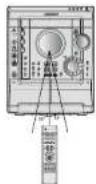
The remote control can be used up to approximately 23 feet/7 meters in a straight line. It can also be operated at a horizontal angle of up to 30° from the remote control sensor.
Connecting the Speakers
Before moving or installing the product, be sure to turn off the power and disconnect the power cord.
Connect the connecting jacks (4) to the back of the mini-compact system.
Make sure the colors of the speaker terminals match the colors of the connecting jacks. Blue (subwoofer speakers): Red (main speakers). Make sure the polarities (+ and -) are correct.
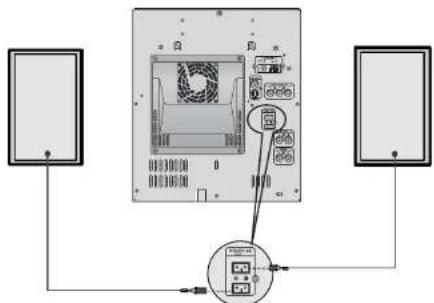
Position of the DVD Player
Place it on a stand or cabinet shelf, or under the TV stand.
Speakers L R
- Place these speakers in front of your listening position, facing inward (about 45°) toward you.
- Place the speakers so that their tweeters will be at the same height as your ear. Align the front face of the front speakers with the front face of the center speaker or place them slightly in front of the center speakers.
Directions for Installing Speakers
Installation in a place near heating apparatus, under direct sunlight, or with high humidity may cause performance degradation of the speaker. Do not install on the wall or on a high pole or other unstable place to prevent any safety accident caused by falling of the speaker. Do not place the speaker near a TV or computer monitor. The speaker near the TV or computer monitor may influence the quality of the screen display.
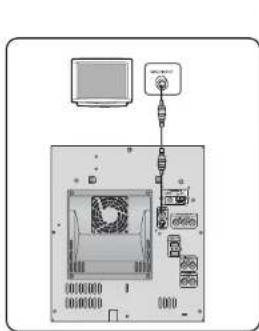
Connecting to a TV
Please be sure to turn off the power and unplug the power cord before moving or installing this unit.
Please choose one of two video connection methods.
Method 1: Using Video Out (Good Quality)
1. Connect Video Out on the player to Video In on your TV. 2. Press the TV/VIDEO button on the TV remote control to set the TV to "VIDEO".
CONNECTIONS
Method 2: Using S-Video Out (Better Quality)
Use this method if your TV has an S-Video In jack.
1. Connect S-Video Out to S-Video In on your TV. 2. Press the TV/VIDEO button on the TV remote control to set the TV to "S-VIDEO".
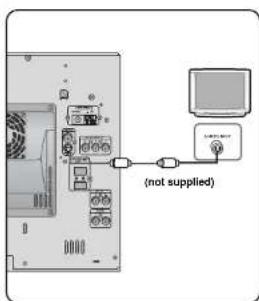
Note
- Composite Video: A single video signal that is a composite of the black-and-white information (Y) and the color information (C).
- S-Video: A video transmission standard that provides a sharper, brighter picture than ordinary composite video by separating brightness and color signals.
Connecting to a TV (Con't)
Please be sure to turn off the power and unplug the power cord before moving or installing this unit.
Please choose one of two video connection methods.
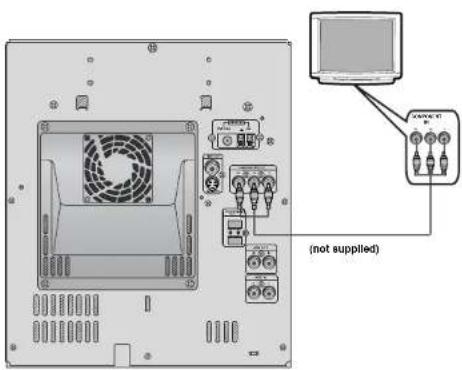
Method 3: Component Video (Best Quality)
Use this method if your TV has Pr, Pb, and Y jacks.
If your television is equipped with Component Video inputs, connect a component video cable (not supplied) from the Pr, Pb, and Y jacks on the back panel of the system to the corresponding jacks on your television.
P.SCAN (Progressive Scan) Function
Unlike regular Interlace Scan, in which two fields of picture information alternate to create the entire picture (odd scan lines, then even scan lines), Progressive Scan uses one field of information (all lines displayed in one pass) to create a clear and detailed picture without visible scan lines.
Press and hold the P.SCAN button on the remote controller for over 5 seconds in stop mode.
- Pressing and holding the button for over 5 seconds will select "Progressive Scan" and "Interface Scan" repetitively.
What is Progressive (or Non-Interlaced) Scanning?
Interlaced Scan (1 FRAME = 2 FIELDS)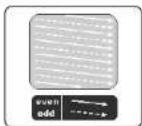
In Interlaced-scan video, a frame consists of two interfaced fields (odd and even), where each field contains every other horizontal line in the frame. The odd field of alternating lines is displayed first, and then the even field is displayed to fill in the alternating gaps left by the odd field to form a single frame. One frame, displayed every 1/30th of a second, contains two interfaced fields, thus a total of 60 fields are displayed every 1/60th of a second. The interfaced scanning method is intended for capturing a still object.
Progressive Scan (FULL FRAME)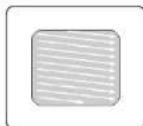
The progressive scanning method scans one full frame of video consecutively down the screen, line by line. An entire image is drawn at one time, as opposed to the interfaced scanning process by which a video image is drawn in a series of passes. The progressive scanning method is desirable for dealing with moving objects.
Note
- This function works only on TVs equipped with component video inputs (Y, Pr, Pb) that support Progressive Video. (It does not work on TVs with conventional component inputs, i.e., non-progressive scan TVs.)
- Depending on the brand and model of your TV, this function may not work.
Selecting the Video Format
Turn off the power and then press REC/PAUSE on the Main Unit.
- By default, the video format is set to 'PAL'. • Each time the button is pressed, the video format switches between "NTSC" and "PAL". • Each country has a different video format standard. * For normal playback, the video format of the disc must be the same as the video format of your TV.
Connecting External Components
Connecting an External Analog Component
Example: Analog signal components such as a VCR, Camcorder, and TV.
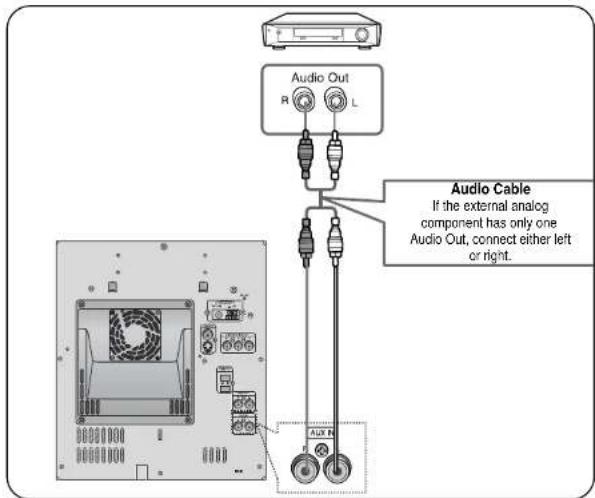
1 Connect Audio In on the DVD player to Audio Out on the external analog component. - Be sure to match connector colors. 2 Press AUX to select AUX. • AUX' appears in the display.
Connecting the FM, AM Antennas
![graph TD A["FM Antenna (supplied)"] --> B["AM Loop Antenna (supplied)"] B --> C["Snap the labs on the loop into the slots of the base to assemble the AM loop antenna."]](/content/2026/05/984203/images/2a8b11ea8767a50fec0f99740dc7d50749fd4aa687c96d03b326e1f69c378fa4.jpg)
FM antenna connection AM antenna connection
- Connect the FM antenna supplied to the FM 75Ω COAXIAL terminal as a temporary measure.
- Slowly move the antenna wire around until you find a location where reception is good, then fasten it to a wall or other rigid surface.
- Connect the AM loop antenna supplied to the AM and terminals.
- If reception is poor, connect an outdoor single vinyl-covered wire to the AM terminal. (Keep the AM loop antenna connected).
Cooling Fan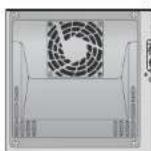
The cooling fan dissipates the heat generated inside the unit so that the unit can be operated normally. The cooling fan is activated automatically to supply cool air to the unit.
Please observe the following cautions for your safety. • Make sure the unit is well-ventilated. If the unit has poor ventilation, the temperature inside the unit could rise and may damage it. - Do not obstruct the cooling fan or ventilation holes. (If the cooling fan or ventilation holes are covered with a newspaper or cloth, heat may build up inside the unit and fire may result.)
Setting the Clock
For each step, you have a few seconds to set the required options. If you exceed this time, you must start again.
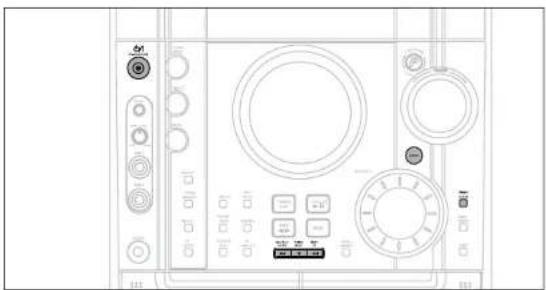
1 Switch the system on by pressing POWER button.
2 Press TIMER/CLOCK twice.
- CLOCK is displayed.
3 Press ENTER. The hour flashes.
- Increase the hours :
- Decrease the hours:
4 When the correct hour is displayed, press ENTER. The minutes flash.
- Increase the minutes

• Decrease the minutes

5 When the correct time is displayed, press ENTER.
• 'TIMER' appears in the display.
The current time is now set.
Note
You can display the time, even when you are using another function, by pressing TIMER/CLOCK once.
You can also use Multi-Jog or the button on the remote control instead of the buttons in steps 3 and 4.
Disc Playback
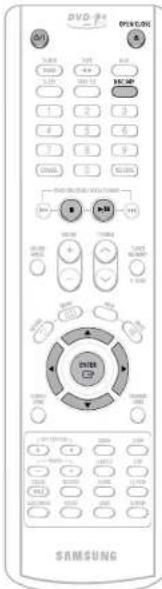
Selecting a CD in the Disc changer
The CD function is automatically selected when Disc Skip is pushed. To select a specific disc, press the corresponding DISC (1, 2, 3) button on the front panel or DISC SKIP on the remote control, until the required disc indicator flashes. Result: All the discs will be played in turn, starting with the one selected.
- If you use the DISC (1, 2, 3) function when listening to the radio or to a tape, the system switches automatically to the CD mode.
- If the selected disc is not loaded, the next disc is played automatically.


Playback starts automatically.


Playback starts automatically. If the TV is on, a list of MP3s on the CD will appear on the TV screen.
Note
- Depending on the content of the disc, the initial screen may appear different.
- Depending on the recording mode, some MP3-CDs cannot be played. The table of contents of an MP3 CD varies depending on the MP3 track format recorded on the disc.
To stop playback,
Press STOP during playback.
- If pressed once, 'PRESS PLAY' is displayed and the stop position will be stored in memory. If PLAY/PAUSE (▶II) button or ENTER button is pressed, playback resumes from the stop position. (This function works only with DVDs.)
- If pressed twice, "STOP" is displayed. And if PLAY/PAUSE (▶II) button is pressed, playback starts from the beginning.
DivX Playback

Skip Forward/Back
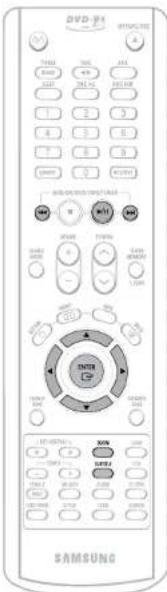
During playback, press the ◀◀◀▶▶ button.
- Go to the next file whenever you press ▶▶ button, if there are over 2 files in the disk.
- Go to the previous file whenever you press ◀◀ button, if there are over 2 files in the disk.

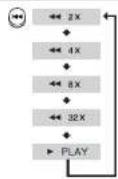
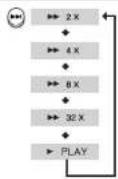
Fast playback
Press and hold ◀◀▶▶ button. • Each time the button is held down during playback, the playback speed changes as follows:

Zoom Function
1 Press ZOOM button.
- Each time you press the button, your selection will toggle between 'ZOOM X2' and 'ZOOM OFF'.
2 Press Cursor ▲, ▼, ◀, ▶ buttons to move to the area you want to enlarge.

- DivX files can be played in Zoom X2 mode only.
5 Minute Skip function
During playback, press the ◀ or ▶ button.
- Press the ▶ button to go forward about 5 minutes.
- Press the ◀ button to go back about 5 minutes.

Subtitle Display
Press the SUBTITLE button.
• Each time you press the button, your selection will toggle between "SUBTITLE ON" and "SUBTITLE OFF". - If the disc has only one subtitle, it will be played automatically. - Up to 6 subtitle languages are supported.

DivX Feature Table
DivX Supported
AVI files are used to contain the audio and video data; these must be stored on CD in the ISO 9660 format.
| SPEC | ||
| VIDEO Compatibility D | vX3.11 Up to the latest VERSION | |
| WMV WM v V1/V2/V3/V7 | ||
| AUDIO Compatibility M | P3 CBR: 86kbpe-520kbps | |
| AC3 CBR: 128kbps-448kbpe | ||
| WMA CBR: 56kbpe-150kbps | ||
MPEGs containing DivX can be divided into Video and Audio. • Video compatibility: All versions of DivX later than 3.11 (including the latest 5.1) are supported. In addition, XviD is supported. For WMV, V1, V2, V3, and V7 formats are possible. - Audio compatibility: MP3s encoded at bitrates from 80kbps to 320kbps, AACs from 128kbps to 448kbps, and WMAs from 56kbps to 160kbps are supported. - In addition, for subtitles, this unit will support Text format (SMI).
Note
- When playing the DivX disk, you can play the file with extension of AVI only.
- Among the available DivX audio formats, DTS Audio is not supported.
- WMV V8 is not supported for WMV files.
- When burning a subtitle file to a CD-ROM with your PC, be sure to burn it as an SMI file.
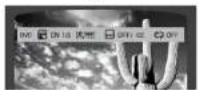
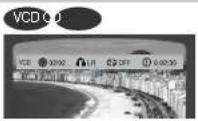
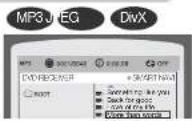
Displaying Disc Information
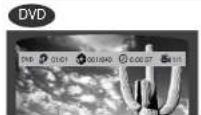
You can view playback information on the disc on the TV screen.
Press INFO button.
• Each time the button is pressed, the display changes as follows:
↓ ↓
Display disappears
↓
↓
Display disappears Display disappears
Note
- Depending on the disc, the disc information display may appear different.

appears on the TV screen!
If this symbol appears on the TV screen while buttons are being operated, that operation is not possible with the disc currently being played.
Screen Display
DVD display
VCD display
CD display
MP3 CD display
TITLE display
CHAPTER display
TRACK (FILE) display
ELAPSED TIME display
REPEAT PLAYBACK
AUDIO-LANGUAGE display
SUBTITLE display
L/R STEREO (L-R) display
[1] [COLBY] COLBY DIGITAL display
ANGLE display
DivX display

Checking the Remaining Time
Press the REMAIN button.
For checking the total and remaining time of a title or chapter being played.
Each time the REMAIN button is pressed![graph TD A["DVD"] --> B["TITLE E-APSO"] B --> C["TITLE REMAIN"] C --> D["CHAPTER E-APSO"] D --> E["CHAPTER REMAIN"] E --> F["CD"] F --> G["TRACK SLAPSED"] G --> H["TRACK REMAIN"] H --> I["TOTAL LEAPSED"] I --> J["TOTAL REMAIN"] J --> K["MP3"] K --> L["TRACK SLAPSED"] L --> M["TRACK REMAIN"]](/content/2026/05/984203/images/ea8b6e95bc124ccaf821219098c3b4aed487397f159612231d6e6e012d26314b.jpg)
19
Fast/Slow Playback

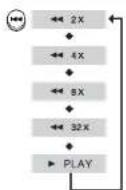
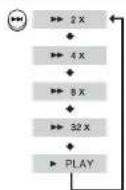
Fast Playback


Press and hold ◀◀◀▶▶.
Each time the button is held down during playback, the playback speed changes as follows:

Slow Playback
Press SLOW button.
• Each time the button is pressed during playback, the playback speed changes as follows:
DVD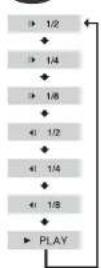
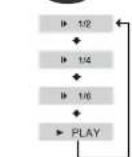
DivX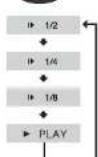
Note
• Reverse slow playback does not work with VCDs and DivX.
- During fast playback of a CD or MP3-CD, sound is heard only at 2x speed, and not at 4x, 8x, and 32x speeds.
• No sound is heard during row playback and step motion playback.

Skipping Scenes/Songs
DVD V CD MP3
Briefly press ◀◀◀▶▶.
• Each time the button is pressed briefly during playback, the previous or next chapter, track, or directory (file) will be played. • But, you cannot skip chapters consecutively.
DVD
- When watching a VCD with a track longer than 15 minutes, each time
I is pressed, playback
will skip back or forward 5 minutes.
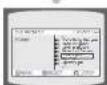
Playing Frame by Frame
DVD
Press STEP button.
- The picture moves forward one frame each time the button is pressed during playback.

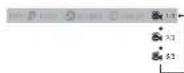
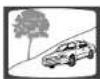
Angle Function
This function allows you to view the same scene in different angles.
DVD
1 Press INFO button.
2 Press Cursor ▶ button to move to ANGLE display.
OPERATION
3 Press Cursor ▲, ▼ buttons or numeric buttons to select the desired angle.
• Each time the button is pressed, the angle changes as follows:

Note
- The Angle function works only with discs on which multiple angles have been recorded.
Repeat Playback
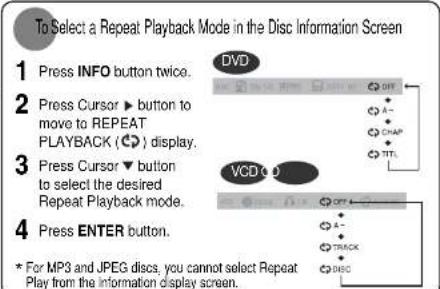
Repeat playback allows you to repeatedly play a chapter, title, track (song), or directory (MP3 file).
DVD V CD CD MP3 JPEG
Press REPEAT button.
• Each time the button is pressed during playback, the repeat playback mode changes as follows:
![graph TD A["REPEAT : CHAPTER"] --> B["REPEAT : TITLE"] B --> C["REPEAT : OFF"] C --> D["VCD OUTPUT"] D --> E["REPEAT : TRACK"] E --> F["REPEAT : DISC"] F --> G["REPEAT : OFF"]](/content/2026/05/984203/images/401dae3613725f96894bfa9e4dec79223fffbc572bc37fa2126e3297ba249afc.jpg)
![graph TD A["MP3/VEG"] --> B["REPEAT: RANDOM"] B --> C["REPEAT: TRACK"] C --> D["REPEAT: DIR"] D --> E["REPEAT: DSC"] E --> F["REPEAT: OFF"]](/content/2026/05/984203/images/c16fd931c5b7845e6e53df1a7dd382911bf9719e73da88e84d8e83c4a58409e2.jpg)
Repeat Playback Options
CHAPTER
Repeatedly plays the selected chapter.
TITLE
Repeatedly plays the selected title.
RANDOM
Plays tracks in random order.
|A track that has already been played may be
played again.
TRACK
Repeatedly plays the selected track.
DIR
Repeatedly plays all tracks in the selected folder.
DISC
Repeatedly plays the entire disc.
OFF
Cancels Repeat Playback.
Note
- Repeat playback operation is not possible with version 2.0 VCD discs if PBC is turned on. To use Repeat Playback on a VCD with PBC, you should set the PBC to OFF in the disc menu. (See page 29.)
- Repeat playback operation is not possible with version 2.0 VCD discs if PBC is turned on. To use Repeat Playback on a VCD with PBC, you should set the PBC to OFF in the disc menu. (See page 29.)
This function allows you to enlarge a particular area of the displayed image.
This function allows you to enlarge a particular area of the displayed image.
Zoom (Screen Enlarge) Function
1 Press the ZOOM button.
2 Press the Cursor ▲, ▼, ◀, ▶ buttons to move to the area you want to enlarge.
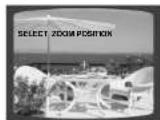
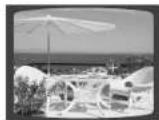
DVD\CD
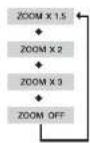
3 Press the ENTER button.
• Each time the button is pressed, the zoom level changes as follows:
EZ VIEW Function DVD
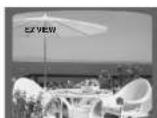
Press the EZ VIEW button.
• Each time the button is pressed, the zoom function will switch between On and Off. - When a movie is played in Wide screen format, black bars at the top and bottom of the TV screen can be removed by pressing the EZ VIEW button.
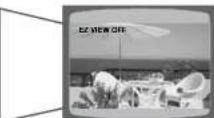
Note
* This function will not work if the DVD is recorded with multi-camera angle format. - Black bars may not disappear because some DVD discs have a built-in horizontal to vertical ratio.
Selecting Audio/Subtitle Language

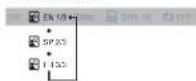
Audio Language Selection Function
DVD
1 Press the INFO button twice.
- Depending on the number of languages on a DVD disc, a different audio language (ENGLISH, SPAIN, JAPANESE, etc.) is selected each time the button is pressed.

Subtitle Language Selection Function
DVD
1 Press INFO button twice.
2 Press Cursor ▶ button to move to SUBTITLE display.
DVD EN 10 用具 OFF/Off
OFF/02
3 Button or numeric buttons to select the desired subtitle
Note
- You can use the SUBTITLE button on the remote control to select a subtitle language.
• Depending on the disc, the Subtitle and Audio Language functions may not work.
Moving Directly to a Scene/Song
DVD
D CD
-
1 Press INFO button.
Moving to a Chapter
4 Press Cursor▲,▼ buttons or numeric buttons to select the desired chapter and then press ENTER button.
MP3
EG
Press the numeric buttons.
- The selected file will be played.
- An MP3 or JPEG disc cannot be moved from the disc information screen.
- When playing an MP3 or JPEG disc, you cannot use ▲,▼ to move a folder. To move a folder, press ■ (Stop) and then press ▲,▼.
Moving to a Title/Track
2 or numeric buttons to select the desired title/track and then press ENTER button.
Moving to a Specific Time
5 Press Cursor◀,▶ buttons to move to time display.
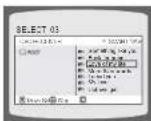
Moving to a Chapter
3 Press the Cursor ▶▶ buttons to move to the Chapter display.
Moving to a Specific Time
6 Press the numeric buttons to select the desired time and then press the ENTER button.
Note
- You can press ◄◀◀▶ on the remote control to move directly to the desired title, chapter, or track.
- Depending on the disc, you may not be able to move to the selected title or time.
JPEG File Playback

Images captured with a digital camera or camcorder, or JPEG files on a PC can be stored on a CD and then played back with this DVD player.

Slide Mode
1
Place the JPEG disc on the disc tray.
2
Press the OPEN/CLOSE button.
3
Press SLIDE MODE button.
■ Playback starts automatically - Each time the button is pressed, the image makes the transition as follows:
![graph TD A["SLIDE SHOW MODE : 1"] --> B["SLIDE SHOW MODE : 2"] B --> C["..."] C --> D["SLIDE SHOW MODE : 10"] D --> E["SLIDE SHOW MODE : 11"] E --> F["SLIDE SHOW MODE : RANDOM"] F --> G["SLIDE SHOW MODE : NONE"]](/content/2026/05/984203/images/5dccfd9dfb1c852ae8df85b0c656f09fa9df75bbab9105559a7cbba62009bce8.jpg)
From top to bottom
From bottom to top
Rectangular shape in the center
Vertical curtain shape
Each time a new image is displayed, slide modes (1-11) will be randomly and automatically applied.
(1-11) will be randomly and automatically be applied.
Press
to skip to the next slide.


• Each time the button is pressed, the slide moves backward or forward.
• Each time the button is pressed, the slide moves backward or forward.

Rotate/Flip Function
Press Cursor ▲, ▼, ◀, ► buttons during playback.
![graph LR A["Original Image"] --> B["button: Flip Vertically"] B --> C["button: Rotate 30° Counterlockwise"] C --> D["button: Rotate 30° Closewise"] D --> E["button: Flip Horizontally"]](/content/2026/05/984203/images/78a56f8a97f11590e0f17f6b27cbc9890b360bf6fe87d11b397b58d30d477d8e.jpg)
Using Disc Menu
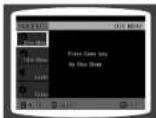
You can use the menus for the audio language, subtitle language, profile, etc. DVD menu contents differ from disc to disc.
DVD
1 Press MENU button.
- When playing a VCD (version 2.0), this toggles between PBC ON and OFF.
3
Press Cursor ▲,▼
◀,▶ buttons to select the desired item.
Note
PBC (Playback Control) Function
When playing a VCD (version 2.0), you can select and view various scenes according to the menu screen.
PBC ON: This VCD disc is version 2.0. The disc is played back according to the menu screen. Some functions may be disabled. When some functions are disabled, select "PBC OFF" to enable them.
PBC OFF: This VCD disc is version 1.1. The disc is played back in the same way as with a music CD.
Using the Title Menu
For DVDs containing multiple titles, you can view the title of each movie. Depending on the disc, this function may either not work at all or may work differently.
DVD
1 Press MENU button.
2 Press Cursor▲,▼ button to move to 'Title Menu'.
3 Press ENTER button.
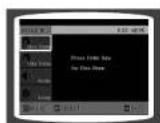
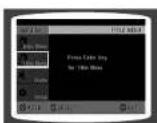
• The title menu appears.

MENU button to exit the setup screen.
Setting the Language
OSD language is set to English by default.
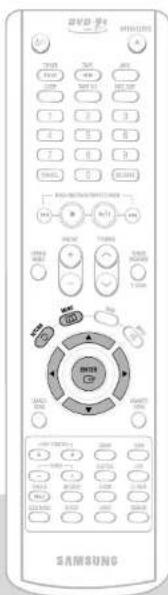
1 Press MENU button.
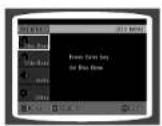
2 Press Cursor ▼ button to move to 'Setup' and then press ENTER button.
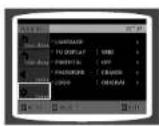
3 Press ENTER button.
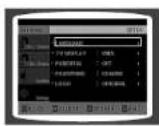
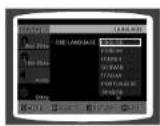
4 Press Cursor ▲,▼ button to select the desired item and then press ENTER button.
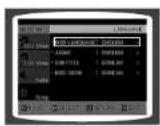
5 Press Cursor ▲,▼ button to select the desired language and then press ENTER button.
- Once the setup is complete, if the language was set to English, OSD will be displayed in English.
Press RETURN button to return to the previous level.
Press MENU button to exit the setup screen.
Selecting the OSD Language
Selecting the Audio Language (recorded on the disc)
Selecting the Subtitle Language (recorded on the disc)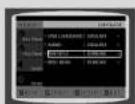
Selecting the Disc Menu Language (recorded on the disc)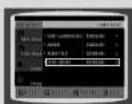
* If the language you selected is not recorded on the disc, menu language will not change even if you set it to your desired language.
Setting TV Screen type
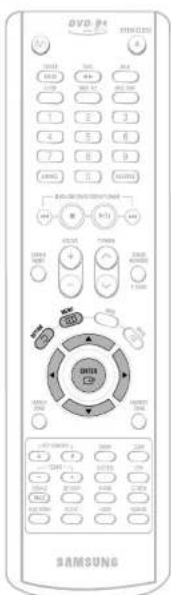
1 Press MENU button.
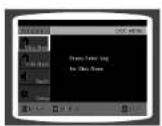
2 Press Cursor ▼ button to move to 'Setup' and then press ENTER button.
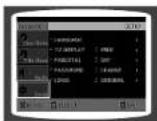
3 Press Cursor ▼ button to move to 'TV DISPLAY' and then press ENTER button.
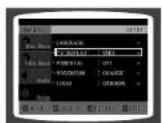
4 Press Cursor ▲,▼ button to select the desired item and then press ENTER button.
- Once the setup is complete, you will be taken to the previous screen.
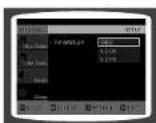
Adjusting the TV Aspect Ratio (Screen Size)
The horizontal to vertical screen size ratio of conventional TVs is 4:3, while that of wide screen and high definition TVs is 16:9. This ratio is called the aspect ratio. When playing DVDs recorded in different screen sizes, you should adjust the aspect ratio to fit your TV or monitor.
* For a standard TV, select either '4:3LB' or "4:3PS" option according to personal preference. Select "16:9" if you have a wide screen TV.
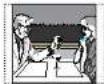
WIDE
: Select this to view a 16:9 picture in the full-screen mode on your wide screen TV.
- You can enjoy the wide screen aspect.
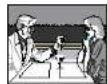
4:3LB
: Select this to play a 16:9 picture in the letter box mode on a conventional TV.
- Black bars will appear at the top and bottom of the screen.
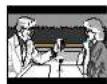
4:3PS
: Select this to play a 16:9 picture in the pan & scan mode on a conventional TV.
- You can see the central portion of the screen only (with the sides of the 16:9 picture cut off).
Note
- If a DVD is in the 4:3 ratio, you cannot view it in wide screen. - Since DVD discs are recorded in various image formats, they will look different depending on the software, the type of TV, and the TV aspect ratio setting.
Press RETURN button to return to the previous level.
Press MENU button to exit the setup screen.

Setting Parental Controls (Rating Level)
Use this to restrict playback of adult or violent DVDs you do not want children to view.
Setting the Password
You can set the password for the Parental (rating level) setting.
1 Press MENU button.
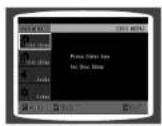
2 Press Cursor ▼ button to move to 'Setup' and then press ENTER button.
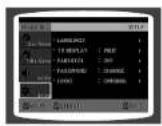
3 Press Cursor ▼ button to move to 'PARENTAL' and then press ENTER button.
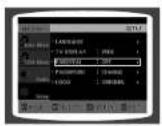
4 Press Cursor ▲,▼ button to select the desired rating level and then press ENTER button.
- If you have selected Level 6, you cannot view DVDs with Level 7 or higher.
- The higher the level, the closer the content is to violent or adult material.
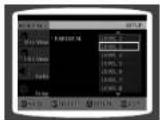
5 Enter the password and then press ENTER button.
- The password is set to '7690' by default. - Once the setup is complete, you will be taken to the previous screen.
Note
- This function works only if a DVD disc contains the rating level information.
1 Press MENU button.
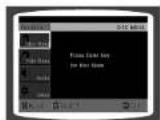
2 Press the Cursor ▼ button to move to 'Setup' and then press the ENTER button.
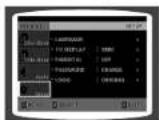
3 Press the Cursor ▼ button to move to 'PASSWORD' and then press the ENTER button.
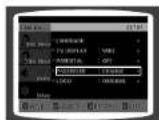
4 Press the ENTER button.
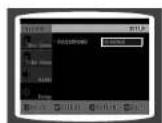
5 Enter the password and then press the ENTER button.
- Enter the old password, a new password, and confirm the new password. - The setting is complete.
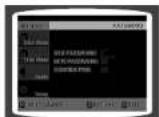
Press the RETURN button to return to the previous level.
Press the MENU button to exit the setup screen.
Press the RETURN button to return to the previous level. Press the CANCEL button to cancel the error numeric when you are inputting the password. Press the MENU button to exit the setup screen.
Setting the Wallpaper

While watching a DVD or JPEG CD, you can set the image you like as a wallpaper.

Setting the Wallpaper
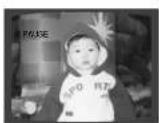
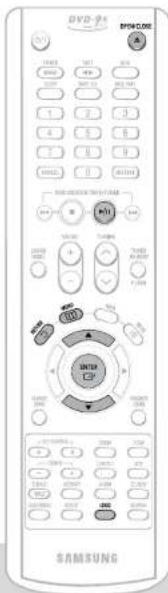
1 During playback, press the PLAY/PAUSE button when the image you like comes up.
2
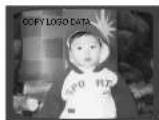
Press the LOGO button.
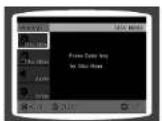
• "COPY LOGO DATA" will be displayed on the TV screen.
Note
• The selected wallpaper will be displayed. - You can repeat Steps 1 and 2 to set up to 3 wallpapers. - The power will turn off and on automatically and then display the mode.
Select this to set the Samsung Logo image as your wallpaper.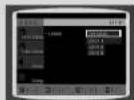
Select this to set the desired image as your wallpaper.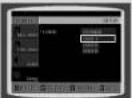

To Change the Wallpaper
1
Press MENU button.
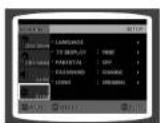
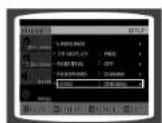
2 Press Cursor ▼ button to move to 'Setup' and then press ENTER button.
3 Press Cursor ▼ button to move to 'LOGO' and then press ENTER button.
4
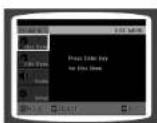
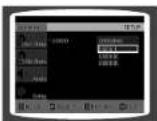
Press ▼ to select the desired 'USER', and then press ENTER.
5
Press MENU button to exit the setup screen.
Press RETURN button to return to the previous level.
Press MENU button to exit the setup screen.
Setting the DRC (Dynamic Range Compression)
You can use this function to enjoy Dolby Digital sound when watching movies at low volume at night.
AV SYNC Setup
Video may lag behind the audio if the unit is connected to a digital TV. If this occurs, adjust the audio delay time to sync up with the video.
1 Press MENU button.
2 Press Cursor ▼ button to move to 'Audio' and then
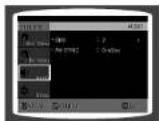
3 If "DRC" is selected, press ENTER.
4 Press Cursor ▲,▼ to adjust the 'DRC'.
- The more the Cursor ▲ button is pressed, the greater the effect, and the more the Cursor ▼ button is pressed, the smaller the effect.
1 Press the MENU button.
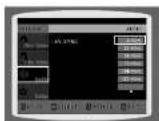
- Setup menu appears.
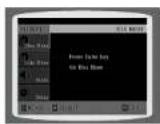
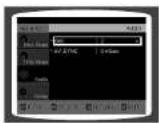
3 Press Cursor ▲, ▼ buttons to move to 'AV-SYNC' and then press ENTER button.
• AV-SYNC screen appears.
2 Press Cursor ▲,▼ buttons to move to 'Audio' and then press ENTER button.
• 'Audio' menu appears.
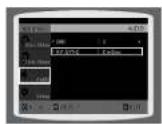
4 Press the Cursor ▲,▼ buttons to select the Delay Time of AV-SYNC and then press the ENTER button.
- You can set the audio delay time between 0 ms and 300 ms. Set it for the best sync up with audio.
Press the RETURN button to return to the previous level.
Press the MENU button to exit the setup screen.
Press the RETURN button to return to the previous level.
Press the MENU button to exit the setup screen.
Playing DVD-OK Discs
You can enjoy the feeling of a karaoke bar in the comfort of your home. Watch the video and sing along the lyrics displayed on the TV screen against the accompaniment.
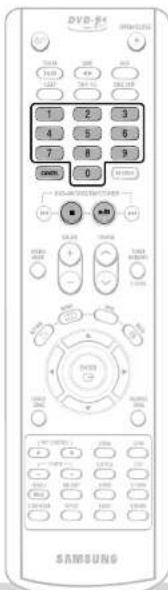
1 Use the NUMERIC (0~9) buttons to select the song you want to play back.
2 Press the PLAY/PAUSE (▶/II) button or the ENTER button.
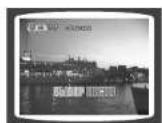
• The numeric and title of the song will be displayed and the accompaniment starts.
To Clear Incorrectly Entered Song Numeric
- Press the STOP button.
To Stop During Accompaniment
- Press the STOP button.
Connecting Microphone
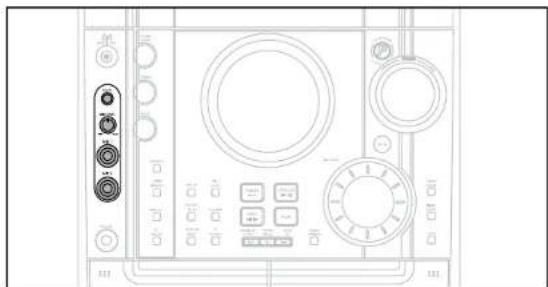
1. Connect the microphone to the MIC jack on the front panel.
• You can connect up to two microphones.
2. Turn the MIC LEVEL to adjust the volume of the microphone.
3. Press the ECHO button.
• Each time the button is pressed, the selection changes as follows: ECHO 1 → ECHO 2 → ECHO OFF.
Note
• To record your voice with the microphone, press the REC/PAUSE button. - If you hear strange noises (squealing or howling) while using the Karaoke feature, move the microphone away from the speakers. Turning down the microphone volume or the speaker volume is also effective.
Reserving Accompaniment Music
While the accompaniment is playing, you can reserve the next song you want to sing.

Priority Playing Accompaniment Music
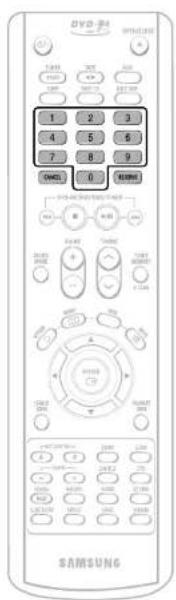
1. Press the NUMERIC (0~9) buttons to select the song you want to reserve.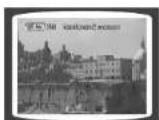
2. Press the RESERVE button. • The song is reserved.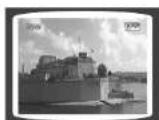
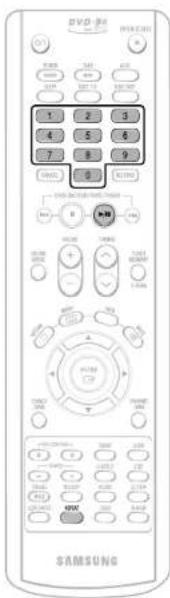
1. In Stop mode, press the NUMERIC (0~9) buttons to select the song you want to play back.
2. Press the PLAY/PAUSE (▶/II) button.

DVD-OK Repeat Play
Press the REPEAT button.
• Each time the button is pressed, the selection changes as follows: REPEAT OFF → REPEAT ONE → REPEAT ALL → RANDOM.
Note
- The REPEAT function will not operate if the RESERVE function is set while DVD-OK is played.

Favorite Song Function
You can save 18 songs you like or sing often in each of FAVORITE1, 2, 3, for a total of 54 songs, to easily find and sing your favorite song.
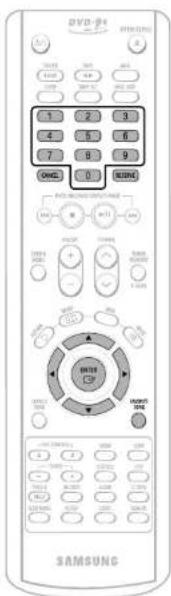

Saving FAVORITE SONG
1. During stop mode, press the FAVORITE SONG button.
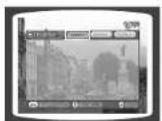
2. Press the ▶, ▶ button to select the location to save among FAVORITE1, 2, 3.
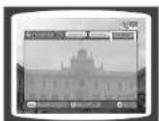
3. Use the (0~9) button to enter the song you want.
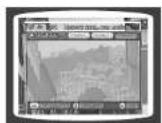
4. Press the RESERVE button to save it.
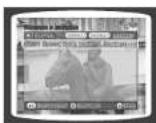

Singing FAVORITE SONG
1. During stop mode, press the FAVORITE SONG button.
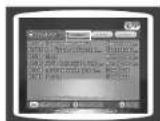
2. Press the ◀, ► button to select the location of the song among FAVORITE 1, 2, 3.
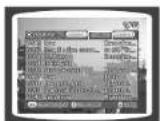
3 Press the ▲, ▼ button to select the song you want.
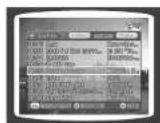
4 Press the ENTER button to play back the selected song.
Deleting FAVORITE SONG
- During stop mode, press the FAVORITE SONG button.
- Press the ▲, ▼ button to select the song to delete.
- Press the CANCEL button.
To Exit FAVORITE SONG Screen
- Press the ■ (STOP) button or the FAVORITE SONG button.

Search Song Function
You can easily do a song search on screen without viewing the song list book.
Structure of Song Search
| Items Detailed Items Alphabet | ||
| RUSSIA | NAME/SINGER | A~R |
| ENGLISH | NAME/SINGER | A~Z |
| UKRAINE | NAME/SINGER | A~R |
| DUET SONG | - | |
| GENRE | ROCKCHANSONFOLKBARDROMANCES | |
| HITS SONGS | MODERN30-60S70S/80SCHILDRENARMY | |
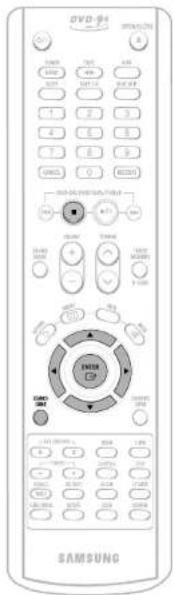

Search by Language
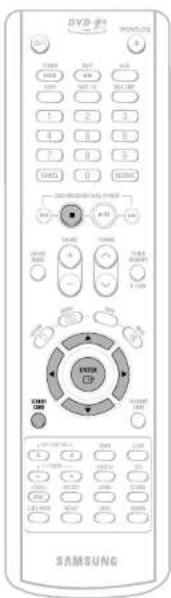
During stop mode, press the SEARCH SONG button and then press the ▲, ▼ button to select the language you want.
- You can select the language among RUSSIA, ENGLISH, UKRAINE. - At this time, press the ◀ button to
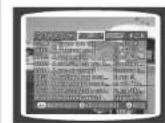
2 Press the ▶ button to move to the detailed items and then press the ▲, ▼ button to select
- Press ◀ button if you want to move to the previous stage.
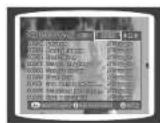
3 Press ▶ button to move to alphabet and press ▲,▼ button to select it.
- Press ◀ button if you want to move to the previous stage.
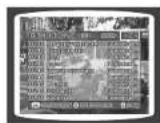
4 Press ▶ button to move to the song list on the bottom and then press ▲,▼ button to select the song you want.
- Press ← button if you want to move to the previous stage.
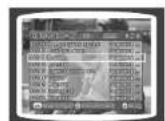
5 Press the ENTER button to play back selected song.
To Exit Search Song Screen
- Press ■ (STOP) button or SEARCH SONG button.

Search Song Function
You can easily do song search on screen without viewing the song list book.
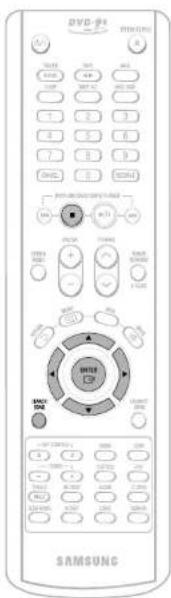
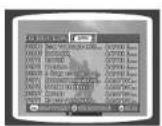
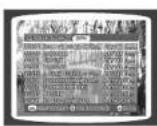
Searching DUET SONG
1
During the stop mode, press the SEARCH SONG button and then press ▲,▼ button to select the DUET SONG
2
Press ◀, ▶ button to move to the song list on the bottom.
3
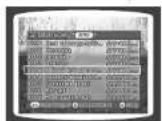
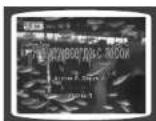
Press the ▲,▼ button to select the song you want.
4
Press the ENTER button to play back the selected song.
- Press the ◀ button if you want to move to the previous stage.
Searching by Genre
1
During stop mode, press the SEARCH SONG button and then press the ▲,▼ button to select the GENRE.
- At this time, press the ◀ button to move to the song list at the bottom.
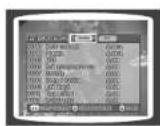
2
Press the ▶ button to move to the detailed items and then press the ◀, ▶ button to select the genre you want.
- You can select the genre among ROCK → CHANSON → FOLK → BARD → ROMANCES. - Press the ◀ button if you want to move to the previous stage.
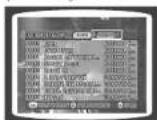
3
Press the ▶ button to move to the song list at the bottom and then press the ▲, ▼ button to select the song you want.
- Press the ◀ button if you want to move to the previous stage.
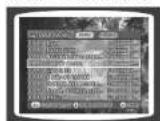
4
Press the ENTER button to play back the selected song.
To Exit Search Song Screen
- Press the ■ (STOP) button or the SEARCH SONG button.
To Exit Search Song Screen
- Press the ■ (STOP) button or the SEARCH SONG button.

Search Song Function
You can easily search for songs on the screen without viewing the song list book.

Key Control / Tempo Control
You can easily search for songs on the screen without viewing the song list book.
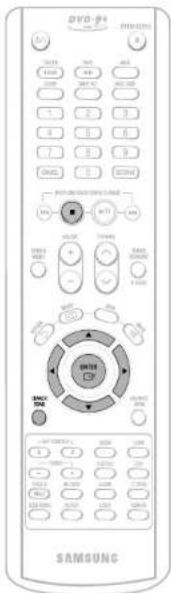
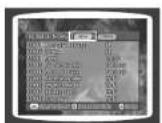
Searching by HITS SONGS
1. Press the SEARCH SONG button, then press the ▲/▼ buttons to select HITS SONGS.
- At this time, press the ◀ button to move to the song list at the bottom.
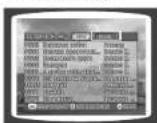
2. Move to the detailed items and then press the ▲/▼ buttons to select the hits song.
- You can select the song among MODERN → 30-60S → 70S/80S → CHILDREN → ARMY.
- Press ◀ button if you want to move to the previous stage.
3 to the song list on the bottom and then press ▲, ▼ button to select the song you want.
- Press ◀ button if you want to move to the previous stage.
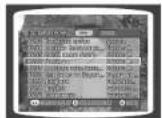
4 Press the ENTER button to play back selected song.
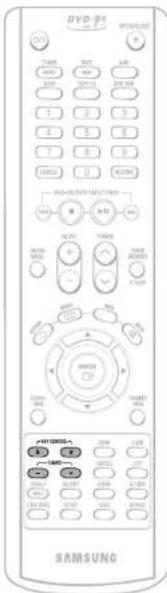
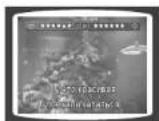
Key Control
During the playback, press the KEY CONTROL buttons.
• Each time # button is pressed, the key is increased, and each time b button is pressed, the key is decreased.
Tempo Control
During the playback, press the TEMPO buttons.
- Each time + button is pressed. the tempo gets faster, and each time - button is pressed the tempo gets slower.
To Exit Search Song Screen
- Press ■ (STOP) button or SEARCH SONG button.

Male-Female Key Control / Melody Function

Male-Female Key Control
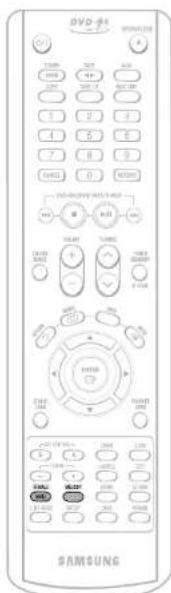
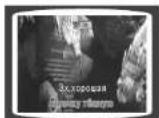
During the playback, press the FEMALE(MALE) button.
- Each time the button is pressed, this selection alternates between Male and Female.
- Select Male when singing in male voice and select Female when singing in female voice.

Melody Function
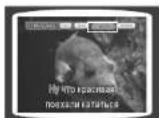
During playback, press the MELODY button.
• Each time the button is pressed, the selection changes as follows: OFF → MILD → STANDARD → STRONG. * Select Melody ON to hear the melody during accompaniment.

Setting the Chorus
You can set the chorus to strong, middle, weak, or OFF.
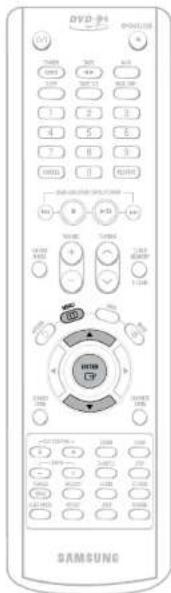
1. Load a DVD-OK disc.
2. Press the MENU button.
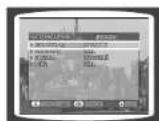
3. Press the Cursor ▲,▼ button to move to 'Chorus'.
4. Press the ENTER button to select the desired item.
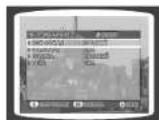
• Each time the button is pressed, the selection changes as follows: LOW · MIDDLE · HIGH · OFF.
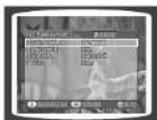
Note
- The chorus function may not work depending on the information recorded on the disc.

Setting the Fanfare
You can set Fanfare to come out after singing a song.
Setting the Average Score
You can set the grade of scores displayed on the screen in advance.
1. Load a DVD-OK disc.
2. Press the MENU button.
3. Press the Cursor ▲/▼ button to move to 'Fanfare'.
4. Press the ENTER button to select the desired item.
• Each time the button is pressed, the selection changes as follows: ON · OFF.
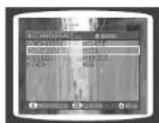
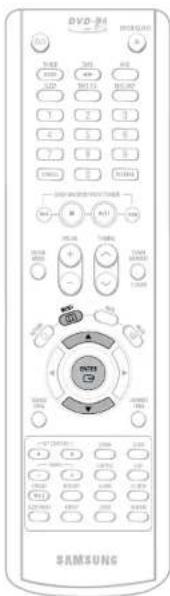
1. Load a DVD-OK disc.
2. Press the MENU button.
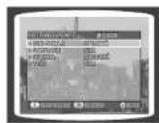
3. Press the Cursor ▲/▼ button to move to 'Average Score'.
4. Press the ENTER button to select the desired item.
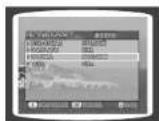
• Each time the button is pressed, the selection changes as follows: LOW • MIDDLE • HIGH • OFF.

Setting the Shadow
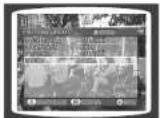
You can set the lyrics to be displayed in the black strips.
Listening to Radio
You can listen to the chosen band (FM, AM) by using either the automatic or manual tuning operation.
1 Load a DVD-OK disc.
2 Press MENU button.
3 Press Cursor ▲,▼ button to move to 'Shadow'.
4 Press ENTER button to select the desired item.
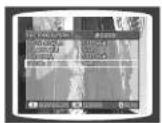
• Each time the button is pressed, the selection changes as follows: ON · OFF.
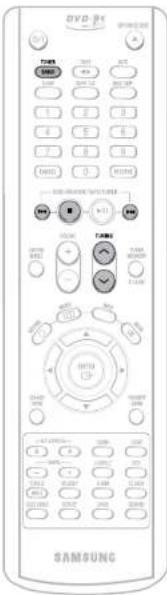
Remote Control Unit
1 Press TUNER/BAND button.
- The selection toggles back and forth between 'FM → AM' each time the TUNER(BAND) button is pressed.
2 Tune in to the desired station.
Automatic Tuning: Press ◄◀◀▶ button to select the preset station.
Automatic Tuning: Press and hold 😊 button to automatically search the band.
Manual Tuning: Briefly press 📞 button to increase or decrease the frequency incrementally.
Main Unit
1 Press the TUNER button to select the desired band (FM, AM).
2 Select a broadcast station.
Automatic Tuning: Press the STOP (■) button to select PRESET and then press the ◀◀▶▶ button or turn the Multi Jog Knob to select the preset station.
Automatic Tuning: Press the STOP (■) button to select 'AUTO' and then press and hold the ◀◀▶▶ button or turn the Multi Jog Knob to automatically search the band.
Manual Tuning: Press STOP (■) to select MANUAL and then briefly press ◀◀▶▶ or turn the Multi Jog Knob to tune in to a lower or higher frequency.
Press MONO/ST button to listen in Mono/Stereo.
(This applies only when listening to an FM station.)
• Each time the button is pressed, the sound switches between "STEREO" and "MONO". - In a poor reception area, select MONO for a clear, interference-free broadcast.

Presetting Stations
You can store up to 15 stations each for FM and AM.
You can store up to:
+ 15 FM stations
+ 15 AM stations
• FM Frequency Modulation
- AM Medium Wave
1 Press the TUNER(BAND) button and select the FM band.
- Each time the button is pressed, the band switches between 'FM → AM'.
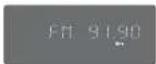
2 Press ⏻ to select "89.10".
• Refer to Step 2 on page 58 to automatically or manually tune in to a station.
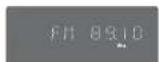
3 Press the TUNER MEMORY button.
- "PROGRAM" flashes in the display.
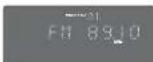
4 Press ◀◀▶▶ to select preset number.
- You can select between 1 and 15.
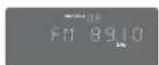
5 Press the TUNER MEMORY button.
- Press the TUNER MEMORY button before 'PROGRAM' disappears from the display. - 'PROGRAM' disappears from the display and the station is stored in memory.
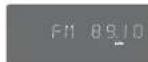
6 To preset another station, repeat steps 2 to 5.
To tune in to a preset station, press ◀◀◀▶▶ on the remote control to select a channel.

Listening to a Cassette
Always treat your cassettes with care; refer, if necessary, to the section entitled "Precautions When Using Audio Cassettes" on page 73.
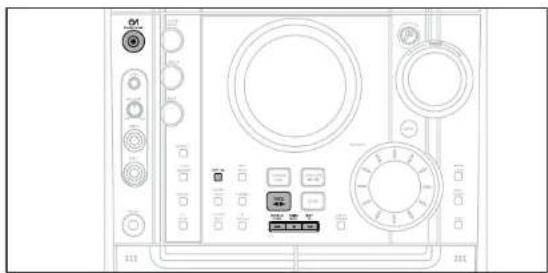
1 Switch the system on by pressing STANDBY ON.
2 Press TAPE on the player to select the Tape function.
3 Press the PUSH EJECT (▲) of the cassette deck to open the cassette door and insert a cassette.
- Insert a cassette with the recording playback side facing the cassette holder, and then push the cassette door shut.
4 Press the ◀▶ button. The cassette starts playing.
5 Press the ◀◀,▶▶ button if necessary.
6 When you have finished playback, press STOP button.
- Side A: Press the Tape (◀▶) button once. - Side B: Press the Tape (◀▶) button twice. Press the TAPE 1/2 button to select the cassette to be played.
- Rewind the cassette with the I◄◄ / DOWN button. - Fast-forward the cassette with the UP / ►►I button.

Selecting the Cassette Playback Mode
Your mini component system has three cassette playback modes which enable you to listen to both sides of a cassette automatically.
Press REVERSE MODE until the appropriate symbol is displayed.
• ⇌ : One side of the selected cassette and then stops. • ⇌ : One side of the cassette, then the other side, and then stops. • ⇌ : Both sides of the cassette indefinitely until you press stop.
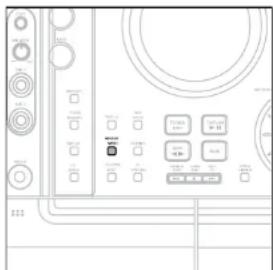

Tape Counter
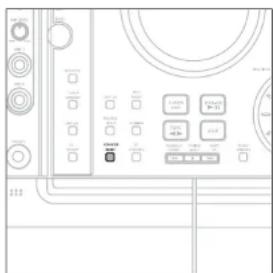
When playing a cassette in one of the cassette decks, a counter is displayed to enable you to take note of the counter value at the start of each track to start playback at the beginning of the track to which you wish to listen.
- Before starting to record a cassette for which you wish to take note of the counter values at the beginning of each track, reset the counter by pressing COUNTER RESET. • Each cassette deck has a separate counter.

Copying a Cassette (Dubbing)
You can copy a cassette from TAPE 1 to TAPE 2.
- Normal speed dubbing in selecting Tape function mode.
- You do not need to adjust the volume, as it has no effect on the recording.
- Take care not to insert the tape to be copied in TAPE 2, as it will be erased when you start recording.
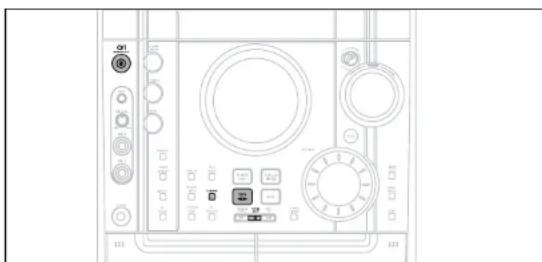
1 Switch the system on by pressing STANDBY/ON.
2 Insert a blank cassette in TAPE 2
3 Insert the tape to be copied in TAPE 1.
4 Press DUBBING button to copy a cassette.
5 Press STOP button.
• The appropriate indications are displayed and the cassette in TAPE 1 is copied to the cassette in TAPE 2.
Recording a Compact Disc
You can record a compact disc on a cassette in two different ways:
Synchronised recording
This feature enables you to synchronize the start of the recording with the start of the disc or track of your choice.
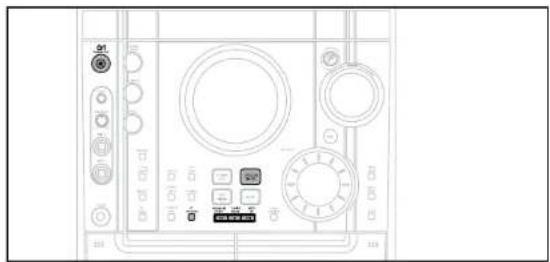
1 Switch the system on by pressing STANDBY/ON.
2 Insert a blank cassette in TAPE
- Press the PUSH'EJECT button (▲) to open the cassette door, insert a cassette, and then close the cassette door.
- Insert the cassette with the safety tabs.
3 Load a compact disc.
- Press the OPEN/CLOSE button (▲) to open the CD door.
- Insert a CD and press the OPEN/CLOSE button (▲) to close the CD door.
4 Press the DVD-OK (▶/II) button.
- Use the CD selection (◀◀, ▶▶▶) buttons to select the desired song.
5 Press CD SYNCHRO button.
- When stopped, press the button to start the recording from the first piece of music.
- Press and CD SYNCHRO button during the playback of CD to start the recording from the first part of the music being played.
6 To stop recording, press ■ button.
Note
- You can use CD/SYNCHRO button only in CD Playback Mode.
Direct recording
The direct recording mode enables you to start recording with any track on the compact disc.
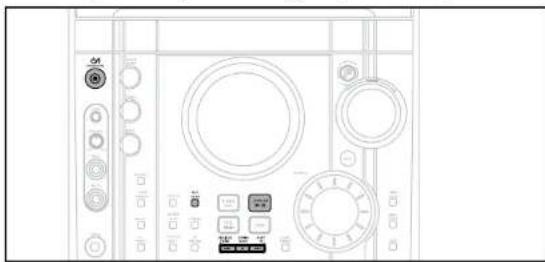
1 Switch the system on by pressing STANDBY/ON.
2 Insert a blank cassette in TAPE 2.
- Press the PUSH/EJECT button (▲) to open the cassette door, insert a cassette, and then close the cassette door.
- Insert the cassette with the safety tabs.
3 Load a compact disc.
- Press the OPEN/CLOSE button (▲) to open the CD door.
- Insert a CD and press the OPEN/CLOSE button (▲) to close the CD door.
4 Press the DVD-OK (▶/II) button.
- Use the CD selection (◀◀, ▶▶) buttons to select the desired song.
5 Press REC/ PAUSE button.
- Recording will begin. - To stop recording, press ■ button.
Note
- The cassette tape you want to record on must have the safety tabs intact.
Recording a Radio Program
You can record a radio program of your choice.
You do not need to adjust the volume, as it has no effect on the recording.
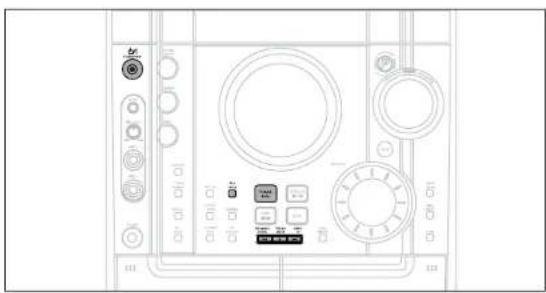
1 Switch the system on by pressing STANDBY/ON.
2 Insert a blank cassette in TAPE 2.
3 Select the TUNER function by pressing TUNER/BAND.
4 Select the radio station that you wish to record by pressing ◀◄◄/DOWN or UP! ►► button.
5 Press(REC/PAUSE) button.
- REC is displayed in red and recording starts.
6 To stop recording, press ■ button.
Timer Function
- The timer enables you to switch the system on or off at specific times.
- If you no longer want the system to be switched on or off automatically, you must cancel the timer.
- Before setting the timer, check that the current time is correct.
- For each step, you have a few seconds to set the required options. If you exceed this time, you must start again.
Example: You wish to wake up to music every morning.
1 Switch the system on by pressing STANDBY/ON.
2 Press TIMER/ CLOCK until TIMER is displayed.
3 Press the ENTER button.
- ON TIME is displayed (instead of the equalizer symbols) for a few seconds, followed by any switch-on time already set; you can set the timer switch-on time.
4 Set the timer switch-on time.
a. Set the hour by pressing ◀◀ or ▶▶ button.
b. Press ENTER • The minutes flash. c. Set the minutes by pressing or ▶▶ button. d. Press ENTER - OFF TIME is displayed (instead of the equalizer symbols) for a few seconds, followed by any switch-off time already set; you can now set the timer switch-off time.
7 Press◄◄ or ►► button to select the source to be played when the system switches on.
- TUNER (radio) : a Press ENTER. b Select a preset station by pressing
• DVC-OK : Load a compact disc.
5 Set the timer switch-off time.
a. Set the hour by pressing ◀◀ or ▶▶ button. b. Press ENTER. • The minutes flash. c. Set the minutes by pressing |← or ▶▶ button. d. Press ENTER. • VOL 10 is displayed, where 10 corresponds to the volume already set. 8 Press ENTER to confirm the timer.
6 Press ◀◀ or ▶▶ button to adjust the volume level and press ENTER.
- The source to be selected is displayed.
Press STANDBY/ON to set the system to standby mode.
- ⑨ is displayed to the top right of the time, indicating that the timer has been set. The system will switch on and off automatically at the required times.
Press STANDBY/ON to set the system to standby mode.
button
Note: If the timer switch on and off times are identical, the word ERROR is displayed.
You can also use the ◀, ▶ buttons on the remote control instead of the Multi Jog or |◀◀▶▶| button in steps 4, 5, 6, 7.
Canceling the Timer
After having set the timer, it will start automatically as shown by the TIMER indication on the display. If you no longer wish to use the timer, you must cancel it.
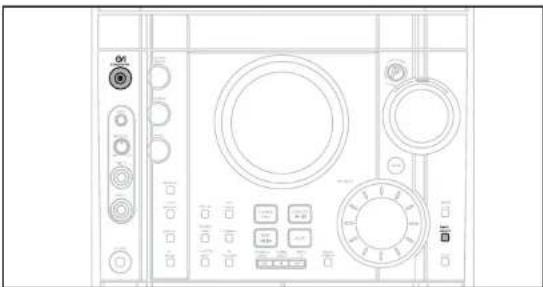
To cancel the timer, press TIMER ON/OFF once.
① is no longer displayed.
To resume the timer, press TIMER ON/OFF again.
is displayed again.
Note
You can cancel the timer while the power is on or while the player is in standby.

P.SOUND/SURROUND / SOUND MODE Function
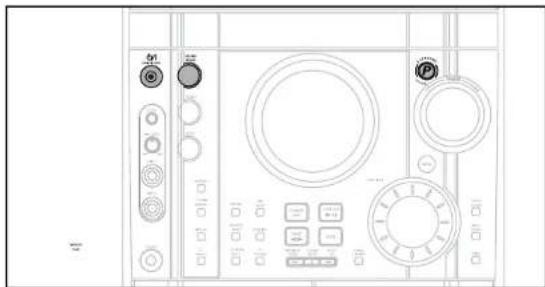

Your mini-compact system is equipped with the Power Sound/Power Surround function. This function amplifies bass and enhances high frequencies or bass twice as much, allowing you to appreciate powerful, realistic sound.
Press the P.SOUND/SURROUND button on the front panel.
Result: Press the P.SOUND/P.SURROUND button on the front panel; 'P.SOUND, P.SURROUND, OFF' is displayed. To cancel this function, press the P.SOUND/P.SURROUND button again.

Selecting SOUND MODE
Your mini-compact system is equipped with a preset equalizer that allows you to choose the most appropriate balance between treble and bass frequencies, according to the type of music you are listening to.
Turn SOUND MODE on the front panel or press SOUND MODE on the remote control until the required option is selected.
To obtain a... Select... Normal balance (linear) PASS Balance suitable for pop music POP Balance suitable for rock music ROCK Balance suitable for classical music CLASSIC Balance suitable for hall HALL Balance suitable for live LIVE Balance suitable for cinema CINEMA Balance suitable for voice USER EQ
Note
- USER EQ (TREBLE/BASS) function: please see page 71

Sleep Timer / Mute Function

Sleep Timer Function
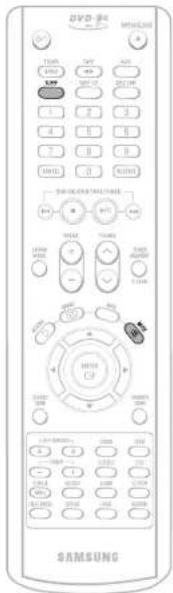
You can set the time that the DVD player will shut itself off.
Press the SLEEP button.
• Each time the button is pressed, the selection changes as follows: 90 MIN → 60 MIN → 45 MIN → 30 MIN → 15 MIN → OFF.


To confirm the sleep timer setting, press the SLEEP button.
•The remaining time before the DVD player will shut itself off is displayed. •Pressing the button again changes the sleep time from what you have set earlier.

To cancel the sleep timer, press SLEEP button until OFF appears on the display.

Mute Function
This is useful when answering a doorbell or telephone call.
Press MUTE button.
- MUTE' appears in the display. - To turn off mute, press the button again.

DEMO / DIMMER Function

DEMO Function
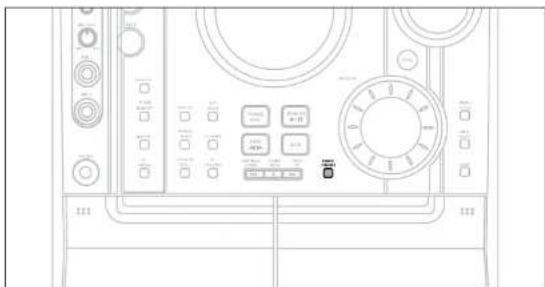
You can view the various functions available on your system.
Press DEMO/DIMMER button.
- The various functions available are listed in turn on the display.
- All these functions are described in detail in this booklet. For instructions on how to use them, refer to the appropriate sections.

DIMMER Function
You can adjust the brightness of the display on the main unit so it won't interfere with your movie viewing.
Press DEMO/DIMMER button.
Each time the button is pressed, the brightness changes as follows: DIMMER ON (Dim) → DIMMER OFF (Bright).
To cancel this function, press DEMO/DIMMER again.
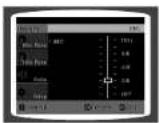
Bass/Treble Level (USER EQ) Function
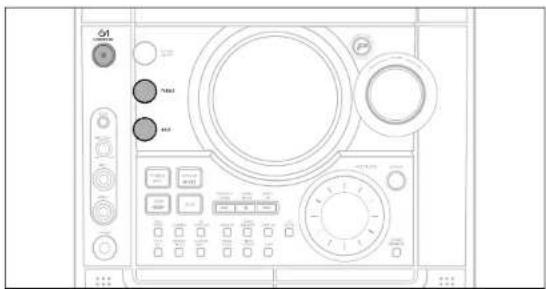

BASS Level
The BASS function stresses low tones, providing thudding sound effects.
1. Turn the BASS knob on the front panel to select from BASS -08 to BASS +08, a total of 9 steps.
2. You can select the level of low tones you desire.

TREBLE Level
The Treble function stresses high tones, providing crisp sound effects.
1. Turn the Treble knob on the front panel to select from TRE -08 to TRE +08, a total of 9 steps.
2. You can select the level of high tones you desire.
Connecting Headphones
You can connect a set of headphones to your mini-compact system so that you can listen to music or radio programs without disturbing other people in the room. The earphones must have a 3.5 mm jack or an appropriate adapter.
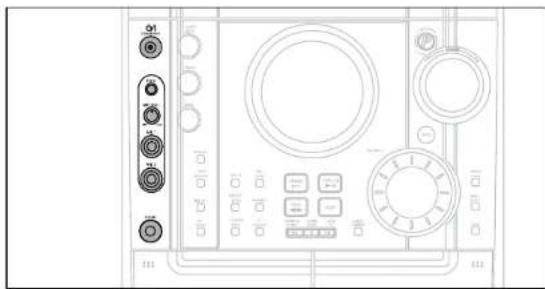
Connect the headphones to the PHONES jack on the front panel.
• The loudspeakers are no longer used to output the sound.
Note
- Prolonged use of headphones at a high volume may damage your hearing.
Cautions on Handling and Storing Discs
Small scratches on the disc may reduce sound and picture quality or cause breaks in playback. Be especially careful not to scratch discs when handling them.
Handling discs
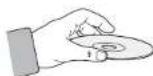
Do not touch the playback side of the disc. Hold the disc by the edges so that fingerprints will not get on the surface. Do not stick paper or tape on the disc.
Handling and Storing Discs
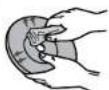
When you get fingerprints or dirt on the disc, clean it with a mild detergent diluted in water and wipe with a soft cloth.
- When cleaning, wipe gently from the inside to the outside of the disc.

Condensation may form if warm air comes into contact with cold parts inside the player. When condensation forms inside the player, the player may not operate correctly. If this occurs, remove the disc and let the player stand for 1 or 2 hours with the power on.
- Precautions When Using Audio Cassettes
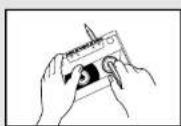
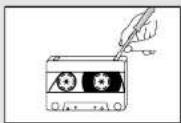
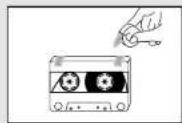
- Check that the tape in the cassette is sufficiently taut. • To prevent erasing a cassette that you wish to keep, remove the safety tab on the upper edge of the cassette. To record a cassette, where the tab has been broken, simply cover the opening with adhesive tape.
- When you have finished playing a cassette, always put it back in its case.
- Store your cassettes in a clean place, out of direct sunlight, where they will not be exposed to high temperatures.
- Avoid using 120-minute cassettes as they place unnecessary strain on the tape mechanism.
Before Calling for Service
Refer to the chart below when this unit does not function properly. If the problem you are experiencing is not listed below or if the instruction below does not help, turn off the unit, disconnect the power cord, and contact the nearest authorized dealer or Samsung Electronics Service Center.
Symptom Check/Remedy
| Disc tray does not open. | • Is the power cord plugged securely into the outlet?• Turn off the power and then turn it back on. |
| Playback does not start. | • Check the region number of the DVD.DVD discs purchased from abroad may not be playable.• CD-ROMs and DVD-ROMs cannot be played on this DVD player.• Make sure that the rating level is correct. |
| The remote control does not work. | • Is the remote control being operated within its operation range of angle and distance?• Are the batteries exhausted? |
| Playback does not start immediately when the Play/Pause button is pressed. | • Are you using a deformed disc or a disc with scratches on the surface?• Wipe the disc clean. |
| Sound is not produced. | • No sound is heard during fast playback, slow playback, and step motion playback.• Are the speakers connected properly? Is the speaker setup correctly customized?• Is the disc severely damaged? |
| Picture does not appear, sound is not produced, or the disc tray opens 2 to 5 seconds later. | • Was the DVD player suddenly moved from a cold place to a warm one? When condensation forms inside the player, remove the disc and lot the player stand for 1 or 2 hours with the power on. (You can use the player again after condensation disappears.) |
| • Disc is rotating but no picture is produced.• Picture quality is poor and picture is shaking. | • Is the TV power on?• Are the video cables connected properly?• Is the disc dirty or damaged?• A poorly manufactured disc may not be playable. |
Notes on Discs
Symptom Check/Remedy
| Audio language and subtitles do not work. | • Audio language and subtitles will not work for DVDs not containing them. And depending on the disc, they may work differently. |
| Menu screen does not appear even when the menu function is selected. | • Are you using a disc that does not contain menus? |
| Aspect ratio cannot be changed. | • You can play 16:9 DVDs in 16:9 WIDE mode, 4:3 LETTER BOX mode, or 4:9 PAN SCAN mode, but 4:3 DVDs can be seen in 4:3 ratio only. Refer to the DVD disc jacket and then select the appropriate function. |
| The tape does not start playing | • The TAPE function has not been selected.• The cassette has not been inserted correctly.• The cassette player has not been closed.• The tape is either slack or broken. |
| The volume falls offThe cassette is not erased correctlyThere is excessive wow and flutter | • The audio heads are dirty.• The rollers or drive capstans are dirty.• The tape is worn. |
| Can't receive radio broadcast. | • Is the antenna connected property?• If the antenna's input signal is weak, install an external FM antenna in an area with good reception. |
| • The main unit is not working.(Example: The power goes out or strange noise is heard.)• The DVD player is not working normally. | • Turn off the power and hold the P.Suppound/P.Sound button on the main unit for longer than 5 seconds.Using the RESET function will erase all stored settings.Do not use this unless necessary. |
| The password for rating level has been forgotten. | • While the player is in "NO DISC" mode, hold the main unit's TUNING MODE/■ button for longer than 5 seconds. "INITIAL" appears on the display and all settings will return to the default values.• Press the POWER button.Using the RESET function will erase all stored settings.Do not use this unless necessary. |
Disc Recording Format
CD-R Discs
- Depending on the disc recording device (CD-Recorder or PC) and the condition of the disc, some CD-R discs may not be playable.
- Use a 650MB/74 minute CD-R. Avoid CD-RW media, as they may not be playable.
- If possible, do not use CD-RWs (rewritable) media, as they may not be playable.
- Only the CD-Rs that are properly 'closed' can be fully played. If the session is closed but the disc is left open, you may not be able to fully play the disc.
CD-R MP3 Discs
- Only CD-R discs with MP3 files in ISO 9660 or Joliet format can be played.
- MP3 file names should be 8 characters or less in length and contain no blank spaces or special characters (I = +).
- If the name of a file is in Korean, the name will be displayed on the TV screen in Korean and ' will be shown in the display of the main unit.
- Use discs recorded with a compression/decompression data rate greater than 128Kbps.
- Only files with the ".mp3" and ".MP3" extensions can be played.
- Only a consecutively written Multisession disc can be played. If there is a blank segment in the Multisession disc, the disc can be played only up to the blank segment.
- If the disc is not closed, it will take longer to begin playback and not all of the recorded files may be played.
- For files encoded in Variable Bit Rate (VBR) format, i.e. files encoded in both low bit rate and high bit rate (e.g., 32Kbps \~ 320Kbps), the sound may skip during playback.
- If more than 500 tracks are recorded on a single CD, a maximum of 500 tracks can be played.
- If more than 300 folders are recorded on a single CD, a maximum of 300 folders can be played.
What is MP3?
MP3 is short for MPEG-1 Audio Layer 3 and MPEG is an acronym for Moving Pictures Experts Group. MP3 is a file format with compression ratio of 1:12 (128 Kbps*) That is, you can use MP3 format to record about 12 times the usual amount of data on a regular CD.
CD-R JPEG Discs
- Only files with the ".jpeg" and ".JPEG" extensions can be played.
- If the disc is not closed, it will take longer to start playing and not all of the recorded files may be played.
- Only CD-R discs with JPEG files in ISO 9660 or Joliet format can be played.
- JPEG file names should be 8 characters or less in length and contain no blank spaces or special characters (./=+).
- Only a consecutively written multisession disc can be played. If there is a blank segment in the multisession disc, the disc can be played only up to the blank segment.
- A maximum of 9,939 images can be stored on a single CD.
- When playing a Kodak/Fuji Picture CD, only the JPEG files in the picture folder can be played. • Picture discs other than Kodak/Fuji Picture CDs may take longer to start playing or may not play at all.
Notes on Terminology
| ANGLE | Recorded onto some DVD discs are scenes which have been simultaneously shot from a number of different angles (the same scene is shot from the front, from the left , from the right , etc.). With such discs, the Angle button can be used to change the angle of view for specific scenes. |
| CHAPTER NUMBER | These numbers are recorded on DVD discs. A Title is subdivided into many sections, each of which is numbered, and specific parts of the video can be searched quickly using these numbers. |
| DVD | A high-density optical disc on which high-quality pictures and sound have been recorded by means of digital signals. Incorporating a new video compression technology (MPEG-2) and high-density recording technology, a DVD disc comprises two 0.6 mm thick discs bonded together. |
| PCM | An acronym for Pulse Code Modulation - another name for digital audio. |
| PBC (PLAYBACK CONTROL) | This is recorded on a video CD (version 2.0). Selected scenes or information can be chosen from the menu displayed on the TV monitor. |
| REGION NUMBER | Both the DVD player and DVD discs are encoded with a region number. If the region number on the DVD disc does not correspond to the region number of the DVD player, the player cannot play the disc. |
| SUBTITLES | Translated appearing at the bottom of the screen. A DVD disc can contain up to 32 subtitle languages. |
| TITLE NUMBER | These numbers are recorded on DVD discs. When a disc contains two or more movies, these movies are numbered as Title 1, Title 2, etc. |
| TRACK NUMBER | These numbers are assigned to the tracks which are recorded on video and audio CDs. They enable specific tracks to be located quickly. |
| VIDEO CD | Contains recordings of pictures and sound whose quality is roughly comparable to that of video tape. This player also supports video CDs with playback control (version 2.0). |
| DOLBY DIGITAL | 5.1 (or 6) Channel Digital Surround sound reproduced from DVDs and LDs recorded as a digital signals (with 2.000 disc marking). With better sound quality, dynamic range, and directionality than traditional Dolby surround technology, you can enjoy dynamic, realistic sound. |

Specifications
RADIO
AM
Signal/noise ratio 40 dB
Usable sensitivity 56 dB
Total harmonic distortion 2%
FM
Signal/noise ratio 55 dB
Usable sensitivity 10 dB
Total harmonic distortion 0.6%
COMPACT DISC PLAYER
Capacity 3
Frequency range 20 Hz - 20 KHz (± 1 dB)
Signal/noise ratio 85 dB (at 1 KHz) with filter
Distortion 0.05 % (at 1 KHz)
Channel separation 75 dB
Disc sizes Diameter: 120 or 80 mm. Thickness: 1.2 mm
TAPE DECK
Frequency range 125 Hz ~ 10 KHz
Signal/noise ratio 40 dB
Channel separation 30 dB
Erasing effect 50 dB (without filter)
AMPLIFIER
Output power
Main Speaker (6 Ω)
Channel separation 40 dB
Signal/noise ratio 75 dB
GENERAL
Power consumption
5D Watts/CH RMS, IEC (total harmonic distortion: 10%)
Dimensions 270 (D) x 332 (H) x 426 (W) mm

- SAFETY WARNINGS PRECAUTIONS
- CAUTION: INVISIBLE LASER RADIATION WHEN OPEN AND INTERLOCKS DEFEATED. AVOID EXPOSURE TO BEAM
- FEATURES
- MULTI-DISC PLAYBACK & AM/FM TUNER, TAPE
- TV SCREEN SAVER FUNCTION
- POWER SAVING FUNCTION
- CUSTOMIZED TV SCREEN DISPLAY
- COPY PROTECTION
- CONTENTS
- PREPARATION
- CONNECTIONS
- OPERATION
- SETUP
- RADIO OPERATION
- TAPE DECK
- MISCELLANEOUS
- DESCRIPTION
- INSERT REMOTE BATTERIES
- CAUTION
- RANGE OF OPERATION OF THE REMOTE CONTROL
- CONNECTING THE SPEAKERS
- POSITION OF THE DVD PLAYER
- SPEAKERS L R
- DIRECTIONS FOR INSTALLING SPEAKERS
- CONNECTING TO A TV
- METHOD 1: USING VIDEO OUT (GOOD QUALITY)
- METHOD 2: USING S-VIDEO OUT (BETTER QUALITY)
- NOTE
- CONNECTING TO A TV (CON'T)
- METHOD 3: COMPONENT VIDEO (BEST QUALITY)
- P.SCAN (PROGRESSIVE SCAN) FUNCTION
- WHAT IS PROGRESSIVE (OR NON-INTERLACED) SCANNING
- SELECTING THE VIDEO FORMAT
- CONNECTING EXTERNAL COMPONENTS
- CONNECTING AN EXTERNAL ANALOG COMPONENT
- CONNECTING THE FM, AM ANTENNAS
- FM ANTENNA CONNECTION AM ANTENNA CONNECTION
- SETTING THE CLOCK
- DISC PLAYBACK
- SELECTING A CD IN THE DISC CHANGER
- TO STOP PLAYBACK
- PRESS STOP DURING PLAYBACK
- DIVX PLAYBACK
- SKIP FORWARD/BACK
- FAST PLAYBACK
- ZOOM FUNCTION
- MINUTE SKIP FUNCTION
- SUBTITLE DISPLAY
- DIVX FEATURE TABLE
- DISPLAYING DISC INFORMATION
- SCREEN DISPLAY
- CHECKING THE REMAINING TIME
- FAST/SLOW PLAYBACK
- SKIPPING SCENES/SONGS
- DVD V CD MP
- PLAYING FRAME BY FRAME
- DVD
- ANGLE FUNCTION
- REPEAT PLAYBACK
- DVD V CD CD MP3 JPEG
- PRESS REPEAT BUTTON
- REPEAT PLAYBACK OPTIONS
- CHAPTER
- RANDOM
- TRACK
- REPEATEDLY PLAYS THE ENTIRE DISC
- REPEAT PLAYBACK OPERATION IS NOT POSSIBLE WITH VERSION 2.0 VCD DISCS IF PBC IS TURNED ON. TO USE REPEAT PLAYBACK ON A VCD WITH PBC, YOU SHOULD SET THE PBC TO OFF IN THE DISC MENU. (SEE PAGE 29.)
- THIS FUNCTION ALLOWS YOU TO ENLARGE A PARTICULAR AREA OF THE DISPLAYED IMAGE
- ZOOM (SCREEN ENLARGE) FUNCTION
- DVD\CD
- EZ VIEW FUNCTION DVD
- PRESS THE EZ VIEW BUTTON
- SELECTING AUDIO/SUBTITLE LANGUAGE
- AUDIO LANGUAGE SELECTION FUNCTION
- SUBTITLE LANGUAGE SELECTION FUNCTION
- MOVING DIRECTLY TO A SCENE/SONG
- MOVING TO A CHAPTER
- PRESS THE NUMERIC BUTTONS
- MOVING TO A TITLE/TRACK
- MOVING TO A SPECIFIC TIME
- JPEG FILE PLAYBACK
- SLIDE MODE
- PRESS SLIDE MODE BUTTON
- ROTATE/FLIP FUNCTION
- USING DISC MENU
- USING THE TITLE MENU
- SETTING THE LANGUAGE
- SETTING TV SCREEN TYPE
- ADJUSTING THE TV ASPECT RATIO (SCREEN SIZE)
- WIDE
- LB
- PS
- SETTING PARENTAL CONTROLS (RATING LEVEL)
- SETTING THE PASSWORD
- SETTING THE WALLPAPER
- TO CHANGE THE WALLPAPER
- SETTING THE DRC (DYNAMIC RANGE COMPRESSION)
- AV SYNC SETUP
- PLAYING DVD-OK DISCS
- CONNECTING MICROPHONE
- RESERVING ACCOMPANIMENT MUSIC
- PRIORITY PLAYING ACCOMPANIMENT MUSIC
- DVD-OK REPEAT PLAY
- FAVORITE SONG FUNCTION
- SAVING FAVORITE SONG
- SINGING FAVORITE SONG
- DELETING FAVORITE SONG
- TO EXIT FAVORITE SONG SCREEN
- SEARCH SONG FUNCTION
- SEARCH BY LANGUAGE
- SEARCHING DUET SONG
- SEARCHING BY GENRE
- KEY CONTROL / TEMPO CONTROL
- SEARCHING BY HITS SONGS
- KEY CONTROL
- TEMPO CONTROL
- MALE-FEMALE KEY CONTROL / MELODY FUNCTION
- MALE-FEMALE KEY CONTROL
- DURING THE PLAYBACK, PRESS THE FEMALE(MALE) BUTTON
- MELODY FUNCTION
- DURING PLAYBACK, PRESS THE MELODY BUTTON
- SETTING THE CHORUS
- SETTING THE FANFARE
- SETTING THE AVERAGE SCORE
- SETTING THE SHADOW
- LISTENING TO RADIO
- REMOTE CONTROL UNIT
- MAIN UNIT
- PRESETTING STATIONS
- PRESS THE TUNER(BAND) BUTTON AND SELECT THE FM BAND
- PRESS ⏻ TO SELECT
- PRESS THE TUNER MEMORY BUTTON
- PRESS ◀◀▶▶ TO SELECT PRESET NUMBER
- TO PRESET ANOTHER STATION, REPEAT STEPS 2 TO
- LISTENING TO A CASSETTE
- SWITCH THE SYSTEM ON BY PRESSING STANDBY ON
- PRESS THE PUSH EJECT (▲) OF THE CASSETTE DECK TO OPEN THE CASSETTE DOOR AND INSERT A CASSETTE
- PRESS THE ◀▶ BUTTON. THE CASSETTE STARTS PLAYING
- PRESS THE ◀◀,▶▶ BUTTON IF NECESSARY
- SELECTING THE CASSETTE PLAYBACK MODE
- TAPE COUNTER
- COPYING A CASSETTE (DUBBING)
- RECORDING A COMPACT DISC
- SYNCHRONISED RECORDING
- SWITCH THE SYSTEM ON BY PRESSING STANDBY/ON
- INSERT A BLANK CASSETTE IN TAPE
- LOAD A COMPACT DISC
- PRESS THE DVD-OK (▶/II) BUTTON
- PRESS CD SYNCHRO BUTTON
- TO STOP RECORDING, PRESS ■ BUTTON
- DIRECT RECORDING
- PRESS REC/ PAUSE BUTTON
- RECORDING A RADIO PROGRAM
- TIMER FUNCTION
- CANCELING THE TIMER
- P.SOUND/SURROUND / SOUND MODE FUNCTION
- PRESS THE P.SOUND/SURROUND BUTTON ON THE FRONT PANEL
- SELECTING SOUND MODE
- TURN SOUND MODE ON THE FRONT PANEL OR PRESS SOUND MODE ON THE REMOTE CONTROL UNTIL THE REQUIRED OPTION IS SELECTED
- SLEEP TIMER / MUTE FUNCTION
- SLEEP TIMER FUNCTION
- PRESS THE SLEEP BUTTON
- MUTE FUNCTION
- PRESS MUTE BUTTON
- DEMO / DIMMER FUNCTION
- DEMO FUNCTION
- PRESS DEMO/DIMMER BUTTON
- DIMMER FUNCTION
- TO CANCEL THIS FUNCTION, PRESS DEMO/DIMMER AGAIN
- BASS/TREBLE LEVEL (USER EQ) FUNCTION
- BASS LEVEL
- TREBLE LEVEL
- CONNECTING HEADPHONES
- CAUTIONS ON HANDLING AND STORING DISCS
- HANDLING DISCS
- HANDLING AND STORING DISCS
- PRECAUTIONS WHEN USING AUDIO CASSETTES
- BEFORE CALLING FOR SERVICE
- NOTES ON DISCS
- DISC RECORDING FORMAT
- CD-R DISCS
- CD-R MP3 DISCS
- WHAT IS MP
- CD-R JPEG DISCS
- NOTES ON TERMINOLOGY
- SPECIFICATIONS
- RADIO
- AM
- FM
- COMPACT DISC PLAYER
- AMPLIFIER
- GENERAL
Brand : SAMSUNG
Model : MAX-KJ610
Category : Karaoke