
SmartScale - Kitchen scale Avanti - Free user manual and instructions
Find the device manual for free SmartScale Avanti in PDF.


| Product Type | Kitchen Scale |
| Brand | Avanti |
| Model | SmartScale |
| Dimensions | Approximately 20 x 15 x 2 cm |
| Weight | Approximately 300 g |
| Power Supply | 2 x AAA batteries (not included) |
| Maximum Capacity | 5 kg / 11 lbs |
| Readability | 1 g / 0.1 oz |
| Units | g, kg, lb, oz, ml, fl.oz |
| Display | LCD screen with backlight |
| Platform Material | Stainless steel |
| Tare Function | Yes |
| Auto-Off | Yes, after 2 minutes of inactivity |
| Low Battery Indicator | Yes |
| Overload Indicator | Yes |
| Measurement Accuracy | ±1 g |
| Cleaning Instructions | Wipe with a damp cloth; do not immerse in water |
| Safety Precautions | Keep away from water and heat sources; do not drop |
| Spare Parts Availability | Batteries are standard; other parts not available separately |
| Repairability | Non-repairable; contact customer service for issues |
| Additional Functions | Smart tare, unit conversion, calorie calculation |
Frequently Asked Questions - SmartScale Avanti
User questions about SmartScale Avanti
0 question about this device. Answer the ones you know or ask your own.
Ask a new question about this device
Download the instructions for your Kitchen scale in PDF format for free! Find your manual SmartScale - Avanti and take your electronic device back in hand. On this page are published all the documents necessary for the use of your device. SmartScale by Avanti.
USER MANUAL SmartScale Avanti
Avanti is a registered trademark of
Sheldon and Hammond Pty. Ltd. A.B.N. 90 076 567 989
Product made in China to rigid specification
utilising high-grade materials.
©Copyright Sheldon and Hammond Pty. Ltd. 2016
Product Code 15828
www.avantihomewares.com

Available on the
App Store

ANDROO ART ON Coopplay
Google play
DEAR USERS
Thank you for using our Avanti® Bluetooth Nutritional SmartScale™. Please read and keep the manual in order to best utilise this product.
■ ABOUT THE SCALE
This series of products can help you save and keep track of nutritional information on your phone. The scale transfers data to the mobile phone via Bluetooth Technology and also can draw the tendency of nutrient intake in order to check the nutrition intake status at any time. You'll get the first step in dietary management after downloading the application and using our Bluetooth scales.
FEATURES
- With high precision strain gauge sensor;
- Low battery power / Overload indication;
- Zero, tare and mode conversion with touch button;
- Bluetooth function;
- Measure calories, sodium, fat, protein, carbohydrates, cholesterol and dietary fibre;
BATTERY INSTALLATION
2x1.5V AAA
Battery

Please install battery
according to polarity.
Note: Please use corresponding battery. Please remove battery if it is not inuse for a long time (more than three months).
LCD DISPLAY
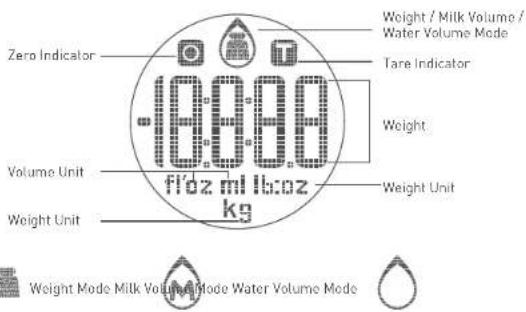
■ MODE CONVERSION
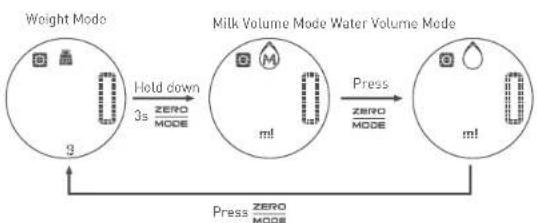
flowchart
graph LR
    A["Weight Mode"] -->|Hold down 3s| B["Milk Volume Mode"]
    B -->|Press ZERO MODE| C["Water Volume Mode"]
    C -->|Press ZERO MODE| A
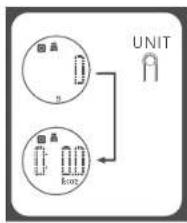
■ TO CONVERT WEIGHT UNIT
flowchart
graph TD
    A["Circle 1"] --> B["Circle 2"]
    B --> C["UNIT"]
    style A fill:#f9f,stroke:#333
    style B fill:#bbf,stroke:#333
    style C fill:#dfd,stroke:#333
The scale offers both unit systems of metric (kg, gl) or imperial (lb:oz). Press UNIT button to convert between the two systems. (You'll see the UNIT button at the bottom of the product, as shown left.)
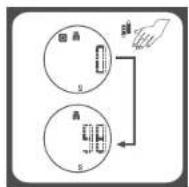
■ TO START WEIGHING
flowchart
graph TD
    A["Add liquid container"] --> B["Add mode"]
    B --> C["Zero mode"]
    C --> D["Pour liquid"]
Weighing Mode
- Place the scale on a solid and flat surface.
- Press the scale platform to turn on.
- Wait until LCD shows "0". Press 280 MODE button to convert to weighing mode.
- Load object on scale (or bowl) to start weighing. LCD will show the weight reading.
- If use a bowl, press ZERO MODE button after placing the bowl.
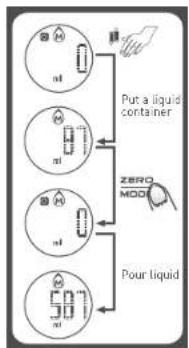
Volume Indication Mode
- Place the scale on a solid and flat surface.
- Press the scale to turn on.
- Wait until LCD shows "0". Press ZENO MODE Button to convert to volume indication mode.
- Put a liquid container onto the scale platform. LCD shows weight of container.
- Press ZERO button to zero or tare weight.
- Pour liquid (water or milk) into the container, LCD shows the volume of the liquid.
■ "ZERO" OR "TARE" FUNCTION
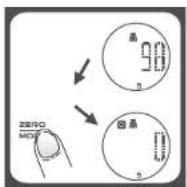
To weigh different loads consecutively without removing loads from the scale. (Place first load on the scale, get weight reading.
Press ZERO MODE button to reset the LCD reading to "0" before adding next load. You can repeat this operation.)
Condition 1: "ZERO" function
When total sum of all loads on scale ≤ 4% of scale's max. weight capacity.
4% = 20g when capacity is 500g
40g when capacity is 1kg
80g when capacity is 2kg
200g when capacity is 5kg
LCD will show "0g" each time ZERO MODE is pressed. It means ZERO function is activated. Max. weight capacity remains unchanged.
Condition 2: "TARE" function
When total sum of all loads on scale > 4% of scale's max. weight capacity.
4% = 20g when capacity is 500g
40g when capacity is 1kg
80g when capacity is 2kg
200g when capacity is 5kg
LCD will show "0g" and "T" each time ZERO MODE is pressed. It means TARE function is activated. Max. weight capacity is reduced by total weight of all loads.
Under this condition: By pressing ZERO MOOD you can see the total weight of all loads on the scale. If you want to weigh more loads, just press ZERO MOOD to reset LCD reading to '0' again.
■ AUTO SHUT OFF (POWER SAVING MODE)
Auto shut-off occurs if display shows '0' or shows the same weight reading for a couple of minutes.
INDICATION
Warning Indication Instructions and methods
| Err | Overload Indication | Item on scale is over the max. weight.(Max. weight is indicated on the scale).Please remove item to avoid damage. |
| Low Battery Indication.Lo | Battery power is low.Please replace new battery. |
■ CLEANING AND CARE
- Clean the scale with a slightly damp cloth. DO NOT immerse the scale in water or use chemical/abrasive cleaning agents.
- All plastics parts should be cleaned immediately after contact with fats, spices, vinegar and strongly colored foods. Avoid contact with acids citrus juices.
- Always use the scale on a solid, flat surface.
- Do not knock, impact or drop scale.
- This product is a precision instrument, please be careful.
- Place in a cool dry place
- Check the battery if the scale cannot be turned on.
- Designed for household use and non-commercial.
■ HOW TO CONFIGURE AND USE THE APPLICATION
- Download the app using one of the below methods:
a. Scan the QR code on this page to obtain the App.
b. At the "App Store" or "Google Play", search keyword
"Senssun Food" to download our application.
c. Use Apple download link below:
https://itunes.apple.com/app/id965042401
Use Android download link below:
https://play.google.com/store/apps/details?id=com.senssun.food


- Bluetooth settings:
a. Make sure that the Bluetooth on your chosen device is turned on before use.
b. If not enabled, please go to the "Settings > Bluetooth" menu to turn it on.
c. Press the scale platform to turn on.
- Software Guideline
Software instructions are continuously updated within the App.
Requirements for mobile devices:
Bluetooth version: Bluetooth 4.0 or above
Apple System: iPhone 4S or later, iOS 6.0 or later
Android System: Android 4.3 or later
FAQ
If the application isn't receiving data from the scale
- Verify that the Bluetooth icon in weighing interface is lit.
- Check if the Bluetooth function on an electronic device is on.
- Confirm the scale's power is on and also in the valid range of signal.
- Replace the battery if the battery power is not sufficient.
- Restart the application
● Reboot the phone and re-establish a Bluetooth connection.
If Bluetooth connection failed
- Confirm that only one electronic device is connected to Bluetooth scales.
- Confirm your phone's Bluetooth version is 4.0 or later.
* For more features, please refer to the software instruction in the App.
■ HOW TO USE THE APPLICATION
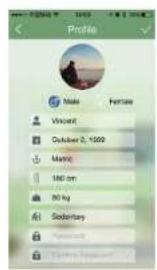
1. Create a new user
a. Click "Senssun Food" icon, you'll enter the "user settings";
b. Enter your information, such as: Gender, Name, Date of birth, Height, Weight, Activity level, etc. You can also set a password to protect your information;
c. Click "Done" to save your information;
d. You can add up to 12 users in the user management module for Multi-users' dietary management.
— 9 —

2. Main Interface
a. Click "Done" after entering the information to jump to the main interface;
b. Press the scale platform to turn it on. When the Bluetooth icon changes from grey to green, then Bluetooth is connected:
c. Click the search bar, you can enter keywords or choose from foods in the food database;
d. After you select a food, it will jump to the main interface. Put the food on the scale, you'll see the weight and content of the nutrients (including Calories, Sodium, Fat, Carbohydrates, Cholesterol, Dietary Fibrel). Click "save", the data will be added to the daily history;
e. If the food you need is not available in the foods data base, you can enter the nutrients per 100g of the food, then click "Done" to add it to your database.
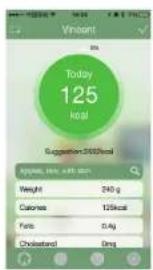
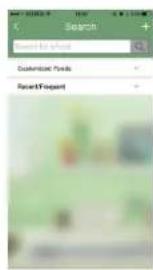
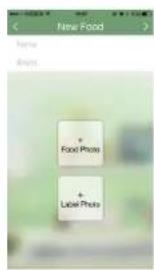
— 10 —
Customise FoodFood DatabaseMain InI
3. History Review Interface
a. Click the curves icon, enter the history cuvres interface, you'll see the graphs of various nutrients by Day/Week/Month/Year; also can review historical date intake diet details;
b. Click a date to view the diet details; hold down the left side of the food to delete the history;
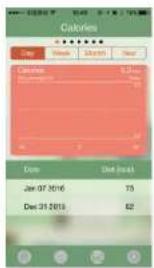
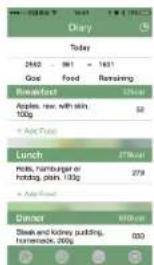
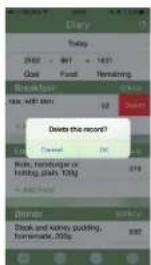
Daily Details Delete Detail RecordsHistory Review

- DEAR USERS
- ■ ABOUT THE SCALE
- FEATURES
- BATTERY INSTALLATION
- LCD DISPLAY
- Weighing Mode
- Volume Indication Mode
- ■ "ZERO" OR "TARE" FUNCTION
- Condition 1: "ZERO" function
- Condition 2: "TARE" function
- ■ AUTO SHUT OFF (POWER SAVING MODE)
- INDICATION
- ■ CLEANING AND CARE
- ■ HOW TO CONFIGURE AND USE THE APPLICATION
- FAQ
- ■ HOW TO USE THE APPLICATION
- Create a new user
- Main Interface
- History Review Interface
Brand : Avanti
Model : SmartScale
Category : Kitchen scale