WCW100 - Security Camera Schlage - Free user manual and instructions
Find the device manual for free WCW100 Schlage in PDF.


| Product Type | Security Camera |
| Brand | Schlage |
| Model | WCW100 |
| Dimensions | 3.0 x 3.0 x 2.5 inches (76 x 76 x 64 mm) |
| Weight | 0.5 lb (227 g) |
| Power Source | 12V DC adapter (included) or PoE (802.3af) |
| Resolution | 1080p Full HD (1920x1080) |
| Field of View | 130° diagonal |
| Night Vision | IR LEDs up to 30 ft (9 m) |
| Motion Detection | Yes, adjustable sensitivity |
| Two-Way Audio | Built-in microphone and speaker |
| Weather Resistance | IP65 rated (indoor/outdoor) |
| Connectivity | Wi-Fi 802.11 b/g/n (2.4 GHz), Ethernet port |
| Compatible Apps | Schlage Home App (iOS/Android) |
| Storage | MicroSD card up to 128 GB (not included), cloud subscription optional |
| Mounting | Wall or ceiling mount kit included |
| Operating Temperature | -4°F to 122°F (-20°C to 50°C) |
| Maintenance | Clean lens with soft cloth; check cable connections periodically |
| Safety Instructions | Ensure secure mounting to prevent falls; use only provided power adapter |
| Spare Parts / Repairability | Contact Schlage support for replacement parts; not user-repairable |
Frequently Asked Questions - WCW100 Schlage
User questions about WCW100 Schlage
0 question about this device. Answer the ones you know or ask your own.
Ask a new question about this device
Download the instructions for your Security Camera in PDF format for free! Find your manual WCW100 - Schlage and take your electronic device back in hand. On this page are published all the documents necessary for the use of your device. WCW100 by Schlage.
USER MANUAL WCW100 Schlage
natural_image
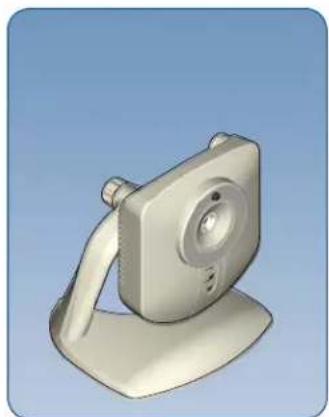
3D rendered image of a beige remote control camera with antenna and base mount (no text or symbols)WCW100 Wireless Camera
There are two cameras available for use with the Schlage LiNK system.
WCW100
The WCW100 is a wireless camera that communicates with the Schlage LiNK system through your existing wireless router.
WCE100
The WCE100 is a wired camera that communicates with the Schlage LiNK system through your existing router.

DO NOT connect Ethernet or power before enrolling the camera.
For indoor use ONLY!
natural_image
3D rendered image of a metallic camera mount with a square lens and mounting bracket (no text or symbols)WCE100 Wired Camera
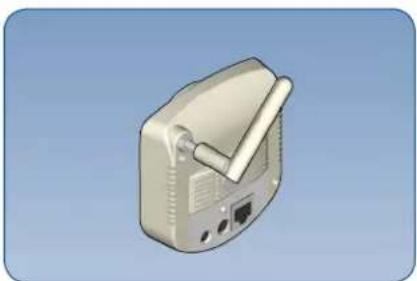
Wireless Antenna (WCW100 Only)
Rotate the wireless antenna onto the threaded post to ensure clear wireless communication. Antenna can be adjusted to obtain a better signal. Best results are usually obtained by positioning the antenna vertically.
natural_image
3D rendering of a beige electronic device with a scroll wheel and ports (no text or symbols visible)Attaching the Antenna
Camera Stand
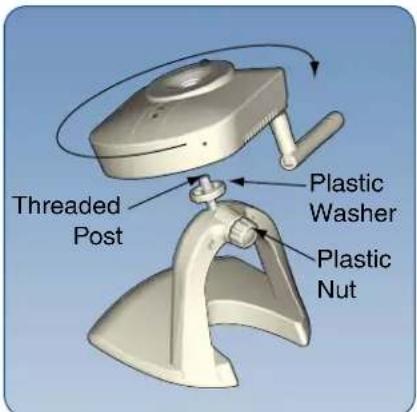
Install the camera stand to provide a steady base for the camera.
- Loosen the plastic nut on the back of the camera.
- Rotate the threaded post upwards.
- Rotate the camera onto the threaded post until it stops.
- Tighten plastic washer against camera to secure.
Attaching the Camera to the Stand
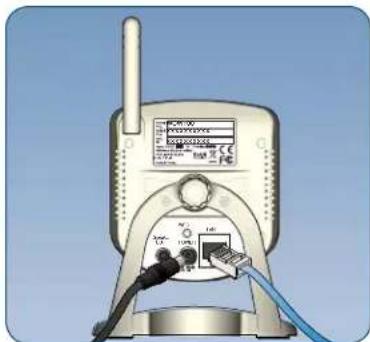
Power, Ethernet and MAC ID
DO NOT connect power and Ethernet until instructed to do so by the web site, during the enrollment process.
MAC ID is located on the label on the back of the camera.
Power and Ethernet
Privacy Button
The privacy button can be used to temporarily suspend video transmission.
Enable Privacy
Press the privacy button. Button will light green when activated.
Disable Privacy
Press the privacy button. Green light will go out when video transmission resumes.
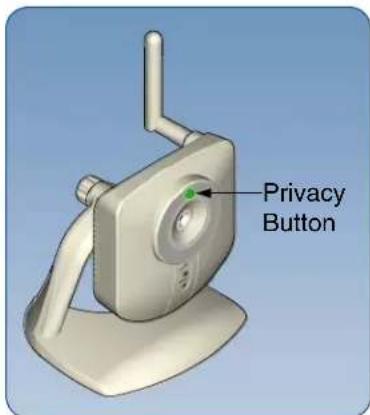
Privacy Button
WPS Button
DO NOT use the WPS button. Pushing this button may prevent the camera from enrolling to the LiNK system properly.
If the button is accidentally pushed, power must be disconnected and then reconnected to the camera before enrolling the camera.
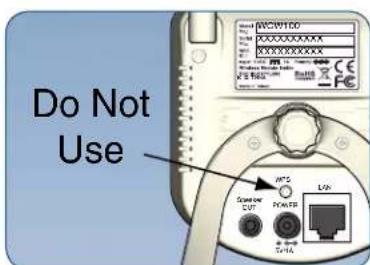
WPS Button
Reset Button
→ Using the reset button is not recommended.
To change camera setup, follow the steps under Moving the Camera to a Different Account.
→ Pressing the reset button will restore factory default camera settings. In most cases, this WILL NOT correct issues with connecting or viewing the camera.
- Connect power to camera.
- Using a small pin, press and hold the reset button for 15 seconds. Then release the button.
- LEDs will turn off and then on.
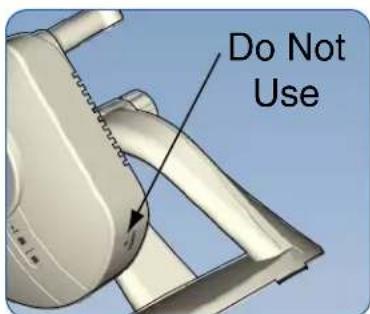
Reset Button
Enrolling the Camera
Camera enrollment is done using the www.schlagelink.com web site. You must have an active account before enrolling the camera.
-
Make sure Ethernet and power are not plugged in to the camera.
-
Log on to your account at www.schlagelink.com.
-
Click the Cameras tab.
-
Click the Add Cameras link.
-
Follow the on-screen instructions.
→ When enrolling a wireless camera, DO NOT disconnect the Ethernet cable until instructed to do so on the web site.
Modifying the Camera Settings
- Log on to your account at www.schlagelink.com.
- Click on the Cameras tab.
- Click the Edit Settings button next to the camera you want to edit.
- To modify the wireless settings, click the Setup Wireless button.
Rebooting the Camera
- Unplug A/C power.
- Unplug Ethernet (if necessary).
- Reconnect A/C power.
- Connect Ethernet cable (do this for both wired and wireless cameras).
- For wireless camera, log on to your account at www.schlagelink.com and click the Cameras tab, then click Reconnect Wireless.
Moving the Camera to a Different Account
The camera cannot be enrolled in two accounts at the same time. To move the camera to a different account, you must first remove the camera from one account, and then enroll it into the new account.
- Login to your account at www.schlagelink.com.
- Click Cameras.
- Click Edit Cameras.
- Click Remove next to the camera you want to move.
-
Follow the on-screen instructions for removal.
-
Once the camera is removed from the account, it can be added to a different account. See Enrolling the Camera for more information.
Lights
| Light Light Behavior Description | ||
| Power Green | Steady Power On | |
| Off Power Off | ||
| Green Blinking Start | Up | |
| Network Green | Steady Power On | |
| Off Wireless or LAN | not connected, orcamera is not sending/receiving data | |
| Green Blinking Sending/receiving data | ||
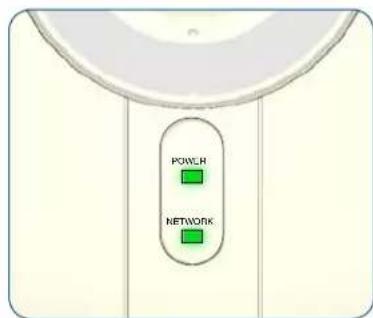
Troubleshooting and FAQ
I am having trouble entering my SSID into the web interface (www.schlagelink.com).
- The SSID is case-sensitive.
- If there is a space in your SSID, change the SSID so there is no space and try again.
- If your SSID is not showing up on the web interface, it may not be broadcast. Reference the instructions that came with your router for more information.
I don't have my router instructions and I don't know how to change a setting.
- Search on your exact make and model using an online search engine. Most manufacturers maintain their instructions online.
- Try browsing to http://192.168.0.1. Many routers use this address for the administration screen. A user name and password will be required. This information should be available in the manufacturer's instructions.
I cannot remember my router SSID/password.
- Most routers can be reset using a physical button on the router. Refer to the router instructions for more information. Resetting your router will restore factory settings. This could cause other computers or devices to stop communicating with your router. Refer to the router instructions and/or the person who set up your router for more information.
- Once you have reset your router, the default settings can be used. Refer to the router instructions for more information.
The camera was working, but has stopped working.
- Ensure that power is connected.
- Ensure that the Ethernet cable is connected (WCE100).
- Check LED indicators. See LED Indicators for more information.
- Ensure the settings on your router match the settings for the camera. If you have recently changed your SSID, password or security type, the camera's information will also need to be changed.
- Try rebooting the camera. See Rebooting the Camera for more information.
I cannot see the camera video on my phone.
- Log into your account at www.schlagelink.com.
- Click My Phones.
- Click Edit Phone.
- Click to check the check box next to the camera you want to be displayed on the phone.
- If your phone application is currently open, then close the phone application and re-open it for the new setting to take effect.
I installed the camera, but the video is not displayed on the Cameras tab, and the text "Viewer here" is displayed.
Download and install the Adobe Shockwave™ player. The player can be downloaded from get.adobe.com/shockwave.
Why does video turn off after 2 minutes?
The camera is intended to provide visual verification of current or triggered events, which generally are accomplished in 2 minutes or less. Video can be continued for additional 2 minute segments by selecting the PLAY icon.
Can a camera be connected to more than one LiNK account simultaneously?
No. See Moving the Camera to a Different Account for more information.
Is video storage available?
Not at this time. Video storage may be available in the future. Check link.schlage.com for updates.
Is pan/tilt/zoom available?
Not at this time. Check link.schlage.com for updates.
Can the camera be mounted outside?
No, the camera is not designed for outdoor use.
Can I install more than one camera onto my LiNK account?
Yes. Follow the instructions for Enrolling the Camera for each additional camera.
Is video secure?
Yes, the camera creates a secure connection directly to the video server so that video is not accessible outside that connection.
Can I use cameras from other manufacturers?
Not at this time. The Schlage LiNK camera is designed to provide a secure video connection, along with easy plug and play installation, not currently available with other cameras. Check link.schlage.com for updates.
- WCW100
- WCE100
- Wireless Antenna (WCW100 Only)
- Camera Stand
- Power, Ethernet and MAC ID
- Privacy Button
- Enable Privacy
- Disable Privacy
- WPS Button
- Reset Button
- Enrolling the Camera
- Modifying the Camera Settings
- Rebooting the Camera
- Moving the Camera to a Different Account
- Troubleshooting and FAQ
- Can the camera be mounted outside?
- Can I install more than one camera onto my LiNK account?
- Is video secure?
- Can I use cameras from other manufacturers?
Brand : Schlage
Model : WCW100
Category : Security Camera