NAV300 - Browser Delphi - Free user manual and instructions
Find the device manual for free NAV300 Delphi in PDF.


| Product Type | Portable GPS Navigator |
| Brand | Delphi |
| Model | NAV300 |
| Display Size | 4.3 inches (diagonal) |
| Display Type | Touchscreen TFT LCD |
| Resolution | 480 x 272 pixels |
| Dimensions | Approx. 125 x 85 x 20 mm |
| Weight | Approx. 200 g |
| Power Source | Rechargeable lithium-ion battery (3.7 V, 1000 mAh) |
| Charger | 12-24 V DC car charger included |
| Battery Life | Up to 4 hours continuous use |
| GPS Chipset | SirfStar III or equivalent |
| Maps | Preloaded detailed maps (North America or Europe, depending on region) |
| Points of Interest | Over 1 million POIs (restaurants, gas stations, hotels, etc.) |
| Voice Guidance | Text-to-speech, spoken street names |
| Traffic Support | Real-time traffic via optional receiver |
| Mounting | Windshield suction cup mount included |
| Connectivity | USB 2.0 for map updates and charging |
| Memory | Internal flash (2 GB), microSD card slot for expansion |
| Languages | Multilingual interface and voice guidance |
| Operating Temperature | 0°C to 60°C |
| Maintenance | Clean display with soft, dry cloth; avoid solvents |
| Safety | Use as a driving aid; always obey traffic laws |
| Spare Parts & Repairability | Limited; refer to authorized service centers |
Frequently Asked Questions - NAV300 Delphi
User questions about NAV300 Delphi
0 question about this device. Answer the ones you know or ask your own.
Ask a new question about this device
Download the instructions for your Browser in PDF format for free! Find your manual NAV300 - Delphi and take your electronic device back in hand. On this page are published all the documents necessary for the use of your device. NAV300 by Delphi.
USER MANUAL NAV300 Delphi
Get there on time, every time.
NAV300
portable GPS navigation
DELPHI NAV300
PORTABLE GPS NAVIGATION
OWNER'S MANUAL

IMPORTANT: This manual and the Delphi NAV300 Portable GPS Navigation Quick Start Guide contain important safety and operating information. Please read and follow the instructions in these manuals. Failure to do so could result in personal injury, death, and/or damage to your Delphi NAV300 and/or to your vehicle.
Powered By:

directed by NAVIGON
NAVTEQ
ON BOARD


Bluetooth™
ZAGATSURVEY®
Welcome
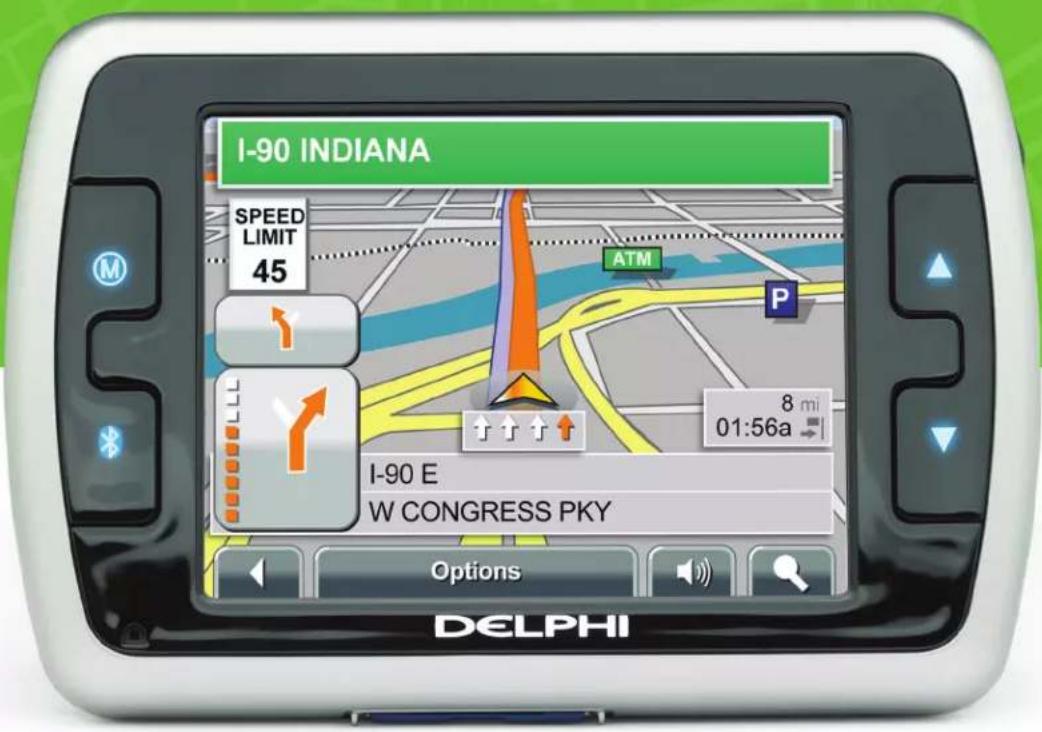
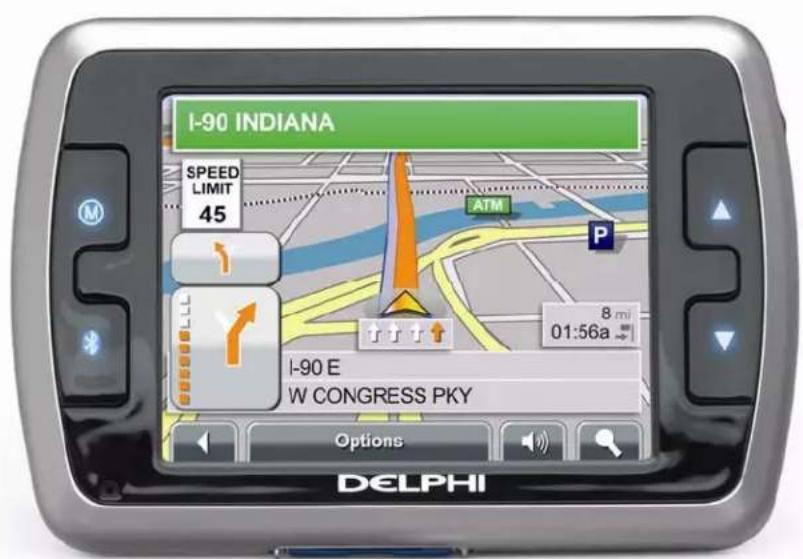
Thank you for purchasing the Delphi NAV300 Portable GPS Navigation System. This lightweight, portable device can guide you quickly and reliably to your destination without leafing through thick folded maps. This advanced navigation system features true text-to-speech that speaks the street names while navigating; road signs and speed limit warnings on major highways; and point-of-interest icons for your favorite restaurants, gas stations, etc.
With an easy, intuitive interface, the Delphi NAV300 displays maps with street-level detail, allowing door-to-door navigation. The maps include points of interest, such as parks, airports, restaurants and lodging.
In addition, the Delphi NAV300 is Bluetooth® capable and, with an integrated microphone, can pair with Bluetooth-equipped phones. The NAV300 can also play audio (MP3 or wav) files and video (avi, MPEG4, Xvid) files, as well as display pictures (jpg, gif, png) enhancing the entertainment possibilities in your vehicle. For a complete list of compatible Bluetooth phones, go to www.shopdelphi.com.
Delphi NAV300 Features
- 400 MHz CPU for fast navigation calculations and map rendering
- Bright, colorful, non-reflective touch screen LCD display
- Fast-start, high speed SiRFStarIII™ GPS
- Easy to use software based on Microsoft® Windows® CE
- Navigation map files pre-installed on SD memory card (included)
• RDS Real-Time Traffic ready (optional)
• Built-in rechargeable battery
Contacting Technical Support
Contact Delphi at 1.877.667.8700 Monday – Friday, 8:00 am to 8:00 pm and Saturday, 10:00 am to 5:00 pm, Eastern Standard Time, or visit www.shopdelphi.com

This is the safety alert symbol. It is used to alert you to potential injury hazards. Obey all safety messages that follow this symbol to avoid possible injury or death.

Warning:
DANGER OF ACCIDENT
When using your Delphi NAV300 in a vehicle, it is your sole responsibility to install, secure and use the device in a manner that will not cause accidents, personal injury, or property damage, or in any manner obstruct your view or interfere with the operation of vehicle safety equipment.
The user of this product is solely responsible for observing safe driving practices. Do not operate your Delphi NAV300 while driving. Park the vehicle first. Do not use the navigation system or entertainment features if it presents a risk to you or any other person or if it is a distraction.
OBEY ALL TRAFFIC LAWS
The user is solely responsible for obeying the local traffic laws and observing all road signs. Local traffic laws and actual traffic signs always have priority over the information and directions received from the navigation system. The navigation instructions might be inaccurate or incorrect due to detours and construction.
DELPHI DISCLAIMS ALL LIABILITY FOR ANY USE OF THIS PRODUCT IN A WAY THAT MAY CAUSE ACCIDENTS, DAMAGE OR THAT MAY VIOLATE THE LAW.

Caution: To avoid overheating of the unit, do not leave Delphi NAV300 on lash or windshield while your vehicle is unattended, especially in strong ght. Do not use or handle Delphi NAV300 while it is hot. Let it cool away heat sources before handling it.
Table of Contents
Welcome....1
Delphi NAV300 Features....1
Contacting Technical Support .... 1
Section 1 About GPS/NAV300 Introduction....5
Section 2 Unpacking the Delphi NAV300 ....7
Memory Cards....9
Accessories and Replacement Parts....9
Section 3 Installing Delphi NAV300 in Your Vehicle ....10
Section 4 Features and Controls ....11
NAV300 Receiver Controls 11
Section 5 Getting Started....12
Powering Up....12
Inserting an SD Card....13
Home Screen 14
Using the Keyboard....15
Other Common Keys 15
Section 6 Navigation Mode....16
Driver Protection....16
Navigation – Main Menu....17
Common On-Screen Icons 17
Navigation Settings 19
Settings Options 19
Setting a New Destination....20
Entering a New Address....20
Searching for a Point-of-Interest (POI) 22
Directly Accessing Nearby POI....25
New Destination Options 26
Selecting "My Destinations" 27
My Destinations Options....28
Selecting Destinations on the Map....29
Route Planning....31
Route Planning Options....33
Turn-by-Turn Directions 34
Using the Map 35
The 3-Dimensional Navigation Map....36
The Two-Dimensional Navigation Map 37
Map Functions in Navigation Mode....37
Section 7 Bluetooth....38
Settings 38
Pairing your Phone with the NAV300 as a Hands Free Device....39
Using NAV300 to Connect to Your Phone 40
Using your Phone to Connect to NAV300....41
Pairing your Phone with the NAV300 as a Headset 42
Managing Bluetooth Devices....43
Device List Screen 43
Making a Bluetooth Call ....44
Touch Call....44
Favorites....45
History 47
Voice Call....47
Answering a Bluetooth Call 48
In-call Options....48
Section 8 Traffic Message Channel (TMC)....49
Using TMC 49
TMC Traffic Information Symbols 50
TMC and Navigation....51
Tuning TMC....52
Section 9 Music Mode....53
Playing an Audio File....54
Section 10 Movie Mode....55
Playing a Video File....56
Section 11 Picture Mode....57
Section 12 Game Mode....59
Section 13 Calculator Mode....60
Section 14: Settings....61
Section 15 Troubleshooting....62
Contacting Technical Support 62
Technical Information....63
FCC Statement....63
Section 16: ..Warranty....61
Section 1 About GPS/NAV300 Introduction
The Global Positioning System (GPS) is a network of satellites launched by the U.S. military beginning in the 1970s. The satellites continuously transmit accurate time and position information, which is freely used by commercial and military applications worldwide. GPS receivers, such as Delphi NAV300, are designed to pick up the high-frequency radio signals from these satellites and use the information to help determine your exact location. Today, there are many applications that use GPS—from marine to automotive, aviation, and military.
There are 24 satellites in total, orbiting approximately 12,000 miles above the Earth. While a GPS receiver can detect signals from up to 12 satellites at any one time, only three are needed to provide the two-dimensional position (latitude and longitude), or “fix,” that is required for vehicle and marine navigation systems. Aviation applications also need altitude, and therefore need information from at least four satellites.
The Delphi NAV300 is designed specifically to use the continuous stream of GPS information to help find your current position and to calculate the best route to your desired destination using the road maps stored in its memory. With voice and visual commands, the Delphi NAV300 helps guide you to your destination.
For best results when using Delphi NAV300:
- When the Delphi NAV300 is connected to power for the first time, leave it connected for about two hours to charge the battery.
- Plan your route before your journey. If you need to set up a new itinerary en route, safely park your vehicle before making any changes.
- GPS signals cannot pass through solid materials other than glass. So when you are inside a building or tunnel, GPS may not be available. Likewise, signal reception can be affected by overhead cover such as trees or metalized windshield glass. Wireless devices may also interfere with signals, causing variable reception.
- While the Delphi NAV300 can be operated by finger touch, more precise control can be achieved using the stylus pen. Do not use other sharp objects, which can damage the LCD screen.
- Never clean the Delphi NAV300 with the power on. Use a soft, lint-free cloth moistened with water to wipe the screen and the exterior. Do not use paper towels to clean the screen. Do not place anything on top of the Delphi NAV300. Do not drop the Delphi NAV300 or subject it to severe shock.
- Keep the Delphi NAV300 away from excessive moisture and extreme temperatures. Do not subject the Delphi NAV300 to sudden and severe temperature changes that could cause condensation inside. In the event of moisture condensation, allow the Delphi NAV300 to dry out completely before use.
- Always disconnect the receiver from the power supply when leaving the car parked for a long period or when not using the system during travel. Failure to do so could drain the vehicle's battery as the Delphi NAV300 continuously draws power, even when the power is off.

Warning: Never attempt to disassemble, repair, or make any modification to the Delphi NAV300. Doing so could result in personal injury, death, and/or damage to the Delphi NAV300 and/or to your vehicle.

Warning: This device contains a non-replaceable lithium-ion internal battery that can burst or explode, releasing hazardous chemicals.
To avoid risk of fire or explosion, do not attempt to replace the Delphi NAV300 battery. The Delphi NAV300 battery is not user-replaceable.
To reduce risk of fire or injury, never disassemble, crush, puncture, or dispose of the Delphi NAV300 in fire or water.

Warning: Never use the power adaptor in a high-moisture environment, or touch it when your hands or feet are wet. Make sure there is adequate ventilation around the adaptor when in use, and do not cover it with paper, vinyl, cloth (including the carrying case) or any other material. The adaptor must be connected to the correct power source. Do not attempt to service the unit if its power lead or body becomes damaged or exposed to excess moisture.

Caution: Keep SD cards in a well-protected case to avoid dust and humidity. Make sure no foreign objects can enter the SD slot.
Section 2 Unpacking the Delphi NAV300
Here's what is included in the Delphi NAV300 package:
- The Delphi NAV300 unit with integrated GPS receiver
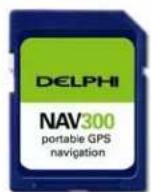
- United States (including Alaska, Puerto Rico and Hawaii) and Canada maps on SD card
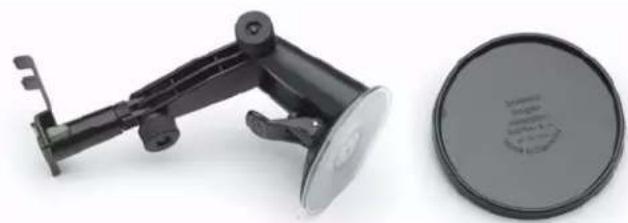
- Windshield mount with suction cup and dashboard mount
natural_image
Two black plastic mechanical devices: a articulated arm and a circular cushion (no visible text or symbols)4. In-vehicle charging cable
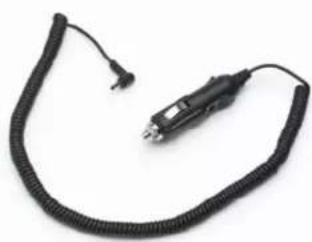
natural_image
Close-up of a black rubber cable with a small connector, isolated on white background (no text or symbols)5. Stylus Pen

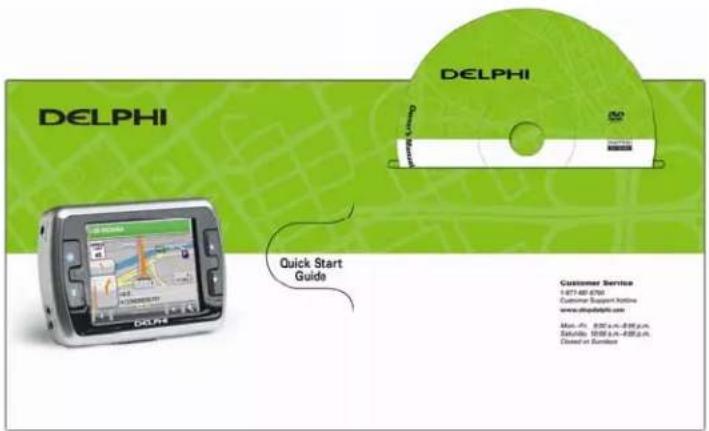
6. NAV300 Owner's Kit:
- Quick Reference Guide
-
DVD containing:
-
User manual in Adobe Acrobat PDF format
○ Adobe Acrobat Reader software
○ Copy of United States and Canada map files that have been preloaded on the SD card
Memory Cards
The Delphi NAV300 has 32 megabytes of internal memory available for the operating system (Microsoft WinCe version 5.0). SD (secure digital) Memory cards are available for purchase and should be used to store other media files such as video (avi, MPEG4, Xvid), images (jpg, gif, png) and/or audio (MP3 or wav) files.
An SD card can be plugged into the slot in the Delphi NAV300 and can be purchased with various memory capacities. An SD card with 256 megabytes of memory or more can be used in the Delphi NAV300. Delphi recommends the use of following SD card brands: Kingston, Kingmax, Transcend, and SanDisk.

Caution: Do Not ADD or DELETE files from the SD card containing the data.
Accessories and Replacement Parts
You will be able to purchase the following items from the Delphi Website.
- External GPS antenna: 15-foot cable with MMCX connector; required if your vehicle is fitted with a heat-reflective or heated windshield, or for extra GPS performance in weak signal areas
- External Traffic Message Channel adaptor
- SD card reader: an external device that connects to your computer so that you can download maps, audio files, movie files, and photos directly onto an SD memory card
- Vehicle mount kit: includes suction mount so you can transfer the Delphi NAV300 to another vehicle easily
- Protective carrying case
- 12 V vehicle power adaptor: ideal when using Delphi NAV300 in more than one vehicle
- Updated maps
• AC Adaptor to charge the Delphi NAV300 at home
For further information on replacement parts and accessories, visit www.shopdelphi.com
Section 3 Installing Delphi NAV300 in Your Vehicle
Warning: To avoid personal injury, follow the safety guidelines and installation instructions provided so that the Delphi NAV300 does not obstruct the view of the driver, interfere with the operation of any airbags and safety features in the vehicle, or become airborne in the case of an accident. Do not attempt to install Delphi NAV300 while driving.
Before installing the Delphi NAV300, check whether your vehicle is fitted with a heat-reflecting or heated windshield. If so, you will need to purchase an external antenna from your retailer to allow your unit to pick up GPS signals.
NOTE: Alternative mounting options may be available for your vehicle make and model. Contact your retailer or Delphi for more information.
NOTE: In the state of California and Minnesota, it is necessary to use the dashboard mount, according to state law.
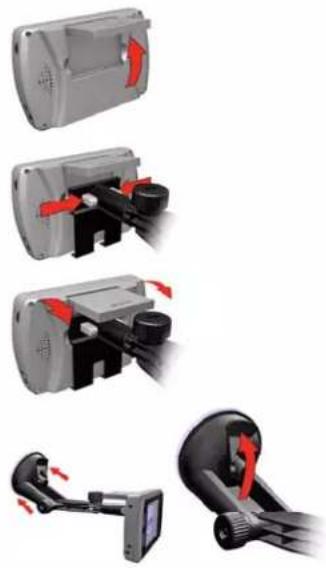
Follow these steps to mount the suction mount to the windshield:
natural_image
Mechanical assembly diagram showing four stages of a device with red arrows indicating motion direction (no text or symbols present)- Flip up the GPS Antenna.
- Using the two tabs on the bottom of the cradle, locate the Delphi NAV300 and rotate it rearward. While pushing in the two release buttons, continue rotation until the unit is firmly seated in the cradle.
- Release the two grey buttons. Reverse the operation to remove the unit.
- Position the suction cup firmly against the windshield at the desired location
- Flip the lever towards the suction cup. The unit is now secure for operation.
Pull the lever away from the windshield/dashboard mount to remove the suction cup. Pull the release tab to release the suction. If the suction cup does not adhere, clean the mounting area of the windshield with a cloth dampened with isopropyl alcohol. Let the area dry, then reapply the suction cup. Be sure to mount the unit when the windshield is warm – it may be difficult when the windshield is cold.
Section 4 Features and Controls

Warning: For your safety, program the Delphi NAV300 and enter your mation about your destination BEFORE you start your journey. Do not ate the Delphi NAV300 while driving.
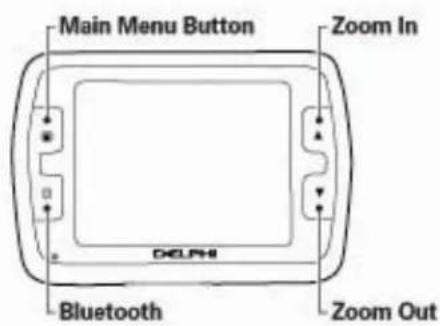
NAV300 Receiver Controls
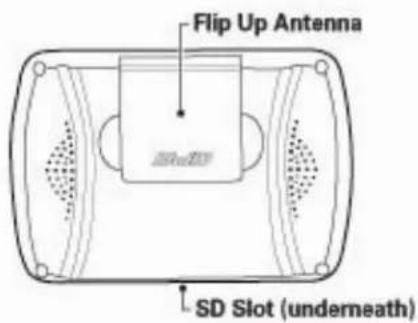
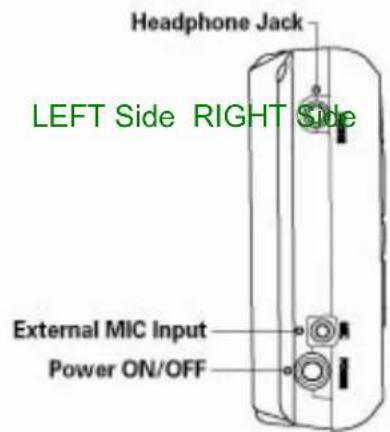
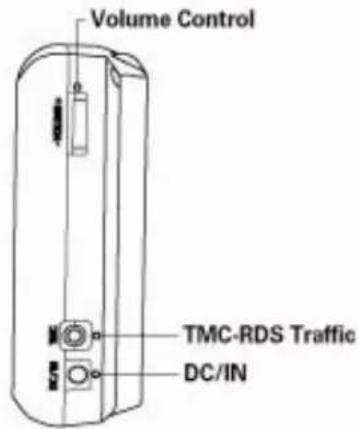
Section 5 Getting Started

Warning: For your safety, program the Delphi NAV300 and enter your mation about your destination BEFORE you start your journey. Do not ate the Delphi NAV300 while driving.
Powering Up
Power on Press the Power button located on the
lower left side for at least one second.
Power off Press the Power button located on the
lower left side for at least one second.
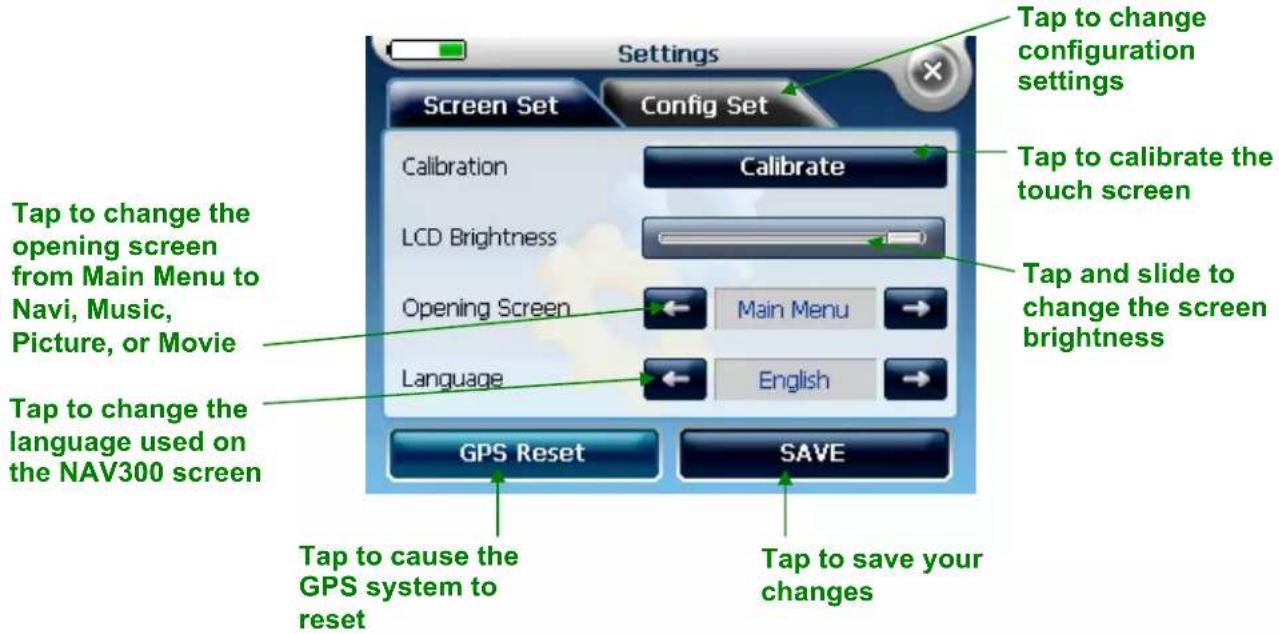
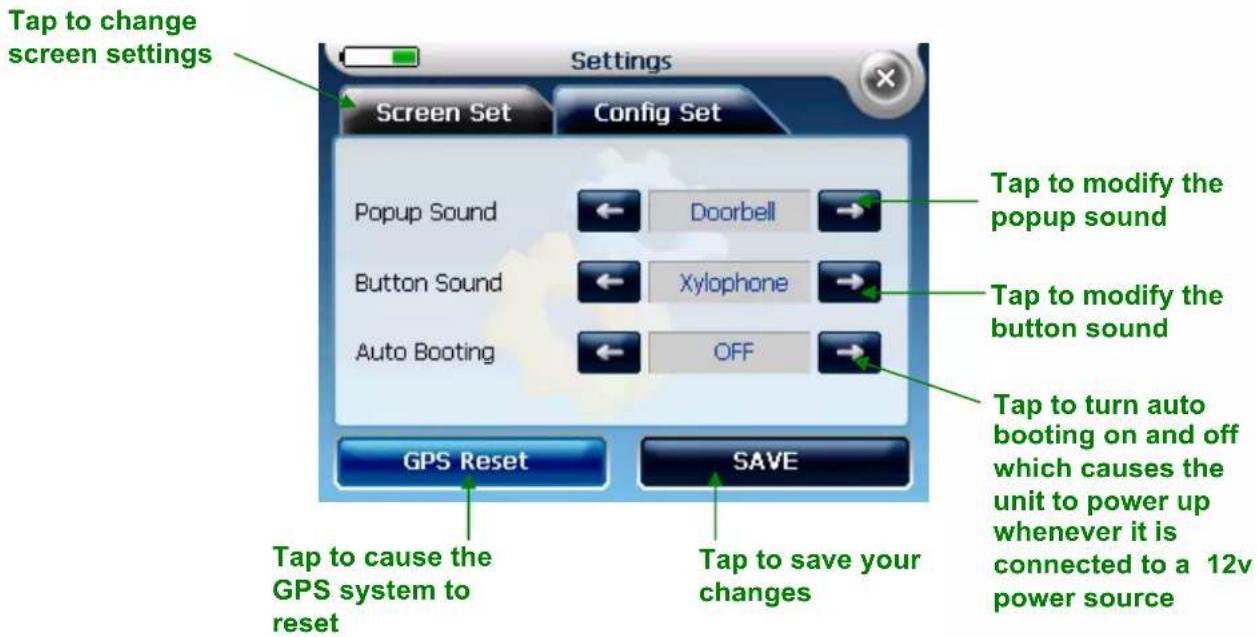
NOTE: The Delphi NAV300 will continue to charge if connected to a 12V power jack even when powered down. By default, the unit will power on when connected to a 12V power source. You can change this setting by turning "Auto Booting" to OFF in the Configuration Settings (Section 14 of this manual).
Inserting an SD Card
Delphi NAV300 has a slot for Secure Digital (SD) cards located in the bottom. Delphi NAV300 will accept SD cards containing digital maps or other data, such as audio (MP3 or wav) files, movie (avi, MPEG4, Xvid) files, or image (gif, jpg, png) files.
The Delphi NAV300 comes equipped with an SD card preloaded with USA and Canada maps. The card will already be in position in the SD card slot, and ready to use for navigation.
If you choose to use a second SD card (separate purchase required) for music, movie or picture viewing, remove the navigation system SD card by slightly pushing the top of the card to release it, then pull it out of the slot.
Make sure the card is not in use before removing it.
Power off the unit, insert the new SD card with the label facing the front of the device, and power the unit on.
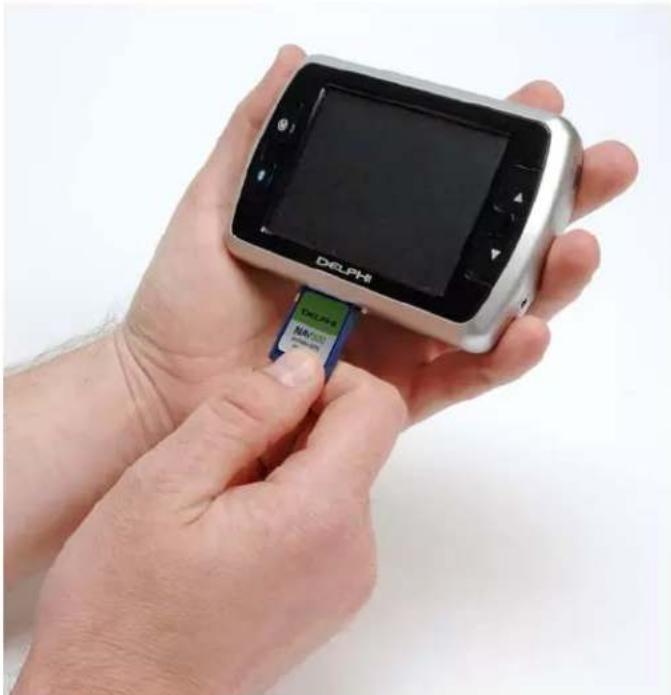
natural_image
Close-up of hands holding a DELPHI smartphone with a small card inserted, showing the card being inserted (no visible text or symbols on the device itself)Home Screen
The main menu offers eight options, each of which are detailed in the sections that follow:
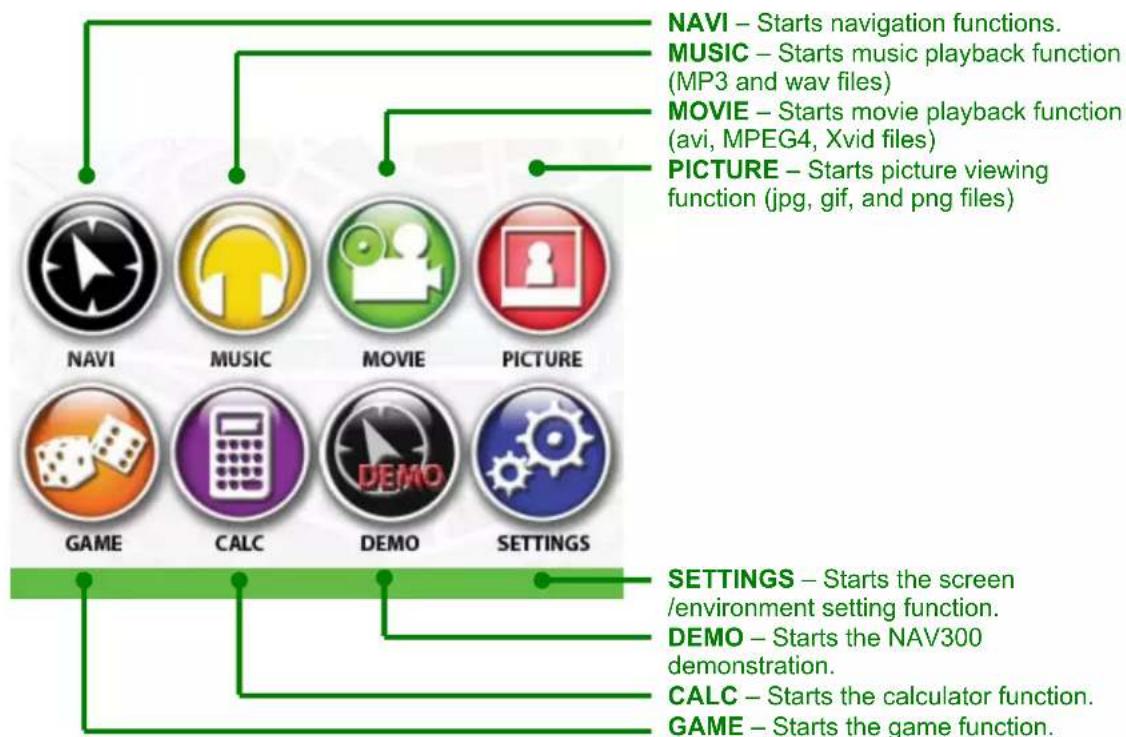
flowchart
graph TD
    A["NAVI"] --> B["Starts navigation functions."]
    C["MUSIC"] --> D["Starts music playback function (MP3 and wav files)"]
    E["MOVIE"] --> F["Starts movie playback function (avi, MPEG4, Xvid files)"]
    G["PICTURE"] --> H["Starts picture viewing function (jpg, gif, and png files)"]
    I["GAME"] --> J["Starts the screen /environment setting function."]
    K["CALC"] --> L["Starts the calculator function."]
    M["GAME"] --> N["Starts the game function."]
At any time you can return to this menu by pushing the Main Menu button or by closing the current mode (accomplished by tapping the "x" in the upper corner of the screen).
Using the Keyboard
The keyboard of the Delphi NAV300 works the same way no matter what function you access it from. Common functions of the keyboard are:
- Mode – Display the keyboard as alphabetical, numeric, or symbols by tapping the buttons across the top of the keyboard:
- Space – Enter a space by tapping the ☐ key
- Backspace – Delete the previous character by tapping the key
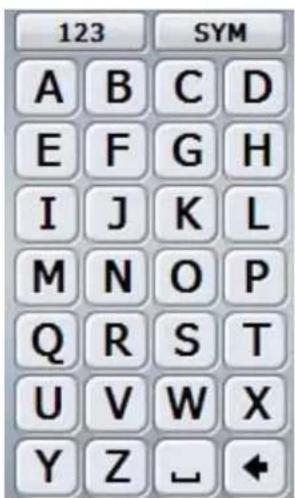
(alphabetic mode)
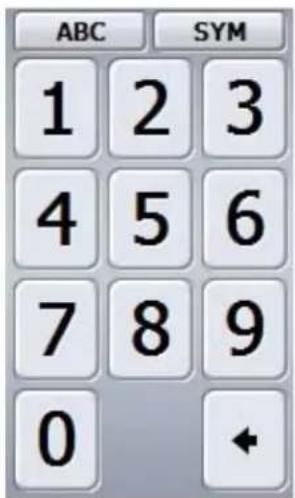
(numeric mode)
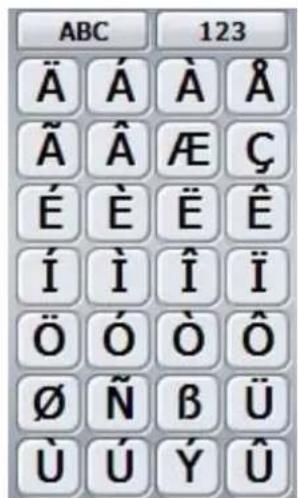
(symbol mode)
Other Common Keys

Tap to move back a screen in sequence.

Tap to scroll a list up.
Tap to close the displayed function.

Tap to scroll a list down.
Tap to pop-up and adjust volume settings.

Tap to select a choice.

Tap for more information about the item displayed.
Section 6 Navigation Mode

Warning: For your safety, program the Delphi NAV300 and enter mation about your destination BEFORE you start your journey. Do not ate Delphi NAV300 while driving. Park the vehicle first.
DELPHI DISCLAIMS ALL LIABILITY FOR ANY USE OF THIS PRODUCT IN A WAY THAT MAY CAUSE ACCIDENTS, DAMAGE OR THAT MAY VIOLATE THE LAW.
Driver Protection
The driver must not operate this unit while the vehicle is moving. A protection screen is displayed when the Delphi NAV300 is powered on:
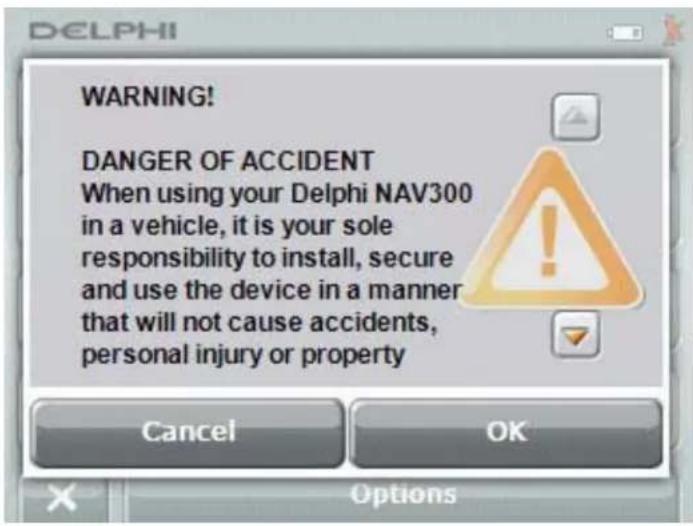
OK must be selected to continue. Selecting Cancel causes the program to terminate.
Navigation – Main Menu
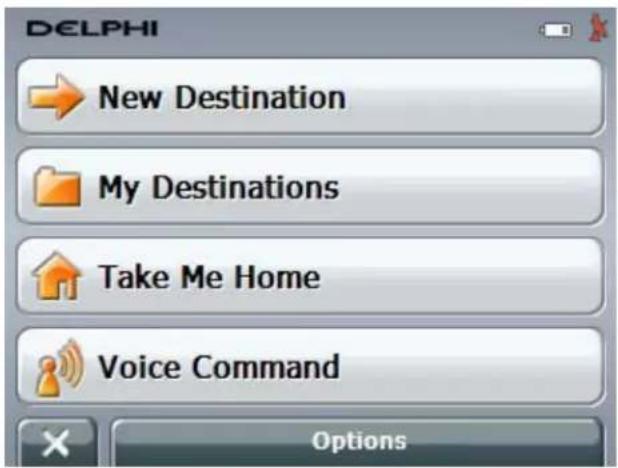
The Delphi NAV300 Navigation Main Menu provides access to the most commonly used functions:
- New Destination - Setting a new destination
- My Destination - Picking from a set of previously saved destinations
• Take Me Home – Computing the route to your home destination - Voice Command – Accessing and using previously recorded voice commands
Common On-Screen Icons

No GPS Signal – data is being received by less than three satellites.

GPS Ready – data is being received by at least three satellites.

The unit is being supplied by an external power source and the battery is completely charged.

The unit is being supplied by an external power source and the battery is charging.

The unit is powered by its internal battery.
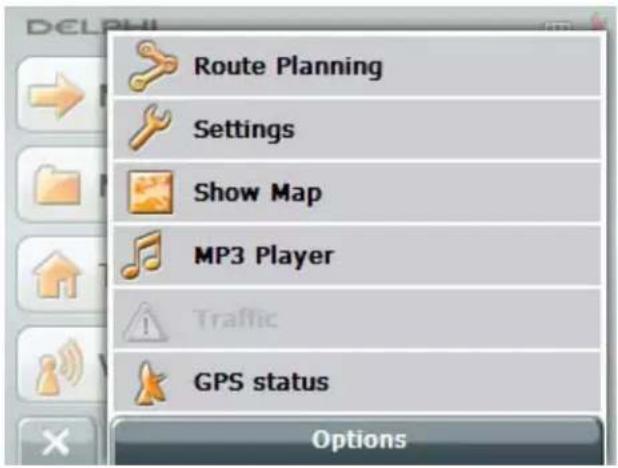
In addition, the main menu contains a pull-up menu for access to common options. Tap the Options button to access:
- Route Planning – allows you to specify a starting point and various route points. Provides an overview of the planned route.
- Settings – allows you to configure the Delphi NAV300 basic navigation settings, such as language, default map view, zoom levels, map orientation, use of street names, speed, compass, distance, signs, lanes, etc. Also allows you to set the current map; the categories of points-of-information displayed; and the route profile, including: the type of vehicle, type of route, whether to use traffic information, allow use of highways or toll roads, etc.
- Show Map – allows you to view the map and your current position on it.
- MP3 Player – displays the MP3 player function of the Delphi NAV300.
- Traffic (if installed) – displays the TMC traffic system.
- GPS Status – displays your current GPS status, including your direction, time, longitude and latitude, speed, etc.
Navigation Settings
Scroll through the settings using the left and right arrow keys. Use the toggle key to toggle between possible values. Some settings have many options. Tap on the list icon to see all valid values. To select a value, tap it. Tap OK at the bottom of the screen to record your changes. Tap Done or Cancel to accept or cancel your changes.
To see explanations of the settings, tap the information button next to the setting.
Basic Settings – Language, Speaker, Speak Street Names, Speak Signs, Navigation View, 3D Autozoom, 2D Autozoom, Zoom Factor, 3D Map: Show Street Names, 2D Map: Show Street Names, 2D Map: Orientation, Show Altitude and Speed, Display Compass, Show Remaining Distance, Show Duration of Journey, Show Time of Arrival, Info When Crossing Borders, Show Signs, Show Lanes, Show Speed Limits, Warnings within Urban Areas, Warnings Outside Urban Areas, Warn Against Certain Speed Limits, Menu Animation, Distance Unit, Time Format, Coordinate Format, Brightness Day, Brightness Night, Speed Dependent Volume.
Current Map Settings – Change the map currently being used.
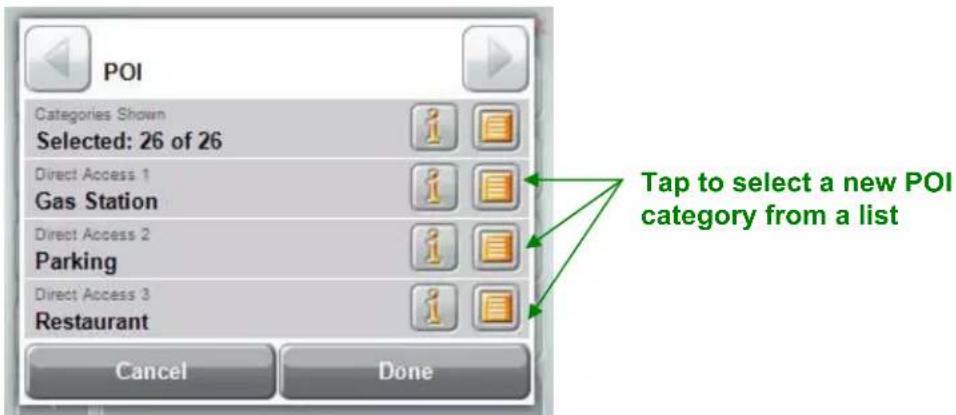
POI (Points of Interest) – Shows the categories that are available on the three buttons of the quick link in the New Destination Menu. You can also set which categories of points of interest are displayed on the map.
Route Profile – Speed Profile, Type of Route, Consider Traffic Information, Highways, Ferries and Toll Roads, Calculate Next Stage, U-turns.
Settings Options
Product Information – Tap to see product version information. Factory Settings – Tap to restore to factory settings.
Setting a New Destination
Tap New Destination from the Navigation Main Menu to enter a destination.
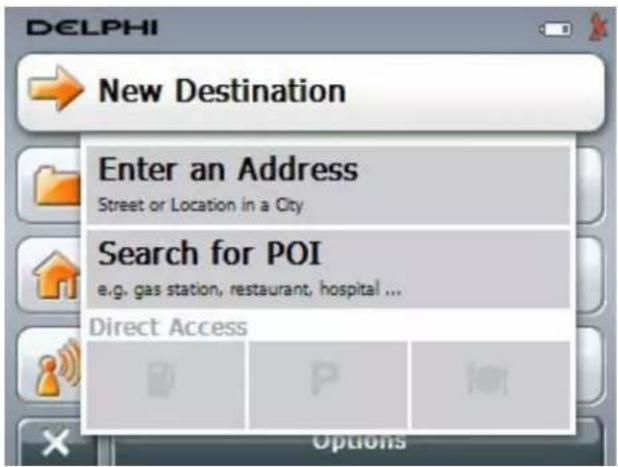
You will be prompted to enter a new address, search for a point-of-interest, or directly access POI categories that you can define (default is the nearest gas station, parking area or restaurant). Tap the button for your selection.
Entering a New Address
You can enter a new address in two ways:
- Street First – by specifying a Street → House Number → City
- City First – by specifying a City → Street → House Number
Tap the button for your selection. Be sure that you have selected the correct state before entering a street or city name.
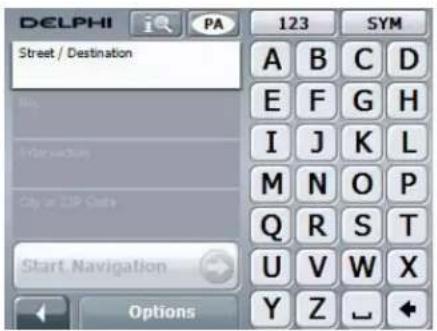
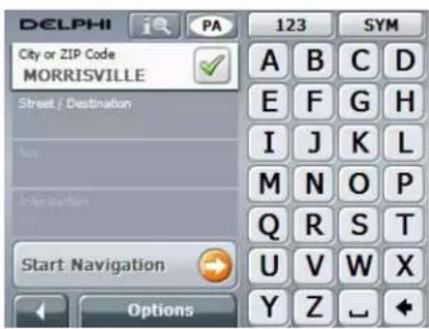
Use of the destination entry screen is the same whether you decide to enter your destination by street or by city. The destination entry screen contains several options:
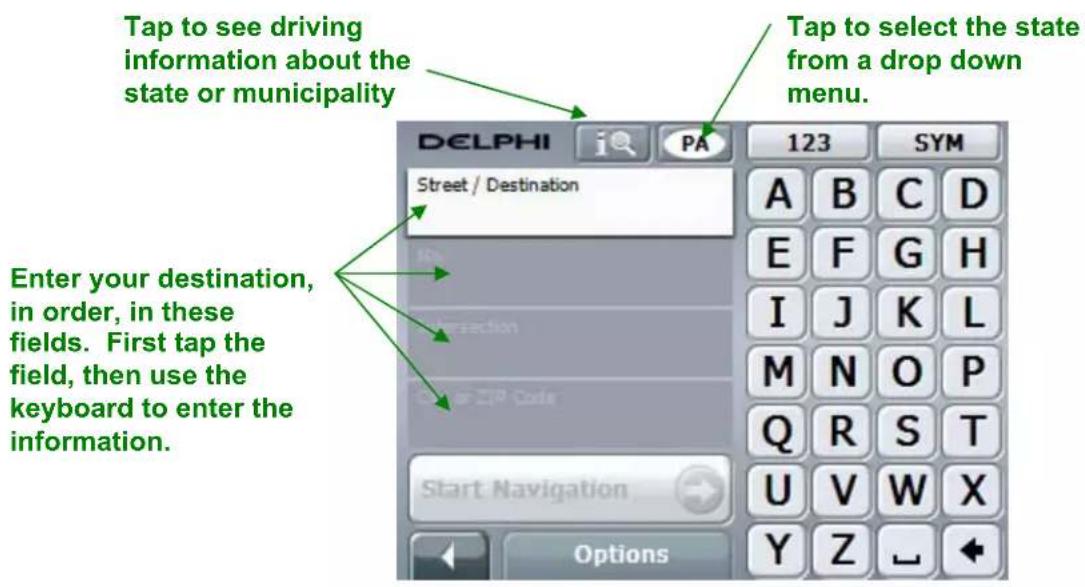
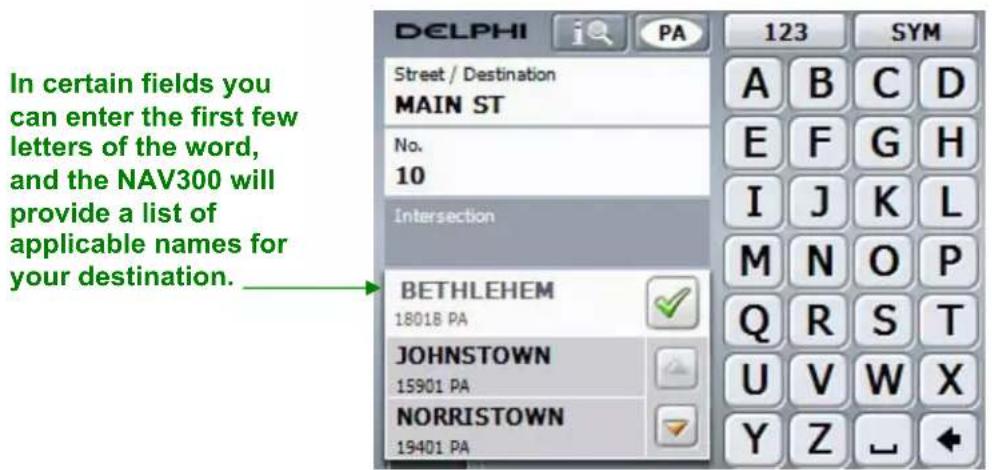
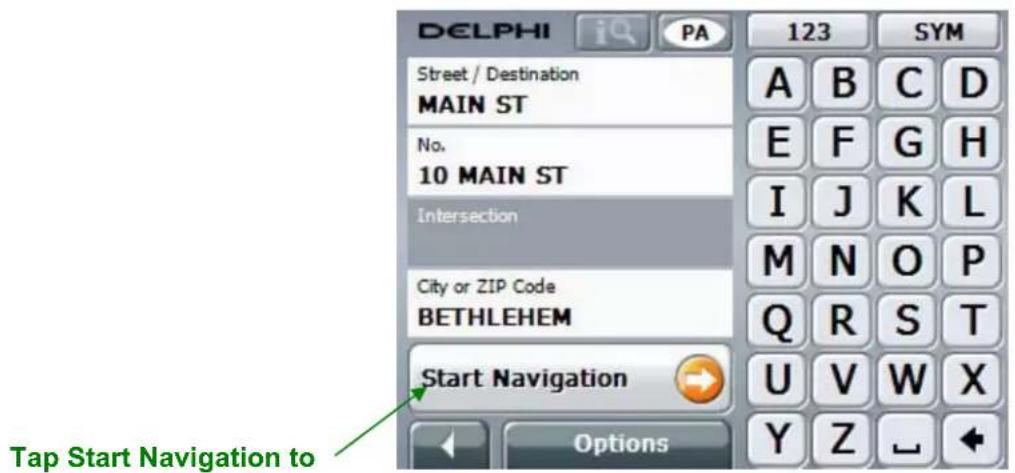
Searching for a Point-of-Interest (POI)
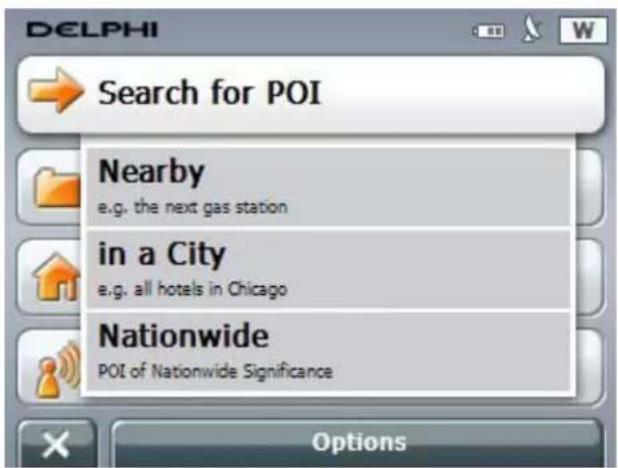
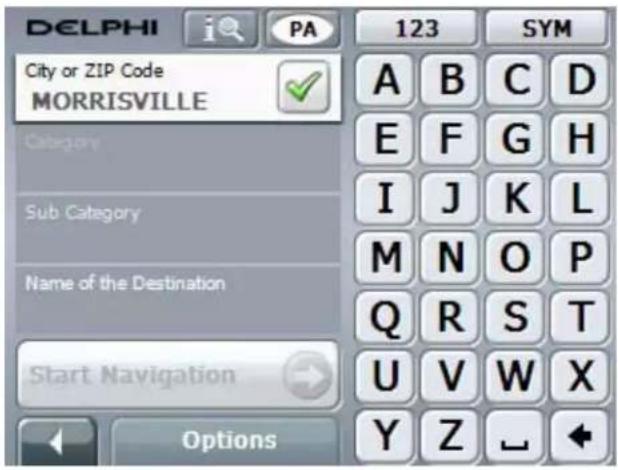
You can search for a POI that is nearby, in a specific city, or nationwide. Tap the button for your selection.
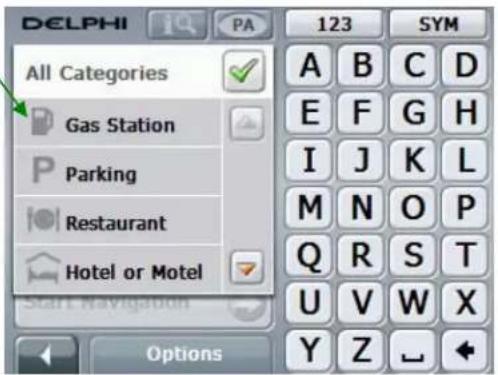
Searching for a Nearby POI
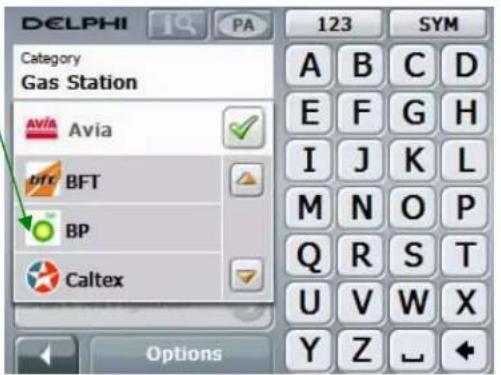
Tap a POI Category Tap a POI Brand or Sub-category
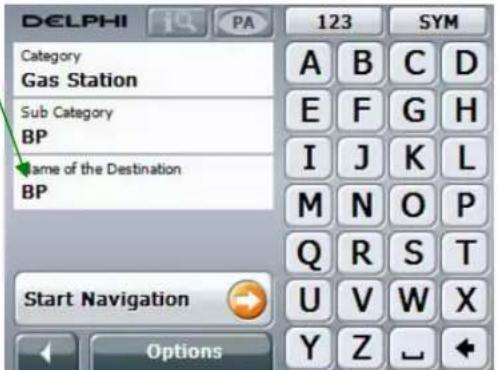
Tap the POI Name
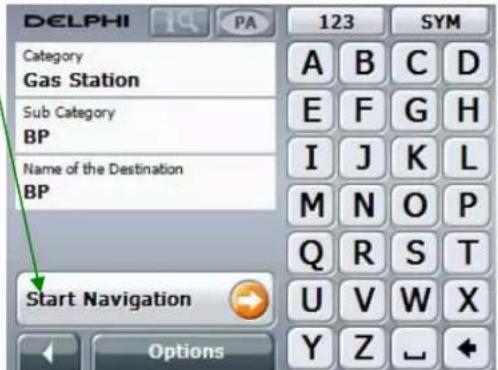
Tap Start Navigation to begin your journey.
Search for a POI in a City
Follow the same procedure as above, but first select a city name:
Search for a POI Nationwide
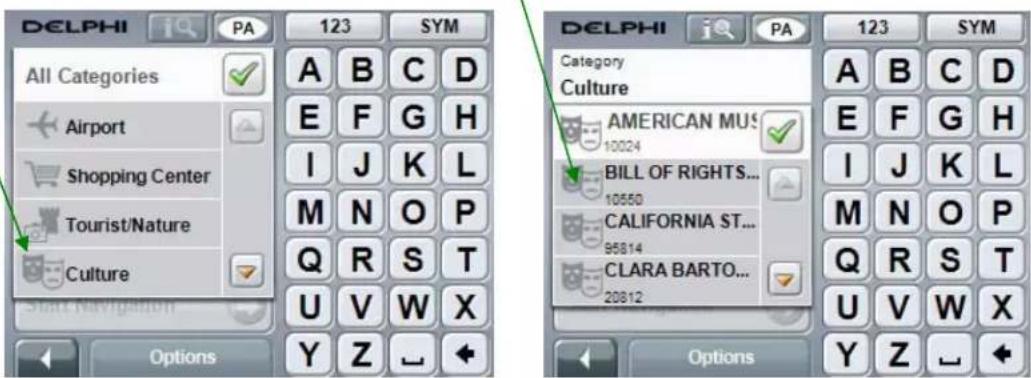
You can also search for a POI with nationwide significance.
Tap to select a category Tap a POI
Directly Accessing Nearby POI
You can access nearby points of interest (default categories are: gas stations, parking areas, and restaurants) directly by tapping the direct access buttons.
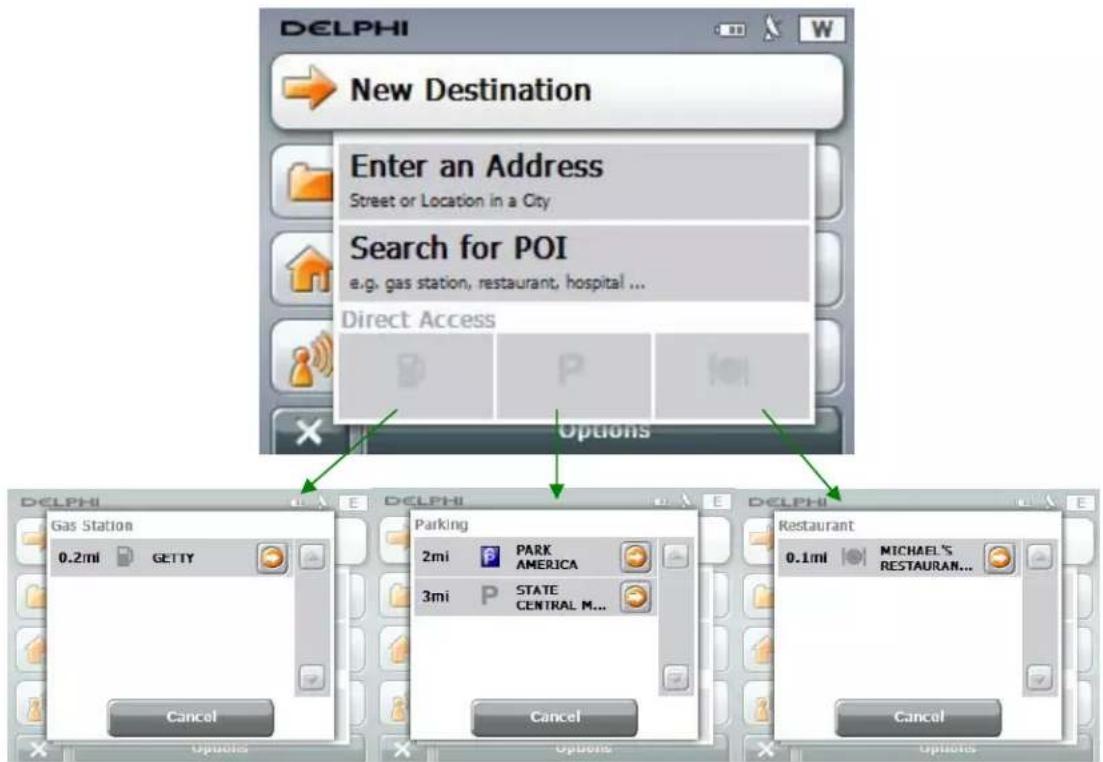
To change the POI categories that are displayed, tap Options, select "Settings", and then select "POI."
NOTE: In order to search nearby POIs, the GPS must be ready. The icon for the GPS receiver will be red if it is not ready.
New Destination Options
Before beginning your trip, you can use the Options function to:
- Save Destination – save the destination you entered to your list of Favorites.
- Show on Map – preview your destination on a map.
- Add to Route – add this destination to an existing route set-up.
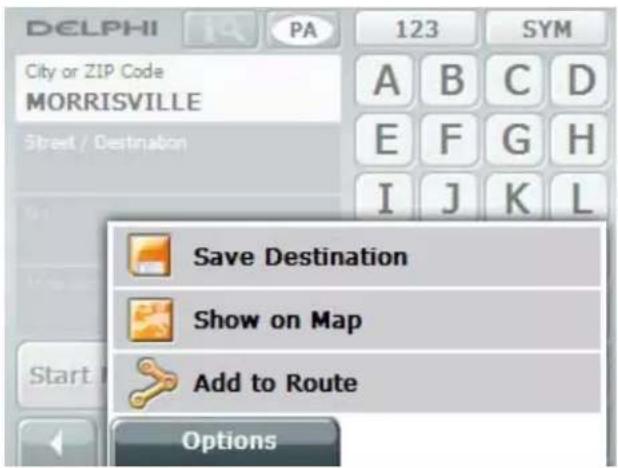
Selecting "My Destinations"
Tap My Destinations from the Navigation Main Menu to select from previously saved or recent destinations.
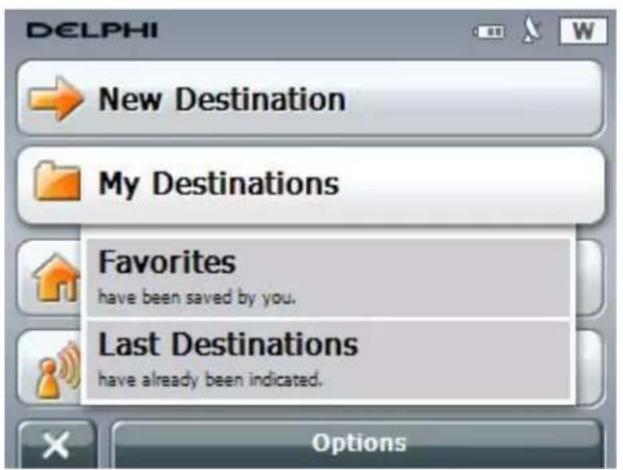
You will be prompted to select a destination from your list of favorites or from a list of recent destinations. Tap the button for your selection.
Both "Favorites" and "Last Destinations" display the same type of selection screen:
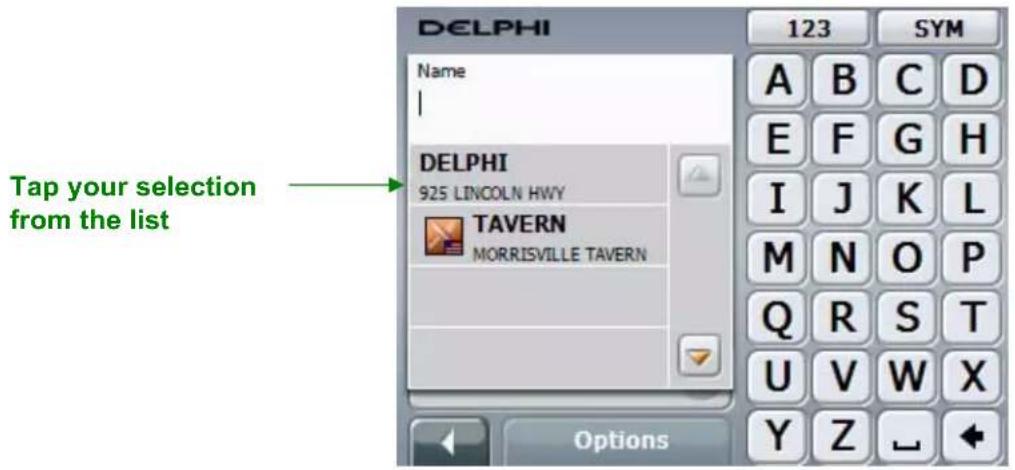
NOTE: For very long lists, enter the first letter or letters in the name and allow the Delphi NAV300 to narrow the list to the most appropriate selections.
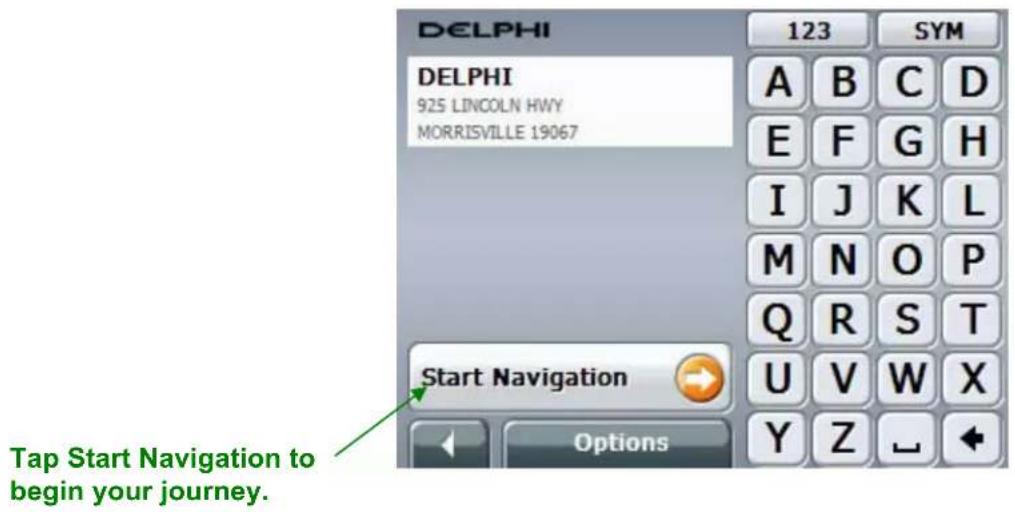
My Destinations Options
You can use the Options function to:
- Save as Favorite – save the destination to your list of Favorites.
- Delete Destination – delete the current destination.
- Delete All – delete all saved destinations.
- Add to Route – add this destination to an existing route set-up.
- Rename – rename the favorite.
- Store a Voice Command – record a voice command for the favorite.
- Home Address – set the current favorite as your home address
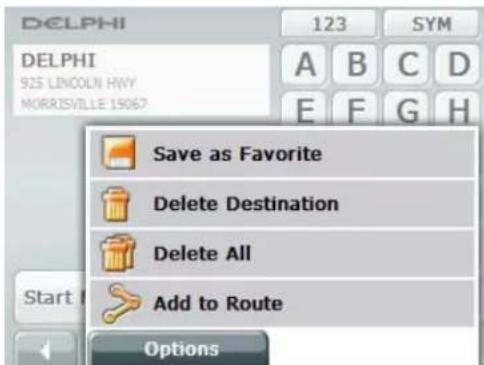
(Last Destinations Options)
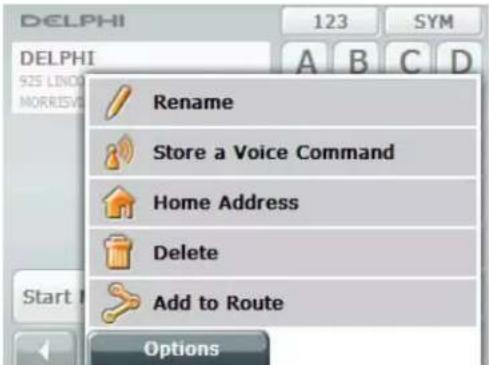
(Favorites Options)
Selecting Destinations on the Map
From the Navigation menu, tap Options and select "Show Map" from the menu. The 2D Destinations Map will be displayed.
NOTE: This entry map will not update as your vehicle moves, and is used for selecting destinations only. To view the moving map, tap the 🔒 button.
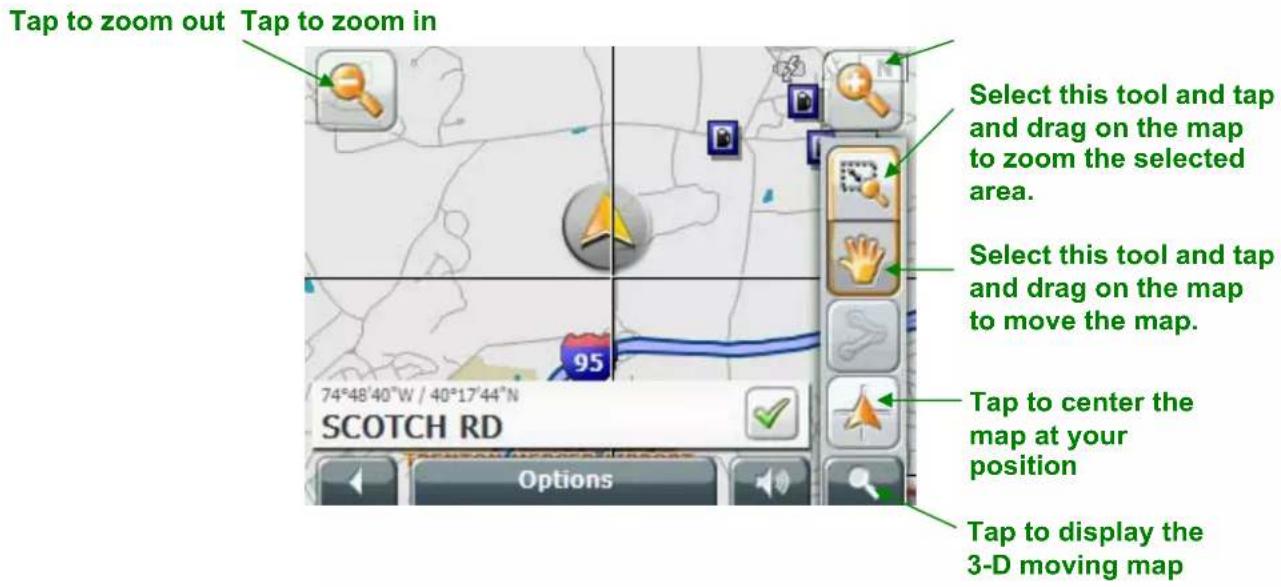
To navigate to a destination on the map, tap the location (in this case the nearby Getty station).
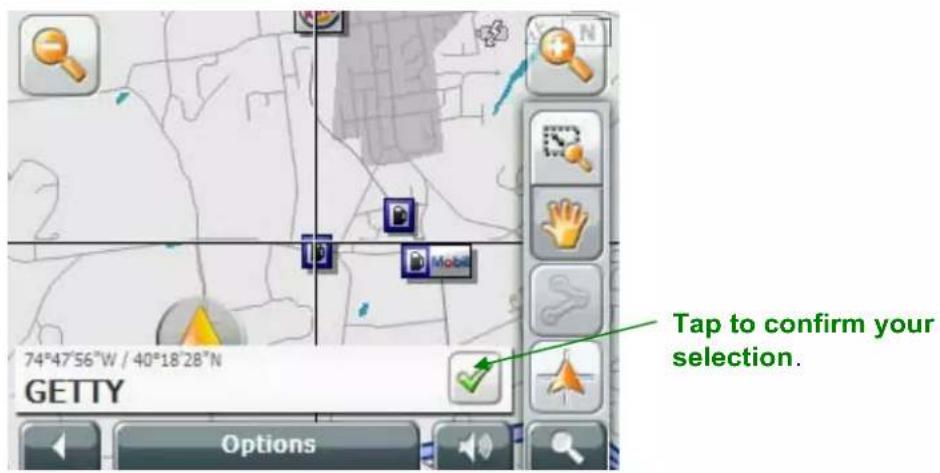
Tap the check mark for your selection.
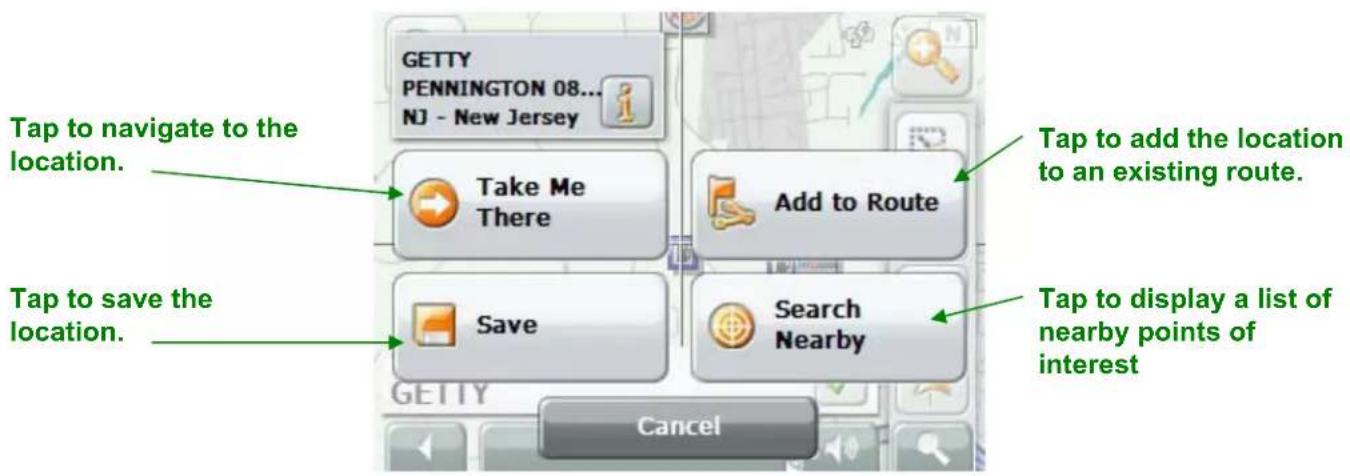
Tap the Take Me There button to navigate to the selected location.
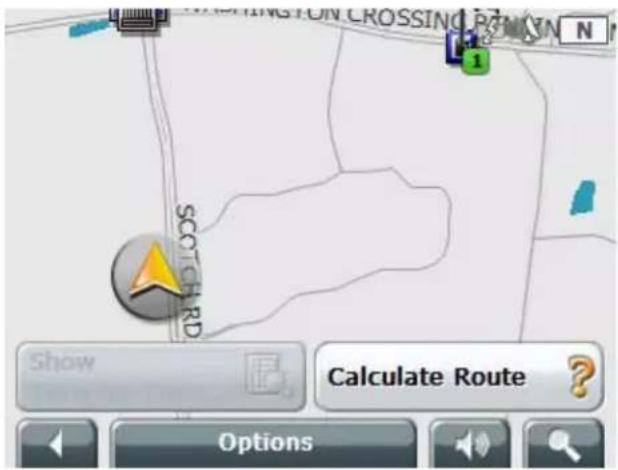
Tap Calculate Route to show the route.
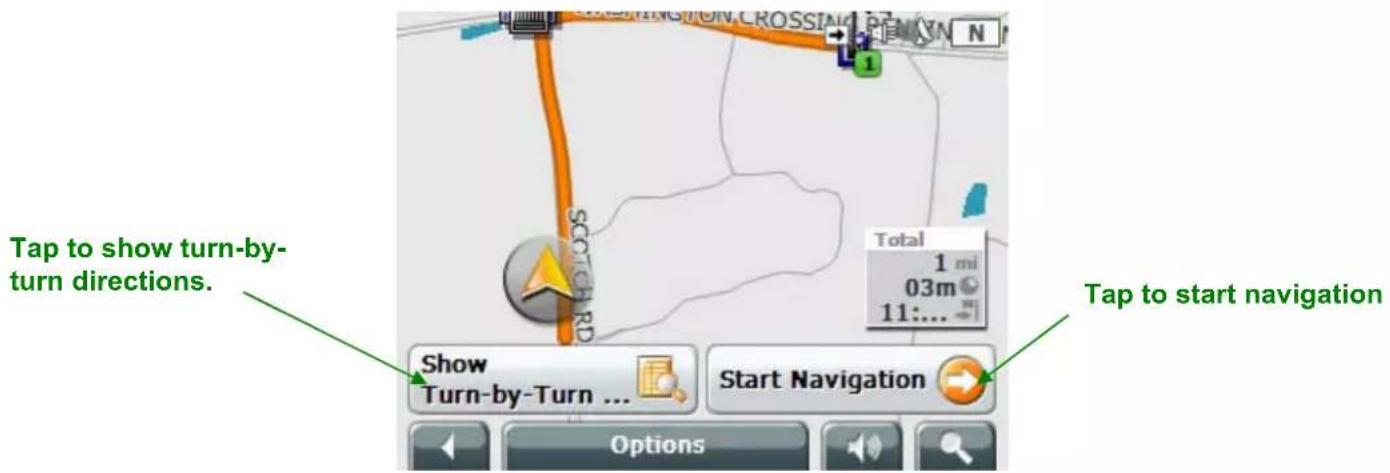
Route Planning
The Delphi NAV300 allows you to plan and store itineraries, even when not receiving a GPS signal. From the Navigation menu, tap Options and select "Route Planning" from the menu.
Tap to specify a starting point.
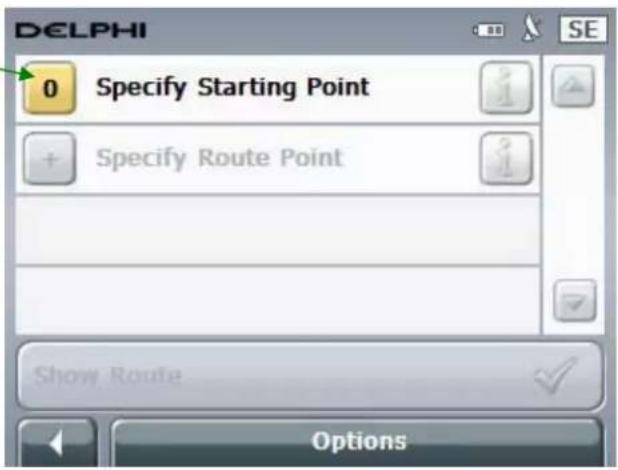
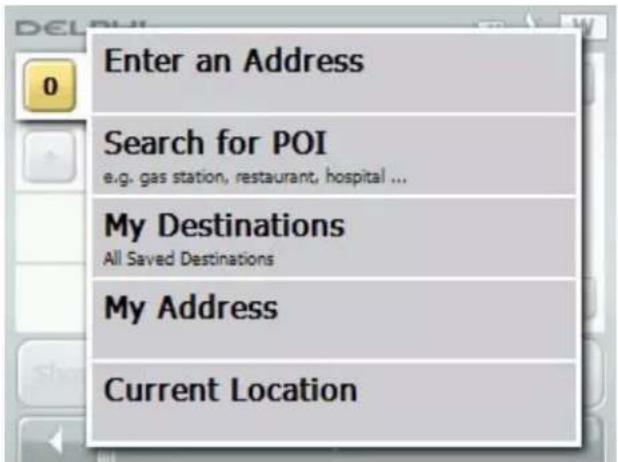
Select the method for entering route points from the list. Please see the "Setting a New Destination" and "Selecting My Destinations" sections in this manual for instructions.
Delphi NAV300 User's Guide
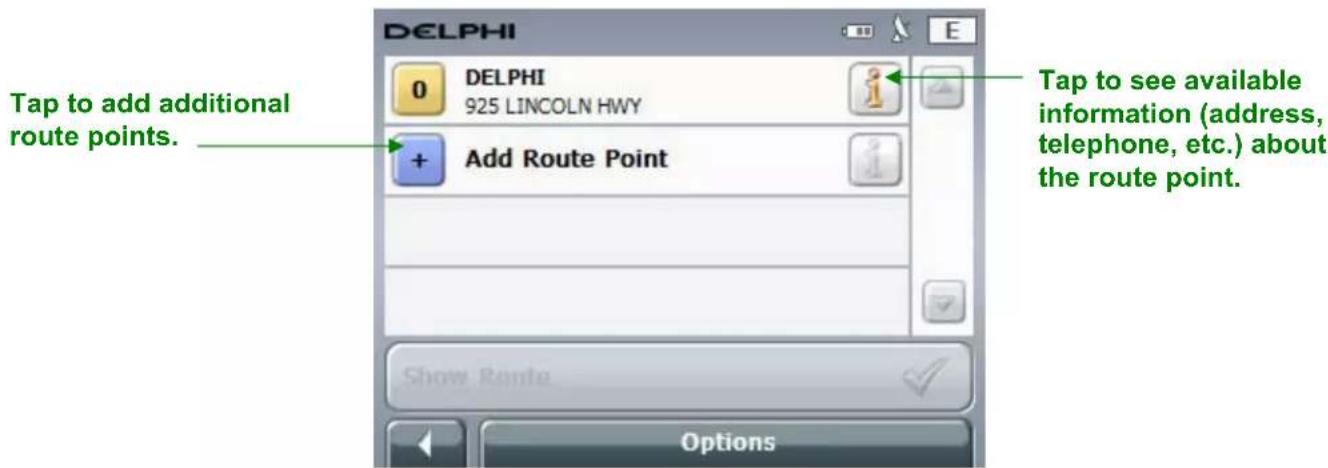
Once you have added all of the route points, tap Show Route to display the route.
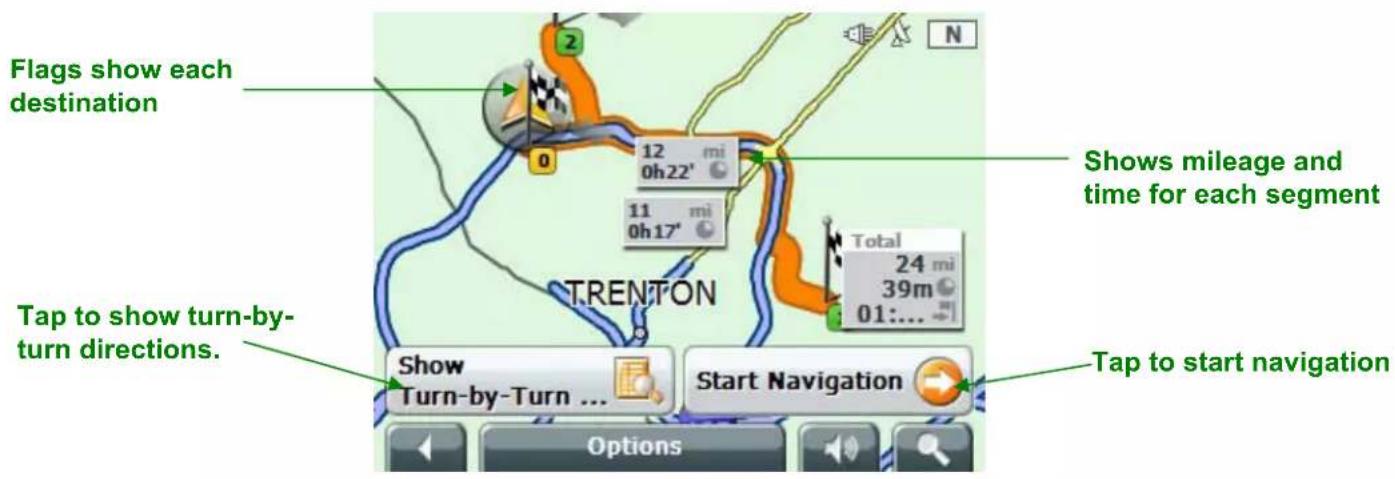
Route Planning Options
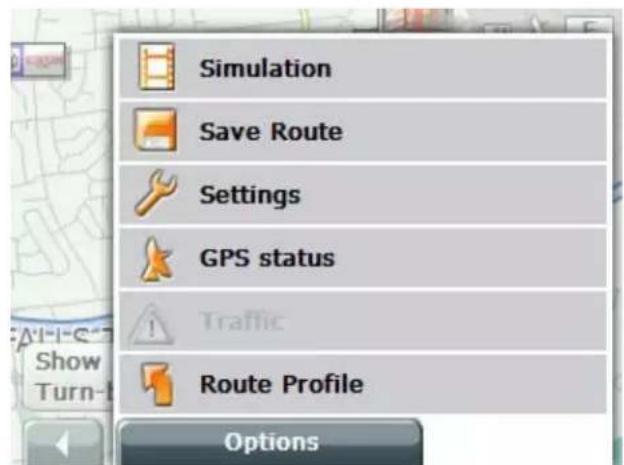
You can use the Options function to:
- Simulation – run a 3D, turn-by-turn simulation of the route. Simulations are restricted to a maximum of 60 miles.
- Save Route – save the existing itinerary.
- Settings –configure the Delphi NAV300 basic settings, such as language, default map view, zoom levels, map orientation, use of street names, speed, compass, distance, signs, lanes, etc. Also allows you to set the current map; the categories of points-of-information displayed; and the route profile, including: the type of vehicle, type of route, whether to use traffic information, allow use of highways or toll roads, etc.
- GPS status – displays your current GPS status, including your direction, time, longitude and latitude, speed, etc.
- Route Profile – view and modify the profile for the current route, including the speed profile, type of route, whether traffic information is considered, whether highways, toll roads may be used, etc.
Turn-by-Turn Directions
Once a route is calculated, you can review the directions turn-by-turn for the trip.
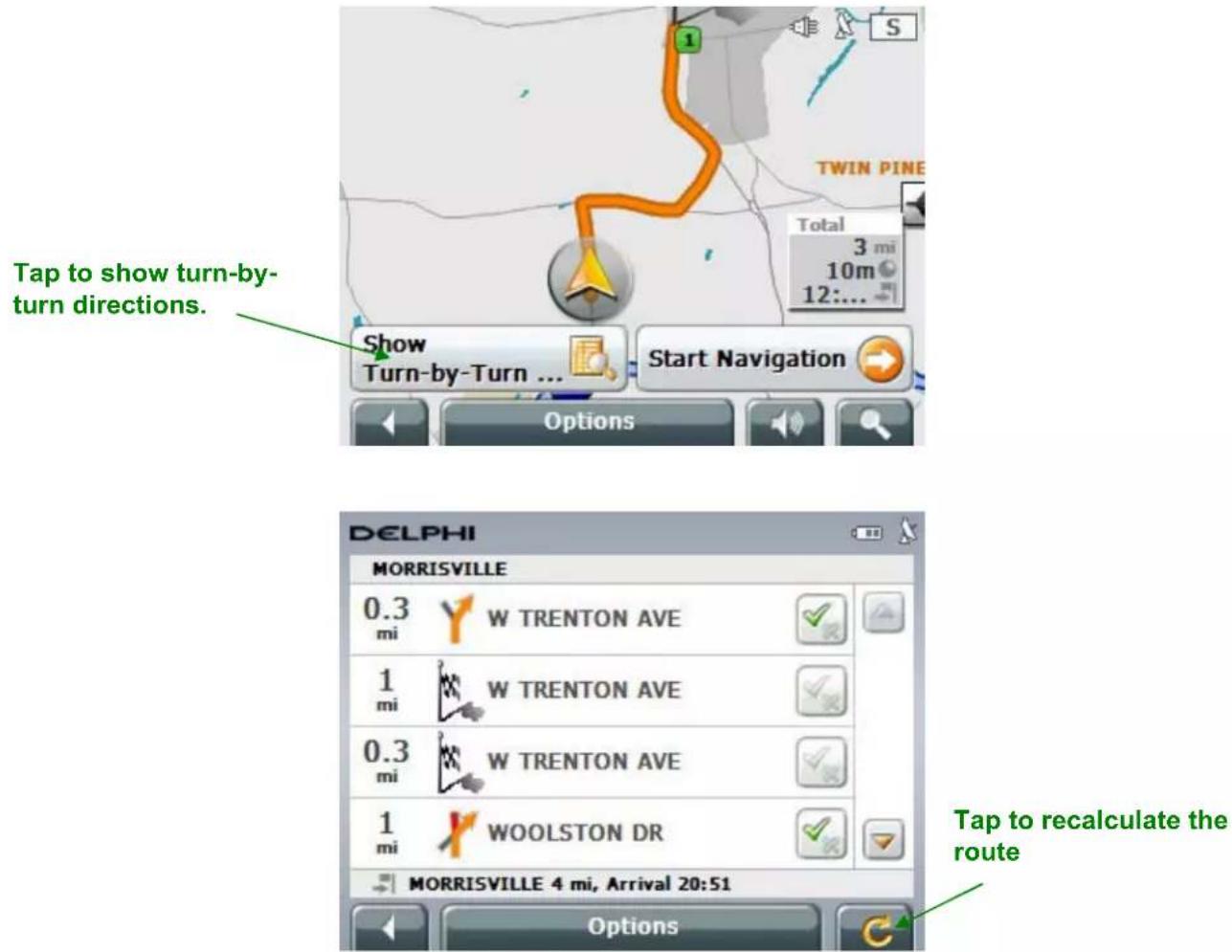
You can tap on the "X" next to any segment to mark that segment as unwanted. Tap the recalculate button to recalculate the route without any unwanted segments.
Using the Map
Access the map by tapping Options from the navigation main menu. The 2-dimensional destination map is displayed. Use this map to select destinations.
Tap to zoom out Tap to zoom in
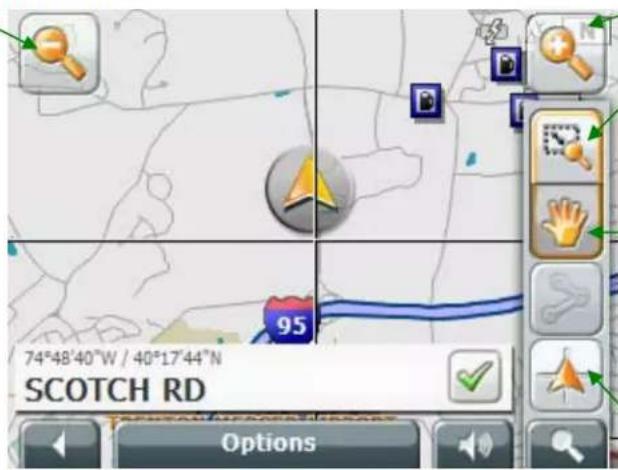
Select this tool and tap and drag on the map to zoom the selected area.
Select this tool and tap and drag on the map to move the map.
Tap to center the map at your position
Tapping the Map modes.

button toggles between Destination Map and Navigation
The 3-Dimensional Navigation Map
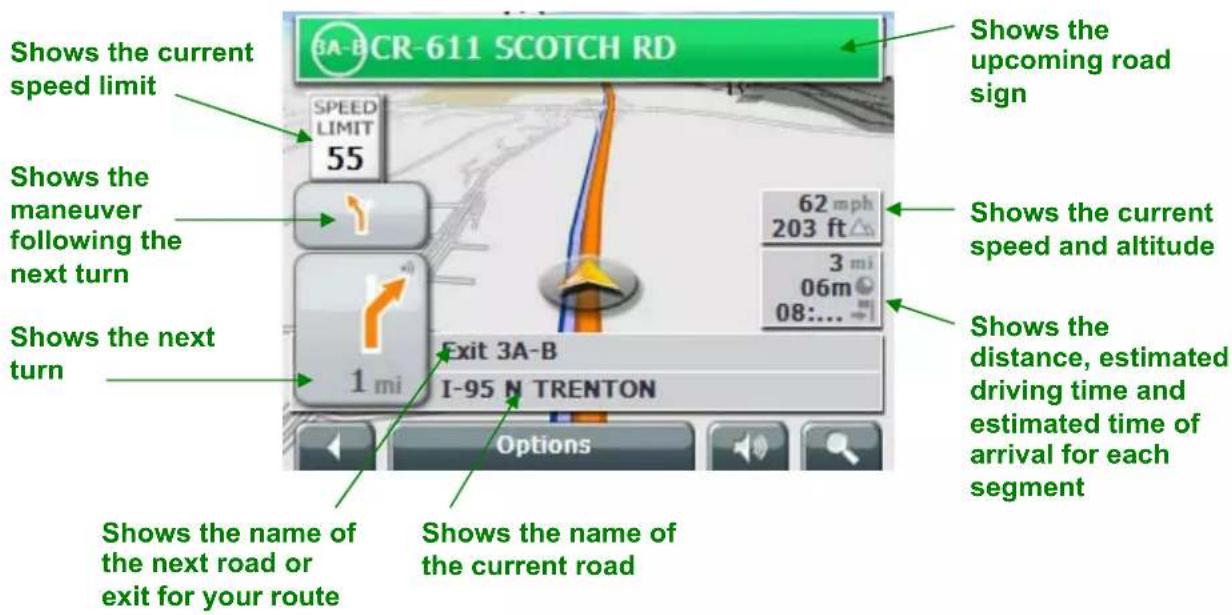
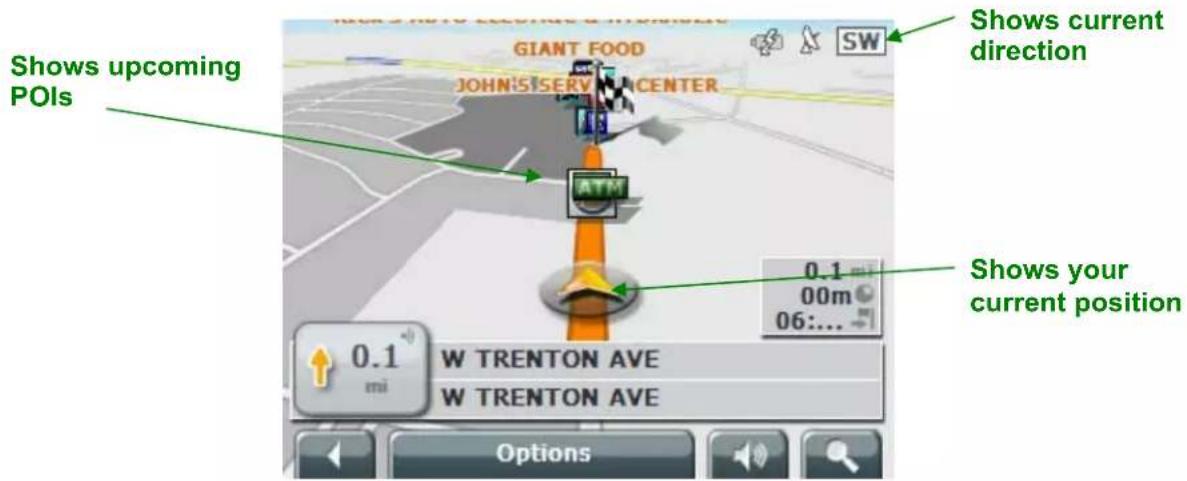
The Two-Dimensional Navigation Map
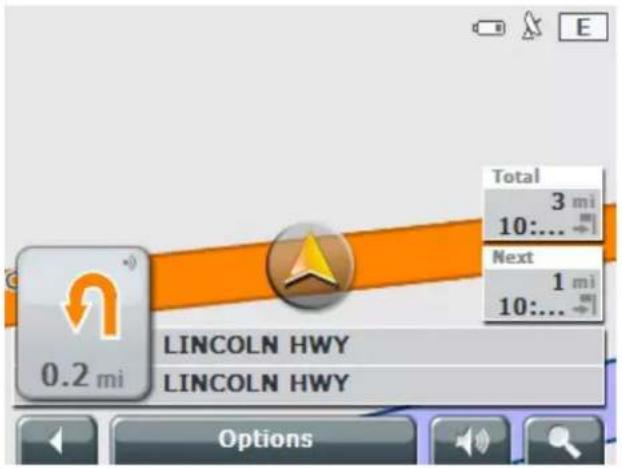

Warning: Information contained in the cartographic material can be rect depending on current conditions, roadwork, etc. Obey all current cable traffic laws.
Map Functions in Navigation Mode
Tap any spot on the map to display additional navigation functions.
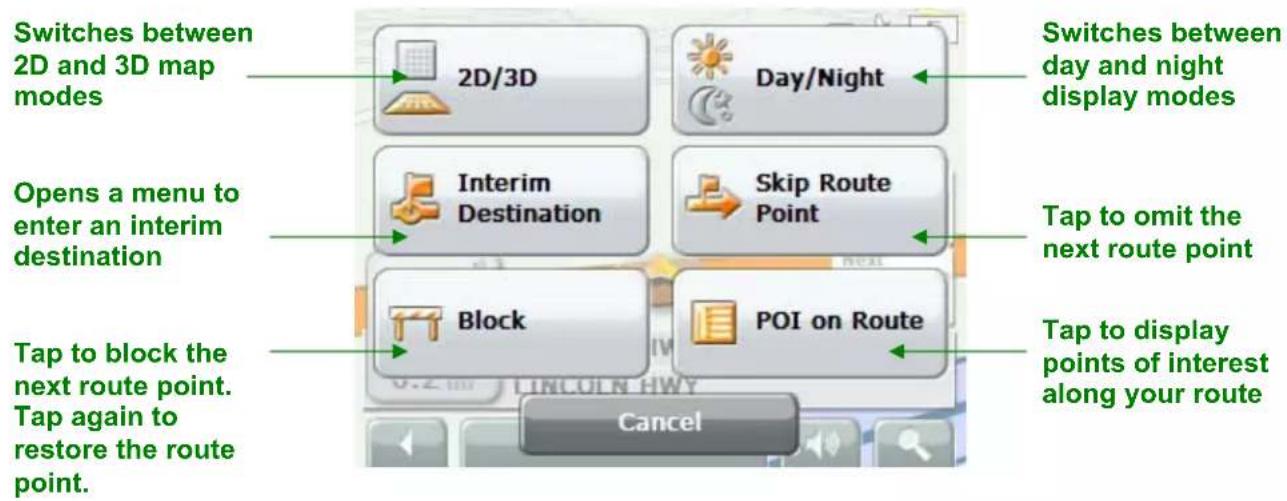
flowchart
graph TD
    A["Switches between 2D and 3D map modes"] --> B["2D/3D"]
    C["Day/Night"] --> D["Day/Night"]
    E["Interim Destination"] --> F["Interim Destination"]
    G["Skip Route Point"] --> H["Skip Route Point"]
    I["Block"] --> J["Block"]
    K["POI on Route"] --> L["POI on Route"]
    M["Tap to block the next route point. Tap again to restore the route point."] --> N["Tap to block the next route point. Tap again to restore the route point."]
    O["Tap to omit the next route point"] --> P["Tap to omit the next route point. Tap again to restore the route point."]
    Q["Cancel"] --> R["End"]
Section 7 Bluetooth
The Delphi NAV300 includes Bluetooth® connectivity. With its integrated microphone, the NAV300 allows you to answer and make calls from the touch screen.
Pressing the Bluetooth button 📋 on the front of the Delphi NAV300 launches the Bluetooth system.
Settings
Tapping the Settings button opens the Settings Screen.
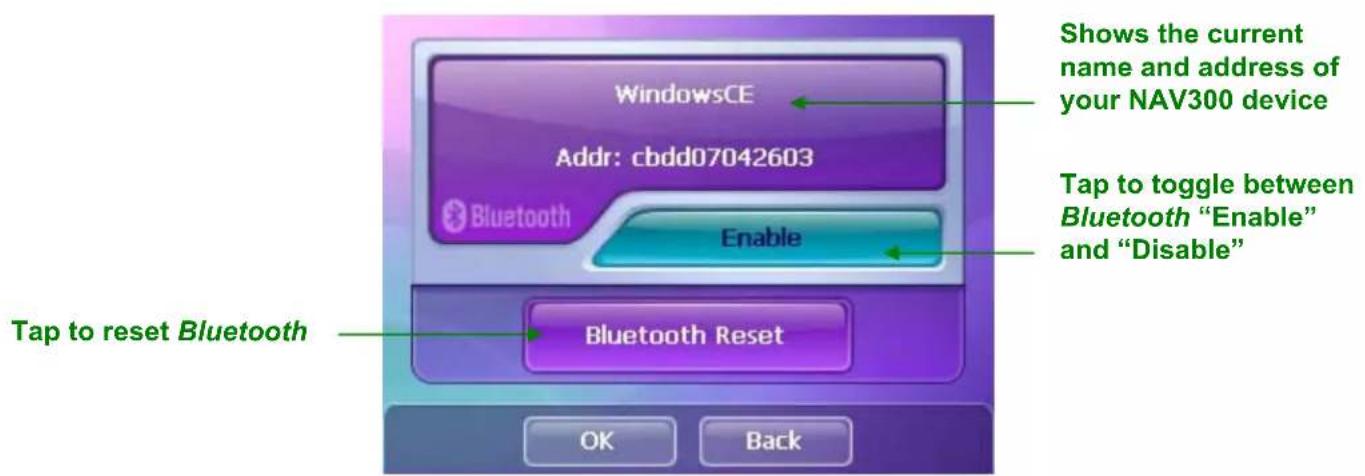
Pairing your Phone with the NAV300 as a Hands Free Device
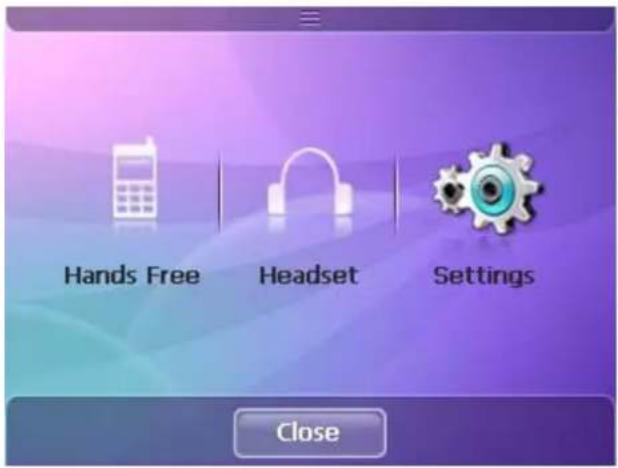
Ensure that Bluetooth is active and discoverable on your phone and tap the Hands Free button to set up your phone with the Delphi NAV300.
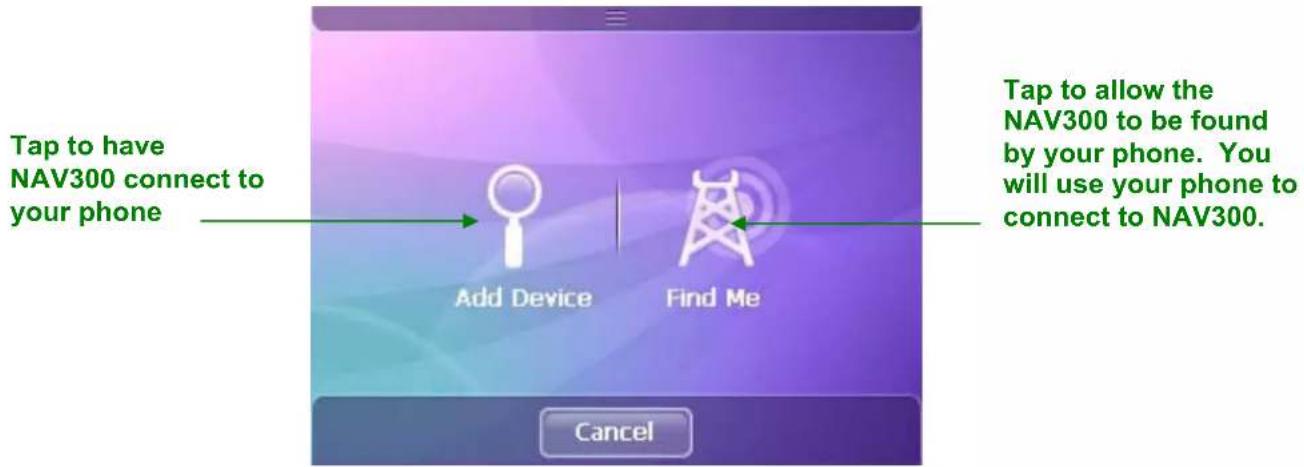
If you choose Add Device, you may have to set your phone to allow devices to find it.
Using NAV300 to Connect to Your Phone
Tapping Add Device will cause the NAV300 to search for available Bluetooth devices.
NOTE: During this process, please watch your phone screen for any additional response that the phone may require.
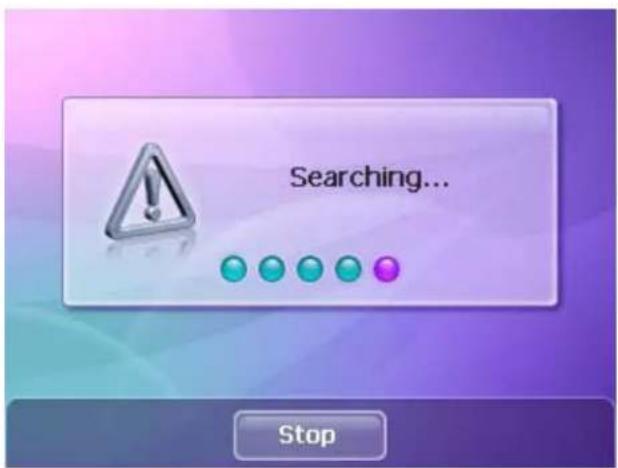
Select your phone from the list and tap Connect to connect the NAV300 to your phone.
![Select your phone from the list Motorola Phone [Addr:00] Tap to connect to your phone Connect Retry Cancel](/content/2026/05/982585/images/ffa497be5860ea301487751d91460b707f88285d079b15b5d4bca6f8f3bd58b1.jpg)
When connection is successful, you will be prompted to enter your PIN code.
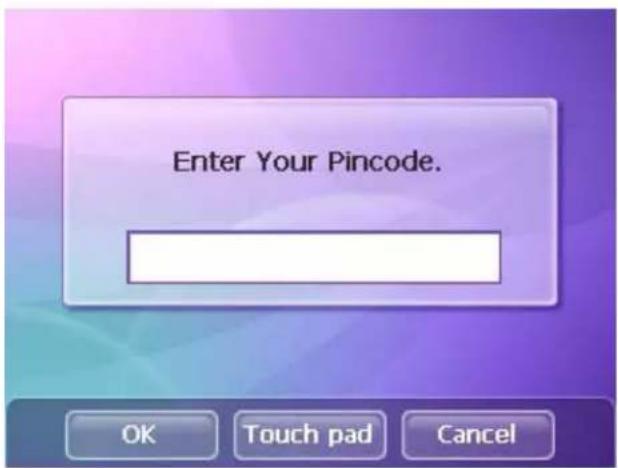
Tap Touch pad to open the on-screen key board and enter your PIN code. The default pin code is 0000. Tap OK to record your entry.
The NAV300 will pair with your phone. You may need to enter the PIN code or perform other functions on your phone to complete the pairing. Please watch your phone screen during this process.
Using your Phone to Connect to NAV300
Tapping Find Me will cause the NAV300 to enter "discoverable mode," allowing other Bluetooth devices to connect to it.
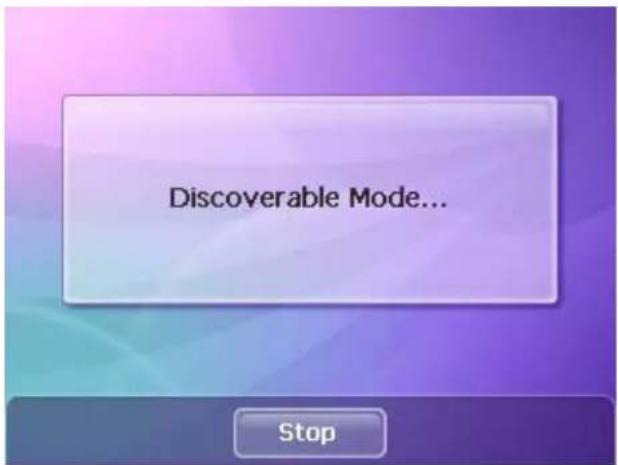
You can now use your device to pair with the NAV300. Once you enter the PIN number on your phone, the NAV300 will ask that you verify the PIN.
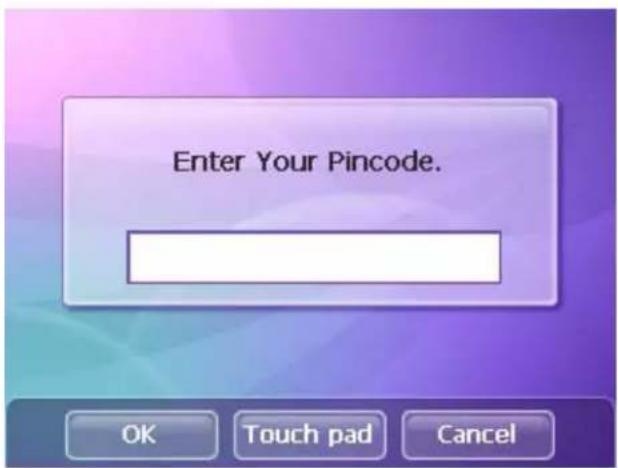
Tap Touch pad to open the on-screen key board and enter your PIN code. The default pin code is 0000. Tap OK to record your entry.
Your phone should now be paired to the NAV300.
Pairing your Phone with the NAV300 as a Headset
You may pair your phone with the NAV300 as a headset by tapping the Headset button from the Main Menu. This method of connecting the NAV300 to your phone is useful only if there has been difficulty connecting the NAV300 as a hands free device.
When you pair the NAV300 and your phone this way, the NAV300 allows you to answer calls only. You cannot initiate calls using the NAV300 in headset mode.
Managing Bluetooth Devices
You may have multiple phones set up for connection with your Delphi NAV300. You can add and remove phones from your list and disconnect and connect to different phones using the List Screen.
If you have phones already paired to the NAV300, but have none of them currently connected, the following screen appears when you select Hands Free from the Main Menu.
![[Motorola Phone] Currently selected device Tap to connect to the currently selected device Tap to display the Device List screen Connect Find Me List Cancel Tap to put NAV300 in "Discoverable Mode" allowing Bluetooth devices to find it](/content/2026/05/982585/images/965027c871f2401a1a87589a8bb2beb81d9162e7f86c355f13440488ee5cac87.jpg)
Device List Screen
This screen allows you to connect to a device, add devices, and remove devices.
![Select a device to connect to or remove from the list ddr:00125632018d] LG VX8 Motorola Phone [Addr:0019c03r] Tap to connect to the selected device Connect Add Device Remove Close Tap to add a device Tap to remove the selected device](/content/2026/05/982585/images/e538d5a7cada9f76d7f7fd22657881217616ae647eed67fee7c81ec062c8bbb8.jpg)
Making a Bluetooth Call
Select the Hands Free button from the Bluetooth menu to place a call using a currently connected device.
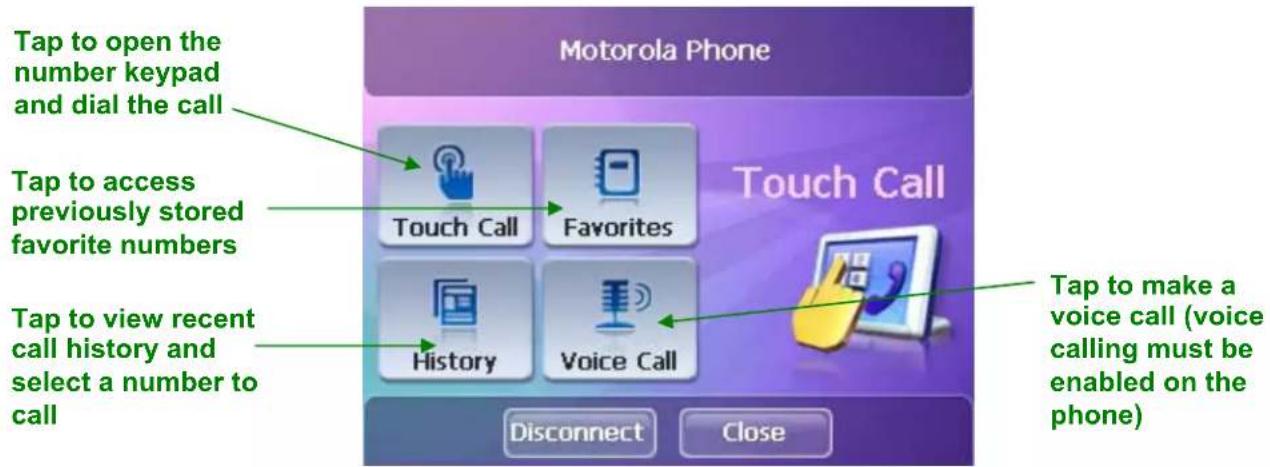
Touch Call
Tapping Touch Call opens the keypad.
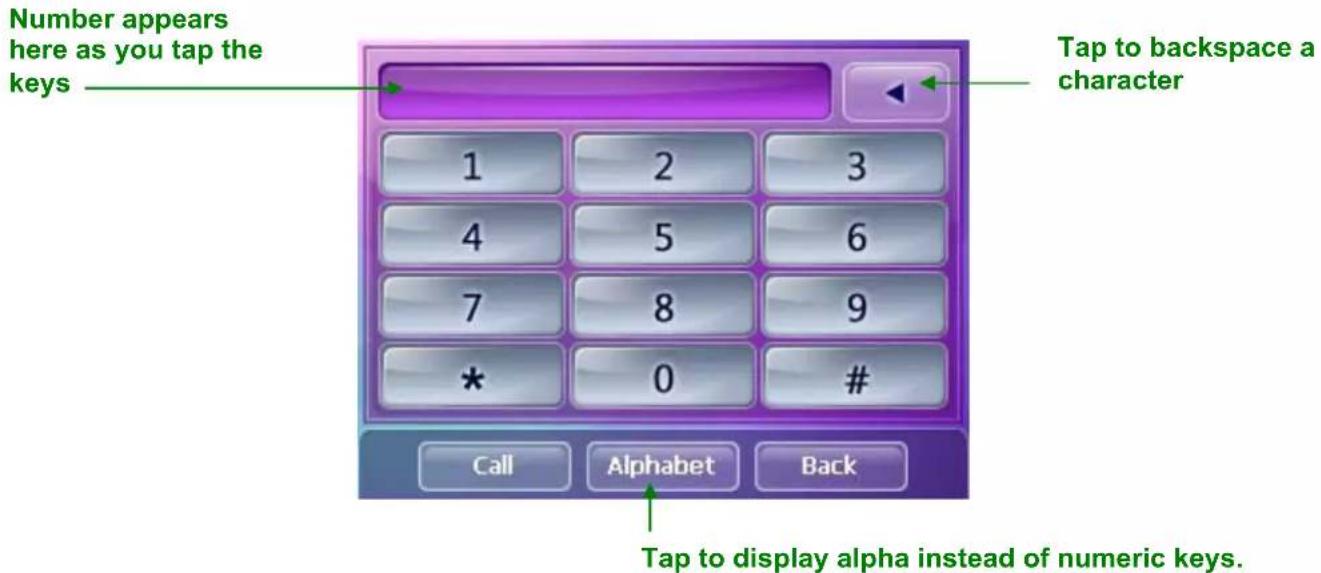
Tap the keys for the number you wish to call and then tap Call to initiate the call.
Favorites
Tapping Favorites accesses a list of your previously stored favorite numbers.
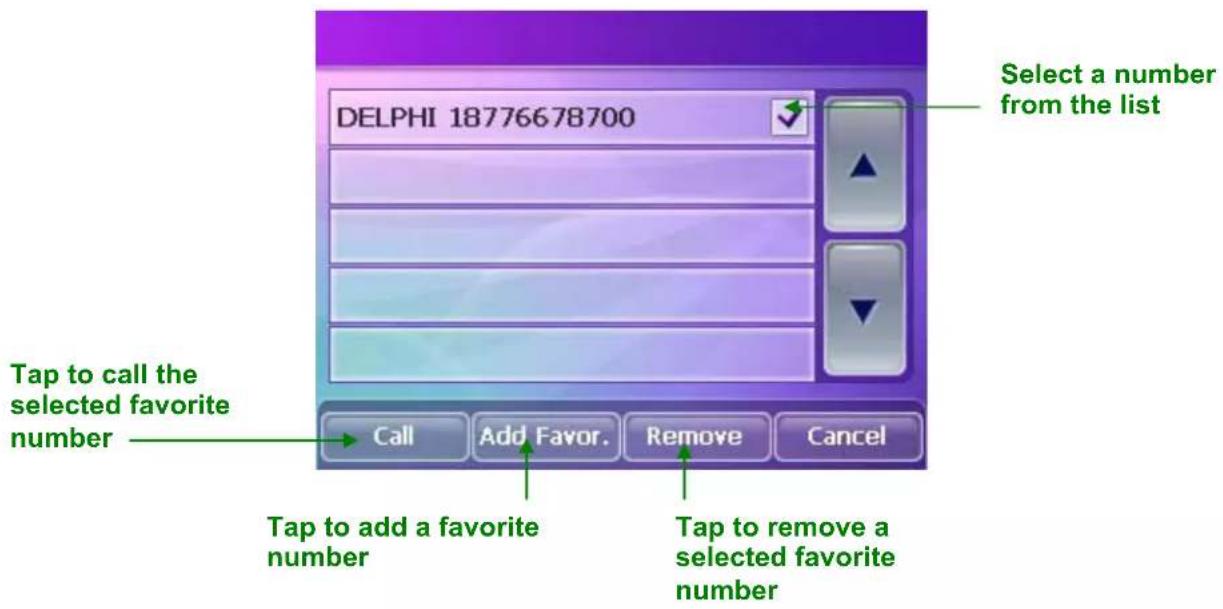
Adding Favorites
If you have no Favorites on the Favorites list, the following screen is displayed.
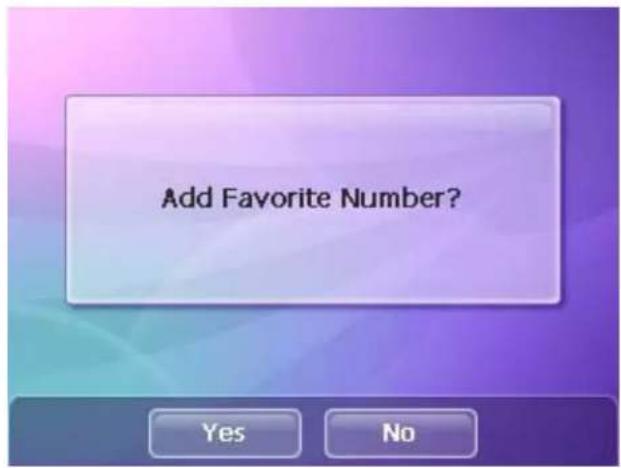
Tap Yes to display the touch pad to add a Favorite. You can also add a favorite number by selecting Add Favor. from the Favorites list screen.
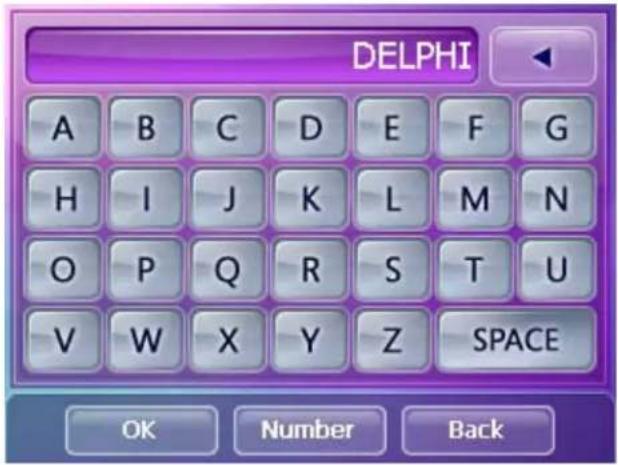
Enter the name of the Favorite and tap OK.
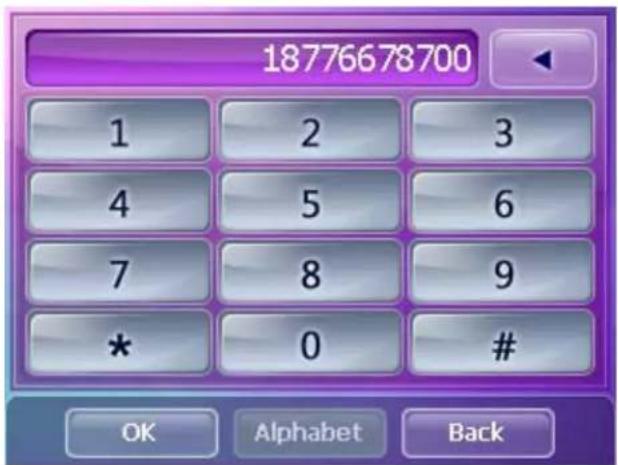
Enter the number of the Favorite and tap OK.
History
Tapping History accesses a list of your previously called or received numbers.
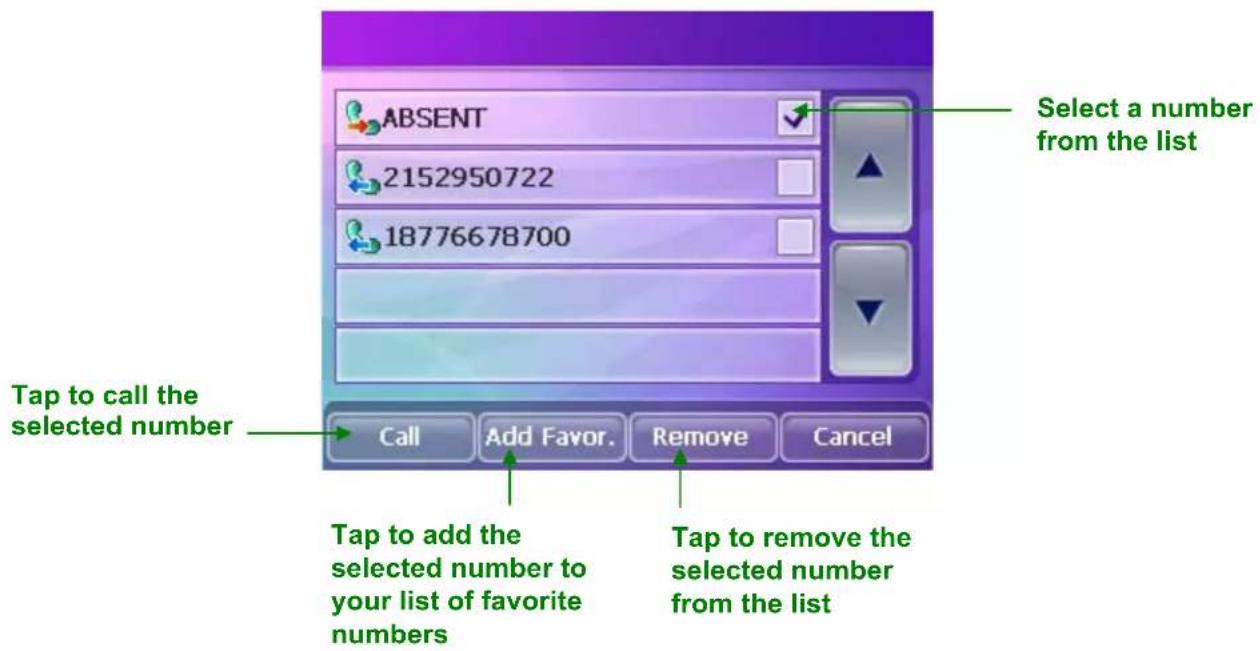
Voice Call
Tapping Voice Call allows you to make a call by speaking the name of a previously recorded voice call number on your phone.
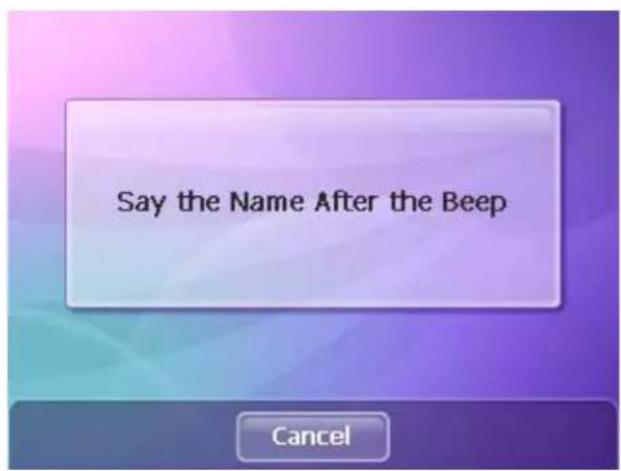
NOTE: Voice calling must be set up on your phone to use this feature.
Answering a Bluetooth Call
When a call is received by a paired phone, the Delphi NAV300 will display the following:
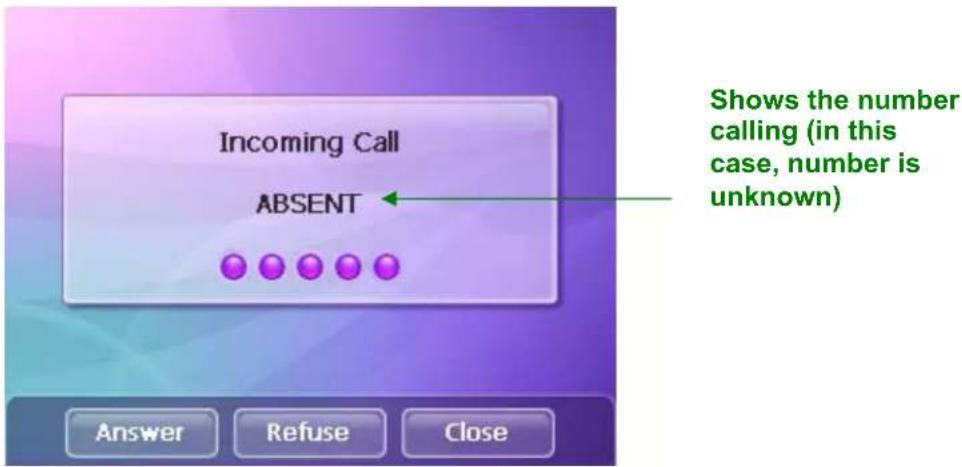
Tap Answer to answer the call or Refuse to refuse the call.
In-call Options
During a call, pressing the Bluetooth button 📋 on the front of the Delphi NAV300 opens the following screen of in-call options.
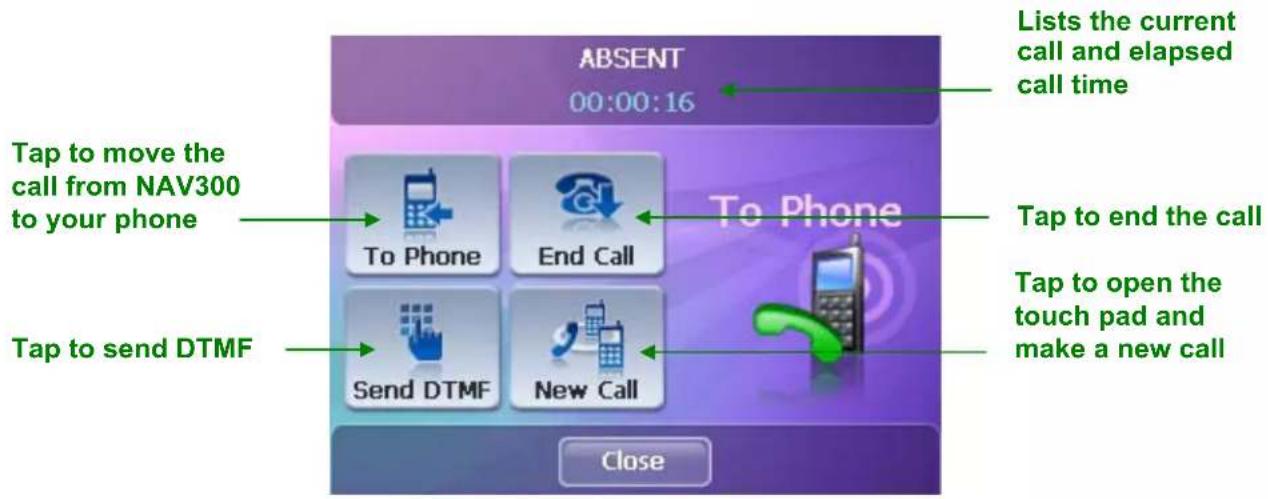
Section 8 Traffic Message Channel (TMC)
NOTE: This function can only be activated after installation of external TMC antenna and optional Real-Time Traffic Kit.
Traffic Message Channel (TMC) is a subscription service that provides navigation systems with traffic information broadcast by radio stations. The Delphi NAV300 has an optional receiver that allows subscribers to receive up-to-the-minute traffic information and allows you to adjust your route accordingly.
Check with www.shopdelphi.com for additional information on adapter kits that can be plugged into Delphi NAV300 and subscriber services. Once you have activated TMC per the adapter kit's instructions, use the information in this section to take advantage of the features of TMC on the Delphi NAV300.
Using TMC
TMC provides the Delphi NAV300 with the latest traffic information to allow routes to be recalculated around traffic jams and other obstructions. If TMC is activated, you may display the traffic information on screen.
Initialization of TMC begins as soon as GPS signals are received. The current status of TMC service is indicated by an icon on the right side of the screen:
From the Navigation Menu, tap Options and select "Traffic" to display the TMC settings.
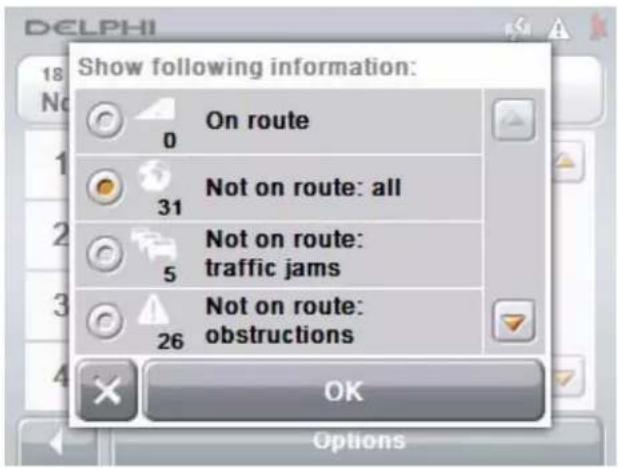
This screen allows you to filter the types of messages to be displayed.
Traffic information will be shown on the map screens.
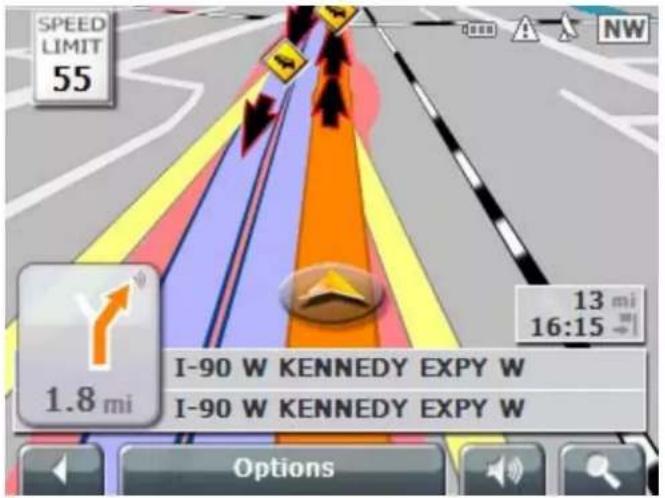
NOTE: If you are navigating to a destination, messages that affect your current route will be displayed first.
TMC Traffic Information Symbols
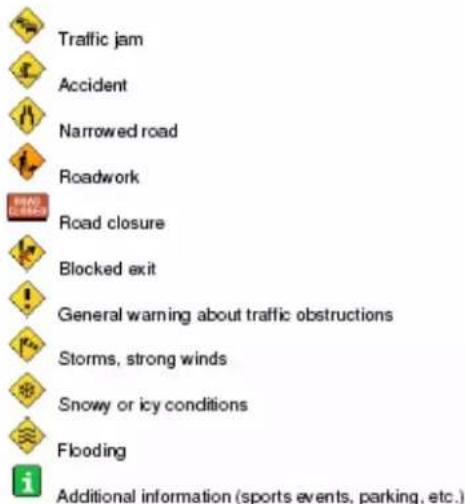
TMC and Navigation
You can configure Delphi NAV300 to take TMC information into account when calculating a route. You can configure this to happen automatically or manually.
If you have configured TMC with manual confirmation, your will receive a screen with details of the obstruction:
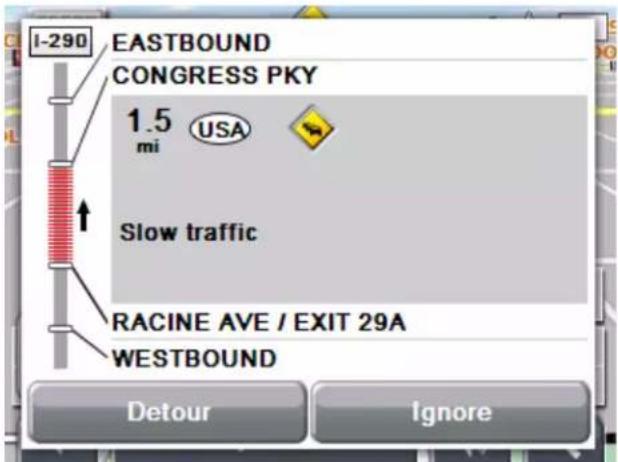
You can choose to detour around the obstruction or ignore it.
Tuning TMC
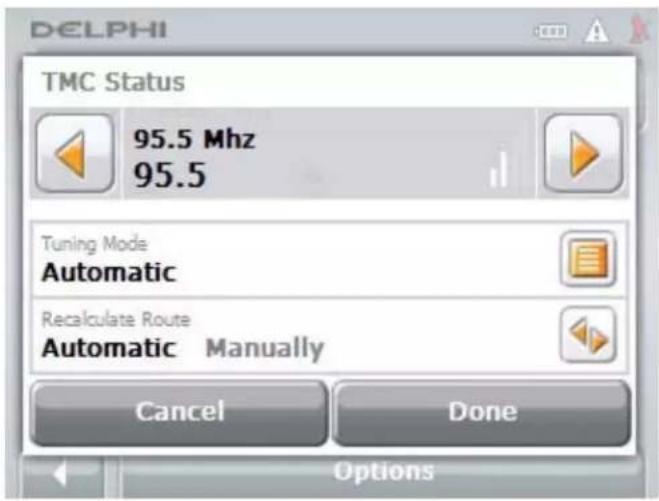
Tap the Tuning button to toggle between Automatic tuning, Hold station, and Frequency input modes.
In Auto tuning mode, the TMC receiver searches continually for the station that offers the best reception. The name and frequency of the station are displayed. Use the arrow keys to select a different station. As soon as another station has been found, its name and frequency are displayed.
In Hold station mode, the current station is maintained.
In Frequency input mode, you can directly enter a station's frequency. Use the arrow keys to modify the frequency in steps of 0.1 MHz.
Section 9 Music Mode

Warning: For your safety, DO NOT operate the Delphi NAV300
entertainment features while driving. Movie and music (MP3) playing, picture viewing, demo, and calculator are intended for use while you are not driving your vehicle.
DELPHI DISCLAIMS ALL LIABILITY FOR ANY USE OF THIS PRODUCT IN A WAY THAT MAY CAUSE ACCIDENTS, DAMAGE, OR THAT MAY VIOLATE THE LAW.
The Delphi NAV300 can playback audio files saved in MP3 or wav format on an SD card. Adding music, movies or pictures requires an additional SD card (not included) and the ability to download MP3 or wav files from a computer. An SD card reader may be required if your computer is not equipped with an SD card slot.
When entering Music mode, the last file played is highlighted as "current." If the last music file does not exist on the SD card currently installed, the first file available on the current card is listed.
Playing an Audio File
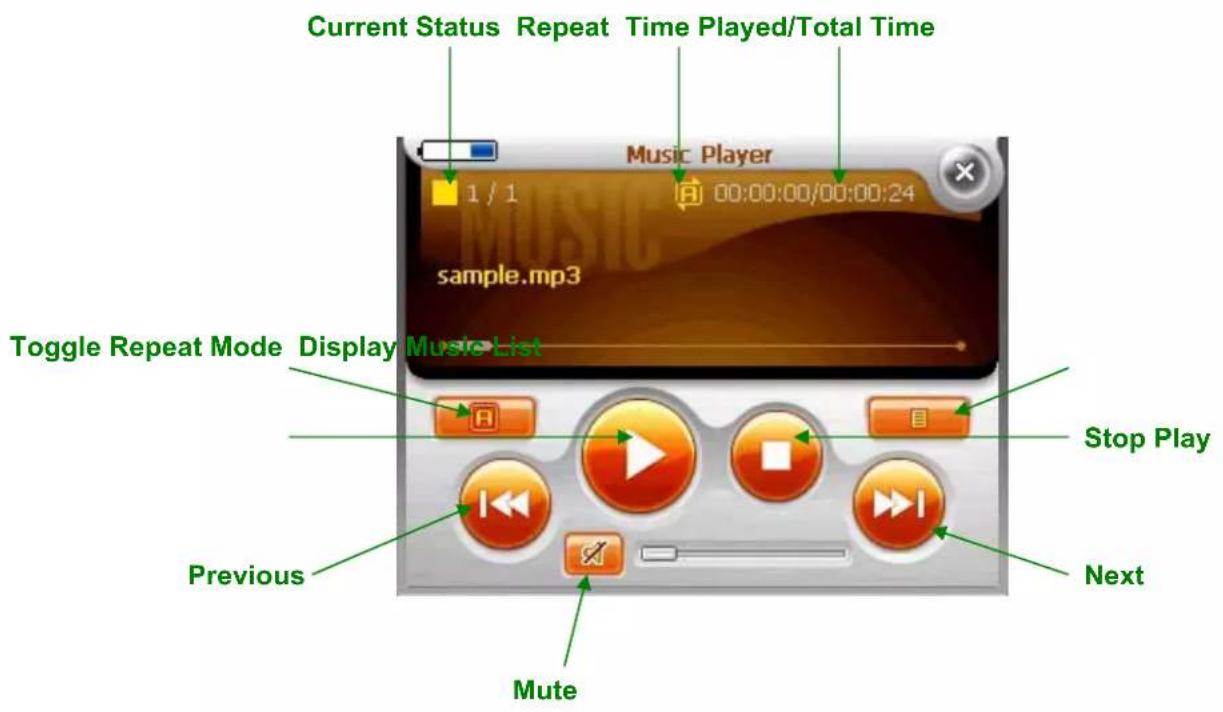
Audio functions are controlled by tapping the buttons located on the control bar in the lower half of the screen:
Play: Tap the Play button to play the file listed. The screen displays the current playback time and status. If a file is damaged, the next file will be played.
If all of the files are damaged, the receiver displays a popup screen and all audio playback stops.
Pause: Tap the Pause button to stop playback temporarily. Press the Play button to continue playback.
Stop: Tap the Stop button to stop playback. The playback indicator will return to the beginning of the song. Note: If the Previous or Next buttons are selected while playback is stopped, the previous or next song will be selected.
Repeat: The default repeat mode is "All Repeat." Tap this button to change repeat mode from "All Repeat" to "1 Track Play" and then to "All Play."
Mute: Toggles between "Mute Off" and "Mute On."
Previous/Next: Tap the Previous and Next buttons to select the previous or next audio file in the list.
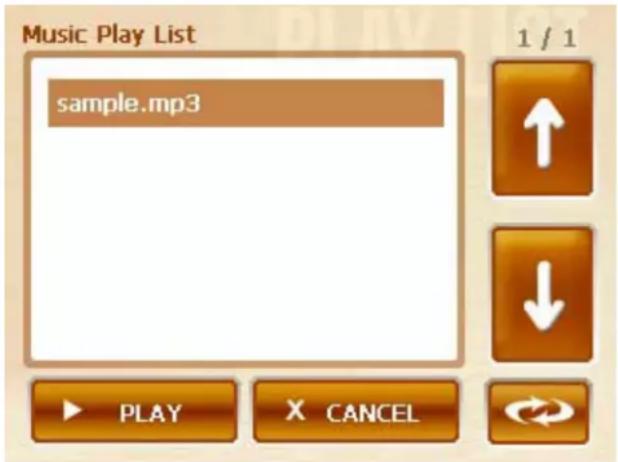
List: Displays the play list screen with the file currently playing highlighted. Use this screen to scroll through and select audio files. You can also choose to arrange and play audio in the list in random order or alphabetically.
Section 10 Movie Mode

Warning: For your safety, DO NOT operate the Delphi NAV300
entertainment features while driving. Movie and music (MP3) playing, picture viewing, demo, and calculator are intended for use while you are not driving your vehicle.
DELPHI DISCLAIMS ALL LIABILITY FOR ANY USE OF THIS PRODUCT IN A WAY THAT MAY CAUSE ACCIDENTS, DAMAGE, OR THAT MAY VIOLATE THE LAW.
The Delphi NAV300 can play back video files saved in avi, MPEG4, Xvid format on an SD card. Adding movies requires an additional SD card (not included) and the ability to download avi files from a computer. An SD card reader may be required if your computer is not equipped with an SD card slot.
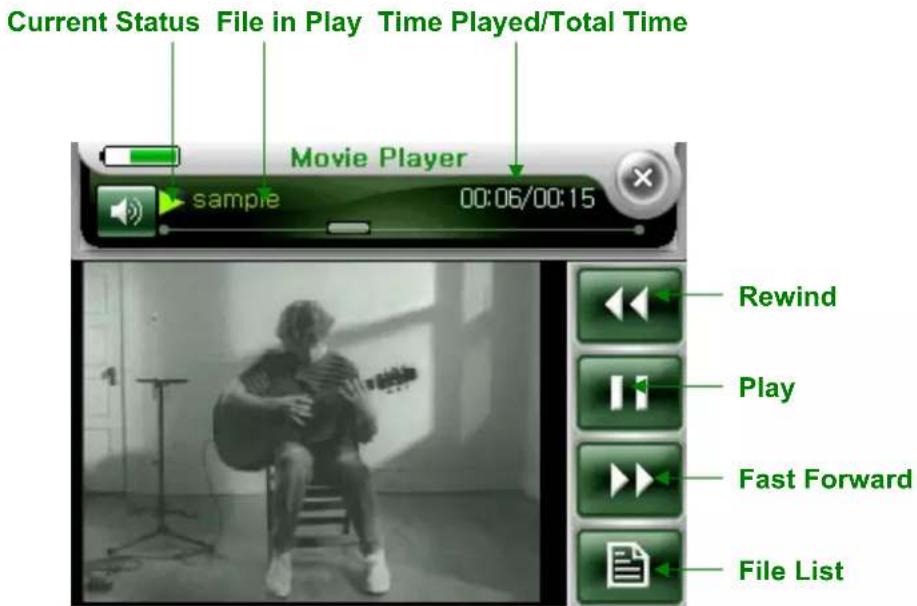
When entering Movie mode, the file most recently played will begin playing automatically. The control bar on top of the screen displays the file name of the current file, and the playtime.
Playing a Video File
NOTE: Tapping the video portion of the screen toggles between full-screen and menu modes.

natural_image
Black-and-white photo of a person sitting on a stool playing an acoustic guitar, with a microphone and stand in the background (no visible text or symbols)Movie Play List
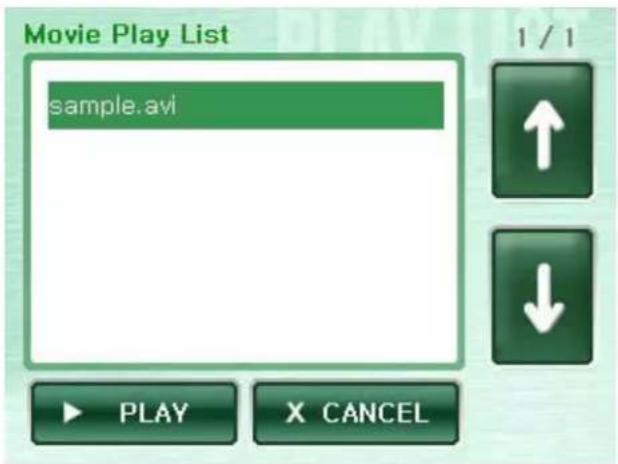
Pressing Play will play the file in full-screen mode.
Section 11 Picture Mode

Warning: For your safety, DO NOT operate the Delphi NAV300
entertainment features while driving. Movie and music (MP3) playing, picture viewing, demo, and calculator are intended for use while you are not driving your vehicle.
DELPHI DISCLAIMS ALL LIABILITY FOR ANY USE OF THIS PRODUCT IN A WAY THAT MAY CAUSE ACCIDENTS, DAMAGE, OR THAT MAY VIOLATE THE LAW.
The Delphi NAV300 allows you to view images saved in gif, jpg, or png format on an SD card. Adding pictures requires an additional SD card (not included) and the ability to download gif, jpg, or png files from a computer. An SD card reader may be required if your computer is not equipped with an SD card slot.
When entering Picture mode, the file most recently viewed will be displayed. The control bar on top of the screen displays the file name of the current file, and the number of files in the index.
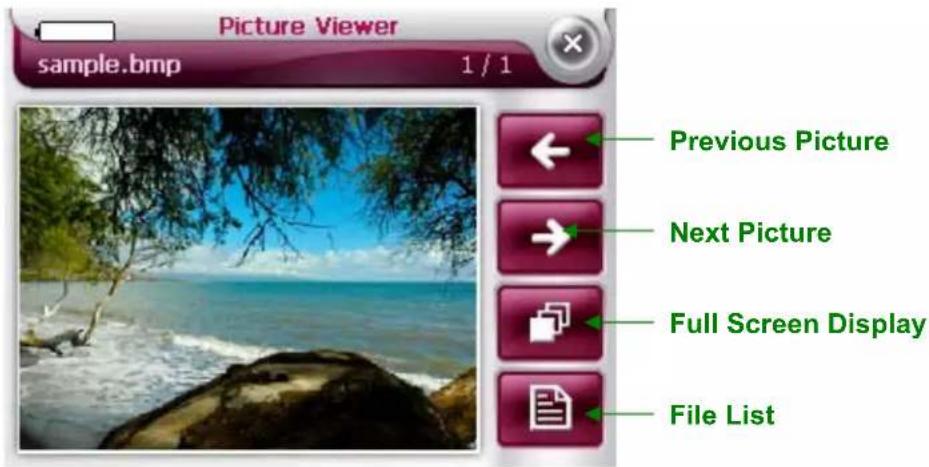
NOTE: Tapping the image portion of the screen toggles between full-screen and menu modes.
Enlarge/Reduce: Press the up and down arrow keys on the front of the Delphi NAV300 while in full-screen mode to zoom the image in and out.

natural_image
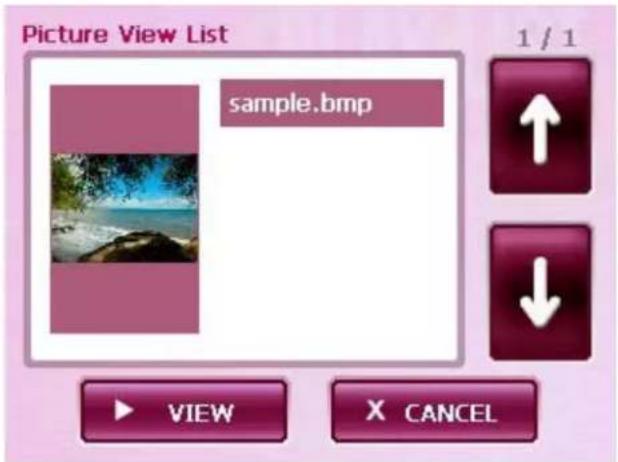
Coastal beach scene with turquoise water, scattered rocks, and tree branches framing the shoreline (no text or symbols visible)Picture File List
Section 12 Game Mode

Warning: For your safety, DO NOT operate the Delphi NAV300
entertainment features while driving. Movie and music (MP3) playing, picture viewing, demo, and calculator are intended for use while you are not driving your vehicle.
DELPHI DISCLAIMS ALL LIABILITY FOR ANY USE OF THIS PRODUCT IN A WAY THAT MAY CAUSE ACCIDENTS, DAMAGE OR THAT MAY VIOLATE THE LAW.
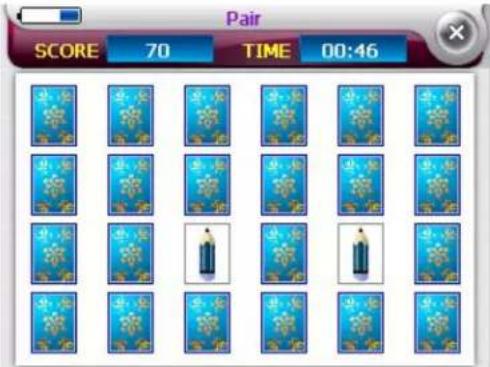
The Delphi NAV300 offers a classic card matching game.
When the game starts, you are provided with a brief glimpse of all cards with their pictures exposed.
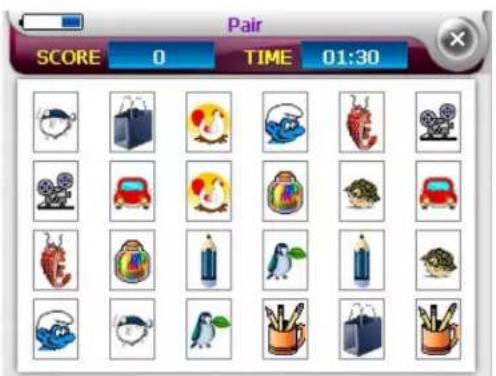
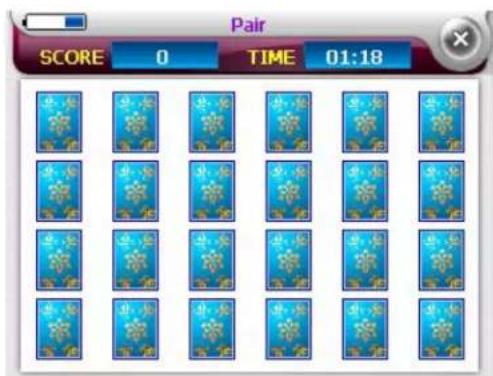
Look quickly and carefully and try to remember the positions of the pictures – before the cards turn over.
Tap the cards you think match. Your score and time are displayed on the top of the screen.
Section 13 Calculator Mode

Warning: For your safety, DO NOT operate the Delphi NAV300
entertainment features while driving. Movie and music (MP3) playing, picture viewing, demo, and calculator are intended for use while you are not driving your vehicle.
DELPHI DISCLAIMS ALL LIABILITY FOR ANY USE OF THIS PRODUCT IN A WAY THAT MAY CAUSE ACCIDENTS, DAMAGE OR THAT MAY VIOLATE THE LAW.
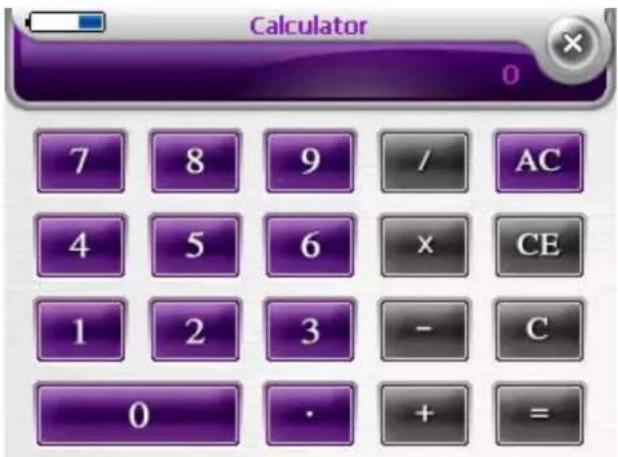
Delphi NAV300 features a standard calculator with addition, subtraction, multiplication and division functions.
Section 14: Settings
Delphi NAV300 screen and environment settings can be changed by tapping the Settings button from the main screen.
Section 15 Troubleshooting
The Delphi NAV300 is designed and built to provide trouble-free performance. If it does not appear to be functioning properly, please follow the troubleshooting guidelines below.
| No GPS fix: | Check the satellite icon in the upper right corner of the map view screen.Make sure the antenna on the unit is pointed outward and upward with a clear view of the sky.Ensure that the vehicle does not have a heat-reflecting or heated windshield. An external antenna can be purchased from your retailer to help ensure adequate GPS signal reception.The NAV300 may take several minutes to get a GPS fix the first time you use it. After the unit locates the satellites, it will-self calibrate each subsequent time you use the unit, it should take less than 40 seconds to get a fix. If you travel overseas, the unit can take up to 20 minutes to acquire a first fix. |
| GPS randomly loses its fix: | Make sure the antenna is pointed upward and outward, with a clear view of the skyThe receiver will continue to search for a signal and will automatically recalculate the route once reception is restored. |
| No audible destination instructions: | Check and adjust the volume with the dial on the right side of the unit or the volume settings in the Navigation function. |
| Unit does not start: | Check that you have followed the instructions.Contact Delphi Technical Support at 1.877.667.8700, or check the website at www.shopdelphi.com |
Contacting Technical Support
Contact Delphi at 1.877.667.8700 Monday – Friday, 8:00am – 8:00pm; Saturday, 10:00am – 5:00pm, Eastern Standard Time, or visit: www.shopdelphi.com
Technical Information
| Dimensions | 2.3" x 3.2" x 1.1" |
| Weight | 7.4 oz |
| Screen Size | 3.5" diagonal |
| Screen Resolution | 320 x 240 pixels |
| Number of Colors | 16.7M |
| Microprocessor | Samsung 2440, 400 MHz |
| Onboard Storage memory for OS | 32 MB |
| GPS Accuracy | 16.5' (5m), 95% |
| Time to GPS fix cold start | 2 minutes |
| Time to GPS fix hot start | 15 seconds |
| Map Data | NAVTEQ^TM |
| GPS Receiver | SiRFStarIII^TM |
FCC Statement
This equipment has been tested and found to comply with the limits for a Class B digital device, pursuant to Part 15 of the FCC rules. These limits are designed to provide reasonable protection against harmful interference in a normal installation. This equipment generates, uses, and can radiate radio frequency energy and, if not installed and used in accordance with the instructions, may cause harmful interference to radio communications. However, there is no guarantee that interference will not occur in a particular installation. If this equipment does cause harmful interference to radio or television reception, which can be determined by turning the equipment off and on, the user is encouraged to try to correct the interference by one or more of the following measures:
- Reorient or relocate the receiving antenna
- Increase the separation between the equipment and receiver
- Connect the equipment into an output on a circuit different from that to which the receiver is connected
- Consult the dealer or an experienced electronics technician for help
- A shielded cable must be used when connecting a peripheral to the serial ports
- Modifications not expressly approved by the manufacturer could void the user's authority to operate the equipment under FCC rules
Section 16 Warranty
Delphi Product & Service Solutions ("Delphi") warrants all Delphi NAV300 systems sold by Delphi ("Products") to be free of defects in material and workmanship, subject to the following conditions.
The duration of Delphi's warranty with respect to the Delphi NAV300 is limited to one (1) year from the date of sale to the original consumer purchaser.
No other express warranties are made with respect to any Product. All implied warranties, including warranties of merchantability and fitness for a particular purpose are limited to the warranty period set forth above. This warranty is not transferable and applies only to the original consumer purchaser of the Product.
Delphi will, as its sole obligation under this warranty, replace or repair, at its option, any Product that does not conform to this warranty. Under no circumstances will Delphi be liable for any incidental or consequential damages under this warranty or any implied warranties.
Delphi will not be responsible for damage resulting from any (i) deviation from Delphi's operating instructions as printed in Delphi's catalog or on any packaging, labels, or other literature provided with a Product, (ii) installation of a Product in a manner which is inconsistent with Delphi's written instructions, (iii) alteration or modification of a Product, (iv) misuse, (v) neglect, (vi) abuse, (vii) accident, (viii) normal wear and tear, (ix) commercial use, (x) service by anyone other than a Delphi authorized repair facility, or (xi) other improper application, installation, or operation of the Product.
How you (the Customer) can get service:
To obtain warranty service during the first thirty (30) days after the date of purchase, you must return the defective Product with the original receipt to the original place of purchase. To obtain warranty service during the remainder of the warranty period, you must contact Delphi by phone at 1.877.667.8700.
If warranty service is needed at any time during the warranty period, the purchaser will be required to furnish a sales receipt/proof of purchase indicating the date of purchase, amount paid, and place of purchase. Customers who fail to provide such proof of purchase will be charged for the repair of any Product.
How state law relates to the warranty:
Some states do not allow limitations on how long implied warranties last, or the exclusion or the limitation of incidental or consequential damages.
So the above limitations or exclusions may not apply to you. This warranty gives you specific legal rights. You may also have other rights that may vary from state to state.
NO PERSON IS AUTHORIZED BY DELPHI TO MODIFY OR ADD TO THIS LIMITED WARRANTY.
- NAV300
- OWNER'S MANUAL
- Welcome
- Delphi NAV300 Features
- Contacting Technical Support
- Warning:
- DANGER OF ACCIDENT
- OBEY ALL TRAFFIC LAWS
- Table of Contents
- Welcome....1
- Section 1 About GPS/NAV300 Introduction....5
- Section 2 Unpacking the Delphi NAV300 ....7
- Section 3 Installing Delphi NAV300 in Your Vehicle ....10
- Section 4 Features and Controls ....11
- Section 5 Getting Started....12
- Section 6 Navigation Mode....16
- Section 7 Bluetooth....38
- Section 8 Traffic Message Channel (TMC)....49
- Section 9 Music Mode....53
- Section 10 Movie Mode....55
- Section 11 Picture Mode....57
- Section 12 Game Mode....59
- Section 13 Calculator Mode....60
- Section 14: Settings....61
- Section 15 Troubleshooting....62
- Section 16: ..Warranty....61
- Section 1 About GPS/NAV300 Introduction
- For best results when using Delphi NAV300:
- Section 2 Unpacking the Delphi NAV300
- In-vehicle charging cable
- Stylus Pen
- NAV300 Owner's Kit:
- Memory Cards
- Accessories and Replacement Parts
- Section 3 Installing Delphi NAV300 in Your Vehicle
- Section 4 Features and Controls
- NAV300 Receiver Controls
- Section 5 Getting Started
- Powering Up
- Inserting an SD Card
- Home Screen
- Using the Keyboard
- Other Common Keys
- Section 6 Navigation Mode
- Driver Protection
- Navigation – Main Menu
- Common On-Screen Icons
- Navigation Settings
- Settings Options
- Setting a New Destination
- Entering a New Address
- Searching for a Point-of-Interest (POI)
- Searching for a Nearby POI
- Search for a POI in a City
- Search for a POI Nationwide
- Directly Accessing Nearby POI
- New Destination Options
- Selecting "My Destinations"
- My Destinations Options
- Selecting Destinations on the Map
- Route Planning
- Route Planning Options
- Turn-by-Turn Directions
- Using the Map
- Map Functions in Navigation Mode
- Section 7 Bluetooth
- Settings
- Using NAV300 to Connect to Your Phone
- Using your Phone to Connect to NAV300
- Pairing your Phone with the NAV300 as a Headset
- Managing Bluetooth Devices
- Device List Screen
- Making a Bluetooth Call
- Touch Call
- Favorites
- Adding Favorites
- History
- Voice Call
- Answering a Bluetooth Call
- In-call Options
- Section 8 Traffic Message Channel (TMC)
- Using TMC
- TMC Traffic Information Symbols
- TMC and Navigation
- Tuning TMC
- Section 9 Music Mode
- DELPHI DISCLAIMS ALL LIABILITY FOR ANY USE OF THIS PRODUCT IN A WAY THAT MAY CAUSE ACCIDENTS, DAMAGE, OR THAT MAY VIOLATE THE LAW.
- Playing an Audio File
- Section 10 Movie Mode
- Playing a Video File
- Movie Play List
- Section 11 Picture Mode
- Section 12 Game Mode
- DELPHI DISCLAIMS ALL LIABILITY FOR ANY USE OF THIS PRODUCT IN A WAY THAT MAY CAUSE ACCIDENTS, DAMAGE OR THAT MAY VIOLATE THE LAW.
- Section 13 Calculator Mode
- Section 14: Settings
- Section 15 Troubleshooting
- FCC Statement
- Section 16 Warranty
- How you (the Customer) can get service:
Brand : Delphi
Model : NAV300
Category : Browser