
NID-7056 - Tablet Naxa - Free user manual and instructions
Find the device manual for free NID-7056 Naxa in PDF.


| Brand | Naxa |
| Model | NID-7056 |
| Product Type | Tablet |
| Display Size | 7 inches |
| Operating System | Android |
| Processor | Quad-core 1.3 GHz |
| RAM | 1 GB |
| Storage | 8 GB (expandable via microSD) |
| Wireless Connectivity | Wi-Fi 802.11 b/g/n, Bluetooth |
| Battery | Rechargeable Lithium-ion, 3000 mAh |
| Dimensions (W x H x D) | 190 x 115 x 10 mm |
| Weight | 320 g |
| Camera | Rear: 2 MP, Front: 0.3 MP |
| Ports | microUSB, 3.5 mm headphone jack |
| Power Input | 5V DC via microUSB |
| Main Functions | Web browsing, video playback, e-reading, gaming, apps |
| Maintenance & Cleaning | Wipe with soft dry cloth; avoid solvents |
| Safety | Avoid exposure to heat, water, and physical shock |
| Spare Parts & Repairability | Not provided by manufacturer; professional repair recommended |
Frequently Asked Questions - NID-7056 Naxa
User questions about NID-7056 Naxa
0 question about this device. Answer the ones you know or ask your own.
Ask a new question about this device
Download the instructions for your Tablet in PDF format for free! Find your manual NID-7056 - Naxa and take your electronic device back in hand. On this page are published all the documents necessary for the use of your device. NID-7056 by Naxa.
USER MANUAL NID-7056 Naxa
7" Core™ Tablet with Android™ OS 11
& GMS Certification
NID-7056

Instruction Manual
Please read carefully before use and keep for future reference.
Thank You
We know you have many choices when it comes to technology; thank you for choosing us here at Naxa Electronics. Established in 2001 in Los Angeles, California, we are dedicated to delivering products that entertain and delight.
We trust that you will be happy with your purchase. Please read this manual carefully and save it for reference. You may also find the latest FAQ, documentation, and other product material at our website. Come visit us on the web at www.naxa.com and see all that we have to offer!
In the Box
Please take a moment to make sure that you have everything in the list below. Although we make every effort to ensure that each Naxa device is securely packed and sealed, we know a lot can happen in between us and you. If anything is missing, check back with your local retailer to get immediate assistance. If they cannot help you, please contact our Naxa Support team at www.naxa.com/naxa_support.
NID-705 6 tablet
- Power Adapter
Headphone - USB cable
- User's manual
- Warranty Card
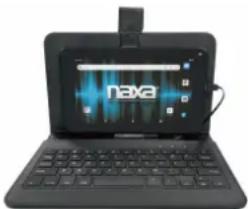
- Black case & Keyboard(see the image below)
natural_image
Black Nava tablet device with keyboard and monitor displaying 'nava' logo (no visible text or symbols on screen)Before You Start
Please take note of the following before you start.
1) Do not drop the unit. Avoid forceful shaking of the display to prevent damage or unusual operation.
2) Do not touch the unit with metal or sharp objects to avoid short circuit or damage.
3) Schedule regular backup of your data to prevent the loss of important data. Always backup your data before upgrading the firmware.
4) Do not disassemble. Do not wipe the surface of the unit with alcohol, thinner or benzene.
5) Do not disconnect the tablet while it is formatting or uploading/downloading. Doing so may corrupt your data.
6) Do not allow water or foreign objects to enter the tablet.
7) Do not use the tablet in places that are extremely hot, cold, dusty, or humid.
8) Please charge your tablet when the Low Battery icon is displayed, system turns off automatically, or keys are not responsive.
9) It is normal for the tablet to become slightly warm during the charging process.
10) The USB port is for transferring data only. The port is not used to charge any devices.
11) Specifications are subject to change without prior notice.
At a Glance
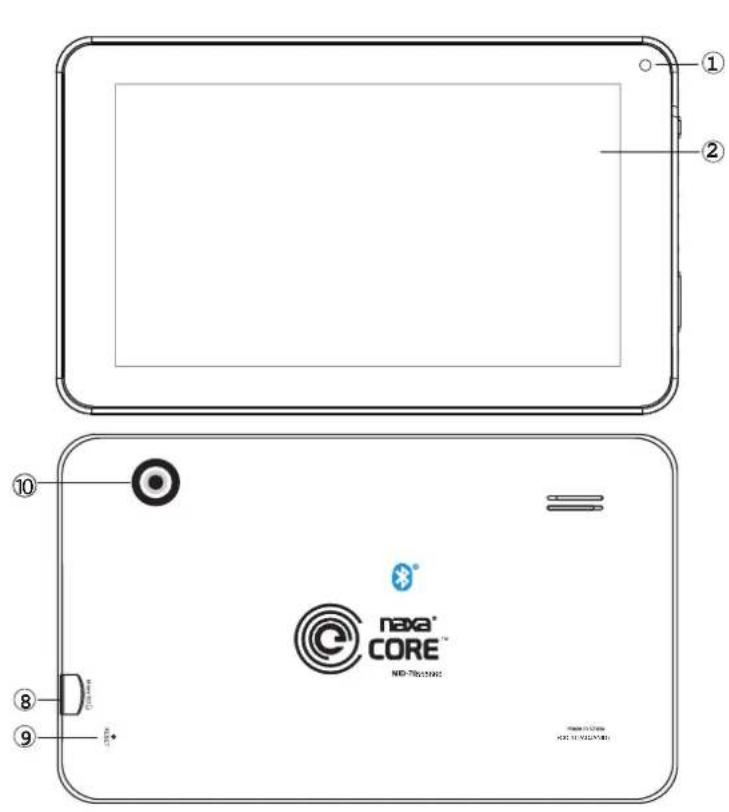
1 Front camera
2 LCD touchscreen
3 Power button
4 Headphone jack

| 5 | Micro USB port |
| 6 | Volume + / - |
| 7 | Microphone |
| 8 | Memory card slot (microSD/microSDHC) |
| 9 | Reset |
| 10 | Rear Camera |
| 11 | DC jack |
Basic Operation Charging your device
To ensure the longevity of your battery, please charge your tablet for 10 hours upon initial charge. Afterwards, charge the device accordingly as needed. Connect the DC adapter that is supplied with your device and plug it into an AC outlet that supports 100–240V \~50/60 Hz

natural_image
Diagram showing a device connected to an electrical outlet with cable, no text or symbols presentSaving Battery Life
Please review the following several key points on extending the battery life of your tablet.
- When device is not in use, press the power button once to go into sleep mode.
- Shut down applications when not in use.
- Turn off WLAN when not in use.
- Disable application sync.
- Set a shorter time for display backlight.
- Reduce brightness on the display.
Powering On
Press and hold the Power Button for 2–3 seconds to turn on the unit.
Sleep Mode
After the device is on, press the power button once and it will go into sleep mode. The screen is now on standby and under low battery consumption. To wake up the device, simply press the power button again.
Power Off
To power off the device, press and hold the power button for 2–3 seconds until the screen displays "Power Off", then select "OK" to power off the unit completely.
Reset / Force Shutdown
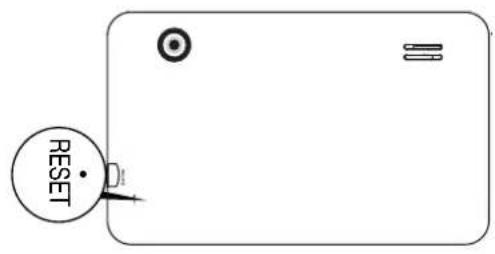
If the device is locking up, use a small pin to press Reset as it will force shut down and restart the device. You can also perform a hard reset by press and holding the Power and ESC buttons at the same time for 3–5 seconds. Then press ESC button to select "wipe data/ factory reset." Now press the Power button to confirm your selection. Then press ESC button again to select "Yes--delete all user data," and press the power button to confirm your selection. Finally the screen will display "reboot system now" press the power button to confirm. Your device will reboot and start up normally.
Touch Panel
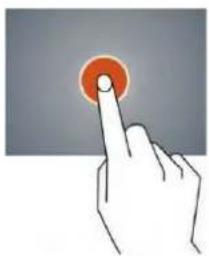
Click – Use finger or capacity panel pen to touch once, to select or activate function, select menu, or turn on applications.

natural_image
Hand pointing at a circular button on a gray background (no text or symbols)Tap and hold – Tap and hold for 2 seconds, a pop up menu with options will display.
natural_image
Hand with index finger pressing a circular button (no text or symbols)Slide – Slide up, down, left or right for fast scrolling, browsing page and display screen.
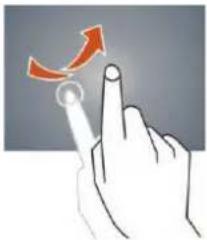
natural_image
Hand icon pointing at a button with an arrow indicating rotation (no text or symbols)Drag – drag an icon to relocate the position.

natural_image
Illustration of a hand pressing a button with an arrow (no text or symbols)Double Click – Double click to enlarge or shrink the display size of the picture or while browsing a website.
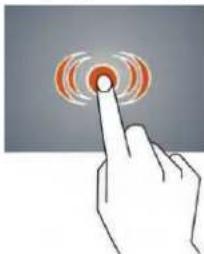
natural_image
Hand icon pointing at a circular button with red-orange motion lines (no text or symbols)Shut – Use two fingers at same time on touch panel, to enlarge or to shrink the display scale.

natural_image
Illustration of a hand holding three red arrows pointing upward (no text or symbols)Home Screen
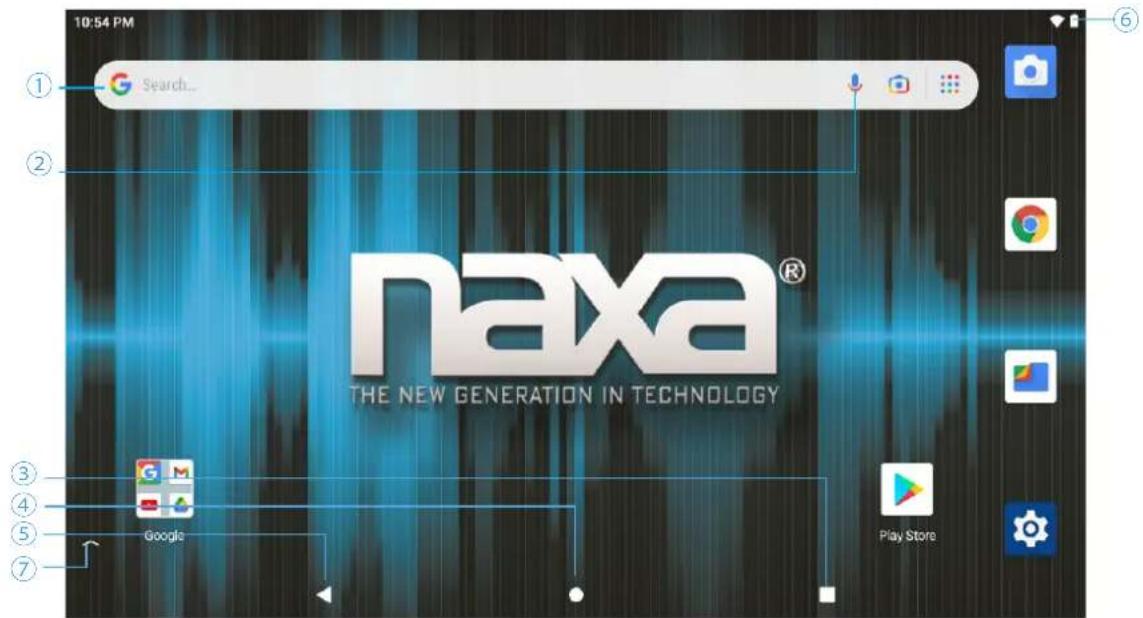
① GoogleTM search
② Tap to turn on voice search, it will search according to voice input (Make sure WI-FI is on)
③ List of current running applications
④ Back to Home screen
⑤ Back to previous screen
⑥ Display of icons and device status, tap to turn on notification screen
⑦ Enter applications page
Changing the Wallpaper
- Press the home screen for about 2 seconds, it will pop-up the wallpaper selection.
- Select from the preloaded wallpapers or picture as wallpaper.
- Click "set wallpaper" to confirm.
Adding a Shortcut on Home Screen
- On the application page, tag the icon of application
- Tap and hold an app icon then drag it to a home screen to create a shortcut that is easily accessible.

To place an app icon shortcut on another home screen, drag it to the edge of the screen and wait for a new home screen to appear. (If the current home screen is empty, the tablet will not create a new home screen).
Adding Widgets to the Home Screen
Some apps have Widgets that can be placed on a Home screen. Widgets are like windows into your apps; they allow you to use some features of the app quickly from the Home screen.
To add a widget:
1) Tap & hold on an empty part of a Home screen, then tap WIDGETS.
2) Swipe left/right to browse the available widgets. Tap and hold a widget to pick it up, then drag it to an empty space on a Home screen.

If you have dragged the widget to a Home screen that doesn't have room for it, the widget will not be added.
Some widgets will prompt you to make additional choices before it is added to the Home screen.
Using Folders on the Home Screen
You can combine several app icons in a folder. Tap and hold an icon to pick it up, then drop it onto another icon. A folder will be created that contains both icons.
On any Home screen, you can:
1) Open a folder. Tap it—the folder opens.
2) Rename a folder. Tap the folder label under the icon.
3) Reposition an app or folder icon on the screen. Tap & hold the icon, then drag the icon to where you want it.
Place related app icons in the same folder (e.g., video apps, game apps, communication apps, etc.)
Rotate Screen Setting
1) Go to Menu Setting page.
2) Tap "Accessibility" and locate "Auto-Rotate Screen".
3) Tap "AUTO ROTATE" icon to open/close auto rotation function.
Notification Screen
The Notification Bar is found at the top of the screen and displays quick status information (e.g., the time and battery life).
| Icon Icon Description | |
| WiFi signal Wifi connection, icon is full under strong signal | |
| Battery Status of battery or if device is being charged | |
Applications
Internet Browsing
The Browser app lets you browse and view websites.
1) Go to Application page and select the CHROME icon.
2) Tap the address bar and enter in a URL.
Browser Settings
When browsing a webpage, tap the upper right “⋮”, then you can adjust the settings, add bookmark, view history, etc.

Add/Delete Webpage
1) Tap " " at the upper right corner, then press "New Tab" to add a webpage.
2) Tap "X" to delete the webpage.

E-Mail E-Mail Account Setup
- Enter the Application page and select "G-Mail".
- Enter your email address and password.
- Select "Next Step (Personal Email Account)" or "Manual Setting (Company Email Account)".
- Follow the prompts and input your credentials.
Sending a Message (Gmail)
- Enter the Application page and select "G-Mail".
- Click ⚙ to compose an email.
- Type in the recipient email address. (use ; when entering more than 1 address).
- Input a message subject.
- In the body, compose your message.
- Tap the ☑ if you are wanting to include an attachment.
- Tap > SEND to send out the email message.
Check Incoming Messages
In your email account, you can check downloaded messages by going online to check new messages.
Sound Recorder
- Click Sound Recorder in the Application page.
- Tap to start recording.
- Tap □ to stop and save the recording.
- Recordings can be found in the following location: Android/data/com.android.soundrecorder/files/Download

Play Music
Click "YT Music in the Application page. With your Music Library displayed, select a track to begin playback.

Video Player
The built-in front camera can take pictures and videos. Tap 📷 in the Application page, then slide right on the screen and it will display the camera and video shooting mode.

Take a Photo
- Tap the Camera icon
- To capture a photo, tap 📷.
Shoot a Video
- Tap ☐ to select video recording.
- Tap to record a video.
- Tap □ to stop recording.
- You can find the video file in the video player.
Camera Settings
In camera and video mode, tap ⚠ to access the setup menu.
File Explorer
Go to the Application page and select "Files"
View a File
In "Files", you can view and manage files in an memory card, Internal Storage and USB storage.
Managing Application Files Installation of Applications
In the Android system, all application files are in APK format. APK files can be installed through a memory card, internal memory, or downloaded from third-party providers.
Close Running Applications
- Go to the settings menu page.
- Select "Apps & notifications".
- Choose which app you would like to close.
Connecting to a PC
You can connect your tablet with a PC by using a USB cable.
- Connect the PC and the tablet.
- On your tablet, select "File Transfer Mode", as you can now transfer files between the two devices.
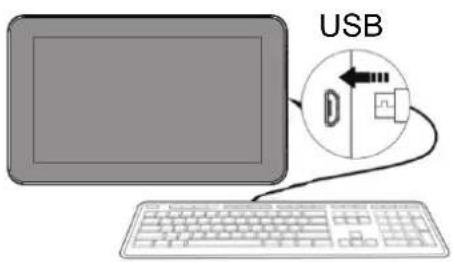
Connecting a USB device
- USB Keyboards and mice are supported by this device.
- View media files on USB storage with pre-loaded photo, music, and video applications.

Inserting a Memory Card
You may install a memory card to expand your device's storage space.
- This device supports a memory card with up to 32GB capacity.
- Insert a memory card in the card slot.

Make sure that the memory card is inserted all the way into the slot.
Before removing the card, make sure your device is not accessing data on the card.
Wi-Fi Setup
Your tablet works best when it is connected to the internet. Your tablet can connect wirelessly to the internet using Wi-Fi networks.
Wi-Fi is a wireless networking technology that can provide internet access at distances of up to 100 meters depending on the Wi-Fi router and your surroundings.
To use Wi-Fi, you connect to a wireless access point, or "hotspot." Some hotspots are open and you can simply connect to them. Others implement security features that require other steps to set up, such as digital certificates or other ways to ensure that only authorized users can connect.
Connecting to a Wi-Fi Network
If you're adding a Wi-Fi network when first setting up your device, Wi-Fi is turned on automatically.
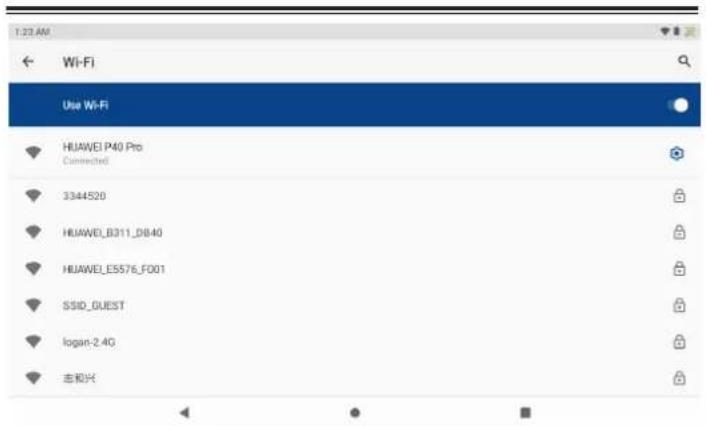
- Swipe down from the top of your screen to reveal the Notifications panel, swipe down the top bar, and then tap the Settings icon ✿.
- Under Connections, tap Wi-Fi.
- Slide the Wi-Fi switch to the on position. The device scans for available Wi-Fi networks and displays the names of those it finds. Secured networks are indicated with a Lock icon.
-
Tap a network name to see more details or to connect to it. If the network is secured, you will be prompted to enter a password or other credentials. (If you don't know the password, you will need to ask the owner of the network to provide it.) If the tablet finds a network that you connected to previously, it will connect to it automatically.
-
To forget a network or to modify its settings, tap & hold the network name.
- You may want the tablet to forget a network if you don't want to connect automatically or if you no longer use the network.
- Modify a network's settings to change the password or to configure its advanced options (i.e., Proxy and static IP settings). Networks are configured by default to not use proxy servers and to use automatic IP addressing. Proxy settings need to be added for each individual Wi-Fi network.
Language & Input
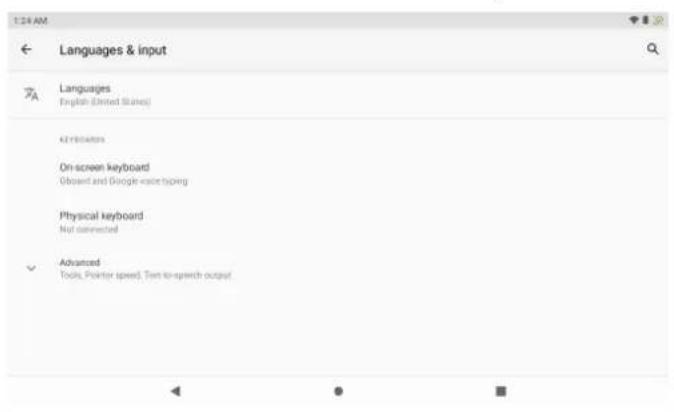
- Setting-System-Languages & input
- Language: Users can choose OSD Languages.
- Keyboard & Input Methods: Select language method.
- In this state, Users can switch the input method.
Date & Time
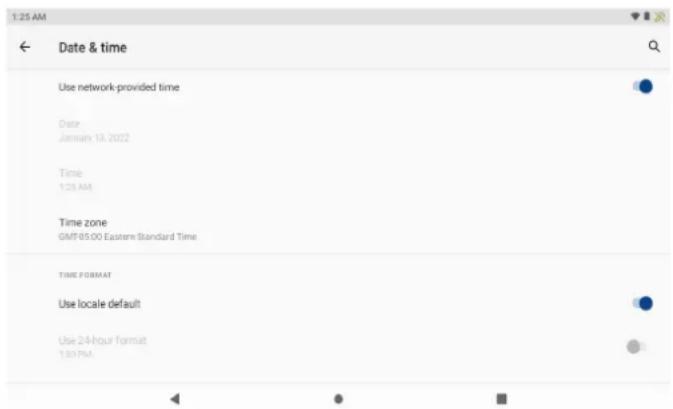
When connected to the internet, turn on “Automatic date & time,” so the device can obtain real date & time.
Developer Options
Enter Setting Menu, then select "About Tablet", then tap "Build number" about 8 times until the Developer Options menu appears on the screen.
Users are solely responsible for the apps they download. Be sure that the apps are from an entrusted source prior to downloading as Naxa Electronics, Inc. is not liable for any shape or form should the tablet become damaged for something that was downloaded.
Troubleshooting
1. Cannot Power on
Connect the power cable to charge the device, check back in a few minutes and try again. If it still cannot power on, contact Naxa Tech Support.
2. Noise coming from unit.
Check to see if audio file is not corrupted.
Audio files that are corrupted will cause an alarming or jumping sound.
3. Cannot download or copy.
Check to see if the tablet is connected online and receiving a strong internet connection.
Check to see if there is enough storage.
Check the USB cable.
4. Unable to connect via USB
Make sure that the USB device is securely connected. Check to make sure the cable is not damaged.
Warnings and Precautions

CAUTION
WARNING: SHOCK HAZARD. DO NOT OPEN.
AVIS: RISQUE DE CHOC ELECTRIQUE.
NE PAS OUVRIR

CAUTION: TO REDUCE THE RISK OF FIRE AND ELECTRIC SHOCK, DO NOT REMOVE THE COVER (OR BACK) OF THE UNIT. REFER SERVICING ONLY TO QUALIFIED SERVICE PERSONNEL.
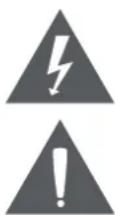
The lightning flash with arrowhead symbol within an equilateral triangle is intended to alert the user to the presence of uninsulated "dangerous voltage" within the product's enclosure that may be of significant magnitude to constitute risk of electric shock
The exclamation point within an equilateral triangle is intended to alert the user to the presence of important operation and servicing instructions in the literature accompanying the appliance.
CAUTION
- Do not block the ventilation openings or holes.
- Do not place any naked flames (such as lighted candles) on the apparatus.
- When discarding batteries, follow all local rules and laws governing the disposal of batteries. Consider the environmental impact of your actions!
• To prevent fire or shock hazard, do not expose this appliance to rain or moisture.
Important Safety Information
- Read Instructions: All the safety and operating instructions should be read before the product is operated.
- Retain Instructions: The safety and operating instructions should be retained for future reference.
-
Heed Warnings: All warnings on the product and in the operating instructions should be adhered to.
-
Follow Instructions: All operating and usage instructions should be followed.
-
Cleaning: Unplug this product from the wall outlet before cleaning. Do not use liquid cleaners or aerosol cleaners. Use a damp cloth for cleaning.
-
Attachments: Use only attachments recommended by the manufacturer. Use of other attachments may be hazardous.
-
Water and Moisture: Do not use this product near water (e.g., near a bathtub, washbowl, kitchen sink, laundry tub, in wet basements, or near a swimming pool and the like).
-
Accessories: Do not place this product on an unstable cart,
stand, tripod, bracket, or table. Use only with carts, stands, tripods, brackets, or tables recommended by the manufacturer or sold with the product. Any mounting of the product should follow the manufacturer's instructions and should use a mounting accessory recommended by the manufacturer.
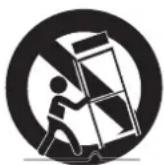
A product and cart combination should be moved with care. Quick stops, excessive force, and uneven surfaces may cause the product and cart combination to overturn.
- Ventilation: Slots and openings in the cabinet are provided for ventilation to ensure reliable operation of the product and to protect it from overheating. These openings should never be blocked by placing the product on a bed, sofa, rug, or other similar surface. This product should not be placed in a built-in installation such as a bookcase or rack unless proper ventilation is provided or the manufacturer instructions have been adhered to.
- Power Sources: This product should be operated only from the type of power source indicated on the rating label. If you are not sure of the type of power supply to your home, consult your product dealer or local power company. For products intended to operate from battery power or other sources, refer to the operating instructions.
- Grounding or Polarization: This product may be equipped with a polarized alternating-current line plug that has one blade wider than the other. This plug will only fit into the power outlet in one direction. This is a safety feature. If you are unable to insert the plug fully into the outlet, try reversing the direction of the plug. If the plug should still fail to fit, contact an electrician to replace the obsolete outlet. Do not defeat the safety purpose of the polarized plug.
- Power-Cord Protection: Power supply cords should be routed so that they are not likely to be walked on or pinched by items placed upon or against them, paying particular attention to cords at plugs, convenience receptacles, and at the point which they exit from the product.
- Protective Attachment Plug: The product may be equipped with an attachment plug with overload protection. This is a safety feature. See the operating instructions for replacement or directions to reset the protective device. If replacement of the plug is required, be sure the
service technician has used a replacement plug that has the same overload protection as the original plug as specified by the manufacturer.
- Lightning: For added protection for this product, unplug it from the wall outlet during a lightning storm or when it is left unattended and unused for long periods of time. This will prevent damage to the product due to lightning or power-line surges.
- Overloading: Do not overload wall outlets, extension cords, or integral convenience receptacles as this can result in a risk of fire or electric shock.
- Object and Liquid Entry: Never push objects of any kind into this product through openings as they may touch dangerous voltage points or short-out parts that could result in a fire or electric shock. Never spill liquid of any kind on the product.
- Servicing: Do not attempt to service this product yourself as opening or removing covers may expose you to dangerous voltage or other hazards. Refer all servicing to qualified service personnel.
- Damage Requiring Service: Unplug this product from the wall outlet and refer servicing to qualified service personnel under the following conditions: a) when the power-supply or plug is damaged; b) if liquid has been spilled or if objects have fallen into the product; c) if the product has been exposed to rain or water; d) if the product does not operate normally by following the operating instructions. Adjust only those controls that are covered by the operating instructions as improper adjustment of other controls may result in damage and will often require extensive work by a qualified technician to restore the product to its normal operation; e) if the product has been dropped or damaged in any way; f) when the product exhibits a distinct change in performance—this indicates a need for service.
- Replacement Parts: When replacement parts are required, be sure that your service technician has used replacement parts specified by the manufacturer or have the same characteristics as the original
part. Unauthorized substitutions may result in fire, electric shock, or other hazards.
- Safety Check: Upon completion of any service or repairs to this product, ask the service technician to perform safety checks to ensure that the product is in proper operating condition.
- Wall or Ceiling Mounting: The product should be mounted to a wall or ceiling only as recommended by the manufacturer.
- Heat: The product should be situated away from heat sources such as radiators, heat registers, stoves, or other products (including amplifiers) that produce heat.
FCC NOTICE
This device complies with Part 15 of the FCC Rules. Operation is subject to the following two conditions: (1) this device may not cause harmful interference, and (2) this device must accept any interference received, including interference that may cause undesired operation.
Note: This equipment has been tested and found to comply with the limits for a Class B digital device, pursuant to Part 15 of the FCC Rules. These limits are designed to provide reasonable protection against harmful interference in a residential installation. This equipment generates, uses and can radiate radio frequency energy and, if not installed and used in accordance with the instructions, may cause harmful interference to radio communications. However, there is no guarantee that interference will not occur in a particular installation. If this equipment does cause harmful interference to radio or television reception, which can be determined by turning the equipment off and on, the user is encouraged to try to correct the interference by one or more of the following measures:
• Reorient or relocate the receiving antenna.
- Increase the separation between the equipment and receiver.
- Connect the equipment into an outlet on a circuit different from that
to which the receiver is connected.
- Consult the dealer or an experienced radio/TV technician for help.
CAUTION ON MODIFICATIONS
Any changes or modifications not expressly approved by the grantee of this device may void the authority granted by the FCC to operate the equipment.
WARNING:
This product can expose you to chemicals including BBP, DEHP, DBP, which are known to the State of California to cause cancer and birth defects or other reproductive harm. For more information go to www.P65Warnings.ca.gov.
Trademarks & Regulatory Statements
@2022 NAXA® ELECTRONICS CORPORATION. ALL RIGHTS RESERVED. Naxa® is a registered trademark of Naxa Electronics, Inc. All other trademarks and logos are property of their respective owners unless indicated otherwise. No portion of this packaging may be photographed, copied, or redistributed without prior notice of Naxa Electronics, Inc. Specifications are subject to change without notice. Google, Android, Google Play and other marks are trademarks of Google LLC.
Specifications
| Display Panel | 7" TFT IPS LCD |
| Display Resolution | 1024 x 600 |
| Touch layer Capacitive touch screen | |
| OS | Android 11 GO Edition |
| CPU | Allwinner A133 1.6GHz (Quad Core) |
| RAM 2 GB | |
| Memory | 32 GB |
| External Memory | Memory Card (up to 32GB) |
| Wireless Connectivity Wi-Fi 802.11 b/g/nBluetooth® 4.0 | |
| A/V connectivity Headphone out (3.5 mm)Built-in microphoneBuilt-in stereo speakers (1 W) | |
| Camera Rear: 2.0 MP | Front: 0.3 MP |
Audio MP3, WMA, FLAC, APE, OGG
| Video MPEG4-sp, ASP, WMV, H.264/H.265/1080P | |
| Power adapter AC 100~240V, 50/60 Hz; DC 5V out | |
| Battery | Rechargeable lithium battery (2400 mAh) |
Note: Product are improved continuously. We reserve the right to modify the product and specifications without prior notice.
In case of malfunction due to electrostatic discharge, just reset the product to resume normal operation (reconnecting the power source may be required).
Support
If you have problems with your device, please consult the instructions in this manual. Please also visit us on the web at www.naxa.com to get up to the minute news, alerts, and documentation for your device. For additional assistance, please contact Naxa Technical Support.
NAXA Technical Support
2320 East 49th St.
Vernon, CA 90058
866-411-6292
http://www.naxa.com/naxa_support/
- Instruction Manual
- Thank You
- In the Box
- Before You Start
- At a Glance
- Basic Operation Charging your device
- Saving Battery Life
- Powering On
- Sleep Mode
- Power Off
- Reset / Force Shutdown
- Touch Panel
- Home Screen
- Changing the Wallpaper
- Adding a Shortcut on Home Screen
- Adding Widgets to the Home Screen
- Using Folders on the Home Screen
- Rotate Screen Setting
- Notification Screen
- Applications
- Internet Browsing
- Browser Settings
- Add/Delete Webpage
- E-Mail E-Mail Account Setup
- Sending a Message (Gmail)
- Check Incoming Messages
- Sound Recorder
- Play Music
- Video Player
- Take a Photo
- Shoot a Video
- Camera Settings
- File Explorer
- View a File
- Managing Application Files Installation of Applications
- Close Running Applications
- Connecting to a PC
- Connecting a USB device
- Inserting a Memory Card
- Wi-Fi Setup
- Connecting to a Wi-Fi Network
- Language & Input
- Date & Time
- Developer Options
- Troubleshooting
- Cannot Power on
- Noise coming from unit.
- Cannot download or copy.
- Unable to connect via USB
- Warnings and Precautions
- CAUTION
- Important Safety Information
- FCC NOTICE
- CAUTION ON MODIFICATIONS
- WARNING:
- Trademarks & Regulatory Statements
- Support
Brand : Naxa
Model : NID-7056
Category : Tablet