
VT4800 - Docking Station VisionTek - Free user manual and instructions
Find the device manual for free VT4800 VisionTek in PDF.


| Product Type | Docking Station |
| Brand | VisionTek |
| Model | VT4800 |
| Compatible Devices | Laptops with USB-C or Thunderbolt 3 |
| Video Output | 1x HDMI 2.0, 1x DisplayPort 1.2, 1x VGA |
| USB Ports | 2x USB 3.0 Type-A, 1x USB-C (Data) |
| Ethernet | Gigabit Ethernet (RJ-45) |
| Audio | 3.5mm Combo Audio Jack |
| Power Delivery | Up to 100W via USB-C (laptop charging) |
| Dimensions (W x D x H) | 200 x 80 x 30 mm |
| Weight | 300 g |
| Color | Black |
| Cable Length | 50 cm (integrated) |
| Operating Temperature | 0°C to 40°C |
| Storage Temperature | -20°C to 60°C |
| Warranty | 1 Year Limited |
| Package Contents | Docking Station, Power Adapter, User Manual |
Frequently Asked Questions - VT4800 VisionTek
User questions about VT4800 VisionTek
0 question about this device. Answer the ones you know or ask your own.
Ask a new question about this device
Download the instructions for your Docking Station in PDF format for free! Find your manual VT4800 - VisionTek and take your electronic device back in hand. On this page are published all the documents necessary for the use of your device. VT4800 by VisionTek.
USER MANUAL VT4800 VisionTek
VT4800 - Dual Display Thunderbolt 3 / USB-C Docking Station with 60W Power Delivery
SKU: 901292

natural_image
Black rectangular electronic device with ventilation slots and a small screen (no visible text or symbols)Increase productivity with our plug and play, power delivery docking station, the VisionTek VT4800 Thunderbolt™ 3 and USB-C Docking Station with Power Delivery for Windows™ and Mac™ laptop systems. With a single USB-C or TB3 connection, you can connect up to two external monitors, transfer files and data at up to 10Gbps, play audio, charge mobile devices and your system.
- Supports 2 Displays (DP) via Thunderbolt™ 3 or DisplayPort over USB-C
- USB-C or Thunderbolt™ connection to host system
• 2x DP, 4x USB, 1x USB-C, Audio, Ethernet, Kensington Lock - 60W of Power Delivery
VT4800 - Docking Station
Key Features:
- Universal compatibility with USB-C and Thunderbolt™ 3 systems
- Compatible with M1 Mac
• Supports up to 2 external displays - Up to 60W USB-C Power Delivery*
• 2 x USB 3.1 Gen 2 Ports 10Gbps
• 2 x USB 3.1 Gen 1 Ports 5Gbps - 2 x DisplayPort 1.4
• RJ45 Gigabit Ethernet Port
• Kensington™ Security Lock Slot - Enterprise Features
o Wake on LAN
o MAC Address Pass-Through
o PXE Boot

natural_image
Black THUNDERMOLE device with USB ports and a logo (no visible text or symbols on body)*USB-C Power Supply included
With a single USB-C or Thunderbolt™ 3 connection, you can connect two displays, transfer ?les and data at up to 10Gbps, play audio, charge mobile devices and your system. Increase productivity with the VisionTek VT4800 Thunderbolt™ 3 USB-C Hybrid Docking Station with Power Delivery for Windows™ and Mac™ laptop systems.
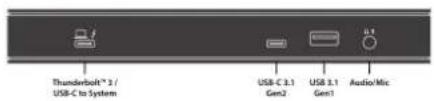
Front Ports:
- 1 x Thunderbolt™ 3/USB-C to System Port
• 1 x USB-C 3.1 Gen 2 Port
• 1 x USB 3.1 Gen 1 Port
• 1 x 3.5mm Combo Audio/Microphone Jack
VisionTek®
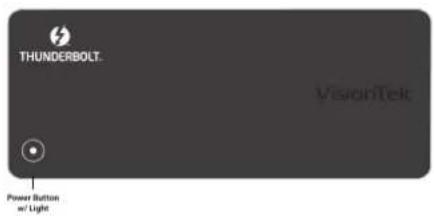
Top Ports:
• Power Button with Light
Back Ports:
• 1 x Kensington™ Security Lock Slot
• Gigabit Ethernet Port
• 1 x USB 3.1 Gen 1 Port
- 2 x USB 3.1 Gen 2 Ports
- 2 x DisplayPort Ports
• DC 20V/6.5A Barrel Power Port

What's In The Box:
- VT4800 Dock
- Thunderbolt™ 3 Cable (0.7m / 2.29ft)
- 130W - DC 20V/6.5A Certified Power Adapter
- User Manual
Display Outputs Supported:
Thunderbolt™ 3 Connection
DisplayPort: Resolutions up to 7680 × 4320 @ 30Hz (8K)
Dual Display Support:
DisplayPort: Resolutions up to 3840 x 2160 @ 60Hz (4K)
USB-C Connection1
DisplayPort: Resolutions up to 3840 x 2160 @ 60Hz (4K) ^2
Dual Display Support:
DisplayPort: Resolutions up to 3840 x 2160 @ 60Hz (4K) ^2
^1 Host System must support USB-C DP Alt Mode for video output over USB-C
^2 Host System must support HBR3 DP 1.4 for 4K @ 60Hz output
Technical Specifications
Part #
901292
Dock Connection
Thunderbolt™ 3 / USB-C
Display Technology
Thunderbolt™ 3 / DP Alt Mode
Power Adapter
130W - DC 20V/6.5A
Power Delivery
Up to 60W
Displays Supported
2
Maximum Resolution Supported
1 x 4K @ 60Hz (3840 x 2160) DisplayPort
2 x 4K @ 60Hz (3840 x 2160) DisplayPort
*Host system requires support for Thunderbolt™ 3 or HBR3 DP 1.4 for 4K @ 60Hz
Video Interfaces
(2) DP 1.4
Ports
(2) USB-A 3.1 Gen 1
(2) USB-A 3.1 Gen 2
(1) USB-C 3.1 Gen 2
(1) 3.5mm Audio/Microphone Combo Port
(1) RJ45 Gigabit Ethernet
Cable Length
0.7m - Thunderbolt™ 3
System Requirements
Operating Systems:
Windows 10
macOS 10.12 and later
System Support Requirement
Thunderbolt™ 3, Thunderbolt™ 4 or USB-C 3.2 Gen 2 with Power Delivery and DP Alt Mode
VisionTek®
Dock to System Connection
USB-C
Thunderbolt™ 3
*Included cable supports Thunderbolt™ 3 and USB-C
Warranty
Warranty:
1-Year Limited
You may register your product here: www.visiontek.com/support/warranty-registration
For additional warranty information, please see our Warranty Page: www.visiontek.com/support/warranty-information
Environmental
Operating Temperature:
0 to 40°C (32 to 104°F)
Storage Temperature:
-10 to 70°C (-14 to 158°F)
Relative Humidity:
10% to 90% non-condensing - Operational / Storage
Dimensions & Weights
Product Information
Length: 8.27" (210mm)
Depth: 3.27" (83mm)
Height: 1.28" (32.5mm)
Weight: 10.4oz (590g)
Color: Black Polycarbonate ABS
Packaging Information
Packaging Style: Retail Box
Length: 10.5" (267mm)
Depth: 5.25" (133mm)
Height: 4.0" (102mm)
Weight: 2lbs 11oz (1219g)
VisionTek®
Drivers + Firmware Update
No drivers required
*Firmware Update is to fix Power Delivery on select Dell laptops. If you are not experiencing this issue do not update the firmware on your VT4800 docking station.
User Manual
Coming Soon
Spec Sheet
Download PDF
FAQ
What drivers do I download for the VT4800 docking station?
The VT4800 docking station does not require drivers to operate.
*If using a Thunderbolt™ 3 laptop, it may be required to approve the device connection in the Thunderbolt™ Control Center.
I do not have a laptop with a Thunderbolt™ 3 port, can I use this docking station?
Yes, if your laptop's USB-C port is USB 3.2 Gen 2 and has support for Power Delivery and DP Alt Mode
Where is the Thunderbolt™ Control Center located?
The Thunderbolt Control Center can be located in your system tray.
*Or found on via the following mapping: C:\ProgramData\Microsoft\Windows\Start
Menu\Programs\Thunderbolt™ Software
How much power delivery can the VT4800 docking station provide?
The VT4800 docking station can provide up to 60W of power delivery via USB-C.
Why isn't my laptop receiving power from the docking station?
The VT4800 can only provide 60W of power delivery. Check the proprietary power supply recommended wattage.
Why do I get a warning message on boot saying, "You have attached an undersized power adapter to your system..."?
If your computer remains charging but received this message it is trickle charging. This may mean it is providing enough power to diminish the speed at which the battery is used, or it is charging at a slower rate than normal.
How do I change the arrangement of my displays?
The display arrangement can be adjusted in your operating system's Display Settings.
Can I set the number the monitor is identified as?
Windows will preset identifiers to the attached displays. If they match the physical orientation this identifier does not interfere with the arrangement.
How can I use my Windows laptop with the lid closed and connected to the docking station?
Power and Sleep Settings > Additional Power Settings > Choose what closing the lid does > Do Nothing (On battery and/or Plugged in)
How can I use my macOS laptop with the lid closed and connected to the docking station?
System Preferences > Energy Saver > Slider set to Never
VisionTek®
What is the difference between Power Delivery and Power Passthrough?
Power Delivery implies the docking station is both powered and providing power to the attached laptop while Power Passthrough implies the docking station does not require a power supply to operate but can pass through power from a third-party power supply.
How do I check which version of Thunderbolt™ 3 software, firmware, and drivers I am running in Windows?
To check which version of the Thunderbolt™ software, NVM firmware, and drivers you are running, do the following: Click Start. Type Thunderbolt and click on the search result. In the system tray, right-click the Thunderbolt™ icon. Click Settings > Details. Review the versions of the software package, NVM firmware, PD firmware, and drivers. If you are not running the latest versions, navigate to your system manufacturer's website and download the latest versions.
What Operating Systems is the Dock compatible with?
Supported Operating Systems:
Windows 10, macOS 10.12 or later
My laptop does not have a USB-C port, can I use an adapter?
No, this docking station will require a laptop featuring Thunderbolt™ 3 or USB-C 3.2 Gen 2.
Can I use an adapter to translate the DisplayPort output to another signal type?
Yes, however, an active adapter/cable is required.
While updating the VT4800 firmware, I receive a TDT error, how do I proceed?
Ensure the Thunderbolt™ 3 cable in use is fully connected to both the docking station and laptop. Additionally, updating the firmware of the VT4800 can only be done while connected to a laptop with a Thunderbolt™ 3 port.
Can I attach a third external display to the USB-C port on the docking station?
No, this USB-C port does not support external displays.
Is the VT4800 plug-and-play?
Yes, once attached to a USB-C 3.2 Gen 2 or Thunderbolt™ 3 system.
Does the VT4800 support DisplayPort MST daisy-chain connections?
No, the VT4800 does not support this DisplayPort feature.
For California Residents Only:
WARNING: Cancer and Reproductive harm. For more information, go to www.p65warnings.ca.gov
* Please, Note that Proposition 65 may be best defined as a “Right To Know” law in California and Prop 65 warning labels are not an indication that a product is violating safety standards or regulations. The Prop 65 warning label does not mean our products inevitably cause cancer or reproductive harm. We do not consider our products harmful when used as intended. However, it is a necessary precaution to provide the warning because of this California law.

- VT4800 - Dual Display Thunderbolt 3 / USB-C Docking Station with 60W Power Delivery
- VT4800 - Docking Station
- Key Features:
- Front Ports:
- VisionTek®
- Top Ports:
- Back Ports:
- What's In The Box:
- Display Outputs Supported:
- Thunderbolt™ 3 Connection
- Dual Display Support:
- USB-C Connection1
- Technical Specifications
- Ports
- System Requirements
- Dock to System Connection
- Warranty
- Warranty:
- Environmental
- Operating Temperature:
- Storage Temperature:
- Relative Humidity:
- Dimensions & Weights
- Product Information
- Packaging Information
- Drivers + Firmware Update
- User Manual
- Spec Sheet
- FAQ
- What is the difference between Power Delivery and Power Passthrough?
- How do I check which version of Thunderbolt™ 3 software, firmware, and drivers I am running in Windows?
- What Operating Systems is the Dock compatible with?
- My laptop does not have a USB-C port, can I use an adapter?
- Can I use an adapter to translate the DisplayPort output to another signal type?
- While updating the VT4800 firmware, I receive a TDT error, how do I proceed?
- Can I attach a third external display to the USB-C port on the docking station?
- Is the VT4800 plug-and-play?
- Does the VT4800 support DisplayPort MST daisy-chain connections?
Brand : VisionTek
Model : VT4800
Category : Docking Station