
MoCA MM1000 - NAS MOTOROLA - Free user manual and instructions
Find the device manual for free MoCA MM1000 MOTOROLA in PDF.


| Product Type | MoCA Adapter (Ethernet over Coax) |
| Brand | Motorola |
| Model | MM1000 |
| Color | Black |
| Ports | 1 x Network (coax), 1 x Device (coax), 1 x LAN (Ethernet), Reset, Power, On/Off button |
| LED Indicators | Power (green), LAN (green), Link (green) |
| Power Supply | Included power cube (varies by country) |
| Included Accessories | Power Cube, Coax Cable, Ethernet Cable, Wrench, Screws for wall mounting, PoE Filter |
| Compatibility | Works with cable TV, cable Internet, FiOS/fiber optic networks; not compatible with satellite (DirecTV, Dish) or AT&T Internet/U-Verse |
| Maximum Number of Devices | Up to 16 MoCA adapters |
| Security | PoE filter or MoCA private key |
| Operating Temperature | 32 to 104°F (0 to 40°C) |
| Safety Precautions | Do not expose to water; operate indoors; ensure adequate airflow; avoid extreme conditions |
| Warranty | 2 years limited |
| Wall Mountable | Yes (screws included) |
Frequently Asked Questions - MoCA MM1000 MOTOROLA
User questions about MoCA MM1000 MOTOROLA
0 question about this device. Answer the ones you know or ask your own.
Ask a new question about this device
Download the instructions for your NAS in PDF format for free! Find your manual MoCA MM1000 - MOTOROLA and take your electronic device back in hand. On this page are published all the documents necessary for the use of your device. MoCA MM1000 by MOTOROLA.
USER MANUAL MoCA MM1000 MOTOROLA
Typically included with your MM1000

Power Cube (varies by country)

Coax Cable

Ethernet Cable

Wrench
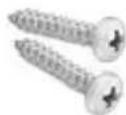
Screws for
optional wall
mounting
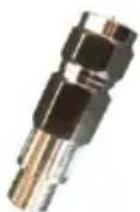
PoE Filter
Your MoCA adapter can be wall mounted if you prefer. See the enclosed flyer.
MoCA is a good way to connect a router or cable modem/router to a distant device by using your home's coaxial ("coax") cable. The device can be a computer, HDTV, video streaming device, game station, streaming media player, or other device that has an Ethernet LAN port for Internet access. If there's a coax network that runs near the router and the device, you should be able to use MoCA.
MoCA is also a good way to connect your router to a wireless access point, so you'll have good wireless in a location that's far from your router. If you want to learn more about using MoCA with a WiFi router, go to www.MotorolaNetwork.com/MoCAWiFi
Your MoCA Adapter Model MM1000 is designed to work with most coax networks including networks associated with cable TV, cable Internet, and FiOS or another fiber optic network.
Your MoCA Adapter is NOT designed to work with DirecTV ® , Dish ® , and other satellite networks, or with AT&T ® Internet or AT&T U-Verse ® , since these services use frequencies that conflict with your MoCA adapter.
Figure 1. MoCA Connecting a Cable Modem/Router to a Device
![graph TD A["Coax Cable Network"] --> B["MoCA Adapter 1"] A --> C["MoCA Adapter 2*"] C --> D["Cable Modem/Router"] D --> E["HDTV, PC, game station, video streaming device, or other Ethernet device"] A --> F["LAN"]](/content/2026/05/980279/images/facab0ce200c8dfebfa36719086074baf8c667c5eb0dd5f40b9aab838286e8f2.jpg)
* When MoCA is built into the router, you don't need MoCA Adapter 2.
Coax cable
Ethernet cable
You may not need a MoCA Adapter for your router. Here's how to check.
a. If you have a Verizon® FiOS router, it probably has MoCA. The MoCA signal goes through your FiOS router's coax connector to your coax cable network.
b. If you have a router for fiber optic service from another provider and it has a coax cable attached to it, it probably has MoCA.
c. If you have a cable modem/router, it may have MoCA. There are a few ways to check. First, you can look at the unit to see whether it has the word MoCA somewhere. You can also look at the product's specifications or its browser-based configuration manager to see whether MoCA is mentioned. You can also find some but not all MoCA cable modem/routers listed at http://www.mocalliance.org/products/index.htm. If you have MoCA, the MoCA signal goes through your cable modem/router's coax cable into your coax cable network.
d. If you have a router that's not a Verizon FiOS router, another fiber optic router, or a cable modem/router, it probably does not have MoCA.
If you have or probably have MoCA for your router already, please jump to Installing a MoCA Adapter for an HDTV or Other Device.
If you do not have MoCA for your router or cable modem/router, please continue below at Installing a MoCA Adapter for Your Router or Cable Modem/Router.
If you're not sure, you can try jumping to Installing a MoCA Adapter for an HDTV or Other Device and seeing whether that works. If that doesn't work, you'll need to continue directly below.
Installing a MoCA Adapter for Your Router or Cable Modem/Router
Read this section only if you need a MoCA Adapter for your router. Pages 3 and 4 describe how to check.
First go to your router or modem/router and connect as shown below.

Figure 2. MoCA Connection to a Router that Doesn't Have Built-in MoCA
-
You always connect a coax cable to the MoCA Adapter's Network input and your coax network. Sometimes there's an available coax network jack or cable, so you don't need to disconnect anything. However, you may need to use the coax cable that's plugged into a nearby set-top box, cable modem/router, or other device. It's okay to disconnect a coax cable from something, but then you need to use the included coax cable between the MoCA adapter's DEVICE coax and the device you disconnected.
-
Next, connect the included Ethernet cable between the MoCA adapter's Ethernet jack and the LAN Ethernet jack of the router or modem/router.
- Plug the power cube into a live outlet, and make sure that the On/Off button is On.
Installing a MoCA Adapter for an HDTV or Other Device
Go to the device you're connecting to the router, and connect as shown below.

Figure 3. MoCA Connection for a Device
- You always connect a coax cable to the MoCA Adapter's Network input and your coax network. Sometimes there's an available coax network jack or cable, so you don't need
to disconnect anything. However, you may need to connect the Network coax connector to a coax cable that's plugged into a nearby set-top box, router, or other device. It's okay to disconnect a coax cable from something, but then you need to use the included coax cable between the MoCA adapter's DEVICE coax and the device you disconnected.
-
Connect the included Ethernet cable between the MoCA adapter's Ethernet jack and the LAN Ethernet jack of the device you're connecting to the router via MoCA.
-
Plug the power cube into a live outlet, and make sure that the On/Off button is On.
Once you have MoCA for your router and device, the Link light should be lit for your MoCA Adapter(s). If it is lit, please try using the device. If it's able to access the Internet, your device is working so you should read the next paragraph below. If the Link light is not lit, check your wiring and try power-cycling your MoCA Adapter(s). To power-cycle a MoCA Adapter, just switch the MoCA Adapter off for a few seconds, then switch it on. If your MoCA connection is still NOT working, please go to the Troubleshooting Tips section.
If your MoCA connection IS working, please read the MoCA Security section below. Also, note that you can connect more devices (up to 16) via MoCA back to your router. For each device you want to connect to its own MoCA Adapter, use the MoCA Connection for a Device diagram on page 6.
MoCA Security
We recommend some form of MoCA security if you have cable Internet service, especially if you are located within 150 yards (137 meters) of another home with cable Internet service. If instead you have FiOS or some other form of fiber optic Internet service, you already have MoCA security so you don’t need to read this section.
MoCA security for cable Internet service comes from either of the following:
- Add a PoE filter where the coax cable enters your home. This prevents your MoCA signal from being transmitted to one of your neighbors, and can also improve your cable service's signal.
- Program all your MoCA devices with the same MoCA security key. In the unlikely event that you want to do this, please see www.motorolanetwork.com/MoCAsecurity
For most people the PoE filter is easier and better. The PoE filter doesn't interfere with your TV and Internet, but does prevent your MoCA signals from traveling to your neighbors. You need to put the PoE Filter where the coax cable enters your home, before that cable branches off to connect to your TV sets, cable modem, and other devices. We suggest that you connect the MM1000's PoE Filter now. If you find that a PoE Filter is already installed, don't install a second one.
When installing the PoE Filter, you'll do the following:
- Check that nobody in your home is watching TV or using the Internet, because you will interrupt them.
-
Disconnect the coax cable as near as possible to where it comes into your home. This is usually inside your home, but may be outside your home. Sometimes the coax cable goes into a splitter, and sometimes it connects to something else.
-
Connect that same coax cable to one end of the PoE Filter.
-
Connect the other end of the PoE Filter to the coax connector where you disconnected the coax cable.
![graph LR A["Cable entering home"] --> B["PoE Filter"] B --> C["First Splitter"] C --> D["To devices in your home"]](/content/2026/05/980279/images/b5723af420dbc656f4bec9d624f8bc092e2b99646404ad3d52f6a94e14ef08af.jpg)
Figure 4. Connecting a PoE Filter
Troubleshooting Tips
-
If you have a problem, re-read this Quick Start. Did you connect your MoCA Adapter(s) correctly? Are all MoCA Adapters powered on? Is the Link light on for any MoCA Adapter, as it should be? If both Link lights are not lit, try power-cycling any MoCA Adapter you installed.
-
Make sure you're not trying to use the MoCA adapters with DirecTV or some other satellite TV, or with AT&T Internet or AT&T U-Verse.
-
If the Link light is lit for your MoCA Adapter(s), check that your router is on and that your device is set up correctly. If you're unsure about the setup of your HDTV or other device, try replacing it with a computer and seeing whether the computer browser works. If it does, there's probably a problem with your device's setup. Re-read that device's setup instructions. Note that some HDTVs and other devices have a setup section where you need to set up the Ethernet connection. Do that first if necessary, and then access the Internet through Netflix® or some other Internet TV service, or through a Web browser.
-
If the Link light is not lit for your MoCA Adapter(s), check that any MoCA Adapters are connected correctly and powered on. Try power-cycling any MoCA Adapters. If possible try plugging a TV or other device into the coax jack to check that the jack is working properly.
-
If you have a cable modem/router with built-in MoCA, you may be having difficulties because the cable modem/router has MoCA security turned on. In that case you need to either turn the router's MoCA security off or
set up your MoCA Adapter for MoCA security. Please see MoCA Security on page 8 for details.
-
Check to see whether there is a coax splitter near your router and/or the device that you want to connect to the router using MoCA. If you find a splitter, its frequency range should be shown on its label. Make sure that the upper frequency is at least 1,000 MHz (also called 1 GHz). If it's not, replace that splitter. You may be able to swap with another splitter that's in your home. If that's not possible, you may need to buy a splitter whose upper frequency is at least 1,000 MHz and preferably at least 1,600 MHz. Check also to make sure that you're not using an amplified splitter. If you are using an amplified splitter, replace it with one that's not amplified and whose upper frequency is at least 1,000 MHz.
-
Check the rest of your coax network to make sure splitters have an upper frequency of at least 1,000 MHz and are not amplified. Replace any splitter that is amplified or whose upper frequency is below 1,000 MHz.
-
Sometimes there are extra splitters in places you don't see them, and this can cause a problem.
-
You may need to make a change to your coax network. See www.motorolanetwork.com/coax for details.
-
In rare cases a home may have two different networks, each connecting to a cable box outside the home. If your router is on one network and the device you're trying to connect is on another network, MoCA will probably not work for you. In that case you should try some other connection technology such as WiFi or home powerline networking.
Top Panel

| LIGHT | COLOR | DESCRIPTION | |
| POWER | Green | ON: | MM1000 power on |
| OFF: | MM1000 power off | ||
| LAN | Green | Green: | Powered-up Ethernet connection to your MoCA Adapter |
| Blinking: | Data being sent | ||
| OFF: | No powered-up Ethernet connection to your MoCA Adapter | ||
| LINK | Green | ON: | MoCA connection established |
| Blinking: | Data being sent | ||
| OFF: | MoCA connection not established | ||
Back Panel
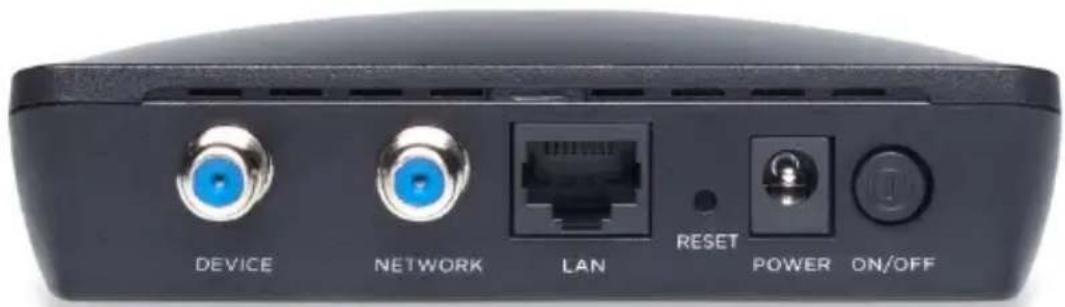
DEVICE
This can be connected to a device whose coaxial cable was removed and plugged into NETWORK. See this Quick Start for details.
NETWORK
This should connect to your coax network.
LAN
This should connect to the Router or Device you're connecting to MoCA.
RESET
Press the reset button for 3 seconds in the unlikely event that you need to reset your MoCA adapter to factory defaults.
POWER
Connect the supplied power cube between the power jack and an electrical outlet.
ON/OFF
Press this button to switch the MoCA Adapter's power On or Off.
We like to help.
Please visit our support Website or call our support specialists. Our Website has our Motorola Mentor information, and also provides returns and warranty information.
www.motorolanetwork.com/support
Email: support@motorolanetwork.com
Phone:
In the US and most other countries:
800-753-0797 or +1 617-753-0562
UK: +44 800 023 9083
Spain: +34 900 839 783
Limited Warranty
MTRLC LLC warrants this product against defects in material and workmanship for a warranty period of 2 years. To read the full warranty, please go to
www.motorolanetwork.com/warranty
Safety Precautions
These precautions help protect you and your MM1000.
- Do not put the MM1000 or its power cube in water, since this is a shock hazard.
- Do not use the MM1000 outdoors if that exposes the adapter to rain, snow, ice, excessive moisture, extreme temperatures, or other extreme conditions.
- Your MM1000 should be operated in an environment that's between 32 and 104° Fahrenheit (0 to 40° Centigrade).
- Your MM1000 should not be in a confined space. There should be room for air flow around the top, front, and sides of the MM1000.
■ Make sure to use your MM1000's power cube and a compatible electrical outlet.
- The coaxial cable's ground shield is intended to be connected to the building's Earth ground. Attachment to earth ground is typically provided through your cable service provider's installation.
FCC Statement
Any changes or modifications not expressly approved by the party responsible for compliance could void the user's authority to operate the equipment. This device complies with Class B Part 15 of the FCC Rules. Operation is subject to the following two conditions: (1) this device may not cause harmful interference, and (2) this device must accept any interference received, including interference that may cause undesired operation.
Note: this equipment has been tested and found to comply with the limits for a Class B digital device, pursuant to part 15 of the FCC Rules. These limits are designed to provide reasonable protection against harmful interference in a residential installation. This equipment generates, uses, and can radiate radio frequency energy and, if not installed and used in accordance with the instruations, may cause harmful interference to radio communications. However, there is no guarantee that interference will not occur in a particular installation. If this equipment does cause harmful interference to radio or television reception, which can be determined by turning the equipment off and on, the user is encouraged to try to correct the interference by one or more of the following measures: reorient or relocate the receiving antenna, increase the separation between the equipment and receiver, connect the equipment into an outlet on a circuit different from that to which the receiver is connected, and/or consult the dealer or an experienced radio/TV technician for help.

DC input connector is center-pin positive polarity.

WEEE is a directive in the EU that designates safe and responsible collection, recycling, and recovery procedures for electronic waste.
MTRLC LLC
PO Box 121147
Boston, MA 02112-1147
©MTRLC LLC 2018. MOTOROLA and the Stylized M Logo are trademarks or registered trademarks of Motorola Trademark Holdings, LLC. and are used under license. MoCA is a registered trademark of the Multimedia over Coax Alliance. All other trademarks are the property of their respective owners. All rights reserved.
- TYPICALLY INCLUDED WITH YOUR MM1000
- YOU MAY NOT NEED A MOCA ADAPTER FOR YOUR ROUTER. HERE'S HOW TO CHECK
- INSTALLING A MOCA ADAPTER FOR YOUR ROUTER OR CABLE MODEM/ROUTER
- INSTALLING A MOCA ADAPTER FOR AN HDTV OR OTHER DEVICE
- MOCA SECURITY
- TROUBLESHOOTING TIPS
- TOP PANEL
- BACK PANEL
- DEVICE
- NETWORK
- LAN
- RESET
- POWER
- ON/OFF
- WE LIKE TO HELP
- LIMITED WARRANTY
- SAFETY PRECAUTIONS
- FCC STATEMENT
Brand : MOTOROLA
Model : MoCA MM1000
Category : NAS