
VFD 820 - Uncategorized ZTE - Free user manual and instructions
Find the device manual for free VFD 820 ZTE in PDF.


| Product Type | Smartphone |
| Brand | ZTE |
| Model | VFD 820 |
| Operating System | Android 8.1 Oreo |
| Display | 5.5 inches HD (1280 x 720 pixels) |
| Processor | Quad-core 1.3 GHz |
| RAM | 2 GB |
| Internal Storage | 16 GB (expandable up to 128 GB via microSD) |
| Rear Camera | 8 MP with autofocus |
| Front Camera | 5 MP |
| Battery | 3000 mAh Li-ion (removable) |
| Dimensions | 150 x 70 x 8.5 mm |
| Weight | 150 g |
| Connectivity | 4G LTE, Wi-Fi 802.11 b/g/n, Bluetooth 4.2 |
| SIM | Dual SIM (Micro-SIM, dual standby) |
| Sensors | Accelerometer, proximity, light |
| Security | Fingerprint sensor (rear-mounted) |
| Color | Black |
| Headphone Jack | 3.5 mm |
| USB | Micro USB 2.0 |
Frequently Asked Questions - VFD 820 ZTE
User questions about VFD 820 ZTE
0 question about this device. Answer the ones you know or ask your own.
Ask a new question about this device
Download the instructions for your Uncategorized in PDF format for free! Find your manual VFD 820 - ZTE and take your electronic device back in hand. On this page are published all the documents necessary for the use of your device. VFD 820 by ZTE.
USER MANUAL VFD 820 ZTE
VFD 820(Vodafone Smart X9) Upgrade Guide (Through an SD Card)
1. Cautions
The software version and pictures in this document are just for reference only. Please use ZTE handset support website provided version to download software.
1) Download the upgrade package.
- Open http://www.ztedevice.com.cn/support and download the upgrade package (update.zip) that matches your phone model. If the downloaded package is not update.zip, unzip the package to obtain update.zip.
- Ensure that your micro SD card is at least 3GB.
Note: Please refer to our current version download size.
2) Remove the SIM card, then back up the data and APPs in your phone before the upgrade.
3) Perform data backup.
Note: You should not remove the SD card during the backup process. To avoid data lost, it is not recommended to cancel the backup process.
4) Verify that the update.zip file in the root directory of the SD card matches the model of the phone. Do not modify the file name and extension name of the files in the upgrade package.
5) Verify that your phone has enough (at least 40%) power. Charge the phone if required. To avoid data lost or upgrade failure, it is not recommended to upgrade your phone through an SD card when the phone is being charged.
6) You should not perform any other operation on the phone during the upgrade process.
7) A normal upgrade should be completed in 5 minutes. If the phone does not reboot or show any response in 5 minutes, you should perform the upgrade process again. If the phone cannot be started, perform a forced upgrade. If the forced upgrade does not work, you should contact an after-sale service
agent for support
2. Upgrade Description
There are two upgrade methods: normal upgrade and forced upgrade. If the phone cannot be started properly, for example, the phone cannot be started, or the phone does not enter standby state, perform a forced upgrade.
If the phone can be started properly and the Settings menu can be selected, perform a normal upgrade.
3. Upgrade Steps
A. Normal upgrade (the primary upgrade method)
1) Download the upgrade package that matches the phone model from ZTE official website (http://www.ztedevice.com.cn/support/), extract update.zip from the package, and copy update.zip to the root directory of the SD card (the file name must be update.zip).
2) Select File Manager>SD Card, verify that the update.zip file in the root directory of the SD card is proper, see Figure 3-1:
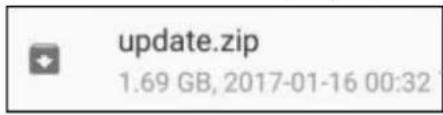
Figure 3-1
3) Tap and select Settings > Software Updates, see Figure 3-2.
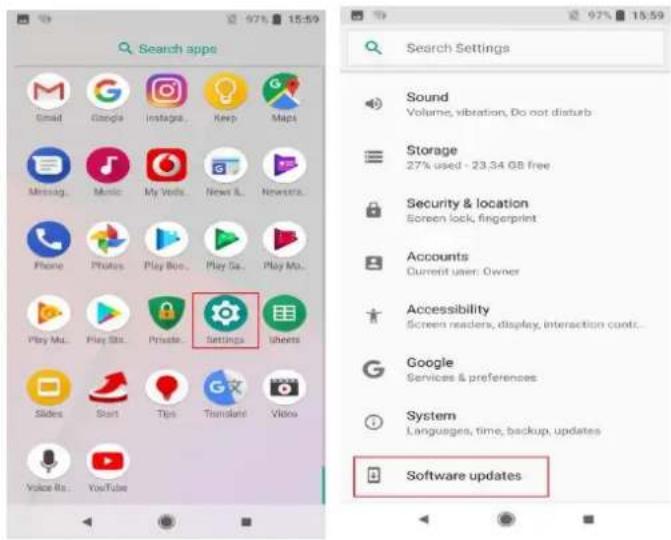
Figure 3-2
4) Tap and select Settings, then touch SD card update, see Figure 3-3.
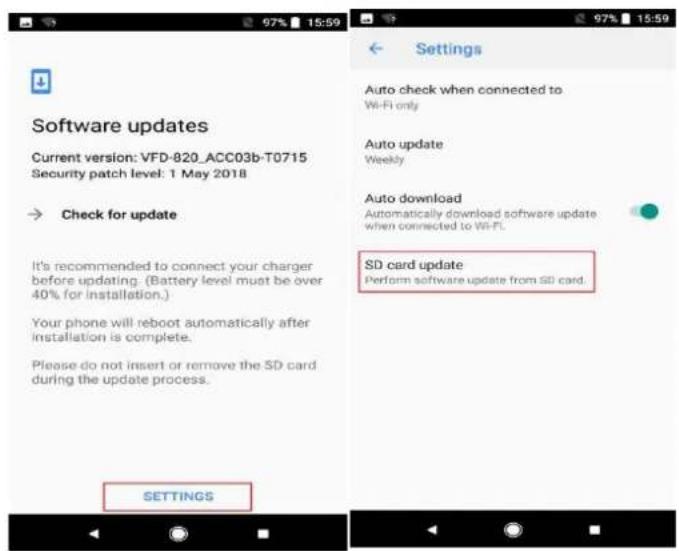
Figure 3-3
5) Click Install package:update.zip. Then touch Install. See Figure 3-4
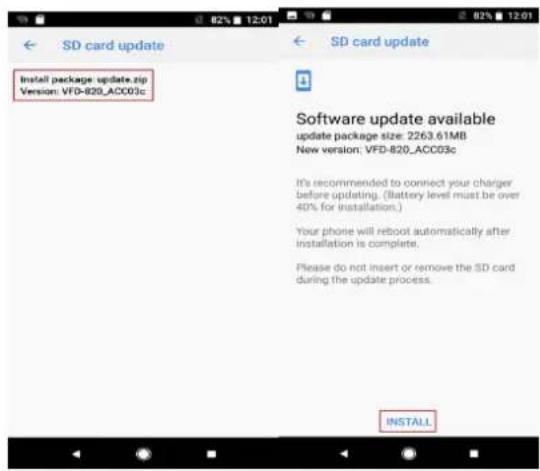
Figure 3-4
6) Click OK to restart the phone and start the upgrade. See Figure 3-5
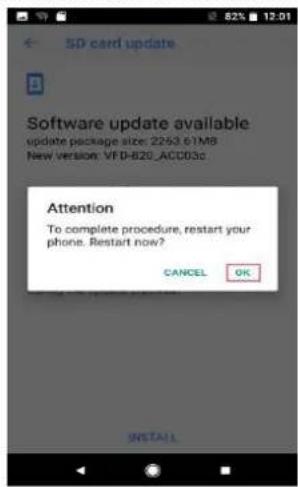
Figure 3-5
B. Forced upgrade (for the phones that cannot be started or the phones that cannot enter standby state)
1) For a powered-off phone, Press and hold the volume up key and power key until the phone enters Android recovery. In this mode, the volume key can be used to select a menu, the power key can be used to confirm it.
2) Press the Volume down key to select Apply update from SD card, and press the power key to confirm it. The root directory of the SD card is opened.
3) Press the Volume down key to select the update.zip file, and press the power key to confirm it. The phone starts the upgrade process.
4) The phone completes the upgrade process in about 5 minutes. the screen will be displayed: Install from SD card complete, select reboot system now and press the power key to confirm it.
- (Optional) Restoring the Data
If you have backed up data before upgrading your phone, restore the data. Do not remove the SD card during the restoration process. To avoid data lost, it is not recommended to cancel the restoration process.
Brand : ZTE
Model : VFD 820
Category : Uncategorized