Revival RD10 - Radio ROBERTS - Free user manual and instructions
Find the device manual for free Revival RD10 ROBERTS in PDF.


| Product Type | DAB/DAB+/FM Radio with Bluetooth |
| Brand | Roberts |
| Model | Revival RD10 |
| Dimensions (W x H x D) | 20 x 13 x 13 cm |
| Weight | 1.2 kg |
| Power Source | Mains (AC 230V) or 6 x D batteries (not included) |
| Radio Bands | DAB, DAB+, FM |
| Bluetooth | Yes, for wireless audio streaming |
| Speaker | Built-in monaural speaker |
| Preset Stations | 10 per waveband |
| Alarm | Dual alarm with snooze |
| Sleep Timer | Yes, adjustable |
| Display | LCD with backlight |
| Headphone Socket | 3.5 mm stereo jack |
| AUX Input | 3.5 mm stereo jack |
| USB Charging Port | Yes, for charging external devices |
| Power Consumption | 12 W (maximum) |
| Maintenance | Wipe with a soft dry cloth; do not use solvents |
| Safety | Keep away from moisture and heat sources |
| Spare Parts/Repairability | Contact Roberts customer service for spare parts; designed for repairability |
| General Information | Retro design with rotary knobs and classic tuning dial |
Frequently Asked Questions - Revival RD10 ROBERTS
User questions about Revival RD10 ROBERTS
0 question about this device. Answer the ones you know or ask your own.
Ask a new question about this device
Download the instructions for your Radio in PDF format for free! Find your manual Revival RD10 - ROBERTS and take your electronic device back in hand. On this page are published all the documents necessary for the use of your device. Revival RD10 by ROBERTS.
USER MANUAL Revival RD10 ROBERTS
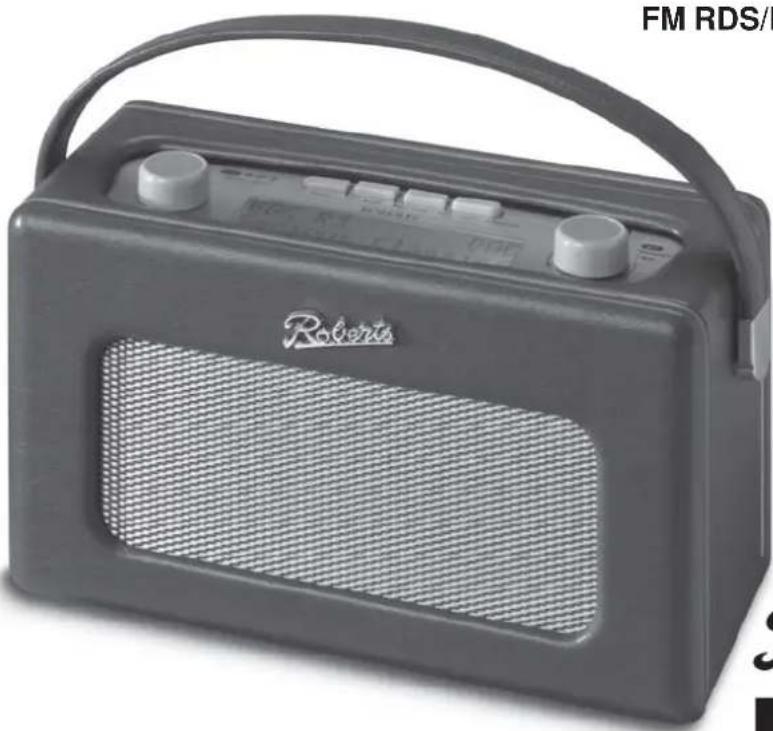
Sound for Generations
RD-10
FM RDS/DAB digital radio
natural_image
Black-and-white photo of a vintage Robert's radio with a mesh grille and handle (no visible text or symbols on the device body)Revwal

Please read this manual before use
Contents
Controls 2-3
Battery operation 4
Mains operation 4
Operating your radio - DAB.... 5
Selecting a station - DAB 6
Secondary services - DAB....7
Display modes - DAB....7
Finding new stations - DAB 8
Autoselect - DAB 8
Manual tuning - DAB 9
Signal strength display - DAB 9
Operating your radio - FM 10
Manual tuning - FM.... 11
Display modes - FM 12
FM stereo/mono 12
System reset 13
Headphone socket 14
Display backlight.... 14
General 15
Specifications.... 15
Circuit features 15
Notes 16-17
Guarantee 18
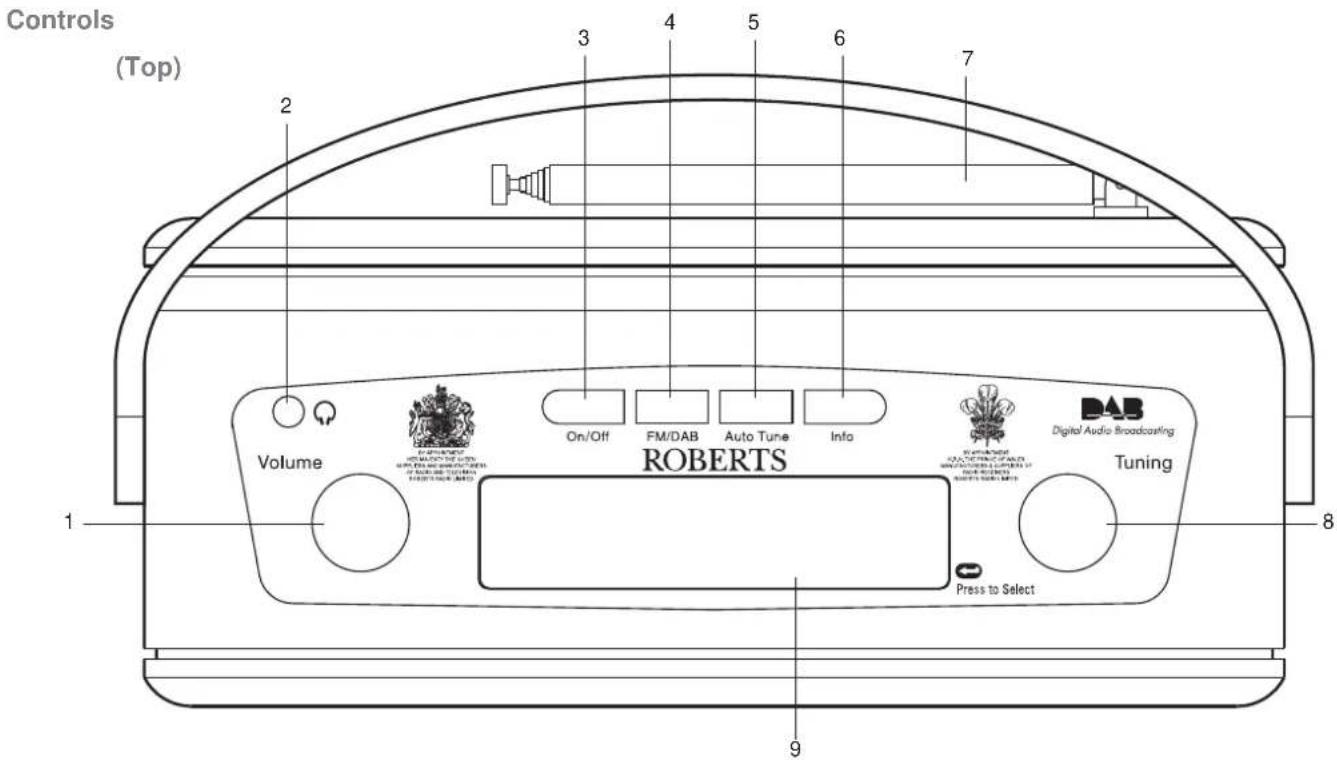
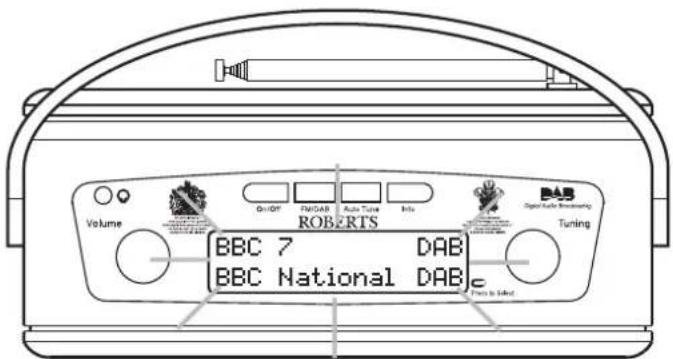
- Volume control
- Headphone socket
- Power button
- FM/DAB button
-
Auto Tune button
-
Info button
- Telescopic aerial
- Tuning control
- LCD display
If you need any further advice, please call our Technical Helpline on :
020 8758 0338 (Mon-Fri)
Controls
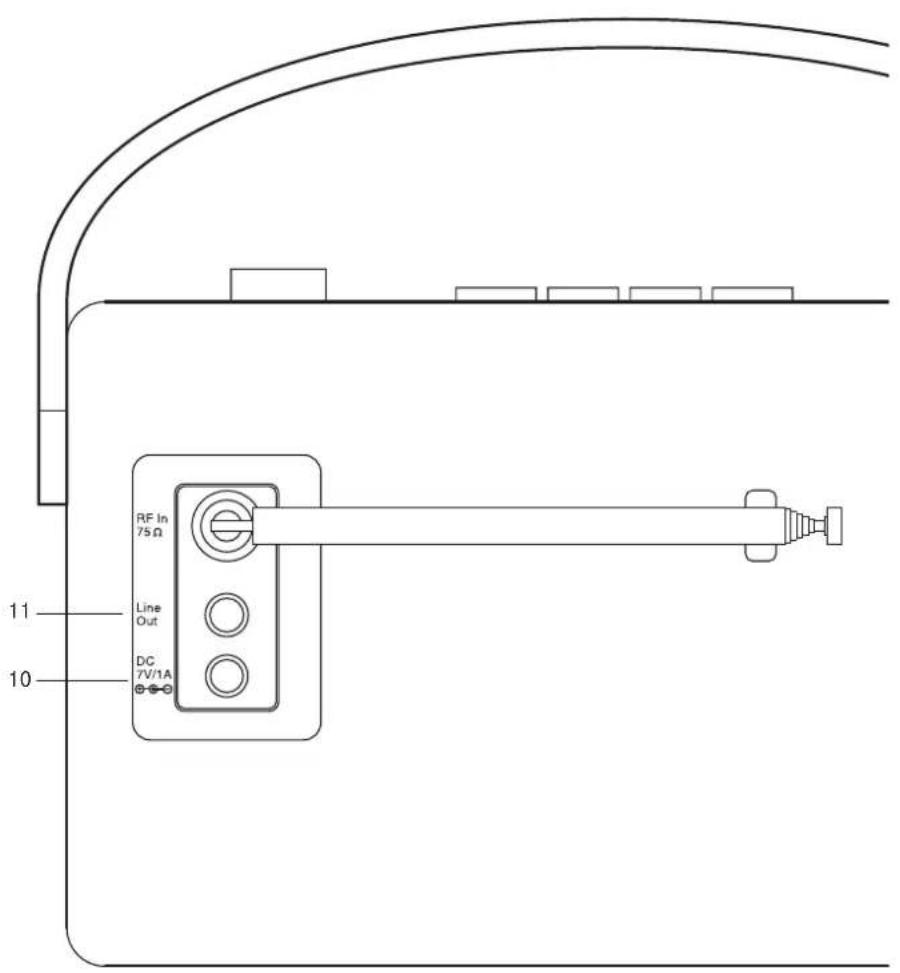
(Rear)
- DC in socket
- Line output socket
Battery operation
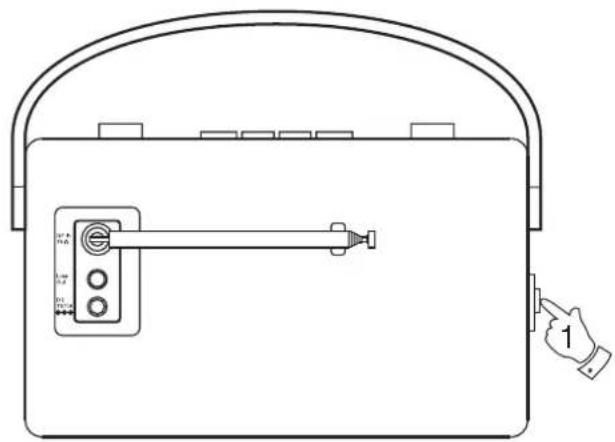
- Release the catch securing the rear door of your radio.
- Insert four LR20 (D size) batteries into the spaces in the compartment. Take care to ensure all batteries are inserted with the correct polarity as shown inside the battery compartment. Close the rear door and secure the catch
- Reduced power, distortion and a 'stuttering' sound are all signs that the batteries may need replacing.
- If the radio is not to be used for any extended period of time it is recommended that the batteries are removed from the radio. We would recommend for economy that the RD-10 is used via the AC adaptor whenever possible with battery operation for occasional or stand-by use only.
Using the AC adaptor
- Insert the adaptor plug into the DC in socket on the rear of your radio.
- Plug the adaptor into a standard 13A mains socket outlet. Whenever the adaptor is used the batteries are automatically disconnected.
The AC adaptor should be disconnected from the mains supply and the radio when not in use.
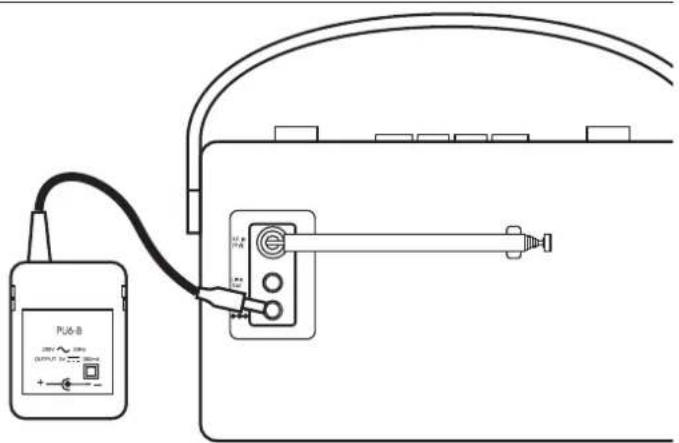
If you need any further advice, please call our Technical Helpline on :020 8758 0338 (Mon-Fri)
Operating your radio - DAB
- Carefully extend the telescopic aerial.
- Press the On/Off button to switch on your radio. The display will show "Roberts DAB digital radio" for a few seconds.
- If this is the first time the radio is used a quick scan of UK Band III DAB channels will be carried out. The display will show "Autotune Quick scan". If the radio has been used before the last used station will be selected.
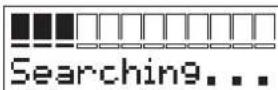
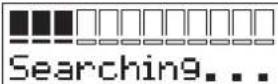
- During Autotune as each group of stations is detected the bottom line of the display will show its name and the station count will be updated. The top line of the display shows a bargraph indicating progress of the Autotune.
- When the Autotune is completed the first station (in numeric-alpha order 0...9...A...Z) will be selected.
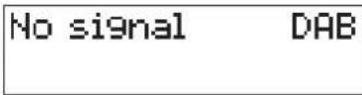
- If the station list is still empty after the Autotune your radio will display "No Signal".
- If no signals are found it may be necessary to relocate your radio to a position giving better reception.
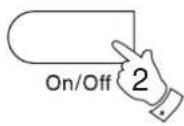
Roberts
Autotune Quick scan
Selecting a station - DAB
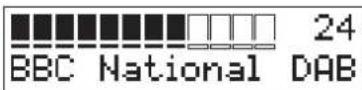
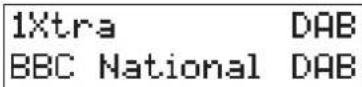
- The top line of the display shows the name of the station currently selected.
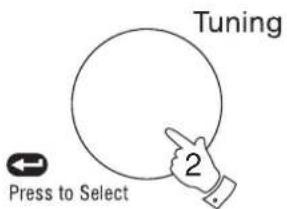
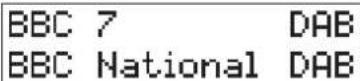
- Rotate the Tuning control to scroll through the list of available stations. Stop rotating the Tuning control when you find the station that you wish to hear.
- Press and release the Tuning control to select the station. The display may show "Tuning" while your radio finds the new station.
- Adjust the Volume control to the required setting.
Note: If after selecting a station the display shows "Not Available" it may be necessary to relocate your radio to a position giving better reception.
Classic DAB
BBC 7 DAB
Tuning...
Volume

If you need any further advice, please call our Technical Helpline on :020 8758 0338 (Mon-Fri)
Secondary services - DAB
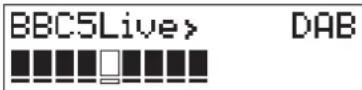
- Certain radio stations have one or more secondary services associated with them. If a station has a secondary service associated with it the display will show ">" next to the station name on the station list. The secondary service will then appear immediately after the primary service as you rotate the tuning control clockwise.
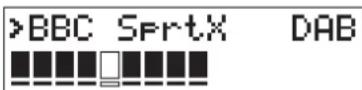
Display modes - DAB
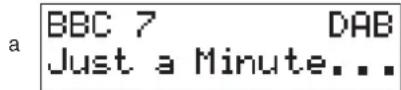
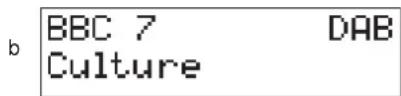
Your radio has five display modes:-
- Press the Info button to cycle through the various modes.
a. Scrolling text Displays scrolling text messages such as artist/track name, phone in number, etc.
b. Programme type Displays type of station being listened to e.g. Pop, Classic, News, etc.
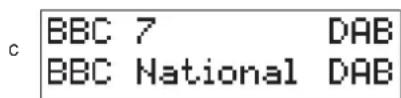
c. Multiplex Name Displays name of multiplex to which current station belongs.
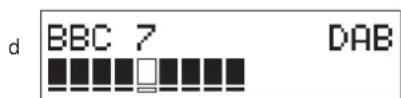
d. Signal strength Displays signal strength for station being listened to.
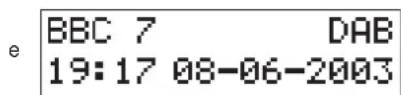
e. Time and date Displays current time and date.
Finding new stations - DAB
As time passes new stations may become available. To find new stations proceed as follows:-
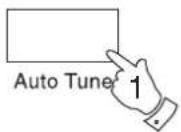
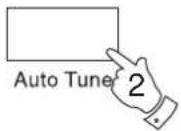
- Press and release the AutoTune button, the display will show "Autotune Quick Scan". Your radio will perform a scan of the UK DAB frequencies. As new stations are found the station counter on the right-hand side of the display will increase and stations will be added to the list
- To carry out a full scan of the entire DAB Band III frequencies press and hold down the AutoTune button for more than 2 seconds and then release. The display will show "Autotune Full scan". As new stations are found the station counter on the right-hand side of the display will increase and stations will be added to the list
Autotune Quick scan
Autotune Full scan
Autoselect - DAB
As an alternative to pressing the tuning control to select a station your radio can be set to automatically select a station.
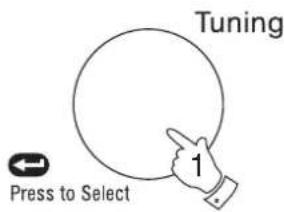
- Rotate the Tuning control a few clicks in either direction, immediately press and hold in the tuning control until the display shows "Autoselect ON".
- Rotate the Tuning control until the station you require is visible on the display, after a few seconds your radio will automatically select the station shown on the display.
- To switch off Autoselect rotate the Tuning control a few clicks in either direction, immediately press and hold in the Tuning control until the display shows "Autoselect OFF".
If you need any further advice, please call our Technical Helpline on :020 8758 0338 (Mon-Fri)
Autoselect ON
Autoselect OFF
Manual Tuning - DAB
Manual tuning allows you to tune directly to the various DAB Band III channels. UK DAB stations located in the range 11B to 12D.
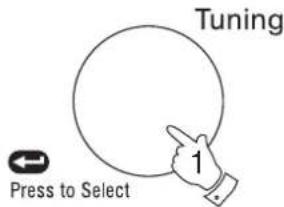
- Press and hold in the Tuning control until the display shows "Manual tune".
- Rotate the Tuning control to select the required DAB channel.
- Press and release the Tuning control to select the channel.
- Rotate the Tuning control to select the stations contained within the Multiplex (group of stations) for the selected DAB channel.
- Press and release the Tuning control to return to normal tuning mode.
Manual tune
| 12B | 225.648 | MHz |
| BBC | National | DAB |
| BBC 7 | MAN |
| BBC National | DAB |
| BBC 7 | DAB |
| BBC National | DAB |
Signal strength display - DAB
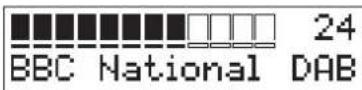
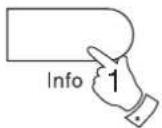
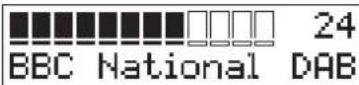
- Repeatedly press and release the Info button until the lower line of the display shows signal strength.
- Position your radio and carefully angle the telescopic aerial for best reception using the signal strength display as a guide. Move your radio around and position so as to give maximum number of black rectangles on signal strength display.
- The clear unfilled rectangle indicates minimum signal level required for satisfactory reception.
| BBC 7 | DAB |
Operating your radio - FM
- Carefully extend the telescopic aerial.
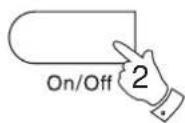
- Press the On/Off button to switch on your radio. The display will show "Roberts DAB digital radio" for a few seconds.
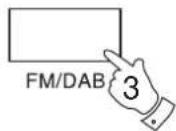
- Press the Band button to select the FM band.
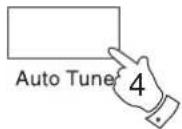
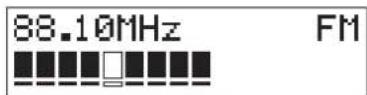
- Press and immediately release the Auto Tune button, your radio will scan in an upwards direction (low frequency to high frequency) and stop automatically when it finds a station of sufficient strength.
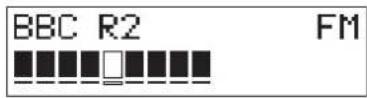
- After a few seconds the display will update and show station name.
- To find other stations press and release the AutoTune button as before.
- To scan the FM band in a downwards direction (high frequency to low frequency) press and hold down the AutoTune button for 0.5 seconds and then release.
- When the waveband end is reached your radio will recommence tuning from the opposite waveband end.
- Adjust the Volume control to the required setting.
- To switch off your radio press the On/Off button.
If you need any further advice, please call our Technical Helpline on :020 8758 0338 (Mon-Fri)
Volume
Manual tuning - FM
- Press the On/Off button to switch on your radio.
- Press the Band button to select the FM band. Fully extend the Telescopic aerial.
- Rotate the Tuning control to tune to a station. The frequency will change in steps of 50kHz.
- When the waveband end is reached the radio will recommence tuning from the opposite waveband end.
- Set the Volume control to the required setting.
- To switch off your radio press the On/Off button.
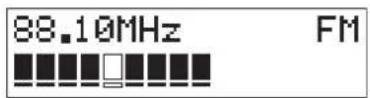
Volume

Display modes - FM
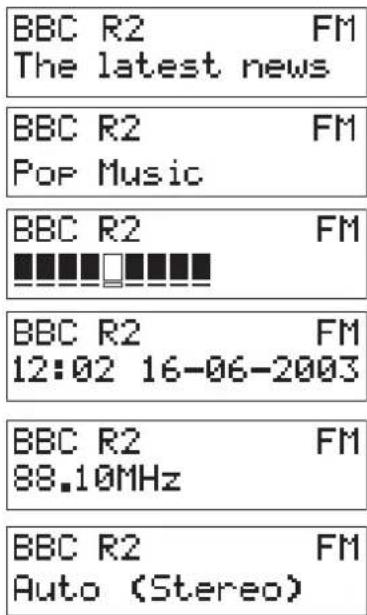
On FM the bottom line of the display can be set to any of the following modes:-
- Press the Info button to cycle through the various modes.
a. Scrolling text Displays scrolling text messages such as artist/track name, phone in number etc.
b. Program Type Displays type of station being listened to e.g. Pop, Classic, News, etc.
c. Signal strength Displays signal strength for station being listened to.
d. Time and date Displays current time and date.
e. Frequency Displays frequency of the station being listened to.
f. Audio mode Display shows Auto (stereo) or mono.
FM Stereo/Mono
- If a station being received is weak some hiss may be audible. To reduce the hiss press and hold in the Tuning control until the display shows "Audio mode: Mono". Your radio will switch to mono mode.
- To return to stereo mode press and hold in the Tuning control until the display shows "Audio mode: Auto". Your radio will switch to stereo mode.
Note: FM stereo is only available when listening via earphone/headphones
Audio mode: Mono
Audio mode: Auto
If you need any further advice, please call our Technical Helpline on :020 8758 0338 (Mon-Fri)
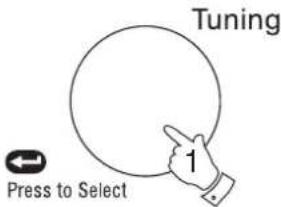
System reset
If your radio fails to operate correctly, or some digits on the display are missing or incomplete carry out the following procedure.
- Switch off your radio.
- Switch on your radio - as soon as the screen shows "Roberts DAB digital radio" press and hold in the Tuning control until the display shows "System Reset".
- A full reset will be performed. All presets and station lists will be erased.
- If DAB was used last then a "Quick scan" of the DAB band will be performed, otherwise a "Quick scan" will be carried out the next time the DAB band is selected.
If a problem persists our technical staff would be pleased to offer any assistance on operating the radio. Our technical helpline number is 020 8758 0338.
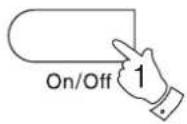
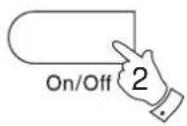
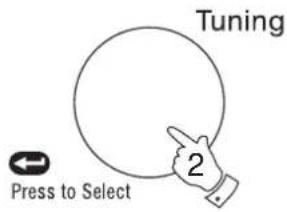
System reset
Autotune Quick scan
Headphone socket
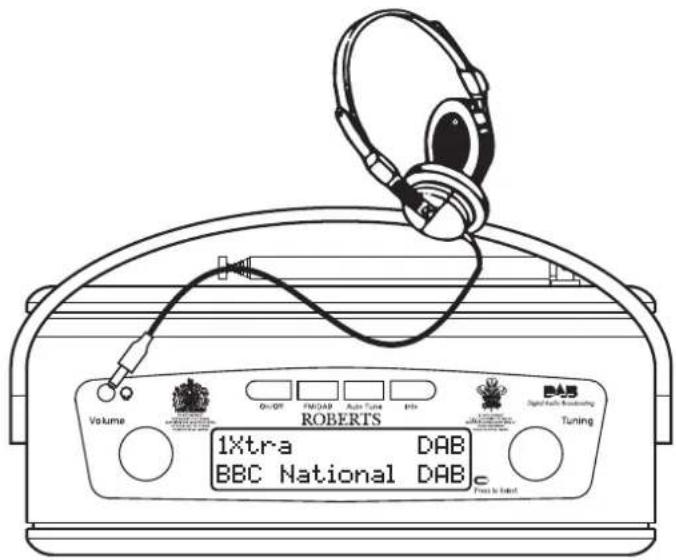
A 3.5mm Headphone Socket located on the top left hand corner of your radio is provided for use with either headphones or an earpiece. Inserting a plug automatically mutes the internal loudspeaker.
Display backlight
- The display backlight will be switched on for approximately 12 seconds when any button is pressed.
- When your radio is powered by AC mains the display backlight will always be switched on.
If you need any further advice, please call our Technical Helpline on :020 8758 0338 (Mon-Fri)
General
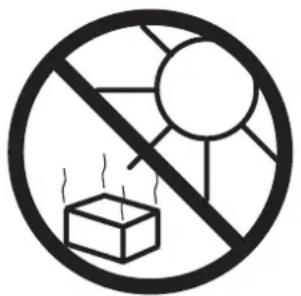
Do not allow this radio to be exposed to water, steam or sand. Do not leave your radio where excessive heat could cause damage such as in a parked car where the heat from the sun can build up even though the outside temperature may not seem too high. It is recommended that the DAB band be used wherever possible as better results in terms of quality and freedom from interference will usually be obtained than on the FM band.

natural_image
Symbol of an umbrella inside a circle with raindrops, no text or numbers presentSpecifications
Power Requirements
Mains AC 230 volts, 50Hz only

Batteries 4 x LR20 (D size)
Battery Life
Approx. 30 hours of listening for 4 hours a day at normal volume using alkaline cells.
Frequency Coverage
FM 87.5-108MHz
DAB 174.928 - 239.200MHz
Circuit Features
Loudspeaker 75mm full range
Output Power 1.0 Watt
Headphone socket 3.5mm dia
Aerial System FM Telescopic aerial
DAB Telescopic aerial
Notes
If you need any further advice, please call our Technical Helpline on :020 8758 0338 (Mon-Fri)
Notes
Guarantee
This instrument is guaranteed for twelve months from the date of delivery to the original owner against failure due to faulty workmanship or component breakdown, subject to the procedure stated below. Should any component or part fail during this guarantee period it will be repaired or replaced free of charge.
The guarantee does not cover:
- Damage resulting from incorrect use.
- Consequential damage.
- Receivers with removed or defaced serial numbers.
N.B. Damaged or broken telescopic aerials will not be replaced under guarantee.
Procedure:
Any claim under this guarantee should be made through the dealer from whom the instrument was purchased. It is likely that your Roberts' dealer will be able to attend to any defect quickly and efficiently, but should it be necessary the dealer will return the instrument to the company's service department for attention. In the event that it is not possible to return the instrument to the Roberts' dealer from whom it was purchased, please contact Roberts Radio Technical Services at the address shown on the rear of this manual.
If you need any further advice, please call our Technical Helpline on :-
020 8758 0338 (Mon-Fri)
ROBERTS RADIO TECHNICAL SERVICES
97-99 Worton Road
Isleworth Middlesex
TW7 6EG
Technical Helpline :- 020 8758 0338 (Mon-Fri during office hours)
- RD-10
- Contents
- Controls
- Battery operation
- Using the AC adaptor
- Operating your radio - DAB
- Selecting a station - DAB
- Secondary services - DAB
- Display modes - DAB
- Finding new stations - DAB
- Autoselect - DAB
- Manual Tuning - DAB
- Signal strength display - DAB
- Operating your radio - FM
- Manual tuning - FM
- Display modes - FM
- FM Stereo/Mono
- System reset
- Headphone socket
- Display backlight
- General
- Specifications
- Power Requirements
- Battery Life
- Frequency Coverage
- Circuit Features
- Guarantee
- Procedure:
- ROBERTS RADIO TECHNICAL SERVICES
Brand : ROBERTS
Model : Revival RD10
Category : Radio