
Element Kb - Controller TANGENT - Free user manual and instructions
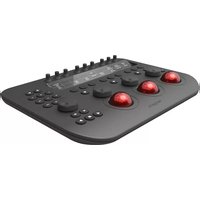
Find the device manual for free Element Kb TANGENT in PDF.


| Product Type | MIDI Keyboard Controller |
| Brand | Tangent |
| Model | Element Kb |
| Number of Keys | 49 velocity-sensitive keys |
| Key Size | Full-size |
| Aftertouch | No |
| Assignable Controls | 8 knobs, 8 faders, 8 pads, transport controls |
| Display | 2-line LCD screen |
| Connectivity | USB-B, MIDI In/Out (5-pin DIN), sustain pedal input |
| Power Supply | USB bus-powered or 9V DC (optional) |
| Dimensions (W x D x H) | 32.5 x 8.5 x 2.5 inches (approx.) |
| Weight | 6.5 lbs (approx.) |
| Compatibility | Windows, macOS, iOS (via camera adapter) |
| DAW Integration | Presets for Ableton Live, Logic Pro, FL Studio, Cubase |
| Arpeggiator | Built-in arpeggiator with multiple modes |
| Maintenance | Wipe with a dry soft cloth; avoid liquids |
| Safety | Keep away from moisture, extreme temperatures, and magnetic fields |
| Spare Parts | Replacement power adapter and USB cable available |
| Repairability | User-replaceable keys and encoders; full service manual available |
| Package Contents | Element Kb controller, USB cable, user manual |
Frequently Asked Questions - Element Kb TANGENT
User questions about Element Kb TANGENT
0 question about this device. Answer the ones you know or ask your own.
Ask a new question about this device
Download the instructions for your Controller in PDF format for free! Find your manual Element Kb - TANGENT and take your electronic device back in hand. On this page are published all the documents necessary for the use of your device. Element Kb by TANGENT.
USER MANUAL Element Kb TANGENT
element 3U Tk 2U Mf 1U Kb 1U Bt

natural_image
Black industrial control panel with red buttons and control knobs, no visible text or symbolsUser Manual v1.17 rev2

Important: Check www.tangentwave.co.uk for updates.
Tangent Wave Ltd. Crowbush Farm, Luton Road, Toddington, LU5 6HU, UK.
www.tangentwave.co.uk
Table of Contents
- Important safety instructions .... 2
1.1 CE Declaration of Conformity 2
1.2 FCC Compliance Statement....2
1.3 Disposal and Recycling information....2
-
About this manual .... 7
-
What's in the box 7
- Requirements....7
- About the Element series of control panels 8
9.1 Drivers....8
9.2 Software 8
9.3 Power and communication 8
-
Positioning and use of the panel 8
-
Getting started 9
11.1 Connecting the panel to your computer 9
11.2 USB hubs and extenders (or repeaters)....9
- Link pins....9
- Screen saver....10
- Test mode.... 10
14.1 Run Code 10
14.2 USB state 10
14.3 S/N 10
14.4 Testing knobs....10
14.5 Testing buttons.... 11
14.6 Testing trackerballs and their rings 11
- Trouble-shooting 11
15.1 A button doesn't work 11
15.2 A knob doesn't seem to work.... 11
15.3 A trackerball doesn't seem to work 12
15.4 My software isn't communicating with the panel 12
15.5 The display keeps going blank.... 12
15.6 The display doesn't show anything 12
15.7 I don't get the splash screen when I plug the panel in.... 13
15.8 The display is always blank 13
15.9 My panel keeps saying "Demo panel - resetting in X sec" 13
- Care of your panel.... 14
16.1 Cleaning the balls....14 - Firmware updates .... 14
1. Important safety instructions

- Read this manual first before using the panel.
- Keep these instructions for future reference.
• Heed all warnings in this manual. - Follow all instructions in this manual.
- Do not use this apparatus near water.
• Install and use the panel only as instructed. - Do not install near any heat sources such as radiators, heat registers, stoves, or other apparatus (including amplifiers) that produce heat.
- Unplug the apparatus when it's not going to be used for long periods of time.
- Refer all servicing to qualified personnel. Servicing is required when:
- The apparatus has been damaged in any way.
- Liquid has been spilled on the apparatus.
○ Objects have fallen into the apparatus. - The apparatus has been exposed to rain or moisture.
- The apparatus does not operate normally.
- The apparatus has been dropped.
1.1 CE Declaration of Conformity

Tangent Wave Ltd of 4 Crowbush Farm, Luton Road, Toddington, United Kingdom declare that our Element products are in compliance with the essential requirements and other relevant provisions of Directives 2011/65/EU and 2014/30/EU and carry the CE mark accordingly.
Toddington, June 2021
Ammob
Andy Knox, Sales Director
1.2 FCC Compliance Statement

This device complies with part 15 of the FCC Rules. Operation is subject to the following two conditions: (1) This device may not cause harmful interference, and (2) this device must accept any interference received, including interference that may cause undesired operation.
1.3 Disposal and Recycling information

This symbol indicates that your product must be disposed of properly according to local laws and regulations. When your product reaches the end of its life please contact your supplier for disposal and recycling options.
6. About this manual
This manual applies to the Element control panel series Model No's: element-Tk, element-Mf, element-Kb and element-Bt. For the latest updates please check www.tangentwave.co.uk/support
This manual does not tell you how to use the panel with your software. For that information please contact your software vendor. Where we have been provided with information by the software vendors we have included this on our website.
If you find any errors with this manual or you have any suggestions then please contact Tangent Wave. It is only through your feedback and suggestions that we can improve our services and products.
7. What's in the box
- Element leaflet.
- Element panel.
- USB cable.
- 2 x Link pins.
8. Requirements
- Any operating system that has a built in USB HID driver. Current versions of macOS, Windows and Linux should have this.
- A computer with at least 1 spare USB port (1.0 or greater) that can supply 500mA. Note some older laptops or laptops running from battery cannot provide 500mA.
- If using a USB hub then the hub needs to be able to supply 500mA to the USB socket which the panel is connected to.
- If using an active USB extender this must be able to supply 500mA.
- The software you intend to use the panel with must support the Element panel. Please check with your software manufacturer or our website.
- Access to the internet. This is required to download the manuals and any support software you may require from our website.
9. About the Element series of control panels
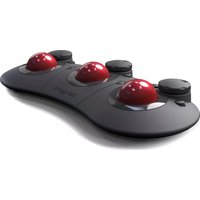
The Element series are a control panels that are aimed at the colour correction and video post production industry. They don't do any processing of video data itself, they just provide a physical user interface to software packages, much like your computer keyboard and mouse. They are designed to improve speed, ease of use, and efficiency of your software by putting the controls at your finger tips without having to access them through menu functions and mouse clicks. Colourists will be familiar with the three trackerball layout for adjusting primaries and they will know how essential it is to have them on the panel for this purpose.
Note: What the panels will control in your software
The panels are designed to be generic. What we mean by generic is that they are not designed specifically to be used with just one type of software. This means what function any of the controls has is not determined by Tangent Wave, but is decided by the software that you are using the panel with.
9.1 Drivers
There are no drivers to install for the panels – they use the inbuilt HID drivers that come with all current operating systems: Windows, Mac and Linux. The HID driver is the driver that allows your USB keyboard and mouse to work with your computer.
9.2 Software
Some applications will work with the panels without any additional software being installed. Some applications will require the Tangent Hub support pack which is available to download from our website, or may be distributed as part of your application. You should check with the user manual for your application or refer to our website to determine if your application requires the Tangent Hub support pack.
9.3 Power and communication
The panels receive their power and communicate with your computer through the USB cable. The only requirement is that your computer supports high power USB devices - that is it can supply 500mA though its USB port. Most desktop computers can, it is only laptop or portable devices that sometimes can't. If you're in doubt check your computers specifications.
10. Positioning and use of the panel
 | Health WarningSome experts believe that use of any human input device may cause serious injury to hands, wrists, arms, neck or back. If you feel pain, numbness, weakness in these areas see a qualified health professional.To reduce the risks of such injuries follow these precautions:Take frequent short breaks. Get up and walk around at least a couple of times every hour.Vary your tasks throughout the day.Keep your shoulders relaxed with your elbows at your side. Position your control panel so you don't have to reach.Adjust your chair and control panel so your wrists are straight.Avoid resting your wrists on sharp edges. |
11. Getting started
11.1 Connecting the panel to your computer
natural_image
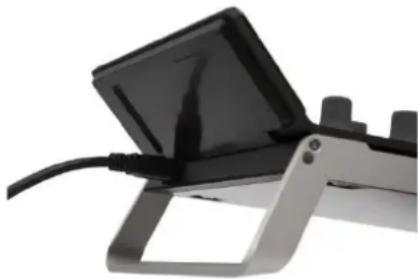
Close-up of a black monitor mounted on a stand with a cable, no visible text or symbolsFirst make sure that the software you are going to use the panel with is not running on your computer. Use the supplied cable to plug the panel into a free USB slot on your computer. The USB connector is on the rear of the panel.
If all is well the display will show something similar to the following splash screen:

11.2 USB hubs and extenders (or repeaters)
You can use a USB hub to connect multiple panels to your computer. The important thing to note is that the hub must be powered and must be able to provide 500mA to each USB port simultaneously.
If you use an extender (or repeater) it must be able to supply 500mA.
12. Link pins
natural_image
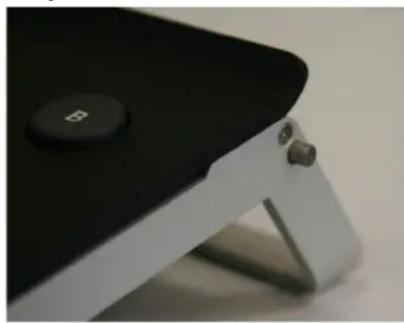
Close-up of a black and white electronic device with a small button and metal bracket (no visible text or symbols)The two link pins that are provided are designed to enable you to lock your Element panels together side by side. The pins slot into the holes at either end of the side of the panel. They are held in place by a magnet that is at the bottom of the hole.
Due to the strength of the magnets you may need to use pliers or similar to remove the pins.
13. Screen saver
To extend the life of the display and to save power when the panel is not in use, your panel will switch off the display if the panel has not been used a period of time. This is set in the factory to be 15 minutes.
To wake the panel back up just press a button or move a knob / trackerball.
14. Test mode
By default the panel will come up showing the splash screen when you plug it into your computer and your software is not running.
To enter the Test Mode, do the following:
- Turn the panel off by unplugging the USB cable.
- Make sure your software is not running.
- Turn the panel back on by plugging in the USB cable.
- Once you see the splash screen press the 'A' button.

The display should look similar to this. The next sections explain what this is telling you about your panel.
14.1 Run Code
This is the panel firmware version number. See the section on updating the firmware for more information on this.
14.2 USB state
This is the current status of the USB connection. This will change and update rapidly when the panel is first plugged in but it should finish by saying configured. If it doesn't say this after a few seconds then remove the USB connection and plug it back in again.
If you move any of the controls or press any of the buttons the appropriate bottom line of the display will change to show you the status of the control or button which has been changed. The following describes what you should see for each control or button:
14.3 S/N
This is the unique serial number of the panel. Some software applications will require you to enter this when you configure it to use the Element panels.
14.4 Testing knobs
If you move a knob the bottom line of the display will show something similar to this:
Encoder moved: 11 4
The first number is the ID number for that control, in this case 11. The second number is the amount it's moved by, in this case 4. The number gets bigger the faster you turn the
control. This should be positive when the knob is turned clockwise and negative if turned anti-clockwise. If the number is always -1 or 1, or doesn't change then the knob or is faulty.
14.5 Testing buttons
If you press a button the bottom line of the display will show something similar to this:
Key pressed: 6
In this case button number 6 has been pressed. If this doesn't happen then the button is faulty.
14.6 Testing trackerballs and their rings
Just like the knobs, moving the trackerball or the ring will cause the bottom line of the display to show something similar to this:
Encoder: 15 3
The first number is the ID number for that control, in this case 15. The second number is the amount it's moved by, in this case 3. The number gets bigger the faster you turn the control.
For the ball this should be positive when the ball is moved to the right or up. It will be negative if the ball is moved to the left or down. If it does not change then the ball is faulty.
For the ring should be positive when the ring is turned clockwise and negative if turned anti-clockwise. If the number is always -1 or 1, or doesn't change then the ring is faulty.
Note: due to the way the software scans the movements of the balls, it will be hard to see only changes in the left / right direction. The up / down movements are always displayed in preference by the test mode, and as it's difficult to move the ball in just the left / right direction with out moving it up / down, you'll always see mostly up / down changes.
15. Trouble-shooting
15.1 A button doesn't work
Go into test mode and follow the button test procedure. If the button doesn't work in the test mode then the button is broken. In this case please contact Tangent Wave or your reseller.
If the button works in the test mode then it may be a problem with the software you are using the panel with. Contact your software vendor.
15.2 A knob doesn't seem to work
Go into test mode and follow the knob test procedure. If the knob doesn't work in the test mode then the knob is broken. In this case please contact Tangent Wave or your reseller.
If the knob works in the test mode then it may be a problem with the software you are using the panel with. Contact your software vendor.
Note: if the knob is turned to quickly then it is possible that the Wave will not be able to keep up with the movement. Try to avoid turning the knob too quickly.
15.3 A trackerball doesn't seem to work
Go into test mode and follow the trackerball test procedure. If the trackerball doesn't work in the test mode then the trackerball is broken. In this case please contact Tangent Wave or your reseller.
If the trackerball works in the test mode then it may be a problem with the software you are using the panel with. Contact your software vendor.
Note: from time to you will need to clean the trackerballs. See Care of your panel - Cleaning the balls. If there is a build up of dust inside the panel it may affect the optical sensor used to track the balls movements.
Note: if the ball is moved to quickly then the optical sensor will not be able to track it. This will produce erratic behaviour in the output from the ball. Try to keep movements of the ball smooth and avoid rapid changes of direction or spinning the ball.
15.4 My software isn't communicating with the panel
Generally problems with communication are related to setting up your software to talk to the panel. Refer to your software vendors instructions for doing this.
Make sure the USB cable is connected properly. Also make sure the USB port on your computer can supply the 500mA the panel requires. Some laptops do not allow this.
If after doing the above, and taking any relevant action, you're still having trouble, then contact Tangent Wave or your reseller.
15.5 The display keeps going blank
This is most probably the screen saver. If the display comes back on when you press a button or move a knob/trackerball then this is what it is.
It may also be that the current mode your application is in does not make use of any of the controls on the panel and has therefore blanked the display. Try changing to a different mode in your application.
15.6 The display doesn't show anything
It might be that the screen saver has been activated. Pressing a button or moving a knob/trackerball will wake the panel back up.
It may also be that the current mode your application is in does not make use of any of the controls on the panel and has therefore blanked the display. Try changing to a different mode in your application.
If the above doesn't work, then try quitting your software and unplug the panel. Plug your panel back in. If you don't get the splash screen when the panel is plugged in then
see the trouble shooting section on I don't get the splash screen when I plug the panel in.
15.7 I don't get the splash screen when I plug the panel in
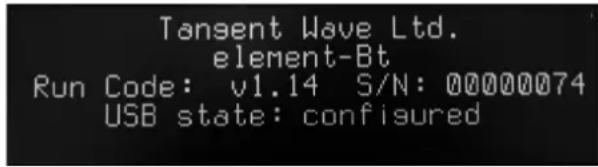
If the display is similar to this this then your panel is in test mode. Just run your application as normal and the panel will continue to work as normal.

If the display is similar to this then your panel is in update mode. You will have entered this because you have held down the 'A' button as you plugged the panel in. Just unplug the panel and plug it back in again and the panel will continue to work as normal.
If the display shows something different then it might be that your application is using the display. Try quitting the application or try the panel on another computer. You should also try the solutions in The display is always blank section.
15.8 The display is always blank
If your screen is completely blank and you have tried unplugging and plugging the panel back in again then check the following:
It might be that your application is using the display. Try quitting the application and unplugging the panel and plugging it back in again.
If you're using an USB hub or repeater, check that there is power going to these. Note, your element needs 500mA and so it usually requires that the hub or repeater is powered. Try plugging the panel in directly to the computer without using the hub or repeater.
Try plugging the panel in directly to another computer.
Try a different USB cable.
If after trying the above and the display still remains blank, then contact your reseller or Tangent Wave.
15.9 My panel keeps saying "Demo panel – resetting in X sec"
If you have bought your panel as “new” and you are getting this message then please contact Tangent Wave. Your panel thinks it is a “demo” panel and as such it will reset every 30 minutes.
16. Care of your panel
Your panel should not be cleaned with harsh abrasives or chemical cleaning products. If they become dirty wipe them with a soft damp cloth.
Sharp objects, watch straps and jewellery will scratch the soft texture of the paint surface, so be careful not to bring such items in contact with the paint.
16.1 Cleaning the balls

natural_image
Close-up of hands operating a black handheld device with a red circular button and a black ring (no text or symbols visible)From time to time you may need to clean the balls and the trackerball unit that holds them. To do this you need to remove the ring and then remove the ball. Clean the ball with a soft damp cloth. To clean inside the trackerball unit use a damp cotton bud, paying close attention to the three white balls the ball sits on, and the lenses which houses the optical sensor.
The ring on the trackerball is held in place by magnets in the ring. When replacing the ring make sure it locates correctly down on the trackerball. If it's in place correctly then there will be about a 1mm gap between the bottom of the ring and the panel surface.
17. Firmware updates
The firmware in your Wave panel was the most up to date version when your panel was manufactured. It is possible however that a newer version may be available from our website www.tangentwave.co.uk. Check there under the support tab to see if a newer version is available. Also be sure to read the instructions and release notes with the version.
To find out what version of firmware your panel is running you will need to put the panel into test mode. See the Test mode section of this manual.

- element 3U Tk 2U Mf 1U Kb 1U Bt
- Table of Contents
- Important safety instructions
- CE Declaration of Conformity
- FCC Compliance Statement
- Disposal and Recycling information
- About this manual
- What's in the box
- Requirements
- About the Element series of control panels
- Note: What the panels will control in your software
- Drivers
- Software
- Power and communication
- Positioning and use of the panel
- Getting started
- Connecting the panel to your computer
- USB hubs and extenders (or repeaters)
- Link pins
- Screen saver
- Test mode
- Run Code
- USB state
- S/N
- Testing knobs
- Testing buttons
- Testing trackerballs and their rings
- Trouble-shooting
- A button doesn't work
- A knob doesn't seem to work
- A trackerball doesn't seem to work
- My software isn't communicating with the panel
- The display keeps going blank
- The display doesn't show anything
- I don't get the splash screen when I plug the panel in
- The display is always blank
- My panel keeps saying "Demo panel – resetting in X sec"
- Care of your panel
- Cleaning the balls
- Firmware updates
Brand : TANGENT
Model : Element Kb
Category : Controller