
WM126 - Mouse HP - Free user manual and instructions
Find the device manual for free WM126 HP in PDF.


| Product Type | Wireless Mouse |
| Model Number | WM126 |
| Connection Type | 2.4 GHz Wireless Technology |
| Radio Transmission | Bi-directional (Transceiver) |
| Wireless Range | Up to 10 m |
| Number of Buttons | 4 (Left, Right, Scroll/Middle, Power) |
| Scroll Wheel | Yes, with middle button function |
| Optical Sensor | Yes, bottom of mouse |
| Battery Type | 1 AA alkaline battery |
| Operating Voltage | 1.0 V - 1.5 V |
| Battery Status Light | Flashing amber 10 times when low battery |
| Dimensions (L x W x H) | 94.8 mm x 57.3 mm x 35.6 mm |
| Weight (without battery) | 56.95 g |
| System Requirements | Windows 10/8.1/7/XP/Vista, Server 2003/2008/2012, Linux, Chrome, Android |
| Operating Temperature | 0°C to 40°C |
| Storage Temperature | -40°C to 60°C |
| Storage Humidity | 95% max relative humidity, non-condensing |
| Receiver Included | Yes, USB receiver (Dell Universal Receiver) |
| Universal Receiver Compatibility | Up to 6 Dell Universal compatible devices |
| Warranty | 1-year limited hardware warranty |
| Included in Box | Mouse, USB receiver, manual, AA battery |
Frequently Asked Questions - WM126 HP
User questions about WM126 HP
0 question about this device. Answer the ones you know or ask your own.
Ask a new question about this device
Download the instructions for your Mouse in PDF format for free! Find your manual WM126 - HP and take your electronic device back in hand. On this page are published all the documents necessary for the use of your device. WM126 by HP.
USER MANUAL WM126 HP
Dell WM126 Wireless Mouse User's Guide
NOTE: A NOTE indicates important information that helps you make better use of your Dell Wireless mouse. CAUTION: A CAUTION indicates potential damage to hardware or loss of data if instructions are not followed. WARNING: A WARNING indicates a potential for property damage, personal injury, or death.
Copyright © 2015 Dell Inc. All rights reserved. This product is protected by U.S. and international copyright and intellectual property laws.
Dell and the Dell logo are trademarks of Dell Inc. in the United States and/or other jurisdictions. All other marks and names mentioned herein may be trademarks of their respective companies.
Contents
What's in the box 4
Features 5
Top View 5
Bottom View 6
Setting up your wireless mouse .... 7
Dell Universal Receiver feature for Windows .....10
Dell Universal Receiver Control Panel 10
Installing Dell Universal Receiver Control Panel ..... 10
Using Dell Universal Receiver Control Panel. ..... 10
Troubleshooting 11
Specifications 15
General 15
Electrical 15
Physical Characteristics 15
Environmental 15
2.4 GHz wireless 15
Statutory information....16
Warranty 16
Limited Warranty and Return Policies....16
For U.S. customers: 16
For European, Middle Eastern and African customers: ..... 16
For non-U.S. customers: 16
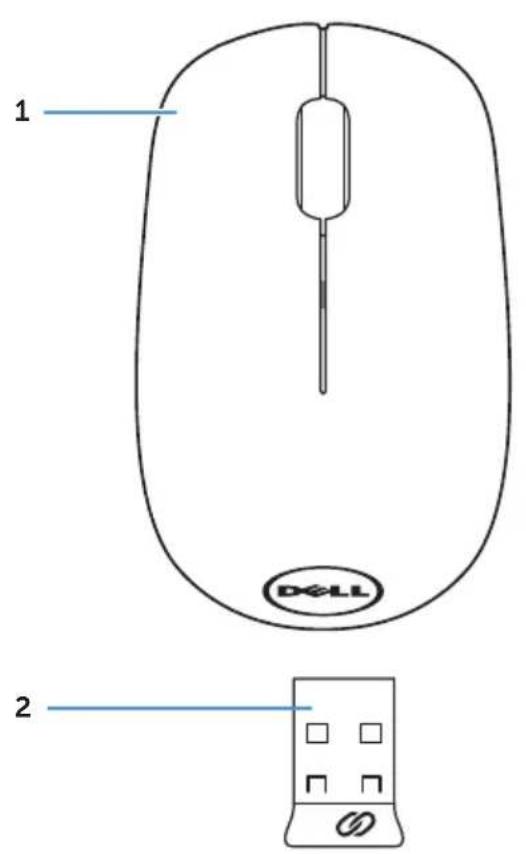
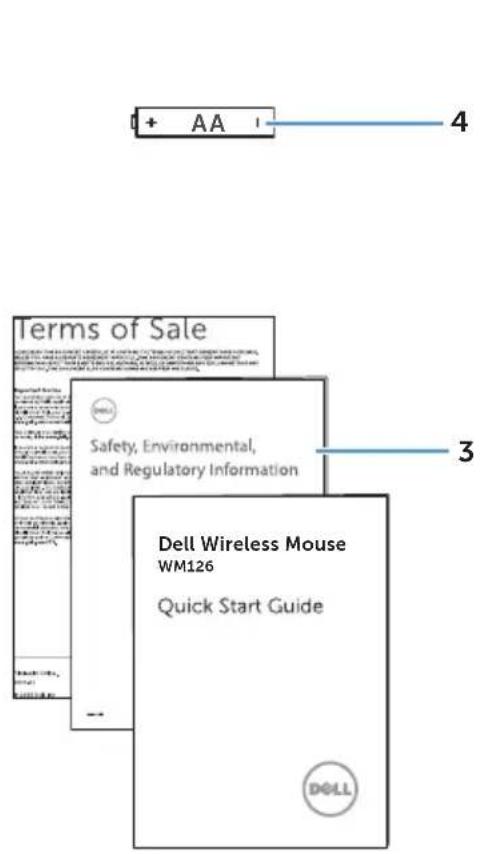
1 wireless mouse 2 USB receiver 3 manuals 4 AA-type battery
Top View
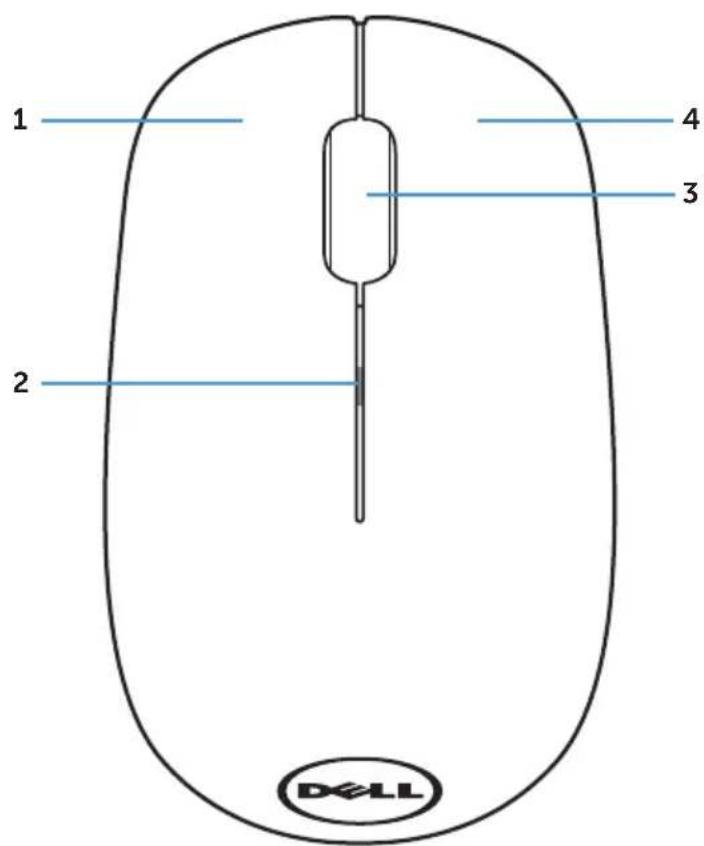
1 left button 2 battery status light
3 scroll / middle button 4 right button

NOTE: When the mouse is powered on, the battery status light will be flashing amber 10 times if the battery power is low.
Bottom View
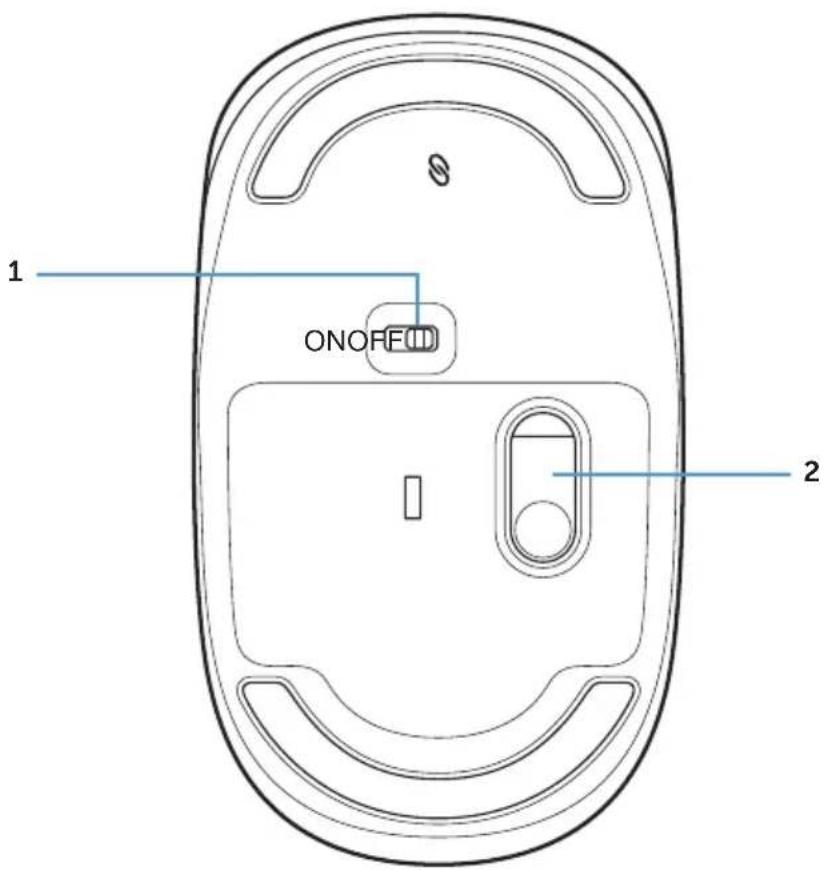
1 power button 2 optical sensor
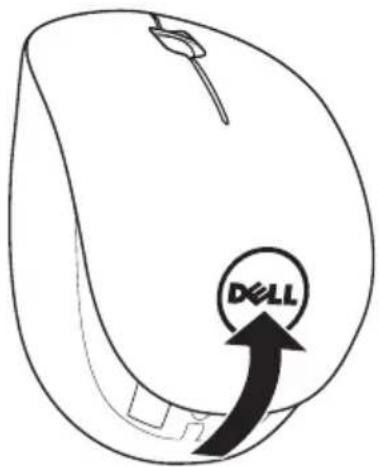
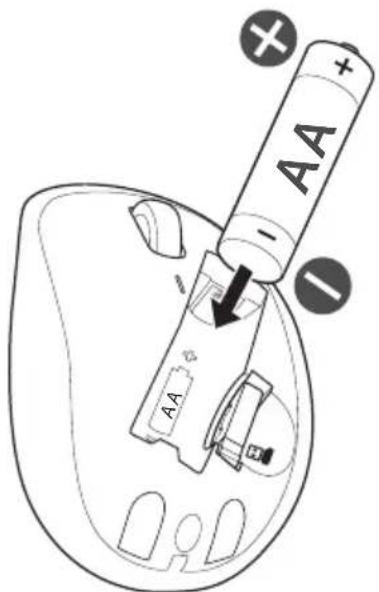
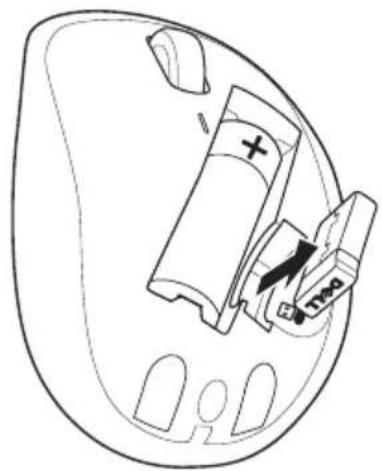
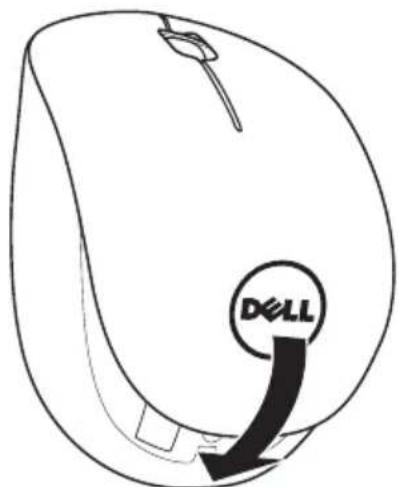
Setting up your wireless mouse
- Remove the mouse cover.
- Install the AA battery into the battery compartment.
- Remove the USB receiver.
- Replace the mouse cover.
- Insert the USB receiver into the USB port on your computer.
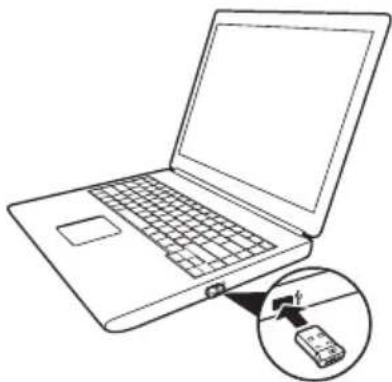
- Turn on your mouse.
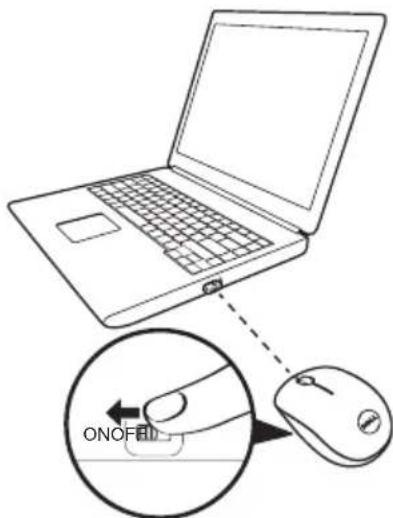

NOTE: Make sure the distance between your computer and mouse is within 10 meters.
Dell Universal Receiver feature for Windows
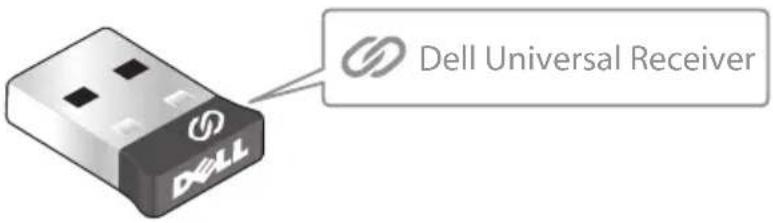
The Dell Universal Receiver allows up to six Dell Universal compatible wireless devices to be added to the receiver.
Dell Universal Receiver Control Panel
You can add Dell Universal compatible wireless devices to the receiver using Dell Universal Receiver Control Panel.
Installing Dell Universal Receiver Control Panel
To install Dell Universal Control Panel:
- Turn on the computer.
- Open the web browser and navigate to www.dell.com/support.
- Type in the Search bar "dell universal receiver". Then click Search.

- Download and install the Dell Universal Receiver software in your system.
Using Dell Universal Receiver Control Panel
The receiver and mouse shipped with your system are paired at the factory. Use the Dell Universal Receiver Control Panel to view the connection status of your wireless mouse or pair the mouse with another receiver.
Follow the instructions on the screen to add a device or to remove pairing.
Troubleshooting
Problems Possible causes Possible solutions
Unable to use the mouse
The sensor on the bottom of the mouse does not light up (solid red) when the mouse is turned on
- Check if the battery is inserted in the correct orientation.
- Battery "+" and "-" ends should follow those indicated on the battery compartment label.
- Check the battery level.
- If the mouse uses a rechargeable battery, make sure the battery is fully charged. - If the battery is exhausted, replace it with a new one.
- Turn the mouse off then on.
- Check if the battery status light is flashing amber 10 times, indicating the battery power is low. If the battery is fully depleted, the battery status light will not turn on.
- Make sure the USB dongle is directly connected to your computer.
- Avoid using the port replicators, USB hubs, etc.
- Change the USB port.
- Insert the USB dongle into another USB port of your computer.
Problems Possible causes Possible solutions
| Mouse pointer does not move | The mouse pointer freezes | 1. Check the battery level.If the mouse uses a rechargeable battery, make sure the battery is fully charged.If the battery is exhausted, replace it with a new one.Turn the mouse off then on.Check if the battery status light is flashing amber 10 times, indicating the battery power is low. If the battery is fully depleted, the battery status light will not turn on.Restart your computer. |
| Left/right buttons don't work | No response when the left or right mouse button is pressed | 1. Check the battery level.If the mouse uses a rechargeable battery, make sure the battery is fully charged.If the battery is exhausted, replace it with a new one.Turn the mouse off then on.Check if the battery status light is flashing amber 10 times, indicating the battery power is low. If the battery is fully depleted, the battery status light will not turn on.Restart your computer. |
Problems Possible causes Possible solutions
Unable to pair the mouse with the computer
Wireless pairing error message is received while pairing the mouse with the computer
- Check the battery level.
- If the mouse uses a rechargeable battery, make sure the battery is fully charged.
- If the battery is exhausted, replace it with a new one.
- Turn the mouse off then on.
- Check if the battery status light is flashing amber 10 times, indicating the battery power is low. If the battery is fully depleted, the battery status light will not turn on.
- Restart your computer.
- Make sure the USB dongle is connected directly to your computer.
- Avoid using the port replicators, USB hubs, etc.
- Change the USB port.
- Insert the USB dongle into another USB port of your computer.
Problems Possible causes Possible solutions
| Wireless connection is lost | Previously paired mouse no longer works on the computer | 1. Check the battery level.If the mouse uses a rechargeable battery, make sure the battery is fully charged.If the battery is exhausted, replace it with a new one.Turn the mouse off then on.Check if the battery status light is flashing amber 10 times, indicating the battery power is low. If the battery is fully depleted, the battery status light will not turn on.Restart your computer. |
Specifications
General
Model number WM126
Connection type 2.4 GHz wireless technology
System requirement • Windows 10/Windows 8.1/Windows 7/Windows XP/Windows Vista
• Server 2003/Server 2008/Server 2012
- Linux 6.x, Ubuntu, Neokylin, Free DOS, Chrome, Android
Electrical
Operating voltage 1.0 V - 1.5 V
Battery required One AA alkaline
Physical Characteristics
Weight (without battery) 56.95 g
Dimensions
Length: 94.8 mm
Width: 57.3 mm
Height: 35.6 mm
Environmental
Temperature
Operating: 0°C to 40°C
Storage: -40°C to 60°C
Storage Humidity: 95% maximum relative humidity; non-condensing
2.4 GHz wireless
Radio transmission: Bi-directional communication (Transceiver)
Range: Up to 10 m
Warranty
Limited Warranty and Return Policies
Dell-branded products carry a 1-year limited hardware warranty.
For U.S. customers:
This purchase and your use of this product are subject to Dell's end user agreement, which you can find at www.dell.com/terms. This document contains a binding arbitration clause.
For European, Middle Eastern and African customers:
Dell-branded products that are sold and used are subject to applicable national consumer legal rights, the terms of any retailer sale agreement that you have entered into (which will apply between you and the retailer) and Dell's end user contract terms.
Dell may also provide an additional hardware warranty – full details of the Dell end user contract and warranty terms can be found by going to www.dell.com, selecting your country from the list at the bottom of the "home" page and then clicking the "terms and conditions" link for the end user terms or the "support" link for the warranty terms.
For non-U.S. customers:
Dell-branded products that are sold and used are subject to applicable national consumer legal rights, the terms of any retailer sale agreement that you have entered into (which will apply between you and the retailer) and Dell's warranty terms. Dell may also provide an additional hardware warranty – full details of Dell's warranty terms can be found by going to www.dell.com, selecting your country from the list at the bottom of the "home" page and then clicking the "terms and conditions" link or the "support" link for the warranty terms.
- DELL WM126 WIRELESS MOUSE USER'S GUIDE
- CONTENTS
- WHAT'S IN THE BOX
- FEATURES
- SETTING UP YOUR WIRELESS MOUSE
- DELL UNIVERSAL RECEIVER FEATURE FOR WINDOWS
- TROUBLESHOOTING
- SPECIFICATIONS
- STATUTORY INFORMATION
- TOP VIEW
- BOTTOM VIEW
- DELL UNIVERSAL RECEIVER CONTROL PANEL
- INSTALLING DELL UNIVERSAL RECEIVER CONTROL PANEL
- USING DELL UNIVERSAL RECEIVER CONTROL PANEL
- PROBLEMS POSSIBLE CAUSES POSSIBLE SOLUTIONS
- GENERAL
- ELECTRICAL
- PHYSICAL CHARACTERISTICS
- ENVIRONMENTAL
- GHZ WIRELESS
- WARRANTY
- FOR U.S. CUSTOMERS
- FOR EUROPEAN, MIDDLE EASTERN AND AFRICAN CUSTOMERS
- FOR NON-U.S. CUSTOMERS
Brand : HP
Model : WM126
Category : Mouse