
TRC-820 - Remote control UNIVERSAL REMOTE CONTROL - Free user manual and instructions
Find the device manual for free TRC-820 UNIVERSAL REMOTE CONTROL in PDF.


| Product Type | Universal Remote Control |
| Brand | Universal Remote Control |
| Model | TRC-820 |
| Dimensions (L x W x H) | 200 x 60 x 25 mm |
| Weight | 200 g |
| Power Source | 2 x AA batteries (not included) |
| Battery Life | Up to 12 months with normal use |
| Control Range | 10 meters (line of sight) |
| Wireless Frequency | Infrared (IR) |
| Supported Devices | TV, DVD, Blu-ray, cable/satellite box, audio receiver, streaming players |
| Maximum Device Memory | Up to 8 devices |
| Learning Function | Yes, can learn IR codes from original remotes |
| Macro Capability | Yes, programmable macro sequences |
| Backlight | Yes, blue backlit buttons |
| User Interface | Keypad with 40+ keys |
| Compatibility | Works with most IR-controlled devices |
| Maintenance | Clean with a soft, dry cloth. Do not use liquids or solvents. |
| Safety Precautions | Do not expose to moisture, direct sunlight, or high temperatures. Do not disassemble. |
| Spare Parts | Only batteries required. Remote is not user-serviceable. |
| Repairability | Non-repairable by user; contact manufacturer for service. |
| Certifications | CE, RoHS |
| Warranty | 1 year limited warranty |
| Package Contents | 1x TRC-820 remote, 1x user manual |
Frequently Asked Questions - TRC-820 UNIVERSAL REMOTE CONTROL
User questions about TRC-820 UNIVERSAL REMOTE CONTROL
0 question about this device. Answer the ones you know or ask your own.
Ask a new question about this device
Download the instructions for your Remote control in PDF format for free! Find your manual TRC-820 - UNIVERSAL REMOTE CONTROL and take your electronic device back in hand. On this page are published all the documents necessary for the use of your device. TRC-820 by UNIVERSAL REMOTE CONTROL.
USER MANUAL TRC-820 UNIVERSAL REMOTE CONTROL
TRC-820
OWNER'S MANUAL
Total Control 2.0
TOTAL CONTROL 2.0
TRC-820
Introducing the TRC-820
Thank you for purchasing URC's TRC-820 remote control. Its easy and intuitive use helps to simplify your life while adding control of more things than thought possible.
Online Help:
Visit the URC Home Page for downloads, training materials, and frequently asked questions.
Contact Support:
Total Control is a URC product sold direct or through distribution. For questions or assistance contact your Custom Installer/Programmer.
My Installer/Programmer:
or URC Technical Support at: techsupport@universalremote.com
(914) 835-4484
Universal Remote Control, Inc.
500 Mamaroneck Ave
Harrison, New York 10528
Toll Free: (800) 901-0800
Table of Contents
Features and Benefits....1
Parts List....3
Installation....4
Main Menu: Navigation....6
Title Bar....7
Room's Menu....9
Room Linking....10
Now Playing....11
Core Buttons....12
Shortcut Popup Menu....13
Status Bar....15
Intercom....17
Navigating the Intercom Menu....19
Making Calls: Audio-Video....20
Making Calls: Audio Calls....22
Making Calls: Baby Monitor....24
Making Calls: Audio Broadcast....26
Do Not Disturb Mode....28
Scenes Menu....29
Settings Menu....30
Specifications....39
Limited Warranty Statement....39
TOTAL CONTROL 2.0
TRC-820
Features and Benefits:
The TRC-820 is one of URC's most advanced devices that is optimized for usage with Total Control 2.0.
Enjoy these key features:
Updated User Experience:
This device has the capability of using URC's Total Control 2.0 software suite. Using this software provides this device with a modern "look and feel" giving the end-user an improved user experience in terms of graphics, performance, and features.
Quick Connect Wi-Fi:
When picked up, the TRC-820 connects to Wi-Fi within moments to control the Total Control 2.0 system and devices.
Two-Way Metadata Feedback:
Experience two-way feedback right on the remote's display when used with compatible devices like URC's Music Streamer (SNP-2), iPod Dock (PSX-2), or URC Thermostat (THZ-100). Enjoy the same feedback when used in conjunction with an expanding line of 3rd party products.
Pick-up Sensor:
Lifting the remote immediately wakes it up, turns on the backlight, the LCD screen, and quickly connects to the Wi-Fi for control of the Total Control 2.0 system.
Rechargeable Lithium Polymer Battery and Charging Dock:
Included in the box is a replaceable lithium polymer battery and charging cradle to quickly and conveniently charge the TRC-820.

TOTAL CONTROL 2.0
TRC-820
Before Getting Started:
The TRC-820 remote control is only to be used with an MRX Advanced System Controller. This device can control a Total Control 2.0 system without being in line-of-sight of the equipment by sending the commands over the home network.
To fully automate the audio/video system, the programmer must have detailed knowledge of each component, LAN configuration, Wi-Fi optimization and how the system is connected and operated. Only a trained and certified professional audio/video installer can install a TRC-820 remote control.
Parts List:
What's included with the TRC-820:
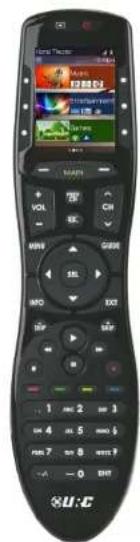
- TRC-820 Wi-Fi Remote Control
- Rechargeable Battery
- Micro USB Charging Cable

TOTAL CONTROL 2.0
TRC-820
Using the TRC-820:
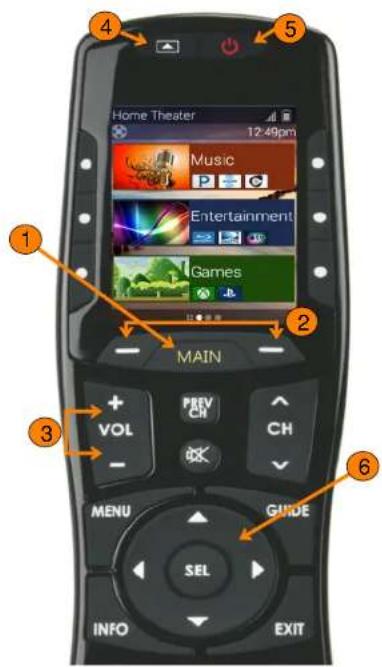
The TRC-820 Main Menu pages display the activities and/or device programmed into the system. Press the Main button to view those activities/or devices. Large systems may have more than one page. Select either Page buttons to view additional pages.
Once within a device or activity, the Page buttons reveal additional buttons. Press any button adjacent to the screen to select an activity and/or device.
Below are detailed descriptions of the available buttons and features:
- Main: this button can be programmed to jump the interface to the Main Menu where all activities/devices are located or to the URC Scenes Menu.
- Page Buttons: Use the Left and Right keys to navigate between Main Menu pages, Device Menu pages, and to access the Scenes Menu.
The Scenes Menu is accessible by navigating the menu pages to the far left. Locate the the Page Indicators above the Main button, the icon to the far left symbolizes the Scenes Menu. - Volume Buttons: The Volume buttons are always available regardless of what screen is displayed.
- Shortcuts Button: Select this button to access the Shortcuts Popup Menu. This menu can hold up to six (6) devices/activities that are programmed into that room.
- Power Button: Tap this button once to turn off the current room or hold the button for over five (5) seconds to access the Power Menu.
- Navigation Keys: The five (5) way cursor buttons are used to navigate through a device's menu with ease.
TOTAL CONTROL 2.0
TRC-820
Available View Modes:
With Total Control 2.0, there are two (2) ways to view the Main Menu. Either view type must be programmed by a custom installer:
- Ribbon View: This is the default layout of the TRC-820's interface. It holds a maximum of three (3) items per page.
- Grid View: This alternate view mode must be set by the system programmer. It holds up to a maximum of six (6) items per page.

RIBBON VIEW

GRID VIEW
TOTAL CONTROL 2.0
TRC-820
Shortcut Popup Menu:
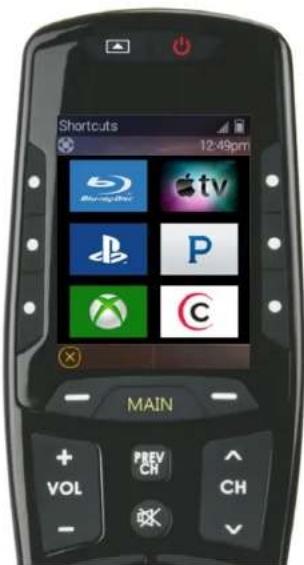
Press the Shortcuts button, as explained on page 3, to display the Shortcuts Popup Menu. This menu can hold up to six (6) items.
This menu is created on a per room basis and the only items that can be added to it are devices/activities that are programmed into that specific room.
To add an item to this menu perform the following:
- Locate a blank/available button space.
- Press and hold that available space for approximately three (3) seconds.
The Add a Shortcut menu displays with the available devices/activities for that room. - Select a device/activity to add it to the Shortcut Popup Menu.


TOTAL CONTROL 2.0
TRC-820
Using the Shortcut Popup Menu:
After items have been added to the Shortcut Popup Menu, it is easy to launch devices/activities.
To do so just press the LCD button assigned to the device/activity to launch. This sends out the macro assigned to the device/activity and jumps the TRC-820 to that menu for control.
Removing Shortcuts:
The process of removing an item from the Shortcuts Popup Menu is similar to adding one. To do so, follow these steps from within the Shortcuts Popup Menu:
- Press and hold the item desired for at least three (3) seconds.
- The Remove a Shortcut window displays, select Remove.

TOTAL CONTROL 2.0
TRC-820
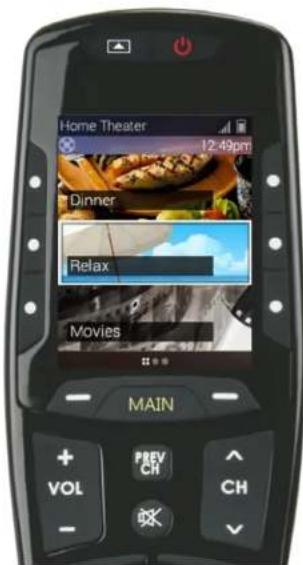
Scenes Menu:
This feature is unique to Total Control 2.0 and can be customized by the system programmer. Scenes provide the end-user with quick and easy access to commonly used activities or can be used to set a particular room into a specific mode/scene.
For example, a Dinner scene can turn on the dining room lights, turn off the home theater system in another room, and turn on music. Speak with the system programmer for specific ideas or request for the Scenes Menu.
The Scenes Menu can hold up to one hundred (100) Scenes per room. Keep in mind that Scenes are programmed for each room individually. This means each room has a unique Scenes Menu.
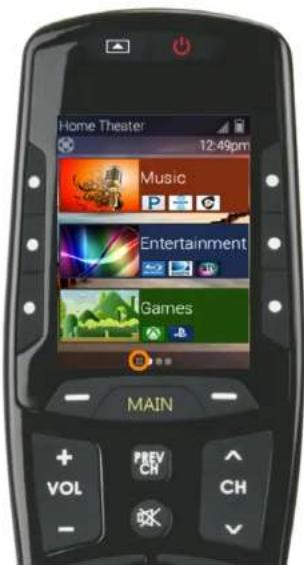
To access the Scenes Menu use the left button next to Main to navigate to the far left. The icon circled in the image represents the location of the Scenes Menu.
Additionally, the Scenes Menu can be programmed as the default landing page when the Main button has been pressed.
TOTAL CONTROL 2.0
TRC-820
Settings Menu:
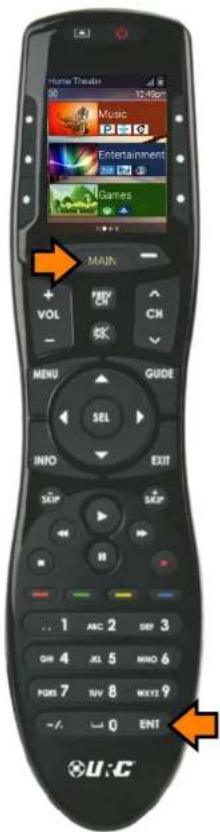
To access this menu, press and hold the Main and Enter buttons for greater than three (3) seconds. Generally, the Settings Menu does not require any interaction with the end-user.
The following options are available in the Settings Menu:
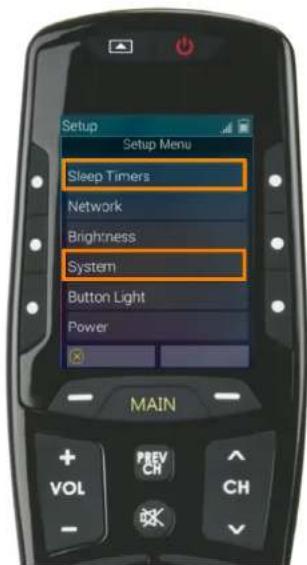
- Sleep Timers: Manage when the LCD screen turns OFF.
• Network: Use this option to connect the TRC-820 to the home network. - Brightness: Allows for the adjustment of the LCD screen's brightness.
- System: Provides general information such as memory used, current version, and version details.
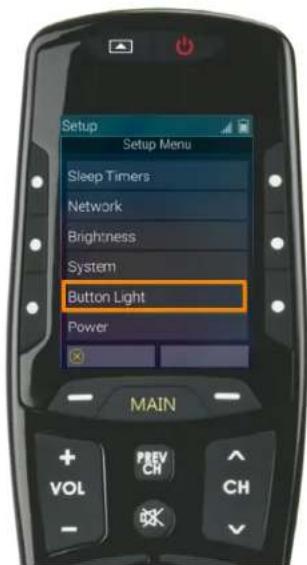
- Button Light: Adjust the brightness of the button backlight.
- Power: This option allows the user to set the level of battery charge remaining at which point the remote control displays the Low Battery Indicator
- Date & Time: This option allows the user to set the Date & Time parameters that are displayed on the remote control.
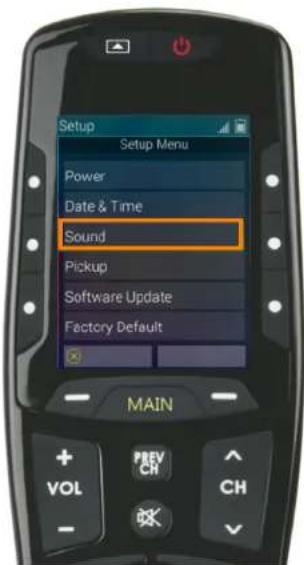
- Sound: This option allows the user to adjust the volume level of the remote control's sound effects.
- Pickup: This option allows the user to turn on, turn off, or adjust the sensitivity of the remote control's automatic wake up setting.
- Software Update: This option allows the user to check for available firmware updates and perform them.
- Factory Default: This option allows the user to reset the remote control's custom programming to the factory settings.
TOTAL CONTROL 2.0
TRC-820
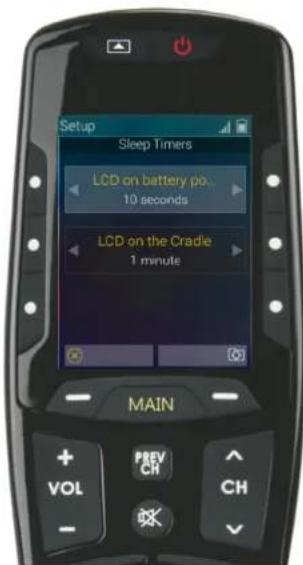
Sleep Timer:
Allows the user to adjust the amount of time before the TRC-820 turns off the LCD display. Adjustments can be made by using the right and left keys located to the sides of each option on this menu. There are two (2) available option here:
- LCD on Battery Power: Allows for the adjustment of time when the remote is disconnected from the charging cradle. The time period can be set from a minimum of 10 seconds to a max of three (3) minutes.
- LCD on the Cradle: Allows for the adjustment of time when remote is connected to the charging cradle. The time period can be set from a minimum of 10 seconds to a max of three (3) minutes.

TOTAL CONTROL 2.0
TRC-820
Network:
Allows the user to view and adjust the the Network Access settings on the remote control. There are the following available options:
- Preferred List: Contains all saved Wi-Fi networks that the device has been connected to.
- Wireless Search: Select this to scan for available wireless networks. After the wireless search has been performed, select the home network and enter the password as required. This saves that network to the preferred list and connects the remote to the Wi-Fi.
- Network Settings: Adjust settings specific to the network the remote control is connected to such as IP address, address type, and more.


TOTAL CONTROL 2.0
TRC-820
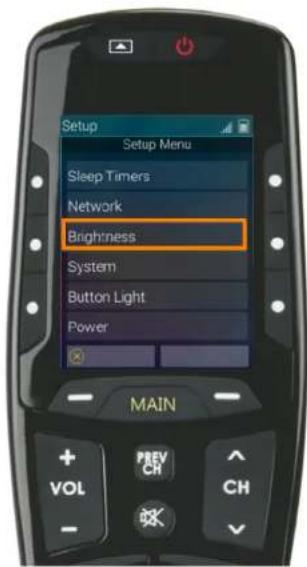
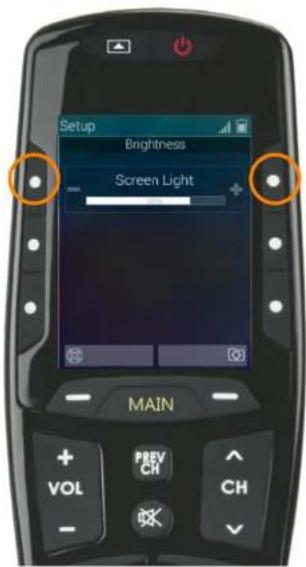
Brightness:
Allows the user to adjust the luminosity level of the remote control's LCD screen. To do so use the LCD buttons to the left and right of display.
Select the left LCD screen button to lower the brightness or the right to increase the brightness of the LCD display.
TOTAL CONTROL 2.0
TRC-820
System:
Allows the user to check a variety of the remote control's system operation details. Generally this menu has little to no use with the end-user.
There is important firmware information available in this menu that may be needed by URC's Technical Support department when troubleshooting.

TOTAL CONTROL 2.0
TRC-820
Button Light:
Allows the user to adjust the luminosity of the remote control's backlighting.
Select the left LCD screen button to lower the brightness or the right to increase the brightness of the LCD display.

TOTAL CONTROL 2.0
TRC-820
Power:
Allows the user to set the battery power level at which the remote control displays the Low Battery Warning.
Select the left LCD screen button to lower the battery percentage level or the right to increase the battery percentage level of the LCD display.


TOTAL CONTROL 2.0
TRC-820
Date & Time:
Allows the user to adjust the settings of the remote control's display of the date and time on the LCD screen.
- Date: Select this option using either the left or right LCD button. This allows for a manual adjustment of the Month, Day, and Year.
- Time: Select this option using either the left or right LCD button. This allows for a manual adjustment of the Hour, Minutes, and seconds.
- 12 Hr/24 Hr: Use the left and right LCD buttons to adjust the time format.


TOTAL CONTROL 2.0
TRC-820
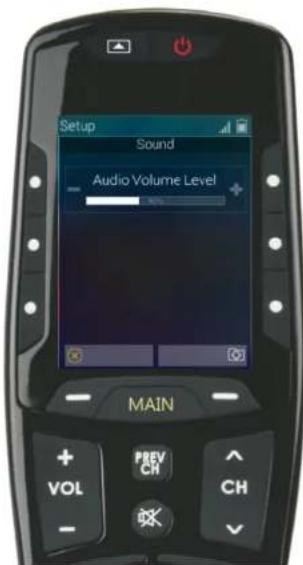
Sound:
Allows the user to adjust the volume level of the client's sound effects.
Select the left LCD screen button to lower the sound or the right to increase the sound of the remote control.
TOTAL CONTROL 2.0
TRC-820
Software Update:
Allows the user to request a Software Update from the system controller for the remote control.
Select Yes to begin a software update or select No to cancel.


TOTAL CONTROL 2.0
TRC-820
Factory Default:
Allows the user to return the remote control to the factory installed default setting. This completely removes any programming and required the remote to be reprogrammed before working with a Total Control 2.0 system.
- Press and hold the Factory Default button for over five (5) seconds.
- Press and hold the Yes option for over five (5) seconds.
The remote performs the factory reset and reboots.


TOTAL CONTROL 2.0
TRC-820
Specifications:
These are the technical specifications for the TRC-820:
RAM: 64MB Mobile DDR
NAND: 128MB
LCD: 2" LCD 240 x 320
Devices: Supports up to 255 Devices with text, less with heavy graphics
Usage Pages: Supports up to 255 Pages on each Device with text, less with heavy graphics usage
Macro Capability: Up to 255 steps each; however, nesting is allowed
Wi-Fi: IEEE 802.11 b/g/n
Battery: Lithium ion, 1,960mAh
Battery Charging Time: 5 Hours
Size: 8.66" H x 2.04" W x 1.19" D
Battery Warranty: 90 Days
Weight (with battery): 5.6 oz
SMPS: 5V/1A
USB Connector: Use only for charging
Limited Warranty Statement
1. Limited Warranty and Disclaimers
Universal Remote Control, Inc. ("URC") warrants that the URC equipment shall be free from defects in material and workmanship under normal usage for one (1) year from purchase when such is purchased from URC. This limited warranty is valid only in the United States of America. URC warrants that the software will substantially conform in any material respect to its functional specifications at the time of delivery. URC SHALL NOT BE LIABLE FOR OPERATIONAL, TECHNICAL OR EDITORIAL ERRORS AND/OR OMISSIONS MADE IN THE URC DOCUMENTATION. URC DOES NOT WARRANT THAT THE URC SOFTWARE IS BUG-FREE OR ERROR FREE OR THAT THERE ARE NO ERRORS/BUGS IN THE URC SOFTWARE.
URC warrants that at the time of purchase the URC equipment and the URC software complied with all applicable regulations and policies of the Federal Communications Commissions (“FCC”) regarding electromagnetic interference caused by electronic/computing devices and to the extent that the URC equipment and/or the URC software fails to so comply, URC shall, at its own expense, take all reasonable measures to promptly cause such to comply.
URC equipment purchases from other than an authorized URC dealer or distributor are without warranty.
THIS LIMITED WARRANTY DOES NOT COVER TECHNICAL ASSISTANCE FOR HARDWARE OR SOFTWARE USAGE EXCEPT AS EXPRESSLY PROVIDED FOR HEREIN, THE EQUIPMENT, SOFTWARE AND DOCUMENTATION OF URC ARE SUPPLIED "AS IS" WITHOUT ANY WARRANTY, EXPRESS, STATUTORY OR IMPLIED, OF ANY KIND. TO THE MAXIMUM EXTENT PERMITTED BY APPLICABLE LAW, URC EXPRESSLY DISCLAIMS ALL WARRANTIES, EXPRESS, STATUTORY OR
TOTAL CONTROL 2.0
TRC-820
IMPLIED, INCLUDING BUT NOT LIMITED TO THE WARRANTIES OF MERCHANTABILITY AND FITNESS FOR A PARTICULAR PURPOSE. URC DOES NOT WARRANT, GUARANTEE, OR MAKE ANY REPRESENTATIONS REGARDING THE USE OF, OR THE RESULTS OF THE USE OF, THE EQUIPMENT, SOFTWARE OR DOCUMENTATION IN TERMS OF CORRECTNESS, ACCURACY, RELIABILITY OR OTHERWISE. EXCEPT AS EXPRESSLY PROVIDED FOR HEREIN, TECHNICAL SERVICES ARE SUPPLIED "AS IS", WITHOUT ANY WARRANTY, EXPRESS, STATUTORY OR IMPLIED, OF ANY KIND. TO THE MAXIMUM EXTENT PERMITTED BY APPLICABLE LAW, URC EXPRESSLY DISCLAIMS ALL WARRANTIES, EXPRESS, STATUTORY OR IMPLIED, INCLUDING BUT NOT LIMITED TO THE WARRANTIES OF QUALITY OR REASONABLE SKILL AND CARE, OR OUTCOME OR RESULTS.
WITHOUT IN ANY WAY LIMITING THE GENERALITY OF THE OTHER PROVISIONS HEREIN, WARRANTY DOES NOT COVER: (I) DAMAGE FROM MISUSE, NEGLECT OR ACTS OR NATURE, (II) MODIFICATIONS, (III) INTEGRATION WITH THIRD PARTY CONTENT (IV) BEYOND THE WARRANTY PERIOD AND/ OR FAILURE TO FOLLOW URC WARRANTY CLAIM PROCEDURE.
The warranty limitations and warranty disclaimers may not apply to end user in whole or in part, where such are restricted or excluded by applicable law and such shall apply to the maximum extent permitted by applicable law.
In the event of any warranty claim, URC will, at its sole option, repair the URC equipment using new or comparable rebuilt parts, or exchange the URC equipment for new or rebuilt equipment. In the event of a defect, these are the end user's exclusive remedies.
All the URC equipment returned for service, exchange or repair require an RGA number. To obtain an RGA number, you must complete a Return Request Form which you may obtain by calling (914) 835-4484 or contacting URC at returnrequest@universalremote.com. To obtain warranty service, end user must deliver the URC equipment, freight prepaid, in its original packaging or packaging affording adequate protection to URC at 420 Columbus Avenue, Valhalla, NY 10595. It is end user's responsibility to backup any macro programming, artwork, software or other materials that may have been programmed into the unit. It is likely that such data, software, or other materials will be lost during service and URC will not be responsible for any such damage or loss. A dated purchase receipt, bill of sale, installation contract or other verifiable proof of purchase is required. For the URC equipment support and other important information, please visit URC's website available at www.universalremote.com or call the Customer Service Center at (914) 835-4484.
This limited warranty only covers the URC equipment issues caused by defects in material or workmanship during ordinary consumer use. It does not cover product issues caused by any other reason, including but not limited to product issues due to commercial use, acts of God, third-party installation, misuse, limitations of technology, or modification of or to any part of the URC equipment. This limited warranty does not cover the URC equipment sold as used, as is, refurbished, so called "B stock" or consumables (such as batteries). This limited warranty is invalid if the factory applied serial number has been altered or removed from the URC equipment. This limited warranty specifically excludes the URC equipment sold by unauthorized resellers.
With the exception of URC's IR-only, broad-based consumer remotes, none of Page 36 URC's PC programmable remotes or any of our Total Control® whole-house equipment are authorized for online internet sales. Buying URC's PC programmable
TOTAL CONTROL 2.0
TRC-820
remotes or any of our Total Control® whole-house equipment online means buying equipment that does not have a URC's limited warranty. Such equipment is not eligible for URC tech support or software support, either.
2. URC's Limitations of Liability
IN NO EVENT SHALL URC BE LIABLE FOR INDIRECT, SPECIAL, INCIDENTAL, EXEMPLARY, PUNITIVE OR CONSEQUENTIAL DAMAGES OF ANY KIND OR LOSS OF PROFITS OR BUSINESS OPPORTUNITY, EVEN IF URC IS ADVISED OF THE POSSIBILITY OF SUCH DAMAGES.
IN NO EVENT SHALL URC BE LIABLE FOR LOSS OF OR DAMAGE TO DATA, COMPUTER SYSTEMS OR COMPUTER PROGRAMS. URC'S LIABILITY, IF ANY, FOR DIRECT DAMAGES OF ANY FORM SHALL BE LIMITED TO ACTUAL DAMAGES, NOT IN EXCESS OF AMOUNTS PAID BY END USER FOR THE URC EQUIPMENT.
IN NO EVENT SHALL URC BE LIABLE FOR ANY EVENTS BEYOND ITS CONTROL, INCLUDING ANY INSTANCE OF FORCE MAJEURE. IN NO EVENT SHALL URC BE LIABLE FOR THE ACTS OR OMISSIONS OF END USER OR ANY THIRD PARTY.
THE LIMITATIONS OF LIABILITY MAY NOT APPLY TO END USER IN WHOLE OR IN PART, WHERE SUCH ARE RESTRICTED LIMITED OR EXCLUDED BY APPLICABLE LAW AND SUCH SHALL APPLY TO THE MAXIMUM EXTENT PERMITTED BY APPLICABLE LAW.
URC SHALL NOT BE HELD RESPONSIBLE FOR THE STATEMENTS MADE BY OTHERS.
SOME STATES OR JURISDICTIONS DO NOT ALLOW THE EXCLUSION OR LIMITATION OF INCIDENTAL OR CONSEQUENTIAL DAMAGES, OR ALLOW LIMITATIONS ON HOW LONG AN IMPLIED WARRANTY LASTS, SO THE ABOVE
LIMITATIONS OR EXCLUSIONS MAY NOT APPLY TO END USER. THIS LIMITED WARRANTY GIVES END USER SPECIFIC LEGAL RIGHTS AND END USER MAY HAVE OTHER RIGHTS WHICH VARY FROM STATE TO STATE OR JURISDICTION TO JURISDICTION.
End User Agreement
The terms and conditions of the End User Agreement available at www.universalremote.com/eua.php shall apply.
Federal Communication Commission Interference Statement
This equipment has been tested and found to comply with the limits for a Class B digital device, pursuant to part 15 of the FCC Rules. These limits are designed to provide reasonable protection against harmful interference in a residential installation. This equipment generates, uses and can radiate radio frequency energy and, if not installed and used in accordance with the instructions, may cause harmful interference to radio communications. However, there is no guarantee that interference will not occur in a particular installation. If this equipment does cause harmful interference to radio or television reception, which can be determined by turning the equipment off and on, the user is encouraged to try to correct the interference by one more of the following measures:
- Reorient or relocate the receiving antenna.
- Increase the separation between the equipment and receiver.
- Connect the equipment into an outlet on a circuit different from that to which the receiver is connected.
- Consult the dealer or an experienced radio/TV technician for help.
TOTAL CONTROL 2.0
TRC-820
Warning!
Changes or modifications not expressly approved by the manufacturer could void the user's authority to operate the equipment.
Note : The manufacturer is not responsible for any Radio or TV interference caused by unauthorized modifications to this equipment. Such modifications could void the user's authority to operate the equipment.
FCC Caution
This device complies with Part 15 of the FCC Rules. Operation is subject to the following two conditions: (1) this device may not cause harmful interference, and (2) this device must accept any interference received, including interference that may cause undesired operation.
Any changes or modifications not expressly approved by the party responsible for compliance could void the authority to operate equipment.
Regulatory Information to the user
• CE conformity Notice
Products with "CE" marking comply EMC Directive 2014/30/EU issued by the commission of the European Community.
- EMC Directive
□Emission
□Immunity
Power
• Declaration of Conformity
"Hereby, Universal Remote Control Inc. declares that this TRC-820 is in compliance with the Essential requirements
- TRC-820
- TOTAL CONTROL 2.0
- Introducing the TRC-820
- Online Help:
- Contact Support:
- My Installer/Programmer:
- Table of Contents
- Features and Benefits:
- Updated User Experience:
- Quick Connect Wi-Fi:
- Two-Way Metadata Feedback:
- Pick-up Sensor:
- Rechargeable Lithium Polymer Battery and Charging Dock:
- Before Getting Started:
- Parts List:
- Using the TRC-820:
- Available View Modes:
- Shortcut Popup Menu:
- Using the Shortcut Popup Menu:
- Removing Shortcuts:
- Scenes Menu:
- Settings Menu:
- Sleep Timer:
- Network:
- Brightness:
- System:
- Button Light:
- Power:
- Date & Time:
- Sound:
- Software Update:
- Factory Default:
- Specifications:
- Limited Warranty Statement
- Limited Warranty and Disclaimers
- URC equipment purchases from other than an authorized URC dealer or distributor are without warranty.
- URC's Limitations of Liability
- End User Agreement
- Federal Communication Commission Interference Statement
- Warning!
- FCC Caution
- Regulatory Information to the user
- • CE conformity Notice
Brand : UNIVERSAL REMOTE CONTROL
Model : TRC-820
Category : Remote control