VR02 - Headphones ElectriQ - Free user manual and instructions
Find the device manual for free VR02 ElectriQ in PDF.


| Product Type | Virtual Reality Headset |
| Brand | ElectriQ |
| Model | VR02 |
| Dimensions (Approximate) | 200 x 120 x 100 mm |
| Net Weight (Approximate) | 300 g |
| Power Source | None (passive, uses mobile phone battery) |
| Compatible Phone Screen Size | 3.5" to 6.0" |
| Interpupillary Distance Adjustment | Yes, via wheel on top |
| Object Distance Adjustment | Yes, via knobs on sides |
| Focus Adjustment | Yes, via rings around lenses (corrects near-sightedness) |
| Head Strap | Adjustable Velcro straps |
| Front Cover | Removable |
| Face Pad | Ergonomic foam |
| Lens Type | Optical lenses |
| Compatibility | Google Cardboard, Nibiru, Fibrum, and other VR platforms |
| Cleaning Instructions | Wipe lenses and body with a soft, dry cloth; avoid liquids |
| Safety Warnings | Use in safe environment; remove glasses; not for children under 3; take breaks every hour |
| Spare Parts Availability | Not specified; contact ElectriQ support for inquiries |
| Country of Origin | Not specified |
| Warranty | Refer to seller or ElectriQ support |
Frequently Asked Questions - VR02 ElectriQ
User questions about VR02 ElectriQ
0 question about this device. Answer the ones you know or ask your own.
Ask a new question about this device
Download the instructions for your Headphones in PDF format for free! Find your manual VR02 - ElectriQ and take your electronic device back in hand. On this page are published all the documents necessary for the use of your device. VR02 by ElectriQ.
USER MANUAL VR02 ElectriQ
natural_image
Black VR headset with green logo and 'VIRTUAL BEAUTY SLAGGLES' branding (no additional text or symbols visible)Thank you for choosing ElectrIQ
Please read this user manual before using these Virtual Reality Goggles and keep it safe for future reference.
Visit our page www.electrlQ.co.uk for our entire range of Intelligent Electricals
WARNINGS
- Use only in a safe environment. The headset produces an immersive virtual reality experience that distracts you from and completely blocks your view of your actual surroundings.
Always be aware of your surroundings when using the headset. Remain seated whenever possible and take special care to ensure that you are not near other people, objects, stairs, balconies, windows, furniture, or other items that you can trip over, bump into or knock down when using, or immediately after using, the headset. Do not handle sharp or otherwise dangerous objects while using the headset. Never wear the headset in situations that require attention such as walking, cycling or driving.
- Ease into the use of the headset to allow your body to adjust. Use for only a few minutes at first and only increase the amount of time using the headset gradually as you grow accustomed to virtual reality.
- Do not use the headset when you are tired or under the influence of alcohol or drugs as this can increase your susceptibility to adverse symptoms.
- Take a 10 to 15 minute break every hour, even if you don't think you need it. Each person is different so take more frequent and longer breaks if you feel discomfort.
- If you experience discomfort immediately discontinue use.
- Do not use whilst the mobile phone is charging.
- Remove glasses before use.
- Not suitable for children under the age of 3.
- Children should be supervised whilst using the device and use limited to 30 minutes at a time.
GOGGLES
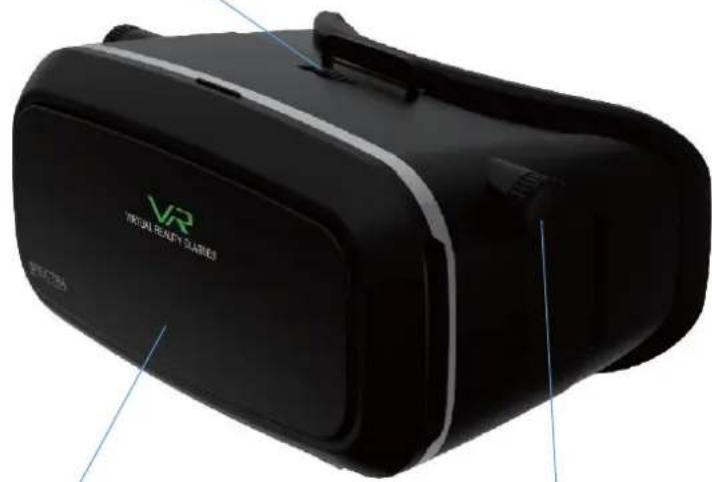
Inter pupillary distance adjustment wheel
natural_image
Black VR headset with green logo and 'VIRTUAL REALTY SLARIES' branding (no additional text or symbols visible)Removable front cover Object distance adjustment
natural_image
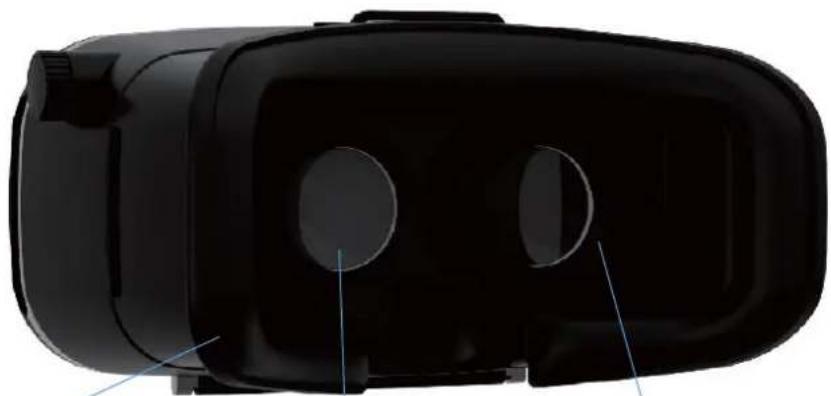
Black VR headset with circular lenses and blue alignment lines (no text or symbols visible)Ergonomic face pad Lens Focus adjustment ring
COMPATIBLE DEVICES
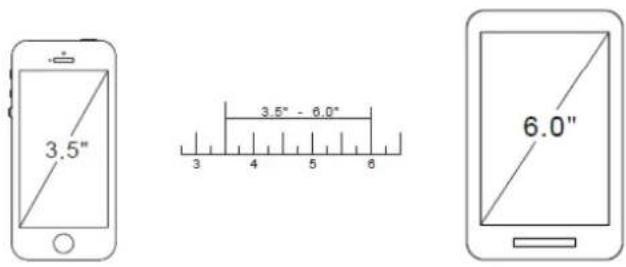
The goggles can accept most devices with screens from 3.5" to 6.0".
HOW TO USE
Select a virtual reality app to play or video to watch on your mobile phone. Orientate the phone horizontally.
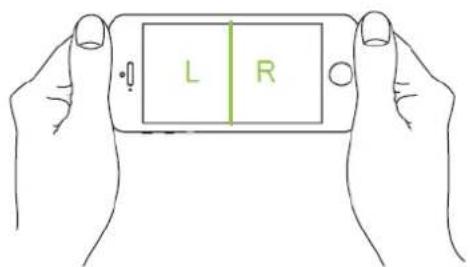
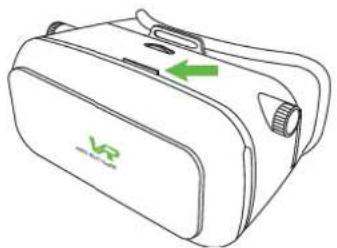
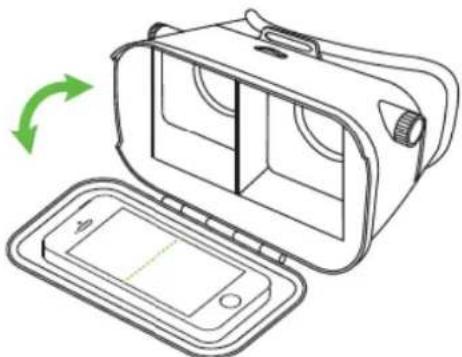
Open the front of the goggles by flipping down the front section.
natural_image
Line drawing of a beige suitcase with a green arrow pointing to the side panel (no text or symbols)Insert your mobile phone into the holder on the front of the front section. The spring loaded holders will open and close to hold your phone securely.
natural_image
Line drawing of a VR headset with an open case and a smartphone on the side, showing a green circular arrow indicating rotation (no text or symbols)Close the front of the goggles again.
Place the head strap over your head and adjust the straps using the Velcro adjustments.
The goggles can be adjusted for the individual user's vision.
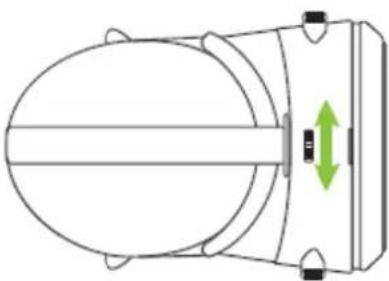
The pupillary distance can be adjusted by rolling the adjuster in the centre of the top either right or left.
natural_image
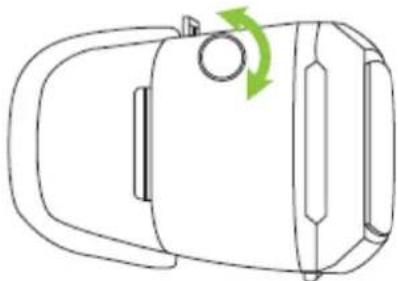
Diagram of a cylindrical device with a vertical bar and green directional arrows indicating motion or force (no text or symbols)The object distance can be set by rotating the knobs on the left and right side of the goggles clockwise or counter clockwise.
natural_image
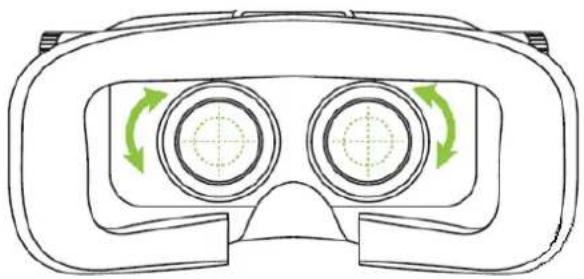
Line drawing of a car with a green circular arrow indicating rotation (no text or symbols)To adjust the focus of the goggles, twist the focus rings on the inside of the goggles, around the lenses. This can be used to correct prescriptions that normally require glasses.
natural_image
Line drawing of a VR headset with circular lenses and green rotation arrows indicating clockwise motion (no text or symbols)You are now ready to enjoy virtual reality.
GETTING STARTED: GOOGLE CARDBOARD AND OTHER VR PLATFORMS

If you are using the VR device with cardboard games you need to download the Cardboard app. Once you have installed the Cardboard app you are walked through a simple set up process. The app will ask you to scan the QR code provided with your headset or VR accessory and doing so will calibrate any apps using the Cardboard SDK to match the lens type and fit in your headset. You can always use the default Cardboard settings, but the sticker calibration method ensures you are getting the best VR experience.
Outside of the official Cardboard app, there are tons of apps that support this same split-screen visual format and work great within Cardboard. Many of these experiences are highly visual, or include some simple and addictive gameplay mechanic, but nearly all of them are made better with the addition of a decent set of headphones or earbuds; quality audio completes the VR immersion.
Also search your favourite app market for terms as VR, cardboard, VR Games, VR theatre, VR player or platforms as Nibiru, Fibrum etc.
There is also a 360 degrees youtube channel that will benefit of VR goggles use.
electriQ UK SUPPORT
www.electriQ.co.uk/support
Complete online support form on: www.electriQ.co.uk/support
Customer Service Line: 0871 620 1057
Office hours: 9AM – 5PM Monday to Friday
www.electriQ.co.uk
Unit 2, The Nursery
Berristow Lane
South Normanton
Derbyshire
DE55 2FX
Brand : ElectriQ
Model : VR02
Category : Headphones