
AMU0503US - Mouse TARGUS - Free user manual and instructions
Find the device manual for free AMU0503US TARGUS in PDF.


| Product Type | Mouse |
| Brand | Targus |
| Model | AMU0503US |
| Connection Type | Wired USB |
| Sensor Type | Optical |
| Number of Buttons | 3 (Left, Right, Scroll Wheel) |
| Resolution | 1000 DPI |
| Cable Length | 5 ft (1.5 m) |
| Compatibility | Windows, Mac, Linux |
| Color | Black |
| Dimensions (L x W x H) | 4.5 x 2.5 x 1.2 in (11.4 x 6.4 x 3.0 cm) |
| Weight | 3.5 oz (100 g) |
| Power Source | USB Bus-Powered |
| Maintenance | Clean with a soft, dry cloth; avoid liquids |
| Warranty | Limited Lifetime |
| Package Contents | Mouse, User Manual |
Frequently Asked Questions - AMU0503US TARGUS
User questions about AMU0503US TARGUS
0 question about this device. Answer the ones you know or ask your own.
Ask a new question about this device
Download the instructions for your Mouse in PDF format for free! Find your manual AMU0503US - TARGUS and take your electronic device back in hand. On this page are published all the documents necessary for the use of your device. AMU0503US by TARGUS.
USER MANUAL AMU0503US TARGUS
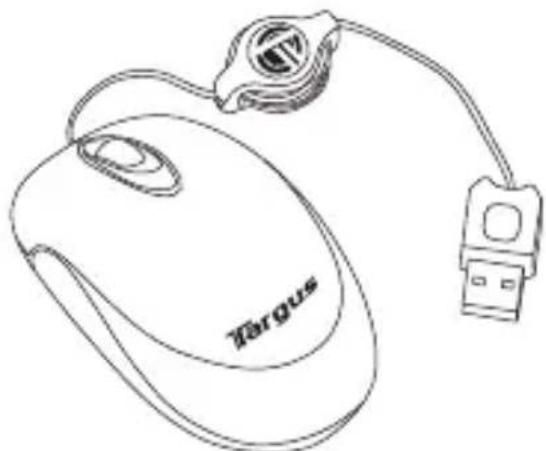
Congratulations on your purchase of the Targus Kaleidoscope Notebook Mouse with retractable cable. The scroll feature of this mouse enhances your internet browsing capabilities and enables you to quickly access program features options supported under the Windows® operating system. The mouse connects directly to your computer's USB port. The plug-and-play Kaleidoscope Notebook Mouse requires no extra driver or additional software.
System Requirements
Hardware
- USB interface
Operating System
- Windows® Me/2000/XP
- Windows Vista™
• Mac OS X (10.x or greater)
natural_image
Line drawing of a macOS computer mouse with a USB cable and a logo on the cover (no text or symbols beyond branding)Operating Instructions
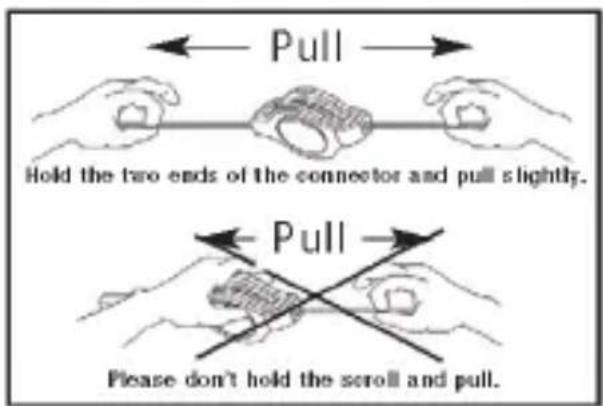
- To extend the USB cord, hold the mouse in one hand and the USB connector in the other and pull both ends of the cord away from the cord wheel at the same time.
- To retract the USB cord, extend both ends of the cord slightly and release quickly.
- When the ideal length of USB cord is fixed, plug the mouse USB connector into your computer's USB port and you are ready to go.
Safety Measures
Never point the optical sensor toward the face, particularly the eyes, to avoid possible injury.

NOTE: WHILE THE MOUSE IS FUNCTIONING, OPTICAL LIGHT IS VISIBLE TO THE NAKED EYE. BE CAREFUL NOT TO LOOK DIRECTLY INTO THE EMITTER HOLE WHILE THE MOUSE IS ACTIVE.
Technical Support
For technical questions, please visit:
US Internet: www.targus.com/support.asp
Australia Internet: www.targus.com.au
Email: infoaust@targus.com
Telephone: 1800-641-645
New Zealand Telephone: 0800-633-222
Product Registration
Targus recommends that you register your Targus accessory shortly after purchasing it. Go to:
http://www.targus.com/registration.asp. You will need to provide your full name, email address, phone number, and company information (if applicable).
Warranty
Targus warrants this product to be free from defects in materials and workmanship for one year. If your Targus accessory is found to be defective within that time, we will promptly repair or replace it. This warranty does not cover accidental damage, wear and tear, or consequential or incidental loss. Under no conditions is Targus liable for loss of, or damage to a devices nor loss of, or damage to, programs, records, or data; nor any consequential or incidental damages, even if Targus has been informed of their possibility. This warranty does not affect your statutory rights.
Regulatory Compliance
This device complies with Part 15 of the FCC Rules. Operation is subject to the following two conditions: (1) This device may not cause harmful interference, and (2) This device must accept any interference received, including interference that may cause undesired operation.
FCC Statement Tested to Comply
This equipment has been tested and found to comply with the limits of a Class B digital device, pursuant to Part 15 of the FCC Rules. These limits are designed to provide reasonable protection against harmful interference in a residential installation. This equipment generates, uses, and can radiate radio frequency energy and if not installed and used in accordance with the instructions, may cause harmful interference to radio communications. However, there is no guarantee that interference will not occur in a particular installation. If this equipment does cause harmful interference to radio or television reception, which can be determined by turning the equipment off and on, the user is encouraged to try to correct the interference by one or more of the following measures:
- Reorient or relocate the receiving antenna;
- Increase the separation between the equipment and receiver;
- Connect the equipment into an outlet on a circuit different from that to which the receiver is connected;
- Consult the dealer or an experienced radio/TV technician for help.
Changes or modifications not authorized by the party responsible for compliance could void the user's authority to operate this product.

Visit our Website at www.targus.com Features and specifications subject to change without notice.
© 2006 Targus Group International, Inc. and Targus, Inc.
Brand : TARGUS
Model : AMU0503US
Category : Mouse