DAC-45 - Audio/video converter DataVideo - Free user manual and instructions
Find the device manual for free DAC-45 DataVideo in PDF.


| Product Type | Audio/Video Converter |
| Brand | DataVideo |
| Model | DAC-45 |
| Dimensions (W x D x H) | 100 mm x 60 mm x 25 mm |
| Weight | 200 g |
| Power Supply | 5V DC via USB port |
| Input Interface | HDMI (type A) |
| Output Interface | SDI (BNC), 3.5 mm audio jack |
| Supported Video Resolutions | 1080p, 720p, 576i, 480i |
| Audio Support | Embedded HDMI audio, analog pass-through |
| Color | Black |
| Material | Aluminum alloy housing |
| Operating Temperature | 0°C to 40°C |
| Package Contents | DAC-45 converter, USB power cable, user manual |
| Key Feature | Real-time conversion with low latency |
| Warranty | 1 year |
Frequently Asked Questions - DAC-45 DataVideo
User questions about DAC-45 DataVideo
0 question about this device. Answer the ones you know or ask your own.
Ask a new question about this device
Download the instructions for your Audio/video converter in PDF format for free! Find your manual DAC-45 - DataVideo and take your electronic device back in hand. On this page are published all the documents necessary for the use of your device. DAC-45 by DataVideo.
USER MANUAL DAC-45 DataVideo
WARNINGS AND PRECAUTIONS......4
WARRANTY....5
STANDARD WARRANTY....5
THREE YEAR WARRANTY....5
DISPOSAL....6
CHAPTER 1 PRODUCT OVERVIEW....7
1.1 FEATURES....7
1.2 FORMATS CONVERSION TABLE 7
CHAPTER 2 CONNECTIONS AND CONTROLS 8
2.1 FRONT PANEL 8
2.2 REAR PANEL 9
CHAPTER 3 DAC CENTER....11
INFORMATION....11
VIDEO....12
AUDIO....15
PROC AMP 16
SETTING....17
FIRMWARE UPDATE....19
FREQUENTLY-ASKED QUESTIONS 20
DIMENSIONS 21
SPECIFICATIONS 22
SERVICE AND SUPPORT 24
Disclaimer of Product & Services
The information offered in this instruction manual is intended as a guide only. At all times, Datavideo Technologies will try to give correct, complete and suitable information. However, Datavideo Technologies cannot exclude that some information in this manual, from time to time, may not be correct or may be incomplete. This manual may contain typing errors, omissions or incorrect information. Datavideo Technologies always recommend that you double check the information in this document for accuracy before making any purchase decision or using the product. Datavideo Technologies is not responsible for any omissions or errors, or for any subsequent loss or damage caused by using the information contained within this manual. Further advice on the content of this manual or on the product can be obtained by contacting your local Datavideo Office or dealer.
FCC Compliance Statement
This device complies with part 15 of the FCC rules. Operation is subject to the following two conditions:
(1) This device may not cause harmful interference, and
(2) This device must accept any interference received, including interference that may cause undesired operation.
Warnings and Precautions

- Read all of these warnings and save them for later reference.
- Follow all warnings and instructions marked on this unit.
- Unplug this unit from the wall outlet before cleaning. Do not use liquid or aerosol cleaners. Use a damp cloth for cleaning.
- Do not use this unit in or near water.
- Do not place this unit on an unstable cart, stand, or table. The unit may fall, causing serious damage.
- Slots and openings on the cabinet top, back, and bottom are provided for ventilation. To ensure safe and reliable operation of this unit, and to protect it from overheating, do not block or cover these openings. Do not place this unit on a bed, sofa, rug, or similar surface, as the ventilation openings on the bottom of the cabinet will be blocked. This unit should never be placed near or over a heat register or radiator. This unit should not be placed in a built-in installation unless proper ventilation is provided.
- This product should only be operated from the type of power source indicated on the marking label of the AC adapter. If you are not sure of the type of power available, consult your Datavideo dealer or your local power company.
- Do not allow anything to rest on the power cord. Do not locate this unit where the power cord will be walked on, rolled over, or otherwise stressed.
- If an extension cord must be used with this unit, make sure that the total of the ampere ratings on the products plugged into the extension cord do not exceed the extension cord rating.
- Make sure that the total amperes of all the units that are plugged into a single wall outlet do not exceed 15 amperes.
- Never push objects of any kind into this unit through the cabinet ventilation slots, as they may touch dangerous voltage points or short out parts that could result in risk of fire or electric shock. Never spill liquid of any kind onto or into this unit.
- Except as specifically explained elsewhere in this manual, do not attempt to service this product yourself. Opening or removing covers that are marked "Do Not Remove" may expose you to dangerous voltage points or other risks, and will void your warranty. Refer all service issues to qualified service personnel.
- Unplug this product from the wall outlet and refer to qualified service personnel under the following conditions:
a. When the power cord is damaged or frayed;
b. When liquid has spilled into the unit;
c. When the product has been exposed to rain or water;
d. When the product does not operate normally under normal operating conditions. Adjust only those controls that are covered by the operating instructions in this manual; improper adjustment of other controls may result in damage to the unit and may often require extensive work by a qualified technician to restore the unit to normal operation;
e. When the product has been dropped or the cabinet has been damaged;
f. When the product exhibits a distinct change in performance, indicating a need for service.
Warranty
Standard Warranty
- Datavideo equipment are guaranteed against any manufacturing defects for one year from the date of purchase.
- The original purchase invoice or other documentary evidence should be supplied at the time of any request for repair under warranty.
- The product warranty period begins on the purchase date. If the purchase date is unknown, the product warranty period begins on the thirtieth day after shipment from a Datavideo office.
- All non-Datavideo manufactured products (product without Datavideo logo) have only one year warranty from the date of purchase.
- Damage caused by accident, misuse, unauthorized repairs, sand, grit or water is not covered under warranty.
- Viruses and malware infections on the computer systems are not covered under warranty.
- Any errors that are caused by unauthorized third-party software installations, which are not required by our computer systems, are not covered under warranty.
• All mail or transportation costs including insurance are at the expense of the owner. - All other claims of any nature are not covered.
- All accessories including headphones, cables, and batteries are not covered under warranty.
- Warranty only valid in the country or region of purchase.
- Your statutory rights are not affected.
Three Year Warranty
- All Datavideo products purchased after July 1st, 2017 are qualified for a free two years extension to the standard warranty, providing the product is registered with Datavideo within 30 days of purchase.

- Certain parts with limited lifetime expectancy such as LCD panels, DVD drives, Hard Drive, Solid State Drive, SD Card, USB Thumb Drive, Lighting, Camera module, PCIe Card are covered for 1 year.
- The three-year warranty must be registered on Datavideo's official website or with your local Datavideo office or one of its authorized distributors within 30 days of purchase.
Disposal

natural_image
Symbol of a trash bin crossed with diagonal lines, no text or labels presentFor EU Customers only - WEEE Marking
This symbol on the product or on its packaging indicates that this product must not be disposed of with your other household waste. Instead, it is your responsibility to dispose of your waste equipment by handing it over to a designated collection point for the recycling of waste electrical and electronic equipment. The separate collection and recycling of your waste equipment at the time of disposal will help to conserve natural resources and ensure that it is recycled in a manner that protects human health and the environment. For more information about where you can drop off your waste equipment for recycling, please contact your local city office, your household waste disposal service or the shop where you purchased the product.

CE Marking is the symbol as shown on the left of this page. The letters "CE" are the abbreviation of French phrase "Conformité Européenne" which literally means "European Conformity". The term initially used was "EC Mark" and it was officially replaced by "CE Marking" in the
Directive 93/68/EEC in 1993. "CE Marking" is now used in all EU official documents.
Chapter 1 Product Overview
Datavideo DAC-45 4K up / down / cross converter is designed to convert video signals from VGA, HDMI, SDI with Audio input to 4K HDMI or 3G-SDI output. It allows instant and automatic switch between 4K, HD and SD video formats when the video input changes.
1.1 Features
• HDMI 2.0 input/output with 4:2:2 processing
• Up/Down/Cross convert between SD, HD, 3G and 4K formats
• SDI(3G)/HDMI(4K)/VGA Input
• SDI(3G)/HDMI(4K) Output
• Support 3G-SDI Level A/B
• Reference input (Black Burst and Tri-Level Sync.)
• Built-in Super Resolution Engine for 4K Up Conversion
• Built-in Resolution & Frame rate Up/Down Conversion Engine
• Built-in De-interlacer and Interlacer (I <-> P conversion)
1.2 Formats Conversion Table
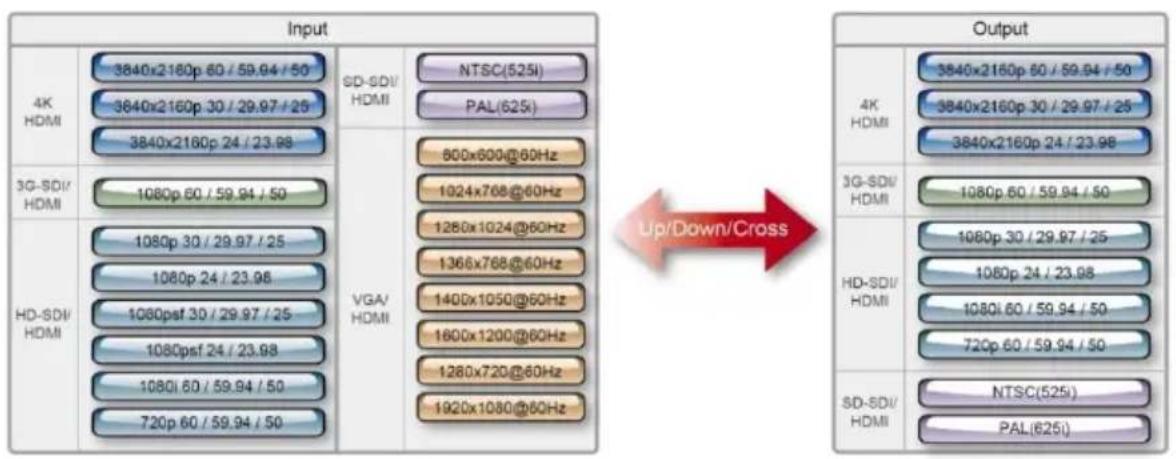
flowchart
graph LR
    subgraph Input
        A["4K HDMI"] --> B["3840x2160p 60 / 59.94 / 50"]
        B --> C["3840x2160p 30 / 29.97 / 25"]
        C --> D["3840x2160p 24 / 23.98"]
        D --> E["SD-SDI/HDMI"]
        E --> F["VGA/HDMI"]
        F --> G["NTSC(525i)"]
        G --> H["PAL(625i)"]
        H --> I["800x600@60Hz"]
        I --> J["1024x768@60Hz"]
        J --> K["1280x1024@60Hz"]
        K --> L["1366x768@60Hz"]
        L --> M["1400x1050@60Hz"]
        M --> N["1600x1200@60Hz"]
        N --> O["1280x720@60Hz"]
        O --> P["1920x1080@60Hz"]
    end

    subgraph Output
        Q["4K HDMI"] --> R["3840x2160p 60 / 59.94 / 50"]
        R --> S["3840x2160p 30 / 29.97 / 25"]
        S --> T["3840x2160p 24 / 23.98"]
        T --> U["3G-SDI/HDMI"]
        U --> V["1080p 60 / 59.94 / 50"]
        V --> W["HD-SDI/HDMI"]
        W --> X["1060p 30 / 29.97 / 25"]
        X --> Y["1080p 24 / 23.98"]
        Y --> Z["1080i 60 / 59.94 / 50"]
        Z --> AA["720p 60 / 59.94 / 50"]
        AA --> AB["SD-SDI/HDMI"]
        AB --> AC["NTSC(525i)"]
        AC --> AD["PAL(625i)"]
    end
    A --> F
    B --> E
    E --> F
    F --> G
    G --> H
    H --> I
    I --> J
    J --> K
    K --> L
    L --> M
    M --> N
    N --> O
    O --> P
    P --> Q
    Q --> R
    R --> S
    S --> T
    T --> U
    U --> V
    V --> W
    W --> X
    X --> Y
    Y --> Z
    Z --> AA
    AA --> AB
Chapter 2 Connections and Controls
2.1 Front Panel
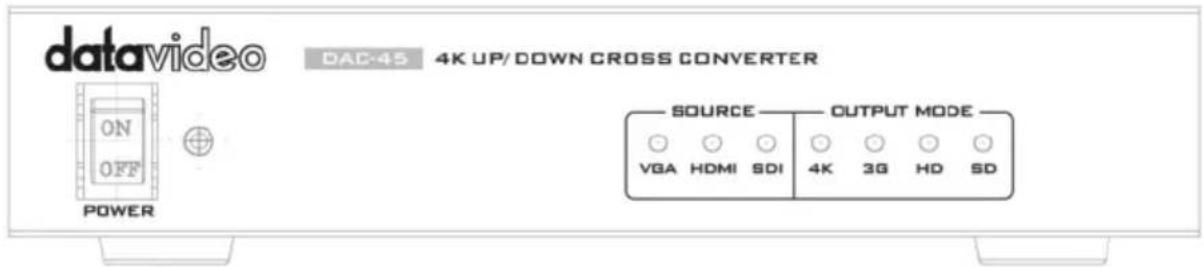
Power Switch
Turns ON/OFF the device
Source LED Indicators
Only one input can be enabled at a time. For details on how to select the source, see the DIP Switch descriptions in the Rear Panel section.
ON (Red): Enabled but signal not detected
ON (Green): Enabled with valid connection
OFF: Disabled
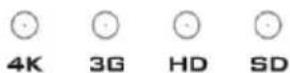
Output Mode LED Indicators
Only one output mode can be enabled at a time. For details on how the output mode can be selected, see the DIP Switch descriptions in the Rear Panel section.
ON (Green): Enabled
OFF: Disabled
2.2 Rear Panel
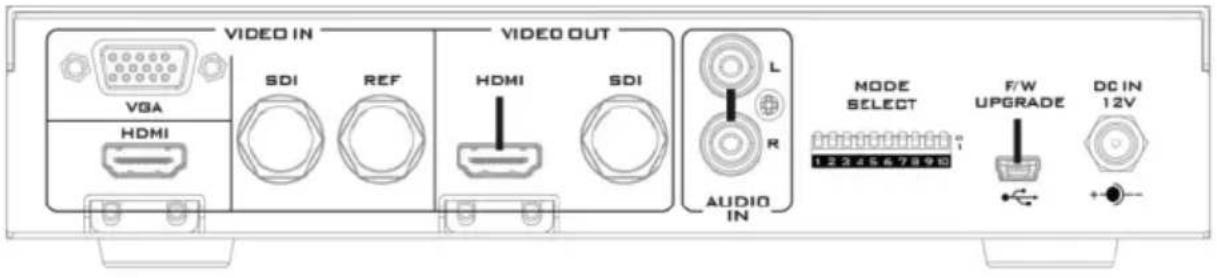
| Video IN | |
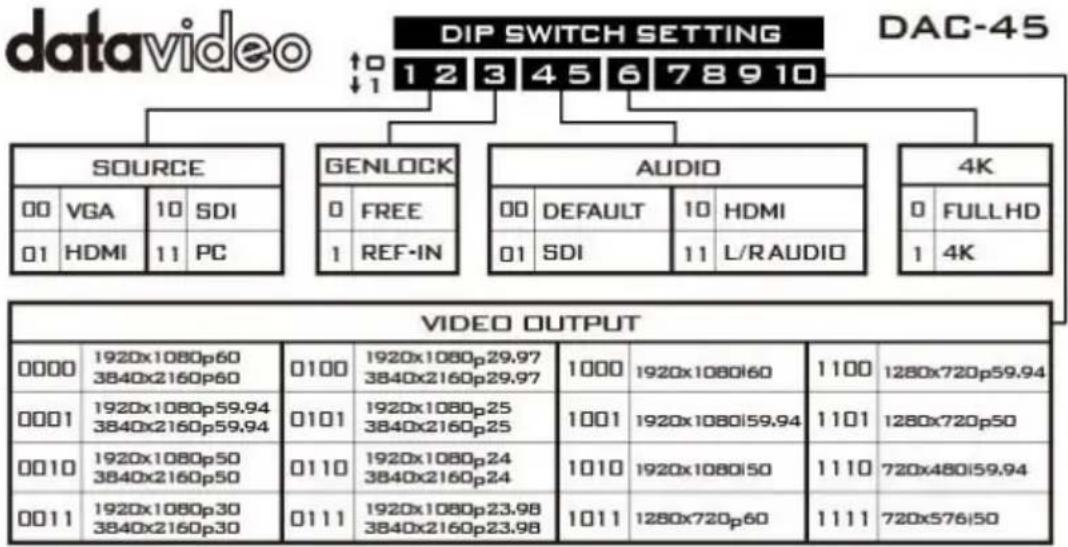
 | VGA INThis port connects the VGA source device. Set the DIP SW 1/2 to 00 before connecting the VGA source device to this port. |
 | HDMI INThis port connects the HDMI source device. Set the DIP SW 1/2 to 01 before connecting the HDMI source device to this port. |
SDI | SDI INThis port connects the SDI source device. Set the DIP SW 1/2 to 10 before connecting the SDI source device to this port. |
REF | REF IN (Genlock)The DAC-45 can be synchronized with the connected input device. REF IN will accept Tri-level and Black Burst sync. Set DIP SW 3 to 1 to enable the Genlock feature. To disable this port, simply set DIP SW 3 to 0. |
| Video OUT | |
HDMI | HDMI OUTThis port connects the HDMI destination device. |
SDI | SDI OUTThis port connects the SDI destination device. |
| Audio IN | |
 | Audio Input – Stereo RCA (Left/Right)Connects unbalanced analog audio source (stereo) for audio embedding. |
| Mode Select | |
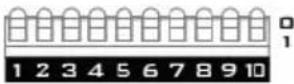 | DIP SwitchThe DIP Switch allows you to configure the device settings. The table below provides details of the DIP Switch Settings.SOURCE sets the type of the input device connected.GENLOCK enables/disables the REF IN port.AUDIO allows you to determine the audio source.Note: No audio is heard after switching the VGA IN audio source to the HDMI audio source.4K toggles between Full HD and 4K modes.VIDEO OUTPUT sets the resolution and frame rate (the output mode). Please note the low nibble determines the resolution and frame rate of the output depending on the setting of the 4K bit. |
 | |
| Firmware Upgrade | |
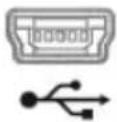 | USB firmware upgrade portConnects the DAC-45 device to the PC for firmware upgrade.See the Firmware Update section for details. |
| DC IN | |
DC IN12V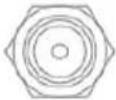 | DC In SocketConnects the supplied 12V PSU to this socket. The connection can be secured by screwing the outer fastening ring of the DC In plug to the socket. |
Chapter 3 DAC Center
DAC-45 Center Utility is a Graphical User Interface that allows the user to obtain the device information and perform various video and audio settings.
To use the utility, the user should first copy the DAC-45 Center.exe utility software from the installation CD to the computer running Windows. After that, connect the DAC-45 to the same computer using the USB cable. Switch on the DAC-45 and open the DAC-45 Center Utility software.
Information
Click the Information tab to obtain the information on input format and firmware version.
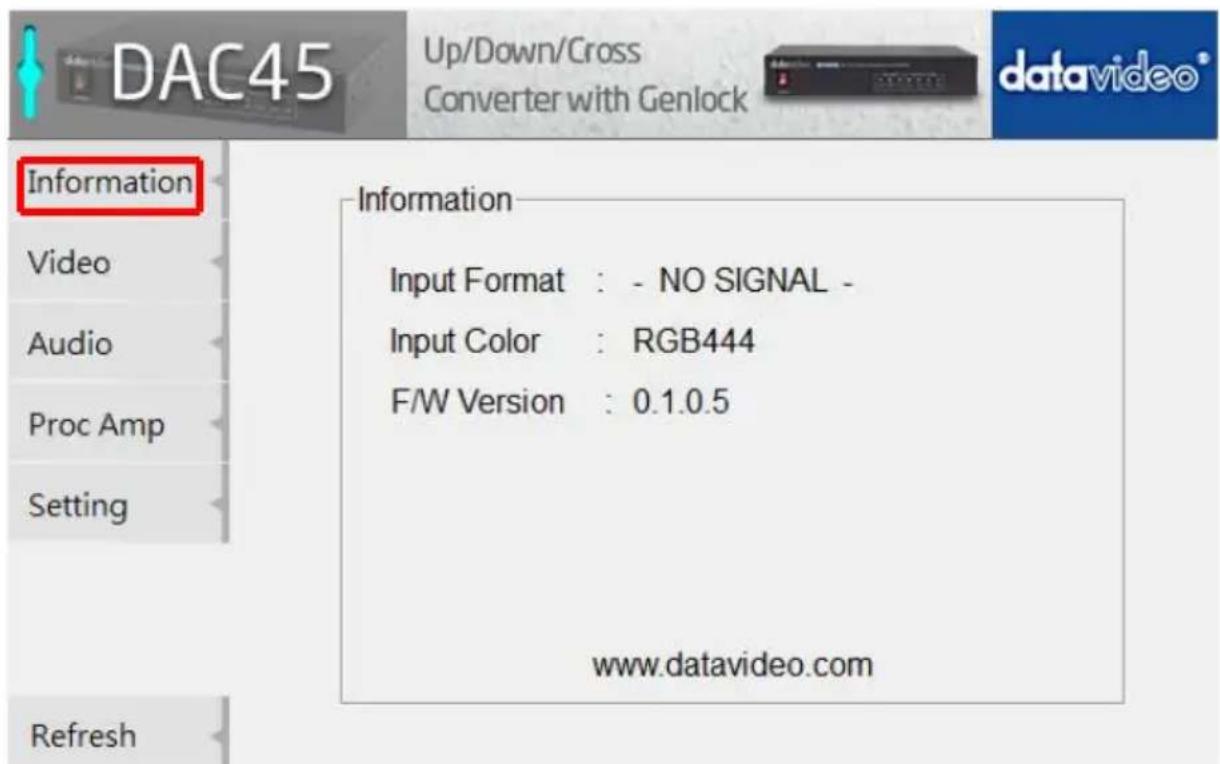
Video
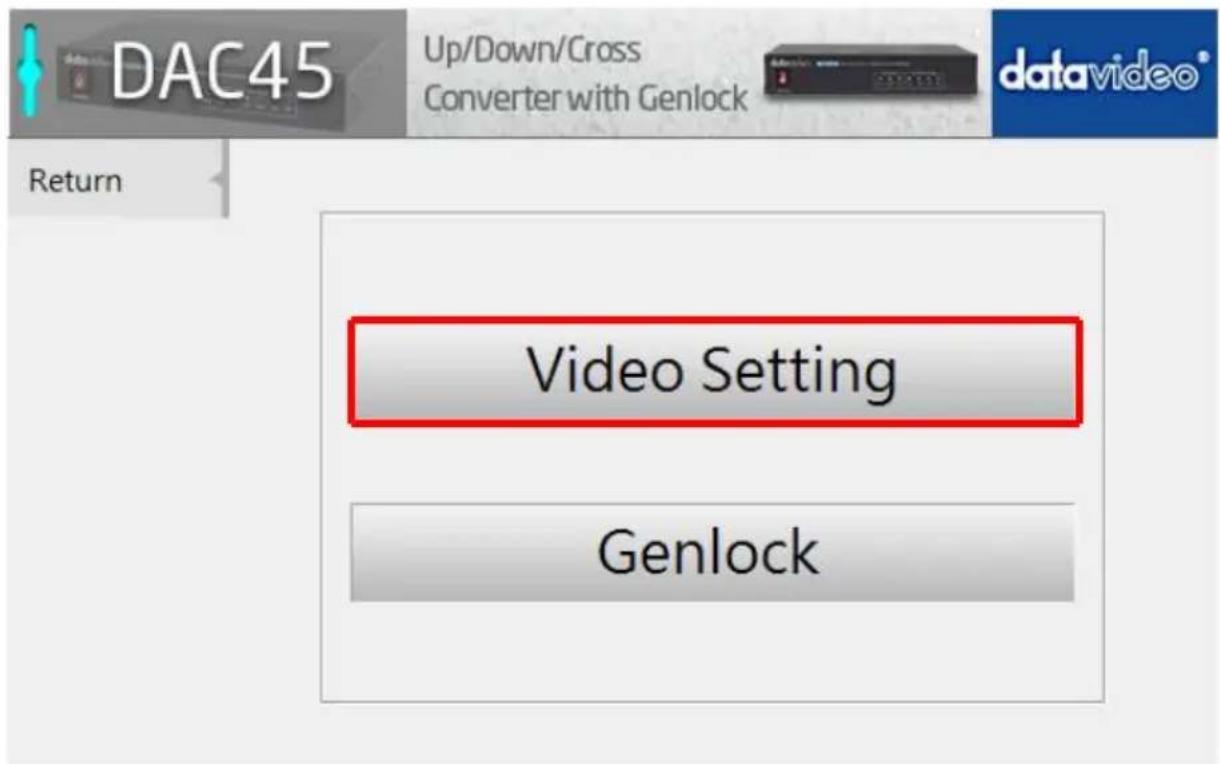
Click the Video tab to enter the video setup page.
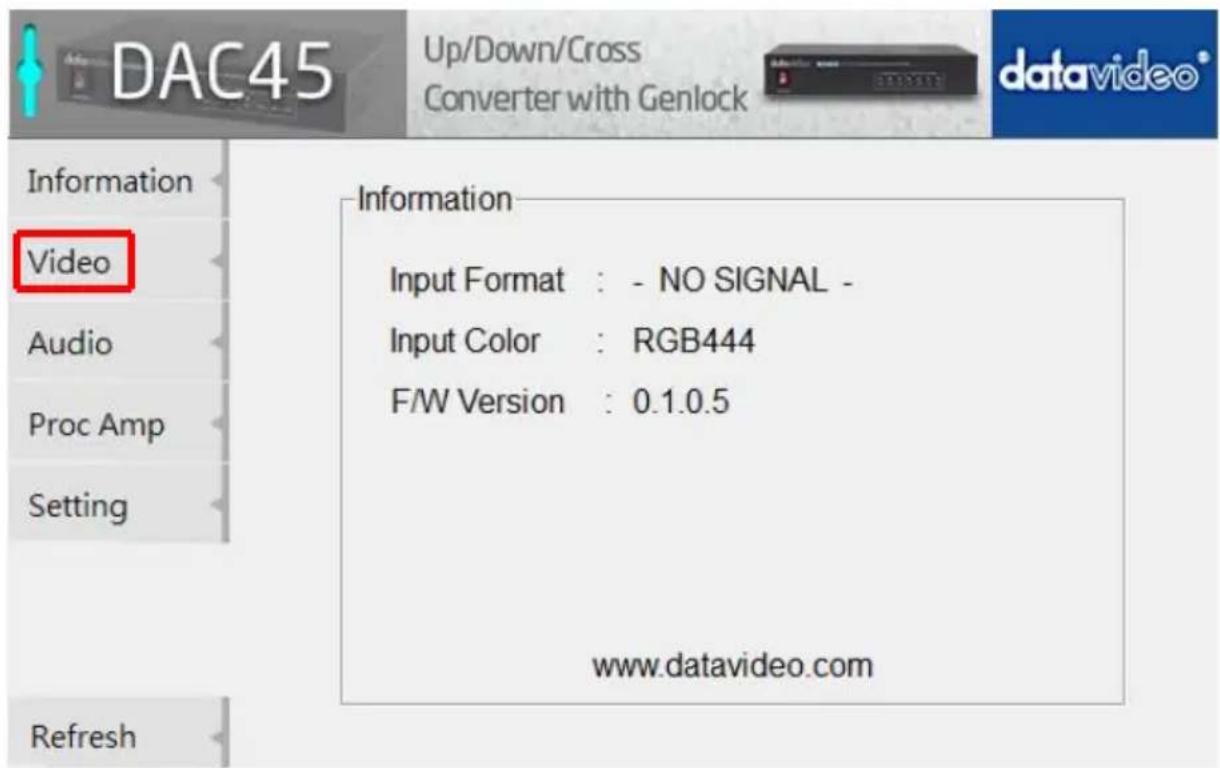
On the video setup page, click the Video Setting button to enter the video configuration page.
Set the Input Source, HDMI Output Color and Output Format.
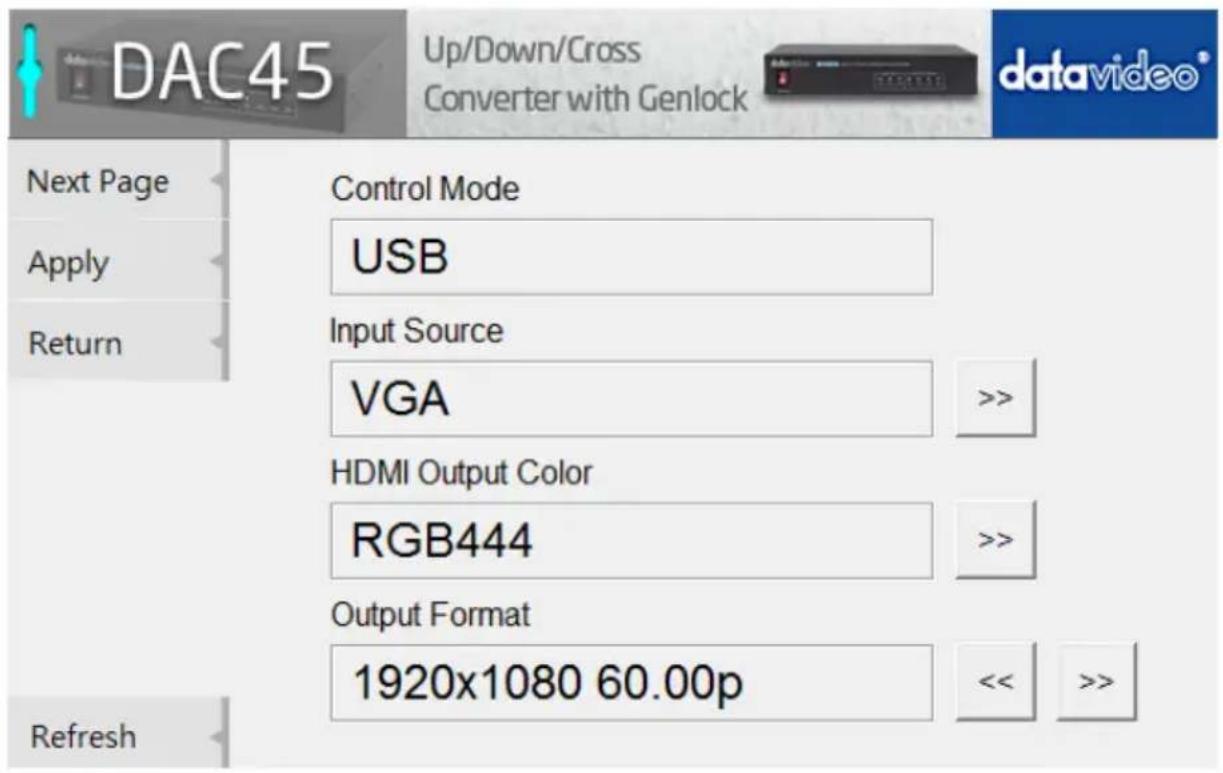
Input Source
• VGA
- HDMI
• SDI
HDMI Output Color
- YUV422
- YUV444
- RGB444
Output Format
- 720x480 59.94i
- 720x576 50.00i
- 4096x2160 60.00p
- 4096x2160 59.94p
- 4096x2160 50.00p
- 4096x2160 30.00p
- 4096x2160 29.00p
- 4096x2160 25.00p
- 4096x2160 24.00p
- 4096x2160 23.98p
-
3840x2160 60.00p
-
3840x2160 59.94p
- 3840x2160 50.00p
- 3840x2160 30.00p
- 3840x2160 29.97p
- 3840x2160 25.00p
- 3840x2160 24.00p
- 3840x2160 23.98p
- 1920x1080 60.00p
• 1920x1080 59.94p - 1920x1080 50.00p
-
1920x1080 30.00p
-
1920x1080 29.97p
- 1920x1080 25.00p
- 1920x1080 24.00p
- 1920x1080 23.98p
- 1920x1080 60.00i
- 1920x1080 59.94i
- 1920x1080 50.00i
- 1280x720 60.00p
- 1280x720 59.94p
- 1280x720 50.00p
Click Apply after all settings are configured.
Note: When Control Mode displays USB, it indicates that the device is accessible by the PC. When Control Mode displays DipSwitch, the device is only configurable by the DIP Switch.
Click Next Page to set the Super Resolution Mode, Aspect Ratio and 3G Level-B.
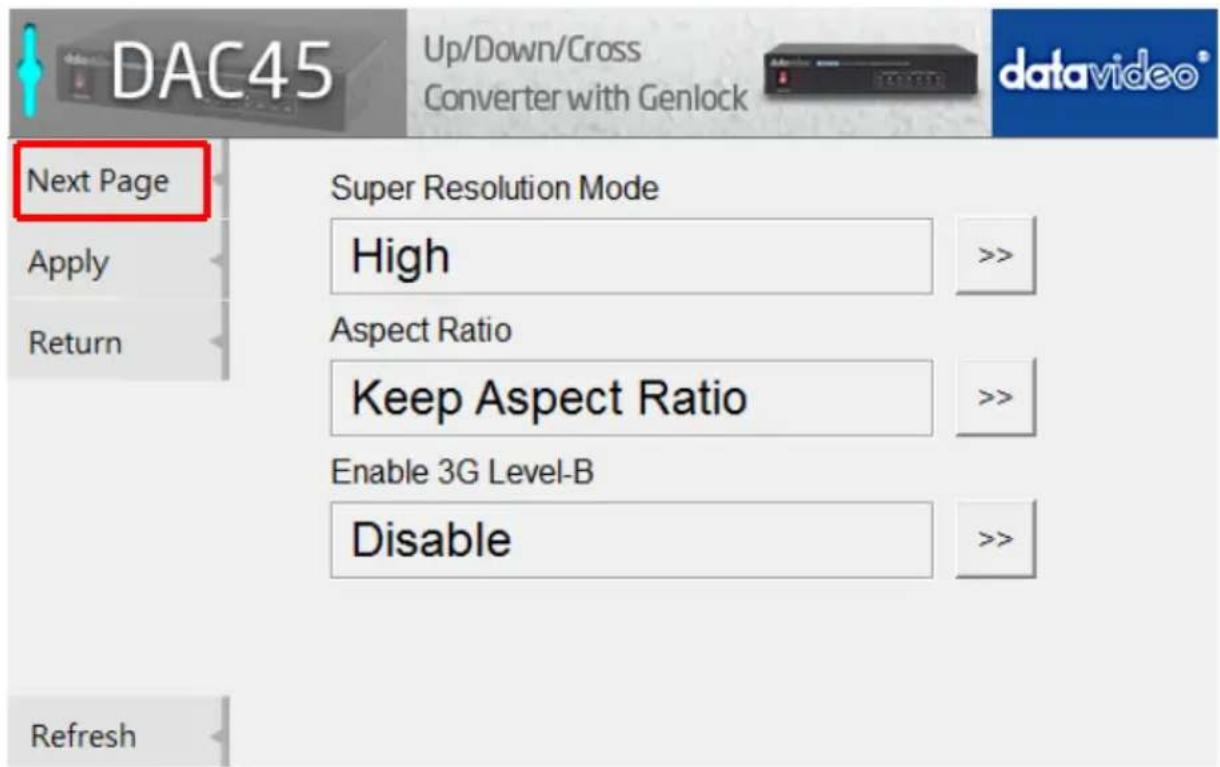
Super Resolution Mode
- Low
- Middle
- High
- Disable
Aspect Ratio
- Keep Aspect Ratio
• Full Screen (16:9) - Dot By Dot
• 4:3
• 14:9 - UnderScan
- Pan Scan 16:9
Enable 3G Level-B
- Enable
- Disable
Click Apply after all settings are configured.
Audio
Click the Audio tab to set audio parameters.
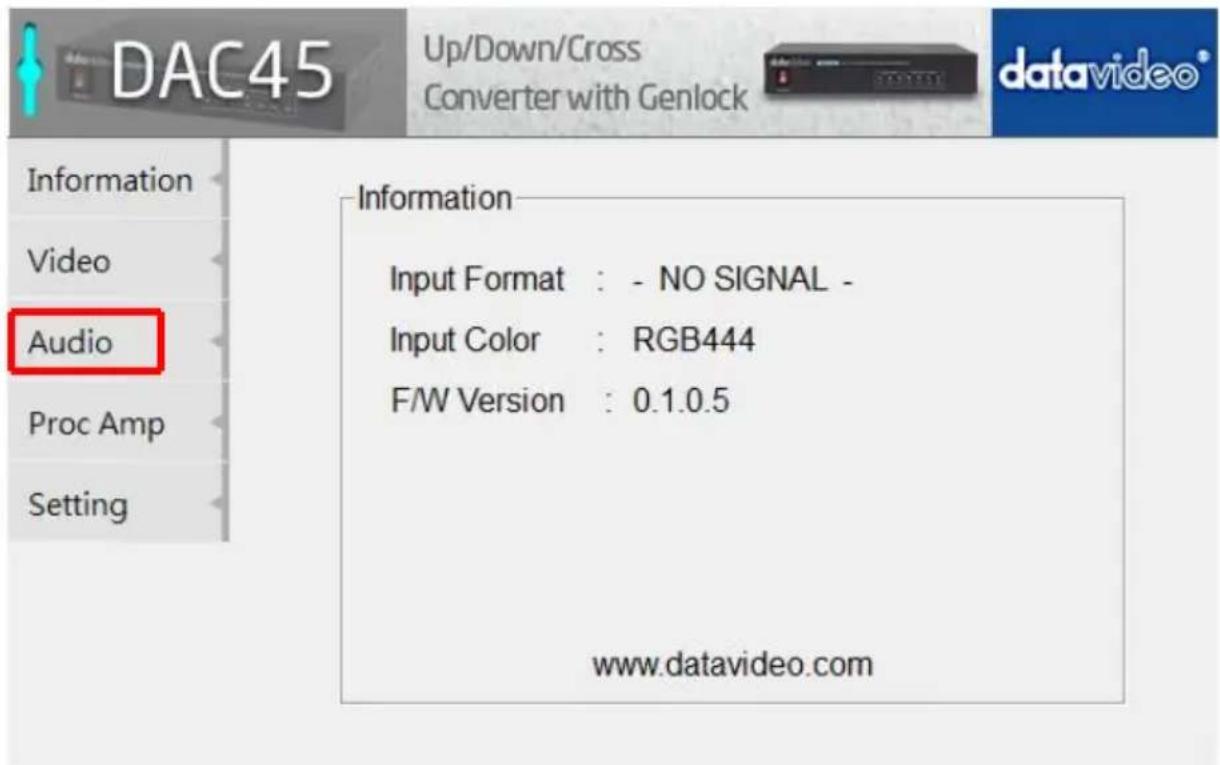
Set the Audio Mute, Audio Source and Audio Level.
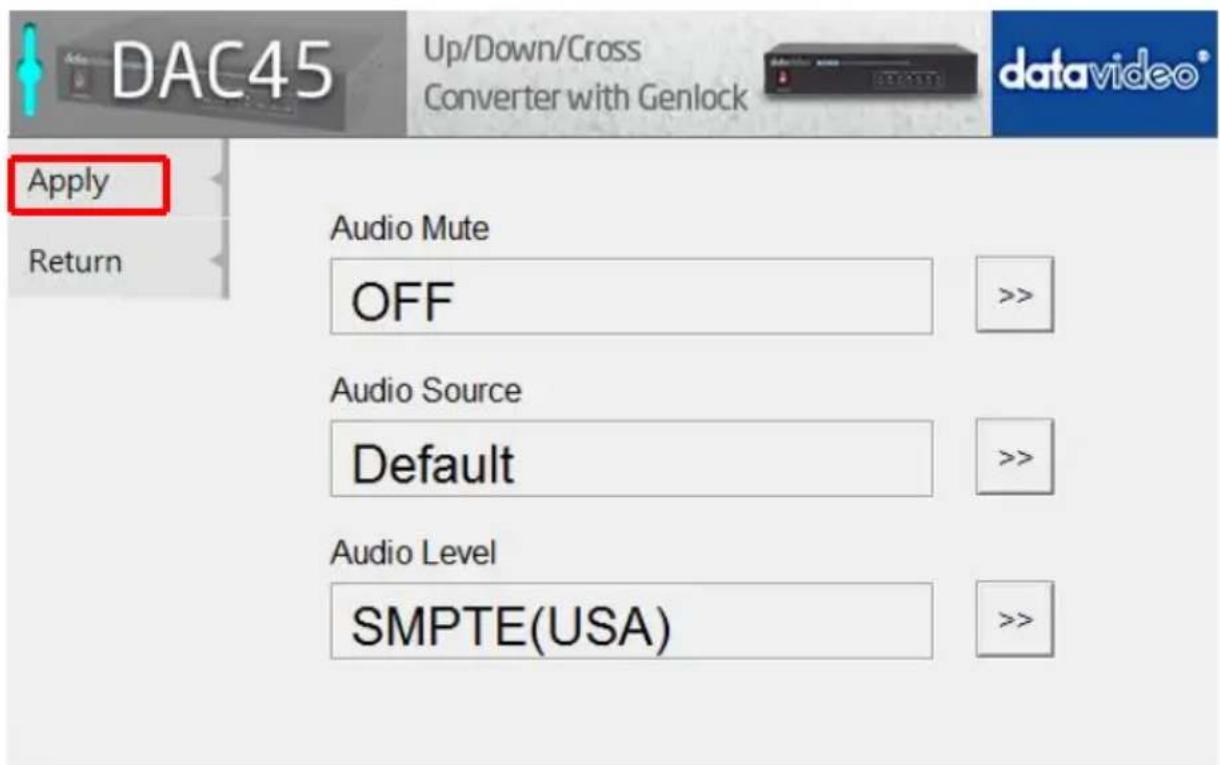
Audio Mute
• ON
- OFF
Audio Source
- Default
• SDI - HDMI
- L/R Audio
Audio Level
- SMPTE(USA)
- EBU(Europe)
Note: Audio Level allows the user to select EBU or SMPTE standards.
Click Apply after setting the Audio Mute, Audio Source and Audio Level.
Proc Amp
Click the Proc AMP tab to adjust the picture settings.
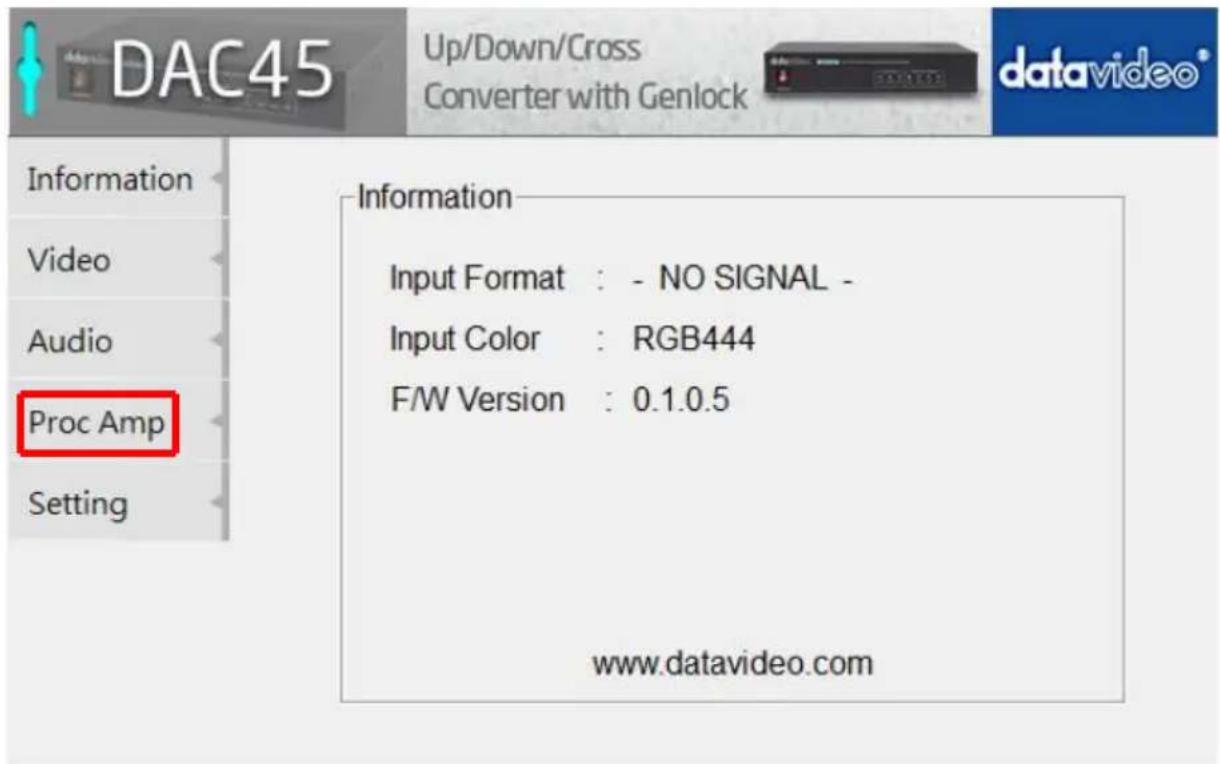
Set the Brightness, Contrast, Hue, and Saturation levels on the Proc Amp setup page.
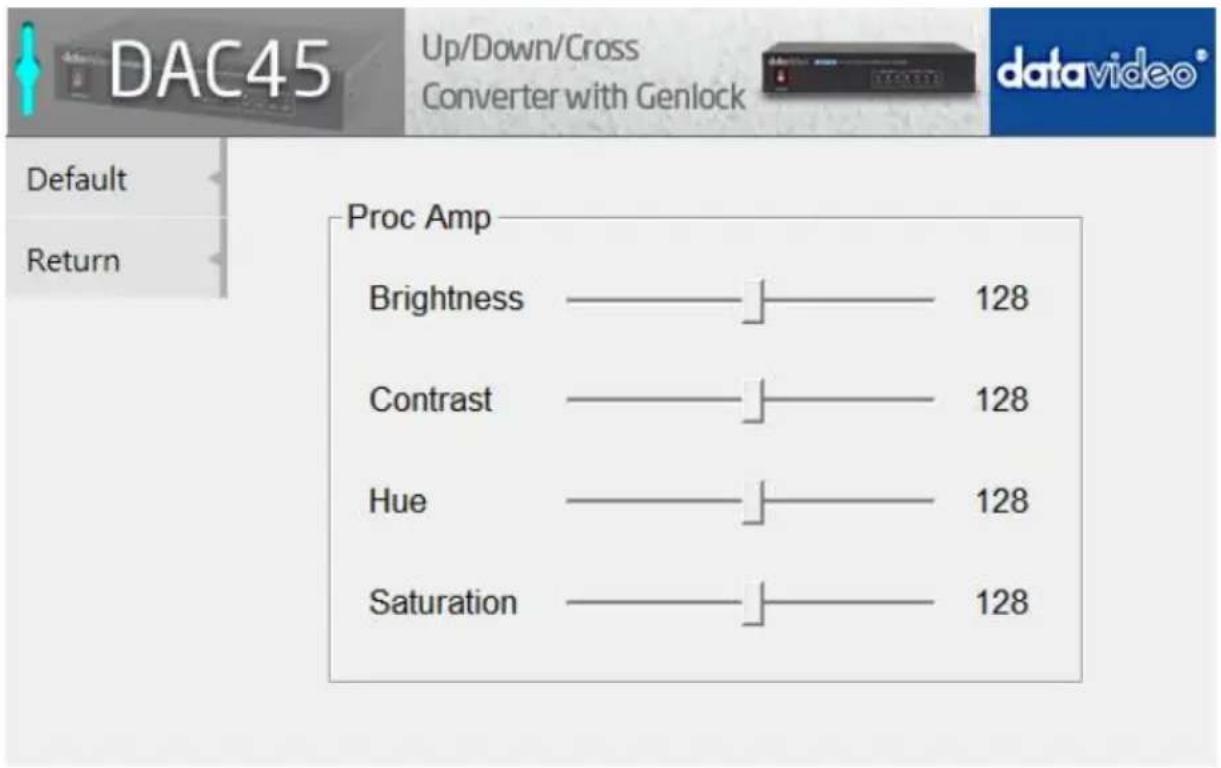
Setting
To restore the factory default settings, click the Setting tab.
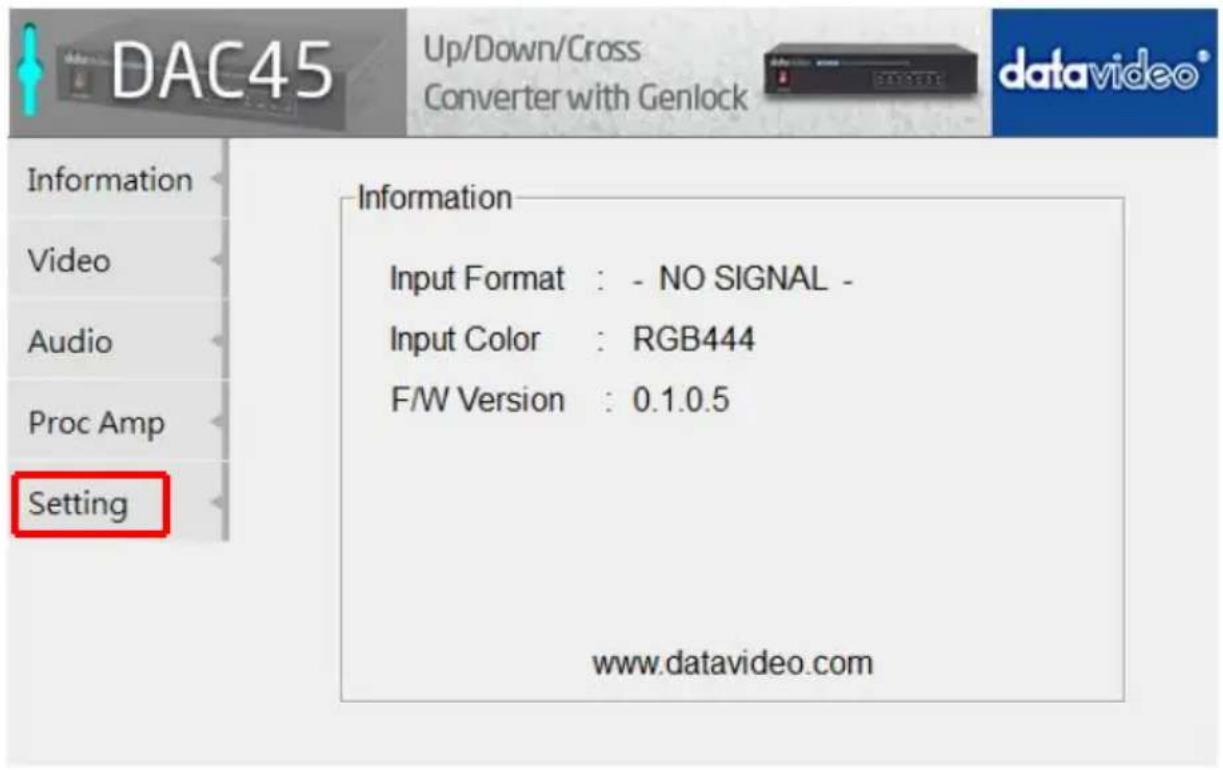
Click the Factory Default button to reset the DAC-45 to factory defaults.
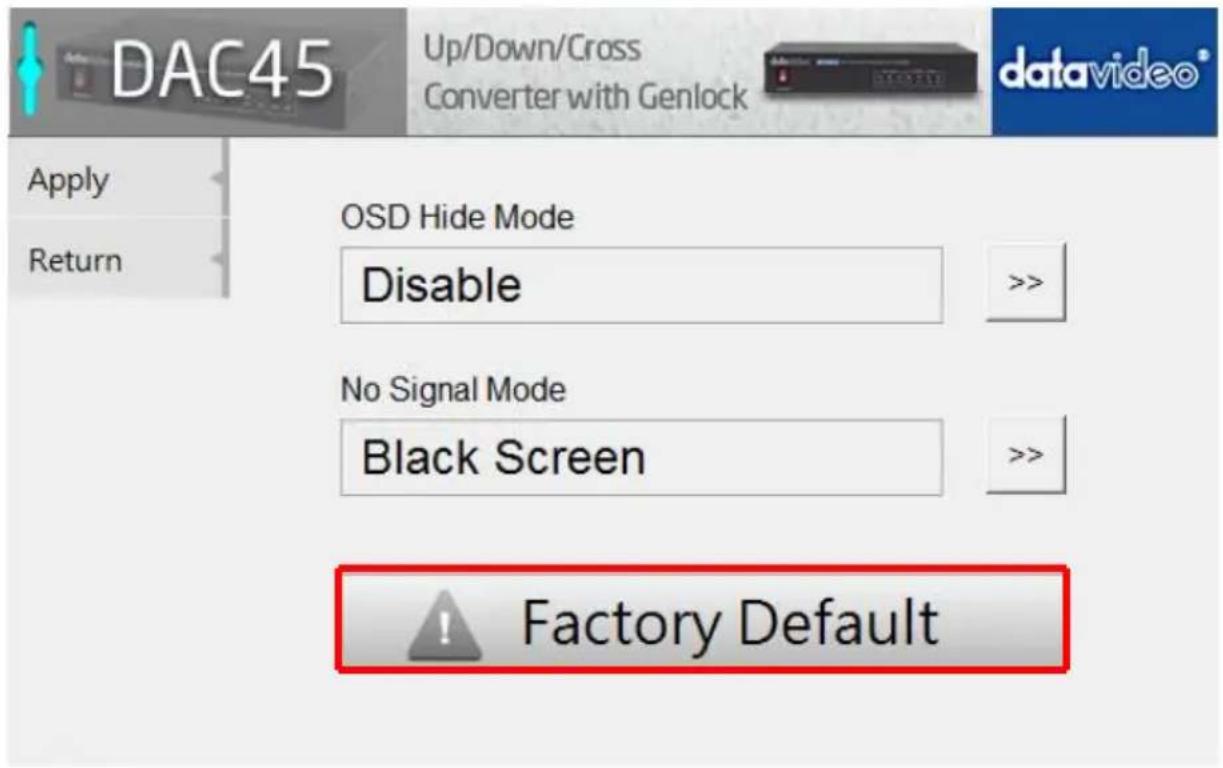
In addition, the user can also set OSD Hide Mode and No Signal Mode. Details of these two modes are described in the table below.
OSD Hide Mode
When enabled, source information and output resolution will not be displayed on the screen upon resolution change.
No Signal Mode
This sets how the screen looks like when there is no signal. The available options are listed below.
- Black Screen
- Blue Screen
- Disable Output
Firmware Update
Datavideo usually releases new firmware containing new features or reported bug fixes from time to time. Customers can either download the DAC-45 firmware as they wish or contact their local dealer or reseller for assistance.
This section outlines the firmware upgrade process which should take approximately 10 minutes to complete.
The existing DAC-45 settings should persist through the firmware upgrade process, which should not be interrupted once started as this could result in a non-responsive unit.
Successful firmware upgrade on DAC-45 requires:
- The latest firmware file for the DAC-45. This can be obtained from your local Datavideo dealer or office.
- The Upload Firmware utility. This can also be obtained from your local Datavideo dealer or office.
- A Windows PC with USB 2.0 port.
- A USB A to micro USB cable (USB 2.0).
How to update the DAC-45 firmware
- Switch off the DAC-45 power.
- Save the latest firmware file and the Upload Firmware utility to the PC desktop.
DataVideo Upload Firmware.exe
DataVideo Upload Firmware
Datavideo Technologies Co., Ltd
- Use USB 2.0 cable to connect the DAC-45 to the computer.
- Open the Datavideo Upload Firmware utility, which will show Disconnected and the connect button is greyed out.
- Switch on the DAC-45 power and the connect button will now be enabled. Click the connect button and the Utility will show Connected.
- Click the Open File button and select the new firmware file.
- Click the Start button and wait for the progress bar to finish.
- After the update is finished, the utility will show PASS to confirm that the unit has been updated successfully.
- The utility will automatically disconnect the DAC-45 unit.
- Unplug the USB cable from the DAC-45 and power cycle the unit.
- The updated DAC-45 is now ready for use.
Frequently-Asked Questions
This section describes problems that you may encounter while using DAC-45. If you have any questions, please refer to related sections and follow all suggested solutions. If problem still exists, please contact your distributor or the service center.
| No. | Problems | Solutions |
| 1. | Must Genlock IN and SDI IN / OUT have the same frame rate in order to be in sync? | Genlock IN only needs to have the same frame rate with SDI OUT in order to be in sync.For example, SDI IN is at 1080p60, Genlock IN is at 1080p50 and SDI OUT is at 720p50. |
| 2. | Are SD and HD cross referenceable?For example, Genlock IN is SD Black Burst and SDI OUT is HD tri-level ORGenlock IN is HD tri-level and SDI OUT is SD Black Burst. | SD and HD are cross referenceable. |
| 3. | Image distortion occurs when using the DIP Switch to set resolution and frame rate. | This issue can be eliminated by rebooting the device. |
Dimensions
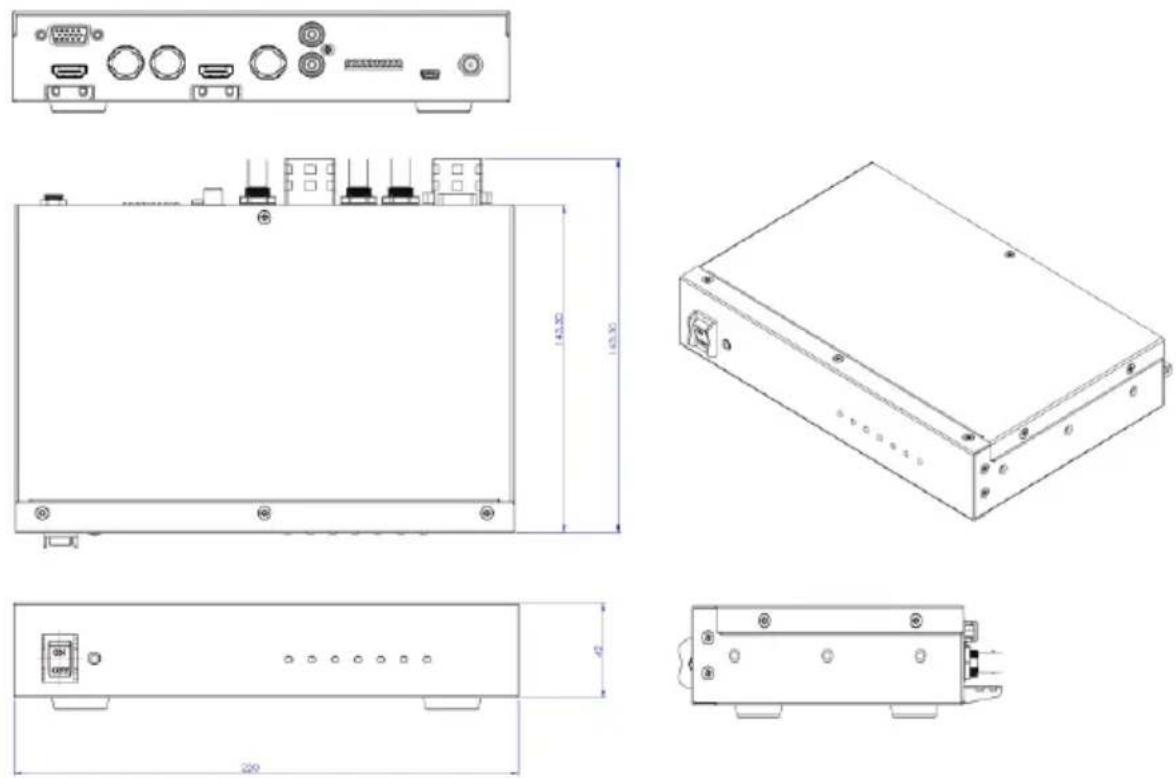
All measurements in millimeters (mm)
Specifications
| Interfaces | |
| Inputs | VGA x 1 , HDMI x 1 , HD/SD-SDI x 1RCA x 2 (Unbalanced Audio L/R), Reference Input x 1 |
| Outputs | SDI x 1, HDMI x 1 |
| Indicator | Power LED x 1Source LED x 3 (VGA, HDMI, SDI)Output Format LED x 3 (4K, 3G, HD, SD) |
| F/W Updates and Configuration | Mini USB x 1 |
| DC IN | DC Jack |
| Standard | |
| Supported Video Input Format | SDI (YUV)1080p60/59.94/50, 1080p30/29.97/25/24/23.981080psf30/29.97/25/24/23.981080i60/59.94/50, 720p60/59.94/50525i, 625iHDMI (YUV / RGB)3840x2160p60/59.94/503840x2160p30/29.97/25/24/23.981080p60/59.94/50, 1080p30/29.97/25/24/23.981080psf30/29.97/25/24/23.981080i60/59.94/50, 720p60/59.94 /50480p, 576p, 480i, 576i800x600@60Hz, 1024x768@60Hz, 1280x1024@60Hz1366x768@60Hz, 1400x1050@60Hz, 1600x1200@60HzVGA (RGB)800x600@60Hz, 1024x768@60Hz, 1280x1024@60Hz1366x768@60Hz, 1400x1050@60Hz, 1600x1200@60Hz1280x720@60Hz, 1920x1080@60Hz |
| Supported Video Output Format | SDI (YUV)1080p60/59.94/50, 1080p30/29.97/25/24/23.981080i60/59.94/50, 720p60/59.94/50525i, 625iHDMI (YUV)4096x2160p60/59.94/504096x2160p30/29/25/24/23.983840x2160p60/59.94/503840x2160p30/29.97/25/24/23.981080p60/59.94/50, 1080p30/29.97/25/24/23.981080i60/59.94/50, 720p60/59.94/50480p, 576p, 480i, 576i |
| Video Process | SDI: YUV422HDMI: YUV422/YUV444/RGB444/YUV420(4K only) |
| Supported Audio Format | InputUnbalanced Audio L/R : stereo audioSDI embedded audio : up to 8ch, 48KHz, PCM audioHDMI embedded audio : up to 8ch, 44.1/48/96KHz, PCM audioOutputSDI embedded audio : up to 8ch, 48KHz, PCM audioHDMI embedded audio : up to 8ch, 48KHz, PCM audioAudio lock after conversion |
| Frame Delay | I : 2~3 fieldsP: 0~1 frames. |
| Features | |
| Cross Reference | ✓ |
| Plug & Play | ✓ |
| General | |
| Settings Control | Dip Switch |
| Power Supply | DC 12V / 1A (9.4W) |
| Operating Temperature | 0°C to 40°C (32°F to 104°F) |
| Humidity | 10% to 80% |
| Dimensions (mm) | 220 x 143.3 x 42 |
| Weight | 1.0 Kg |
| Certification | CE, FCC |
| Audio Input and Output Level | |||
| HDMI | SDI | Note | |
| INT (-20 dBFS) | -20 dBFS | -20 dBFS | |
| INT (0 dBFS) | 0 dBFS | 0 dBFS | |
| RCA-IN EXT (-14dBV) | -24 dBFS | -24 dBFS | SMPTE |
| RCA-IN EXT (-14dBV) | -18 dBFS | -18 dBFS | EBU |
Service & Support
It is our goal to make your products ownership a satisfying experience. Our supporting staff is available to assist you in setting up and operating your system. Please refer to our web site www.datavideo.com for answers to common questions, support requests or contact your local office below.

Please visit our website for latest manual update. http://www.datavideo.com/product/DAC-45
datavideo
www.datavideo.com

@DatavideoUSA @DatavideoIndia2016
@DatavideoEMEA @Datavideojapan
@DatavideoTaiwan @DatavideoLatam
@DatavideoAsia @DatavideoBrasil

@Datavideo
@Datavideo_EMEA
@Datavideo Taiwan

@DatavideoUSA
@DVTWDVCN

@DatavideoUSA
@DatavideoEurope
- WARNINGS AND PRECAUTIONS......4
- WARRANTY....5
- DISPOSAL....6
- CHAPTER 1 PRODUCT OVERVIEW....7
- CHAPTER 2 CONNECTIONS AND CONTROLS 8
- CHAPTER 3 DAC CENTER....11
- FIRMWARE UPDATE....19
- FREQUENTLY-ASKED QUESTIONS 20
- DIMENSIONS 21
- SPECIFICATIONS 22
- SERVICE AND SUPPORT 24
- Disclaimer of Product & Services
- FCC Compliance Statement
- Warnings and Precautions
- Warranty
- Standard Warranty
- Three Year Warranty
- Disposal
- For EU Customers only - WEEE Marking
- Chapter 1 Product Overview
- Features
- Formats Conversion Table
- Chapter 2 Connections and Controls
- Front Panel
- Power Switch
- Source LED Indicators
- Output Mode LED Indicators
- Rear Panel
- Chapter 3 DAC Center
- Information
- Video
- Input Source
- HDMI Output Color
- Output Format
- Super Resolution Mode
- Aspect Ratio
- Enable 3G Level-B
- Audio
- Audio Mute
- Audio Source
- Audio Level
- Proc Amp
- Setting
- OSD Hide Mode
- No Signal Mode
- Firmware Update
- Successful firmware upgrade on DAC-45 requires:
- How to update the DAC-45 firmware
- Frequently-Asked Questions
- Dimensions
- Service & Support
- datavideo
Brand : DataVideo
Model : DAC-45
Category : Audio/video converter