
USB2VGAPRO - Network card / adapter StarTech.com - Free user manual and instructions
Find the device manual for free USB2VGAPRO StarTech.com in PDF.


| Product Type | USB to VGA Adapter |
| Model | USB2VGAPRO |
| Brand | StarTech.com |
| Dimensions (L x W x H) | 5.5 cm x 2.5 cm x 1.5 cm |
| Weight | 50 g |
| Interface | USB 2.0 |
| Video Output | VGA (DB15 female) |
| Maximum Resolution | 1920 x 1080 (1080p) |
| Power Source | Bus-powered via USB |
| Supported Operating Systems | Windows 10/8/7, macOS 10.10 and later |
| Plug and Play | Yes (driver installation may be required) |
| Number of Displays Supported | 1 (extend or mirror) |
| Operating Temperature | 0°C to 50°C |
| Storage Temperature | -20°C to 60°C |
| Humidity (Operating) | 10% to 90% non-condensing |
| Cable Length | 15 cm (approx.) |
| Care & Cleaning | Wipe with a soft, dry cloth; avoid liquids and abrasives |
| Safety Precautions | Use in a dry environment; do not bend cables sharply |
| Spare Parts & Repairability | Not user-serviceable; no spare parts available |
| General Usage | Connect to USB port, install drivers, and connect VGA monitor |
Frequently Asked Questions - USB2VGAPRO StarTech.com
User questions about USB2VGAPRO StarTech.com
0 question about this device. Answer the ones you know or ask your own.
Ask a new question about this device
Download the instructions for your Network card / adapter in PDF format for free! Find your manual USB2VGAPRO - StarTech.com and take your electronic device back in hand. On this page are published all the documents necessary for the use of your device. USB2VGAPRO by StarTech.com.
USER MANUAL USB2VGAPRO StarTech.com
USB to VGA Video Adapter
USB 2.0 to VGA External Multi Monitor Video Adapter
StarTech.com Making hard-to-find easy!®
FCC Compliance Statement
This equipment has been tested and found to comply with the limits for a Class B digital device, pursuant to part 15 of the FCC Rules. These limits are designed to provide reasonable protection against harmful interference in a residential installation. This equipment generates, uses and can radiate radio frequency energy and, if not installed and used in accordance with the instructions, may cause harmful interference to radio communications. However, there is no guarantee that interference will not occur in a particular installation. If this equipment does cause harmful interference to radio or television reception, which can be determined by turning the equipment off and on, the user is encouraged to try to correct the interference by one or more of the following measures:
Reorient or relocate the receiving antenna.
Increase the separation between the equipment and receiver.
Connect the equipment into an outlet on a circuit different from that to which the receiver is connected.
Consult the dealer or an experienced radio/TV technician for help.
Use of Trademarks, Registered Trademarks, and other Protected Names and Symbols
This manual may make reference to trademarks, registered trademarks, and other protected names and/or symbols of third-party companies not related in any way to StarTech.com. Where they occur these references are for illustrative purposes only and do not represent an endorsement of a product or service by StarTech.com, or an endorsement of the product(s) to which this manual applies by the third-party company in question. Regardless of any direct acknowledgement elsewhere in the body of this document, StarTech.com hereby acknowledges that all trademarks, registered trademarks, service marks, and other protected names and/or symbols contained in this manual and related documents are the property of their respective holders.
Table of Contents
Introduction ...... 1
Packaging Contents....1
System Requirements ....1
Installation 2
Windows 2000/XP/Vista/7 ....2
Mac OS X (10.4.11/10.5.6) 3
Configuration 5
Windows 2000/XP/Vista/7 ....5
Mac OS X (10.4.11/10.5.6) 8
Supported Video Resolutions 11
Specifications 12
Technical Support 13
Warranty Information 13
Introduction
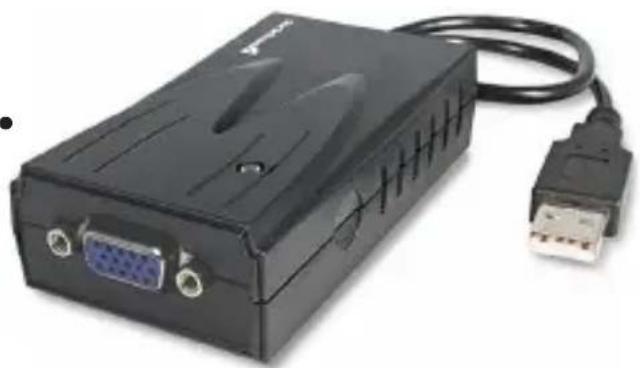
The StarTech.com USB2VGAPRO External VGA Multi Monitor Video Adapter is the perfect solution for turning an available USB 2.0 port into a VGA port. Providing high quality, multi-monitor capabilities that can be used for a variety of laptop or desktop applications by acting as an external VGA video card that can be used to extend or mirror the desktop shown on the existing display, all without having to open the computer case.
Packaging Contents
1 x USB2VGAPRO video adapter•
1 x Driver CD•
1 x User Manual•
System Requirements
natural_image
Black electronic device with a VGA port and USB cable, no visible text or symbols1 - 2 Video Adapters: • Processor: 1.2GHz or higher clock speed RAM: 512MB or higher
3 Video Adapters: • Processor: 1.6GHz or higher clock speed RAM: 1GB or higher
4 Video Adapters: • Processor: 1.8GHz or higher clock speed, dual core RAM: 1GB or higher
An available USB 2.0 port•
VGA capable monitor/display device•
CD/DVD-ROM drive (driver installation)•
Microsoft® Windows® 2000/XP/Vista/7 (32/64-bit) or Apple® Mac OS® 10.4.11/10.5.6 (Intel®), or Linux
Installation
Please note: The following installation steps must be completed prior to connecting USB2VGAPRO to the host computer, to ensure proper functionality.
Windows 2000/XP/Vista/7
Insert the Driver CD (included) into the CD/DVD-ROM drive.1.
Browse through the Driver CD and locate the "Setup.exe" file. 2.
Double-click on the "Setup.exe" file to begin the installation process:

Setup.exe
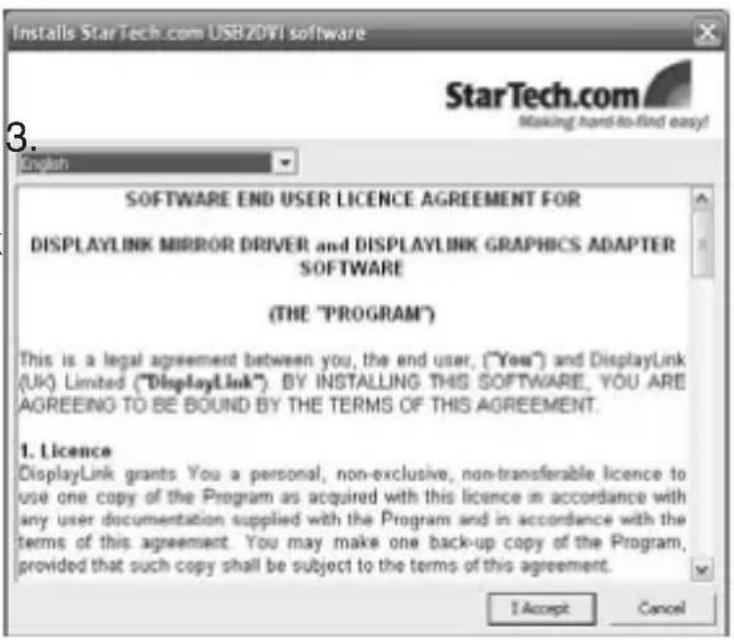
When the End User License 3. Agreement appears, please read and accept it, then click Next.
Please wait while the installation package copies the necessary files. 4.
Once completed, plug in the USB2VGAPRO adapter to the 5.
computer. Windows should start to automatically load the drivers.
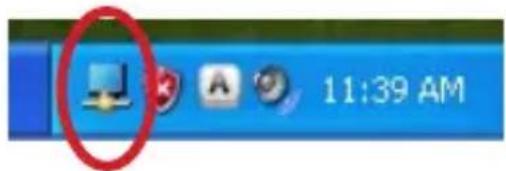
Once complete, you should see this icon in your System Tray:
To verify the installation, right-click on "My Computer" and select 6. Manage to open the Computer Management window.
In the left pane of the Computer Management window, click on 7. Device Manager.
In the right pane of the Computer Management window, click on 8. Universal Serial Bus Controllers, and ensure that the USB2VGAPRO device is listed underneath.
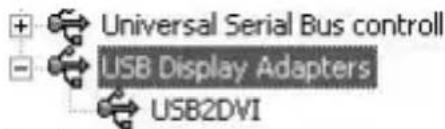
*actual device name may vary
If you wish to add additional USB2VGAPRO adapters, simply 9. plug them into available USB 2.0 ports. A maximum total of 4 USB2VGAPRO video adapters can be used on a computer.
Mac OS X (10.4.11/10.5.6)
Insert the Driver CD (included) into the CD/DVD-ROM drive.1.
Browse through the Driver CD and locate the "DisplayLink-OSX" 2. .dmg file. Double-click on this file to begin the installation process:
DisplayLink-OSX.dmg
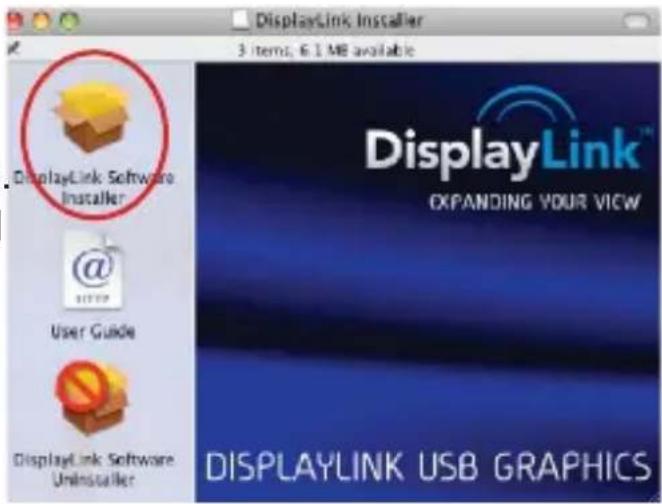
Double Click the "DislpayLink 3. Software Installer.pkg" to install the software.
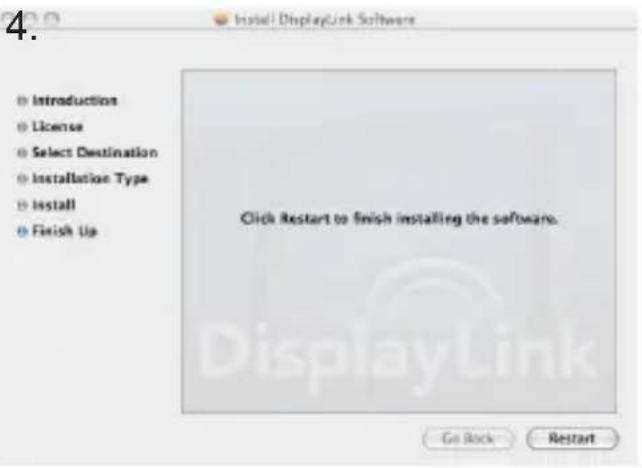
Once the installation is complete click the "Restart" button. The computer will automatically reboot, so make sure to close/ save any files you have opened, before pressing this button.
After the computer has restarted, plug in the USB2VGAPRO adapter 5. to an available USB 2.0 port. The adapter should now be ready to use.
If you wish to add additional USB2VGAPRO adapters, simply 6. plug them into available USB 2.0 ports. A maximum total of 4 USB2VGAPRO video adapters can be used on a computer.
Configuration
Windows 2000/XP/Vista/7
To configure the image being displayed by the monitor that is connected to USB2VGAPRO, right-click on a blank section of the desktop, select Properties, then click on the Settings tab to display the following screen:
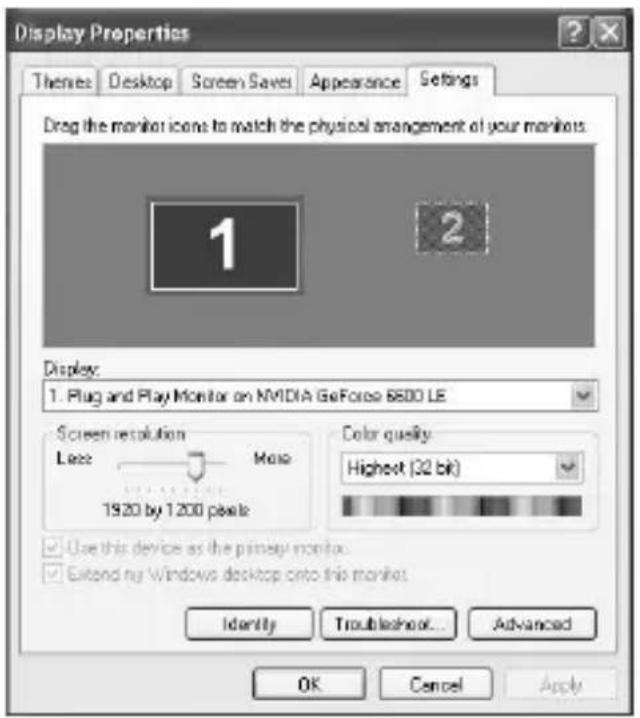
For Vista or 7, right-click on a blank section of the desktop and select Personalize, then select Screen Resolution on the next screen.
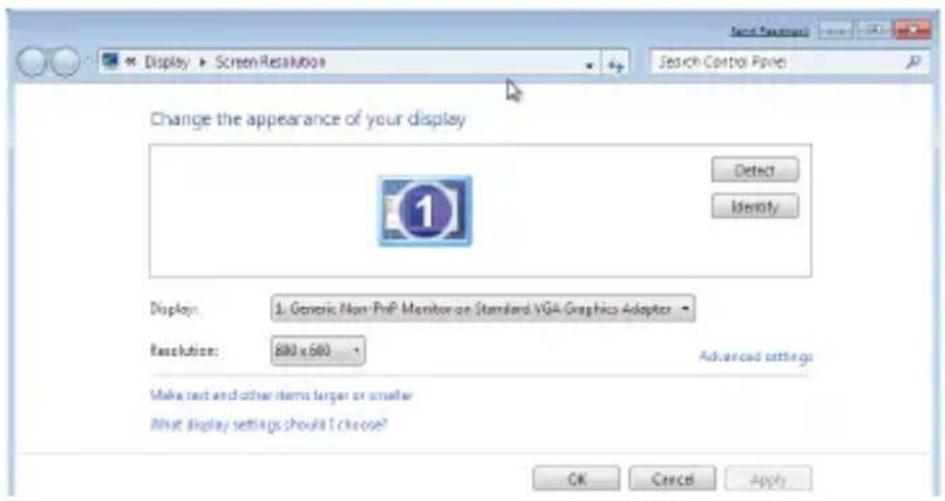
Configure the secondary display by selecting it from the dropdown menu, then adjusting the desired settings:
Using the Second Display in Extended Mode
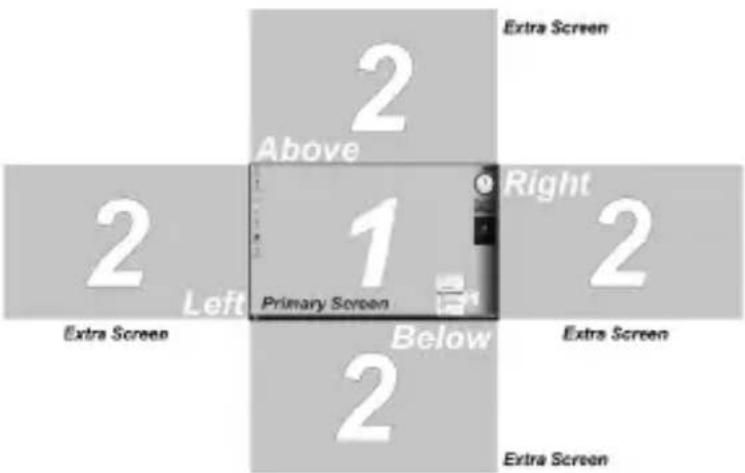
In Extended Mode, the monitor that is connected to USB2VGAPRO creates an extension of the Windows Desktop displayed on the primary monitor. To set the display to function in this mode (once selected from the dropdown menu), check the box marked Extend my windows desktop onto this monitor, then arrange its position (virtually) with respect to the primary monitor by dragging the monitor icons (shown above as Primary/Secondary orientation) to reflect the physical orientation of the displays.
Using the Second Display in Clone Mode (default)
In Clone Mode, the monitor that is connected to USB2VGAPRO simply mirrors the image displayed on the primary monitor. To set the display to function in this mode (once selected from the dropdown menu), uncheck the box marked Extend my windows desktop onto this monitor.
Designating the Primary Display
To select which of the connected monitors will act as the primary display, select the monitor that will be used as the Primary Display from the Dropdown menu (referenced on page 4), and place a checkmark next to Use this device as the primary monitor. On some displays it is necessary to disable the main display (i.e. uncheck the box marked Extend my Windows display onto this monitor for the main display).
Following this change, the monitor connected to USB2VGAPRO will remain set as the primary display even if the computer enters hibernate mode or operation is suspended or powered down. If the monitor is disconnected from USB2VGAPRO, or USB2VGAPRO is removed from the host computer, the original monitor will revert to being the primary display.
Alternate Configuration
Following the software installation for USB2VGAPRO, you may have noticed an icon in the taskbar as illustrated below. Clicking on this icon will open a menu that offers configuration of the display (connected to USB2VGAPRO):
Here, you can set the secondary display to act as an extension of the primary desktop (Extend), or as a mirror image that duplicates the contents on the primary display (Mirror) or set the display on the adapter as the primary display (Set as Main Monitor). If using a laptop, once the adapter is set as the primary display, the screen on the laptop can be disabled (Notebook Monitor Off).
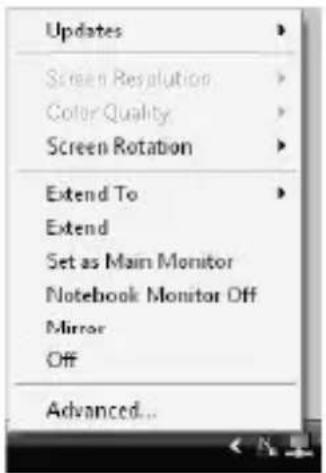
Similarly, the screen resolution, color quality, position of the screen and rotation of the screen can be adjusted from this menu.
To disable the secondary display, select Off.
natural_image
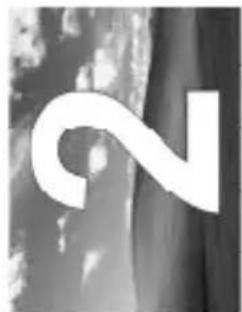
Abstract grayscale graphic with a stylized white curved shape resembling a number or letter, set against a blurred background (no text or symbols)Normal Rotated Left
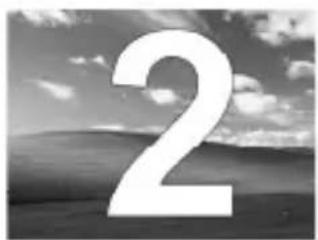
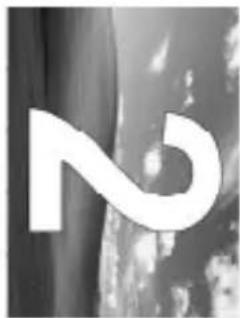
"Screen Rotation" Examples
natural_image
Abstract grayscale image with a large white curved shape against a blurred background (no text or symbols)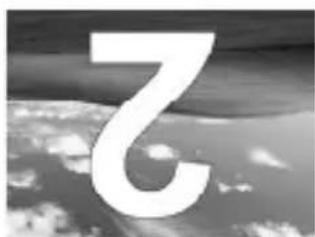
Rotated Right Upside-Down
"Extend To" Examples
Media Playback
Please note that while operating in Extended Mode, USB2VGAPRO can display media files and DVDs using a broad variety of media players, however in Clone Mode, limited support is available for video playback.
Mac OS X (10.4.11/10.5.6)
To configure the display settings and monitor positions, bring up the Displays Preferences from the System Preferences menu:
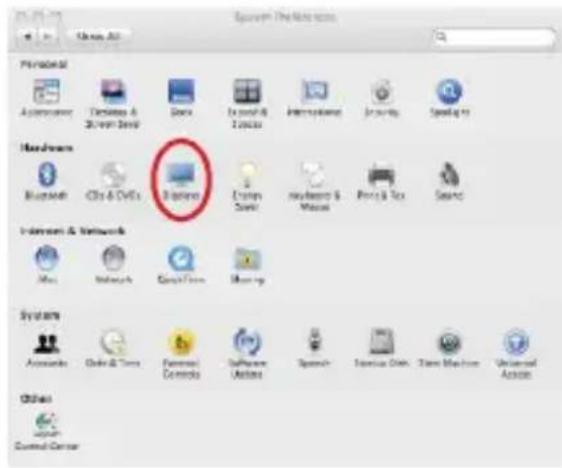
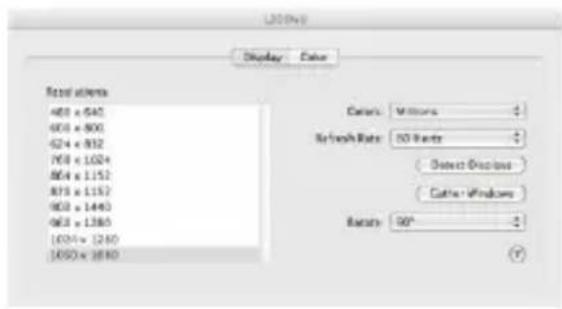
The Display settings for each display will appear on the individual monitors themselves. To configure them all from a single location, press the “Gather Windows” button and each screen’s Displays Preferences windows will appear on that display.
All supported video resolutions will appear in the list on the left side. To change the positioning of each display, click on the “Arrangement” button (found only on the primary display) and you can then virtually reposition each display.
Using the Adapter in Extended or Mirror Mode
By default the USB2VGAPRO will be setup as an extended display. To change the display as a mirrored/cloned display, check the “Mirror Display” box on the “Arrangement” page for that monitors Displays settings window. To return the monitor to an extended display, uncheck this option.
To use both extended and mirrored displays simultaneously, turn off mirroring then in the “Arrangement” page press and hold the ‘cmd’ and ‘alt’ keys and drag and drop the display you wish to mirror over the primary display (shown with the white bar).
Repeat this with each display you wish to mirror, all others will act as
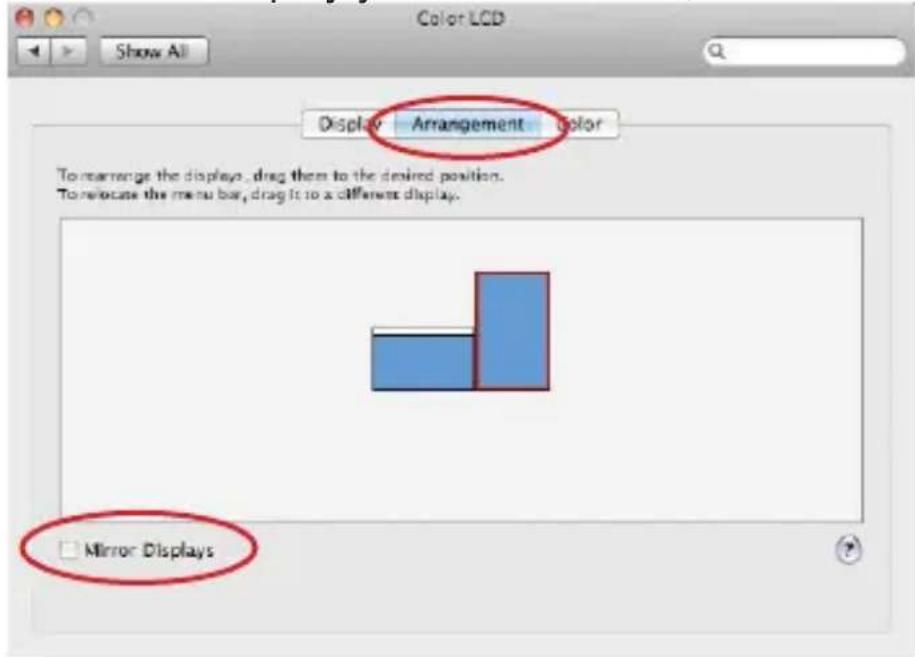
an extended display.
Changing the Primary Display
You can change which display is the primary display by moving the Menu Bar between displays. Changing the primary display affects where new windows appear and the position of the Dock.
To move the Menu Bar, click the white menu bar and drag it to the display you wish to become the primary.
Configuring Displays from the Menu Bar
If you have checked the “Show displays in menu bar” in the Display Preferences window, then you can configure displays by clicking the display icon in the menu bar. This will show a menu similar to the following:
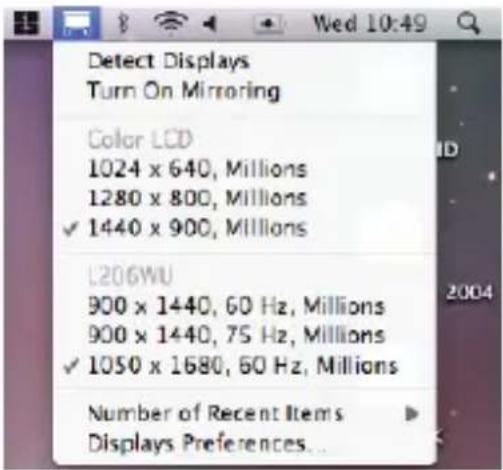
Media Playback
Please note that while operating in Extended Mode, USB2VGAPRO can display media files and DVDs using a broad variety of media players, however in Clone Mode, limited support is available for video playback.
Supported Video Resolutions
| Resolution Colour Depth |
| 640x480 16, 32 |
| 800x600 16, 32 |
| 1024x768 16, 32 |
| 1280x1024 16, 32 |
| 1366x768 16, 32 |
| 1440x900 16, 32 |
| 1600x1200 16, 32 |
| 1680x1050 16, 32 |
| 1920x1200 16, 32 |
Specifications
| Bus Interface | USB 2.0 |
| Connectors | 1x USB type A1 x DE-15 VGA female |
| Video Signal | VGA (RGBHV) |
| Cable Length | 35cm (13.8") USB cable |
| Built in Memory | 16MB |
| Maximum Number of Adapters | 4 (Windows)4 (Mac OS) |
| Dimensions | 90.0mm x 48.0mm x 23.5mm |
| Weight | 73g |
| Supported Operating Systems | Windows 2000/XP/Vista/7(32/64-bit),Mac OS 10.4.11/10.5.6 (Intel),Linux* |
*visit www.displaylink.com for more information
Technical Support
StarTech.com's lifetime technical support is an integral part of our commitment to provide industry-leading solutions. If you ever need help with your product, visit www.startech.com/support and access our comprehensive selection of online tools, documentation, and downloads.
Warranty Information
This product is backed by a one year warranty.
In addition, StarTech.com warrants its products against defects in materials and workmanship for the periods noted, following the initial date of purchase. During this period, the products may be returned for repair, or replacement with equivalent products at our discretion. The warranty covers parts and labor costs only. StarTech.com does not warrant its products from defects or damages arising from misuse, abuse, alteration, or normal wear and tear.
Limitation of Liability
In no event shall the liability of StarTech.com Ltd. and StarTech.com USA LLP (or their officers, directors, employees or agents) for any damages (whether direct or indirect, special, punitive, incidental, consequential, or otherwise), loss of profits, loss of business, or any pecuniary loss, arising out of or related to the use of the product exceed the actual price paid for the product. Some states do not allow the exclusion or limitation of incidental or consequential damages. If such laws apply, the limitations or exclusions contained in this statement may not apply to you.
StarTech.com Making hard-to-find easy!®
StarTech.com has been making “hard-to-find easy” since 1985, providing high quality solutions to a diverse IT and A/V customer base that spans many channels, including government, education and industrial facilities to name just a few. We offer an unmatched selection of computer parts, cables, A/V products, KVM and Server Management solutions, serving a worldwide market through our locations in the United States, Canada, the United Kingdom and Taiwan.
Visit www.startech.com today for complete information about all our products and to access exclusive interactive tools such as the Cable Finder, Parts Finder and the KVM Reference Guide.
- USB to VGA Video Adapter
- FCC Compliance Statement
- Use of Trademarks, Registered Trademarks, and other Protected Names and Symbols
- Table of Contents
- Introduction ...... 1
- Installation 2
- Configuration 5
- Supported Video Resolutions 11
- Specifications 12
- Technical Support 13
- Warranty Information 13
- Introduction
- Packaging Contents
- System Requirements
- Installation
- Windows 2000/XP/Vista/7
- Mac OS X (10.4.11/10.5.6)
- Configuration
- Using the Second Display in Extended Mode
- Using the Second Display in Clone Mode (default)
- Designating the Primary Display
- Alternate Configuration
- Media Playback
- Using the Adapter in Extended or Mirror Mode
- Changing the Primary Display
- Configuring Displays from the Menu Bar
- Supported Video Resolutions
- Technical Support
- Warranty Information
- Limitation of Liability
- StarTech.com Making hard-to-find easy!®
Brand : StarTech.com
Model : USB2VGAPRO
Category : Network card / adapter