Maxview MXL014 - Satellite receiver

MXL014 - Satellite receiver Maxview - Free user manual and instructions

Find the device manual for free MXL014 Maxview in PDF.

📄 2 pages English EN Download 💬 AI Question 10 questions ⚙️ Specs
Notice Maxview MXL014 - page 1
Pick your language and provide your email: we'll send you a specifically translated version.
Type Free-to-air digital satellite receiver
Brand Maxview
Model MXL014
Target Region UK & Central Europe
Supported Satellites Pre-programmed with multiple satellites, including Astra 2 (28.2°E)
Built-in Sat-Finder Yes, for dish alignment with audible tone
Channel Scan Auto scan for new TV and radio channels
Channel List Management Edit and filter by satellite
OSD Language Multi-language (default German, switchable to English)
Guarantee 1 year
Accessories Included Remote control, quick start guide, user manual
Power Supply 12V DC (typical, exact specifications not provided)
Dimensions Not specified (compact receiver)
Weight Not specified
Maintenance Keep dry and clean; refer to user manual for detailed care
Safety Follow all safety precautions in the operating manual
Spare Parts & Repairability Not specified; contact Maxview support for service

Frequently Asked Questions - MXL014 Maxview

How do I change the menu language from German to English?
Press MENU, then use VOLUME to navigate to the language screen. Highlight 'Sprache', press OK, use CHANNEL keys to select language, then VOLUME to choose English. Press EXIT to save.
How do I display only Astra 2 channels?
Press LIST, use VOLUME to scroll to 'ASTRA 28 EAST' under the TV Channel List title, then press EXIT. The receiver will memorize this setting.
How do I scan for new channels on Astra 2?
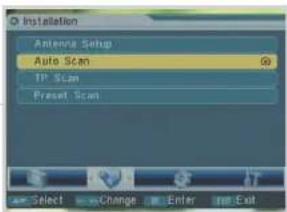
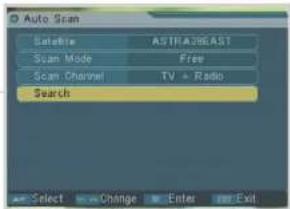
Press MENU, select Installation, highlight Auto Scan, press OK. Ensure Satellite is ASTRA 28 EAST, Scan mode 'Free', Scan channel 'TV + Radio'. Select Search and press OK.
How do I use the built-in sat-finder for dish alignment?
Press INFO, then press 1 on the remote to activate the sat-finder. A tone will rise in pitch when a satellite signal is detected. Adjust your dish accordingly.
What should I do if the receiver is reset to factory defaults?
The OSD language reverts to German. Follow the steps to change language back to English (see FAQ 1). The channel list will also be modified; you may need to filter for Astra 2 again.
How do I select a channel from the list?
Press OK to display the TV Channel List, then use CHANNEL UP/DOWN to navigate and OK to select. Use VOLUME UP/DOWN to scroll pages.
Can I add new channels later?
Yes, run the Auto Scan periodically to update your channel list with new Free-to-Air channels.
What satellites are pre-programmed in my receiver?
The receiver is pre-programmed with channels from several satellites, including Astra 2 (28.2°E). The default list includes all satellites; you can filter as needed.
Why does my receiver show a German menu?
This is the default language after a factory reset. Change it to English by following the 'Change menu language' steps (FAQ 1).
Where can I get support for my MXL014?
Contact Maxview customer helpline at +44 (0)1553 811000 or email cust_serv@maxview.co.uk. Visit www.maxview.co.uk for product catalog.

User questions about MXL014 Maxview

0 question about this device. Answer the ones you know or ask your own.

Ask a new question about this device

The email remains private: it is only used to notify you if someone responds to your question.

No questions yet. Be the first to ask one.

Download the instructions for your Satellite receiver in PDF format for free! Find your manual MXL014 - Maxview and take your electronic device back in hand. On this page are published all the documents necessary for the use of your device. MXL014 by Maxview.

USER MANUAL MXL014 Maxview

If your receiver has been reset to the factory default setting and this screen is shown when the receiver is tuned on you will need to change the language setting from German to English

Press the MENU button on the remote.

Press the VOLUME UP/DOWN key until this screen is shown.

Press the CHANNEL UP/DOWN key until the Sprache box is highlighted.

Press the OK button to select.

Press the CHANNEL UP/DOWN keys until the Sprache box is highlighted.

Use the VOLUME keys to scroll through the languages.

When English has been highlighted press EXIT.

For more information on our vast range of leisure products, please request a copy of our leisure catalogue.
Maxview MXL014 - 1

MAXVIEW

Maxview Limited (UK head office) Common Lane Setchey King's Lynn Norfolk PE33 0AT England

Customer Helpline +44 (0)1553 811000 e-mail cust_serv@maxview.co.uk website www.maxview.co.uk

Maxview reserve the right to change specifications without prior notice.

MIX(014) [25-1]

MAXVIEW 'FREE TO AIR' DIGITAL SATELLITE RECEIVER

1 YEAR GUARANTEE

Maxview MXL014 - MAXVIEW 'FREE TO AIR' DIGITAL SATELLITE RECEIVER - 1

Maxview MXL014 - MAXVIEW 'FREE TO AIR' DIGITAL SATELLITE RECEIVER - 2

Maxview MXL014 - MAXVIEW 'FREE TO AIR' DIGITAL SATELLITE RECEIVER - 3

Maxview MXL014 - MAXVIEW 'FREE TO AIR' DIGITAL SATELLITE RECEIVER - 4

Maxview MXL014 - MAXVIEW 'FREE TO AIR' DIGITAL SATELLITE RECEIVER - 5

Maxview MXL014 - MAXVIEW 'FREE TO AIR' DIGITAL SATELLITE RECEIVER - 6

MXL014

FOR USE IN THE UK & CENTRAL EUROPE

Maxview MXL014 - MXL014 - 1

Quick Start Guide

Please use this quick start guide in conjunction with the operating manual following the recommended safety precautions.

Your FTA receiver is pre-programmed with channels from several different satellites. The majority of UK channels are broadcast from the Astra 2 satellite. This guide will show you:

How to display only ASTRA 2 channels Use your receiver to help position your satellite antenna Scan for new TV and Radio channels Change the menu language

Important

If your FTA Receiver is reset to the factory default setting the OSD language reverts to German and channel list is modified.

If this occurs please follow the simple steps in this guide to revert back to UK Specifications

Set up diagram

This is a simple set-up example, please refer to the user manual for more set-up examples and detailed information about using this product in a safe manner.

Note: Ensure TV is set to the AV channel. Please refer to your TV instruction manual for more information.
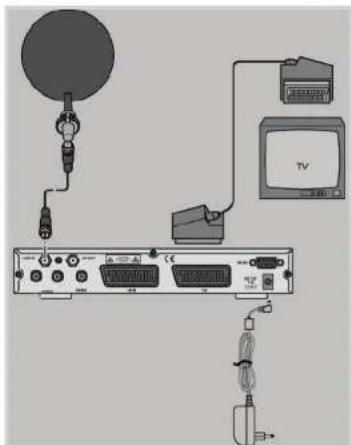
Diagram showing connections between a TV and satellite dish via cable, with labeled components and wiring.

Display only Astra 2 channels

No Signalt

TV Channel List 000 Bas Boute 001 20F 002 30H 004 DAS VENTE 005 PUL TERRUM 006 RICU 007 PONION 008 LRF1 009 LRF2 010 200 No Signal Active: 18.3528 VREF: 477500 V.P. RGB: 321.62.181

TV Channel List A100000000000000000000000000000000000000000000000000000000000000000000000000000000000000000 A101 Real Series TV A102 Real Series TV A103 Real Series TV A104 Real Series TV A105 Real Series TV A106 Real Series TV A107 Real Series TV A108 Real Series TV A109 Real Series TV A110 Real Series TV A111 Real Series TV A112 Real Series TV A113 Real Series TV A114 Real Series TV A115 Real Series TV A116 Real Series TV A117 Real Series TV A118 Real Series TV A119 Real Series TV A120 Real Series TV A121 Real Series TV A122 Real Series TV A123 Real Series TV A124 Real Series TV A125 Real Series TV A126 Real Series TV A127 Real Series TV A128 Real Series TV A129 Real Series TV A130 Real Series TV A131 Real Series TV A132 Real Series TV A133 Real Series TV A134 Real Series TV A135 Real Series TV A136 Real Series TV A137 Real Series TV A138 Real Series TV A139 Real Series TV A140 Real Series TV A141 Real Series TV A142 Real Series TV A143 Real Series TV A144 Real Series TV A145 Real Series TV A146 Real Series TV A147 Real Series TV A148 Real Series TV A149 Real Series TV A150 Real Series TV A151 Real Series TV A152 Real Series TV A153 Real Series TV A154 Real Series TV A155 Real Series TV A156 Real Series TV A157 Real Series TV A158 Real Series TV A159 Real Series TV A160 Real Series TV A161 Real Series TV A162 Real Series TV A163 Real Series TV A164 Real Series TV A165 Real Series TV A166 Real Series TV A167 Real Series TV A168 Real Series TV A169 Real Series TV A170 Real Series TV A171 Real Series TV A172 Real Series TV A173 Real Series TV A174 Real Series TV A175 Real Series TV A176 Real Series TV A177 Real Series TV A178 Real Series TV A179 Real Series TV A180 Real Series TV A181 Real Series TV A182 Real Series TV A183 Real Series TV A184 Real Series TV A185 Real Series TV A186 Real Series TV A187 Real Series TV A188 Real Series TV A189 Real Series TV A190 Real Series TV A191 Real Series TV A192 Real Series TV A193 Real Series TV A194 Real Series TV A195 Real Series TV A196 Real Series TV A197 Real Series TV A198 Real Series TV A199 Real Series TV A200 Real Series TV

Aligning your satellite antenna SP TV Channel List A#1 500 B02 541 B03 541 Analog S B04 541 B05 541 Audio S B06 541 C#e B07 541 B08 541 B09 541 NEWS 24 B10 541 W/m ASTRA/BEAST: WTA H. COGS V A PCR D400 S401 S400 Use Select Page Delete Ext

Install your satellite antenna referring to the operating manual supplied with it and install your FTA receiver as shown previously. Follow these simple steps to find the Astra 2 satellite.

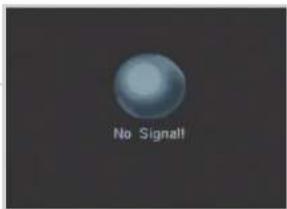
When you first turn your FTA receiver on this screen will be shown.

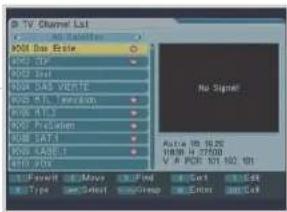
Press the blue LIST button on the remote control to edit the TV Channel List.

The default channel list includes channels from a wide range of satellites. The majority of UK channels are broadcast from the Astra 2 satellite.

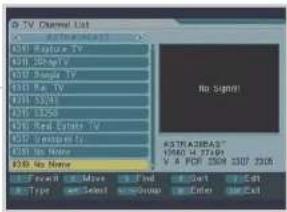
This menu allows you to edit the TV Channel List so that it displays channels from the Astra 2 satellite only.

Press the VOLUME UP/DOWN key to scroll through the various satellites and groups until ASTRA 28 EAST is displayed below the TV Channel List title.

Press the EXIT button.

Note: You will only have to do this once. The receiver will memorise the menu change even when the power has been disconnected.

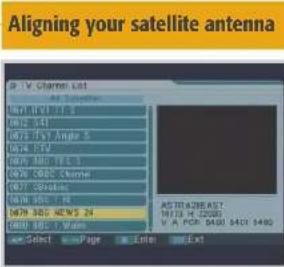
To select a channel, press the OK button on the remote control to display the TV Channel List.

Scroll through the pages of channels using the VOLUME UP/DOWN keys.

Use the CHANNEL UP/DOWN button to select your channel and press OK.
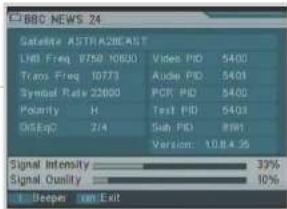
BBC NEWS 24 Satellite ASTRA2BEAST LND Freq 9750 10650 Video PID 5400 Trans Freq 10773 Audio PID 5400 Symbol Rate 22600 POP PID 5400 Polarity N Text PID 5400 OnSeqO 2/4 Sub PID 8981 Version: 10.8.4.36 Signal Intensity 33% Signal Quality 10% Deepen Exit

Scan for new TV and Radio channels

Installation Antenna Setup Auto Scan IP Scan Preset Scan Select Change Enter Exit

Auto Scan Satellite ASTRA20EAST Scan Mode Free Scan Channel TV + Radio Search Select Change Enter Exit

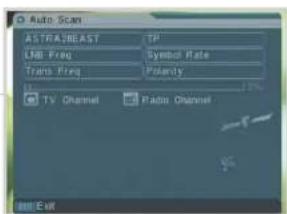
Auto Scan ASTRA/BEAST LDB Freq Trans Freq TP Symbol Rate Fidelity TV Channel Radio Channel Exit

To help with the alignment of your satellite dish press the INFO button on the remote control.

Press 1 on the remote to turn on the built-in sat-finder. The tone from the Sat-finder will rise in pitch when a satellite signal is received.

Follow the operating instructions supplied with your dish antenna when finding a satellite.

When you have found the Astra 2 satellite press EXIT.

When the antenna has been successfully positioned to receive Astra 2 follow these steps to add the latest channels.

Press the MENU button on the remote control.

Select the Installation menu using the VOLUME UP/DOWN key.

Highlight Auto Scan using the CHANNEL UP/DOWN key and press OK.

Scroll down the Auto Scan menu using the CHANNEL DOWN key.

Use VOLUME UP/DOWN keys to ensure: Satellite is set on ASTRA 28 EAST

Scan mode is set on Free

Scan channel is set to TV + Radio

Then highlight Search and press OK

Searching for channels may take several minutes. When complete press EXIT.

Your receiver now contains the latest Free to View channels from the Astra 2 satellite.

Note: We advise you scan for new channels periodically.

Manual assistant
Powered by Anthropic
Waiting for your message
Product information

Brand : Maxview

Model : MXL014

Category : Satellite receiver