
861 - Hi-Fi System MERIDIAN - Free user manual and instructions
Find the device manual for free 861 MERIDIAN in PDF.


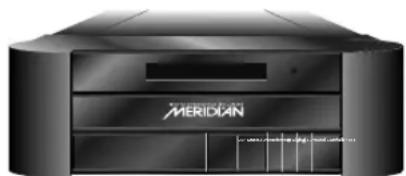
| Product Type | Reference Digital Surround Controller |
| Brand | Meridian |
| Model | 861 |
| Inputs | Up to 12 analogue inputs (adjustable sensitivity), up to 12 digital inputs (32-96kHz, up to 24-bit) |
| Outputs | Up to 10 digital outputs, up to 10 analogue outputs, optional tape loop, multi-room |
| Supported Audio Formats | Dolby Digital, Dolby Pro Logic IIx, DTS, MPEG Surround, THX, Ambisonics, PCM up to 24-bit/96kHz |
| DSP Presets | Music, Trifield, Ambisonics, Super Stereo, Music Logic, PLIIx Music, Stereo, Direct, PLIIx Movie, PLIIx THX, TV Logic, Mono, Cinema, Discrete, THX Surround EX, THX Ultra2 Cinema, THX Music |
| Speaker Layouts | Music, Logic, 5.1 Movie (up to 7.1 channels, including up to 8 digital subwoofers) |
| Control | Front panel, MSR+ remote, Meridian Comms, RS232 |
| Display | 20-character dot-matrix, adjustable brightness/contrast, on-screen display (optional) |
| Room Correction | Yes, via Meridian Configuration Program (up to multiple profiles) |
| Calibration | Built-in test tones for level, distance, phase, speaker size, subwoofer crossover |
| Power Supply | AC 100-240V, 50/60Hz (typical) |
| Dimensions (W x H x D) | Approximately 17.5 x 3.5 x 12 inches (typical) |
| Weight | Approximately 15 lbs (typical) |
| Maintenance & Cleaning | Clean only with a dry cloth. Do not use liquid cleaners. |
| Safety Warnings | Do not expose to rain or moisture. Leave at least 10cm for ventilation. Do not place near heat sources. |
| Repairability | Refer all servicing to approved service personnel. No user-serviceable parts inside. |
| Warranty | Standard manufacturer warranty applies (check local dealer) |
Frequently Asked Questions - 861 MERIDIAN
User questions about 861 MERIDIAN
0 question about this device. Answer the ones you know or ask your own.
Ask a new question about this device
Download the instructions for your Hi-Fi System in PDF format for free! Find your manual 861 - MERIDIAN and take your electronic device back in hand. On this page are published all the documents necessary for the use of your device. 861 by MERIDIAN.
USER MANUAL 861 MERIDIAN
natural_image
Abstract blue gradient background with a vertical dotted line dividing the image (no text or symbols)Meridan 861 Reference Digital Surround Controller User Guide
natural_image
Exterior view of a black MERIDIAN audio device (no visible text or symbols on body)Important safety instructions
- Read the instructions.
- Keep these instructions.
- Follow all instructions.
- Do not use this apparatus near water.
- Clean only with a dry cloth.
- Install only in accordance with the manufacturer's instructions.
- Refer all servicing to approved service personnel.
WARNING: TO REDUCE THE RISK OF FIRE OR ELECTRIC SHOCK, DO NOT EXPOSE THIS APPARATUS TO RAIN OR MOISTURE
Safety warnings
- Do not expose the product to dripping or splashing.
- Do not place any object filled with liquid, such as a vase, on the product.
- Do not place naked flame sources, such as lighted candles, on the product.
To avoid overheating
- Leave at least 10cm around the equipment to ensure sufficient ventilation.
Do not position the product:
In direct sunlight.
- Near heat sources, such as a radiator.
- Directly on top of heat producing equipment, such as a power amplifier.
To avoid interference
Do not position the product:
- Near strong magnetic radiation, such as near a power amplifier.
- Near to a television, or where connecting cables may be subject to or cause interference.
Radio interference
FCC Warning: This equipment generates and can radiate radio frequency energy and if not installed and used correctly in accordance with our instructions may cause interference to radio communications or radio and television reception. It has been type-tested and complies with the limits set out in Subpart J, Part 15 of FCC rules for a Class B computing device. These limits are intended to provide reasonable protection against such interference in home installations.
EU: This product has been designed and type-tested to comply with the limits set out in EN55013 and EN55020.

Contents
Introduction
1
The 861 Reference Digital Surround Controller 2
DSP presets and layouts 3
Overview 5
Typical specifi cation 7
Using the 861 Reference Digital Surround Controller 9
Front panel keys 10
MSR+ keys 11
Switching on and off 12
Selecting a source 13
Adjusting the volume 14
Changing the DSP preset 15
Changing the display 16
Recording a source 19
Customising the 861 Reference Digital Surround Controller 21
Locking and unlocking the menus 22
Changing the DSP parameters 23
Changing treble, bass, or phase 25
Changing the listening position 26
Changing the integration of the centre 28
Changing the spaciousness of the sound 29
Changing the lip sync and on-screen display 30
Changing the DSP preset for a source 31
Defi ning your own presets 32
DSP presets 35
DSP presets for two-channel material 36
DSP presets for multichannel material 41
Configuring the digital surround controller 45
Choosing a standard setting 46
Calibrating the system 49
Calibration tests 51
Setting up sources 55
Sinewave sweep test 57
Glossary 59
Index 65
Copyright and acknowledgements
Sales and service in the UK
Meridian Audio Ltd
Latham Road
Huntingdon
Cambridgeshire
PE29 6YE
England
Tel (01480) 445678
Fax (01480) 445686
Sales and service in the USA
Meridian America Inc
8055 Troon Circle
Suite C
Austell
GA30168-7849
USA
Tel (404) 344 7111
Fax (404) 346 7111
World Wide Web – http://www.meridian-audio.com
Designed and manufactured in the UK by
Meridian Audio Ltd
Latham Road
Huntingdon
Cambridgeshire
PE29 6YE
England
Copyright © 1999-2005 Meridian Audio Ltd.
Part no: 861U/7
Manufactured under license from Dolby Laboratories Licensing Corporation (Canadian patent 1,037,877), Lucasfi Im Ltd. (US patents 5,043,970; 5,189,703; 5,222,059. European patent 0323830), Trifi eld Productions Ltd, and Nimbus Records Ltd.
MHR: this product incorporates copyright protection technology covered by certain patent applications and intellectual property of Meridian Audio Ltd. This technology is provided for the express purpose of securely containing copyright audio within the Meridian System only. Reverse engineering or circumvention of this protection is strictly prohibited.
Dolby, Dolby Digital, Pro Logic, AC-3, PLII, and the double-D symbol are trademarks of Dolby Laboratories
Licensing Corporation. Lucasfi Im, THX, and THX Cinema are registered trademarks of Lucasfi Im Ltd. Surround EX is a jointly developed technology of THX and Dolby Laboratories, Inc. and is a trademark of Dolby Laboratories, Inc. All rights reserved. Used under authorisation. DTS is a registered trademark of Digital Theatre Systems Inc. MPEG is a registered trademark of the MPEG organisation. Ambisonic is a registered trademark of Nimbus Records Ltd. Trifi eld is a trademark of Trifi eld Productions Ltd. LaserDisc is a trademark of Pioneer Electric Corp. BoothroydlStuart Meridian, Meridian, Meridian Digital Theatre, MHR, MLP, and LipSync are registered trademarks of Meridian Audio Ltd.
This guide was produced by: Human-Computer Interface Ltd, http://www.interface.co.uk
PREFACE
• • • • •

natural_image
Abstract blue gradient background with a vertical dotted line dividing the image (no text or symbols)Introduction
Welcome to the Meridian 861 Reference Digital Surround Controller. This User Guide provides full information about using the surround controller in conjunction with your other equipment, to achieve the superb results you can expect from it.
natural_image
Exterior view of a black MERIDIAN audio device (no visible text or symbols on body)The 861 Reference Digital Surround Controller
Digital signal processing, or DSP, is a technique pioneered by Meridian in hi-fi products for achieving extremely accurate reproduction of audio signals. Unlike conventional analogue systems – which process signals using electronic circuits based on resistors, capacitors, and inductors – DSP works by performing exact mathematical calculations on digital versions of the signals.
The advantage of DSP over analogue circuitry is that the signals are held as precise numbers, rather than voltages in a circuit. This means that any number of stages of processing can be performed with high precision, and without any of the cumulative noise or degradation that inevitably occurs, even with high-quality analogue circuitry. In addition, several of the surround-sound decoding techniques and signal improvement techniques available in the 861 would be virtually impossible to implement in analogue circuitry.
At Meridian we have taken advantage of the availability of high speed DSP microprocessors to incorporate DSP in hi-fi products, and the 861 is the result of over a decade of our research and development in this fi eld.
The 861 takes advantage of DSP for several different functions:
- To de-jitter incoming digital signals and expand the precision of the signal.
- To perform fi ltering or adjustment of the frequency response; eg treble or bass.
- To decode digitally-encoded signals from Dolby Digital (AC-3), DTS, or MPEG Audio.
- To process the audio into a multichannel signal, and match the source channels to the configuration of main loudspeakers and subwoofers in the system.
The 861 converts analogue input signals to digital format, using high-quality analogue-to-digital converters (ADCs). Digital signals, from CD, DVD, LaserDisc, or digital broadcasting, are already in digital format and do not need to be converted.
The signals are then retained in digital form throughout the 861 until they are converted back to analogue form at the analogue outputs, to drive power amplifiers. If you are using the 861 with Meridian DSP Loudspeakers, the signals remain in digital form until the last possible stage.
DSP presets and layouts
The 861 provides an extensive range of options for decoding and processing analogue and digital signals for multichannel reproduction.
Music on CD or radio
The following DSP presets add a surround dimension to stereo recordings, such as on audio CDs or FM radio.
Music extracts the mono and surround components of the original recording for the centre and surround speakers to give a spacious open sound fi eld.
Trifield is similar to Music but generates a centre-front signal that is completely integrated with the front stereo image, for a more stable, accurate, and focused stereo image. The image width is also adjustable.
Super produces a very good surround effect with many live recordings.
PLIIx Music and Music Logic are recommended for use with studio produced music, and provide different options for adjusting the sound fi eld.
Two-channel movie soundtracks on DVD, video, and TV
Many movie soundtracks are Dolby Surround Encoded onto a two-channel stereo soundtrack.
The following DSP presets re-create the surround components from this type of material:
PLIIx Movie is Dolby's recommended choice for Dolby Surround Encoded material, and PLIIx THX provides a variant of this better suited to home listening.
TV Logic uses the same processing techniques as PLIIx Movie but with adjustable steering to give better results with TV material.
Special presets for two-channel materials
Direct uses only the left and right speakers; compare this with the effect of surround processing using the other modes. Stereo will use a subwoofer if it is present.
Ambisonics is specially designed for two-channel materials that are UHJ Ambisonically encoded, such as certain audio CDs. The encoded surround information is recovered and played back using all the loudspeakers in your system. In addition it will give impressive results with other two-channel material.
Multichannel movie soundtracks on DVD
The following presets are designed for use with multichannel movie soundtracks encoded using Dolby Digital, DTS, or AAC (on some models). Typically these are labelled 5.1 because they provide fi ve full-range channels (three front and two rear) and one LFE (bass effects) channel.
Cinema and THX decode the soundtrack to render the original six channels to your speaker layout. THX adds some additional signal processing to match the sound to typical home listening conditions.
PLIIx Mov6, PLIIx Mus6, THX Surround EX, THX Ultra2, and THX Music create an additional pair of surround channels from the 5.1 channel soundtrack and are available if you have four surround speakers in your system. Use PLIIx Mus6 or THX Music for music.
Multichannel music recordings on DVD-Audio
The following presets are recommended for music recordings containing more than two channels:
Discrete renders the source channels to your speaker layout with the ultimate precision and transparency.
Ambisonics is especially designed for multichannel recordings on DVD-Audio discs that use Ambisonic encoding.
Speaker layouts
The surround controller provides great fl exibility in the way in which you use the loudspeakers in your system. With the Meridian Confi guration Program you can specify three different speaker layouts, each with a different use of subwoofers and centre speaker:
Layout DSP presets
Music
For music presets: two-channel (eg Trifi eld) and multichannel (eg Discrete).
Logic For two-channel movie presets: eg PLIIx Movie.
5.1 Movie For multichannel movie presets: eg Cinema.
Overview
The architecture of the 861 allows for wide fl exibility – future sources and formats can be handled by upgrading either software or cards.
Meridian MHR Smartlink
The 861 Reference Digital Surround Controller incorporates a unique multichannel link, which allows it to receive an upsampled 6-channel PCM stream from a compatible source, such as the Meridian 800 Reference DVD / CD Player, for the highest possible sound quality.
An additional feature of the Meridian MHR Smartlink is that it obtains intelligent stream content information from the source, allowing the 861 Reference Digital Surround Controller to select an appropriate preset depending on whether the source is music or a movie soundtrack, and whether it is 2-channel or multichannel.
Inputs
The 861 is a full-system controller preamp that provides seamless control of up to 12 sources.
By providing digital as well as analogue inputs the 861 can give radically higher sound quality for sources that are originally digital – like CD, LaserDisc, Digital Radio and DVD.
As well as accepting 2-channel digital audio, the 861 will handle SPDIF-encoded Dolby Digital, DTS, or MPEG from sources like DVD, Satellite, and LaserDisc (via an RF00 LaserDisc Demodulator Card).
Processing
The Meridian 861 routes all signals – if necessary via a 24-bit A/D converter – into the digital domain for processing in the highly developed Meridian 24-bit DSP cards.
The incoming signals are processed using a variety of proprietary algorithms, and up to eight output signals are generated. These output signals can be used to feed a number of speaker layouts, ranging from two to seven speakers with up to eight Meridian digital subwoofers.
The on-board algorithms include Meridian's own highly transparent Dolby Pro Logic, PLII, Dolby Digital, MPEG Surround, DTS, THX extensions, TV Logic, and a variety of award-winning music programs including Trifi eld and Ambisonic.
Outputs
The 8+ outputs can be provided as digital signals to feed Meridian DSP Loudspeakers, or as variable analogue outputs using a proprietary on-board 24-bit resolution conversion method.
The optional Tape card provides additional A/D and D/A converters to give support for both tape recorders, extensive 2- and 3-zone multi-room capability (analogue or digital formats), and headphones.
Video control and OSD
The Meridian 861 provides broadcast-grade video switching options for monitors, projectors, and video tape routing. The comprehensive set-up and customising facilities allow the user to link any video and audio combinations to the 12 sources (accessed from the Source key on the front panel or the remote control).
In addition to providing high-quality video buffering, the 861 has the ability to give help and system control feedback information in an on-screen display. Video formats supported include Composite, S-Video, and Component.
Room Correction
The Meridian 861 can be used in conjunction with the Meridian Confi guration Program to create a set of one or more room correction profi les matched to your room. A profi le can then be selected to compensate for room artefacts, including resonances and refl ections, or for imbalances between the speakers, to give a signifi cant improvement in the sound.
Typical specification
Audio in and out
- Up to 12 analogue inputs. User-adjustable sensitivity. Re-nameable legends.
- Up to 12 digital inputs. Re-nameable legends. 32 to 96kHz sampling, and up to 24-bit precision.
- Digital and analogue tape loops.
- Independent copy and 2-room+ capability.
- Up to 10 digital outputs.
- Up to 10 analogue outputs.
- Optional 5.1-channel analogue input.
Control signals
- 3 trigger outputs, programmable by source.
- Meridian Comms and RS232 for control and setup.
Controls, etc.
Front-panel facia controls for:
Source, DSP, Mute, Volume, and Off.
Hinged control panel provides additional switches for:
- Display, Copy, Store, parameter menus, Assign, Calibrate, and Configure.
Display
- 20-character dot-matrix display: adjustable brightness and contrast.
- Lights for Dolby, Digital, THX, DTS, and MPEG.
INTRODUCTION
•
……

natural_image
Abstract blue gradient background with a central vertical dotted line (no text or symbols)Using the 861 Reference Digital Surround Controller
This chapter provides a summary of the functions of the 861 Reference Digital Surround Controller to identify the controls which you use to operate the unit.
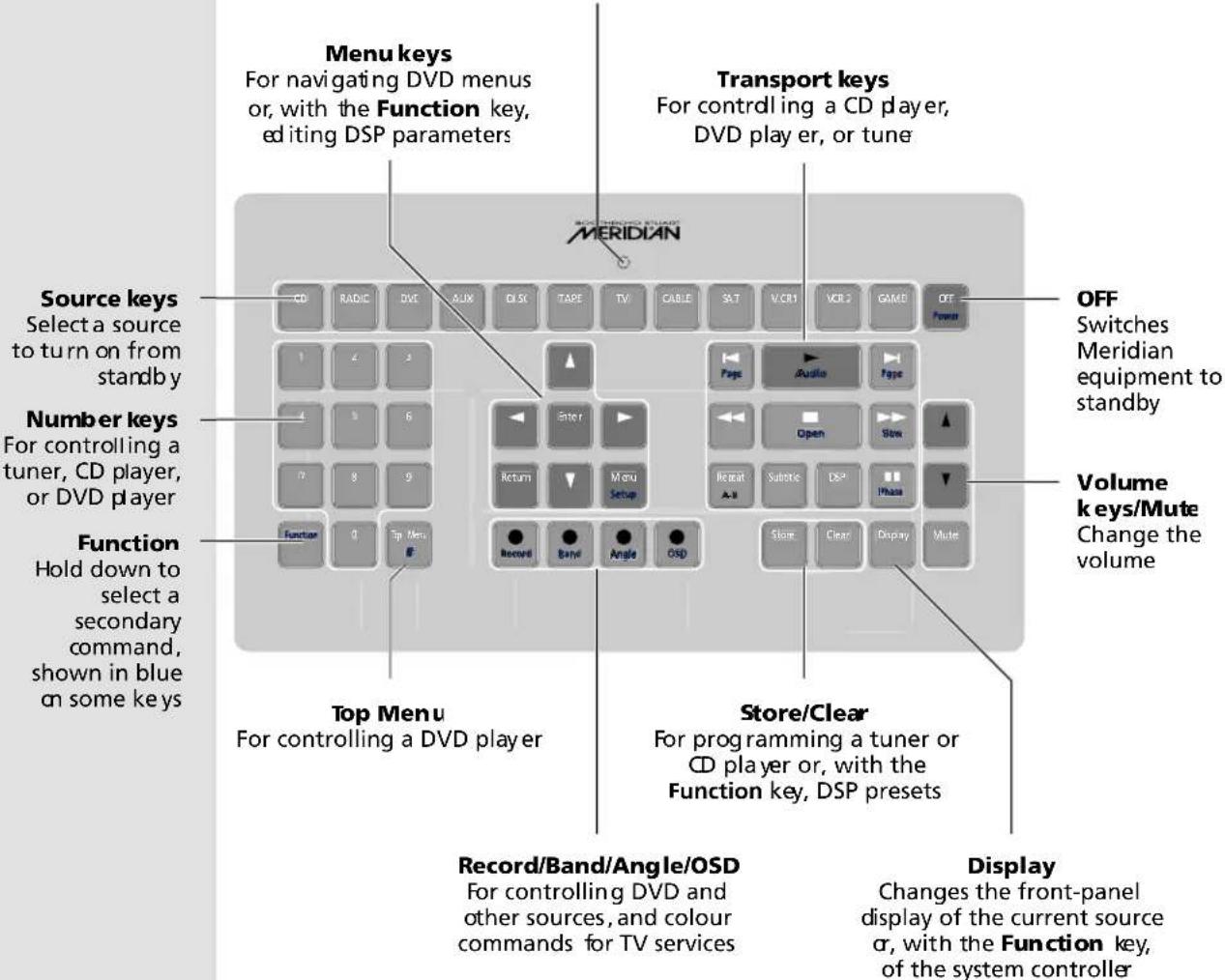
It also provides step-by-step instructions for operating the digital surround controller, using either the front panel or the MSR+.
natural_image
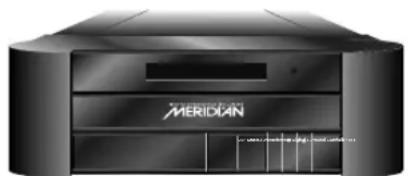
Exterior view of a black MERIDIAN audio device (no visible text or symbols on body)Indicator Flashes when you send a command. Includes sensor for backlight
Switching on and off
When not playing, the digital surround controller should be left in the standby state. This ensures that the components of the digital surround controller operate at maximum efficiency from the moment you start.
If you are not going to use the digital surround controller for several days you should switch the unit off completely at the rear panel, and disconnect it from the AC power supply.
To switch on from standby
- Press Source (front panel), or select a source by pressing the appropriate source key on the remote; eg CD.
If the digital surround controller is part of a Meridian system it will automatically switch on any other unit in the system, such as the 800 Reference DVD/CD Player and Meridian DSP Loudspeakers.
To switch to standby
- Press Off (front panel or remote).
If you have other Meridian equipment or Meridian DSP Loudspeakers connected to the digital surround controller these units will also switch to standby.
Selecting a source
The digital surround controller provides the following 12 sources:
CD, Radio, DVD, Aux, Disc, Tape, TV, Cable, Sat, VCR1, VCR2, and Game.
Your installer may have customised the labels displayed for each source to suit your other equipment.
The input and DSP preset associated with each source depends on how the digital surround controller has been set up; for more information see Setting up sources page 55.
To select a source
- Press Source (front panel) until the display shows the source you require, or press the appropriate source key on the remote; eg CD.
The display shows the source, DSP preset, and volume setting.
For example, if you select the CD source the display might show:
CD Trifield 65
The digital surround controller mutes the sound while you change source, to avoid clicks in the speakers.
Adjusting the volume
The 861 Reference Digital Surround Controller adjusts the volume in precise steps of 1dB, where 9dB is equivalent to doubling the loudness. The current volume setting is displayed in dB on the front-panel display, and can be
varied in the range 1 to 99dB. When you first connect power to the digital surround controller the volume is set to 65, which is similar to the mid-way position of the rotary volume control on a conventional preamplifi er.
A setting of 87 corresponds to THX reference gain, the level at which fi lm soundtracks are mixed.
For normal to high level listening you should expect to use volume levels in the range 60 to 90.
On a system with analogue outputs the volume on startup can be set using the Meridian Confi guration Program. For details see the Meridian Confi guration Program Guide, available separately.
To change the volume
- Press ▲ or ▼ (front panel), or the red ▲ or ▼ keys on the remote.
As you adjust the volume setting the display shows the current volume level.
For example:
CD Trifield 70
To mute the sound
- Press Mute (front panel or remote).
The display will show:
Mute
To restore the sound
- Press Mute again.
Alternatively, the sound will be restored if you adjust the volume.
Changing the DSP preset
Each source has a set of DSP presets associated with it, one for each of the alternative content types: Music 2 (2-channel music), Music 6 (multichannel music), Movie 2 (2-channel movie soundtrack), or Movie 6 (multichannel movie soundtrack).
When you choose a source, a DSP preset is selected depending on the incoming content type.
For example, if you have selected the CD source and are playing a conventional CD, the Trifield DSP preset will initially be selected.
You may then wish to choose a different DSP preset, such as Music or Ambisonics.
You can also change the default DSP preset assigned to the source; see To assign a DSP preset to a source, page 31.
The sequence of DSP presets for each content type is as follows:
Content type Presets available
Music 2, Movie 2 Music, Trifield, Ambisonics, Super Stereo, Music Logic, PLIIx Music, Stereo, Direct, PLIIx Movie, PLIIx THX, TV Logic, Mono.
Music 6 Discrete, PLIIx Mus6, THX Music, Ambisonics B format.
Movie 6 Cinema, PLIIx Mov6, THX, THX Surround EX, THX Ultra2 Cinema.
In each case these will be followed by any user-defi ned presets you have stored for the appropriate content type.
To change the DSP preset
- Press DSP (front panel or remote) to step between the different DSP presets.
You will be able to choose any of the predefined DSP presets, or any user-defined presets you have stored.
The digital surround controller mutes the sound while you change DSP preset, to avoid clicks in the speakers.
Changing the display
The 861 Reference Digital Surround Controller displays information about the current settings on the 20-character front-panel display. In addition, it can display the same information superimposed on a video image.
You can adjust the contrast and brightness of the front-panel display for optimum viewing, and choose what information is displayed.
The digital surround controller automatically stores these settings, even with the power off.
To change the contrast
- Hold down Function and press ▶ or ◀ on the remote, or press the corresponding menu keys under the front panel, until the display shows the current contrast setting.
For example:
CD Contrast 8
- Hold down Function and press ▲ or ▼ on the remote, or press the corresponding menu keys under the front panel, to change the display contrast.
You can change the contrast between 0 and 15.
To change the brightness
- Hold down Function and press ▶ or ◀ on the remote, or press the corresponding menu keys under the front panel, until the display shows the current brightness setting.
For example:
CD Bright 11
- Hold down Function and press ▲ or ▼ on the remote, or press the corresponding menu keys under the front panel, to change the display brightness.
You can change the brightness between 0 and 15.
To change the displayed information
- Press Display (remote or under the front panel).
TV ProLogic
Each time you press Display the display will step between the options shown in the following table.
Display option Example
Source, DSP preset, and volume.
DVD-A Ambisonics 65
Source, DSP preset, and THX reference level.
DVD-A Ambisonics -22
Audio format, number of channels, content type, and sampling rate.
DVD-A PCM Music6 44k
Blank.
If your digital surround controller is fitted with a video card, the same information can be displayed on an on-screen display.
For example:
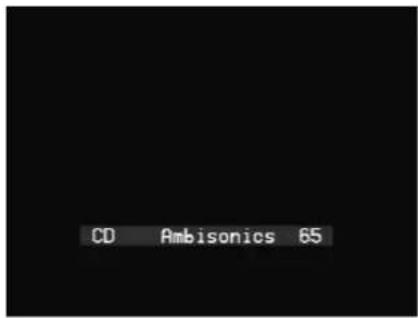
You can choose the position of the on-screen display; see To change the position of the on-screen display, page 30.
If the Diagnostic display option has been selected, additional diagnostic displays are included; refer to the Meridian Web site at www.meridian-audio.com for details.
In addition, the following symbols on the front-panel display indicate which of the DSP processing modes are operating, or what the original format was if received via the Meridian MHR Smartlink:
Symbol What it means

Dolby processing is operating.
DIGITAL Input is Dolby Digital.

THX processing is operating.

Input is DTS.
MPEG Input is MPEG.
Recording a source
The 861 Reference Digital Surround Controller allows you to copy any of the standard sources to the tape outputs, independently of the source you are listening to.
If you are using the digital surround controller in a two-room system, you copy a source to the tape output to make it available to the second room.
To copy a source
- Press Copy (under the front panel).
Each time you press Copy the digital surround controller will step between the options shown in the following table:
Display Option
Copy Source
The current audio and video inputs are fed to the tape/VCR outputs.
Copy Mute
The tape and VCR outputs are muted.
Copy CD
Copies the first source to the tape and VCR outputs.
Copy Radio
Steps through each source in turn, etc.
For example, to record the DVD sound on a tape recorder:
- Press Copy until the display shows:
Copy DVD
You can now listen to a different source, such as CD, by selecting the source, without affecting what is being recorded.
To change the headphone volume
You can connect headphones to the digital surround controller using the optional Tape expansion card. The source copied to the tape output is also fed to the headphones.
To change the headphone volume:
- Hold down Function and press the red ▲ or ▼ keys on the remote.
The display will show the current headphone volume; for example:
Headphone Volume 65
natural_image
Abstract blue gradient background with a vertical dotted line dividing the image (no text or symbols)Customising the 861 Reference Digital Surround Controller
In addition to being able to change the source, volume, and DSP preset, the 861 Reference Digital Surround Controller provides a sophisticated range of more advanced adjustments for each DSP preset, to allow you to tailor the sound.
This chapter explains how to change these parameters, using the menu keys on the remote or under the front panel, and gives detailed instructions for adjusting common parameters.
For information about the parameters specific to individual presets see the chapter DSP presets, page 35.
natural_image
Exterior view of a black MERIDIAN audio device (no visible text or symbols on body)Locking and unlocking the menus
To simplify the normal operation of the digital surround controller, and to protect the settings from accidental changes, you can lock the menus so that the DSP parameters cannot be accessed.
The only parameters available with the menus locked are Brightness and Contrast.
To display or change the DSP presets, or to define your own presets, you first need to unlock the digital surround controller menus.
To unlock the menus
- Press Off (front panel or remote) to put the digital surround controller in standby.
- Press and hold down the Store button under the front panel for a few seconds.
The display shows:
Unlocked
To lock the menus
- Repeat the above sequence so that the display shows:
Locked
Changing the DSP parameters
Each DSP preset provides a series of parameters that you can vary to customise the behaviour of the preset to your specific requirements. For example, most presets provide Balance and Depth parameters to allow you to alter the characteristics of the sound.
For each of the built-in DSP presets these parameters are set to standard values, designed to give the best sound in typical listening conditions and with most source materials. Each time you select a different DSP preset the parameters are reset to these standard values, even if you have previously altered them.
You can save the changes you have made to one or more DSP parameters in place of the original DSP preset. Alternatively you can create a new user-defined DSP preset with a name of your choice. User-defined presets appear in the list of DSP presets after the built-in ones. For more information about doing this see Defining your own presets, page 32.
To change a DSP parameter
- Make sure the menus are unlocked; see To unlock the menus, page 22.
- Press ▶ or ◀ (remote or under the front panel) until the display shows the name of the parameter you want to change.
For example:
CD Depth +0.0
- Press ▲ or ▼ (remote or under the front panel) to change the value of the parameter.
As you change the value you will be able to hear the effect on the sound, and the display will show the current value. After a short delay the display will revert to the normal display of DSP preset and volume.
Standard parameters
All DSP presets (except Mono, Stereo, and Direct) provide the following standard parameters:
Parameter Range Default What it changes
| Treble* -10dB to +10dB +0.0dB The slope of the frequency response. | |||
| Bass* -5dB to +5dB +0.0dB The bass response. | |||
| Phase* + or - + The absolute phase. | |||
| Axis† | -2 to +3 -1 The vertical balance. | ||
| Balance | <10 to 10> | <0> | The L-R balance. |
| HS Out?* | Y or N | Y | Select Y for high-rate audio, upsampled if necessary.Select N for standard-rate audio, downsampled if necessary. |
| Centre | -3.0dB to +3.0dB | +0.0dB | The level of the centre. |
| Depth | -2.5ms to +5ms | +0.0ms | The delay of the centre. |
| Rear | -30dB to +10dB +0dB | The level of the rears. | |
| Sides | -30dB to +10dB +0dB | The level of the sides. | |
| R Delay | 0ms to 30ms | Varies | The delay of the rears. |
| S Delay | 0ms to 30ms | Varies | The delay of the sides. |
| LipSync 0ms to 50ms | 0ms The sync. delay. | ||
| RC | As defined | Bypassed | The Room Correction profile, or Bypassed for no room correction |
* These parameters apply to all DSP presets.
Axis is only available with Meridian DSP loudspeakers.
Individual DSP presets provide additional parameters, to allow you to adjust specific features provided by that preset. For full details refer to DSP presets, page 35.
Note: Parameters not relevant to your configuration, such as Sides in a five-speaker system, are omitted from the sequence of menus.
Changing treble, bass, or phase
The digital surround controller provides sophisticated treble and bass controls, to allow you to adjust the broad balance of the system to correct for the acoustics of your listening room, or for a misbalanced recording.
The controls are more subtle than conventional tone controls, and take advantage of digital signal processing techniques to provide a more natural adjustment of the frequency response.
If you have a Meridian DSP Loudspeaker the Treble and Bass settings apply to all DSP presets.
You can also change the absolute phase of the signal, to compensate for recordings which are out of phase.
In each case all the outputs of the digital surround controller are given the same frequency adjustment, to ensure a correct surround effect.
To change the treble
- Press ◀ or ▶ until the display shows the current treble setting.
For example:
CD Treble +0.0
- Press ▲ or ▼ to change the treble.
The treble control tilts the frequency of the response over the entire frequency range to make the sound more or less bright. It can be adjusted between ±10dB in 0.5dB steps. Normally settings between +1.0 and -2.0 will give the most natural results.
To change the bass
- Press ◀ or ▶ until the display shows the current bass setting.
For example:
CD Bass +0.0
- Press ▲ or ▼ to change the bass.
The bass control allows you to adjust the bass response in the room by ±5dB in 0.5dB steps. Normally settings between +3.0 and -2.0 will give the most natural results.
To change the absolute phase
- Press ▶ or ◀ until the display shows the current phase.
For example:
CD + Phase
- Press ▲ or ▼ to change the phase.
Changing the listening position
A conventional stereo system provides a single balance control, which changes the relative loudness of the two speakers. The 861 Reference Digital Surround Controller provides a more sophisticated adjustment which corresponds to moving the listening position to the left or right.
The axis control allows you to adjust the optimum listening height of the loudspeakers, like a balance control operating in the vertical plane. This option is only available with Meridian DSP loudspeakers.
You can also change the level of the centre, side, and rear loudspeakers relative to the main speakers.
To move the listening position to the left or right
- Press ◀ or ▶ until the display shows:
CD Balance <0>
- Press ▲ or ▼ to move the listening position.
The display shows the direction and position of the listening position.
For example:
CD Balance <3
The arrow indicates the direction, and the number indicates the position where 0 is central, 8 is in line with the corresponding main speaker, and 10 is fully to one side.
Note: This adjustment is not available for the Mono preset.
To change the axis
- Press ◀ or ▶ until the display shows the current axis setting.
For example:
CD Axis -1
- Press ▲ or ▼ to change the axis.
The axis can be adjusted between -2 and +3, where 0 corresponds to the axis of the treble unit. Usually a listener will be below that position, so we recommend settings of -1 or -2.
To change the relative level of the side or rear loudspeakers
- Press ◀ or ▶ until the display shows the speakers you want to adjust.
For example:

- Use ▲ or ▼ to change the relative level of the speakers, in dB.
You can change the relative loudness of the rear loudspeakers from -30dB (about one-eighth of the loudness) to +10dB (about double the loudness).
For example, to double the loudness of the loudspeakers:
- Adjust their level until the display shows:

Note: This adjustment is not available for the Direct, Stereo, or Mono presets.
Changing the integration of the centre
If you have a centre loudspeaker you can adjust its relative loudness, to provide the best integration of the centre with the main left and right speakers.
You can also adjust the relative delay of the centre speaker to give the best perspective between the three front speakers.
Note: These adjustments are not available for the Direct, Stereo, or Mono presets.
To change the relative level of the centre speaker
- Press ▶ or ◀ until the display shows the current centre level.
For example:
CD Centre+0.0dB
- Press ▲ or ▼ to change the relative level of the centre speaker.
You can change the relative level by ±3dB .
To change the relative delay of the centre speaker
- Press ◀ or ▶ until the display shows the current centre depth.
For example:
CD Depth +0.0
- Press ▲ or ▼ to change the relative depth of the centre speaker.
You can change the depth between -2.5ms, which corresponds to moving the centre speaker 0.75m ( 212' ) nearer to the listening position, and +5ms, which corresponds to moving it 1.5m (5') further away from the listening position.
Increasing the depth makes the sound more open. Decreasing it makes the sound more focused.
Changing the spaciousness of the sound
You can adjust the spaciousness of the sound by altering the delay on the rear and side channels.
Note: These adjustments are not available for the Direct, Stereo, or Mono presets.
To change the relative delay of the rear or side speakers
- Press ▶ or ◀ until the display shows:
CD R Delay 0.0
- Press ▲ or ▼ to change the relative delay of the rear speakers.
Increasing the delay by 1ms is equivalent to moving the speaker 0.3m (1') further away.
If you have side speakers an additional S Delay option allows you to adjust the delay on the side speakers.
For best results you should never set the S Delay to be less than the R Delay.
Changing the lip sync and on-screen display
To adjust the lip sync
The LipSync parameter is a feature originated by Meridian that allows you to adjust the delay between the sound and the video image by up to 50ms, or up to 85ms if Meridian Room Correction is not being used.
Most movies are mixed for a viewing distance of 9m (30'), and when viewed from 3.6m (12') or less the sound arrives too early, giving a disconcerting effect. Using the LipSync parameter you can add an overall delay to the sound to accommodate your closer home viewing distance.
Many TV broadcasts delay the picture by half a frame, and can benefit from a LipSync setting of 12ms.
Note: The LipSync setting is associated with a source rather than a DSP preset. The value set here will be applied whenever that source is selected, whatever the DSP preset.
- Press ▶ or ◀ until the display shows:
CD LipSync 0.0
- Press ▲ or ▼ to change the delay in milliseconds.
You can adjust the delay between 0 and 85ms, where 30ms corresponds to sitting 9m (30') further away from the screen.
To change the position of the on-screen display
For each DSP preset you can specify the position of the on-screen display (OSD), or blank the on-screen display altogether.
For example, you may prefer to have the on-screen display at the top of the screen when watching videos, but at the bottom of the screen when listening to music.
- Press ▶ or ◀ until the display shows the current OSD position.
For example:
CD OSD Low
- Press ▲ or ▼ to change the position.
You can choose between Off, Low, Med, or High.
Changing the DSP preset for a source
Each source has an appropriate DSP preset associated with it for each music format. For example, for a standard stereo (PCM) signal the CD source uses Trifi eld and the TV source uses TV Logic.
This section explains how to change the DSP preset associated with any source.
To assign a DSP preset to a source
- Make sure the menus are unlocked; see To unlock the menus, page 22.
- Select the source you want to change by pressing the Source key on the front panel or the appropriate source button on the remote, eg CD.
- If necessary, select a signal in the appropriate format. For example, to change the DSP preset used for DTS compact discs, play a DTS CD.
The display will show the source and the DSP preset currently assigned to that source.
For example:
CD Trifield 65
- Press ▲ or ▼ until the display shows the new DSP preset you want to assign.
For example:
CD MusicLogic 65
- Press Assign (under the front panel) to save the new assignment.
Defining your own presets
The 861 Reference Digital Surround Controller allows you to modify any of the built-in presets, and save them for future use.
You can either save the changes to the built-in preset, or you can create up to 10 presets of your own, with names of your choice, so you can use them alongside the built-in presets.
To save the preset settings
- Make sure the menus are unlocked; see To unlock the menus, page 22.
- Press DSP (front panel or remote) to select the preset you want to modify.
- Change the preset parameters to the values you want to store; see To change a DSP parameter, page 23.
- Press Store (remote or under the front panel).
The display shows the next available user-defined preset.
For example:
Store User 1
- If you want to overwrite an existing user-defined preset press ▲ to select the preset you want to overwrite.
For example:
Store Classical
Alternatively press ▼ to choose the built-in preset you started with.
For example:
Store Trifield
- Press Store (remote or under the front panel).
The settings have been stored in the new or existing preset you selected.
If you are defi ning a user preset you can now edit the name of the preset if you wish.
A fl ashing cursor shows the letter you are editing:
Store User 1
If you have an on-screen display it shows:
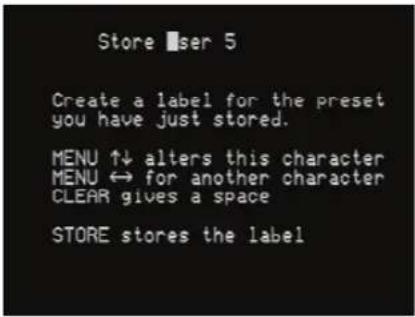
- Press ▶ or ◀ to select the character position you want to edit.
- Press ▲ or ▼ to change the character.
Each press steps through the sequence A to Z, a to z, 0 to 9, full stop, and blank. You can also select a blank directly by pressing Clear on the remote.
For example, you could change the name to:
Store La Scala
- When you have entered the name you want to use press Store.
The display shows:
Stored
To make the new preset the default for the current source and audio format:
- Press Assign (under the front panel).
To clear a user-defined preset
• Make sure the menus are unlocked; see To unlock the menus, page 22.
- Press DSP (front panel) or Preset (remote) to select the preset you want to clear.
- Press and hold down Clear (remote) for several seconds.
The display shows:
Preset Clear
If you clear a preset that was saved over a built-in preset, the original preset name and settings are restored.
natural_image
Abstract blue gradient background with a vertical dotted line dividing the image (no text or symbols)DSP presets
This chapter gives technical information about each of the DSP presets built in to the 861 Reference Digital Surround Controller, including information about which preset you should select for different types of material. It also gives details of the special DSP parameters available for each preset.
natural_image
Exterior view of a black MERIDIAN audio device (no visible text or symbols on body)DSP presets for two-channel material
The digital surround controller provides several signal processing options for two-channel material. The Music DSP presets are designed for use with music from sources such as CD, radio, or two channel DVD-A:
- Music, Trifield, Ambisonics, Super Stereo, Music Logic, PLIIx Music, Stereo, and Direct.
The Logic DSP presets are designed for use with fi lm soundtracks or TV programmes:
- PLIIx Movie, PLIIx THX, TV Logic, and Mono.
The Music and Logic DSP presets use the Music and Logic speaker layout respectively; see Speaker layouts, page 4.
Music
The Music DSP preset extracts the mono and surround components of the original recording. These components provide an alternative representation of the original sound, and this is sometimes used for recording systems or in broadcasts such as FM radio. The mono element is equalised using a proprietary Meridian technique to match the tone colour of the centre speaker, and to compensate for the fact that the frequency response of human hearing changes with direction.
The Music DSP preset is recommended for recordings made with spaced omnidirectional microphones, or using a mono-surround technique.
Trifi eld
As for the Music DSP preset, the Trifi eld preset extracts the mono and surround components of the original recording. It then calculates the signals for the front, left, centre, and right speakers, using the phase and amplitude differences between the three front channels, to redistribute the sounds on a frequency-dependent basis.
This gives a signifi cant improvement over traditional stereo, which converts the differences between the microphone signals into amplitude differences in the speaker signals. This version of the Trifi eld algorithm is virtually impossible to implement without digital signal processing.
Trifi eld is recommended for well-made recordings and stereo television broadcasts that are not Dolby Surround encoded. An advantage over the Music DSP preset is that the front stereo image is more focused, and the width of the image can be adjusted.
Music and Trifi eld DSP preset parameters
Parameter Options What it changes
Centre Flat, EQ1–3 The timbre of the centre loudspeaker.
Width† 0–1.5 The width of the image.
Surr. Rear Surr. Rear, Surr. Side, Surr. All
Switches the surround signal between the side and rear speakers.
R Filter Off, 1kHz, 3kHz, 7kHz The cutoff of high frequencies from the rear surrounds.
S Filter Off, 1kHz, 3kHz, 7kHz The cutoff of high frequencies from the side surrounds.
† Trifield only.
Ambisonics
The Ambisonics DSP preset can decode two-channel UHJ format, the stereo-compatible surround encoding found on Ambisonically-recorded discs and broadcasts. This material is specifically encoded for surround reproduction and can give breathtakingly realistic sound when replayed using the digital surround controller.
Ambisonic surround sound is quite unlike conventional stereo. A special microphone can be used to capture the sound of the original performance in all three dimensions, allowing a recording to be made in a special format (B-Format) that describes the soundfield exactly at the microphone position. Alternatively, special mixing techniques including Ambisonic spatial localisation controls (panpots) can be used to mix conventional multitrack into the same Ambisonic surround format. The channels of this recording can then be encoded using a phase-amplitude matrix (UHJ) to allow the surround information to be conveyed, typically via a two-channel medium such as disc or FM broadcast. On playback, the decoder reconstructs the soundfield captured by the original recording.
The digital surround controller uses accurately matched, frequency-dependent, phase-amplitude matrices to decode the signal and construct the signals for each speaker feed.
The fundamental difference between Ambisonics surround sound and conventional stereo is that the signals from all the speakers combine to produce a coherent soundfield at the listening position, giving the illusion that you are sitting inside the recording space whether you are at the exact central seat or well off to one side.
Of all the signal-processing options, Ambisonics is the one that requires the greatest attention to speaker choice and positioning.
Super
Super synthesises a signal from a conventional stereo recording or broadcast so that it can be decoded using the Ambisonic decoder. The result is especially effective for two particular types of recordings:
- Those using true coincident microphone techniques.
- Multi-tracked or multi-miked recordings.
Ambisonics and Super DSP preset parameters
Parameter Options What it changes
Width* 0 to 1 The width of the image.
Row† A, C, E, G, I, K, M The seating position; the letters are like rows in a hall.
Channels 7, 6, 5, 4 The number of speakers.
R Filter Off, 3kHz, 7kHz, 9kHz The cutoff of high frequencies from the rear surrounds.
S Filter Off, 3kHz, 7kHz, 9kHz The cutoff of high frequencies from the side surrounds.
* Super only.
† Ambisonics only.
MusicLogic
MusicLogic is a music DSP preset based on Pro Logic II with the addition of user-adjustable steering, designed to provide an exciting experience with many types of studio-produced music.
MusicLogic DSP preset parameters
Parameter Options What it changes
Roll
Off, Low, Med, Max
The degree of left-right steering.
Yaw
Off, Low, Med, Max
The degree of front-rear steering.
Steered All
Steered Rear, Steered Side, Steered All
Which of the four surround channels are generated by steering.
PLIIx Music
The PLIIx Music preset is designed to use the Pro Logic IIx DSP processing mode to decode music sources. It provides additional Width, Dimension, and Panorama preset parameters to allow you to adjust the soundfield.
PLII Music DSP preset parameters
Parameter Options What it changes
Steered All Steered Rear, Steered Side, Steered All
Which of the four surround channels are generated by steering.
Width 0 to 7 The centre spread, where 0 is full centre and 7 is full left and right.
Dimension -3 to +3 The spatial soundfi eld, where -3 puts the balance to the rear of the room and +3 puts it to the front.
Panorama No, Yes Extends the front stereo image to include the surround speakers, to give a wrap-around effect.
Stereo and Direct
The Stereo preset passes the left and right input signals directly to the left and right main speakers. Any mono or front left and right subwoofers continue to be used. With the Direct preset only the left and right main speakers are used, bypassing any spatial processing and bass management.
There are no additional DSP preset parameters for Stereo and Direct.
PLIIx Movie and PLIIx THX
PLIIx Movie and PLIIx THX use the Dolby Pro Logic IIx DSP processing mode, and are the recommended choice for Dolby Surround encoded material. They also give excellent results with two-channel sources not specifically encoded for Dolby Surround, including two-channel Dolby Digital sources.
Pro Logic IIx re-creates 7.1-channel movie surround from the two-channel source, using improved decoding techniques that preserve the directness of the soundfi eld, resulting in enhanced image stability compared with the original Pro Logic decoding. Meridian's implementation of Pro Logic IIx uses proprietary code based on 48-bit precision to give outstanding clarity.
The PLIIx THX DSP preset uses the same PLIIx processing as PLIIx Movie, but adds THX Cinema processing. THX is a set of standards and technologies developed by Lucasfi Im Ltd. with the aim of making your experience of the fi Im soundtrack as faithful as possible to what the director intended.
Re-equalistion is used to restore the correct tonal balance for watching a fi lm soundtrack in a small home environment. The information going to the surround speakers is fi Itered so that it closely matches the tonal characteristics of the sound coming from the front speakers, to ensure seamless panning between the front and surround speakers.
THX can also be used with the 5.1 Movie DSP presets; see THX, page 42.
PLIIx Movie and PLIIx THX DSP preset parameters
Parameter Options What it changes
Surrounds Rear, Side, All Which of the four surround channels are generated by steering.
Pro Logic Off, On On selects an emulation of the original Pro Logic decoding.
TV Logic
TV Logic is a Logic preset based on Pro Logic IIx with the addition of user-adjustable steering, designed to give higher intelligibility and a more appropriate spatial presentation for studio-based TV material.
TV Logic DSP preset parameters
Parameter Options What it changes
Roll Off, Low, Med, Max The degree of left-right steering.
Yaw Off, Low, Med, Max The degree of front-rear steering.
Surrounds Rear, Side, All
Which of the surround channels are generated by steering.
Mono
In the Mono DSP preset you can choose to listen to:
- Only one of two input channels, such as when different languages or material are carried on each channel.
- A combined version of the two input channels, such as if the material was originally mono and has been conveyed on a two-channel carrier.
If Party? is set to No, the combined or selected signal is played only through the centre speaker, or the left and right speakers if there is no centre, to centrally localise high-frequency hiss and clicks.
Note: If Party? is set to Yes, full range bass is played through any speakers that are not supplemented by a subwoofer, and this may damage small speakers at high volume levels.
Mono DSP preset parameters
Parameter Options What it changes
| Input | Auto L+R, Input L, Input R, Input L+R | The channel selected. |
| Academy | Off or On | Select On to include an equalisation (recommended by Lucasfilm Ltd) to correct for a high-frequency balance in some old mono films. |
| Party? | No or Yes | Select Yes to play the mono signal through all speakers, including subwoofers. |
DSP presets for multichannel material
Multichannel audio signals can come from either encoded data streams (such as Dolby Digital) or as discrete channels from a DVD player. If you are using Meridian SmartLink then all formats will reach the 861 as discrete channels. With suitable loudspeakers the 861 can upsample these to provide a more enjoyable surround experience.
The 861 Reference Digital Surround Controller will automatically select the right decoder algorithm and present the same set of preset choices for all streams. Note: Some presets are only available if there are four surround speakers in the system.
There are four multichannel Music presets:
- Discrete, PLIIx Mus6, THX Music, and Ambisonics B format (discrete inputs only).
There are fi ve multichannel Movie presets:
• Cinema, PLIIx Mov6, THX, THX Surround EX, and THX Ultra2 Cinema.
The multichannel Music presets all use the Music speaker layout and the multichannel Movie presets all use the 5.1 Movie speaker layout; see Speaker layouts, page 4.
Cinema
The Cinema preset is recommended for listening to multichannel movie soundtracks when no further processing is required.
Discrete
The Discrete preset is similar to Cinema, except that it uses the Music speaker layout and sets the LFE level to -10dB.
Discrete and Cinema DSP preset parameters
Parameter Options What it changes
| 2+2+2* Off, 5.1, Side, 7.1 Allows you to specify how DVD Audio channels3+4 should be interpreted:Off ignores them, 5.1 and 7.1 use them for centre and LFE,Side uses them for the side speakers, 7.1 adds side speakers to 5.1. | |
| Surround† Surr. Rear, Surr. Side, Surr. All | Allows you to specify which speakers the surround channels should be sent to in a system with four surrounds. |
| R Filter Off, 1kHz, 3kHz, 7kHz | The cutoff of high frequencies from the rear surrounds. |
| S Filter Off, 1kHz, 3kHz, 7kHz | The cutoff of high frequencies from the side surround. |
| LFE -28dB to 0dB The relative level of the LFE bass channel. | |
* Discrete only.
† Cinema only.
THX
As with the PLIIx THX DSP preset, THX re-equalises the signals to suit domestic listening conditions, and applies frequency-response correction and decorrelation to the surround channels to make the surround sound more realistic. It can be used whether or not your other equipment is THX approved.
THX DSP preset parameters
Parameter Options What it changes
| Surround | Surr. Rear, Surr. Side, Surr. All | Switches the surround signal between the side and rear speakers. |
PLIIx Mov6, THX Surround EX, PLIIx Mus6, THX Ultra2 Cinema, and THX Music
These presets are available if you have four surround speakers. They use Dolby Pro Logic IIx, Dolby Surround EX, and THX Ultra2 Cinema processing to generate multiple signals for larger home theatres.
PLIIx Mov6 uses extended PLII technology from Dolby to generate four surround signals from traditional multichannel source material like Dolby Digital 5.1. It is intended for use with movie soundtracks.
PLIIx Mus6 also creates four surround signals; it is intended for multichannel music playback from sources such as DVD-A or SACD music discs.
THX Ultra2 Cinema and THX Music use a THX proprietary process called advanced speaker array to provide a mix of ambient and directional surround sounds using four surround speakers. Optimum performance of THX Ultra2 Cinema and THX Music is produced when the two rear speakers are placed close together behind the listening position. THX Ultra2 Cinema is recommended for movie soundtracks that are not Dolby Surround EX encoded, and THX Music is recommended for listening to multichannel music.
PLIIx Mov6, THX Surround EX, PLIIx Mus6, THX Ultra2 Cinema, and THX Music preset parameters
Parameter Options What it changes
LFE -28dB to 0dB The relative level of the LFE bass channel.
Ambisonics
The Ambisonics preset allows you to decode multichannel sources which have been encoded in Ambisonics B format.
Ambisonics B format contains four independent channels of information to give a three-axis representation of the sound at the recording position. The signals are: mono sound pressure, left-right velocity component, front-back velocity component, and up-down velocity component.
Using dynamic range control
If the input format is Dolby Digital, the 5.1 Movie DSP presets provide an additional Compress parameter to allow you to take advantage of the dynamic range information provided in the Dolby Digital format to provide dynamic range control without the distortion involved in analogue methods.
The Compress parameter allows you to set one of the following options:
Option Description
Compress off No compression.
Quiet boost Provides a moderate amount of bottom-up compression. This raises quiet sounds above the background noise, which is ideal for demonstration and quiet listening.
Compress med Provides moderate amounts of both bottom-up and top-down compression.
Loud cut Provides a moderate amount of top-down compression. This reduces loud sounds.
Compress max Provides full bottom-up and top-down compression. Quiet sounds are raised to be audible and loud passages are minimised to avoid disturbance, which is useful for late-night listening.
Compress mix Bypasses dialogue normalisation and references the sound pressure level in the studio where the material was mixed
Dialogue Normalisation display
Dolby Digital audio streams include Dialogue Normalisation and Mix levels, to specify the recommended listening level of the soundtrack.
The surround controller uses the Dialogue Normalisation level to adjust the volume level so that the soundtrack is reproduced at the correct absolute level, assuming the system is calibrated to produce 75dB SPL at volume 87.
The Mix level is an alternative level which you can select by setting the Compress parameter to Compress mix.
The Dialogue Normalisation or Mix level is shown in a separate display option for Dolby Digital sources:
For example:
DialNorm -31
Or:

natural_image
Abstract blue gradient background with a vertical dotted line dividing the image (no text or symbols)Configuring the digital surround controller
This chapter explains how to set up the 861 Reference Digital Surround Controller for most standard confi gurations of loudspeakers and sources using just the front-panel controls and MSR+.
For complete control over all aspects of the digital surround controller's configuration, or to take advantage of Room Correction, it is recommended that you set up the unit using the Meridian Configuration Program; for full information see the Meridian Configuration Program Guide, available separately.
natural_image
Exterior view of a black MERIDIAN audio device (no visible text or symbols on body)Choosing a standard setting
The digital surround controller provides six standard settings, called Types, which confi gure all aspects of the 861 into the most commonly needed confi gurations. In addition, any User Types you create using the Meridian Confi guration program are also available.
Types 0 to 5 are factory settings, designed to cater for the most commonly needed confi gurations of associated equipment.
These standard Types are shown in the following table:
Type Speakers Music Sub Logic Sub 5.1 Movie Sub
0 All analogue. LFE Centre LFE
1 All analogue. Mono Mono Mono
2 All digital.
LFE Centre LFE
3
All digital, large centre.
None
None
None
4 Digital left, right, and centre.
LFE Centre LFE
5 Digital left and right.
LFE Centre LFE
In this table Music Sub refers to a subwoofer used for all Music DSP presets, Logic Sub to a subwoofer used for all Logic DSP presets, and 5.1 Movie Sub to a subwoofer used for all 5.1 Movie DSP presets.
Choosing one of the Types overrides any other configuration you may have performed, and so can be used to reset the configuration of the unit.
Note: Selecting a Type will clear any confi guration and calibration changes you have made, or any DSP presets you have defi ned. It does not reset any Room correction profi les stored to the 861 using the Meridian Room Correction program.
If your digital surround controller is fitted with a video card, and you have a video source connected, the on-screen display also provides additional text explaining about each Type.
To select a standard setting
Warning: This procedure will reset any configuration and calibration changes you have made.
- Select a video source to produce an on-screen display.
- Put the digital surround controller into Standby by pressing Off (front panel or remote).
- Hold down the ▲ key on the front panel until the display shows:
Type in... 3
- Keep holding down the ▲ key for a further three seconds.
The display will show:
Type- please wait.
If you have an on-screen display it shows:
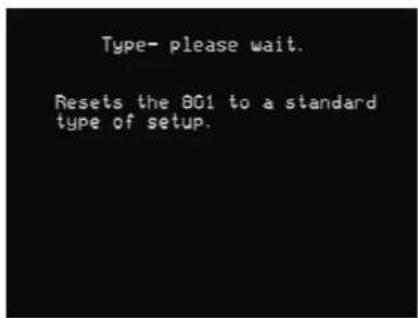
Then after a short delay the display shows the current Type.
For example:
Type 3
If you have an on-screen display it shows information about the Type; for example:
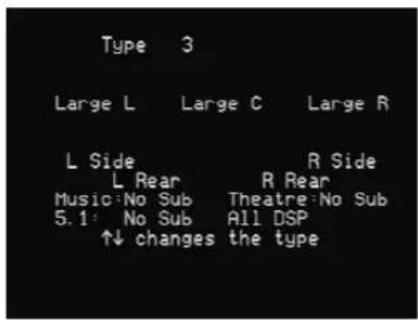
- Press ▲ or ▼ on the front panel to change the Type number.
The display shows:
Typing, please wait.
If you have an on-screen display it shows:
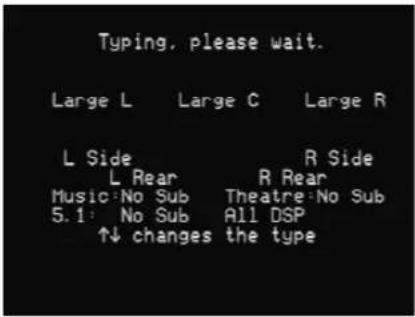
- Wait for one second, and then put the digital surround controller into standby by pressing Off (front panel or remote).
- Switch on again to use the standard settings you have selected.
Setting up the digital surround controller with other Meridian equipment
If you are using the 861 with other Meridian equipment, such as the 800 Reference DVD/CD Player, you should set up the Comms with the following automatic setup procedure:
- Switch all the units to standby.
- Press Clear (remote).
Each unit will display:
The 861 will then be designated as the controller, and display:
Auto Setup
Controller
This is the unit that will respond to the remote.
All the other units will be configured as non-controllers, and display:
Not Controller
Your system is now set up and ready for use.
If for any reason the automatic setup does not give the configuration you want, restore the default operation by selecting one of the standard Types; see Choosing a standard setting, page 46.
Calibrating the system
To help you to set up your installation to give the best possible sound with any particular combination of associated equipment, the 861 Reference Digital Surround Controller includes a built-in calibration procedure.
This calibration procedure uses test signals to present a series of sounds, which you use to adjust certain aspects of the system to their optimum settings.
You should work through the calibration procedure the first time you set up your surround sound system, and whenever you want to check the calibration, such as after changing the layout of your room.
Using the calibration procedure
We recommend that you perform the calibration procedure using the MSR+ and from the listening position.
As you run the calibration procedure the name of each calibration test is shown on the front-panel display, followed by the parameters adjusted in the test.
If your digital surround controller is fitted with a video card, and you have a video source connected, the on-screen display also provides additional text explaining what to do.
Each calibration test uses a test signal designed to give the best results.
Using a Sound Pressure Level meter
Although you can perform the calibration procedure by ear, it is recommended that you perform the tests using a Sound Pressure Level meter, available fairly cheaply from Tandy/Radio Shack, or your Meridian dealer may be able to lend you one.
Set the Sound Pressure Level meter to C weighted, 80dB range, and slow response. Take readings with the meter at the listening position, pointing vertically. You should hold the meter with an outstretched arm to minimise reflections from your body.
To start the calibration procedure
- Put the digital surround controller into standby by pressing Off (front panel or remote).
- Press and hold the Calibrate key, under the front panel, for at least five seconds.
The display shows:
If you have an on-screen display it shows:
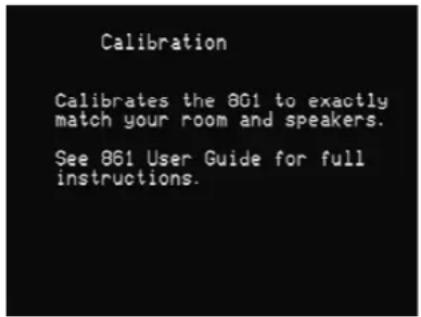
After a few seconds the display shows:
Left Level +0.0dB
For more detailed information about this and the other calibration tests see the following sections.
To move between the calibration tests
- Press ▶ (remote), or the corresponding menu key under the front panel.
- Press ◀ (remote), or the corresponding menu key under the front panel, to move back to an earlier test.
To jump to the next set of tests
- Press Store (front panel or remote).
The calibration tests are described in the following sections.
To exit from the calibration procedure
You can exit from the calibration procedure at any time, and any parameters you have set will be retained.
- Press Off (front panel or remote).
Calibration tests
Levels
These tests allow you to adjust the output level to each speaker individually, and it follows the general guidelines from Dolby Laboratories and Lucasfi Im Ltd. A Sound Pressure Level (SPL) meter can be useful at this stage; see Using a Sound Pressure Level meter, page 49.
In each test the display shows the speaker being tested, and the current relative level.
For example:
Left Level +0.0dB
If you have an on-screen display it shows:
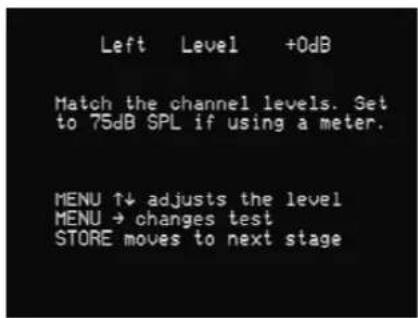
- Press ▶ or ◀ to move between each of the speakers in the layout in the sequence: Left, Centre, Right, Side R, Rear R, Rear L, Side L, and subwoofers.
- Press ▲ or ▼ to adjust the level of the speaker. Ignore any tonal difference.
For correct THX reproduction you should adjust each speaker to 75dB SPL using an SPL meter. Even if your speakers are not THX approved this setting is recommended.
If you have Meridian DSP loudspeakers they cannot be set above +0dB.
Note: You cannot directly set the level of a subwoofer by ear, because low-frequency noises sound quieter. To set the subwoofer correctly either use an SPL meter, or set it by ear and then reduce the subwoofer gain by 15dB to human hearing.
- When you have completed the Levels section press ▶ or Store to proceed to the next test.
Distance
These tests allow you to adjust the delay of each of the speakers in the layout to time-align the system so that sounds are coincident when they arrive at the listening position.
Before setting up the speaker outputs you need to measure the distance, in feet and inches, to each speaker from the listening position:
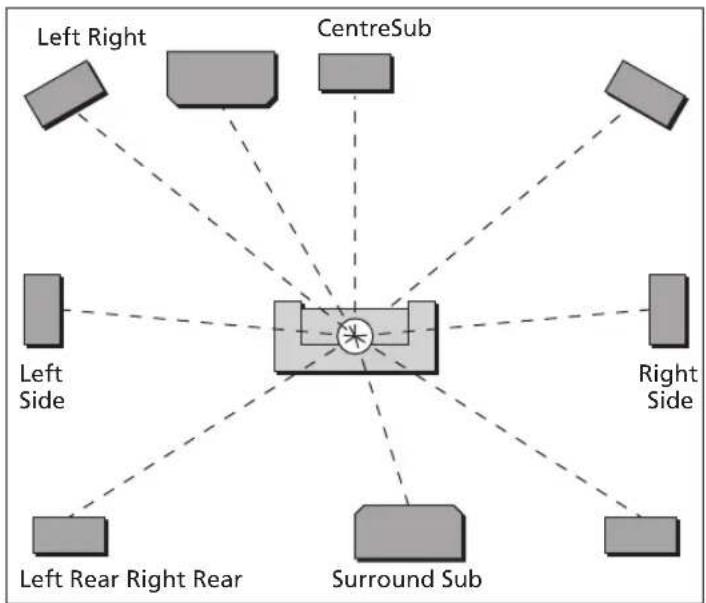
flowchart
graph TD
    A["Left Right"] --> B["Center"]
    C["CentreSub"] --> B
    D["Right Side"] --> B
    E["Surround Sub"] --> B
    F["Left Rear Right Rear"] --> B
    G["Left Side"] --> B
    H["Right Side"] --> B
Measure from the ear height at the listening position to the tweeter on each speaker (where applicable).
- Press ▶ or ◀ to move between each of the speakers in the layout.
The display shows the speaker being tested, and the distance in feet.
For example:
Left Distance 18'0
If you have an on-screen display it shows:
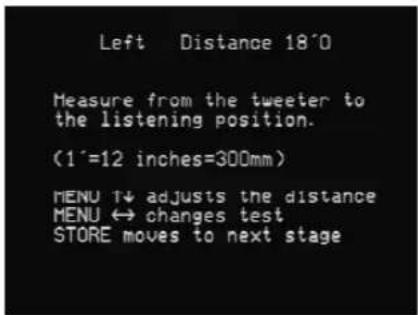
- Press ▲ or ▼ to change the distance, in feet.
Repeat this for each of the speakers in your layout.
- Press ▶ or Store to proceed to the next calibration stage.
Fine tuning
These tests allow you to fi ne-tune the phase and delay of each speaker when used in conjunction with other speakers on the layout.
- Press ▶ or ◀ to move between each of the speakers in the layout.
The first display allows you to adjust the phase.
For example:
Left Phase +
If you have an on-screen display it shows:
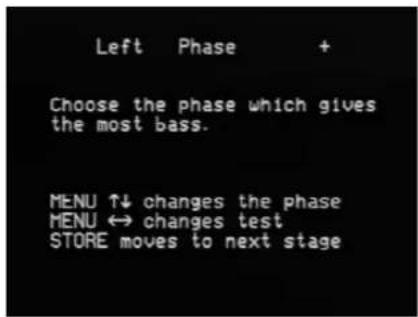
The next display shows the distance (or delay) for the same speaker.
For example:
Left Distance 18'0
If you have an on-screen display it shows:
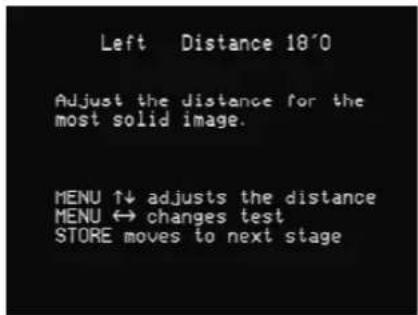
Choose the setting that gives an even sound between the speakers, that does not change radically as you move your head. If the setting is incorrect the sound will appear diffused, and change in timbre and apparent location as you move your head.
Pay particular attention to the centre channel, as this can have a dramatic effect on the overall sound.
As you increase the delay the speaker will appear to move away from you.
- Press ▶ or Store to proceed to the next calibration stage.
Speaker size
These tests allow you to determine the bass handling capability of large analogue speakers and subwoofers. Once set, the 861 will limit the bass level to protect the speakers from potential damage.
In each test the display shows the speaker being tested and the current size value chosen for the speaker. This value will default to zero, corresponding to maximum bass protection.
For example:
Left Size 15
If you have an on-screen display it shows:
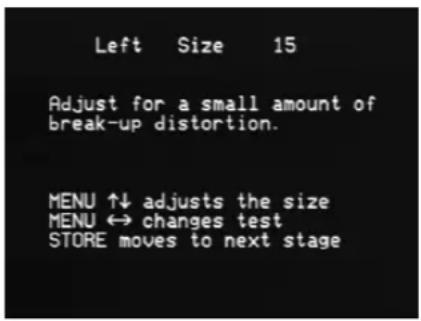
- Press ▶ or ◀ to move between each of the speakers under test.
- Press ▲ and ▼ to adjust the Size value for the speaker.
As you increase the Size value, the test signal will get louder, since the bass protection is treating the speaker as one capable of handling more bass.
- Adjust the Size value until the speaker is just beginning to produce distortion, indicating that it is reaching its bass handling limit.
You have now completed the calibration of your system.
- Press Off (front panel or remote) to exit from the calibration procedure.
Setting up sources
This section explains how to use Gain/Sub mode to set up the sources connected to the digital surround controller, and confi gure them to suit your other equipment.
You can also adjust the subwoofer crossover frequency to suit the subwoofers in your system.
To turn on Gain/Sub mode
- Put the digital surround controller into standby by pressing Off (front panel or remote).
- Press and hold the Configure key under the front panel for at least five seconds.
The display shows:
Gain/Sub On
The digital surround controller will then return to standby with Gain/Sub mode turned on.
Gain/Sub mode adds two extra options to the DSP parameter menus: Sensitivity and Xover.
To turn off Gain/Sub mode
- Repeat the above procedure until the display shows:
Gain/Sub Off
To adjust the sensitivity of a source
To obtain the best signal-to-noise ratio for your analogue sources you can adjust the sensitivity of each input to give the highest level that does not produce clipping.
- Turn on Gain/Sub mode, as described above.
- Select the source you want to adjust, with loud source material playing.
- Press ◀ or ▶ (remote or under the front panel) until the display shows the current sensitivity.
For example:
Radio 2.0V In
- Press ▲ or ▼ (remote or under the front panel) to change the sensitivity.
You can select between sensitivities of 0.5V (most sensitive), 1.0V, 2.0V, or 2.5V (least sensitive).
If the sensitivity is set too high the input will clip the loudest passages.
The display shows, for example:
Radio 0.5V In Clip
In this case reduce the sensitivity.
If you have selected a digital source you cannot adjust the sensitivity.
The display shows, for example:
CD Not Analogue
To adjust the subwoofer crossover frequency
The digital surround controller allows you to adjust the crossover frequency of any subwoofers between 30 and 150Hz. The crossover can be set independently for Music, Logic, and 5.1 Movie speaker layouts. The default is the THX standard of 80Hz. For details of which speaker layout is used by each DSP preset see Speaker layouts, page 4.
- Turn on Gain/Sub mode, as described above.
- Press ◀ or ▶ (remote or under the front panel) until the display shows the current crossover frequency.
For example:
Radio Xover 80Hz
- Press ▲ or ▼ (remote or under the front panel) to set the crossover frequency.
For THX loudspeaker systems you should leave the crossover setting at 80Hz.
80Hz is also the recommended setting for all movie listening. You may prefer, however, to lower the crossover frequency for music if your main speakers have good bass handling down to, say, 50Hz.
Sinewave sweep test
The 861 Reference Digital Surround Controller includes a sinewave signal test, to help you set the subwoofer crossover frequencies, or check for room resonances.
- Select a PCM source; eg an analogue source or CD.
- Press Configure (under the front panel).
The displays shows:
CD Sine 80.0Hz
An 80Hz sinewave will be played through all channels.
You can change the test signal using the menu keys, as described in the following sections.
To change the sweep rate
- Press ◀ or ▶ (remote or under the front panel) until the display shows:
00 Pause 80.0Hz
- Press ▲ or ▼ to change the sweep rate and direction, as follows:
| Display Description | ||
| CD | >> 88.5Hz | Fast sweep up. |
| CD | > 81.5Hz | Slow sweep up. |
| CD | Pause 80.0Hz | Paused. |
| CD | < 78.5Hz | Slow sweep down. |
| CD | << 70.5Hz | Fast sweep down. |
The sine sweep will stop when it reaches 0.5Hz or 200Hz.
To change the volume
- Use the volume keys in the usual way.
Warning: Very loud low-frequency signals may damage speakers.
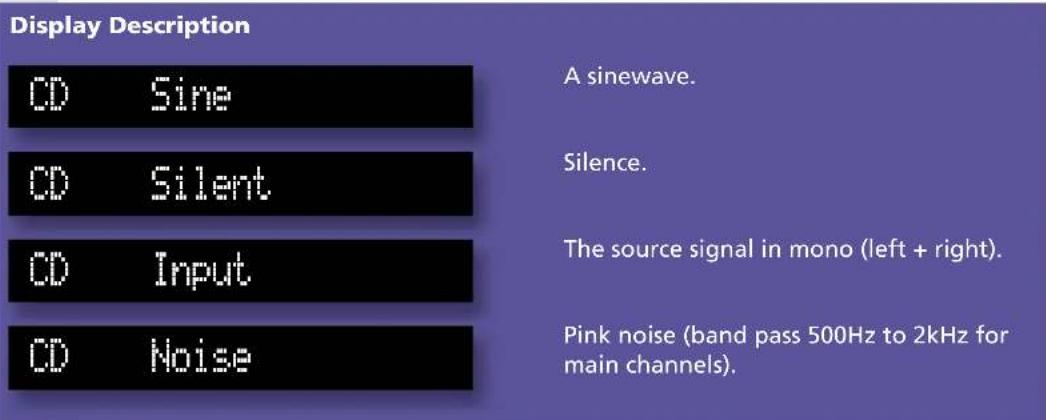
To select other test signals
- Press ◀ or ▶ (remote or under the front panel) until the display shows the current signal.
For example:
CD Sine
- Press ▲ or ▼ to choose between the following test signals:
To select the channel
- Press ◀ or ▶ (remote or under the front panel) until the display shows the current channels.
For example:
CD All Channels
- Press ▲ or ▼ to select a specific channel, or All Channels.

natural_image
Abstract blue gradient background with a vertical dotted line dividing the image (no text or symbols)Glossary
natural_image
Exterior view of a black MERIDIAN audio device (no visible text or symbols on body)Absolute phase
A control which changes the phase of the signals to all the speakers.
AC-3
An alternative name for the Dolby Digital format.
Ambisonic
A music encoding and decoding system designed to re-create the original soundfi eld using an array of loudspeakers.
Aspect ratio
The overall shape of the speaker layout.
Compress
A DSP parameter providing dynamic range control for Dolby Digital sources.
Controller
The product in a Meridian system that uses the infra-red signals from the remote to control the system. The controller is normally chosen automatically, but the installer can override this.
Dolby Digital
A digital surround-sound format which provides fi ve full-frequency range channels (left, centre, right, left surround, and right surround) and an additional Low Frequency Effects (LFE) channel which is band limited to 120Hz.
Dolby Surround
The encoding system used for the majority of movies on video and many TV broadcasts. Dolby Surround encoded material can be replayed with a surround decoder connected to an array of loudspeakers which normally include at least left, centre, right, and rear surround.
DTS
Digital Theatre Systems originally produced digital audio tracks for motion pictures. A version of this format adapted for consumer video and audio products is referred to as DTS Entertainment. Like Dolby Digital it provides fi ve full-frequency range channels (left, centre, right, left surround, and right surround) and an additional Low Frequency Effects (LFE) channel.
DVD
Digital Video Disc or Digital Versatile Disc, a versatile CD-sized disc with nearly 30 times the storage capacity of CD. It is capable of storing digital video, high-quality multichannel audio, or computer data.
DVD-Audio
A DVD disc containing audio tracks in one or more of a number of alternative formats to provide higher quality or higher capacity than CD, multichannel audio, together with the option of still images or video. A DVD-Audio disc may also include lower-quality versions of the material in DVD-Video format for compatibility with players that do not support DVD-Audio.
DVD-Video
A DVD containing video tracks together with one or more soundtracks, menus, and other entertainment features.
Layout
Refers to a particular arrangement of speakers and subwoofers. You can select different layouts for the Logic, Music, and 5.1 Movie DSP presets.
LFE
The Low Frequency Effects (LFE) channel which enhances movie soundtracks with sound effects and ambient sounds. It is band limited to 120Hz in a Dolby Digital system.
LFE sub
A subwoofer which, in addition to any bass which it handles from the main channels, plays the full 120Hz bandwidth LFE signal in Dolby Digital, DTS, and MPEG presets.
Limit
A DSP parameter that sets the peak-level limit of the bass signal added to the main loudspeakers.
Menus
The fl exible system for choosing options and confi guring settings in Meridian products. On the 861 the menus are controlled by the ◀, ▶, ▲, and ▼ keys under the front panel or on the MSR.
MHR
Meridian High Resolution is a proprietary secure encoding format using encryption and anti-copy methods that allows secure transfer of audio streams between elements of a Meridian-only system for the purpose of playback only. It provides a secure copyright protection environment and has the very important benefit of lowering jitter and improving sound quality on all material.
MLP
MLP (Meridian Lossless Packing) is an audio format that increases the amount of information that can be recorded on a CD or DVD, without any loss of quality.
Mono sub
A subwoofer which handles all the bass for the system. A THX standard subwoofer has a crossover at 80Hz.
Mono surrounds
Surrounds which have a common signal steered to them. This may then be decorrelated by the THX process to give more spaciousness.
MPEG
MPEG Surround is a digital encoding system developed by the Motion Picture Expert Group. Like Dolby Digital it provides fi ve full-frequency range channels and an additional Low Frequency Effects (LFE) channel.
MSR+
The Meridian System Remote, or remote handset.
OSD
On-screen display, which the 861 can superimpose on a composite video signal to give information about the state of the system, and to help during configuration.
PCM
Pulse Code Modulation, the method used to encode music digitally, as used on audio CDs.
Preset
A DSP decoding option in the 861. You can create user-defined presets based on the built-in presets, and with specific parameter values; see Defining your own presets, page 32
Profi le
A set of fi Iters designed using Meridian Room Correction to improve the loudspeaker-room interface.
Room correction
An option that takes advantage of advanced digital signal processing techniques to compensate for room artefacts, including resonances and reflections, to give a significant improvement in the sound, especially with non-ideal rooms.
SNR
Signal to noise ratio, an indication of the quality of a signal or measurement. The larger the SNR the better the quality.
Source
An input to the system, such as CD or TV. The 861 Reference Digital Surround Controller provides 12 sources, corresponding to 12 source keys on the MSR+. You can choose the name displayed for each source, and the input used for it.
SPL
Sound Pressure Level, a physical measurement of the level of sound at a particular location which can be obtained using an SPL meter.
Steered surrounds
Surrounds which have individual signals steered to them by the digital surround controller's steering matrix.
Surround
A sound reproducing system with more than two loudspeakers, and usually with speakers behind or to the side of the listener.
THX
Additional processing that follows Dolby Pro Logic Surround decoding to give a more faithful reproduction of cinema sound in the home.
Trifi eld
A music decoding system designed to extract centre and surround signals from a conventional 2-channel stereo source.
Type
A standard configuration of the digital surround controller. Selecting a Type resets any configuration and calibration changes to either a factory default, or a stored set of user settings.
Index
A
Academy (DSP parameter) 40
accessories, Tape card 19
Ambisonics (DSP preset) 37, 43
analogue sources, adjusting
sensitivity 55
axis, changing 26
Axis (DSP parameter) 24
B
Balance (DSP parameter) 24, 26
bass, changing 25
Bass (DSP parameter) 24, 25
brightness, display 16
built-in presets, replacing 32
C
calibration procedure 49
exiting 50
starting 49
calibration tests 51
Distance 52
Fine tuning 53
Levels 51
Speaker size 54
Centre (DSP parameter) 24, 28, 37
centre speaker
changing the relative delay 28
changing the relative level 28
Channels (DSP parameter) 38
Cinema (DSP preset) 41
clip indicator 55
compression 43
Compress (DSP parameter) 43
confi guration 45
resetting 46
content types 15, 17
Movie 2 15
Movie 6 15
Music 2 15
Music 6 15
contrast, display 16
crossover frequency, adjusting 56
D
Depth (DSP parameter) 24, 28
Digital signal processing 2
Dimension (DSP parameter) 39
Direct (DSP preset) 39
Discrete (DSP preset) 41
display
brightness 16
contrast 16
information 17
on-screen 17
Distance (calibration test) 52, 53
DSP 2
DSP parameters
changing 23
standard 24
DSP presets 3, 35
Ambisonics 37, 43
assigning to a source 31
changing 15
Cinema 41
clearing 33
Compress parameter 43
defi ning 32
Direct 39
Discrete 41
editing name 32
Mono 40
multichannel 41
Music 36
PLIIx Mov6 42
PLIIx Movie 39, 40
PLIIx Mus6 42
PLIIx Music 38
PLIIx THX 39, 40
selecting 15
Stereo 39
Super 38
THX 42
THX Music 42
THX Surround EX 42
THX Ultra2 Cinema 42
DSP presets (continued)
Trifi eld 36
two-channel 36
user-defining 32
dynamic range control 43
F
front panel keys 10
G
Gain/Sub mode 55
glossary 59
H
headphone volume 19
HS Out? (DSP parameter) 24
I
Input (DSP parameter) 40
L
layouts 4
5.1 Movie 41
Logic 36
Music 36
Levels (calibration test) 51
LFE (DSP parameter) 42, 43
LipSync (DSP parameter) 24, 30
lip sync 30
listening position, changing 26
locking the menus 22
M
menus, locking 22
Mix level 44
Mono (DSP preset) 40
Movie 2 15
Movie 6 15
MSR+ 11
multichannel link 5
Music (DSP preset) 36
Music 2 15
Music 6 15
Music DSP presets 36
muting the sound 14
O
on-screen display 17
position 17, 30
OSD (DSP parameter) 30
P
Panorama (DSP parameter) 39
Party? (DSP parameter) 40
phase, changing 25
Phase (calibration test) 53
Phase (DSP parameter) 24, 25
PLIIx (DSP preset) 39
PLIIx Mov6 (DSP preset) 42
PLIIx Movie (DSP preset) 40
PLIIx Mus6 (DSP preset) 42
PLIIx Music (DSP preset) 38
PLIIx THX (DSP preset) 39
presets
defi ning 32
multichannel 41
two-channel 36
user-defined 32
Pro Logic (DSP parameter) 40
R
Rear (DSP parameter) 24, 27
rear speakers
changing the relative delay 29
changing the relative level 27
recording 19
remote 11
resetting the confi guration 46
Roll (DSP parameter) 38, 40
Room Correction 6
Row (DSP parameter) 38
R Delay (DSP parameter) 24, 29
R Filter (DSP parameter) 37, 38, 42
S
safety warnings ii
selecting a source 13
Sides (DSP parameter) 24, 27
side speakers
changing the relative delay 29
changing the relative level 27
sinewave sweep test 57
Sound Pressure Level meter 49
sources 13
adjusting sensitivity of analogue 55
assigning DSP presets 31
default DSP preset 15
recording 19
selecting 13
setting up 55
spaciousness of the sound,
changing 29
speaker layouts 4
5.1 Movie 41
Logic 36
Music 36
specifi cation 7
standard DSP parameters 24
standard settings, selecting 46
standby, switching to 12
Steered All (DSP parameter) 38, 39
Stereo (DSP preset) 39
subwoofers, crossover frequency 56
Super (DSP preset) 38
Surr. Rear (DSP parameter) 37, 42
switching on and off 12
S Delay (DSP parameter) 24, 29
S Filter (DSP parameter) 37, 38, 42
T
Tape card 19
THX (DSP preset) 42
THX level 51
THX Music (DSP preset) 42
THX Surround EX (DSP preset) 42
THX Ultra2 Cinema (DSP preset) 42
time-aligning the system 52
treble, changing 25
Treble (DSP parameter) 24, 25
Trifi eld (DSP preset) 36
2+2+2 (DSP parameters) 42
Types 46
U
UHJ format 37
unlocking the menus 22
user-defi ned presets 32
clearing 32
editing name 32
V
volume
adjusting 14
headphone 19
W
Width (DSP parameter) 37, 38, 39
Y
Yaw (DSP parameter) 38, 40
- Meridan 861 Reference Digital Surround Controller User Guide
- Important safety instructions
- Safety warnings
- To avoid overheating
- To avoid interference
- Radio interference
- Contents
- Introduction
- Using the 861 Reference Digital Surround Controller 9
- Customising the 861 Reference Digital Surround Controller 21
- DSP presets 35
- Configuring the digital surround controller 45
- Copyright and acknowledgements
- Sales and service in the UK
- Sales and service in the USA
- Designed and manufactured in the UK by
- The 861 Reference Digital Surround Controller
- DSP presets and layouts
- Music on CD or radio
- Two-channel movie soundtracks on DVD, video, and TV
- Special presets for two-channel materials
- Multichannel movie soundtracks on DVD
- Multichannel music recordings on DVD-Audio
- Speaker layouts
- Layout DSP presets
- Overview
- Meridian MHR Smartlink
- Inputs
- Processing
- Outputs
- Video control and OSD
- Room Correction
- Typical specification
- Audio in and out
- Control signals
- Controls, etc.
- Display
- Using the 861 Reference Digital Surround Controller
- Switching on and off
- To switch on from standby
- To switch to standby
- Selecting a source
- To select a source
- Adjusting the volume
- To change the volume
- To mute the sound
- To restore the sound
- Changing the DSP preset
- Content type Presets available
- To change the DSP preset
- Changing the display
- To change the contrast
- To change the brightness
- To change the displayed information
- Display option Example
- Symbol What it means
- Recording a source
- To copy a source
- Display Option
- To change the headphone volume
- Customising the 861 Reference Digital Surround Controller
- Locking and unlocking the menus
- To unlock the menus
- To lock the menus
- Changing the DSP parameters
- To change a DSP parameter
- Standard parameters
- Changing treble, bass, or phase
- To change the treble
- To change the bass
- To change the absolute phase
- Changing the listening position
- To move the listening position to the left or right
- To change the axis
- To change the relative level of the side or rear loudspeakers
- Changing the integration of the centre
- To change the relative level of the centre speaker
- To change the relative delay of the centre speaker
- Changing the spaciousness of the sound
- To change the relative delay of the rear or side speakers
- Changing the lip sync and on-screen display
- To adjust the lip sync
- To change the position of the on-screen display
- Changing the DSP preset for a source
- To assign a DSP preset to a source
- Defining your own presets
- To save the preset settings
- To clear a user-defined preset
- DSP presets
- DSP presets for two-channel material
- Music
- Trifi eld
- Music and Trifi eld DSP preset parameters
- Parameter Options What it changes
- Ambisonics
- Super
- Ambisonics and Super DSP preset parameters
- MusicLogic
- MusicLogic DSP preset parameters
- PLIIx Music
- PLII Music DSP preset parameters
- Stereo and Direct
- PLIIx Movie and PLIIx THX
- PLIIx Movie and PLIIx THX DSP preset parameters
- TV Logic
- TV Logic DSP preset parameters
- Mono
- Mono DSP preset parameters
- DSP presets for multichannel material
- Cinema
- Discrete
- Discrete and Cinema DSP preset parameters
- THX
- THX DSP preset parameters
- PLIIx Mov6, THX Surround EX, PLIIx Mus6, THX Ultra2 Cinema, and THX Music
- PLIIx Mov6, THX Surround EX, PLIIx Mus6, THX Ultra2 Cinema, and THX Music preset parameters
- Using dynamic range control
- Option Description
- Dialogue Normalisation display
- Configuring the digital surround controller
- Choosing a standard setting
- Type Speakers Music Sub Logic Sub 5.1 Movie Sub
- To select a standard setting
- Warning: This procedure will reset any configuration and calibration changes you have made.
- Setting up the digital surround controller with other Meridian equipment
- Calibrating the system
- Using the calibration procedure
- Using a Sound Pressure Level meter
- To start the calibration procedure
- To move between the calibration tests
- To jump to the next set of tests
- To exit from the calibration procedure
- Calibration tests
- Levels
- Distance
- Fine tuning
- Speaker size
- Setting up sources
- To turn on Gain/Sub mode
- To turn off Gain/Sub mode
- To adjust the sensitivity of a source
- To adjust the subwoofer crossover frequency
- Sinewave sweep test
- To change the sweep rate
- To select other test signals
- To select the channel
- Glossary
- Absolute phase
- AC-3
- Ambisonic
- Aspect ratio
- Compress
- Controller
- Dolby Digital
- Dolby Surround
- DTS
- DVD
- DVD-Audio
- DVD-Video
- Layout
- LFE
- LFE sub
- Limit
- Menus
- MHR
- MLP
- Mono sub
- Mono surrounds
- MPEG
- MSR+
- OSD
- PCM
- Preset
- Profi le
- SNR
- Source
- SPL
- Steered surrounds
- Surround
- Type
- Index
- A
- B
- C
- D
- DSP presets (continued)
- F
- G
- H
- I
- L
- M
- O
- P
- R
- S
- sources 13
- T
- THX level 51
- U
- V
- W
- Y
Brand : MERIDIAN
Model : 861
Category : Hi-Fi System