
Evoke 1XT Marshall - Radio PURE - Free user manual and instructions
Find the device manual for free Evoke 1XT Marshall PURE in PDF.


| Product Type | DAB/DAB+ & FM Digital Radio |
| Brand | Pure |
| Model | Evoke 1XT Marshall |
| Dimensions (W x H x D) | Approx. 200 x 130 x 80 mm |
| Weight | Approx. 0.8 kg |
| Power Supply | Mains adapter (AC 100-240V) or 4 x C/LR14 batteries (not included) |
| DAB/DAB+ Band | Band III 174-240 MHz |
| FM Band | 87.5-108 MHz |
| Preset Stations | Up to 30 (DAB) + 30 (FM) |
| Display | LCD with scrolling text and backlight |
| Alarm & Sleep Timer | Dual alarms, snooze, sleep timer |
| Audio Output | Built-in speaker (mono) and headphone jack (3.5mm) |
| Controls | Rotary dial for tuning/volume, dedicated buttons (info, menu, presets, alarm) |
| Cleaning & Maintenance | Wipe with a dry, soft cloth. Do not use solvents or abrasive cleaners. |
| Safety Notes | Ensure ventilation slots are uncovered. Do not expose to rain or moisture. |
| Battery Replacement | Battery compartment for 4 x C/LR14; replace when low battery indicator appears. |
| Repairability | User-replaceable batteries; internal components require professional service. |
| Accessories Included | Mains adapter, user manual |
Frequently Asked Questions - Evoke 1XT Marshall PURE
User questions about Evoke 1XT Marshall PURE
0 question about this device. Answer the ones you know or ask your own.
Ask a new question about this device
Download the instructions for your Radio in PDF format for free! Find your manual Evoke 1XT Marshall - PURE and take your electronic device back in hand. On this page are published all the documents necessary for the use of your device. Evoke 1XT Marshall by PURE.
USER MANUAL Evoke 1XT Marshall PURE
Controls and Connectors
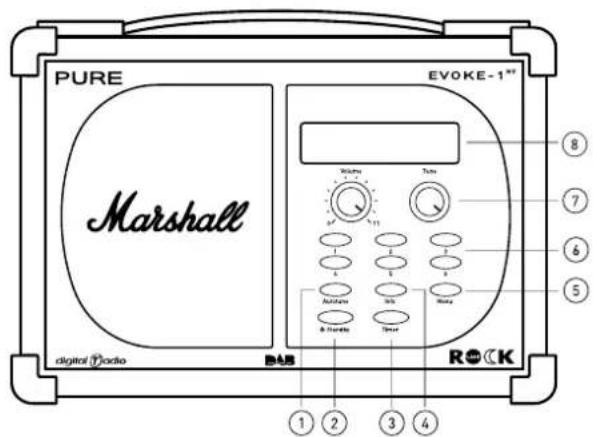
① Autotune - press and release to scan UK only Band III. Press and hold for around two seconds to scan the full range of digital frequencies in Band III.
② Standby - press to switch between standby mode and power on
③ Timer – press and use Tune to set a countdown timer which will sound an alarm after the period you set (range from 1 min to 23 hr 59 mins)
4 Info - press and repeat to change the text shown on the bottom of the display between scrolling text, programme type, multiplex name, time and date, channel and frequency, broadcast data rate/stereo mode and signal quality (0-100 maximum).
⑤ Menu – press to access and exit setup menu options, turn the Tune knob to scroll through and push to select an option.
⑥ Presets (1-6) - press and hold for around two seconds to store a station under that number. Press and release to select and listen to a preset. Preset 1 is permanently set to Planet Rock, where reception is available.
⑦ Tune – turn to scroll through and press to select stations and menu options.
⑧ Screen - 16 x 2 text display with active and standby brightness settings
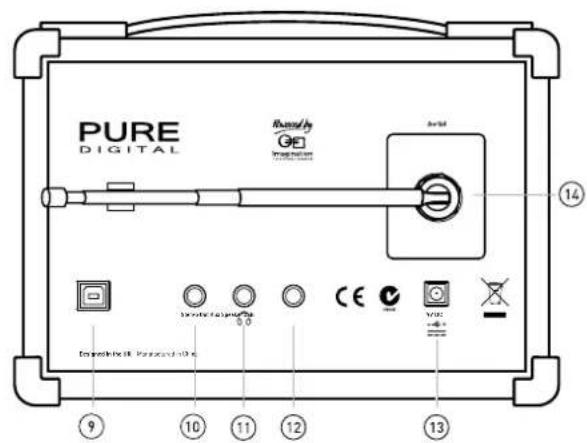
⑨ USB - connect to a PC for software upgrades
⑩ Stereo Out - connect this analogue output to an external amplifier or recorder
⑪ Headphone - connect to headphones (mutes speaker)
⑫ Aux Speaker – connect to an optional XT-1 speaker for full stereo output
⑬ 9V DC - connect to mains adapter
⑭ Aerial - F-type connector for the supplied telescopic or other aerial
Quick start

1 Fully extend the aerial, connect the mains adapter and plug in to your power supply.
2 Push the Standby button if necessary, EVOKE-1 ^xT Marshall Edition switches on, the screen lights up and indicates the progress of a full autotune to find the stations available in your area. Your radio will automatically tune to Planet Rock when finished.
If no stations are found you see the message 'No stations available' and you see a menu of options. Use the Tune knob to scroll through and push to select the 'Autotune full' option and try again.

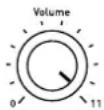
3 Adjust the volume control if required.
4 Turn the Tune knob to see all the stations available. Push to select and listen to another station.
5 Push the Info button and repeat to change what you see on screen.
Setting alarms and timers

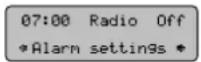
Setting an alarm
EVOKE-1 ^x Marshall Edition has a daily alarm which switches the radio on (if in standby mode) and tunes to the last station or sounds a tone. To set or change an alarm:
- Press the Menu button to see the current alarm settings.
- Push the Tune knob if you want to change the alarm settings.
- Turn the Tune knob to scroll through the following settings and push to change them. The current setting is shown on the top line of the screen.
Set alarm Set the alarm on or off.
Set time Turn the Tune knob and push to set the hours, turn again and push to set the minutes.
Set mode Choose between a Radio (set to last station you listen to before you switch off) or Tone alarm. If you set a radio alarm the volume will be whatever the volume control is set at when the alarm goes off.
When finished, press the menu button or wait to exit. If you switch your radio into standby you will see a bell symbol on the screen next to the clock showing that an alarm is set.
When the alarm goes off your radio will beep or tune to the last station you listened to. You see the clock and flashing alarm icon on screen. You cancel the alarm as follows:
Radio alarm Press any button to cancel the alarm and perform the button's normal function.
Tone alarm Push the Tune knob or Standby to cancel the alarm.
All alarms will automatically stop after 60 minutes if not cancelled and your radio will go into standby.
16:35

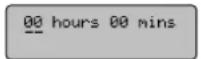
Setting a timer
You can set a countdown timer which will sound an alarm after a period.
- Press the Timer button.
- Turn the Tune knob to change the hours, push and turn again to change the minutes and push again to confirm. The timer is now set and the alarm will sound after the period you have set. To view the time remaining press the Timer button again. To cancel or reset the timer to zero before it goes off, press and hold down the Timer button for three seconds. When the timer alarm goes off, cancel the alarm by pushing the Tune or Standby button.
Setup options


Press the Menu button, turn the Tune knob and push to select alarm settings or one of the following setup options.
Station order
Changes the order of your station list. Select one of the following options:
Alphanumeric Displays all stations in alphanumeric order.
Fav station Displays your six most listened to stations at the top of the station list and the rest below, in alphanumeric order. Your favourite stations are displayed with a ♥ next to their names.
Active station Displays active stations at the top of the station list and inactive ones at the bottom in alphanumeric order. Inactive stations are those on the station list but not currently available, marked with a '?'
Multiplex Lists stations in groups according to their multiplex. Multiplexes or ensembles are groups of stations owned and broadcast by a single operator.
Trim stn. list Removes inactive stations from the station list.
♥ → presets Available only when Fav station order (above) has been selected. Transfers your favourite stations to the six preset buttons.
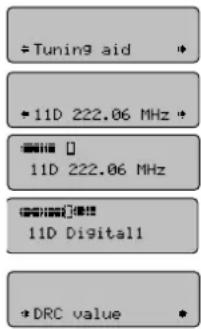
Tuning aid
Provides a signal level display which you can use to find the best position for your radio and aerial.
-
Select a DAB channel (UK stations are in range 11B - 12D). You see a signal level display. The empty block shows the minimum level for good reception and the filled blocks show the current level.
-
Move your aerial while watching the display and to try to raise the current level to the empty block or beyond. Once you have a good signal the display will show the multiplex name and add the stations to the station list.
-
Push the Menu button to exit the tuning aid or turn the Tune knob to select another channel.
Note You can also display the signal level at any time for a station you are listening to by pushing the Tune knob.
DRC value
DRC (Dynamic Range Control) value makes the quieter sounds in a broadcast easier to hear at low volume or in a noisy environment. The DRC level of a broadcast is set by the station and sent with the signal. Check with the broadcasters to find out if they use DRC on their stations. Select one of the following options:
DRC 0 DRC is switched off. Any DRC level broadcast will be ignored. This is the default setting.
DRC 12 DRC level is set to 12 that sent with the broadcast.
DRC 1 Applies the DRC level as sent with the broadcast.

Display
Brightness
Change the screen brightness between Low and High.
Standby mode
Set the Backlight On or Off for when your radio is in standby.
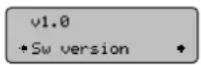
Sw version
Displays the version of the software in your radio. You may be asked to quote this if you contact Technical Support.
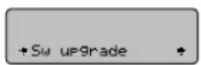
Sw upgrade
You can upgrade the software in your EVOKE-1 Marshall Edition using a PC connected to the USB port on the rear panel. To upgrade, select Sw upgrade and follow the instructions provided with the software. Upgrades may be issued to provide enhanced functions or improve performance. Register your product online or check our website at www.pure.com for details of when software upgrades are available. To exit the software upgrade menu press the Menu button again.
Hints and tips
(<</>>) Secondary services
Secondary services ‘<<’ provide extra information or content and may only be broadcast at certain times. If a station has secondary services available the display will show ‘>>’ next to the station name and the services appear next to the primary station on the station list.
(?) Inactive or unavailable DAB stations
Inactive or unavailable stations are those which appear on the station list but are not currently available. Inactive stations have a “?” before their name on the station list. If you select a station which has this symbol, your radio tries to tune in or returns to the previous station.
Display says 'No stations available'
Check that your aerial is fully extended. Use Autotune to search for stations. Try using the tuning aid to adjust your aerial or radio position.
My alarm didn't work
Make sure that the alarm is set to 'On'. If a radio alarm, make sure the volume is turned up and you don't have headphones plugged in.
Resetting your radio
Resetting your EVOKE-1 ^XT removes all presets, stored stations and favourite station settings and resets all options to defaults. To reset:
- Press and hold the Menu button for three seconds. The screen shows 'Press Tune to confirm reset'.
- Push the Tune knob to confirm the reset or press no buttons to cancel the reset.
Technical Specifications
General Stereo digital radio (stereo with optional XT-1 speaker). Fully compliant with ETS 300 401 and capable of decoding all DAB transmission modes 1-4.
Speaker 3 inch co-axial speaker
Frequency Range DAB Band III (174 - 240 MHz)
Input connectors RF F-connector 75 Ω for aerial (telescopic aerial supplied), 9V DC power socket (230V adapter supplied), USB (B type) connector for software upgrades.
Output connectors 3.5mm for stereo analogue audio output, Headphones socket and Aux Speaker for optional XT-1 auxiliary speaker
LCD Display High visibility red backlit LCD display with 16 x 2 characters
Power supply 230V AC to 9V (1.5A) DC external power adapter.
Approvals CE marked. Compliant with the EMC and Low Voltage Directives (89/336/EEC and 73/23/EEC)
Dimensions 210mm (width) x 175mm (height) x 110mm (depth)

Safety instructions
Keep the radio away from heat sources.
Do not use the radio near water.
Avoid objects or liquids getting into the radio.
Do not remove screws from or open the radio casing.
Warranty information
Imagination Technologies Ltd. warrants to the end user that this product will be free from defects in materials and workmanship in the course of normal use for a period of two years from the date of purchase. This guarantee covers breakdowns due to manufacturing or design faults; it does not apply in cases such as accidental damage, however caused, wear and tear, negligence, adjustment, modification or repair not authorised by us. Please register your product on our website at www.pure.com/register or by filling in and returning your warranty card. Should you have a problem with your unit please contact your supplier or contact PURE Digital Support at the address shown below.
Copyright
Copyright 2006 by Imagination Technologies Limited. All rights reserved. No part of this publication may be copied or distributed, transmitted, transcribed, stored in a retrieval system, or translated into any human or computer language, in any form or by any means, electronic, mechanical, magnetic, manual or otherwise, or disclosed to third parties without the express written permission of Imagination Technologies Limited.
Disclaimer
Imagination Technologies Limited makes no representation or warranties with respect to the content of this document and specifically disclaims any implied warranties of merchantability or fitness for any particular purpose. Further, Imagination Technologies Limited reserves the right to revise this publication and to make changes in it from time to time without obligation of Imagination Technologies Limited to notify any person or organization of such revisions or changes.
Trademarks
Marshall and the Marshall logo are trademarks or registered trademarks of Marshall Amplification plc. Planet Rock and the Planet Rock logo are trademarks or registered trademarks of GCap Media plc. EVOKE-1 ^st , the EVOKE-1 ^st logo, PURE, the PURE logo, PURE Digital, the PURE Digital logo, Imagination Technologies, and the Imagination Technologies logo are trademarks or registered trademarks of Imagination Technologies Limited. All other product names are trademarks of their respective companies. Version 1. September 2006.

This symbol on the product or on its packaging indicates that this product should not be treated as household waste. Instead it should be handed over to a suitable collection point for the recycling of electrical and electronic equipment. By ensuring this product is disposed of correctly, you will help prevent potential negative consequences for the environment and human health, which could otherwise be caused by inappropriate waste handling of this product. The recycling of materials will help to conserve natural resources. For more detailed information about recycling of this product, please contact your local council office, your household waste disposal service or the shop where you purchased the product.


Imagination TECHNOLOGIES
digital radio
PURE Digital, Imagination Technologies Ltd. Pinnacle House, Home Park Estate, Kings Langley, Herts, WD4 8LZ, UK

+44 (0)1923 277477 support +44 (0)1923 277488 sales

+44 (0)1923 270188

support@pure.com es@pure.com
PURE
- Controls and Connectors
- Quick start
- Setting alarms and timers
- Setting an alarm
- Setting a timer
- Setup options
- Station order
- Tuning aid
- DRC value
- Display
- Brightness
- Standby mode
- Sw version
- Sw upgrade
- Hints and tips
- Technical Specifications
- Safety instructions
- Warranty information
- Copyright
- Disclaimer
- Trademarks
Brand : PURE
Model : Evoke 1XT Marshall
Category : Radio