
EMU-2 - Assistance program AURORA - Free user manual and instructions
Find the device manual for free EMU-2 AURORA in PDF.


| Product Type | Assistance Program Device (Personal Emergency Response System) |
| Dimensions | 4.5 x 2.5 x 1.0 cm |
| Weight | 20 g |
| Power Supply | Rechargeable lithium-ion battery, 3.7V |
| Battery Life | Up to 30 days standby |
| Charging Method | USB magnetic charging cable |
| Main Functions | Emergency call button, two-way communication, fall detection |
| Connectivity | Bluetooth 5.0, 4G LTE cellular |
| LED Indicator | Status light for power and alerts |
| Wearing Options | Wristband or clip included |
| Water Resistance | IP67 waterproof (up to 1m for 30 min) |
| Maintenance & Cleaning | Wipe with soft dry cloth; avoid solvents |
| Safety | RoHS compliant, non-ionizing radiation |
| Certifications | CE, FCC |
| Operating Temperature | -10°C to 50°C |
| Warranty | 1 year limited warranty |
| Repairability & Spare Parts | Battery replaceable by authorized service center |
| General Information | For indoor/outdoor use; designed for elderly or disabled individuals |
Frequently Asked Questions - EMU-2 AURORA
User questions about EMU-2 AURORA
0 question about this device. Answer the ones you know or ask your own.
Ask a new question about this device
Download the instructions for your Assistance program in PDF format for free! Find your manual EMU-2 - AURORA and take your electronic device back in hand. On this page are published all the documents necessary for the use of your device. EMU-2 by AURORA.
USER MANUAL EMU-2 AURORA
AX595 Emulator User's Guide
Introduction
- The EMU-2 Emulator is software that electronically emulates the operation of the AX595 scientific calculator.
- It is designed for use with PC's, projectors and whiteboards enabling them to display a fully working version of the calculator that can be seen by a whole class and operated by the teacher/student either via their PC or interactively via the whiteboard.
- You can also display the LCD screen of the calculator in a separate window, which can be resized as required.
- An image of the LCD screen can also be captured and copied to other files from the Windows clipboard.
■ Copyright Statement
- This software is protected by copyright. It is licensed for use on a single site basis and can be used by an unlimited number of users on the site. The software can be installed on an unlimited number of PC's on the site or loaded onto a server and made available across the sites network.
Setup
- To setup the emulator on your PC or server copy the entire folder called 'AX595-EmulatorV0.7' from the CD and paste into your preferred location on your PC or server.
- This software will not work directly from the CD-Rom, the folder has to be saved to a PC or server in order to work correctly.
■ Using This Manual
- The screen shots shown in this manual are all from Windows Vista.
- Note that actual appearance of the screen display by this software depends on your computer system setup and on the operating system you are using.
- Display examples shown in this User's Guide are intended for illustrative purposes only. The actual text and values that appear on display may differ from the examples shown in this User's Guide.
■ System Requirements
Operating Systems: Windows ^® 2000; Windows ^® XP Professional; Windows ^® XP Home Edition; Windows ^® Vista; Windows 7; Windows 8
CPU: Processor 1GHz(min) RAM 512MB(MIN)
Disk Space: 25MB
Monitor: Screen resolution 1280*800 (min)
Note: Actual requirements and product functionality may vary based on your system configuration and operating system.
Contents
AX595 PC Emulator
Page
- To Start Up the Emulator .... 4
- Emulator Operation....5
- Emulator Shortcut Menu......6
- Moving the Emulator and Pop-up Display ....7
- Capture Outer Frame Function......8
- Exiting and Re-running 8
AX595 PC Emulator
1. To start up the emulator
- Firstly locate the folder you have installed from the CD on your PC or server, and open the folder. Locate the application file in this folder named ‘Aurora AX595 Emulator’ and double click to open. The application will then run.
- Users need to input a user name and password to start using the emulator. When you click the Aurora AX595 Emulator application you get the below prompt.

If users input an incorrect user name or password then they will get a "Username or password incorrect!" prompt. (Below)

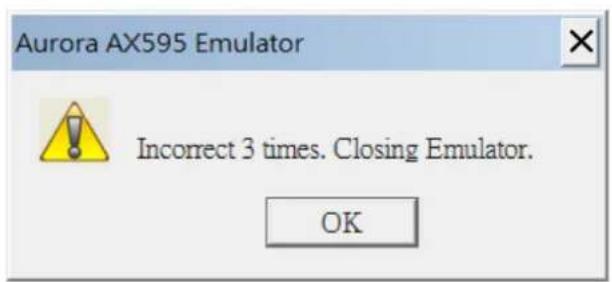
If you input an incorrect username or password 3 times in a row the below prompt will be displayed and the emulator will close. You will need to open the AX595 emulator application again to restart the process.
The User name is: aurora
The Password is: ax595
When you have successfully opened the emulator a calculator that is 1.5 times the size of the actual calculator will appear on your screen. (As shown below)
 text_image Pop-up Display ✓ Capture Outer Frame Capture Display Ctrl+C Save Display as a BMP Ctrl+S Caculator User Manual Emulator User Manual Reset Ctrl+R About Exit](/content/2026/05/961132/images/51b4f3021784b315c5bbd53b5a5e538639c5997bc39f55f3cf6a64358a5a214a.jpg)
| Pop-up Display ▶ | Enables/disables the pop-up display box and enters the sub menu for the pop-up display box settings |
| Capture Outer Frame | When using the capture display option this setting allows you to turn on and off an outer frame for the captured display. (See capture outer frame function) |
| Capture Display Ctrl+C | Clicking this option captures a copy of what is currently displayed on the calculator screen to your PC's Clipboard. To copy this into another file simply right click and paste. |
| Save Display as a BMP Ctrl+S | Clicking this option captures a copy of what is currently displayed on the calculator screen and allows you to save it as a BMP file. The default directory is "Document\Capture Display", but this can be changed. |
| Calculator User Manual | Clicking this option takes you to the stored copy of the AX595 instruction manual located in the same folder as the emulator file, you will need Adobe reader to view this PDF file. |
| Emulator User Manual | Clicking this option takes you to the stored copy of the Emulator instruction manual (This document) located in the same folder as the emulator file, you will need Adobe reader to view this PDF file. |
| Reset | Clicking this clears all the settings to the original default values. |
| About | Version and copyright details. |
| Exit | Exit the Emulator |
4. Moving the emulator and Pop-up Display
The emulator can be moved around the screen simply by click-holding the title bar of the emulator just above the image of the calculator, you can simply move the emulator with your mouse whilst click-holding to your desired on-screen location. When you first open a pop-up display its position on-screen is to the immediate right of the emulator and it will move with the emulator if you move the emulator, to reposition the pop-up display without moving the emulator click-hold the title bar of the pop-up display and move it to your desired location.  5. Capture Outer Frame function
Capture Outer Frame=Off  Capture Outer Frame=ON 6. Exiting and Re-running
To exit the emulator simply click on the X in the top right hand corner which closes the program, you can also minimize the emulator to your tool bar by clicking on the \_ to the left of the X. You can also close or minimize the pop-up window in the same way. If you attempt to re-start the emulator while it is already running the below warning message will be displayed. - AX595 Emulator User's Guide
- Introduction
- ■ Copyright Statement
- Setup
- ■ Using This Manual
- ■ System Requirements
- Contents
- AX595 PC Emulator
- To start up the emulator
- The User name is: aurora
- The Password is: ax595
- Emulator Operation
- Emulator shortcut menu
- Moving the emulator and Pop-up Display
- Capture Outer Frame function
- Exiting and Re-running
Brand : AURORA
Model : EMU-2
Category : Assistance program