
TRIO-V418 - Mp3 player Mach Speed - Free user manual and instructions
Find the device manual for free TRIO-V418 Mach Speed in PDF.


| Product Type | MP3 Player |
| Brand | Mach Speed |
| Model | TRIO-V418 |
| Dimensions | Approximately 90 x 40 x 10 mm |
| Weight | Approximately 30 g |
| Power Source | Built-in rechargeable lithium-ion battery |
| Charging | Via USB port (5V, 500mA) |
| Battery Life | Up to 12 hours of music playback |
| Storage Capacity | Internal memory: 8 GB |
| Display | 1.8-inch monochrome LCD screen |
| Supported Audio Formats | MP3, WMA, WAV, FLAC |
| Main Functions | Music playback, FM radio, voice recording, folder navigation |
| Playback Modes | Repeat one/all, shuffle, equalizer presets |
| Connectivity | USB 2.0 for data transfer and charging; 3.5mm headphone jack |
| FM Radio | 87.5 - 108 MHz with presets |
| Microphone | Built-in for voice recording (WAV format) |
| Cleaning | Wipe with a soft, dry cloth. Do not use liquids or abrasives. |
| Safety | Avoid exposure to extreme heat or moisture. Use only approved chargers. |
| Repairability | Battery not user-replaceable. No user-serviceable parts inside. |
| Included Accessories | Headphones, USB cable, user manual |
Frequently Asked Questions - TRIO-V418 Mach Speed
User questions about TRIO-V418 Mach Speed
0 question about this device. Answer the ones you know or ask your own.
Ask a new question about this device
Download the instructions for your Mp3 player in PDF format for free! Find your manual TRIO-V418 - Mach Speed and take your electronic device back in hand. On this page are published all the documents necessary for the use of your device. TRIO-V418 by Mach Speed.
USER MANUAL TRIO-V418 Mach Speed
Congratulations on purchasing your Trio digital media player! To get the most out of your purchase, please take the time to carefully read through this manual
If you have any remaining questions, comments, or concerns please feel free to contact Mach Speed technical support at 580-272-0035. Thank you for your support and cooperation!
We bear no responsibility for any damage or loss of personal data due to misuse of software and/or hardware, damage to the player caused by human factors, replacement of battery or other unforeseen circumstances. To prevent data loss, please backup your data regularly.
Information in the manual is subject to change without notice.
Information in the User's Manual is subject to copyright protection. Without prior written permission, photocopying or copying is prohibited.
Due to Firmware updates and product improvements, some of the pictures or functions described in this manual may not be the same as those included with your player.
Information
- Do not violate or infringe the copyright law and other international copyright laws while using this player for recording.
- The copyright law forbids unauthorized reproduction of copyrighted music for any other purpose other than self-entertainment without the author's permission.
- For the purpose of self-entertainment, it is strictly prohibited to compile and disseminate copyrighted music to a third party without the author's permission.
- If copyrighted music is intentionally disseminated by means of information network without the author's permission, the infringer will violate “the right of communications to the public” and “the right of distribution” and shall be subject to the criminal charges.
- The Company, and the manufacturers, distributors and dealers of this player are not liable for any of the above infringement acts.
- The Company shall not be liable for any loss or damage (whether anticipated or unanticipated losses) of customers or other third parties due to the usage of the player.
- Before introducing or using the player, please back-up all
essential information stored in PCs. The Company shall not be liable for any loss or damage due to the usage of the player.
Precautions
- Avoid using your Trio under extremely hot, cold, dusty or wet environments.
- Striking, dropping, or severe jolts to your Trio may cause physical damage, battery loosening, or other hardware damage.
- The following conditions indicates a low battery level and signifies that the player should be charged:
☐ The battery icon displays ☐ in normal operation with low battery prompt.
○Where there is no response when pressing keys and
the battery icon displays □ ○The player turns off automatically.
• Static electricity may cause damage to interior hardware of the player.
- Do not disassemble the unit in any way as this will void all warranties. Please contact your place of purchase if you experience any problems with your unit.
- Keep this player out of reach of children. Take note that this player is not edible and should not be placed in your mouth.
- Do not modify, repair or dismantle the player. Doing so may result in fires, electric shocks, complete breakdown of the player, etc. All of which, are not covered under warranty.
- Do not use any diluents or volatile liquid to clean the player. Keep in mind that the surface of the player should only be wiped with a dry cloth.

Disposal
Do not dispose of a defective MP3 player in normal household waste disposal containers (internal

battery). Take the defective device to your retailer or to an appropriate waste collection site. This will ensure that the device is disposed of in an environmentally-friendly way.
Notes:
Automatic Power Off
To save power, the player will turn off automatically when idle for a while
Longer Periods of Non-Use
Please charge the player occasionally to avoid the rechargeable battery exhausted and can't switch on the player.
Charging the Battery
To charge the battery, please ensure that you have the power switch set to the ON position. Connect the player to your computer's USB port, or to the charger supplied with the player.
Front and Side View
- Location of Control
12
13
14
9.
10
11
12


-
Playing time
-
Repeat mode
15.Play mode

-
Hold button
-
Play/Pause/Enter/press and hold for power on/power off
-
Menu / access setup menu and confirmation
-
Previous track/Fast forward
-
Next track/ Rewind
-
Vol+
-
Vol-
-
MIC
-
SD card slot
10 ....
- Play mode
- Play
- Song name
- Song information
- Progress bar
- Playing time
- Repeat mode
- Battery indicator
Music Mode
- Select Music Mode and press to enter the Music interface. Press M to enter music library to select the song you with to play and press.
- While a song is playing, you can pause, then press M to enter the Music Library again, or use </> to switch songs.
- Press to start playing.
- Press and hold volume. for FF/REW, press + or - to adjust the
- When the song is playing, press and hold M to return to the main menu.
Movie Mode
- Select Movie Mode and press to enter the Movie Library. Press </> to select the video you with to play and press
- While a video is playing you can press M to enter the Movie Library again, or use </> to switch videos.
- Press to start playing.
- Press and hold volume. for FF/REW, press + or - to adjust the
- When the video is playing, press and hold M to return to the main menu.
Photo Mode
- Select Photo Mode and press to enter the Media Library.
- Press to select the photo, Press to browse your pictures and press for next or previous photo.
FM Radio Mode
- Select FM Radio Mode and press▶ to enter the FM Radio interface.
-
Press M to change the mode in the upper right hand corner and press ▶to access that mode
-
Save station- Save the current station as a preset
- Delete station- Delete the current station as a preset.
- Sensitivity- select High/Middle/Low/Exit
• FM Band-select Europe/Japan/USA Band/Exit.
- Auto Scan-press to enter the auto scan, when the scan is finished, press after, press to adjust the station manually by 0.1MHz, and save any channels with a strong signal as a preset.
• FM Record- Record the current station
- Exit- press to exit FM Radio Mode.
Record Mode
- Select Record and press to start recording.
- Press to pause, press M to save and exit.
Voice Playback Mode
- Select Voice Mode and press to enter the Voice interface.
- Press to start playing.
- While a file is playing you can press M to enter the A-B mode.
- Press and hold for FF/REW, press + or - to adjust the volume.
- Press and hold M to return to the main menu, the playback is paused.
E-Book Mode
-
Select E-Book Mode and press ▶ to enter the E-Book Library. Press </> to select the file you wish to view and press ▶
-
Press to thumb to the next or previous page.
Settings
| EQ Set your equalizer | |
| Play mode Set your repeat mode | |
| Language Selecting the display language | |
| Stop off Set the power off timer | |
| Backlight off Set the screen saver | |
| About Memory space | |
| Reset | Reset |
| Exit | Exit |
Using of a SD card
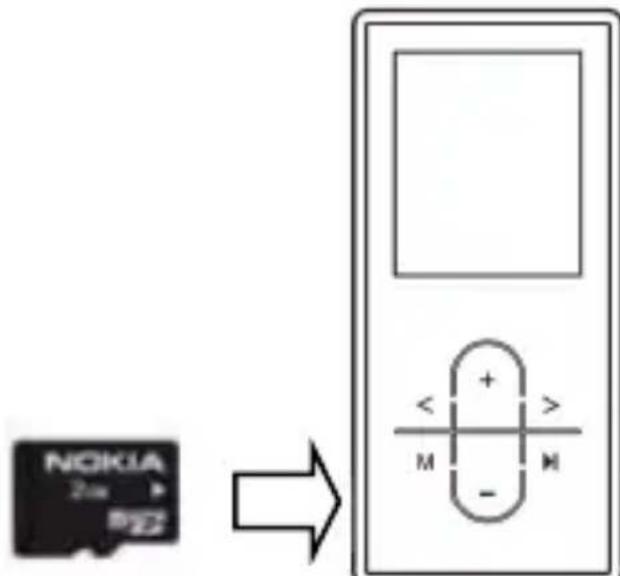
- Power the player off and insert the card
- To insert the SD card, look at the front of the player and hold the SD card with contacts facing upwards, as shown in the diagram.
-
Push the card into the card slot and push the edge of the card in with your fingernail until the card clicks audibly into place.
-
Removing the card
-
Power off the player and briefly press the card into the card slot once in order to release it (release is audible). Now remove or exchange the card.
Video converter
1) Install the Video conversion tool "SMV Transcoder" and the Codec from the provided CD
2) Install the SMV Transcoder first.
3) You can install the Video Codec required to convert most common files by starting the "KLMcodec462" tool. Please confirm with OK to uninstall the old and to install the new Codec versions. Please don't change any settings during the installation.
4) Open your SMV video conversion tool. The icon should be on your desktop after installation.

video2smv.exe
Once you have opened the SMV conversion tool, you will see the following window.

Our first step is to select a file to convert. To do this, you will click the "Add" button, as shown below.

A window will open, which will allow you to select your file. Highlight the file you want to convert, and click the "Open" button.
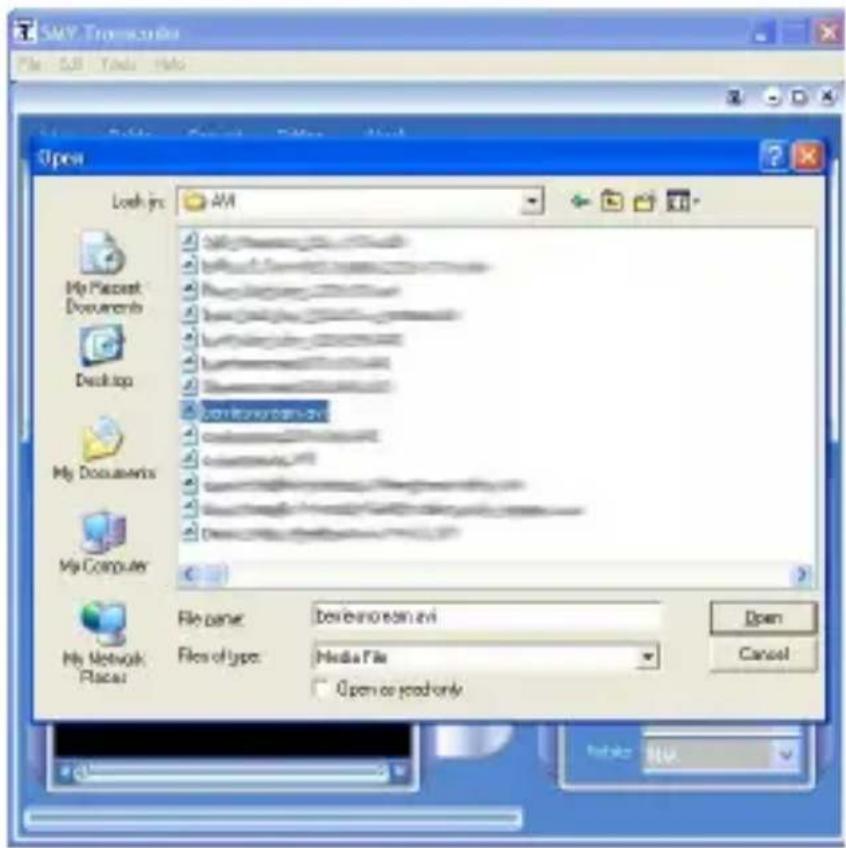
After you have chosen the file you wish to convert, and see it displayed on the main screen, you will select the location to save the file to, once it is converted, and click the "OK" button.
NOTE-with the current version of this software it is REQUIRED to select a save location or the file will not convert properly.
We recommend selecting a save location which is very easy for you to get to, such as the desktop, or the “my movies” folder.

Once you have selected your save directory, look to the middle-right of the screen. There you will find some conversion settings. We recommend selecting full picture, 128x160 (or 160x128), and 128MB/Hour for the optimum quality by megabyte space usage.

Now that we have everything set, the last thing we will need to do is click the “Convert” button and allow the video to convert o .SMV format. Once this process has completed, you will have the converted movie saved in the location you specified in step 5.

Please always set the Video Size to 128 X 160 for TRIO-V818, otherwise the Videos will not play back properly
COMPUTER COMMUNICATION
Using Windows Media Player
(Note: you must use Windows Media Player 10 or later to use this feature.)
(Note: this player does not support DRM encrypted audio files, such as those downloaded from the Windows Media Player download
service.)
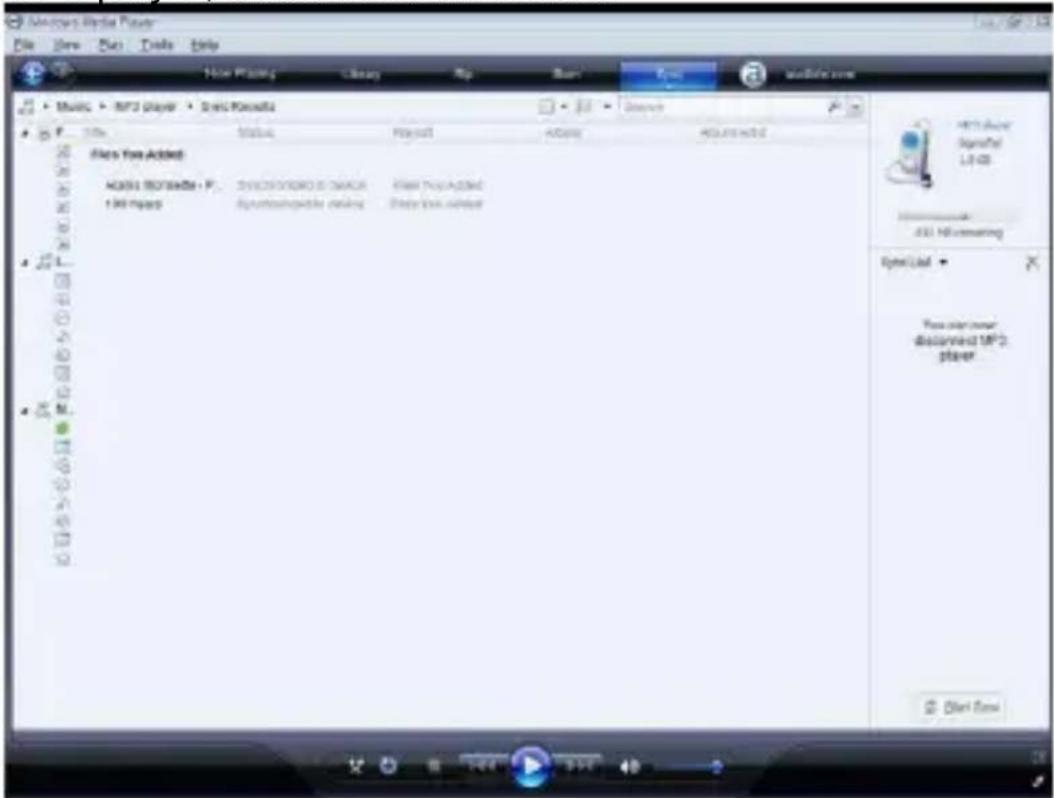
- Open Windows Media Player and connect the MP3 player to a working USB port. Windows Media player will prompt you with a setup screen asking you to name the MP3 player.

- Once you have named your MP3 player, select Finish, and your Windows Media Player will open to the Sync tab.

- Drag your music to the sync list (on the right of the screen) from the list on the left. Once you have selected the music you wish to add to the player, press Sync.

4. Windows Media player will load the songs on to your MP3 player.

5......Once all the songs you have added are synced to the unit, and Windows Media Player says that is safe to disconnect your MP3 player, disconnect the device.
COPY AND PASTE
- Connect the MP3 player to a working USB port.
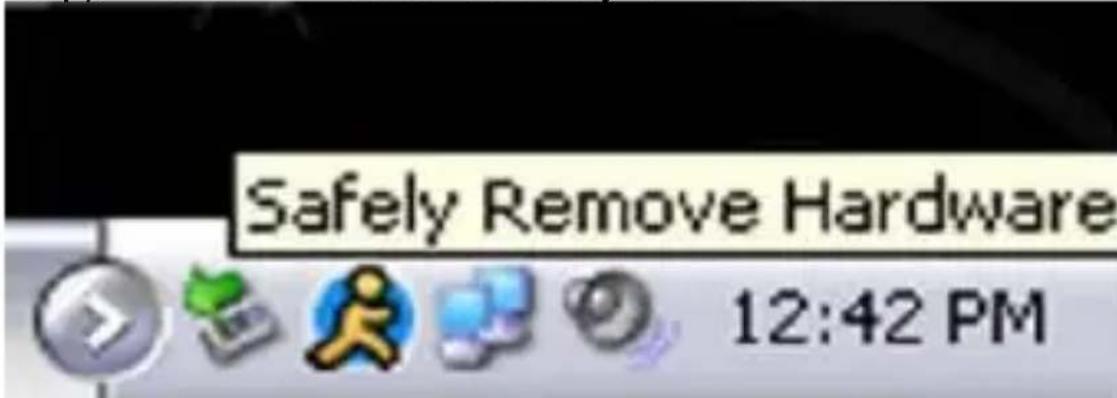
When the unit is connected to your computer, it will create a gray and green icon in the system tray (lower right hand corner of your desktop). The icon will be called safely remove hardware.
- Go to the "My Computer" section of your computer. In there you will find a section called "devices with removable storage"

-
Locate the drive created by the unit, generally just called Removable Disk, with a letter in Parenthesis. Drive letters vary depending on your system configuration.
-
Open the drive by either double left clicking on the drive itself, or by right clicking to open the option menu then left click on the desired drive.

Removable Disk (E:)
Open
Explore
Search...
AutoPlay
Sharing and Security...
Scan with Norton AntiVirus
Open as Portable Media Device...
Format...
Eject
Cut
Copy
Create Shortcut
Rename
Properties
- Locate the music stored on your computer. Generally this is stored in the "My Music" folder of your computer. NOTE: if you are unable to locate the music on your computer, click on start, search, files and folders, then search for "*.MP3, *.WMA".
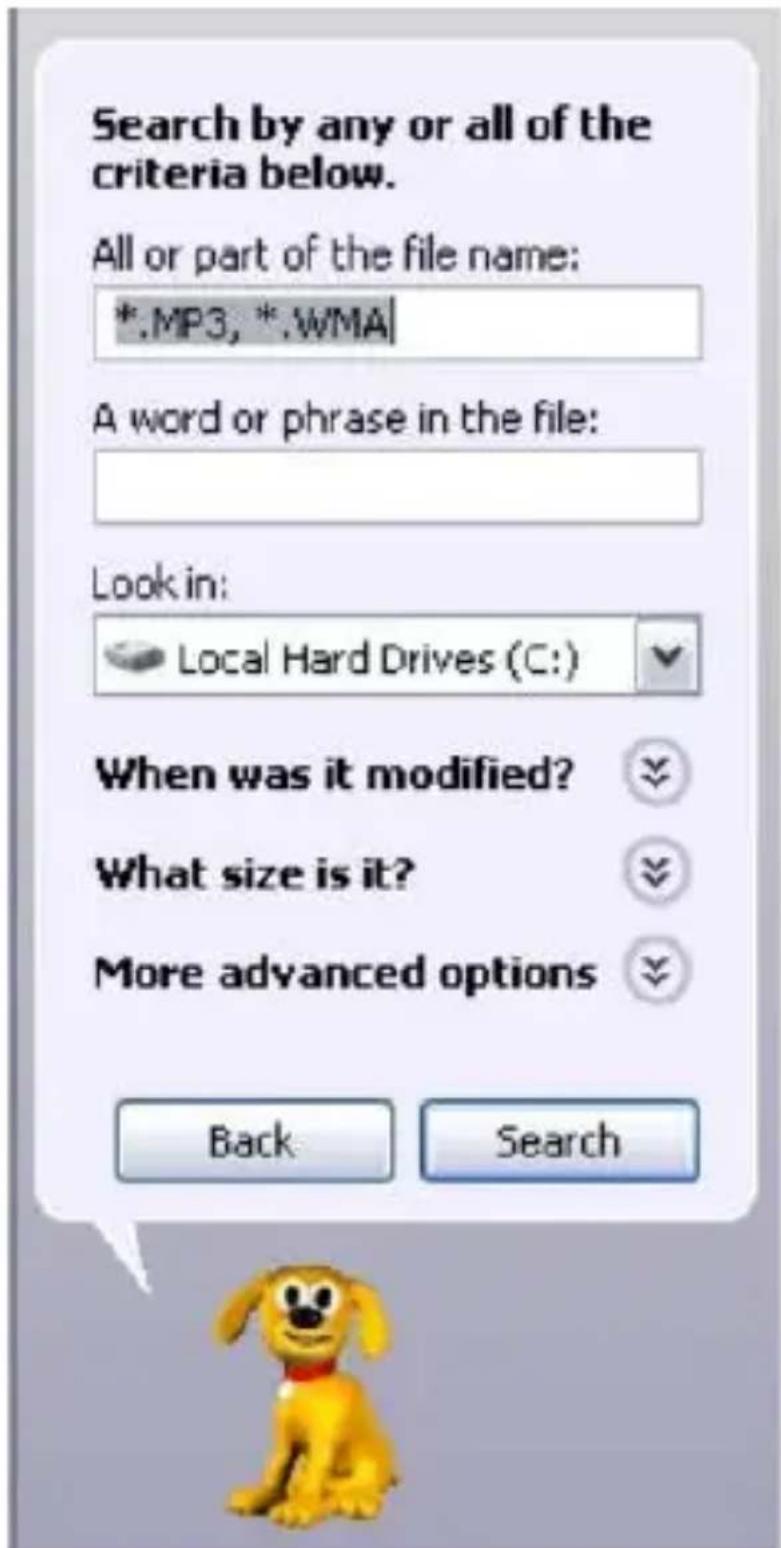
- Once you have located the song files, you can right click on the song itself, and select "copy". Open the removable disk drive, right click on in the empty space, and select Paste. This will transfer the song on to your MP3 player.


- Repeat step 7 for as many songs as you want to copy on to the unit.
NOTE: MAC Computers
When connected to your MAC computer, the device will act as a removable drive. Simply drag your MP3 files to the device.
Product specifications
•Model No.: TRIO-V818
•1.8" SDT LCD, 262K color screen
- 128 x 160 pixel resolution
•USB 2.0 full speed compliant
•MP3 / WMA / WAV digital music playback
•Audio output power: 10mW + 10mW, 32 Ω
•Audio output connections: 3.5mm stereo sockets
•Built-in FM radio And FM content Recording
•FM frequency range: 87.5MHz – 108.0MHz
•FM preset channels: 20 channels
•FM Signal-to-noise ratio: 60dB
•Image viewer formats: JPEG, BMP
•Video viewer formats: SMV
•MP3 bit: 32Kbps – 320Kbps
•WMA bit: 32Kbps – 192Kbps
•Audio recording formats: WAV (32Kbps),
•Frequency response: 20Hz to 20KHz
•Signal-to-Noise ratio: > 80dB
•THD: <0.05%
•Battery: Lithium battery
•Dimension: 90 x 41 x 8mm
•Weight: 45.8grams


- Information
- Precautions
- Disposal
- Notes:
- Automatic Power Off
- Longer Periods of Non-Use
- Charging the Battery
- Front and Side View
- Music Mode
- Movie Mode
- Photo Mode
- FM Radio Mode
- Record Mode
- Voice Playback Mode
- E-Book Mode
- Settings
- Using of a SD card
- Video converter
- video2smv.exe
- COMPUTER COMMUNICATION
- Using Windows Media Player
- Windows Media player will load the songs on to your MP3 player.
- 5......Once all the songs you have added are synced to the unit, and Windows Media Player says that is safe to disconnect your MP3 player, disconnect the device.
- COPY AND PASTE
- Removable Disk (E:)
- Open
- NOTE: MAC Computers
- Product specifications
Brand : Mach Speed
Model : TRIO-V418
Category : Mp3 player