
BackBeat 906 - Headphones ALTEC LANSING - Free user manual and instructions
Find the device manual for free BackBeat 906 ALTEC LANSING in PDF.


| Product Type | Wired Over-Ear Headphones |
| Brand | Altec Lansing |
| Model | BackBeat 906 |
| Driver Diameter | 40 mm |
| Frequency Response | 20 Hz - 20 kHz |
| Impedance | 32 Ohms |
| Sensitivity | 100 dB |
| Connector Type | 3.5 mm Gold-Plated Jack |
| Cable Length | 1.2 m |
| Weight | 180 g |
| Dimensions (W x D x H) | 18 x 8 x 20 cm |
| Material | Plastic, Leatherette Earpads, Foam Cushion |
| Foldable | Yes |
| Microphone | Inline Microphone with Remote |
| Warranty | 1 Year Limited |
| Cleaning Instructions | Wipe with a soft dry cloth; avoid liquids |
| Safety Warning | Do not use at high volume for extended periods to prevent hearing damage |
| Included Accessories | Headphones, Audio Cable, User Manual |
Frequently Asked Questions - BackBeat 906 ALTEC LANSING
User questions about BackBeat 906 ALTEC LANSING
0 question about this device. Answer the ones you know or ask your own.
Ask a new question about this device
Download the instructions for your Headphones in PDF format for free! Find your manual BackBeat 906 - ALTEC LANSING and take your electronic device back in hand. On this page are published all the documents necessary for the use of your device. BackBeat 906 by ALTEC LANSING.
USER MANUAL BackBeat 906 ALTEC LANSING
Altec Lansing BackBeat™ 903/906
User Guide
Welcome
Thank you for purchasing the Altec Lansing BackBeat™ 903/906 headphones. This guide contains instructions for setting up and using your new headphones.
Before using this product, please refer to the For Your Safety guide for important product safety and charging information.
Registering Your Product
Visit the Customer Support area on www.alteclansing.com to register your product online so we can provide you with the best service and technical support.
Getting Assistance
The Altec Lansing Customer Support Team is ready to assist you. You can find answers to frequently asked questions, ask a question using e-mail, receive service over the Internet, or speak directly with a representative. Visit the Customer Support area on www.alteclansing.com, email support@alteclansing.com or call 1-800-ALTEC88 (258-3288).
NOTE If you are considering returning this headset, please contact the Customer Support Team first.
NOTE For pairing your headphones to your Bluetooth ^® mobile phone, your Passkey (PIN code) is 0000.
Contents
Package Contents and Accessories 2
Charging Your Headphones or Bluetooth Adaptor....4
Pairing Your Headphones....5
Pairing Your Headphones and Phone/Device 5
Pairing Your Headphones and Bluetooth Adaptor 6
Adjusting the Fit 7
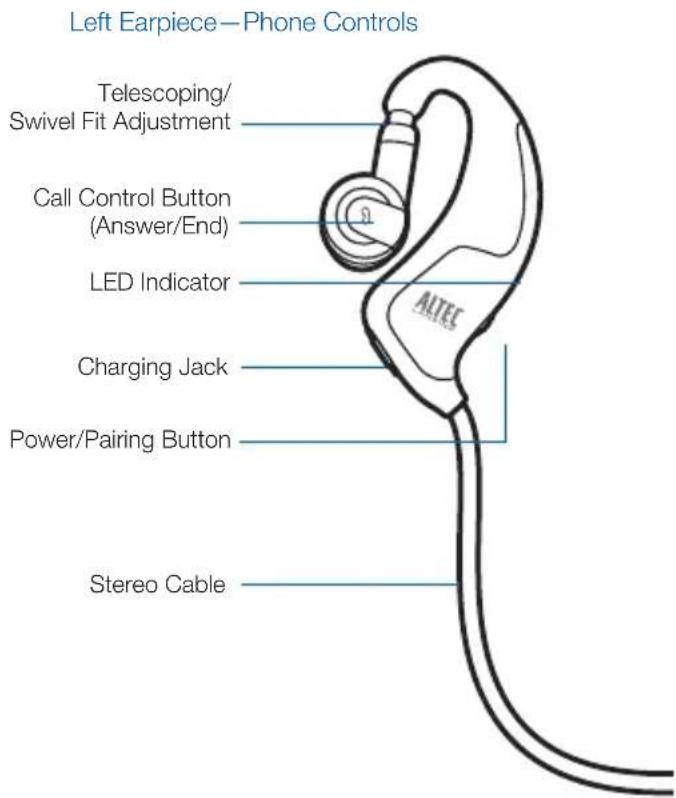
Headphones Phone Controls and Indicators 8
Headphones Music Controls and Indicators 12
Range....14
Troubleshooting....15
Troubleshooting with Bluetooth Adaptor 17
Product Specifications....19
Package Contents and Accessories
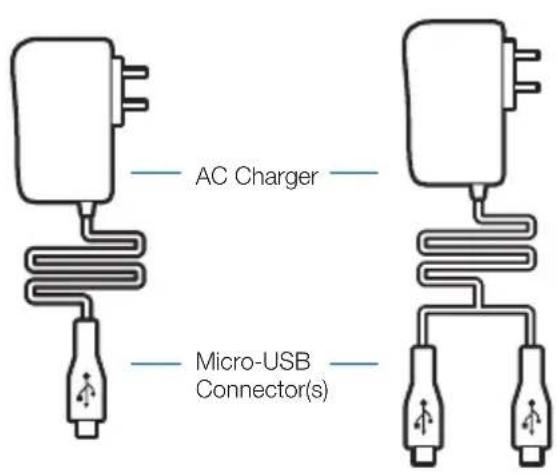
[BackBeat 903] [BackBeat 906]
Package Contents and Accessories
Right Earpiece—Music Controls
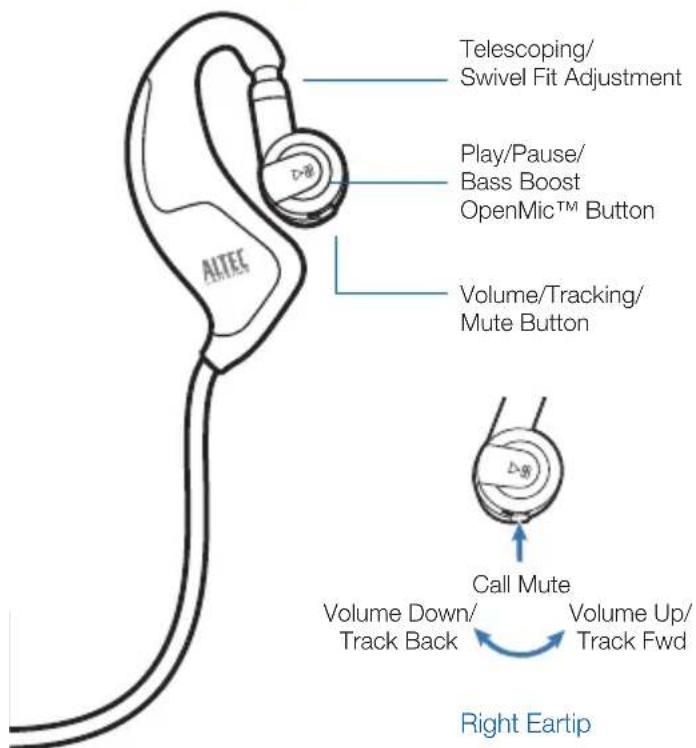
![3.5mm connector (for headphone jack) Power/Pairing Button LED Indicator Charging Jack Bluetooth Adaptor [included with BackBeat 906 only]](/content/2026/05/959649/images/594e5511ae2c3fa9fffa09e7da729669131e86c4122b7ea4336e84c7616cd2f9.jpg)
Charging Your Headphones or Bluetooth Adaptor
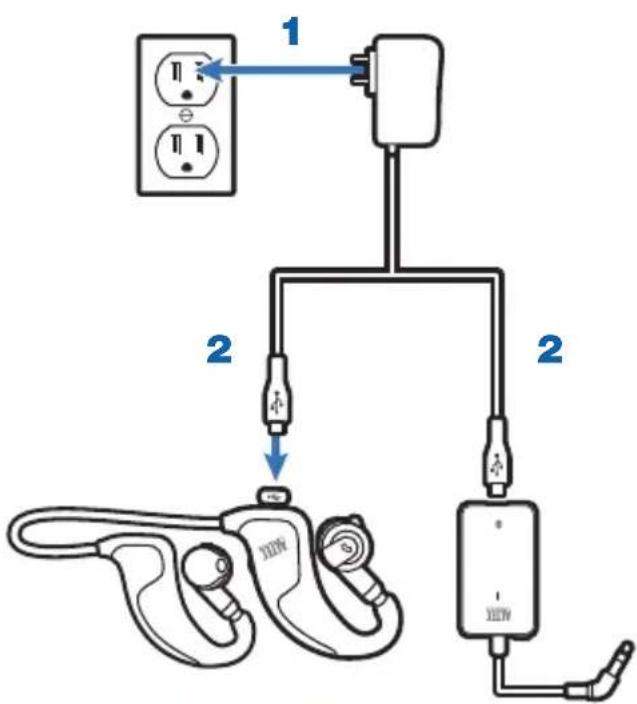
[BackBeat 906 shown]
1 Plug the AC charger into a power outlet.
2 Connect the charger cable to the headphones or Bluetooth adaptor.
3 Charge each for at least 1 hour before first time use, or 3 hours to fully charge.
The LED indicator glows red while charging. When fully charged, LED will turn blue until unplugged. Do not use your headphones or Bluetooth adaptor while they are connected to the charger.
NOTE Never charge the battery where the temperature may fall below 0^ C ( 32^ F) or rise above 40^ C ( 104^ F)—for example, in an unattended motor vehicle.
CHARGING TIME
3 hours ..... Full charge

1 hour ...... Minimum charge before first use

r Headphones and Phone/Device
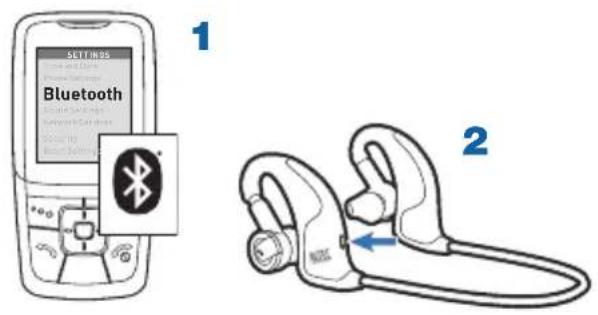
1 Turn on your phone's or device's Bluetooth® feature.
2 With the headphones powered off, press and hold the Power/Pairing button until the LED indicator flashes blue and red.
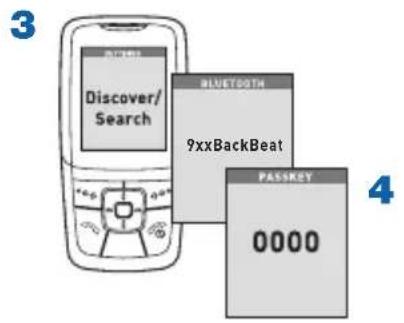
3 Use the phone or device menu to search for the Bluetooth headphones and select 9xxBackBeat.
See your phone's or device's user guide for more information.
4 If prompted, enter 0000 for the PIN code/passkey.
Some phones also require that you accept the connection. Pairing is successful when the LED indicator flashes blue.
Pairing Your Headphones and Bluetooth Adaptor[BackBeat 906 only]
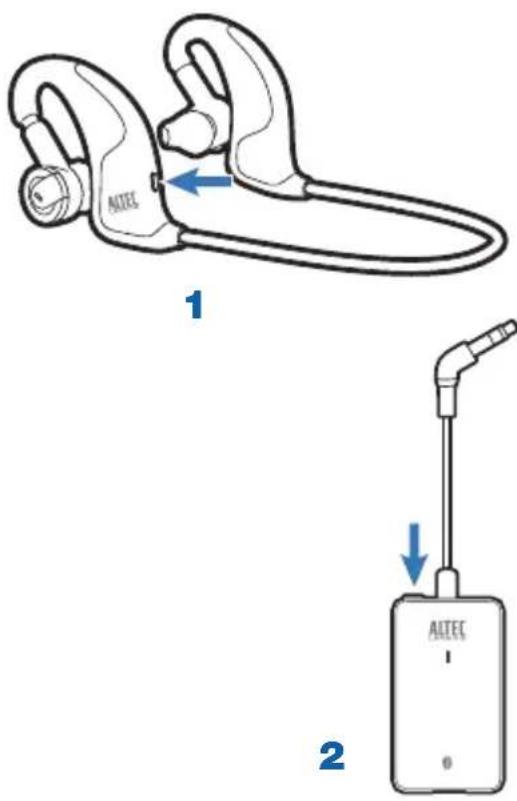
1 With the headphones powered off, press and hold the Power/Pairing button until the LED Indicator flashes blue and red.
2 With the adaptor powered off, press and hold the Power/Pairing button until the LED Indicator flashes blue and red.
3 The headphones and adaptor will both rapidly flash blue when paired successfully. Both are now ready for use.
Adjusting the Fit
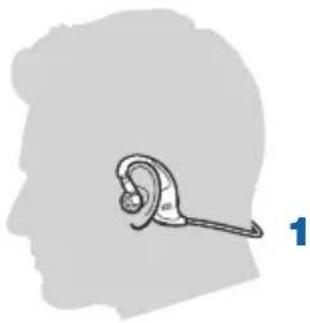
For optimal sound performance and a secure, comfortable fit, the headphones should be adjusted to rest gently in your ear and around the back of your neck.
1 Drape the stereo cable behind your neck.
2 Guide one earpiece behind your ear and secure the eartip inside your ear using the telescoping/swivel adjustments.
3 Repeat step 2 with the other earpiece and continue to adjust the fit in either ear until both eartips rest comfortably and securely in your ears.
natural_image
Silhouette of a human head with an earpiece, no text or symbols present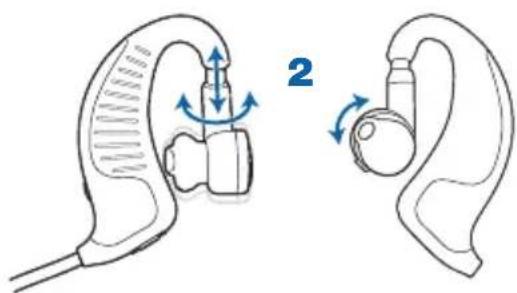
natural_image
Illustration of ear ear anatomy showing two views of the ear with directional arrows indicating motion (no text or symbols)Headphones Phone Controls and Indicators
| Action Indicator Light Tone | |||
| Turn on the headphones | Press and hold the power/ pairing button for 2 seconds. | Glows blue for 2 seconds, then turns off. | 4 rising tones |
| Turn off the headphones | Press and hold the power/ pairing button for 4 seconds. | Glows red for 4 seconds, then turns off. | 4 falling tones |
| Answer/end a call | Tap the call control button. 3 blue flashes (repeating) while phone is ringing. Blue flash every 2 seconds while on a call. | 3 low tones (repeating) while phone is ringing. Single low tone when call connects or disconnects. | |
| Make a call Enter the number on your phone and press send. | Blue flash every 2 seconds while call is in progress. | Brief tones, then ringing | |
| Reject a call Press and hold the call control button for 2 seconds. | None Single long | low tone | |
Headphones Phone Controls and Indicators
| Action Indicator Light Tone | |||
| Check battery power | With headphones powered on, tap the power/pairing button. The indicator flashes red to show the charge level. | Red flashes: Battery level: 1 More than 2/3 full 2 1/3 - 2/3 full 3 Less than 1/3 full | None |
| Low battery indicator | None 3 red flashes every 10 seconds 3 high tones every 10 seconds | ||
| Mute/unmute the call (call in progress) | Press in the volume/tracking/mute button. | None Low and high tone to mute, then a single low tone every minute. High and low tone to unmute. | |
Headphones Phone Controls and Indicators
| Action Indicator Light Tone | |||
| Perform a system reset | While plugging in the AC charger, hold the power/pair button. | The headphones will show a solid red or blue light when they have been successfully reset. | None |
| Adjust the call volume (call in progress) | Tap the volume/tracking/ mute button forward (+) or backward (-). | None Brief low tone (2 low tones when volume limit is reached) | |
| ⚠WArNiNG Do not use headphones at high volumes for an extended period of time. Doing so can cause hearing loss. Always listen at moderate levels. See www.alteclansing.com/headphonesafety for more information on headphones and hearing. | |||
| Redial Double tap on call control button. | None Double low tone | ||
| Voice dialing (trying to initiate call) | 2 second press on call control button | None Single low tone | |
Headphones Phone Controls and Indicators
| Action Indicator Light Tone | |||
| Transfer active call to/from headset | 2 second press on call control button when on an active call | None Transfer call from headset to phone: Double low tone Transfer call from phone to headset: Single low tone followed by a double low tone | |
| Online indicator on/off (default on) | Press mute and call control together when headset is on. | Off: 4 blue flashes, then fade out On: 4 blue flashes, then fade in | Single low tone, then double low tone |
| Missed call indication | None LED triple purple flash for 5 minutes | None | |
Headphones Music Controls and Indicators
| Action Indicator Light Tone | ||
| Play music Tap the play/pause button. None None | ||
| OpenMic pause to hear | Tap the play/pause button when music is playing. | None None |
| Disable OpenMic during music pause | While playing music, press and hold the mute button for 3 seconds. OpenMic feature will not activate during next music pause. Repeat action to enable OpenMic feature. | None Low-high-low tones when disabling. High-low-high tones when enabling. |
| Move forward or back one track | Press and hold the volume/tracking/ mute button forward or backwards for each track. | None Single low tone for each track change. |
Headphones Music Controls and Indicators
| Action Indicator Light Tone | |||
| Answer a call while listening to music | Tap the call control button. Music will pause during call. | 3 blue flashes (repeating) while phone is ringing. Blue flash every 2 seconds while on a call. | 3 low tones (repeating) while phone is ringing. Single low tone when call connects or when disconnects. |
| Reject a call while listening to music | Press and hold the call control button for 2 seconds. | None Single long low tone | |
| Adjust the volume of music | Tap the volume/tracking/mute button forward or backward. | None Brief low tone (2 low tones when volume limit is reached) | |
| Boost the bass | Press and hold the play/pause button for 2 seconds when music is playing. | None Ascending tones when activating. Descending tones when deactivating. | |
NOTE To wirelessly stream stereo music or audio from a device to your headphones, your Bluetooth device must support the Bluetooth Advanced Audio Distribution Profile (A2DP) profile. To control music playback with your headphones, your Bluetooth device must also support the Audio/Video Remote Control Profile (AVRCP). The Bluetooth adaptor does not support the AVRCP profile, so you must use the controls on your device to control music playback.
Range
Bluetooth wireless technology provides a way for devices to communicate with each other using short-range radio frequency instead of wires. Any two Bluetooth devices can communicate as long as they both have Bluetooth turned on, they are within range, and they have been paired.
To maintain a connection, keep your headphones within 33 feet (10 meters) of your Bluetooth phone or adaptor. Ensure that your mobile phone is located on the left side of your body and that there are no obstructions between it and your headphones. If there are obstacles between your headphones and the phone or adaptor you may experience interference.
Audio quality degrades as you move out of range. When you are far enough away to lose the connection, you hear a high tone in the headphones.
The headphones attempt to reconnect for 30 seconds. If reconnection is successful, a low tone will be heard. If you move back in range after 30 seconds have passed, you can manually reconnect by pressing the call control button.
Troubleshooting
| My mobile phone did not locate the headphones. | Power off your mobile phone and headphones, then power on your phone. Repeat the pairing process on page 5. |
| Audio quality is poor. Make sure that the headphones fit your ears properly. See page 7.Ensure that your mobile phone is located on the left side of your body and that there are no obstructions between it and your headphones.Make sure that your headphones are within 33 feet (10 meters) of your mobile phone. Going outside of this range can impact audio quality. If your headphones do not automatically reconnect, see page 12. | |
| I cannot hear stereo music from my phone. | For stereo listening, your Bluetooth phone must support the Bluetooth Advanced Audio Distribution Profile (A2DP), which defines how Bluetooth devices stream stereo quality audio from one device to another. See your phone's user manual to determine if it has this Bluetooth profile. |
| I cannot control my music tracks. | The adaptor and some stereo Bluetooth phones do not support the AVRCP profile for track controls. Use your audio device to change tracks. |
Troubleshooting
| Callers cannot hear me. Mute may be turned on. See page 9. | |
| Your headphones are out of Bluetooth range (33 feet/10 meters). Move closer to the Bluetooth device. If your headphones do not automatically reconnect, see page 5. | |
| Be sure your headphones are paired with the audio device. See page 5. | |
| Play and Pause are out of sync between my headphones and my audio source. | Ensure that your headphones are in play mode, and then initiate play mode from your audio source. |
| My earbuds need to be cleaned. | Remove the earbuds from the headphones. Wash the earbuds with warm soapy water, and rinse thoroughly. When the earbud are completely dry, reattach them to your headphones. See page 7. |
| None of the above issues are the problem, or my headphones still don’t work. | Perform a system reset: While plugging in the AC charger, hold the power/pair button. The headphones will show a solid red or blue light when they have been successfully reset. |
Troubleshooting with Bluetooth Adaptor [BackBeat 906 only]
| I cannot hear music from my other audio source while the headset is also paired to my Bluetooth A2DP mobile phone. | If you connect your mobile phone to your headphones before connecting your Bluetooth adaptor to your headphones, your mobile phone's A2DP Bluetooth profile may interfere with the functioning of the adaptor. Additionally, if you power off the adaptor or move out of Bluetooth range (33 feet/10 meters), you may lose the connection to your headphones. In either situation, you will need to:1 Disconnect—but do not delete—your headphones from your mobile phone's list of paired devices (see your mobile phone's Bluetooth manager).2 Reconnect your headphones to your adaptor.3 Reconnect your headphones to your mobile phone (see your phone's Bluetooth manager). |
| I cannot tell if my Bluetooth adaptor is powered on. | When powered on, the LED on the adaptor flashes blue every 5 seconds. To power on the adaptor, press and hold the power button for 2 seconds until the LED flashes blue. |
| I cannot complete pairing with another Bluetooth device. | Your Bluetooth adaptor must be powered off when pairing a device to your headphones. See page 5. |
Troubleshooting with Bluetooth Adaptor
[BackBeat 906 only]
| I do not get sound from my headphones when using the Bluetooth adaptor. | It can take up to 30 seconds for the devices to connect and for audio to stream via Bluetooth. After 30 seconds, if there is still no sound, press the play/pause button on the headphones.Ensure that your audio device is not locked (see your device's user manual).Ensure that you have properly paired the adaptor to your headphones. See page 6.Check that the adaptor is plugged into an active stereo audio source.Power off your headphones and adaptor, and then power both of them on again.Make sure you have not moved out of Bluetooth range (33 feet/10 meters).See page 12. |
| Volume is too high/low when listening to audio, but fine when making a phone call. | Check the volume of the audio source device. Adjust as necessary.Adjust the volume control on the headphones. See page 11. |
| I cannot make a VOIP call using the adaptor. | The adaptor is only intended for audio listening. If your computer has the Bluetooth Headset (HSP) and Hands-Free (HFP) profiles, you can pair your headphones to your computer for telephony applications like VOIP. |
Product Specifications
| Talk time* Up to 7 hours | |
| Listening time* Up to 7 hours | |
| Standby time* Up to 7 days | |
| Range* Up to 33 feet (10 meters) | |
| Headphones weight | 34 grams |
| Battery type Lithium ion polymer | |
| Charge time 3 hours for full charge | |
| Bluetooth version (headphones) | 2.1 + EDR (Enhanced Data Rate) |
| Bluetooth profiles (headphones) | HSP, HFP, Secure Simple Pairing, A2DP and AVRCP |
| Power requirements | 5V DC-180 mA |
| Storage/ operating temperature | 32°-104°F (0°-40°C) |
| Charging temperature | 32°-104°F (0°-40°C) |
* Performance dependent on battery and may vary by device. Audio quality degrades as you move out of range and is dependent upon the device with which the headphones are paired.


www.alteclansing.com
HEAdQUArTErs 535 Rte. 6 & 209, Milford, PA 18337-0277 • 800-ALTEC-88. 570-296-4434. • Fax: +1-570-296-6887
©2009 Plantronics, Inc. All rights reserved. Altec Lansing, the Altec Lansing logo, BackBeat, OpenMic, Plantronics, the Plantronics logo, QuickPair are trademarks or registered trademarks of Plantronics, Inc. Bluetooth® and the Bluetooth logo are registered trademarks of Bluetooth SIG and any use by Altec Lansing is under license.
Patents Pending
81378-01 (04/09)


- Welcome
- Registering Your Product
- Getting Assistance
- Contents
- Package Contents and Accessories
- Charging Your Headphones or Bluetooth Adaptor
- CHARGING TIME
- r Headphones and Phone/Device
- Pairing Your Headphones and Bluetooth Adaptor[BackBeat 906 only]
- Adjusting the Fit
- Headphones Phone Controls and Indicators
- Headphones Music Controls and Indicators
- Range
- Troubleshooting
- Troubleshooting with Bluetooth Adaptor [BackBeat 906 only]
- Troubleshooting with Bluetooth Adaptor
- Product Specifications
Brand : ALTEC LANSING
Model : BackBeat 906
Category : Headphones