
C906 - USB Drive ADATA - Free user manual and instructions
Find the device manual for free C906 ADATA in PDF.


| Product Type | USB Flash Drive |
| Model | C906 |
| Interface | USB 2.0 (backward compatible with USB 1.1) |
| Data Transfer Rate (Dual-channel) | Up to 19 MB/s read, 14 MB/s write |
| Data Transfer Rate (Single-channel) | Up to 10 MB/s read, 7 MB/s write |
| Power Supply | USB bus powered, no external power or battery needed |
| System Requirements | Desktop or laptop with USB 1.1 or 2.0 port |
| Supported Operating Systems | Windows ME/2000/XP, Mac OS 9.x or later, Linux Kernel 2.4 or later; driver required for Windows 98/98SE |
| Storage Capacity | Available in multiple capacities (exact capacity not specified) |
| Dimensions (estimated) | Approximately 55 x 18 x 8 mm |
| Weight (estimated) | Approximately 10 g |
| Key Features | Plug & Play, disk partitioning, security area with password, bootable (USB ZIP/HDD for Windows 98) |
| Durability | Shock resistant, noise-free, long data retention |
| Warranty | Standard manufacturer warranty (specific period not stated) |
Frequently Asked Questions - C906 ADATA
User questions about C906 ADATA
0 question about this device. Answer the ones you know or ask your own.
Ask a new question about this device
Download the instructions for your USB Drive in PDF format for free! Find your manual C906 - ADATA and take your electronic device back in hand. On this page are published all the documents necessary for the use of your device. C906 by ADATA.
USER MANUAL C906 ADATA
Hi-Speed USB 2.0 Flash Disk
User's Manual
Contents
Introduction.... 3
Features 3
System Requirements....4
Before Use....4
Driver Installation.... 5
Driver Installation for Windows 98/98SE....5
Disk Partitions and Security Function 8

Format.cxc
Format.exe Interface 8
Partition Function 8
Security Function....9
Configuration Function 11

Lock.exe
Lock.exe Interface 12
Disclaimer.... 15
Introduction
Thank you for your purchasing this Hi-speed USB 2.0 Flash Disk. This portable Plug&Play USB Flash Disk enables you to exchange huge amount of data easily between any computers with a USB port. With high storage capacity and blazing fast speeds, this handy small device is the best choice to replace floppy disks, ZIP disks and hard disks. In addition, this Hi-speed USB Flash Disk provides utility programs that you can partition the disk with great flexibility and set Security Area with password check to secure your personal data. With this gadget from the latest storage trend, you will enjoy its convenience in your daily life.
Features
- Portable and secure removable mass storage for business and personal use
● Full Compliance with USB spec v2.0 and v1.1; true Plug&Play connection - Date transfer rate up to 19MB/s for Read, 14MB/s for Write in Dual-channel mode*
- Date transfer rate up to 10MB/s for Read, 7MB/s for Write in Single-channel mode*
- USB bus powered: Powered from USB port, no external power or battery needed
- Multiple Operation Systems supported: No driver needed in Windows ^ ME, Windows ^ 2000, Windows ^ XP, Mac ^TM 9.x or later, Linux ^TM Kernel 2.4 or later. Only Windows ^ 98 and Windows ^ 98SE need the enclosed driver
- Disk partitions and Security Area with password check
● Shock resistant, noise-free and long data retention

Note: The read/write speed of the USB Flash Disk depends on the Flash memory type inside the device and also on the computer's system performance.
System Requirements
- Desktop or laptop computers with USB 1.1 or USB 2.0 port
● One of following operation systems
Windows 98/98SE
Windows ME
Windows 2000
Windows XP
Mac OS 9.x or later
Linux Kernel 2.4 or later
Before Use
- Please keep this Hi-speed USB 2.0 Flash Disk away from heat, direct sunlight, and water. Do not bend, flex, or drop it.
- To prevent data loss and fatal damage to the USB 2.0 Flash Disk, please never remove it from the USB port while data is being transferred. It is advised that user perform “Safety Remove Hardware” by selecting “USB Mass Storage Device” before removing the Flash Disk.
- Due to OS security control, in Windows 2000 or Windows XP you must be logged in with local Administrator rights to run the Disk Partitions and Security Function.
Format.exe
Lock.exc
( The programs named Format.exe and Lock.exe ) If your account does not have the Administrator rights, please contact your system administrator for assistance. - If you re-start the computer and your USB 2.0 Flash Disk is in Unlocked mode (Have the right to access Security Area), please unplug the USB 2.0 Flash Drive to make sure it back to Public Area.


Driver Installation
To use this Hi-speed USB 2.0 Flash Disk, it is not necessary to install any driver in Windows ^® ME, Windows ^® 2000, Windows ^® XP, Mac ^TM 9.x or later, Linux ^TM Kernel 2.4 or later. Only Windows ^® 98 and Windows ^® 98SE need to install the enclosed driver.
Driver Installation for Windows 98/98SE
- Please execute setup.exe to install USB Flash Disk Windows 98/98SE driver. The
icon is shown as:

Setup.exe
- The Setup Wizard will show up as below, please click N_ext > to continue.
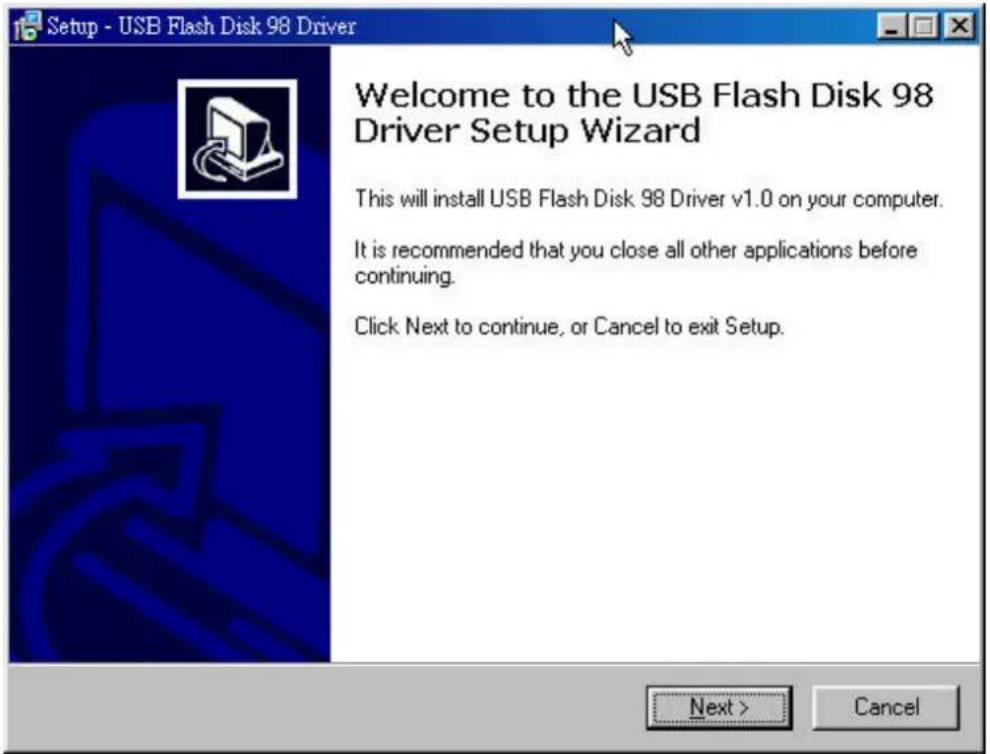
- It is now ready to install the driver. Please click Install to continue the installation.

- Executing Setup.exe will guide you to install the USB Flash Disk Windows 98/98SE driver on your computer.

- The installation has completed, please click Finish to exit Setup.

- The following window will show up when driver installation has finished. Please re-plugin USB Flash Disk to activate the driver.

Disk Partitions and Security Function
This Hi-speed USB 2.0 Flash Disk provides utility program named "Format.exe" to enable user to partition the Flash Disk and/or to set Security Area with password check to secure your personal data. Also, you can configure this Flash Disk as an MS-DOS Startup Disk by this utility program.
To run the utility program, just double click Format.ex

the USB Flash Disk, set Security Area, and create MS-DOS Startup Disk. If users enable the security function when performing "Format.exe", one another program named "Lock.exe" will be generated and placed in the first partition of the Flash Disk. To run the "Lock.exe", just double click . "Lock.exe" is the interface used to access the Security Area. double click

Lock.exe

Format.exe
Format.exe Interface
Partition Function

- Flash Disk Profile: Shows Vender Name, Product Name, assigned Drive letter, and disk capacity of this Flash Disk.
-
Public Area: Shows the disk capacity of public area. The minimum capacity of this area is 3MB.
-
Security Area: Shows the disk capacity of security area. The minimum capacity of security area is 3MB.
- Capacity Scroll Bar: Users can drag the scroll bar to adjust the disk capacity between public area and security area. Only after enabling the PASSWORD option in Security Function, the Capacity Scroll Bar can be dragged. (See more in Security Function below)
- Format Progress Bar: Shows the progress of formatting disk.
- START FORMAT: Click Button to start disk format.
- CLOSE : Click Button to exit the program.
- PARTITION: Click Button to switch to PARTITION function.
- SECURITY: Click Button to switch to SECURITY function.
- CONFIGURATION: Click Button to switch to CONFIGURATION function.

Note 1: Only after enabling the PASSWORD option in Security Function, the Capacity Scroll Bar can be dragged. Otherwise, the size of Security Area is set to zero.
Security Function

- PASSWORD: After users enable this option, the display window of 12, 13 and 14 becomes valid to edit as shown in the following. User can key in up to four characters used as password (at least one character is required). After enabling this option, the capacity of Security Area will be allowed to be set in the PARTITION function. In other word, if this option is not enabled, users are not allowed to set the capacity of Security Area (i.e. no Security Area).

- Enter Password: User can set the password for Security Area. At least one character is required, and maximum is four characters.
- Verify Password: Type the password again to double check.
- Hint: Hint area is used to remind users the password. Users can type in any characters.
Configuration Function

- USB ZIP Boot: This function is only supported for Windows 98. After completing the format, the USB Flash Disk will become MS-DOS Startup Disk and be shown as "Removable Disk" in the system.
- USB HDD Boot: This function is only supported for Windows 98. After completing the format, the USB Flash Disk will become MS-DOS Startup Disk and be shown as "Local Disk" in the system.
- Quick Format: Selects Quick Format will erase the internal FAT table, which referenced by operation systems. All data previously stored in the Flash Disk will be cleared after completion.
- Complete Format: Selects Complete Format will both erase the internal FAT table and physically erase the flash memory blocks. The Flash Disk will be formatted as a single partition disk. All data previously stored in the Flash Disk will be cleared after completion.

Note 1: Users are asked to re-plugin the USB Flash Disk after Format.exe is finished to activate these selected functions.
Note 2: If Security Function is enabled, the login program (Lock.exe) for security function will be loaded into the USB Flash Disk. Otherwise, Lock.exe will not be generated.
Note 3: If USB Boot function failed, please check whether the boot files exist or not. For Windows 98, please make sure the directory:\COMMAND\EBD exists. Otherwise, it's required to create the directory, then copy and save boot files into this directory before formatting USB Flash Disk as a Boot Disk.
Note 4: If users have set the Security Area from the Format.exe and run the program again with selecting “Quick Format” or “Complete Format”, all the data previously stored in the Public Area and Security Area will be cleared when format completed.

Lock.exe
Lock.exe Interface
The “Lock.exe” is the interface users get to access the Security Area. Having set the Security Area, users can run “Lock.exe” to “Unlock” the Security Area then having the right to access it. Once all the data processing has completed, users then select “Locked” to secure their personal data in the Security Area. To run the “Lock.exe”, just double click

Lock.exc

Note: Please notice that "Lock.exe" is the only interface to access to Security Area if you have set it. Without this program, you won't be able to access the Security Area. If you have deleted "Lock.exe" carelessly, please copy it from the Driver CD. You can also reset Security Area from "Format.exe", but you will lose all your data previously stored in the USB Flash Disk.

- Disk State: Indicates disk mode of the USB Flash Disk. When the Disk State is LOCKED, users are accessing the Public Area. When the Disk State is UNLOCKED, users are accessing the Security Area.
- Unlock: If the USB Flash Disk is in LOCKED mode, users can enter the password then click the "Unlock" button to switch to UNLOCKED mode to access Security Area. In UNLOCK mode, the display is shown as below:

- Change Password: Clicks this button, the window for changing password will pop up. See more in 7 \~ 10 in the following.
- Close: Clicks this button to close the program.
- Enter Password: Enter password to check if user have the right to access Security Area.
- Hint: Hint area shown to remind users the password.

- Cancel: Clicks this button to cancel the password change.
- Apply Change: Clicks this button to complete Change Password for the Security Area.
- New Password: The entry field for new password.
- Verify Password: The entry field for verifying new password.

Note1: When executing Lock.exe, users can find its icon in the menu bar shown as below. Users can double-clicks this icon to call the Lock.exe or points to the icon and clicks the right-button of the mouse to do the options of "Lock", "Change Password", or "Exit".

Note2: When users select "Lock" or "Exit" mentioned in NOTE 1, the Lock.exe will be closed and its icon vanished. If users need to access Security Area again, please execute this program from the Public Area I that stores Lock.exe.
Note3: Due to the limitation of OS and API (Application Program Interface), when users using Win2000 OS and want to format the "Security Area" disk, please "Exit" the Lock icon in the menu bar first (as mentioned in Note1), then can execute the disk format.
Disclaimer
All the information in this document is subject to change without prior notice. The manufacturer makes no representations or any warranties regarding the Contents of this manual. The information contained in this manual is provided for the general use by the customers. No part of this document may be reproduced or transmitted in any form by any means without the express written permission of the manufacturer. All brand names and product names used in this document are trademarks or registered trademarks of their respective holders.



- Hi-Speed USB 2.0 Flash Disk
- Contents
- Introduction.... 3
- Driver Installation.... 5
- Disk Partitions and Security Function 8
- Disclaimer.... 15
- Introduction
- Features
- System Requirements
- Before Use
- Driver Installation
- Driver Installation for Windows 98/98SE
- Disk Partitions and Security Function
- Format.exe Interface
- Security Function
- Configuration Function
- Lock.exe Interface
- Disclaimer
Brand : ADATA
Model : C906
Category : USB Drive