
EC-TFPE - Uncategorized Sabrent - Free user manual and instructions
Find the device manual for free EC-TFPE Sabrent in PDF.


| Product Type | Memory Card Reader |
| Brand | Sabrent |
| Model | EC-TFPE |
| Interface | USB 3.0 (USB 2.0 compatible) |
| Supported Cards | microSD (TF), SD, SDHC, SDXC, MMC |
| Data Transfer Speed | Up to 5 Gbps |
| Operating System Compatibility | Windows, macOS, Linux |
| Dimensions | 62 x 20 x 9 mm |
| Weight | 8 g |
| Power Source | Bus-powered via USB |
| Materials | Plastic |
| Color | Black |
| LED Indicator | Yes (activity light) |
| Plug and Play | Yes (no drivers required) |
| Hot Swappable | Yes |
| Warranty | 1 year |
| Package Contents | EC-TFPE Card Reader, User Manual |
| Maintenance | Wipe with a dry, soft cloth |
| Safety | Keep away from moisture and heat; do not disassemble |
| Spare Parts | Not available |
| Repairability | Not repairable; replace if defective |
Frequently Asked Questions - EC-TFPE Sabrent
User questions about EC-TFPE Sabrent
0 question about this device. Answer the ones you know or ask your own.
Ask a new question about this device
Download the instructions for your Uncategorized in PDF format for free! Find your manual EC-TFPE - Sabrent and take your electronic device back in hand. On this page are published all the documents necessary for the use of your device. EC-TFPE by Sabrent.
USER MANUAL EC-TFPE Sabrent
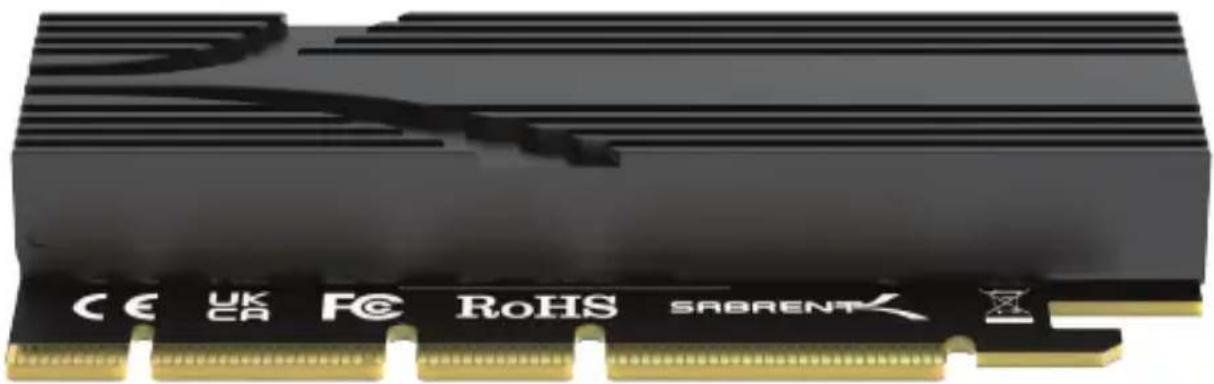
M.2 NVMe SSD TO PCIe X16 TOOL-FREE ADD-IN CARD (AIC) WITH ALUMINUM HEATSINK
natural_image
Close-up of a black 3D RAM module with visible branding and gold contacts (no readable text or symbols beyond branding)EC-TFPE USER MANUAL
SABRENT
EC-TFPE
FEATURES
- Enjoy fast transfer speeds of up to 16GBps (bidirectional) via x4 PCIe 5.0 lanes; backward compatible with 1.0/2.0/3.0/4.0 (forward compatible at up to 5.0 speeds)
- Designed for maximum performance M.2 NVMe SSDs (also compatible with M.2 PCIe AHCI SSDs but not M.2 SATA SSDs)
• Supports M.2 M key form factor SSDs (also compatible with B+M key PCIe SSDs) - Designed for a PCIe x16 physical interface for maximum stability with an x4 PCIe electrical/logical interface (may fit in some x4/x8 PCIe slots)
• Compatible M.2 SSD form factors: 2230 / 2242 / 2260 / 2280
• M.2 NVMe SSD to PCIe x16 Tool-Free Add-in Card
• Heatsink with thermal pad
- User manual
SABRENT

EC-TFPE
INSTALLATION GUIDE
The successful installation and use of this add-in card will depend on the version of your operating system and whether your motherboard is compatible with SSDs over PCIe. In addition, before installing your SSD, make sure your motherboard has the latest BIOS/UEFI update.
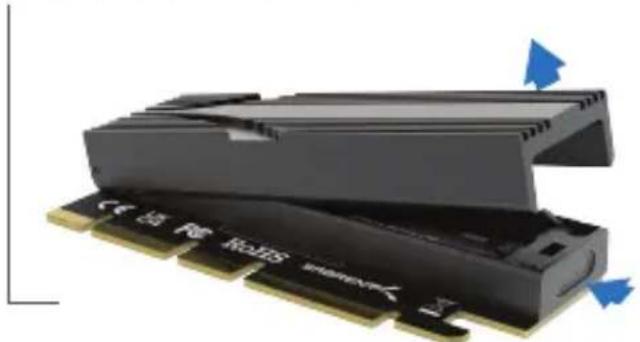
- Open the M.2 SSD heatsink chamber by pressing on the retention button at the end and gently lifting up on the heatsink, preparing it for SSD installation.
natural_image
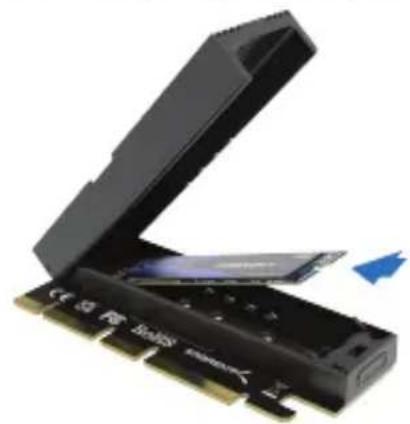
Close-up of a black RAM module with blue directional arrows indicating compression or disassembly (no text or symbols on the device itself)- Insert the SSD at a 45-degree angle until it's fully seated into the M.2 slot.
natural_image
Exterior view of a black BOS card with an open lid and a blue arrow indicating a component (no text or symbols visible)WARNING:
NOT compatible with M.2 SATA-based SSDs
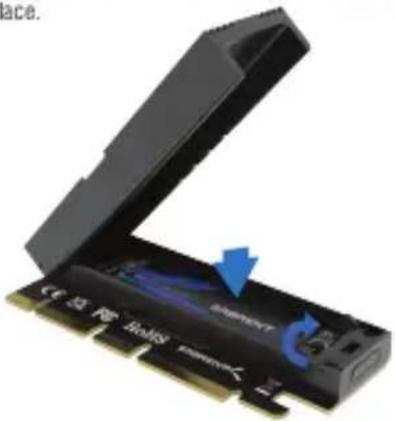
- Press down on the SSD and rotate the retaining clasp to hold the SSD in place.
natural_image
Close-up of a black USB drive with blue scroll wheel and blue directional arrows indicating compression (no text or symbols on the device itself)- Close the heatsink chamber, preparing the add-in card for installation.
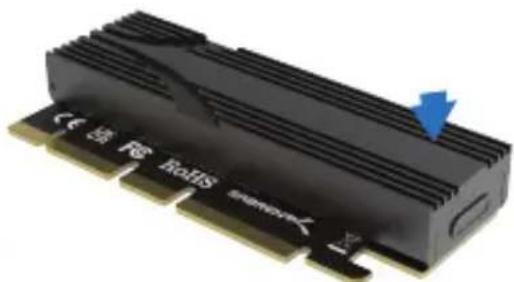
natural_image
Close-up of a black M drive with a blue arrow pointing to the edge (no visible text or symbols)SABRENT

EC-TFPE
- Power down and disconnect your computer's power cord before opening it.
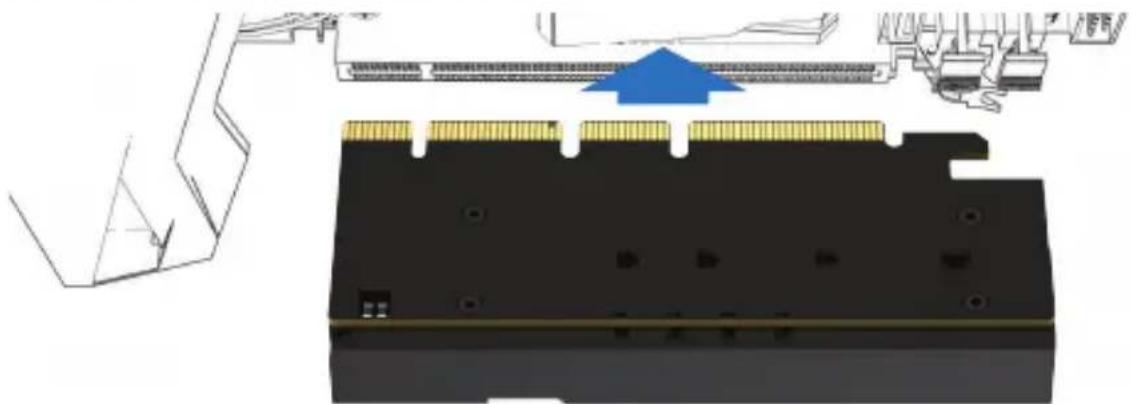
- Open the computer case to install the PCIe card into an empty x16 slot. Press the card firmly, straight down into the slot. Ensure that the card is even, seated fully into the slot, and secured before closing your computer case. At this point, you are done with the physical installation.
- Start your operating system and access your SSD. If your SSD was pre-partitioned and pre-formatted, and your operating system is up to date, you should be able to see the new SSD in your file manager. If you are using a brand new, unused SSD, please open Disk Management (Windows) or Disk Utility (macOS), or your preferred partition manager to format and mount it for use.
natural_image
Technical diagram showing a mechanical assembly with a blue arrow indicating a process or operation, no visible text or symbols.4
SABRENT
EC-TFPE
TROUBLESHOOTING
Note: Please bear in mind that this may be a difficult item to troubleshoot because its operation depends on the hardware and software of the host system, which is out of our control.
- If you are using Windows 7 or 8 you will need to update your operating system or can download and install Microsoft's respective hotfix for NVMe SSDs. Please visit Microsoft's website for further instructions.
- If after installation you get a yellow exclamation mark under the Device Manager, you may need to get an additional driver from your SSD's manufacturer.
- If you are installing a brand new SSD you may need to initialize, format, partition, and assign a drive letter to the SSD before use. Please visit Microsoft's website for further instructions on using Disk Management for this process.
- In some cases, the computer's BIOS or UEFI will have to be set to AHCI in order for the operating system to detect the SSD. Moreover, the motherboard itself has to be compatible with and capable of accepting PCIe SSDs and may need additional support for booting from NVMe. For further information, check your motherboard manual or contact the motherboard/system manufacturer. For additional troubleshooting, please contact us at support@sabrent.com.
SABRENT
Please contact our Technical Support Team for additional troubleshooting
WWW.SABRENT.COM
Brand : Sabrent
Model : EC-TFPE
Category : Uncategorized