
Portable Photo Printer - Printer Sharper Image - Free user manual and instructions
Find the device manual for free Portable Photo Printer Sharper Image in PDF.


| Product Type | Portable Photo Printer |
| Brand | Sharper Image |
| Model | Portable Photo Printer |
| Print Technology | ZINK (Zero Ink) Technology |
| Print Resolution | 300 x 300 dpi |
| Paper Size | 2 x 3 inches |
| Connectivity | Bluetooth 4.0 |
| Power Source | Rechargeable lithium-ion battery, USB charging (Micro-USB) |
| Battery Capacity | 1000 mAh |
| Dimensions | 5.0 x 3.0 x 1.5 inches |
| Weight | 0.5 lbs (225 g) |
| Paper Capacity | 10 sheets |
| Print Speed | Approximately 60 seconds per photo |
| Supported Media | ZINK photo paper with adhesive backing |
| Compatibility | iOS (9.0+) and Android (5.0+) via dedicated app |
| Features | Borderless printing, multiple print settings via app |
| Maintenance | Clean exterior with soft dry cloth; use only ZINK paper |
| Safety | Keep away from moisture and heat; small parts choking hazard |
| Spare Parts and Repairability | Not user-serviceable; contact Sharper Image support |
| Warranty | 1-year limited warranty |
Frequently Asked Questions - Portable Photo Printer Sharper Image
User questions about Portable Photo Printer Sharper Image
0 question about this device. Answer the ones you know or ask your own.
Ask a new question about this device
Download the instructions for your Printer in PDF format for free! Find your manual Portable Photo Printer - Sharper Image and take your electronic device back in hand. On this page are published all the documents necessary for the use of your device. Portable Photo Printer by Sharper Image.
USER MANUAL Portable Photo Printer Sharper Image
SHARPER IMAGE®
PORTABLE PHOTO PRINTER BY SHARPER IMAGE


Thank you for purchasing the Portable Photo Printer by Sharper Image. Please read this guide and store it for future reference.
-1--2--3--4-
Note: This printer has a built-in battery. Charge the printer before using.
HOW TO CHANGE CARTRIDGE

INSTALLATION
Android devices
YPE *NFC Support for Android devices only
1. Turn NFC on in your smartphone
2. Turn the printer on by pressing the new button
3. Tag the phone icon on the top of the printer. The Google Play Store
app installation page will show up
4. Install the app on your smartphone from the store

B TYPE
-
Go to the Google Play Store on your smartphone
-
Search "SI Smartphone Printer"
-
Install SI Smartphone Printer on your smartphone
APPLE DEVICES
-
Go to the App Store on your iPhone, iPad touch or iPad
-
Search "SI Smartphone Printer
-
Install "SI Smartphone Printer" on your smartphone
CONNECTING TO PRINTER
Wi-Fi Access Point [AP] *Apple and Android devices
-
Turn on Wi-Fi on your smartphone
-
Go to Wi-Fi settings and find "SI Smartphone Printer" *Printer
Names may vary. They are alphanulment and 4 characters long.
(1) Select the Wi-Fi network
- 2017, the 4th National and Southern States
NFC and Wi-Fi Direct *NFC, Wi-Fi Direct support devices only
1. Turn on NFC and Wi-Fi on your smartphone *Set the NFC setting
as P2P mode
2. Tap your device on the printer where the logo is
3. Within 20 seconds the app will automatically on
- Within 10 seconds this app will automatically connect to WT-11 Direct

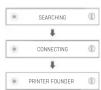
USING THE APP
With the SI Smartphone App, you can edit and print digital photos right
from your mobile device, without a computer.


-
Make sure you charge the printer before you use it.
-
Turn on the printer
- Select an image from your gallery that you wish to print
- Once image has been selected, you can crop, adjust and edit the image in the app.
- Press the print button when editing is completed. It will take about a minute to fully print your photo. Please do not pull the photo until it is completely printed.
NOTE: When you print for the first time, this device may need to update its firmware. Please follow the instructions shown on the screen of your smartphone.
NOTE: Due to continuous improvement of our products and apps, some images or instructions may vary slightly from this guide. Download the most recent user guide at SharperImage.com.
LED INDICATORS
| STATUS | |
| POWER ON | WHITE |
| POWER OFF (SEQ) | OFF |
| PRINTING | WHITE FLICKERING |
| F / W USPRADE | PINK FLICKERING |
| NO CARTRIDGE | RED FLICKERING |
| ERROR (PAPER JAM, ETC.) | RED FLICKERING |
| WAITING / COOLING | WHITE |
CHARGING LIGHTS
| STATUS | |
| CHARGING | RED |
| CHARGING COMPLETE | GREEN |
TROUBLESHOOTING
| SYMPTON | CAUSE / SOLUTION |
| PAPER JAM | POWER OFF AND POWER ON AGAIN, PAPER WILL BE AUTOMATICALLY ELECTED. IF NOT, PLEASE CONTACT CUSTOMER SERVICE. |
| IMAGE QUALITY IS NOT GOOD | PRINT QUALITY COULD BE LESS IF YOUR PHOTO SOURCE HAS LOW RESOLUTION. OVER 1280 X 2448 PIXELS IS RECOMMENDED FOR BEST IMAGE QUALITY |
| PRINTER IS NOT RESPONDING | PRESS RESET BUTTON WITH A SHARP TOOL LIKE A PIN. |
WARRANTY / CUSTOMER SERVICE
This item from SharperImage.com includes a 1-year limited replacement warranty. If you have any questions not covered in this guide, please call our Customer Service department at 1 [877] 210-3449. Customer Service agents are available Monday through Friday, 9:00 a.m. to 6:00 p.m. ET.
SHARPER IMAGE
The SHARPER IMAGE® name and logo are registered trademarks.
-5
Brand : Sharper Image
Model : Portable Photo Printer
Category : Printer